
Log Requests Approval
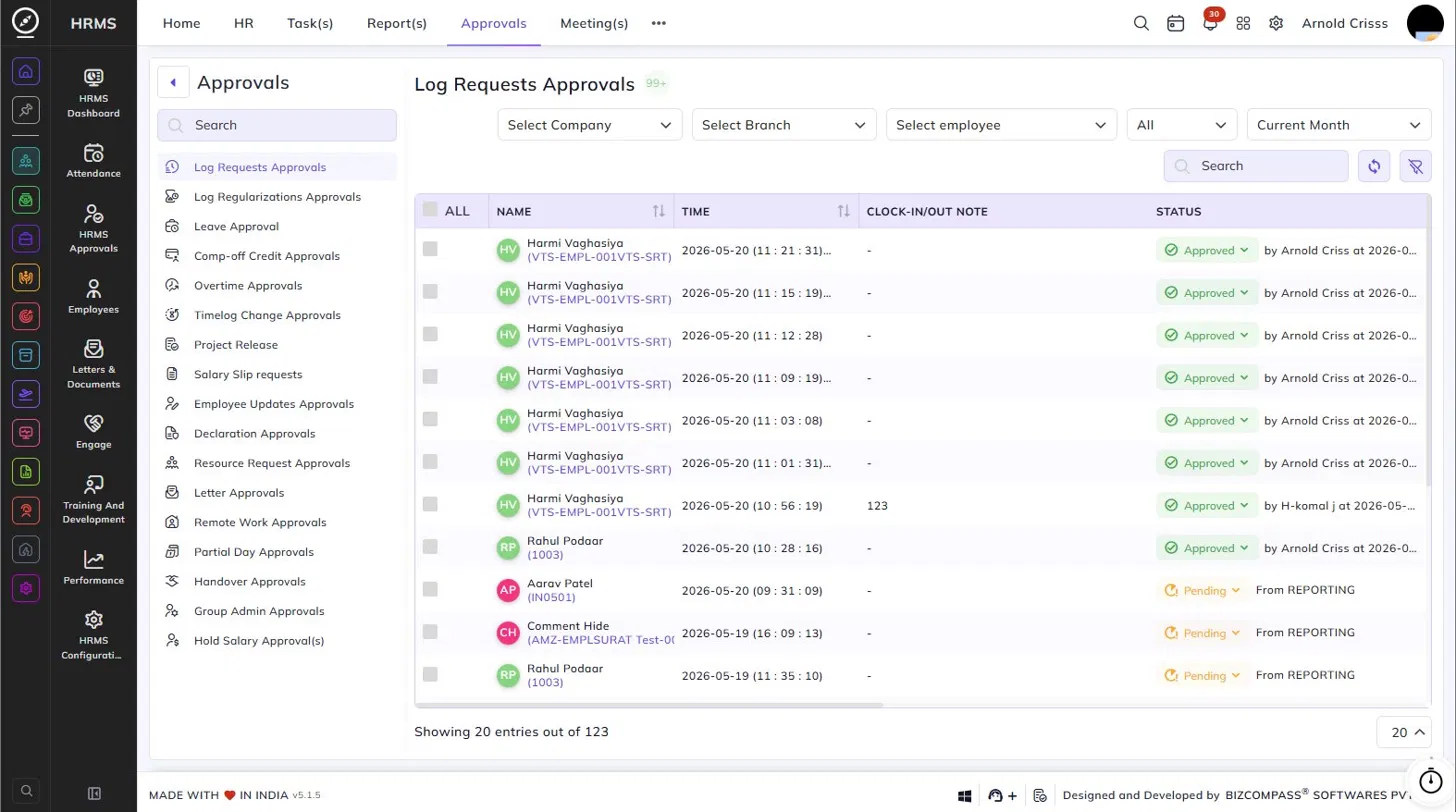
The Log Requests Approvals page allows administrators and managersorganization to review and act on attendance log requests submitted by employees. To navigate here, go to Approvals (from the top bar)->Log Requests Approvals.
This page displays log requests that are considered invalid, either by invalid IP or by invalid location. If the organization has configured approval for all log requests, they will also be displayed here.
The organization can review and manage these approval requests by verifying the actual location captured at the time of the log entry. It can also review the IP address, especially when the request originates from outside the organization's allowed IP range.
Based on the organization's configuration, log requests may include the employee's captured photo, location, IP address, and log entry timestamp, allowing the organization to review and approve or reject the request effectively.
Use the Company, Branch, Employee, Status (All/Pending/Approved), and Date filters at the top to narrow down the list.
Table Columns:
Each log request entry displays the following details:
- Name – The employee's name and employee code.
- Time – The clock-in or clock-out time recorded for the log.
- Clock-In/Out Note – Any note added by the employee at the time of clocking in or out.
- Late Reason – The reason provided if the employee was late.
- Invalid Log Reason – The reason submitted by the employee for the invalid or missing log.
- Attendance – Click the icon to view the selfie captured by the employee at the time of marking attendance.
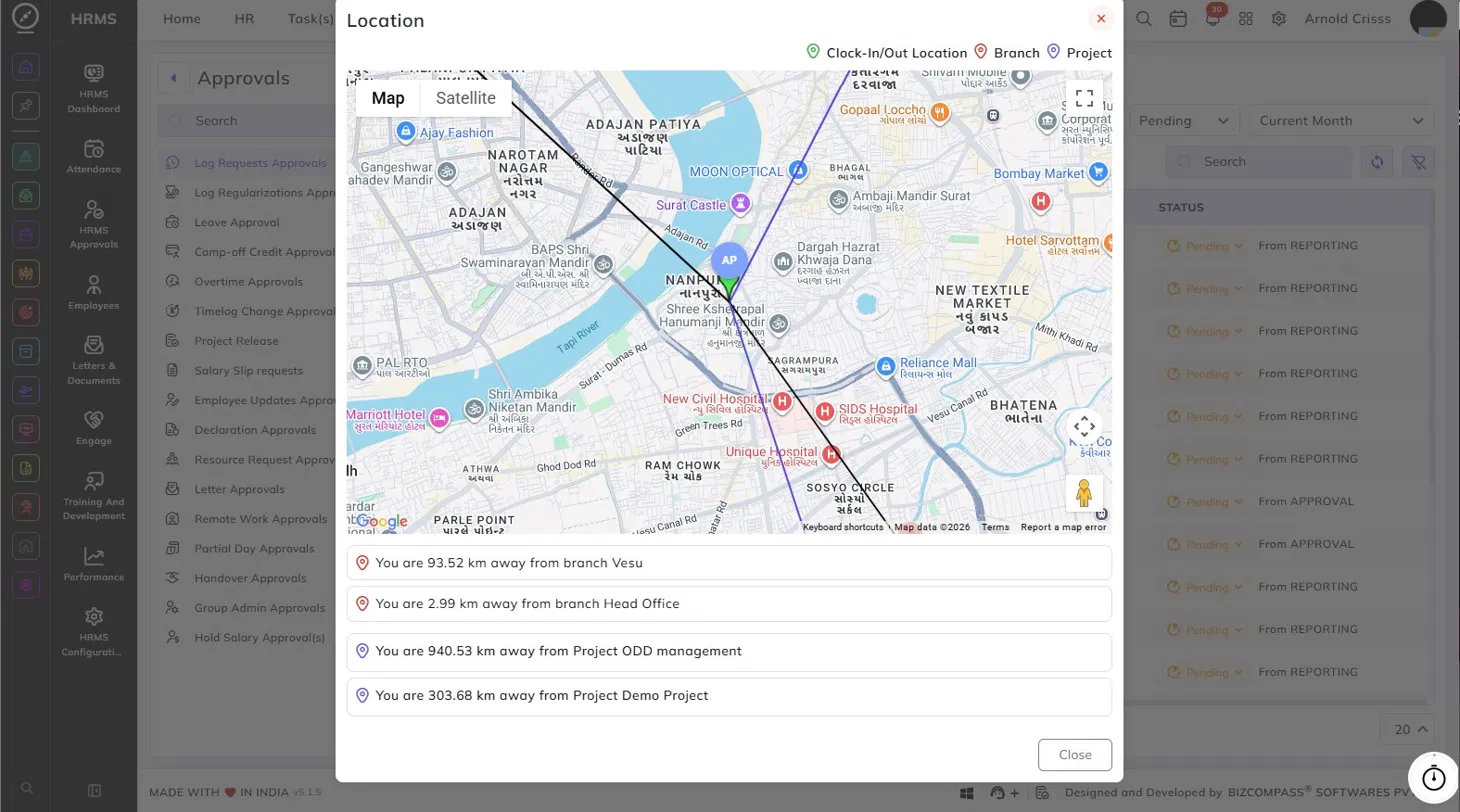
- Location – Click the location icon to open a map showing the employee's clock-in/out location. The map displays three pins — the employee's clock-in/out location, the branch location, and the project location — and lists the distance between the employee's location and each branch and project assigned to them.
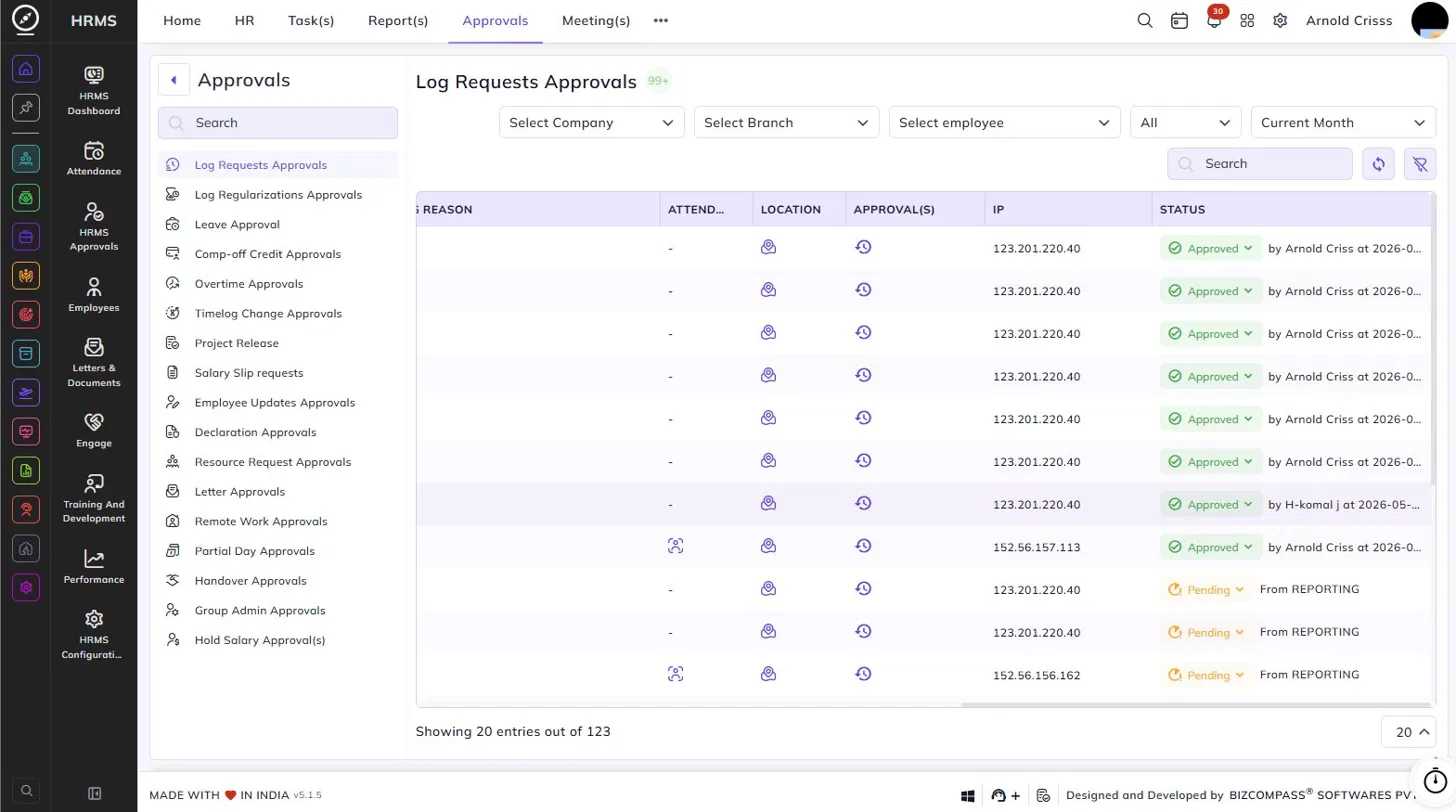
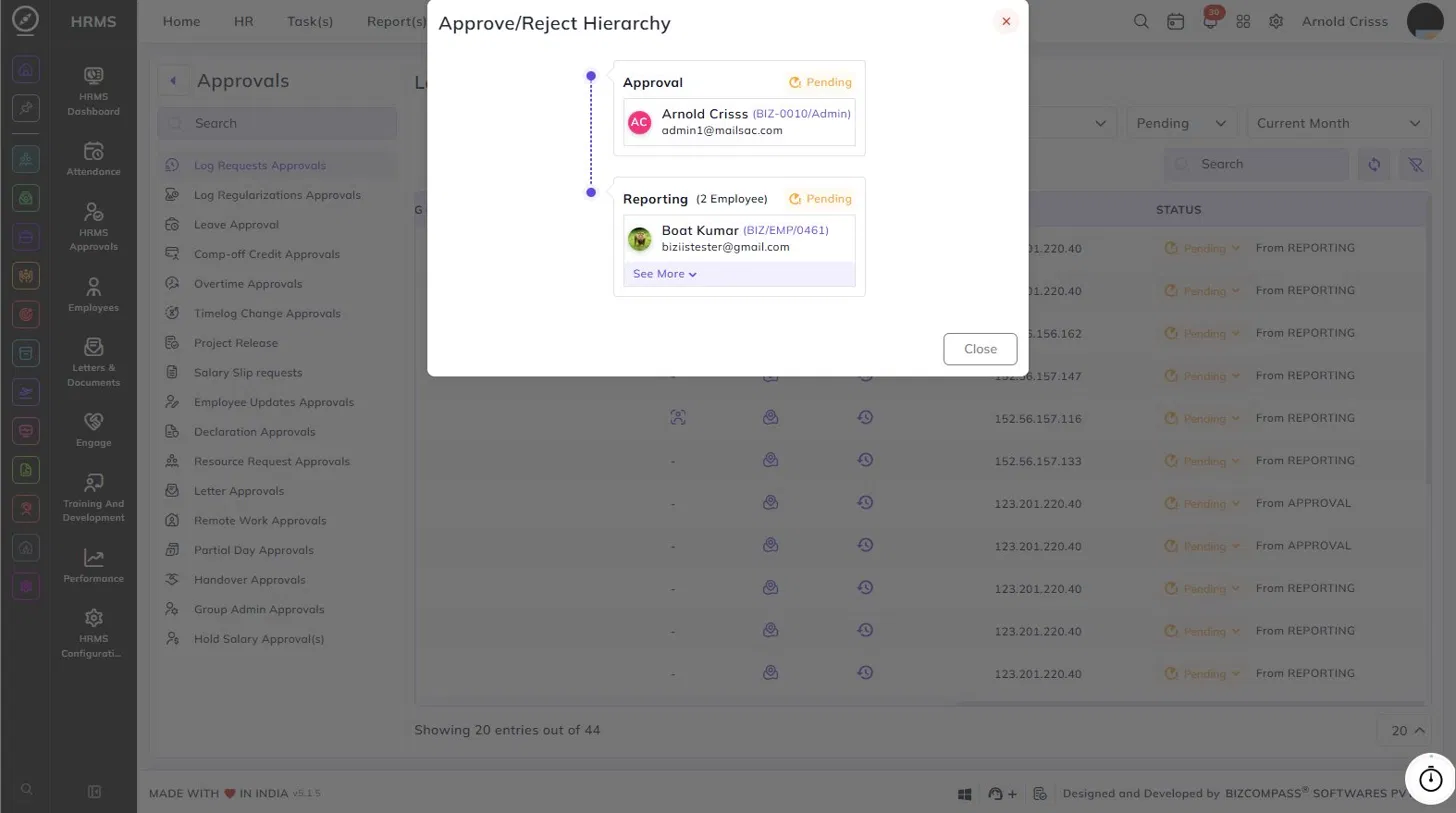
- Approval(s) – Click the history icon to view the Approve/Reject Hierarchy for that request. This shows the full approval chain, including each approver's name, employee code, email, and current status (Pending or Approved), as well as the reporting chain with the number of employees involved.
- IP – The IP address from which the attendance was marked.
- Status – The current status of the request — Approved (with the approver's name and timestamp) or Pending (with the source, such as From REPORTING or From APPROVAL). Click the status dropdown on any pending entry to approve or reject it directly from the list. You can also select multiple entries using the checkboxes and perform bulk actions.
Note: If the Approval Required For Log Entries option is enabled in the General Settings, its approval requests will also go to this page.