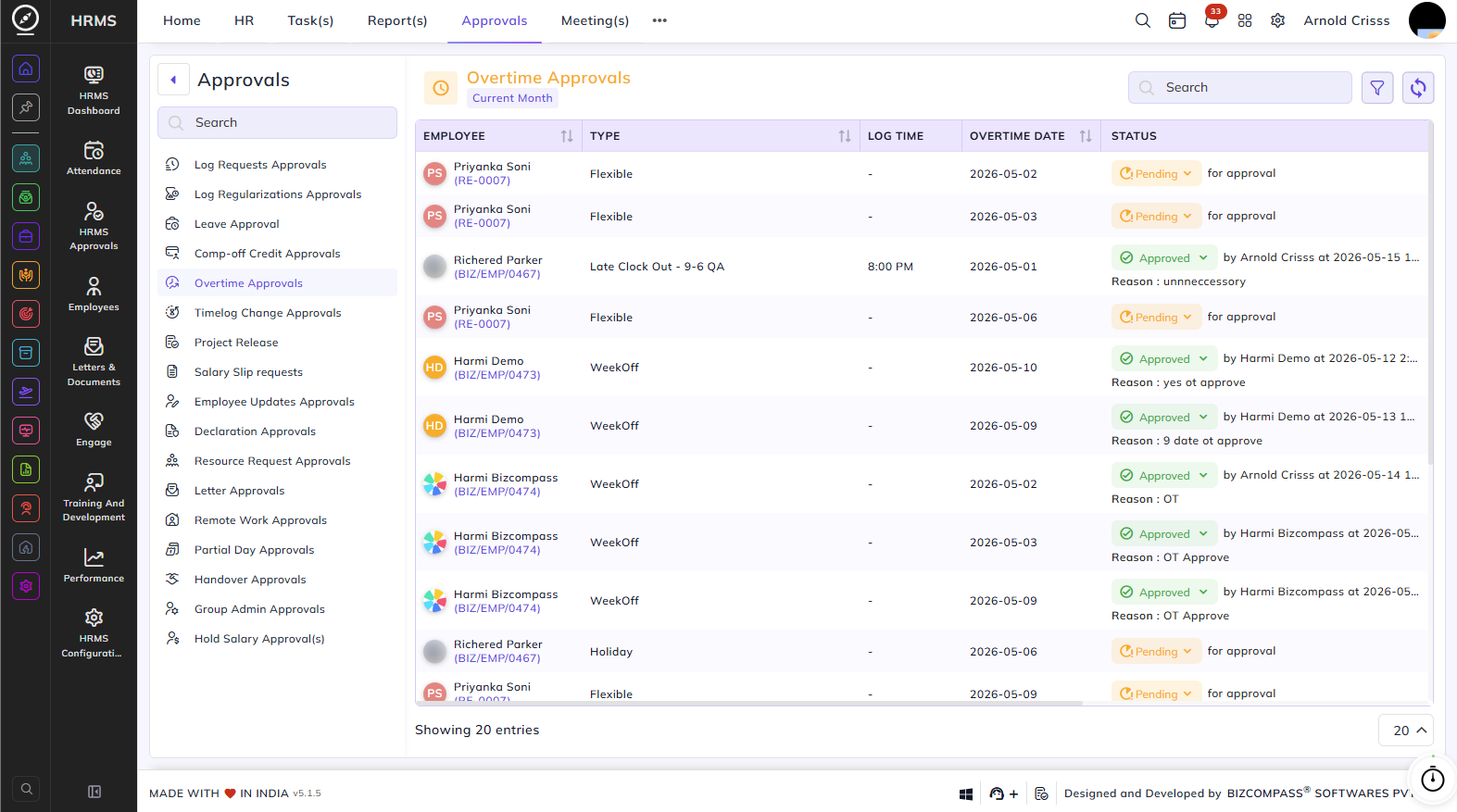
Overtime Approvals
The Overtime Approvals page lists all overtime entries recorded by employees that require review and approval. To navigate here, go to Approvals->Overtime Approvals.
Use the filter icon to expand the filter panel, which includes Date, Employee, Company, Branch, Status, and Project filters. Click Apply to load the filtered results.
Table Columns:
Each overtime entry displays the following details:
- Employee – The employee's name and employee code.
- Type – The type of overtime, such as Flexible, Week Off, Holiday, or Late Clock Out with the shift name.
- Log Time – The clock-out time recorded for the day, if applicable.
- Overtime Date – The date on which the overtime was worked.
- Minute(s) – The total overtime duration in minutes.
- Approved Minute(s) – The number of overtime minutes approved by the approver. This may differ from the total minutes if the approver approves only a portion of the overtime.
- Task(s) – Click the view icon to see the tasks the employee worked on during the overtime period.
- History – Click the view icon to see the approval history for that overtime entry.
- Status – The current status — Approved (with the approver's name, timestamp, and reason) or Pending (showing "for approval").
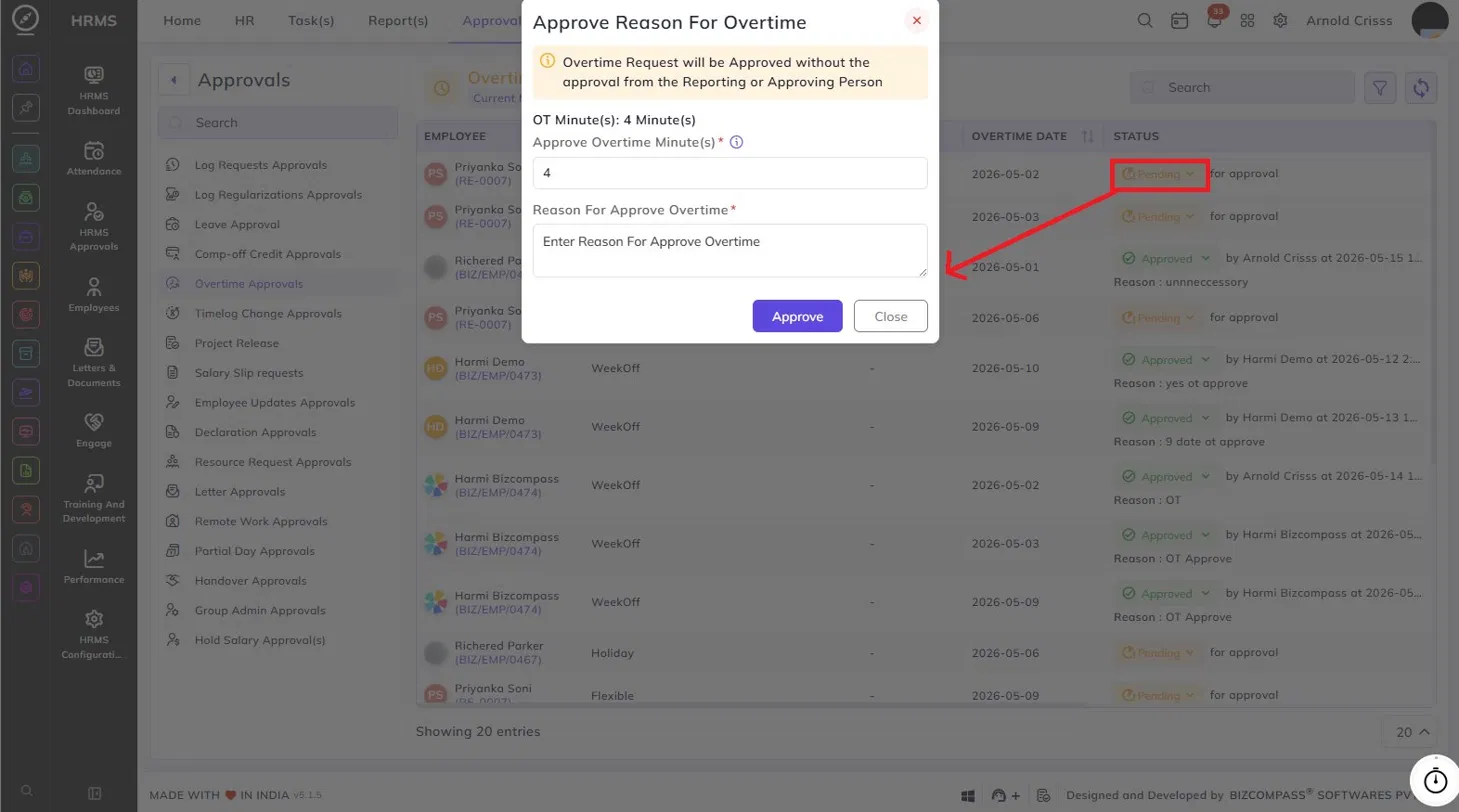
Approving Overtime:
Click the Pending status dropdown on an entry and select Approve to open the Approve Reason For Overtime dialog. This shows the total overtime minutes and allows you to enter the number of minutes to approve (which can be less than the total) along with a mandatory reason. A note indicates that the approval will be processed without requiring the reporting or approving person's confirmation. Click Approve to confirm.
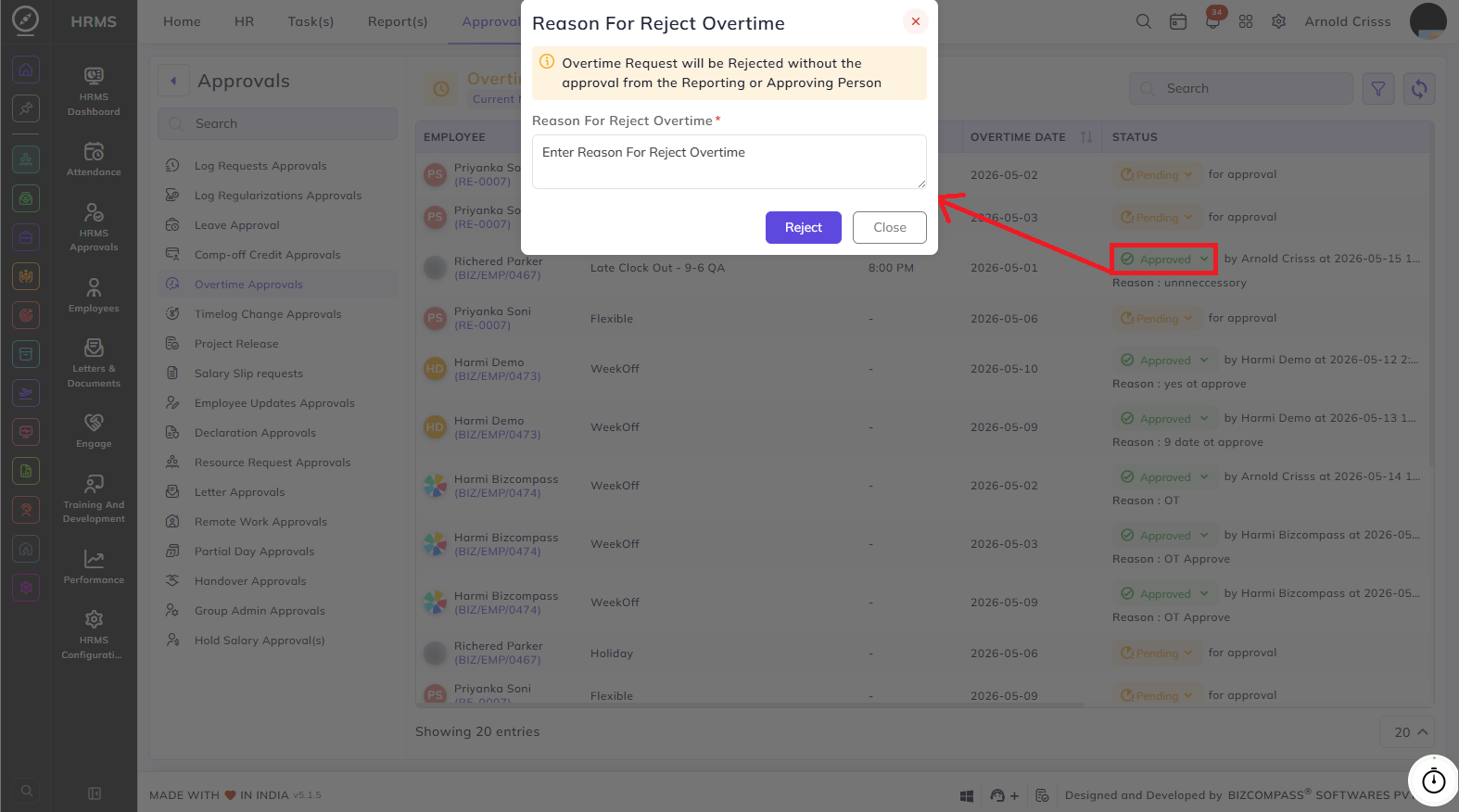
Rejecting Overtime:
Click the Pending status dropdown and select Reject to open the Reason For Reject Overtime dialog. Enter a mandatory reason for the rejection and click Reject to confirm. Similar to approval, the rejection is processed directly without requiring additional confirmation from the reporting chain.