Asset Audits
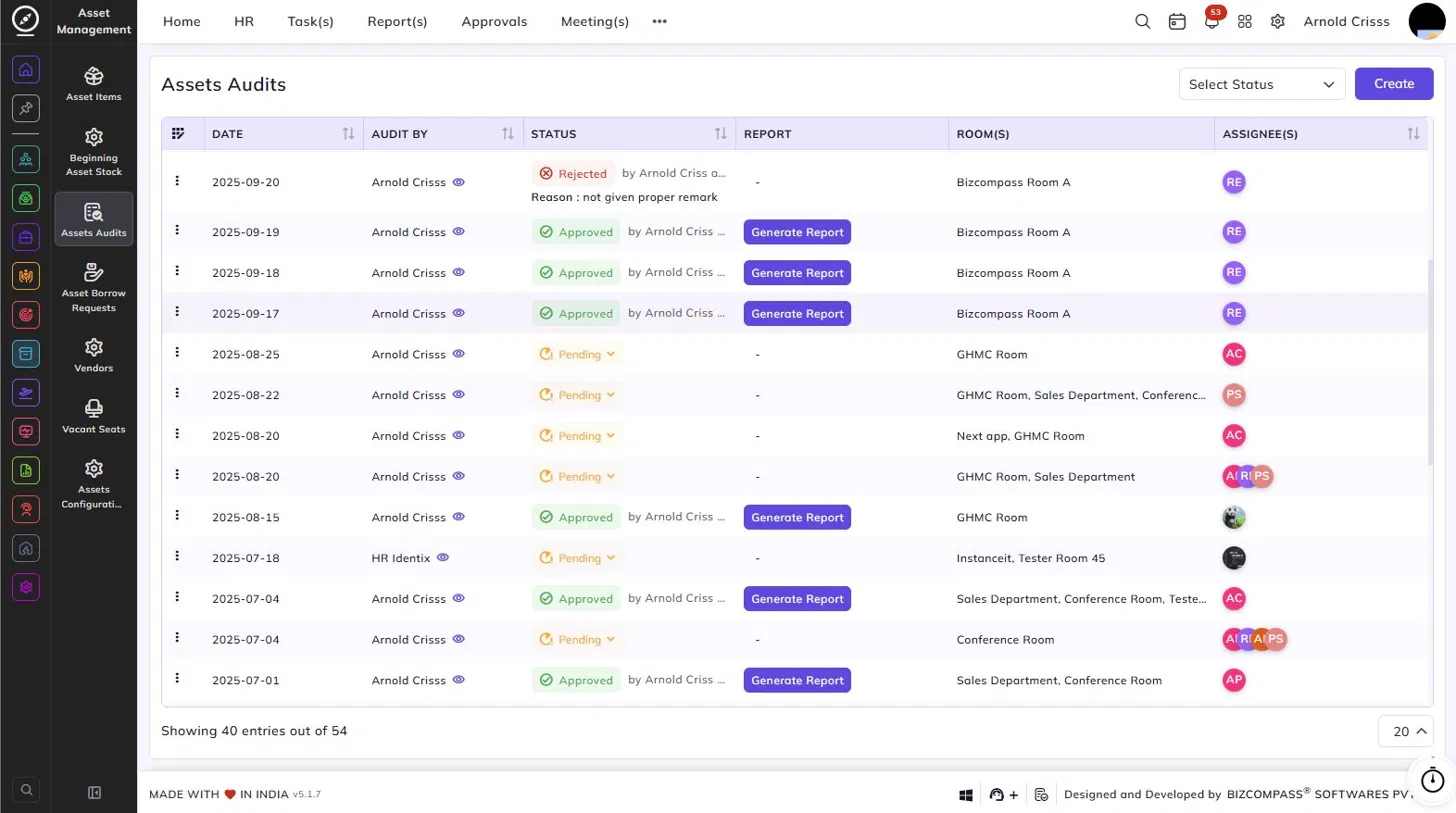
This page is used to schedule and track physical audits of asset rooms.
The list shows each audit's Date, Audit By, Status, Report, Room(s), and Assignee(s). You can filter the list by status using the Select Status dropdown at the top right.
Each audit entry can have one of the following statuses:
- Approved – The audit has been reviewed and approved. A Generate Report button is available to download the audit report.
- Pending – The audit is awaiting review.
- Rejected – The audit was rejected with a reason displayed below the status.
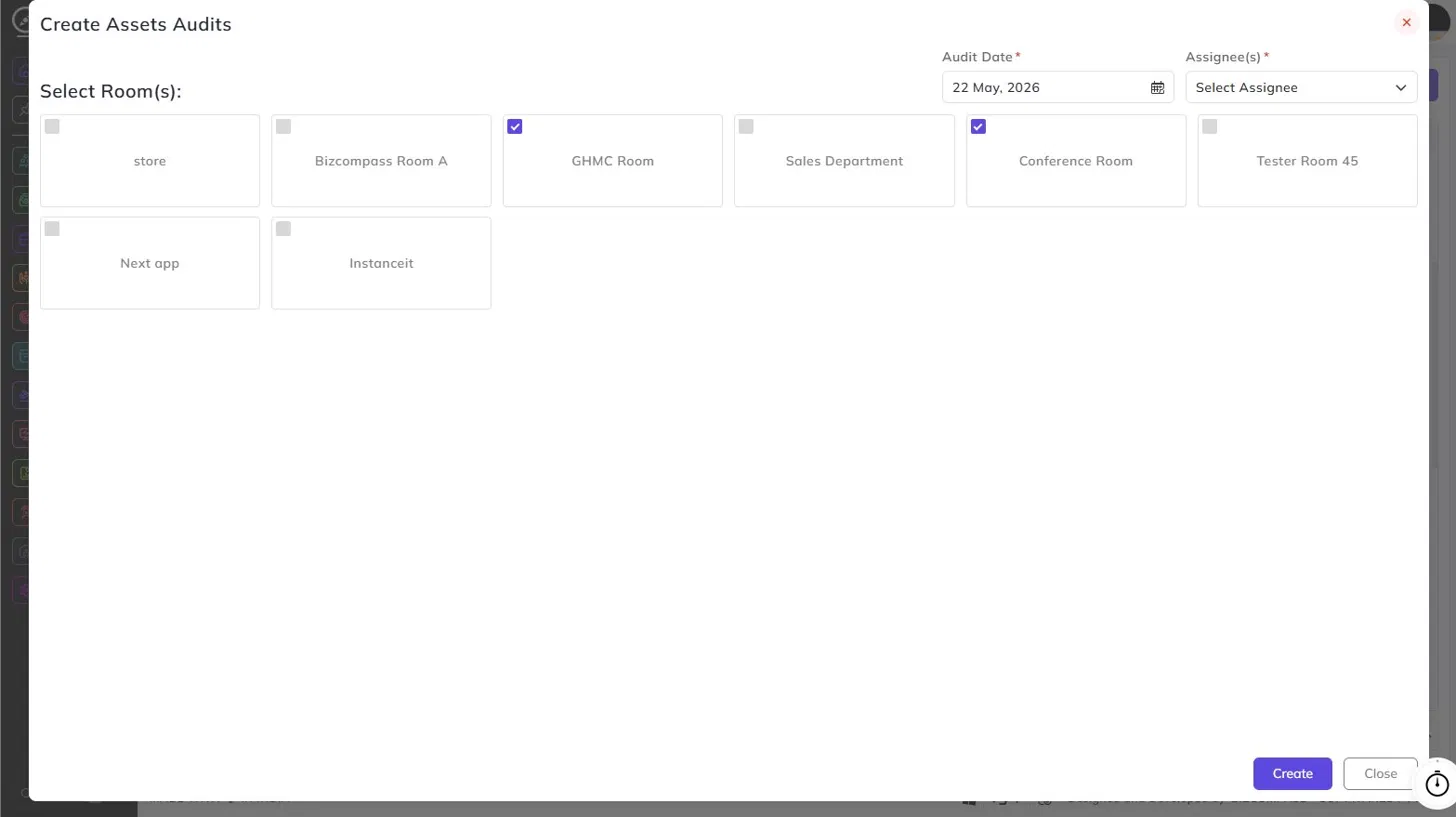
Creating an assetsAssets audit:Audit:
Click the Create button at the top right to open the Create Assets Audits dialog. Fill in the following:
- Audit Date: Select the date on which the audit will be conducted.
- Assignee(s): Select the employee(s) responsible for conducting the audit.
- Room(s): Select one or more rooms to be audited by checking the boxes on the room cards.