
Floors, Rooms & Seats
Floors:
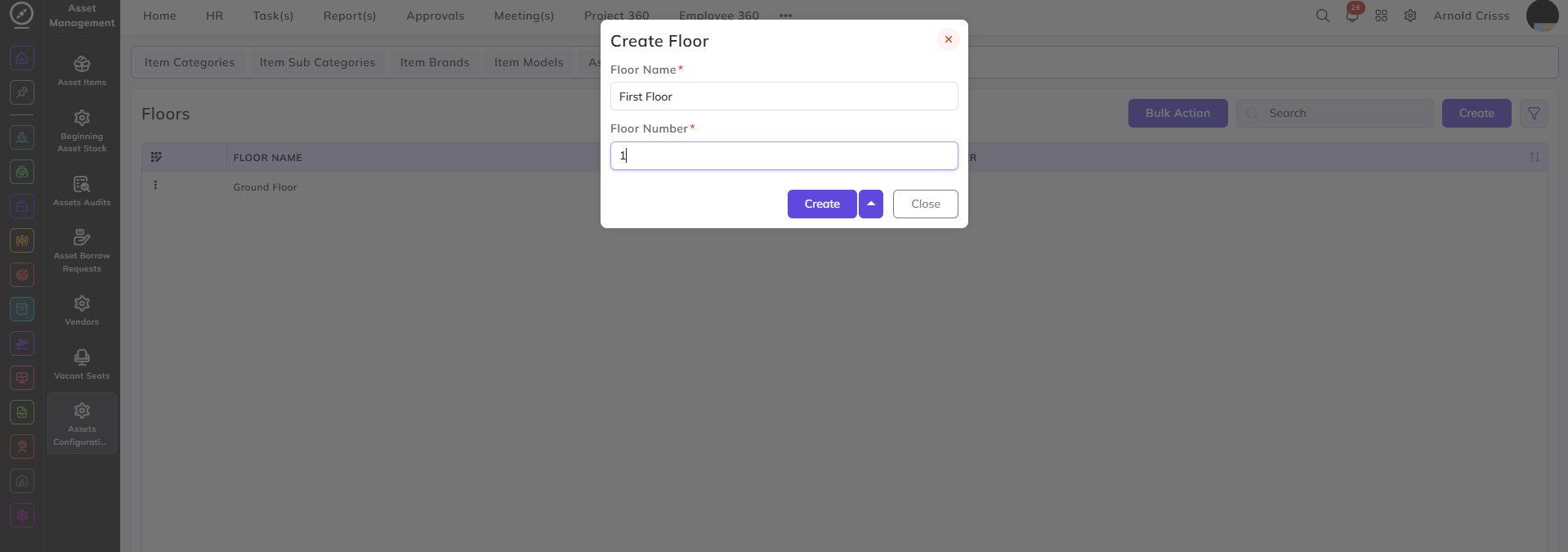
From this page, you can create floors for rooms.
- Enter the Floor Name and Floor Number to create a floor.
With the Bulk Action feature, you can delete multiple floors at once, streamlining the process.
Rooms:
This page is used to create rooms.
- Enter the Room Name (for example, Conference).
- Select the Company and Branch for the room.
- Optionally, select the floor for the room.
- Select Bookable if the room can be used for meetings. If the room is bookable, set the Buffer Time.
This adds extra time before and after each meeting (for example, 10 minutes). - Select Store Room if the room is used for storage.
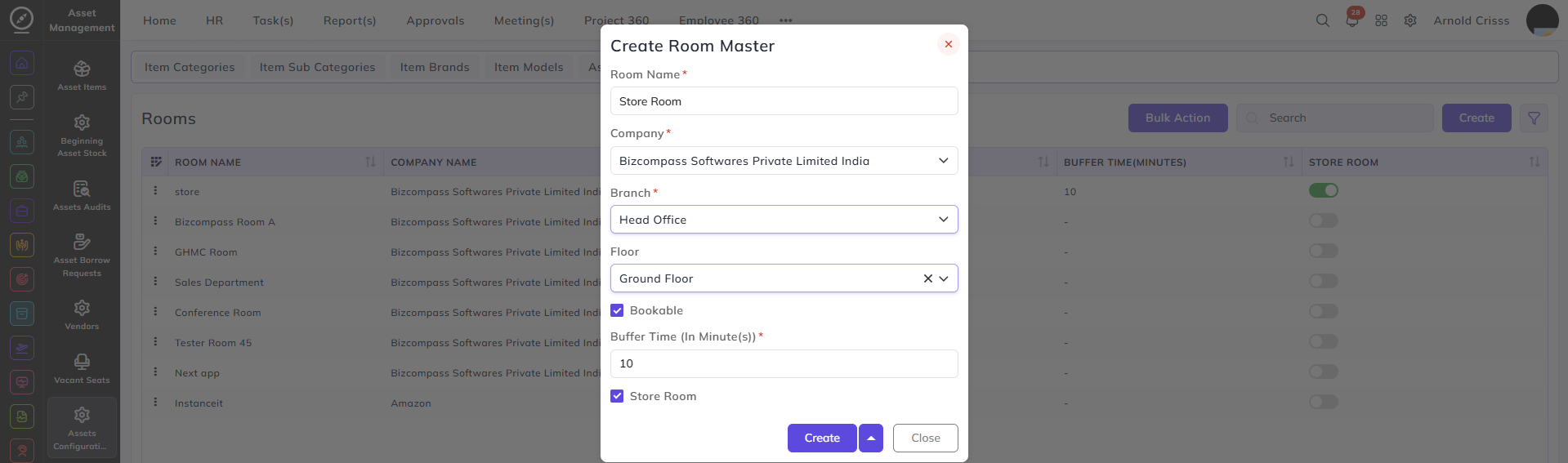
The Bookable and Store Room flag options can be edited after creating the room as well.
With the Bulk Action feature, you can delete multiple rooms at once, streamlining the process.
Seats:
This page is used to create seats for rooms.
You can create seats in two ways:
-
By range
-
Individually
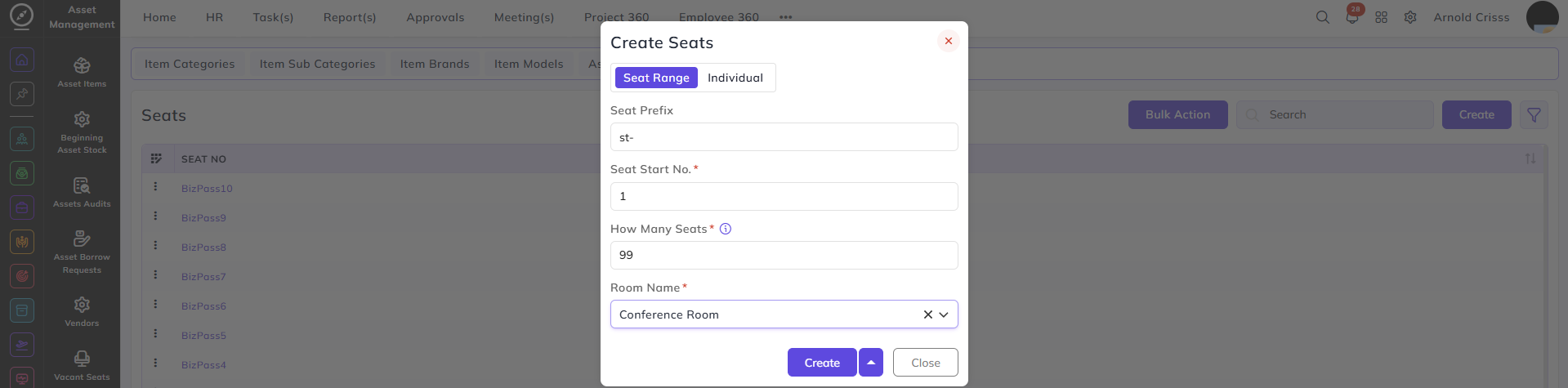
To create seats by range:
-
Enter the Seat Prefix (for example:
Seat-) -
Enter the Start Number (for example:
1) -
Enter the Total Seats (for example:
5) -
Select the Room (for example: Developer Room)
This will create:
-
Seat-1
-
Seat-2
-
Seat-3
-
Seat-4
-
Seat-5
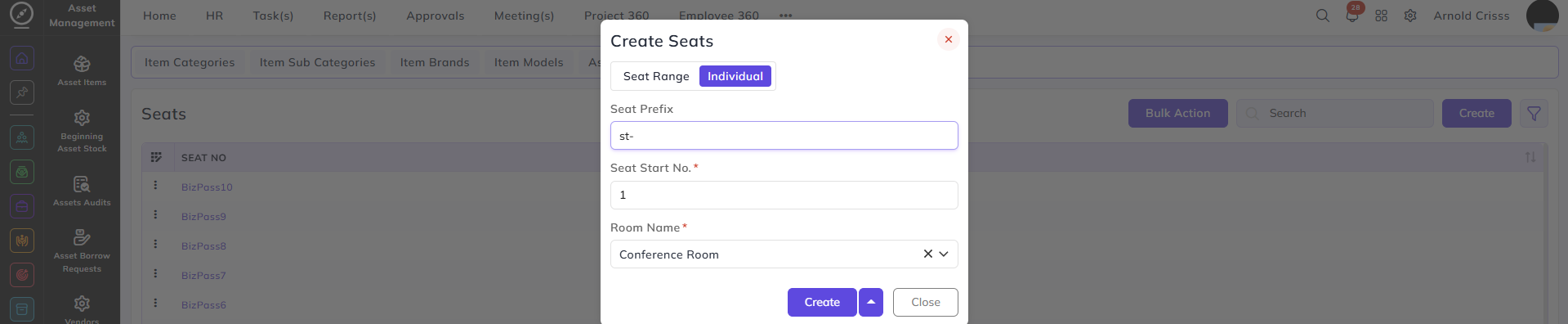
To create a seat individually:
-
Enter the Seat Number
-
Select the Room
- Create the seat
With the Bulk Action feature, you can delete multiple seats at once, streamlining the process.