
Item Sub Categories
We have already created the Item Categories.
Now we will create the Item Sub Categories.
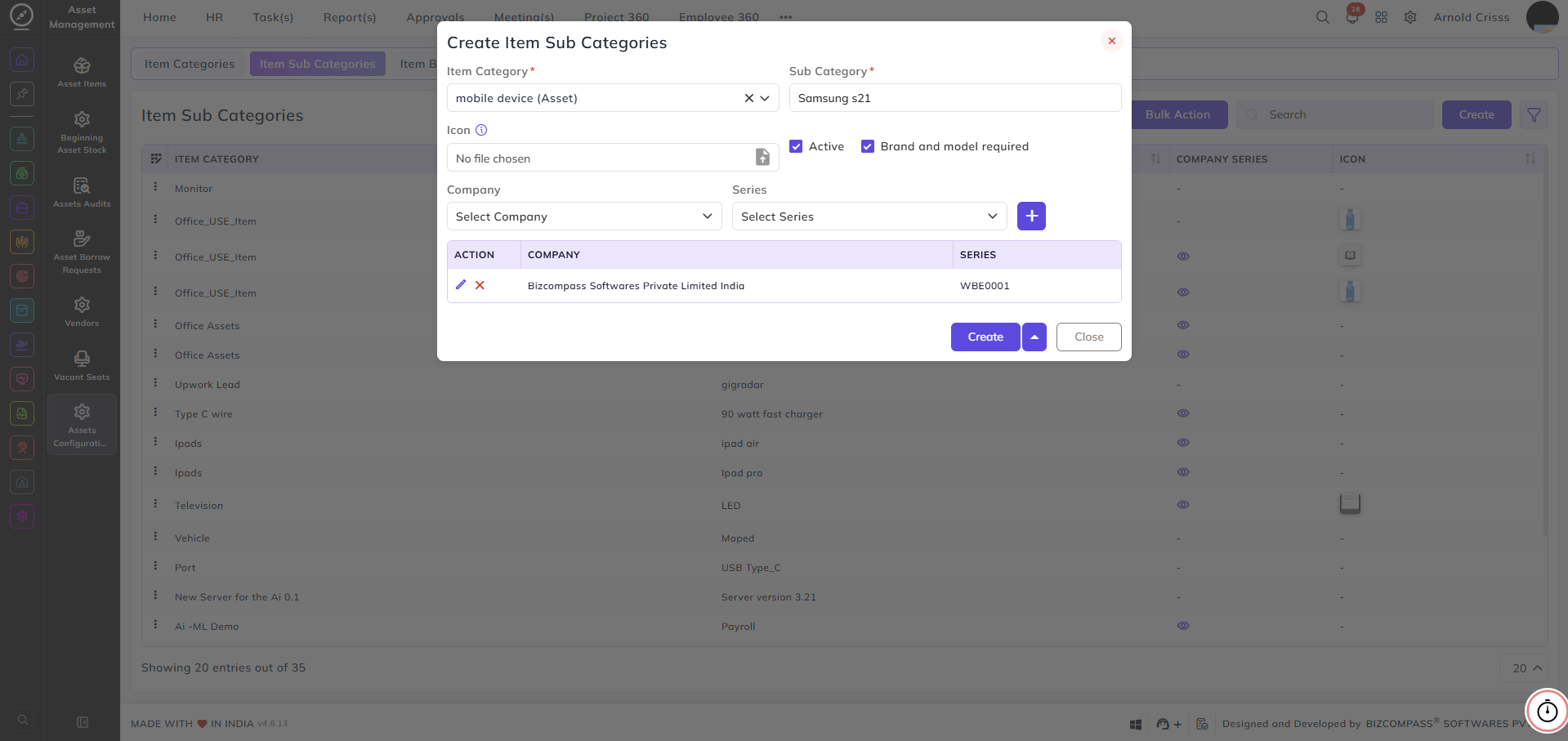
First, select the Item Category (for example, Office Asset).
Enter the subcategory name, such as:
-
Monitor
-
CPU
-
Keyboard
-
Mouse
Select an icon for the subcategory.
Choose whether the subcategory is active or inactive.
Select whether Brand and Model are required when creating an item.
Select the company.
Based on the selected company, choose the series and the series will define the asset id for those assets.
The subcategory is created using:
-
Subcategory name
-
Item category
-
Company
-
Series
With the Bulk Action feature, you can delete multiple item sub categories at once, streamlining the process.