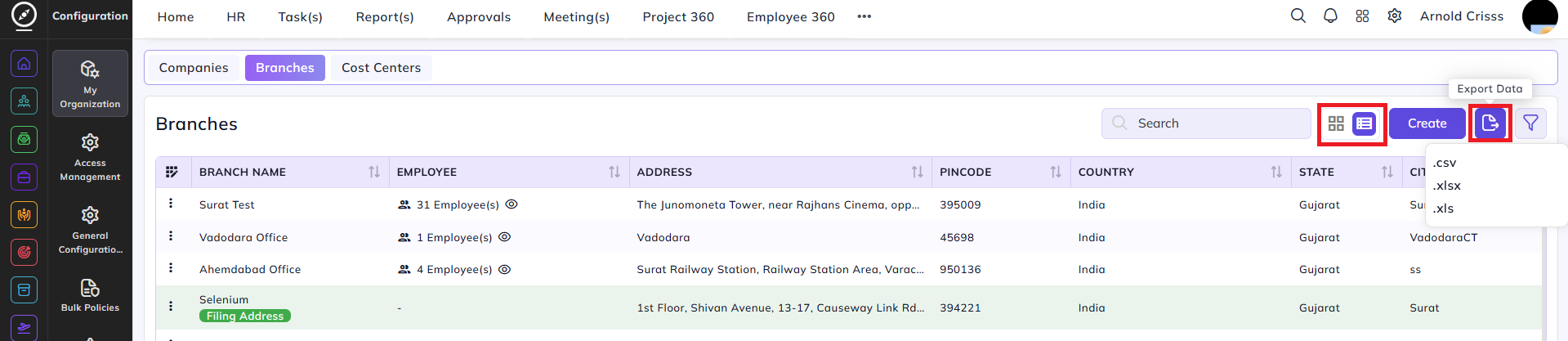
Branches
The Branches page allows you to manage specific office locations within your organization. These branch profiles are essential for the HRMS module to accurately assign employees to their respective physical workplaces and track location-based attendance.
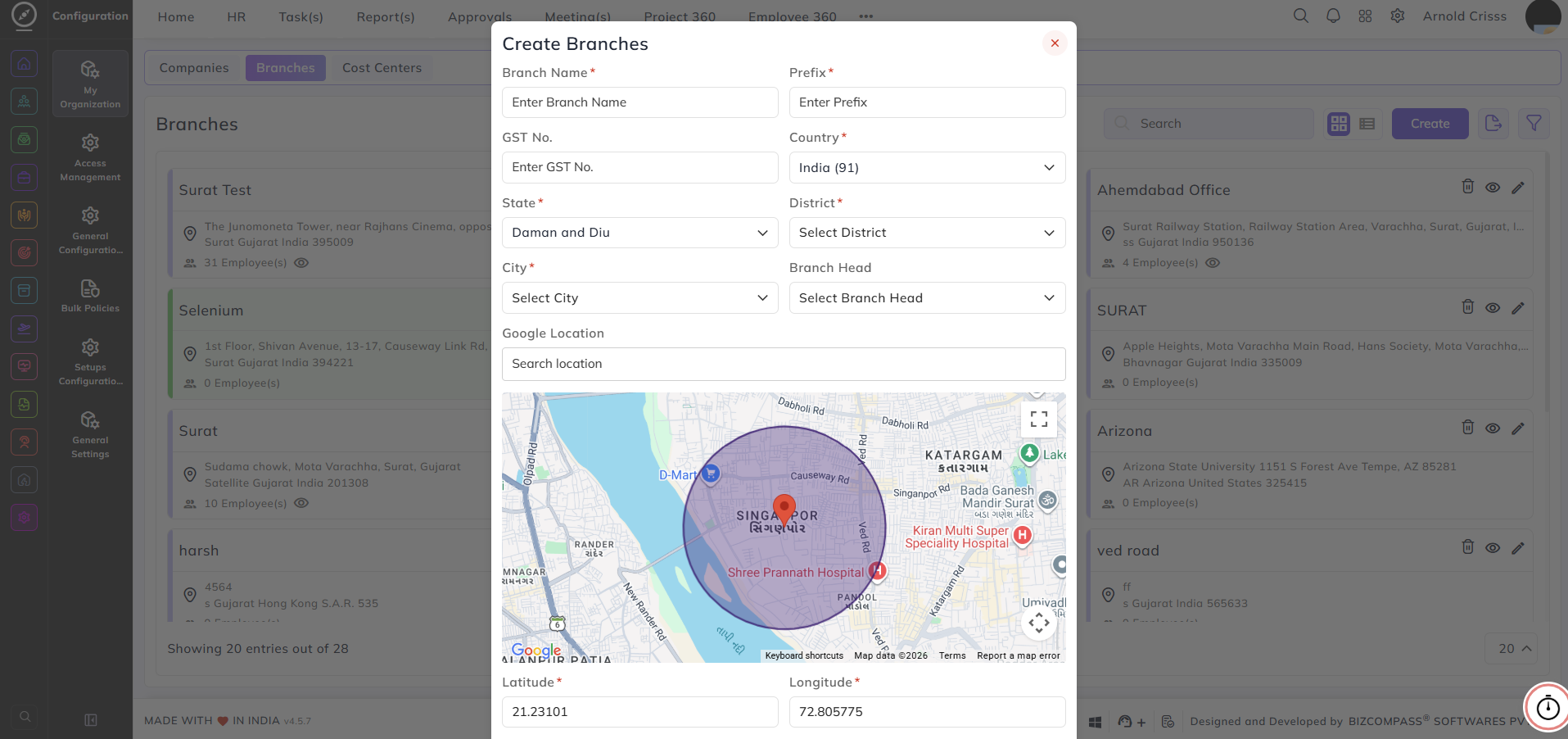
Create Branches:
-
Enter the Branch Name and the Prefix used for branch-specific document numbering.
-
Input the GST No. and select the Country, State, District, and City.
-
Assign a Branch Head to lead the operations for this specific location.
-
Use the Google Location search or the interactive map to precisely pin the branch office.
-
Verify the Latitude and Longitude (automatically populated via the map).
-
Enter the Clock-In Range (In meter) to define the geofencing radius for employee attendance.
If an employee clocks in outside of this range, he/ she will get a pop up that their location is invalid and how far they are from the defined range.
-
Input the Pin code and verify the full physical Address (automatically fetched from the map) of the branch.
-
Enable the Default series checkbox if this branch should follow the primary organizational numbering sequence.

You can also export this data in .csv, .xlsx, and .xls formats as well as view the branches in list view or tiles view.