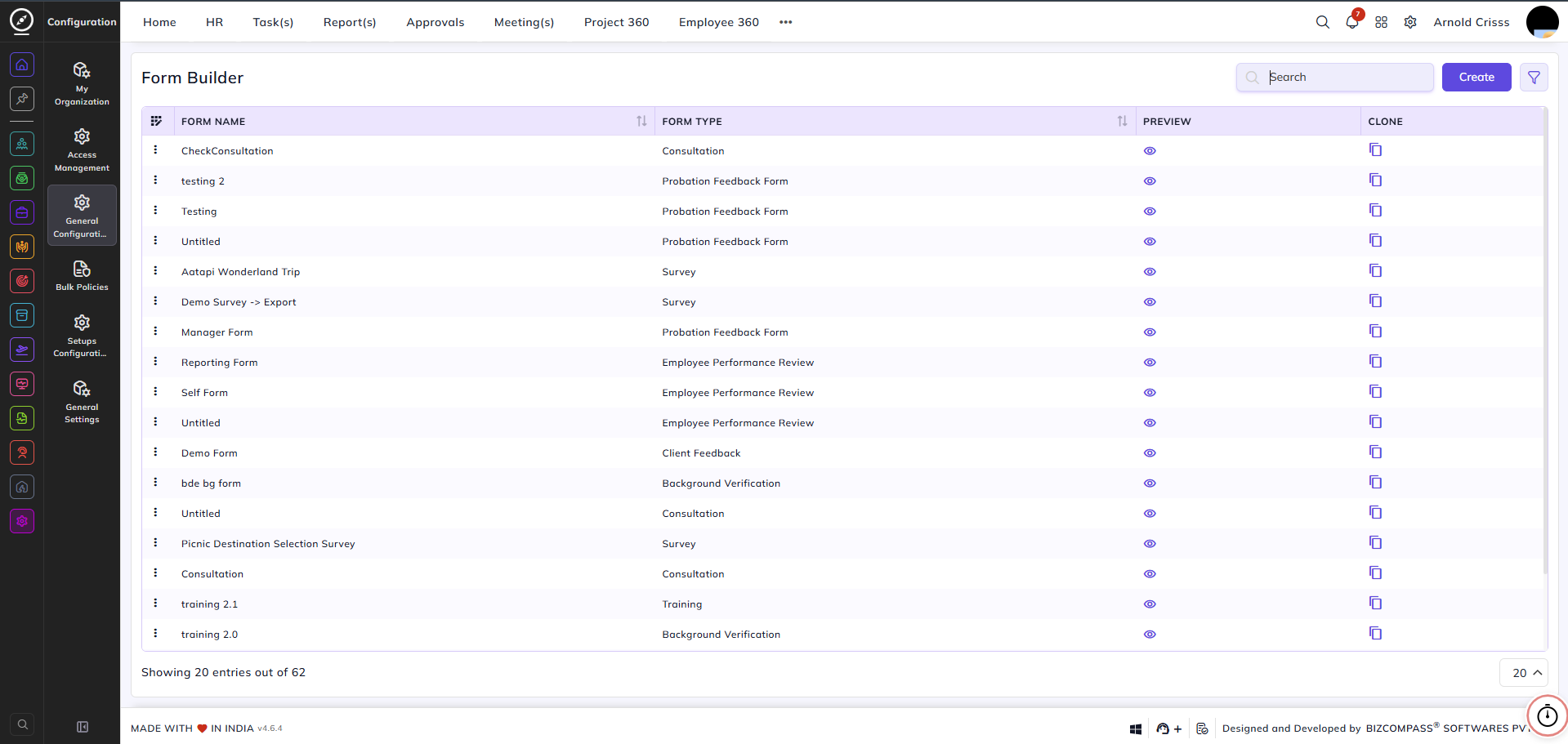
Form Builder
The Form Builder page allows you to create customized forms used in the organization such as:
- Probation Feedback Form
- Consultation
- Employee Performance Review
- Client Feedback
- Training
- Survey
- Managerial Review
Create Form:
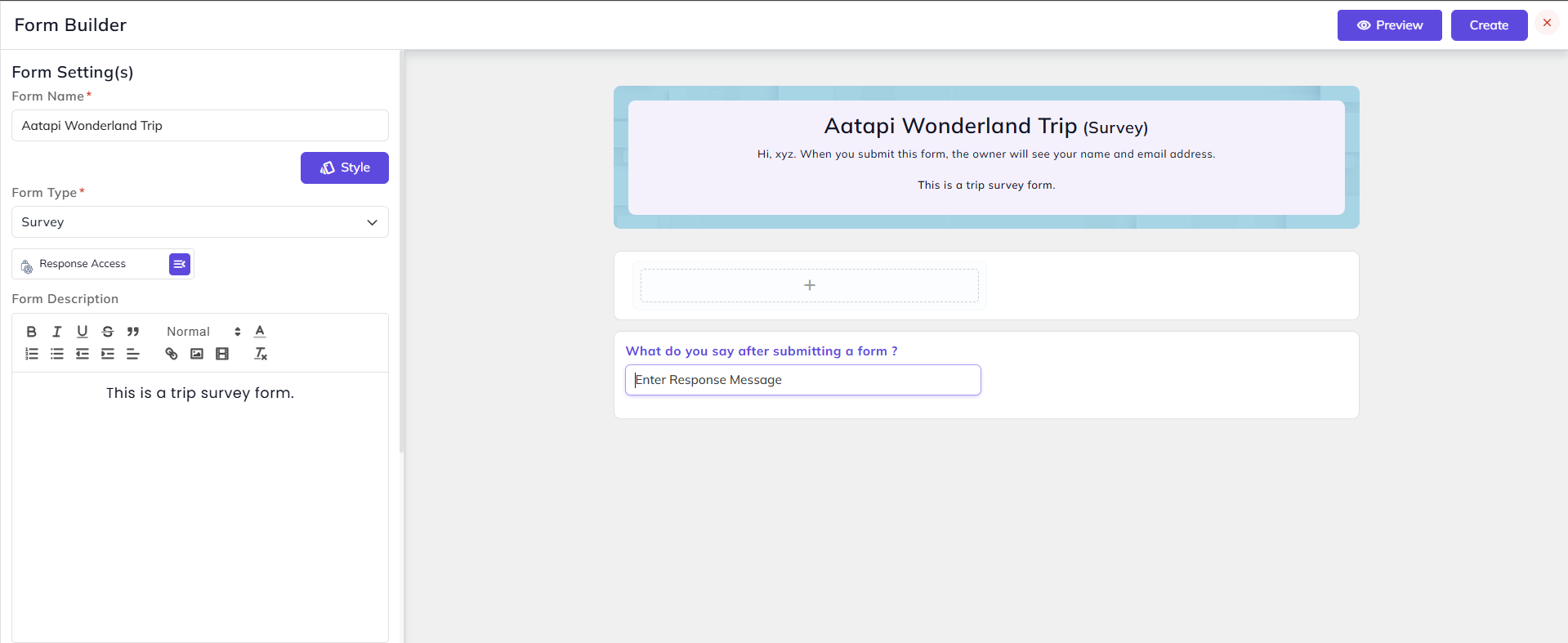
- Enter your Form Name (e.g., Aatapi Wonderland Trip)
- Select the Form Type (e.g., Survey)
- Optionally add the Background Theme and Theme Color for the form.
-
Define who can Access Form Responses:
-
Designation – Restrict access to specific roles.
-
Department – Restrict access to specific departments.
-
Person – Restrict access to specific individuals.
-
- Enter the Description for the form.
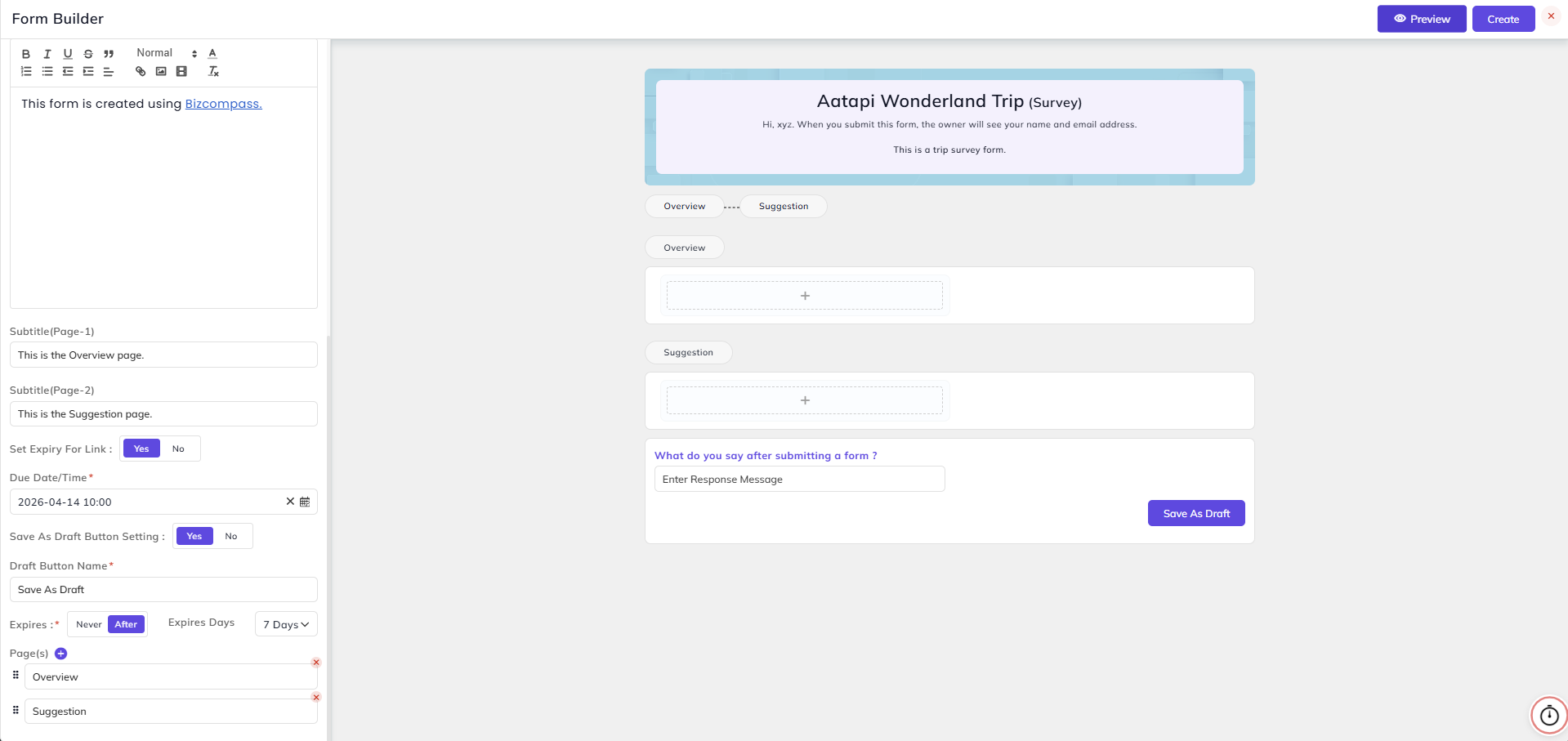
7. Enter any Link in the form that you'd like to display after the form is submitted.
8. Add the Subtitle for the page.
9. Set the Expiry Date and Time if you want to make the form link expire after a certain period of time.
10. If you want the option to Save As Draft for the form, select Yes in the Save As Draft Button Setting and enter the Draft Button
Name. You can also define if the draft expires or not after certain days.
11. Click on the "+" button next to the Page(s) to add more pages and you can also edit the page names.
When you click on the "+" icon in the form, a new section will open which will show the Available Field Types.
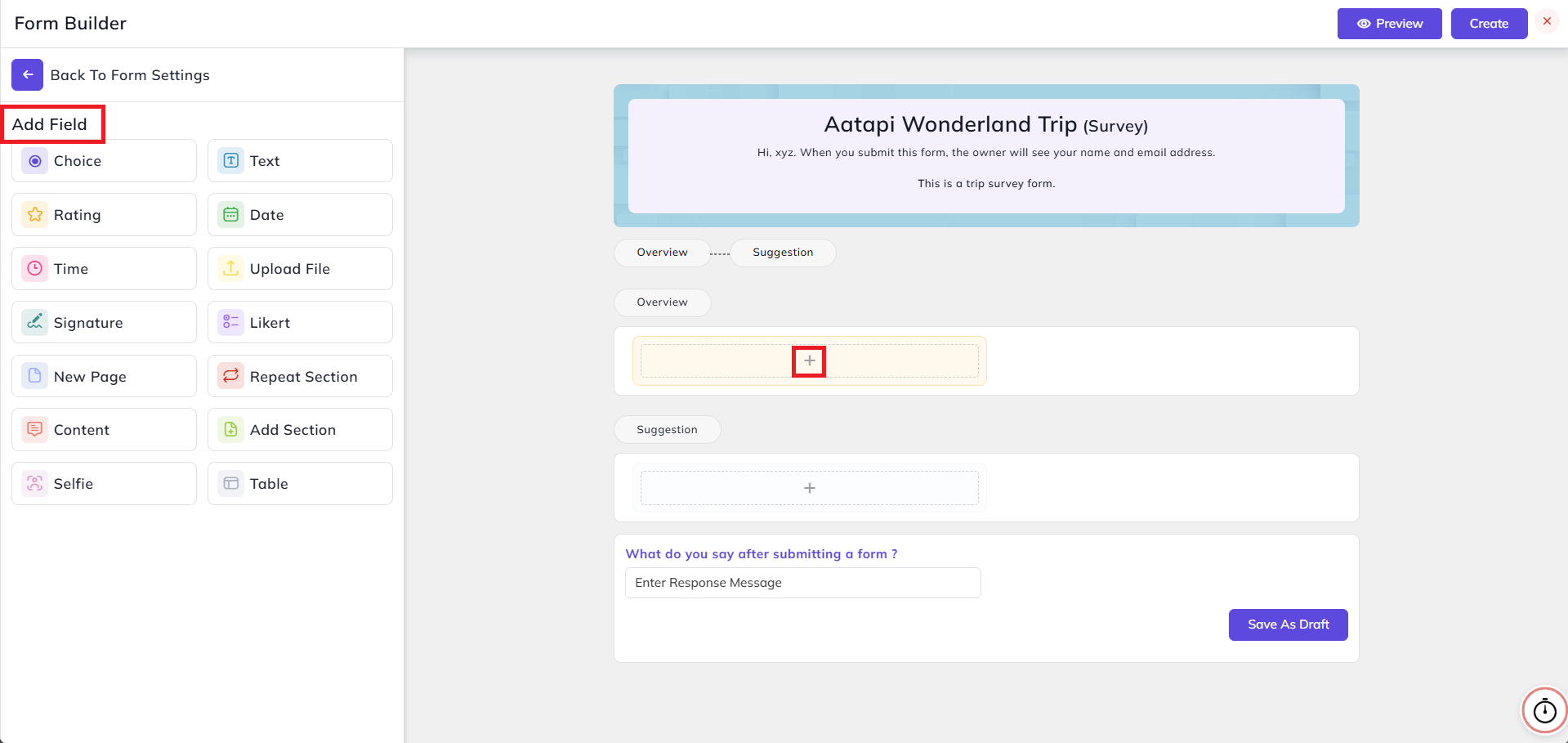
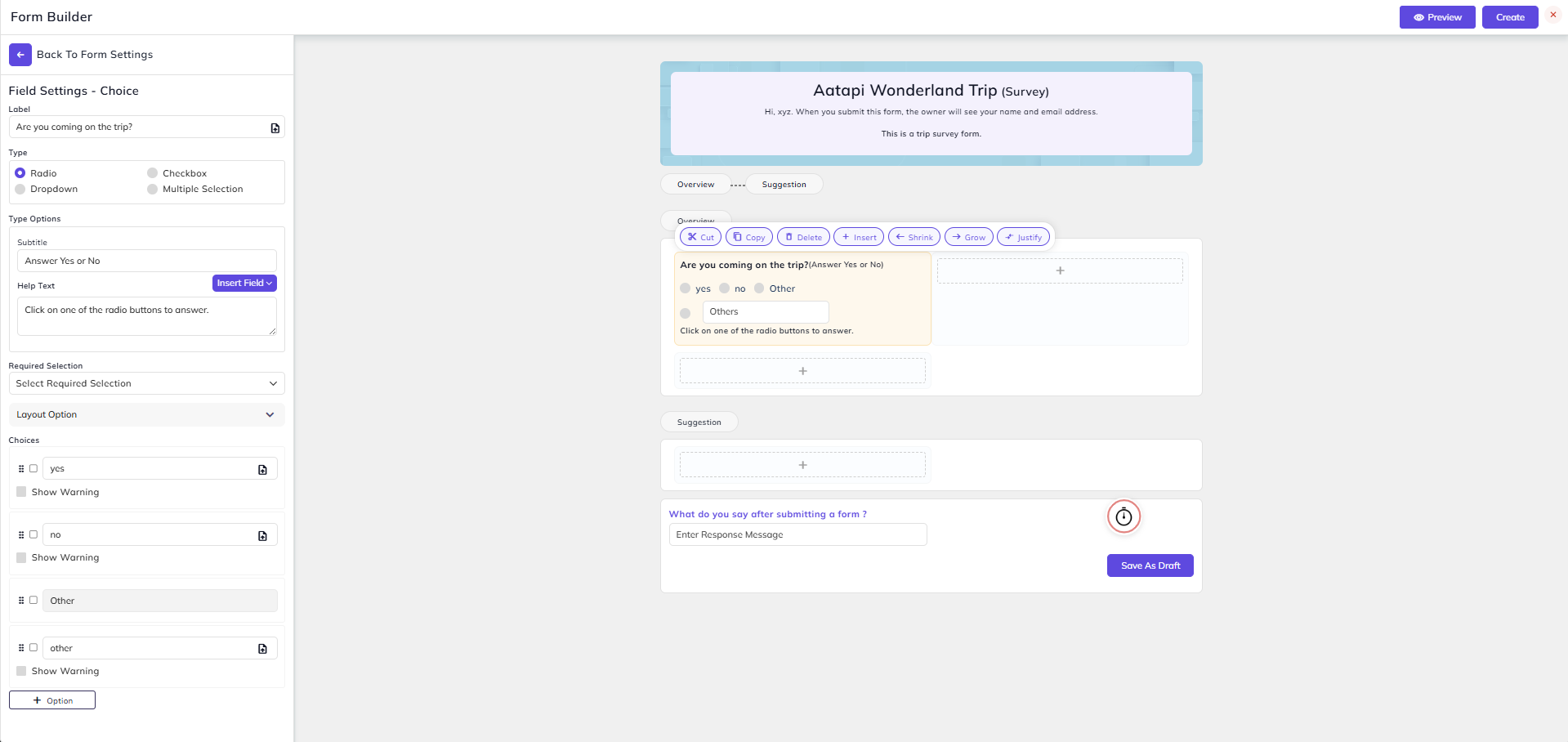
Choice Field:
- In this field, you can add a label and its related choices. The choice type can be Radio, Checkbox, Dropdown, or Multiple Selection.
- You can also add the Subtitle and Help Text.
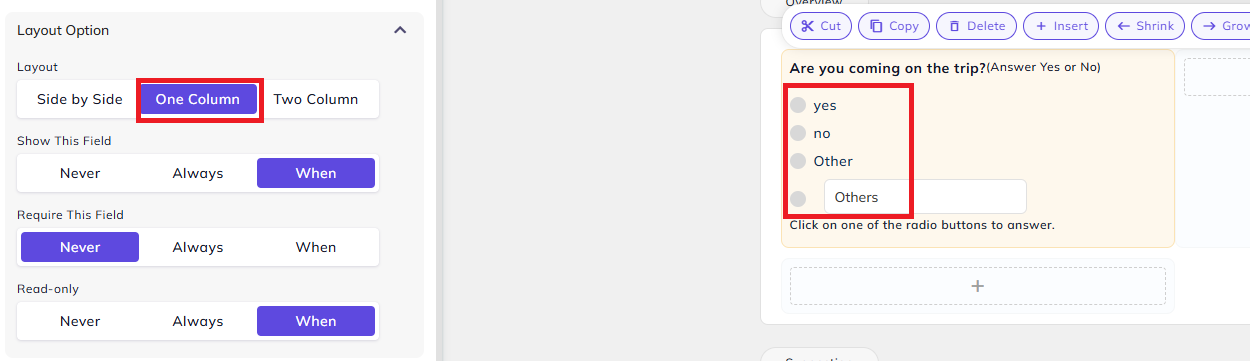
In Layout Option, you can select how the options will be displayed (side by side, one column, or two column) in Layout option.
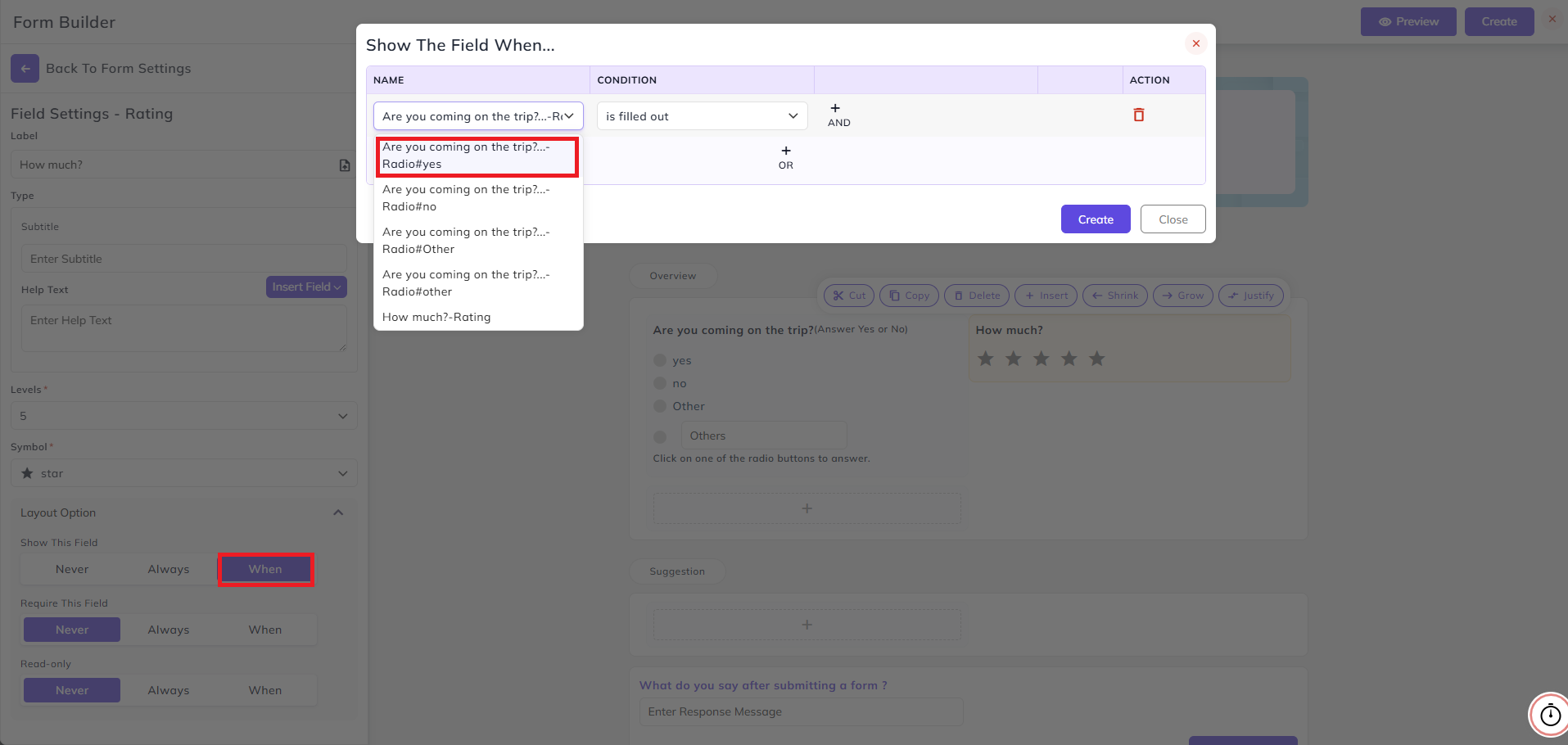
Rating Field:
- In this field, you can add a label, its level and symbols.
- In the Layout Option, you can customize when this field will be shown based on one or more conditions.
- For that, select When in Show This Field option. Then you can select if the current field should be shown based on some other field's answer selected.
Text Field:
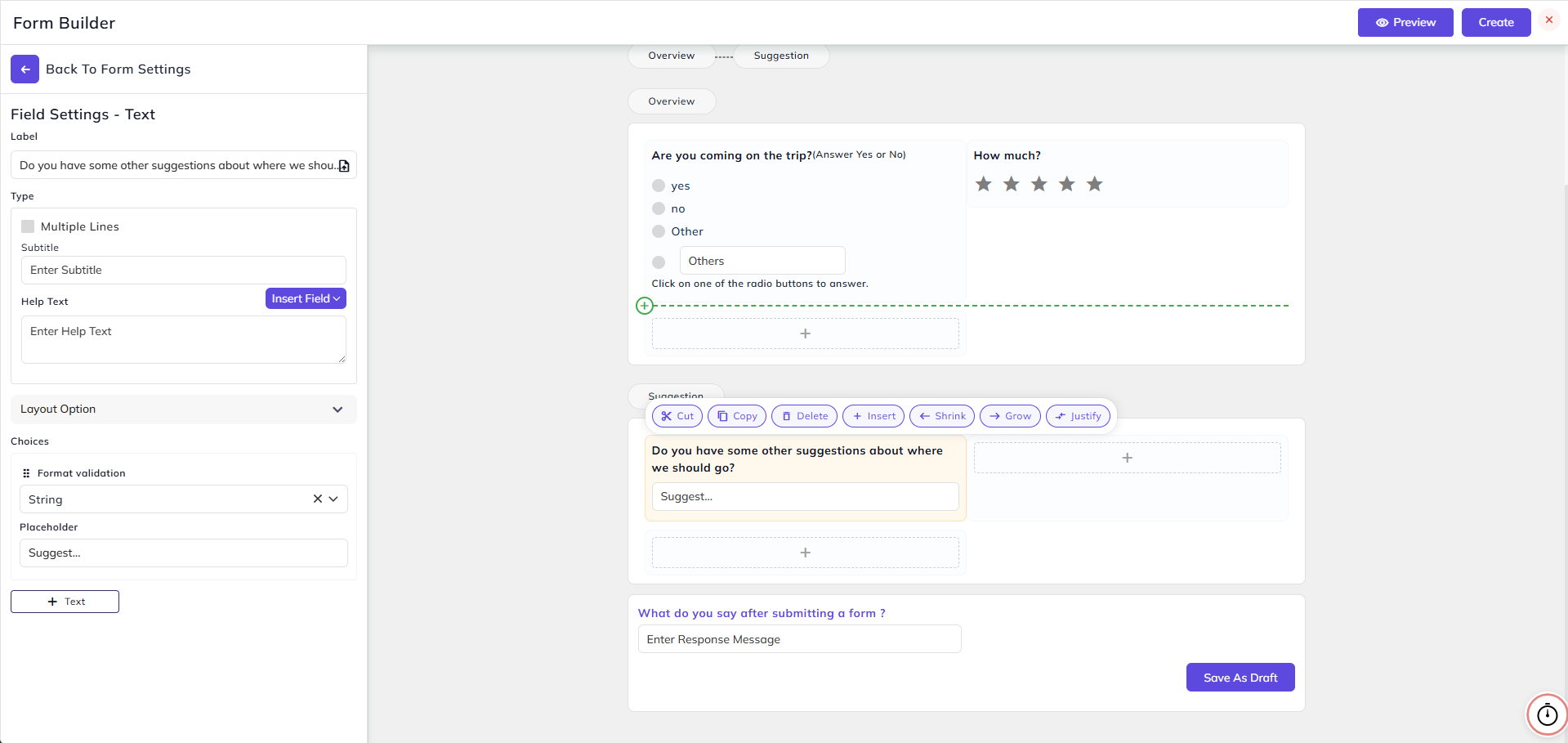
- Now let's create some text fields in the Suggestion page of the form. In the text field, you can add a label and set the format validation (String, Number, Number+String, etc.) for the answer.
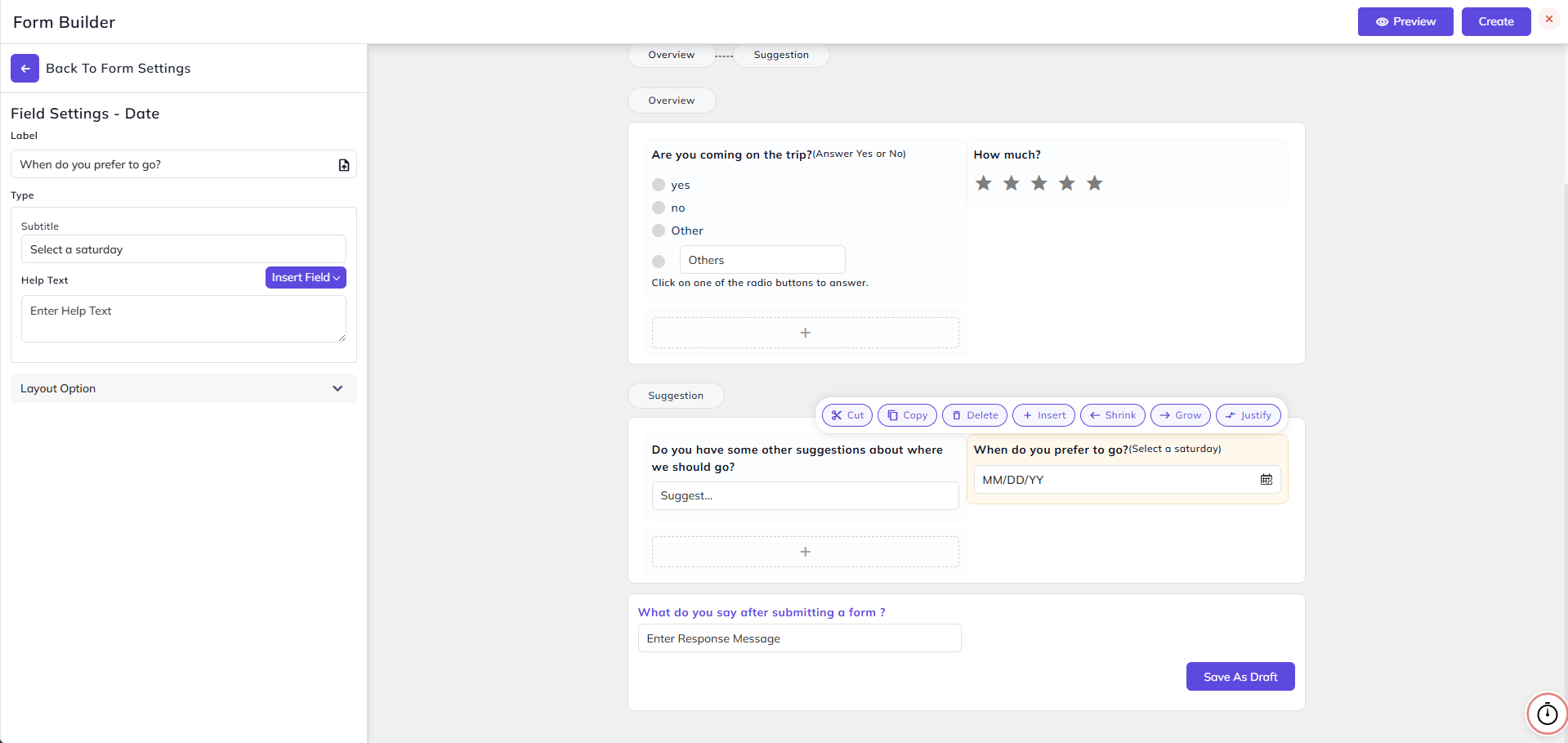
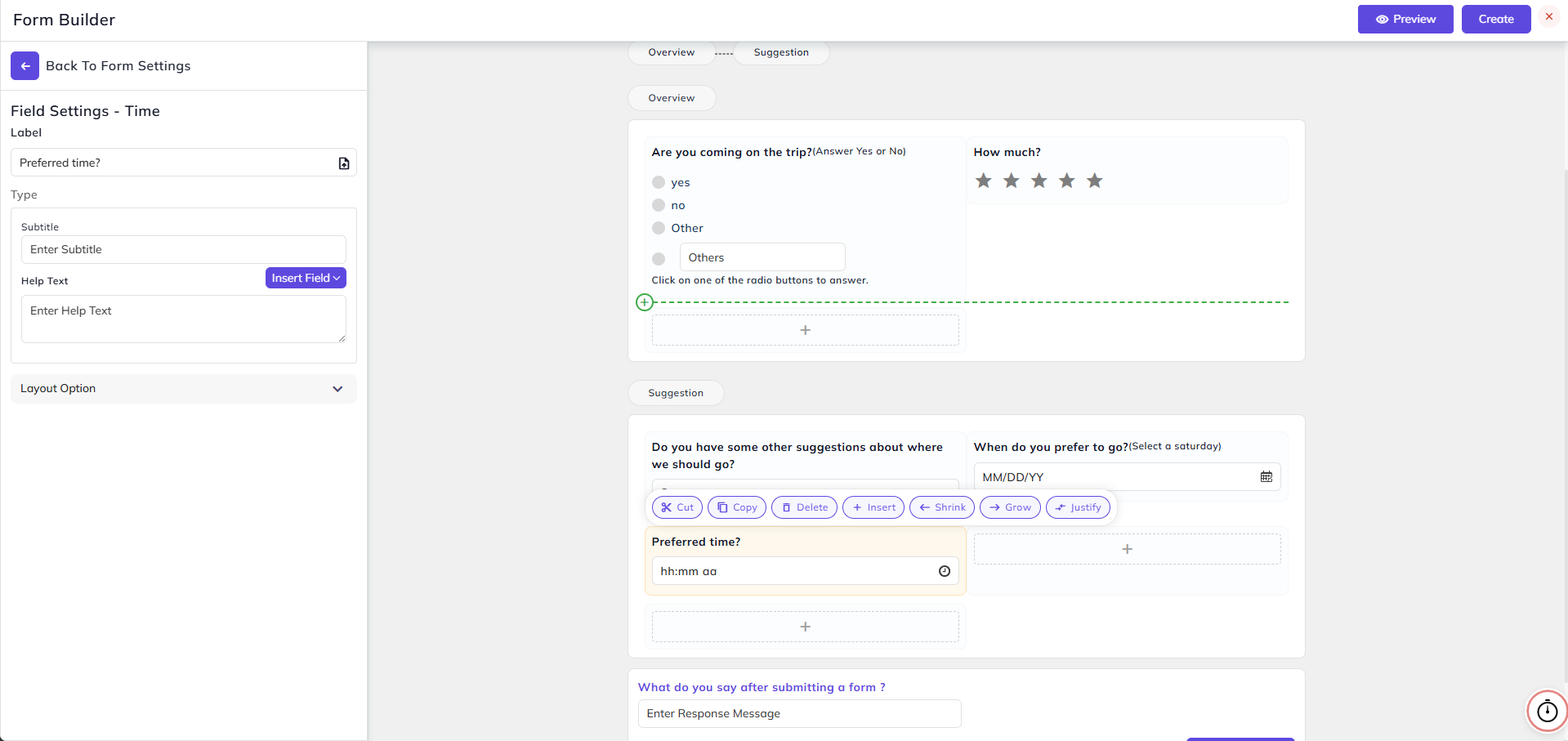
Date and Time Fields:
- In these fields, you can add a label and answer will be in the form of a selected date or time.
Upload File Field:
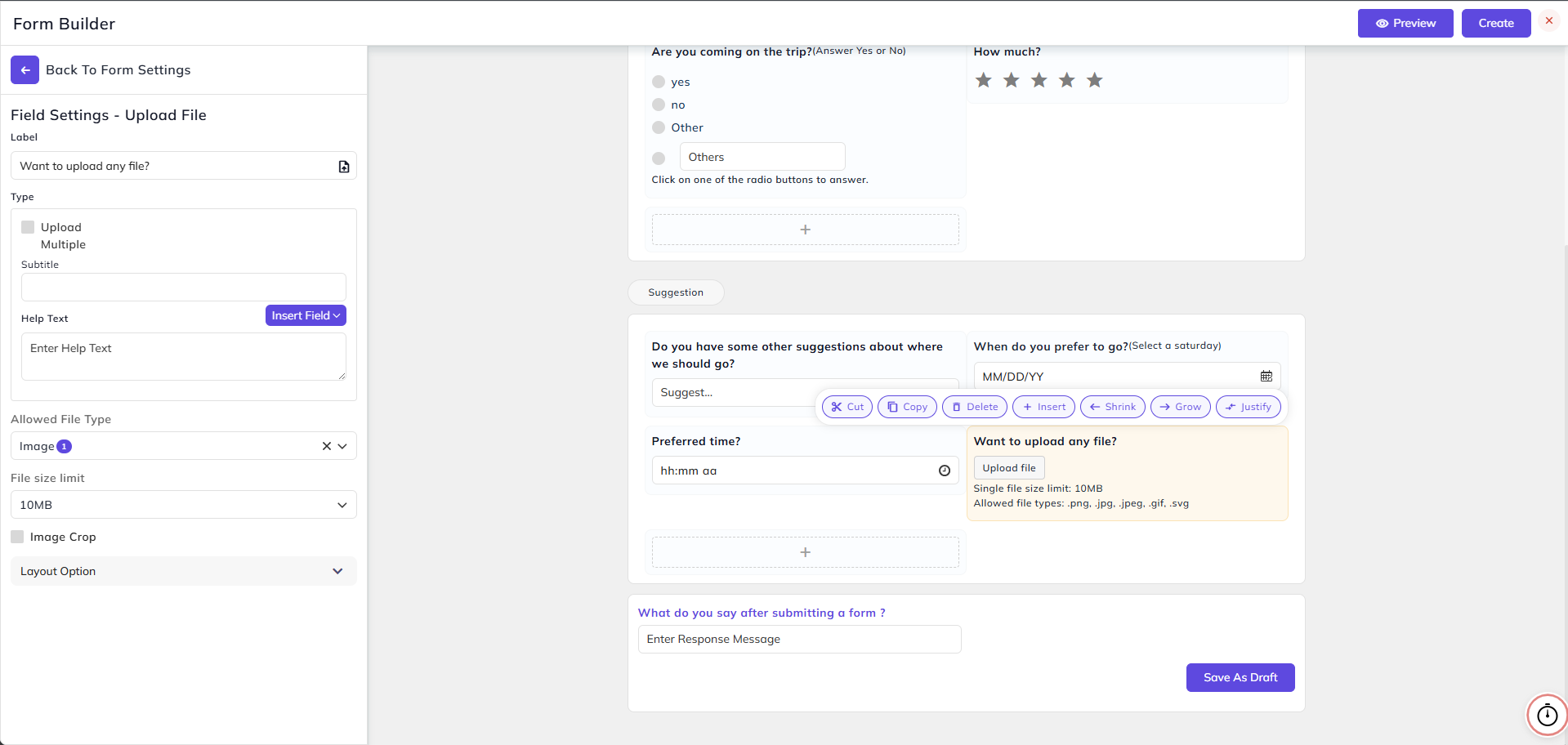
- In this field, you can add a label and the answer will be in the form of a file uploaded.
- Check the Upload Multiple option if you want to provide the option to add more than one file.
- Select Allowed File Type (Image, Video, Audio, or Document) and File Size Limit (10 MB, 100 MB, or 1 GB).
- Select the Image Crop option if you want to provide the form fillers with the option to crop their image before uploading.
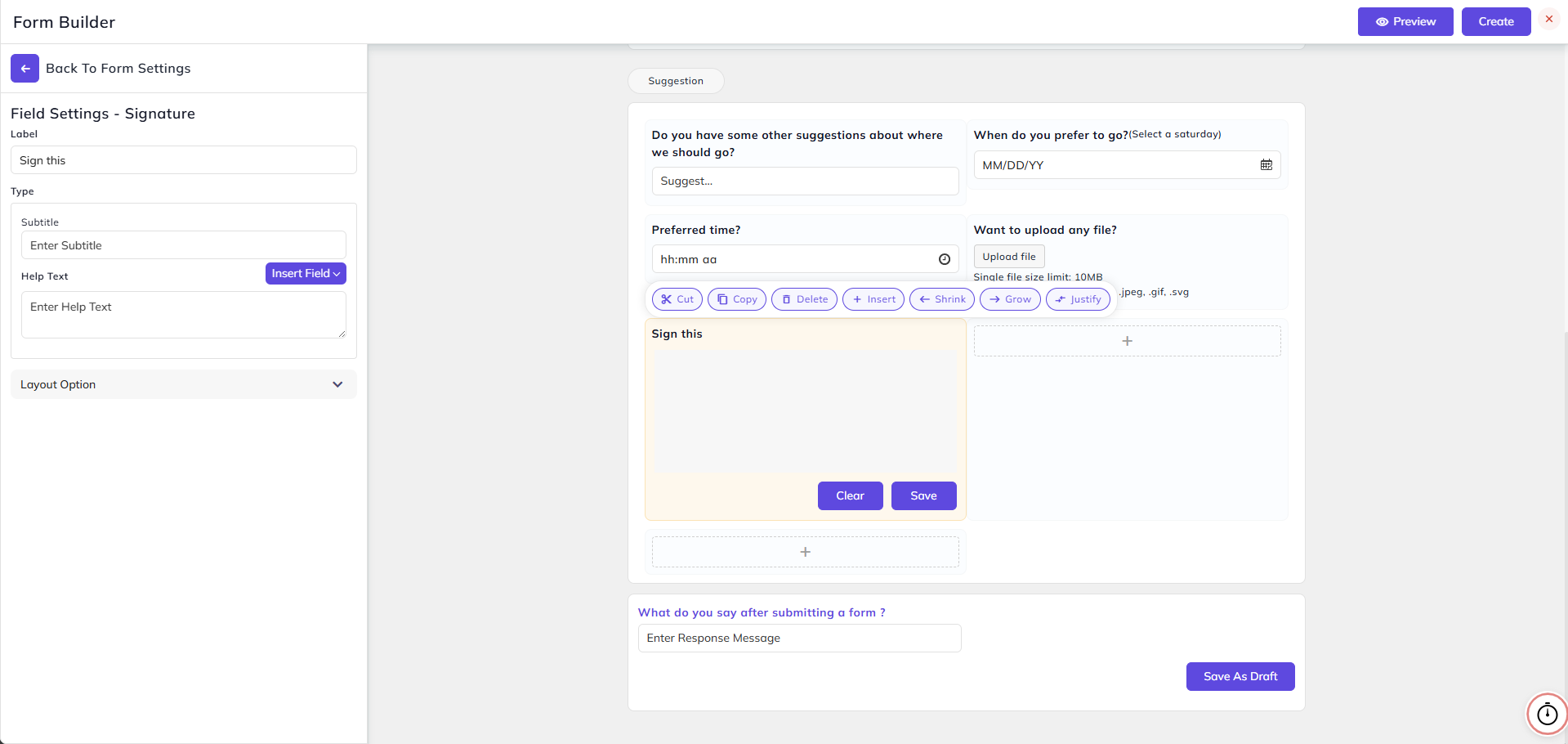
Signature Field:
- In this field, you can add a label and answer will be in the form of a signature.
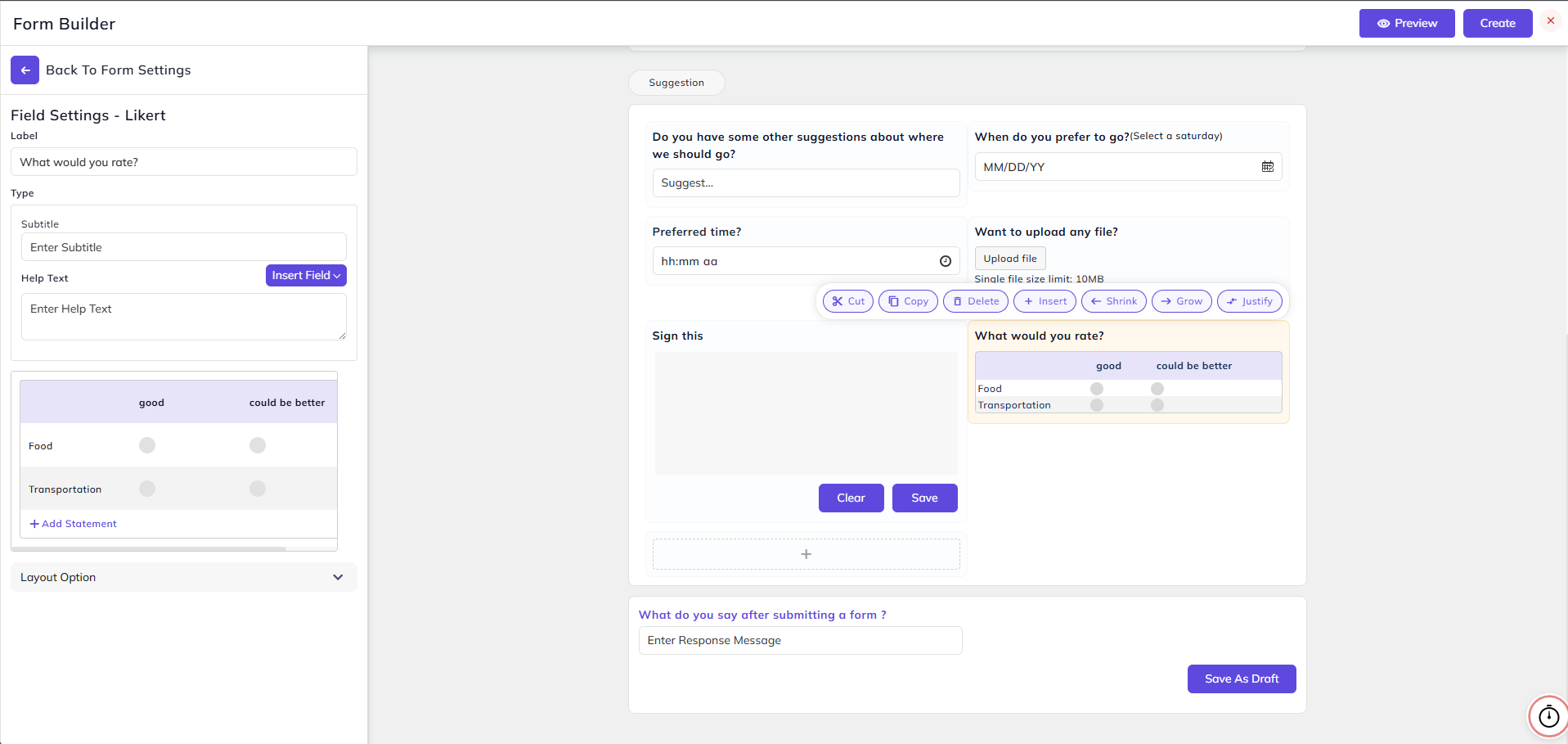
Likert Field:
- In this field, you can add labels, statements, and options as shown below.
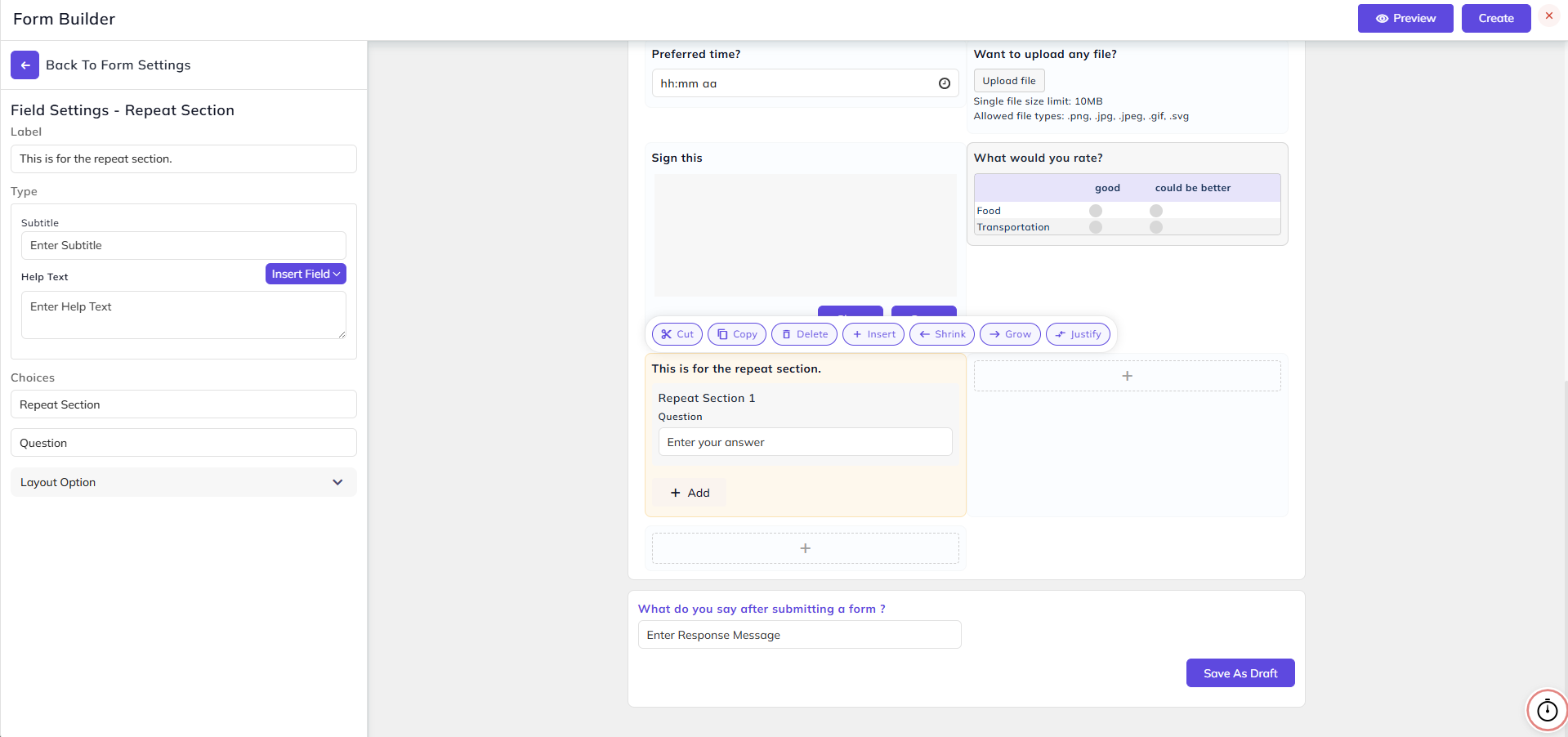
Repeat Section:
- In this field, you can repeat a section by entering the label and choices.
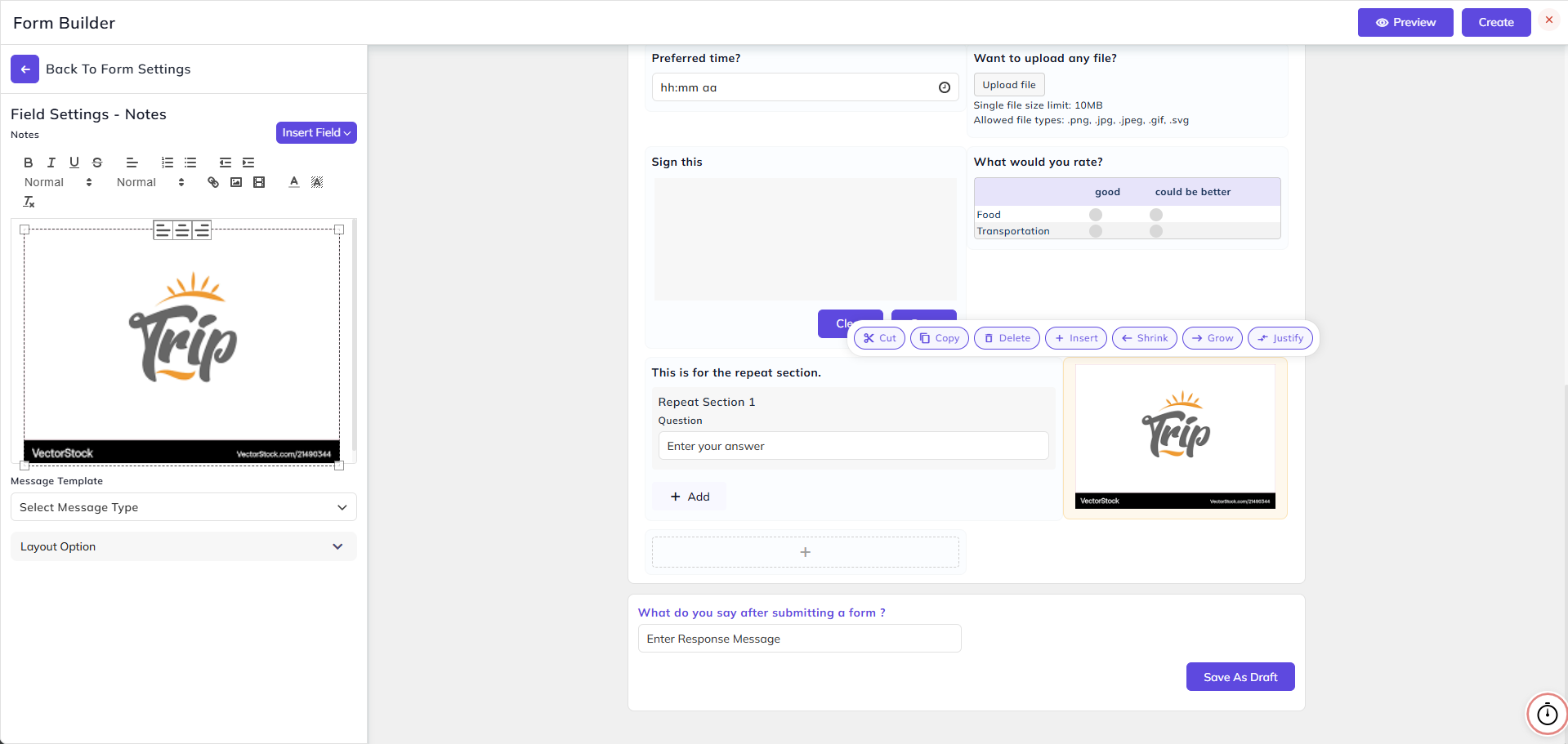
Content Field:
- In this field, you can add any notes. You can also add image or video in it.
Selfie Field:
- In this field, you can take a selfie as a response and set the file size limit.
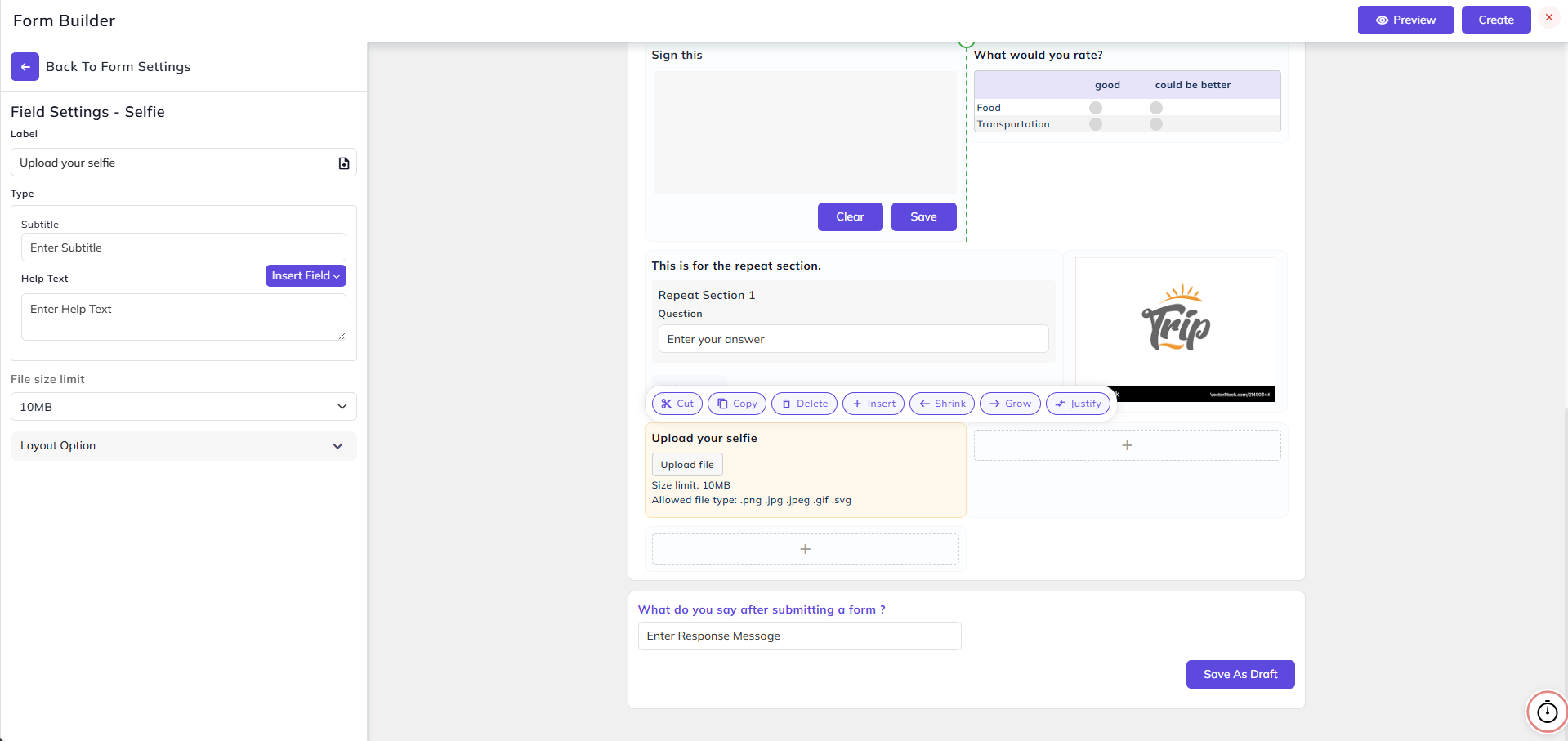
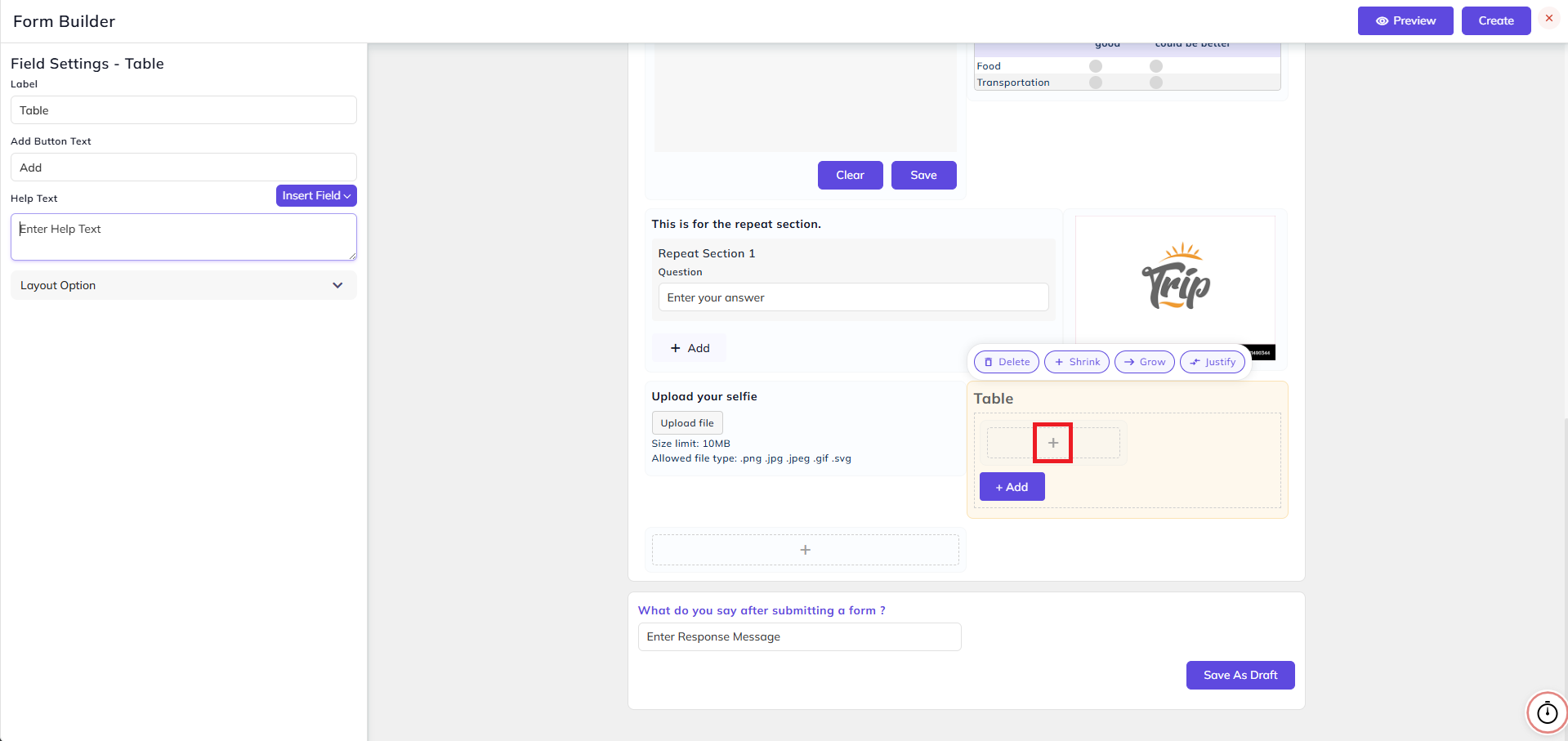
Table Field:
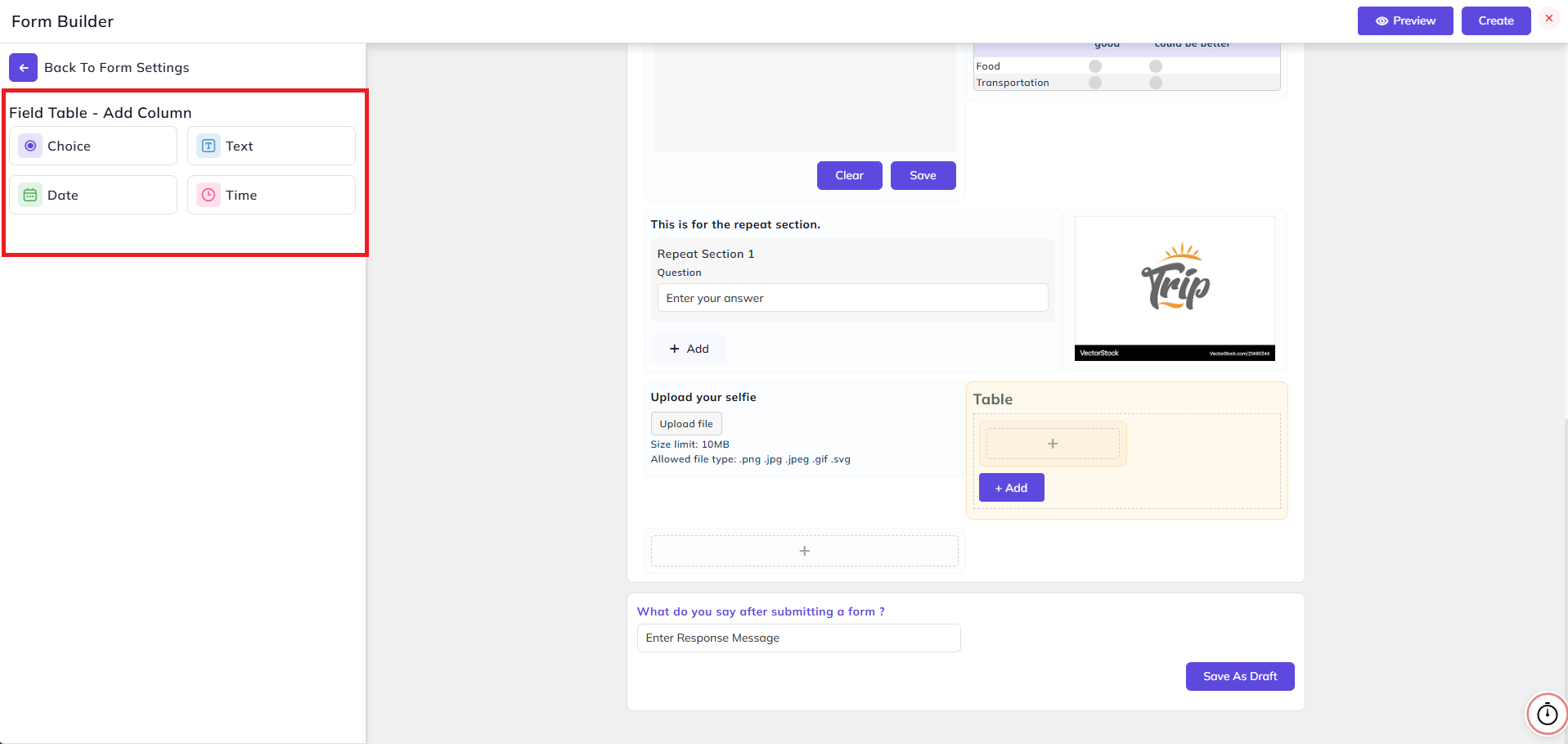
- In this field, you can create a table and enter Add Button Text; clicking on which will allow you to add fields like Choice, Text, Date, and Time.
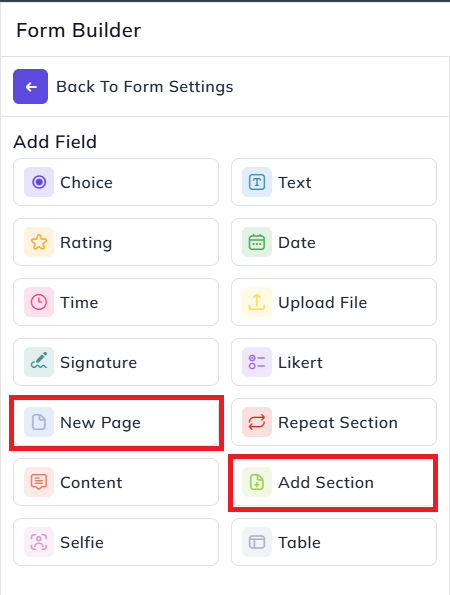
- Moreover, you can also add a new section and page from the Field Types.
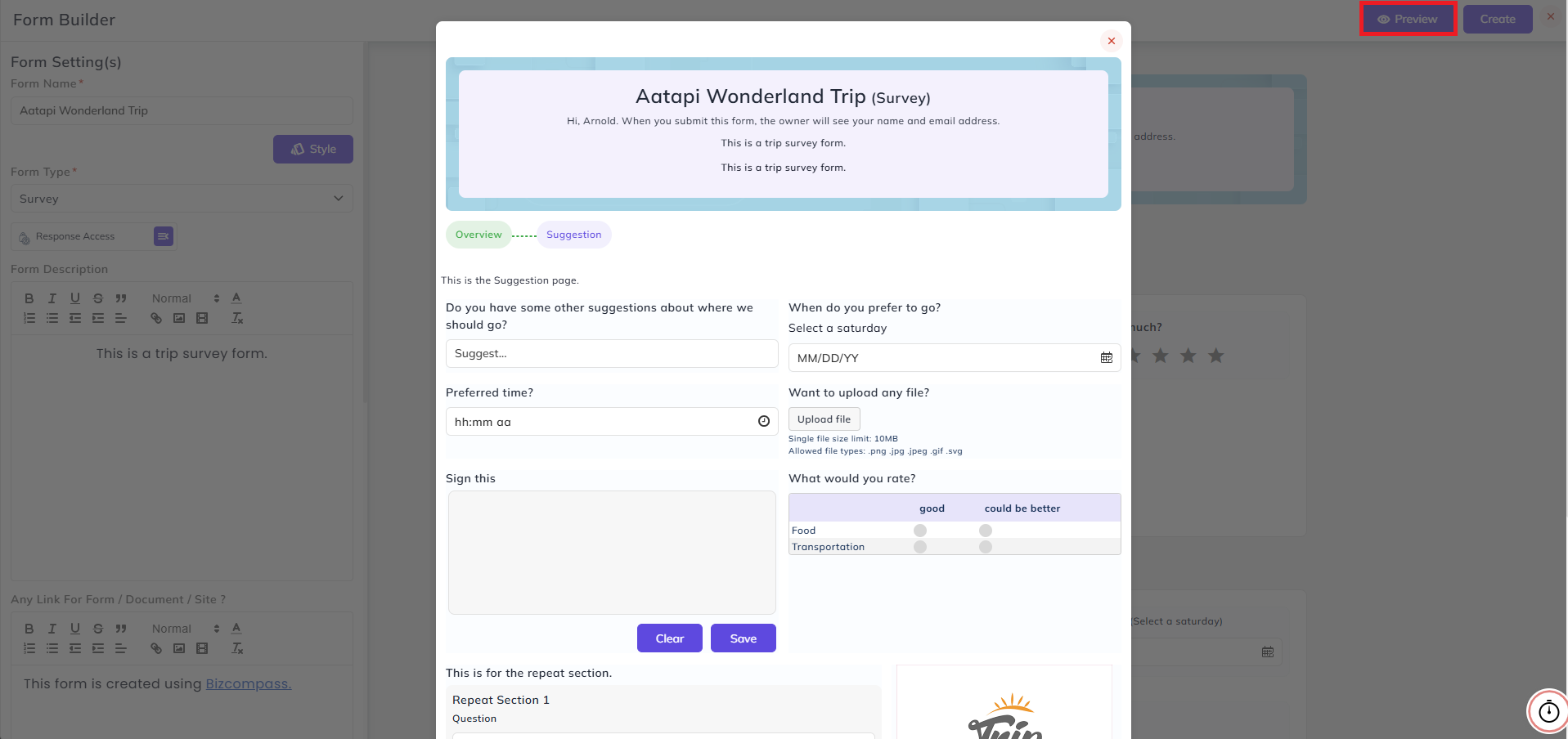
Click on the Preview button to preview the form before creating it.
Survey:
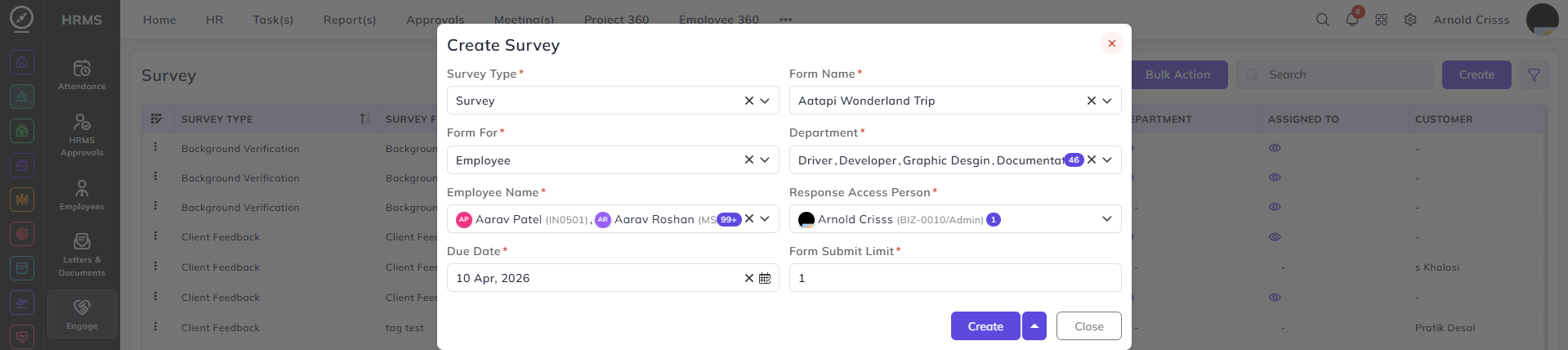
- Then, go to the Survey page and click on Create.
- Select the Survey Type as Survey.
- In the Form Name, select the form created previously.
- Select if this form is for Employee or Customer in Form For.
- Select the Department(s) and Employees Name(s) who can fill this form.
- Set the Response Access Person, Due Date of the form and Form Submit Limit.
Once the survey is created, you'll see the form link generated for it.

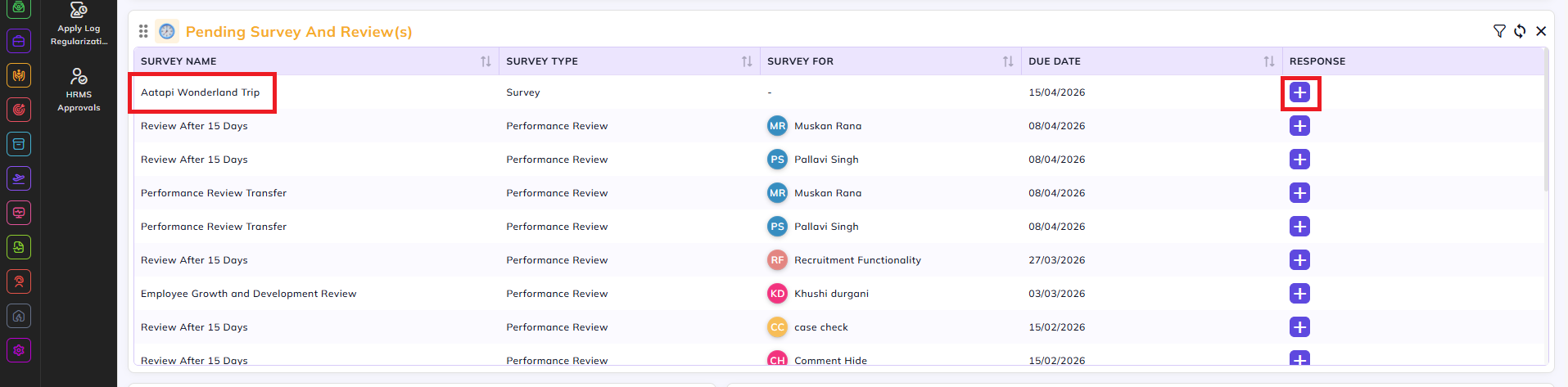
The assigned employees will see the pending survey in their home dashboard too. They can add their response from there.
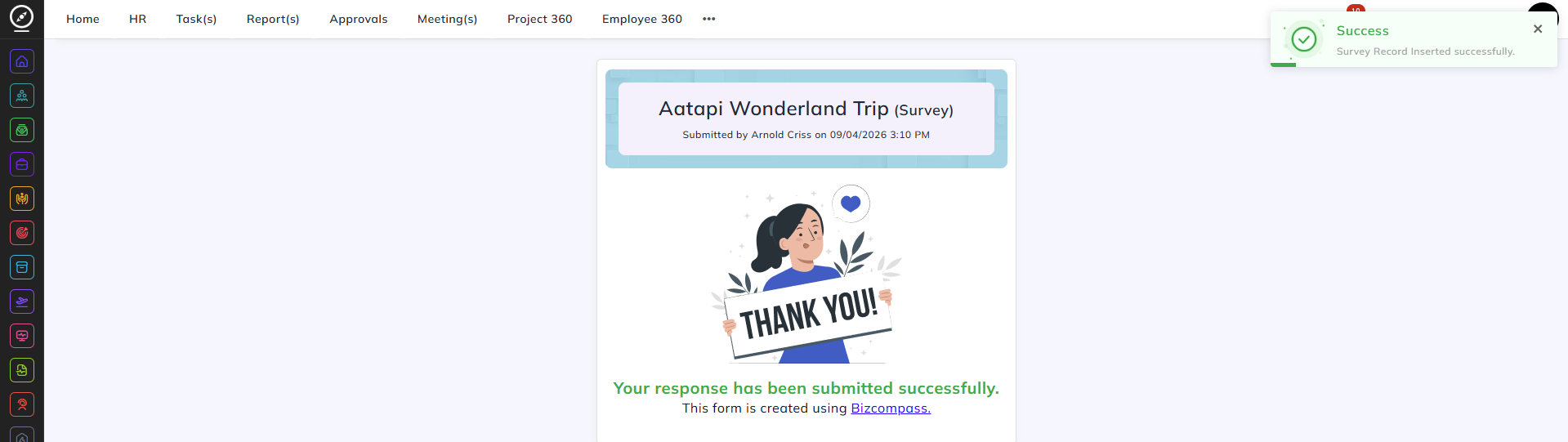
When someone submits a form, this is what will be displayed:
The Response Access Person can view all the responses of the form in the Survey page.
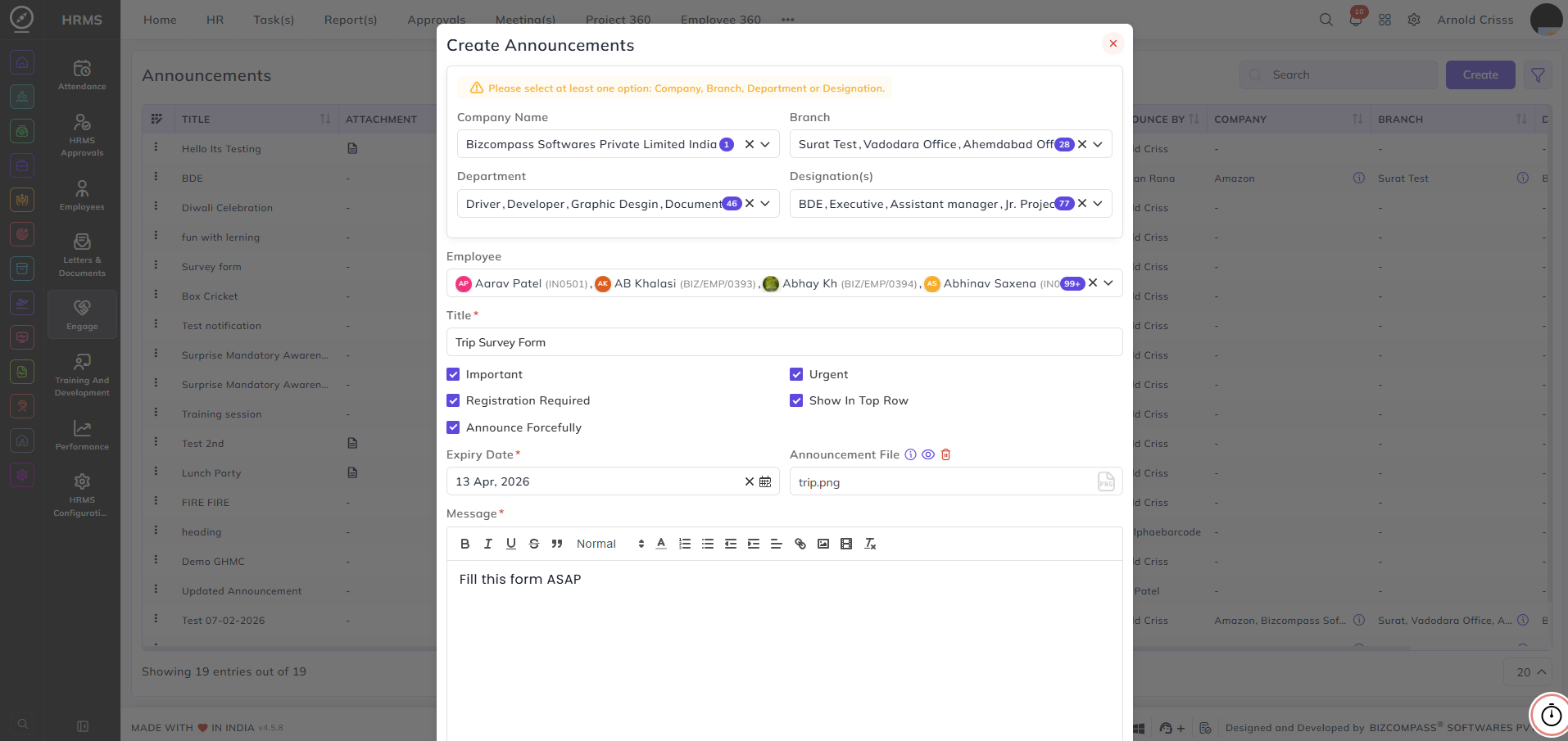
Further, you can add an Announcement for your survey too.
- Select the Company Name, Branch, Department, and Designation and Employees who will receive the announcement.
- Enter the Title of the announcement.
- Then configure the flag options like Important, Urgent, Show in Top Row, Announce Forcefully, and Registration Required.
If the Registration Required flag is checked on, then the option to add Registration Link will appear. In that, you have to add the survey form link.
- Set the Expiry Date, the Message for the announcement, and optionally add an Announcement File.

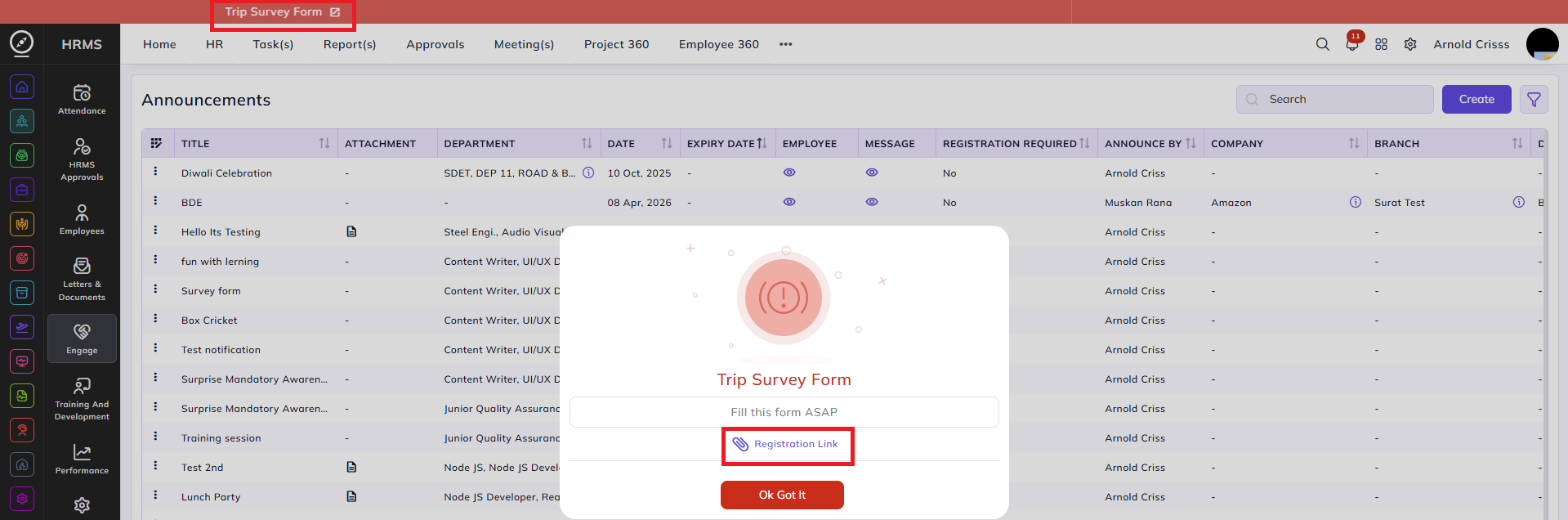
Here's what will be displayed once you create the announcement: