Manual
From this page, you can create the Shelf, Book, and Manual.
Shelf:
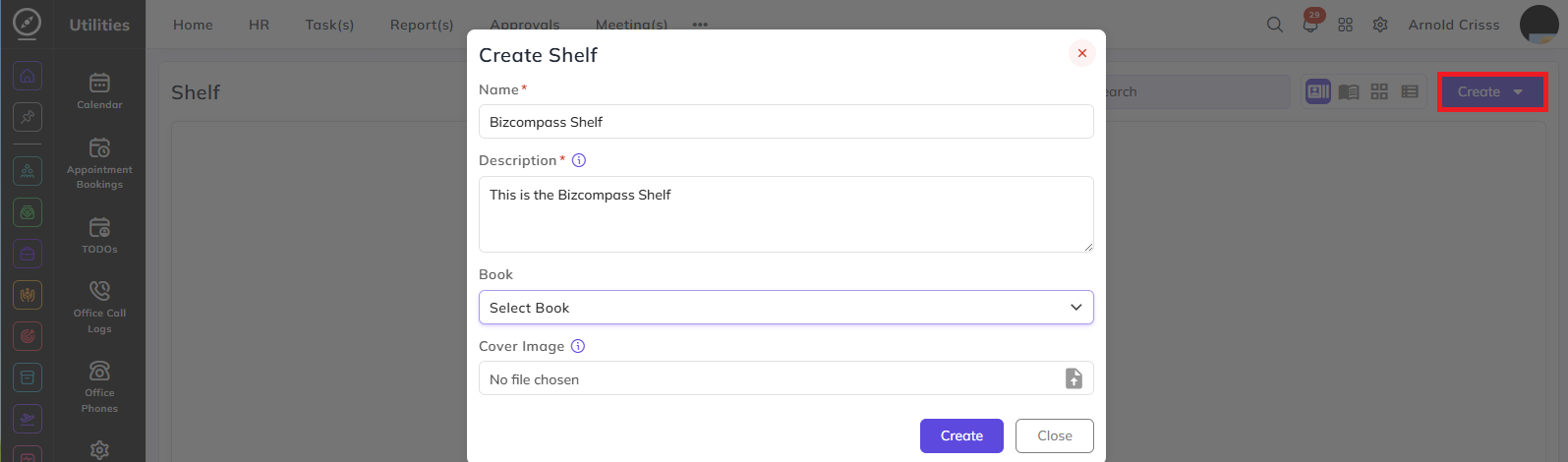
Click on Create->Shelf.
- Enter a name for your shelf.
- Enter a description for your shelf.
- Optionally select and add a book for the shelf if you've created a book previously.
- Optionally add a cover image for your shelf.
Book:
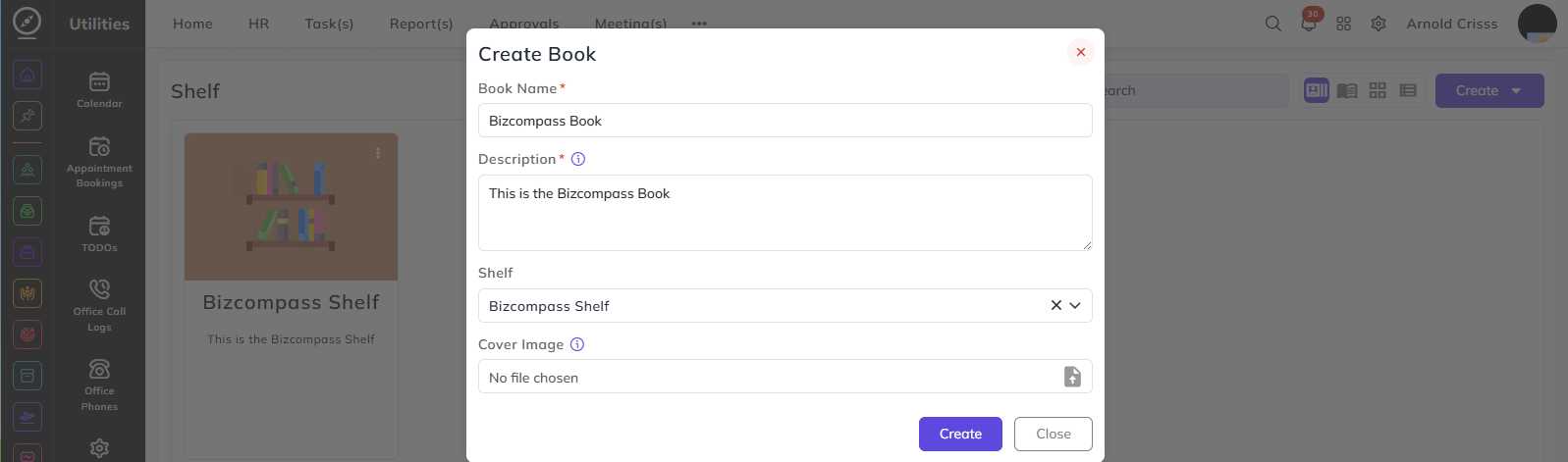
Click on Create->Book.
- Enter a name for your book.
- Enter a description for your book.
- Optionally select and add a shelf for the book if you've created a shelf previously. You can also create a shelf from here.
- Optionally add a cover image for your book.
Manual:
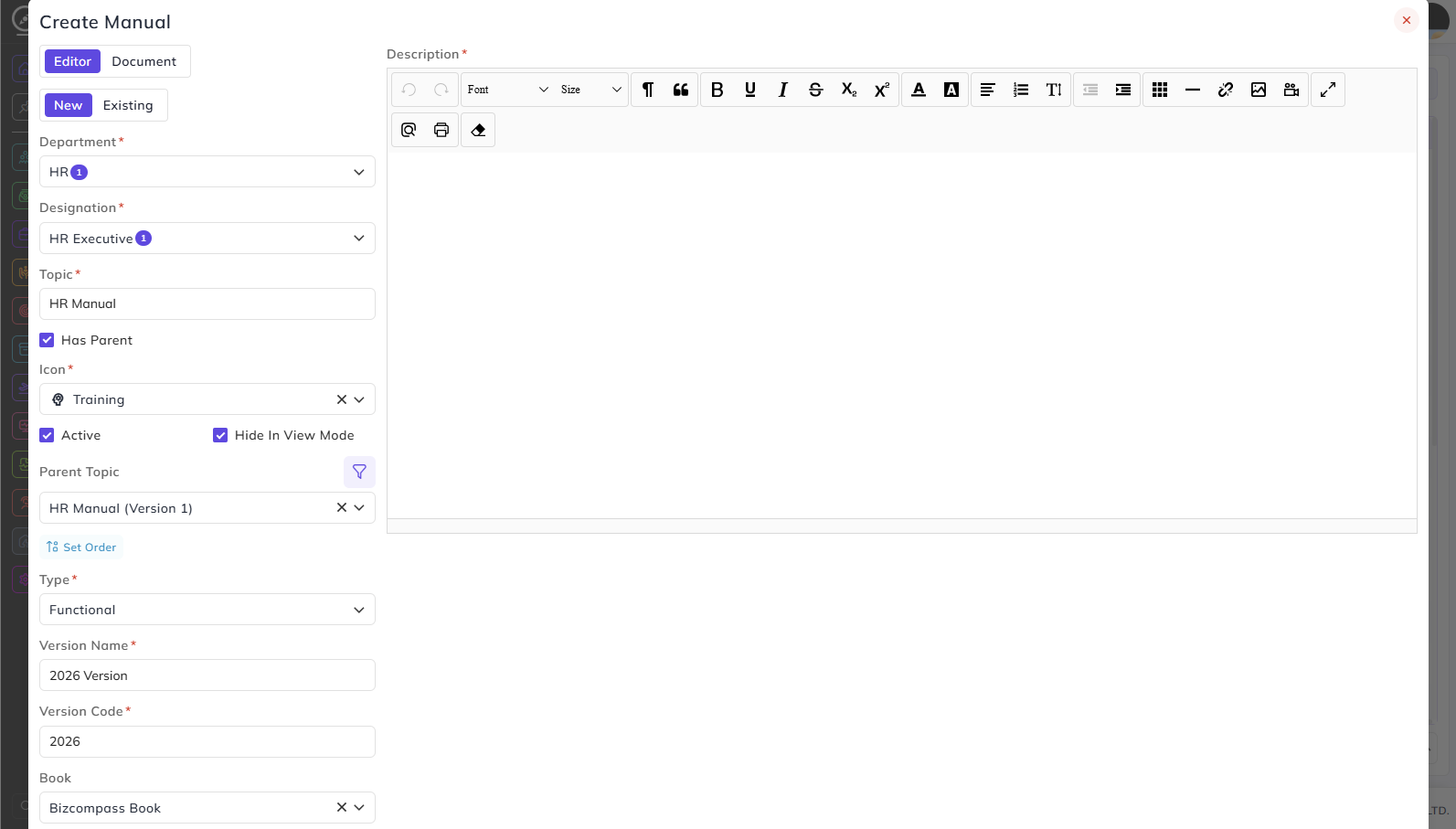
Click on Create->Manual.
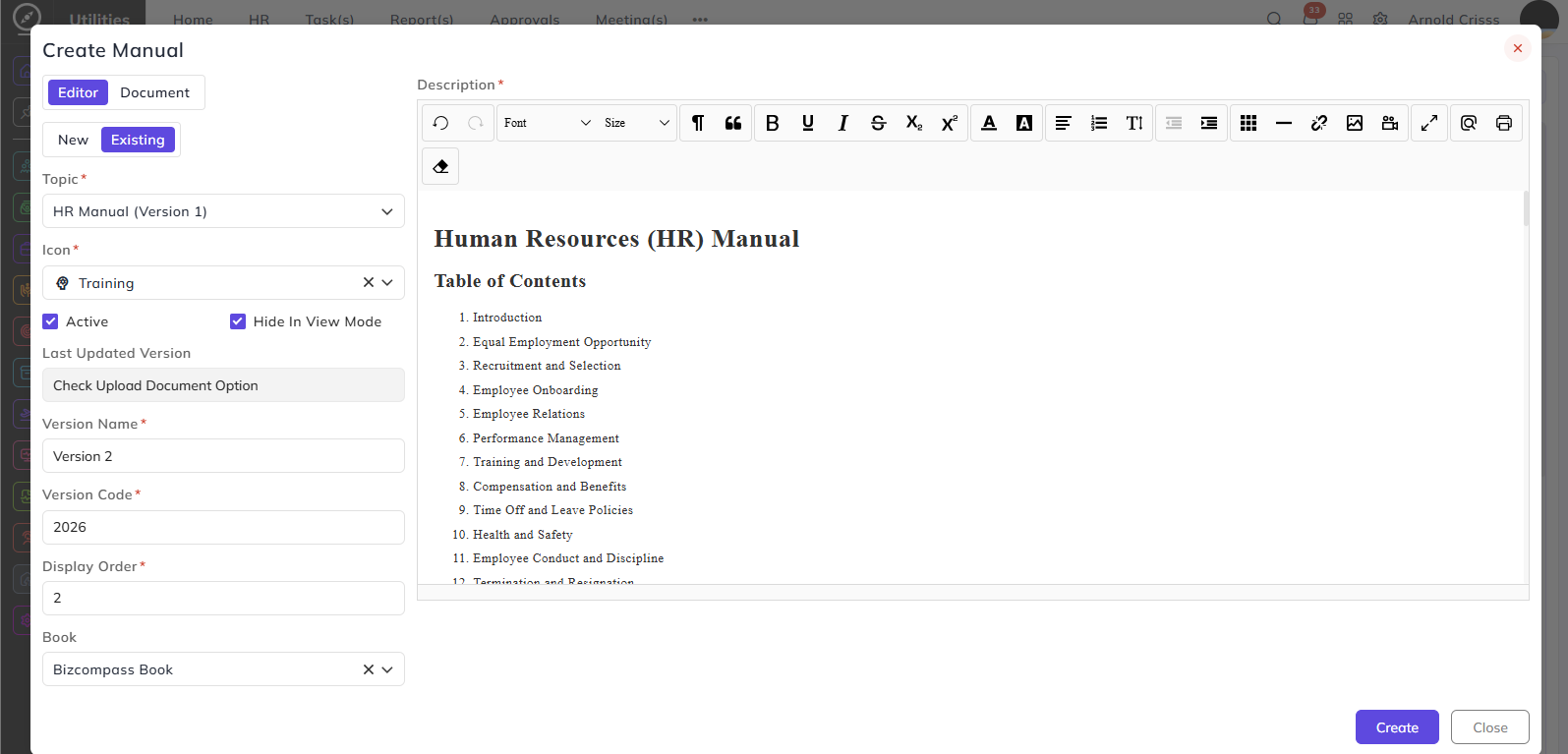
- Select Editor to write the manual content directly in the system, or select Document to upload an existing file.
- If using Editor, select New to create a new manual or Existing to link to an existing one.
- If Existing is selected, the Department and Designation fields are replaced with a Topic dropdown — select the existing manual topic you want to create a new version of.
- The following additional fields appear:
- Last Updated Version — displays the last version that was uploaded or edited. If using the Document option, it will prompt you to check the upload document option.
- Display Order — enter the order in which this version appears in the list of versions for this topic.
All other fields — Icon, Active, Hide In View Mode, Version Name, Version Code, and Book — remain the same as when creating a new manual.
- Select the Department this manual applies to.
- Select the Designation this manual is intended for.
- Enter a Topic for the manual — for example, HR Manual.
- Enable Has Parent if this manual is a sub-topic under another manual. When enabled, the following fields appear:
- Parent Topic — select the parent manual this topic falls under.
- Set Order — optionally set the order in which this topic appears under the parent.
- Select an Icon to visually identify this manual.
- Enable Active to make this manual visible and accessible to users.
- Enable Hide In View Mode to hide the manual from the Manual Home tab.
- Select the Type of manual:
- Functional — relates to job-specific processes and procedures
- Technical — relates to technical documentation, system configurations, or tool-specific instructions
- Enter a Version Name to identify this version of the manual — for example, 2026 Version.
- Enter a Version Code as a short identifier for this version — for example, 2026.
- Optionally select a Book to associate this manual with an existing book.
- Enter the manual content in the Description editor on the right side of the form. You can also add images, videos, links, etc. while creating the manual.
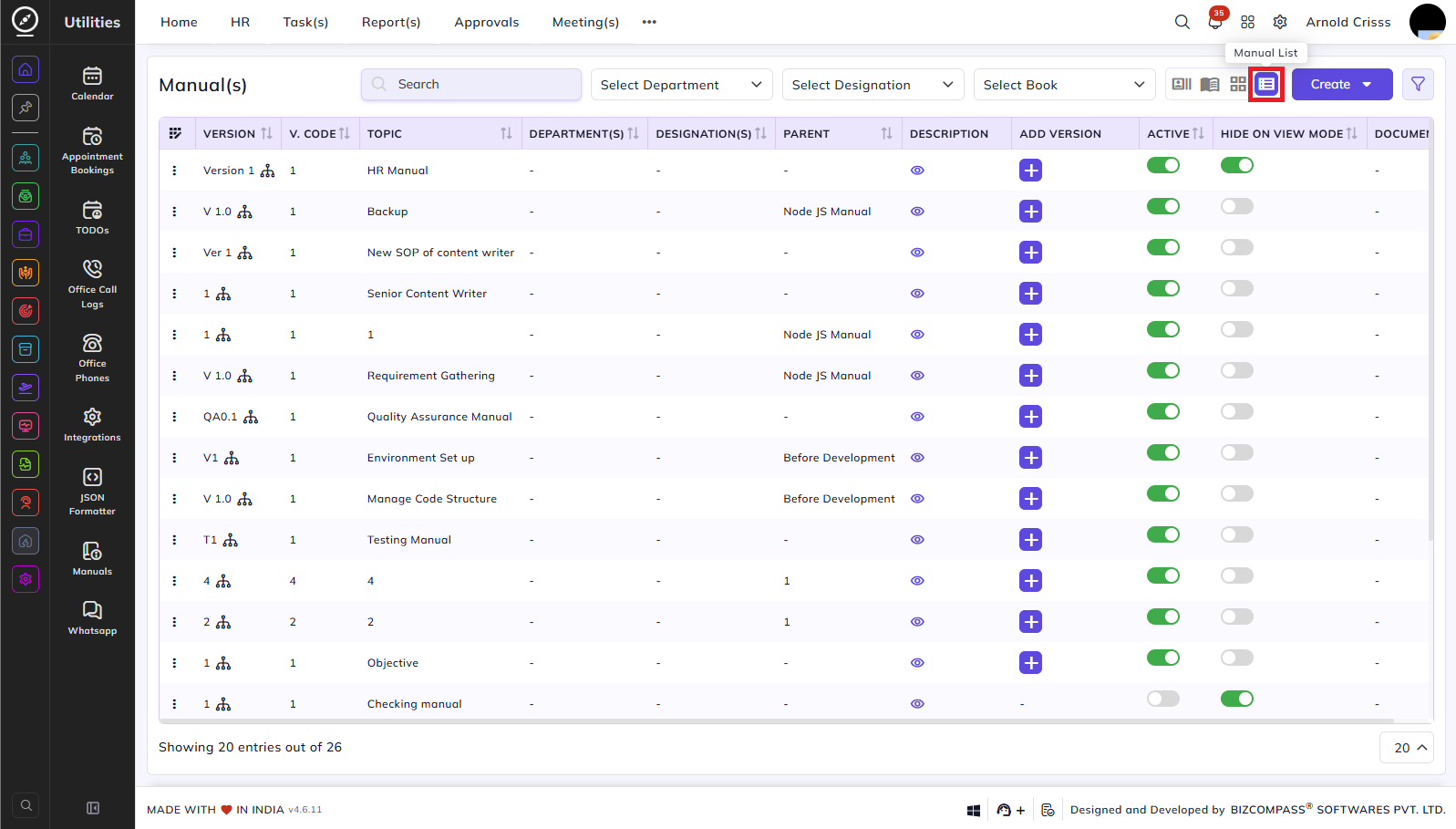
Manual List:
From this tab, you can see the list of the manuals created and you can also change the Active and Hide On View Mode flags.
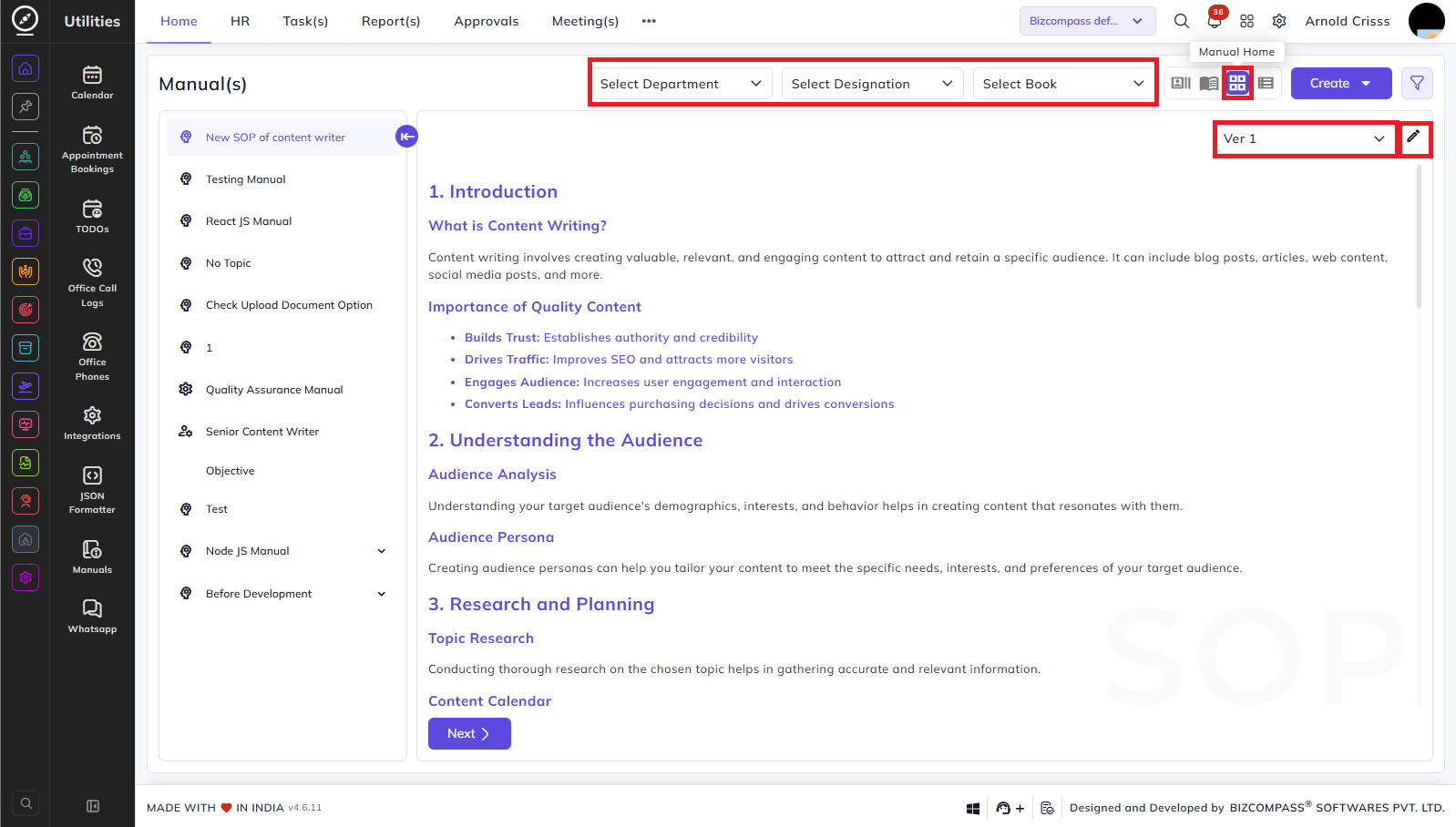
Manual Home:
From this tab, you can see the content of all the manuals created. You can filter it by department, designation, and book. You can also select the version of the manual you want to view. Moreover, you can edit the manual from the edit icon next to the version field.