
User Role Hierarchy
From this page, you can define the hierarchy of user roles within your organization. This is primarily used in CRM to control data visibility — determining which roles can see data belonging to roles below them in the hierarchy.
Setting Up the Hierarchy:
Company: Select the company for which you want to define the role hierarchy. Each company can have its own hierarchy configuration.
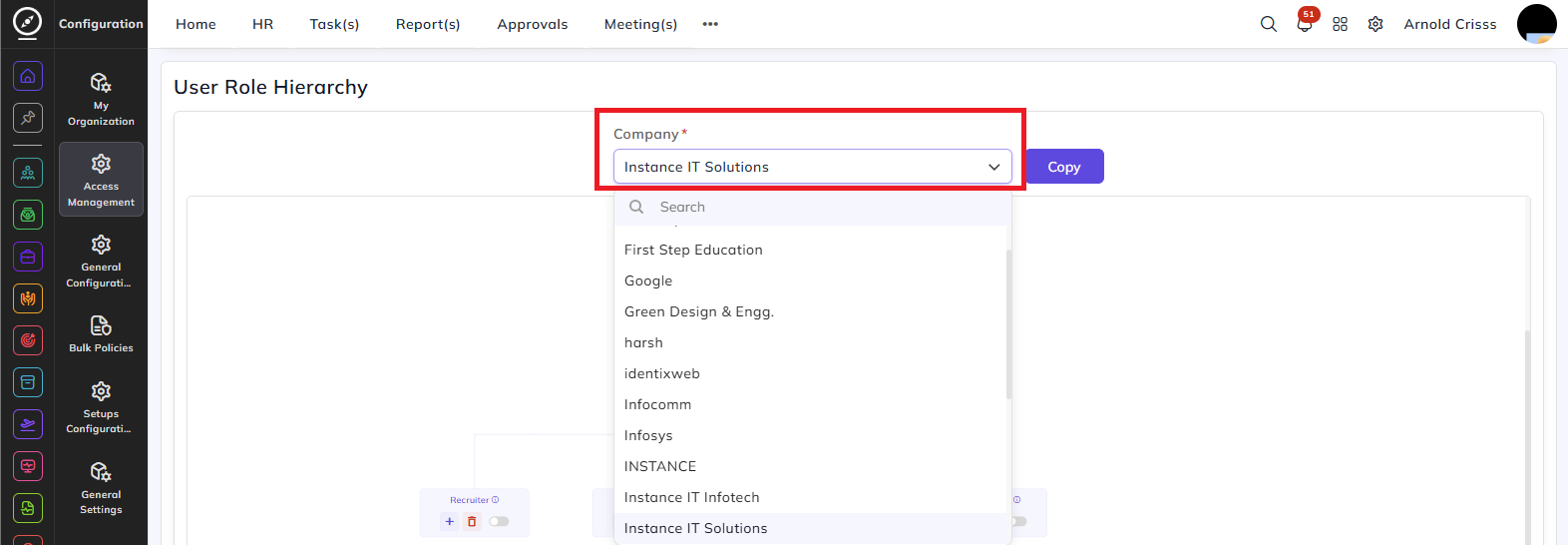
Building the Hierarchy:
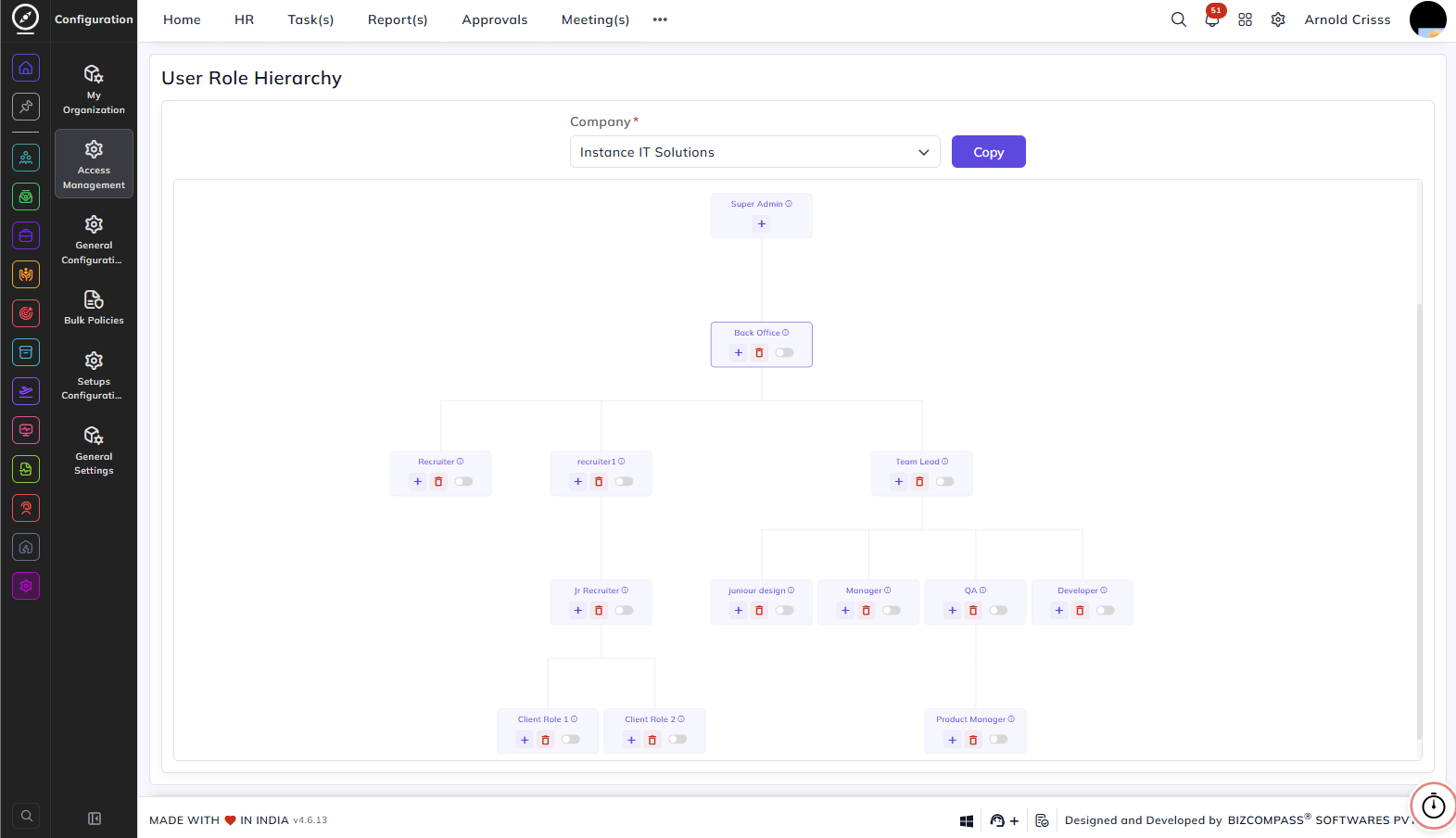
The hierarchy is displayed as a tree structure on the canvas. Super Admin is the top-level role and is fixed by default at the root of the hierarchy. It can't be deleted.
Each role card on the canvas has the following controls:
+ (Add): Click to add a child role below this role. A Select User Role popup appears where you can search and select one or more roles to add as sub-roles. Click Create to add the selected roles or Reset to clear the selection.
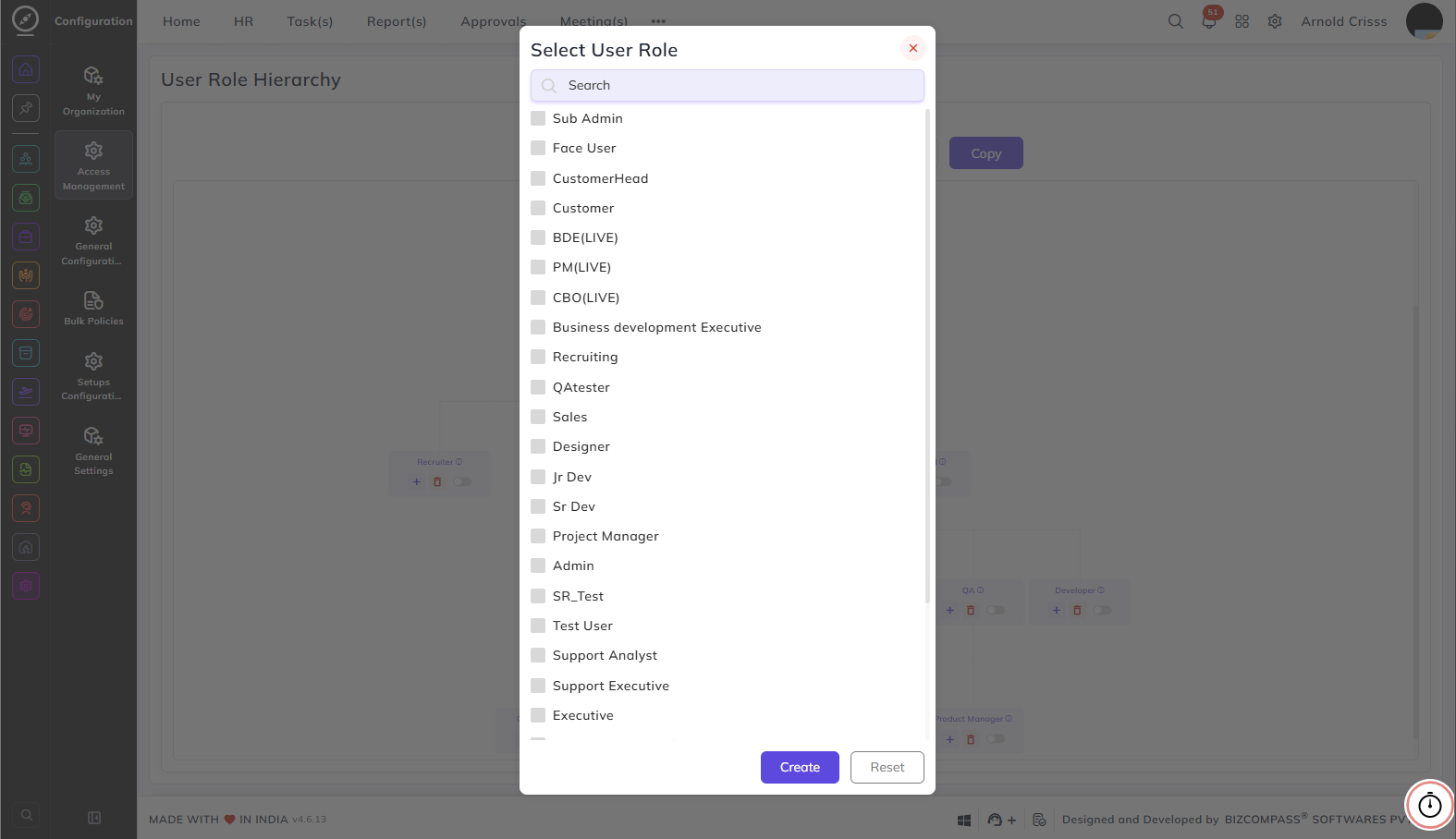
Delete (Red Icon): Click to remove this role from the hierarchy.
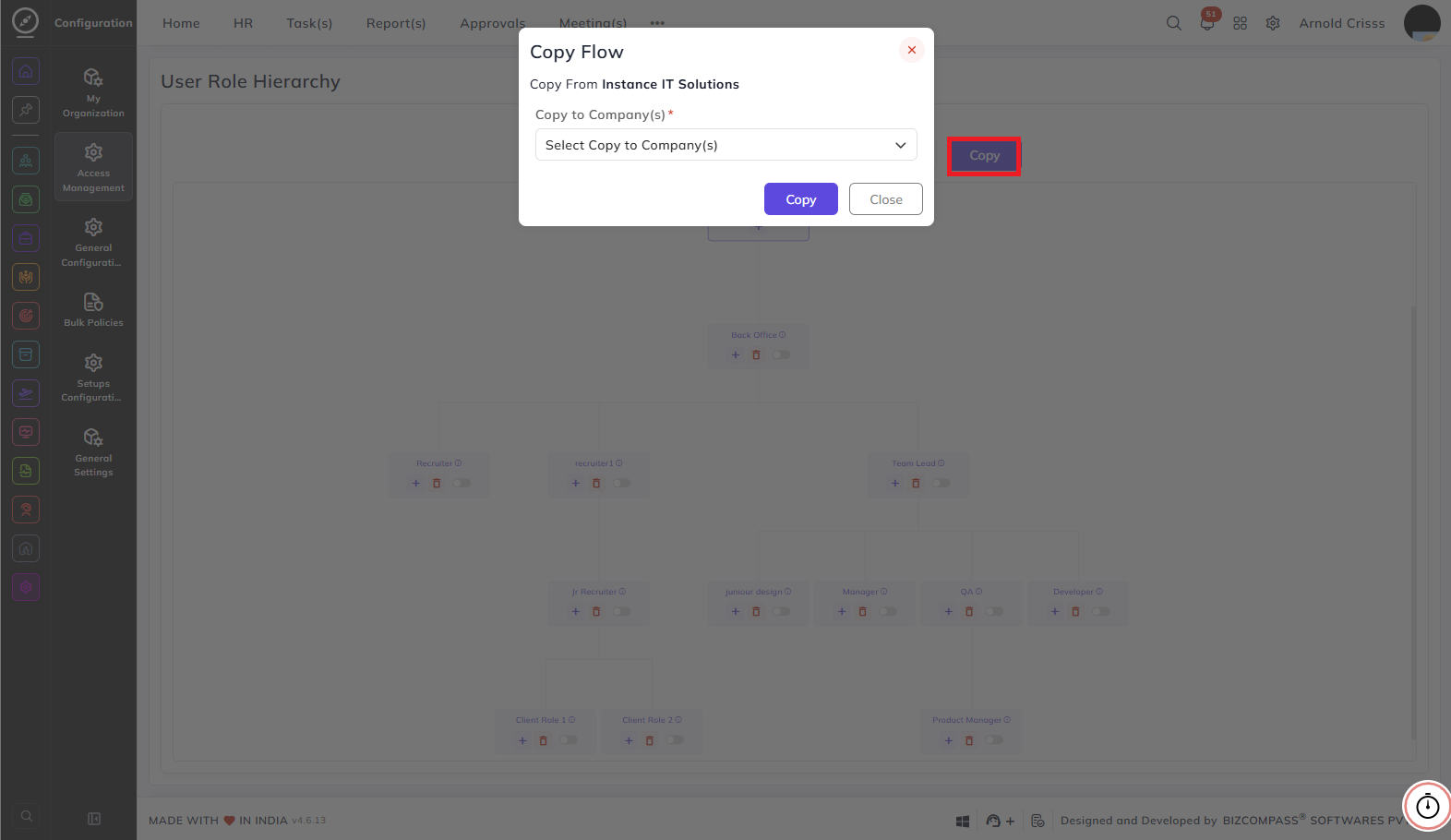
Copy: Click this to copy the hierarchy configuration from the selected company and apply it to another company.
How the Hierarchy Works:
Roles higher up in the hierarchy can view data belonging to all roles below them. For example, if Back Office is above Designer and CTO in the hierarchy, a Back Office user can see data created by Designer and CTO users. This controls data visibility across CRM records, reports, and other modules where role-based data access applies.