
User Roles
The User Roles page is used to define and manage specific access levels for different employees. By creating custom roles, you can control which features, modules, and administrative permissions each user can access.
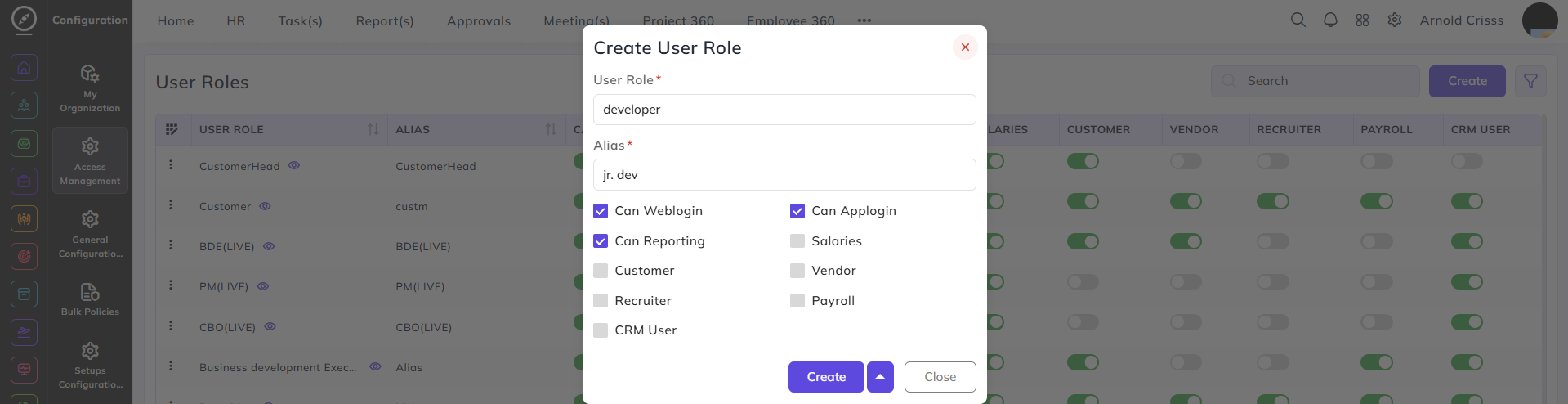
Create User Role:
-
Enter the User Role (e.g., HR Manager, Sales Executive, or Team Lead).
-
Input an Alias, which acts as a secondary or short-form name for the role.
-
Use the checkboxes to assign specific platform permissions:
-
Can Web login / Can App login: Grants access to the web portal and mobile application.
-
Can Reporting: Allows the user to report to another person
-
Salaries: Enables access to the list of the user role over the user role listing
- Payroll: Enables the
useremployee toaccess or runapprove the payroll process -
CustomerCustomer:/UsedVendorwhile/creating a user role for a customer of the company -
Vendor: Used while creating a user role for a vendor of the company
-
CRM User:
DefinesUsedifwhile creating a user role for a CRM User who can be assigned leads in theuser is a customer, vendor or asCRMuser -
Recruiter: Grants access to job openings, candidate pipelines, and placement modules.
-
The checkboxes can also be edited from the flag buttonbuttons itself.after creating the user role.