Apply Log Regularization
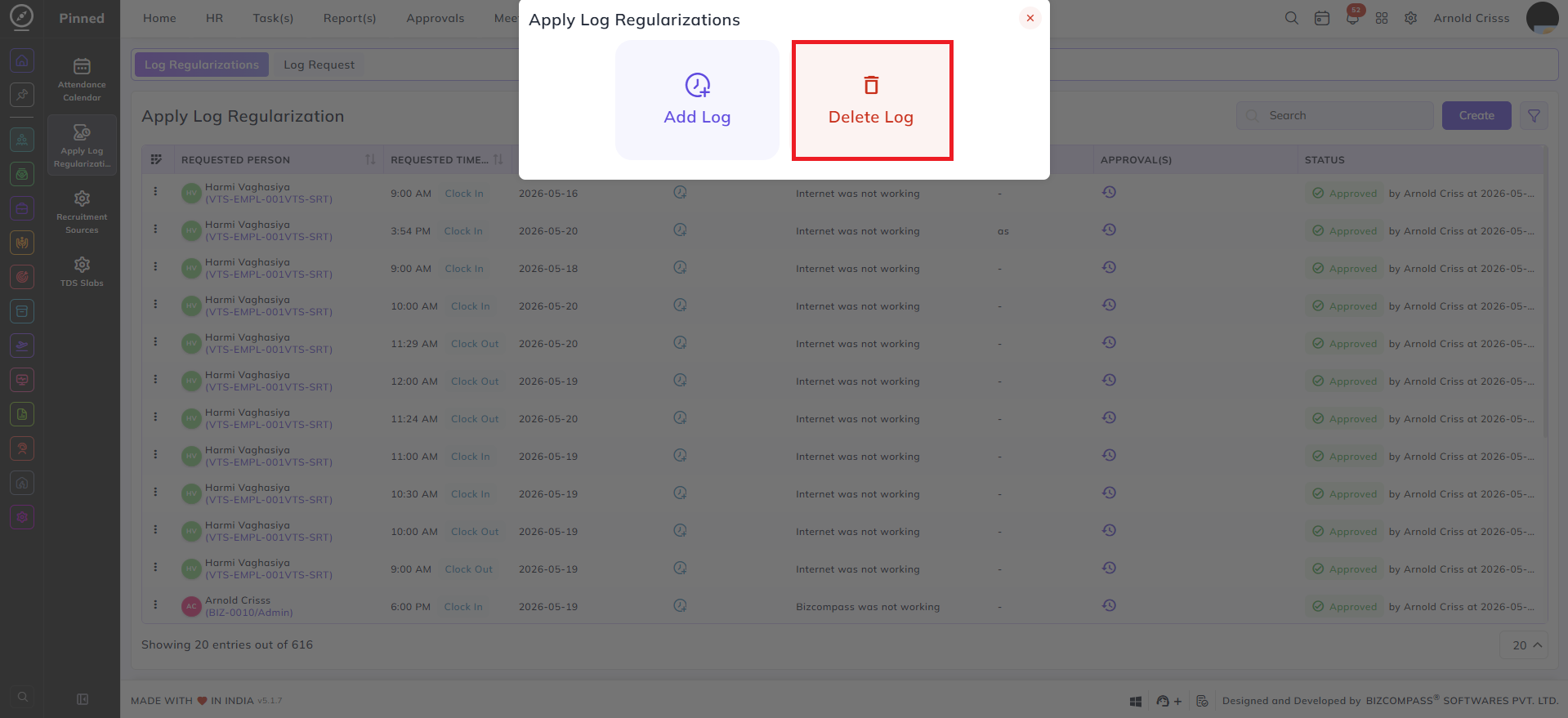
From this page, you can access the full log regularization history by navigating to the Apply Log Regularization page (HRMS->Attendance->Apply Log Regularization), which lists all your past regularization requests.
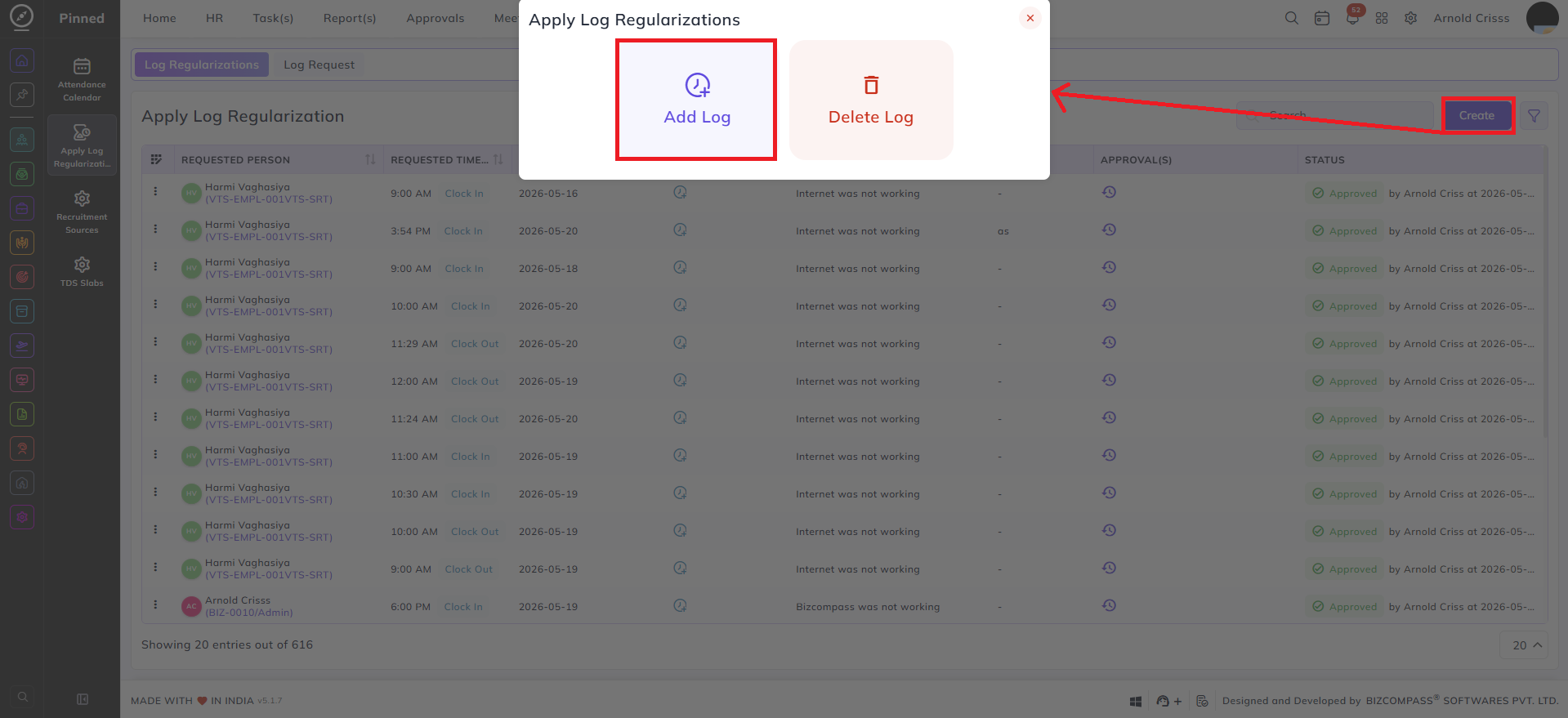
Each entry shows the requested date, time, type (Clock In or Clock Out), reason, and current approval status — Approved, Pending, or Rejected (with the rejection reason shown if applicable). To submit a new request from this page, click the Create button at the top right, which opens the same Add Log / Delete Log options.
Add Log:
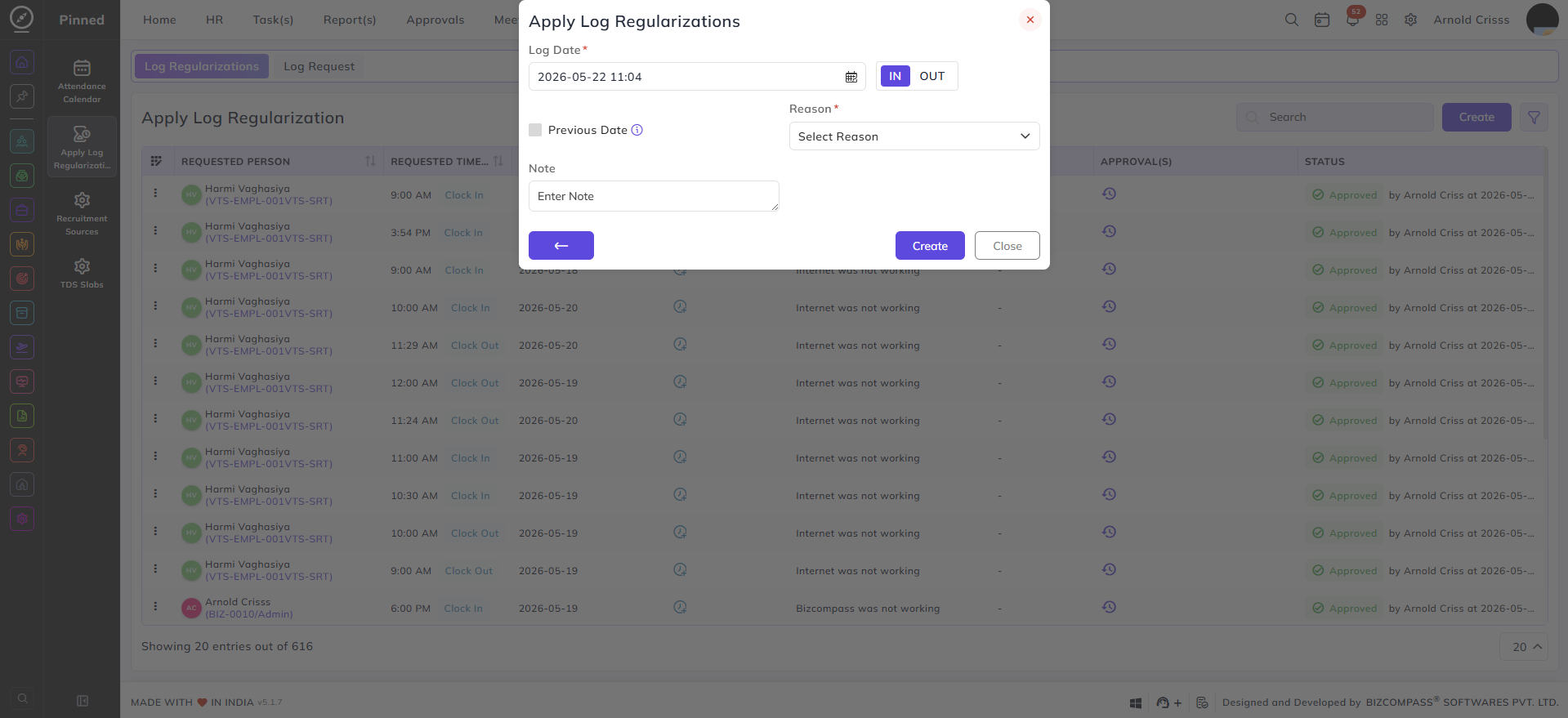
Select Add Log to create a new attendance entry for an employee. Fill in the following fields:
- Log Date: The date and time for the log entry. Defaults to the current date and time.
- In / Out: Select whether this entry is a clock-in or clock-out.
- Previous Date: Enable this checkbox if the log entry belongs to the previous date.
- Reason: Select the appropriate reason from the dropdown.
- Note: Add any additional remarks or context if needed.
Delete Log:
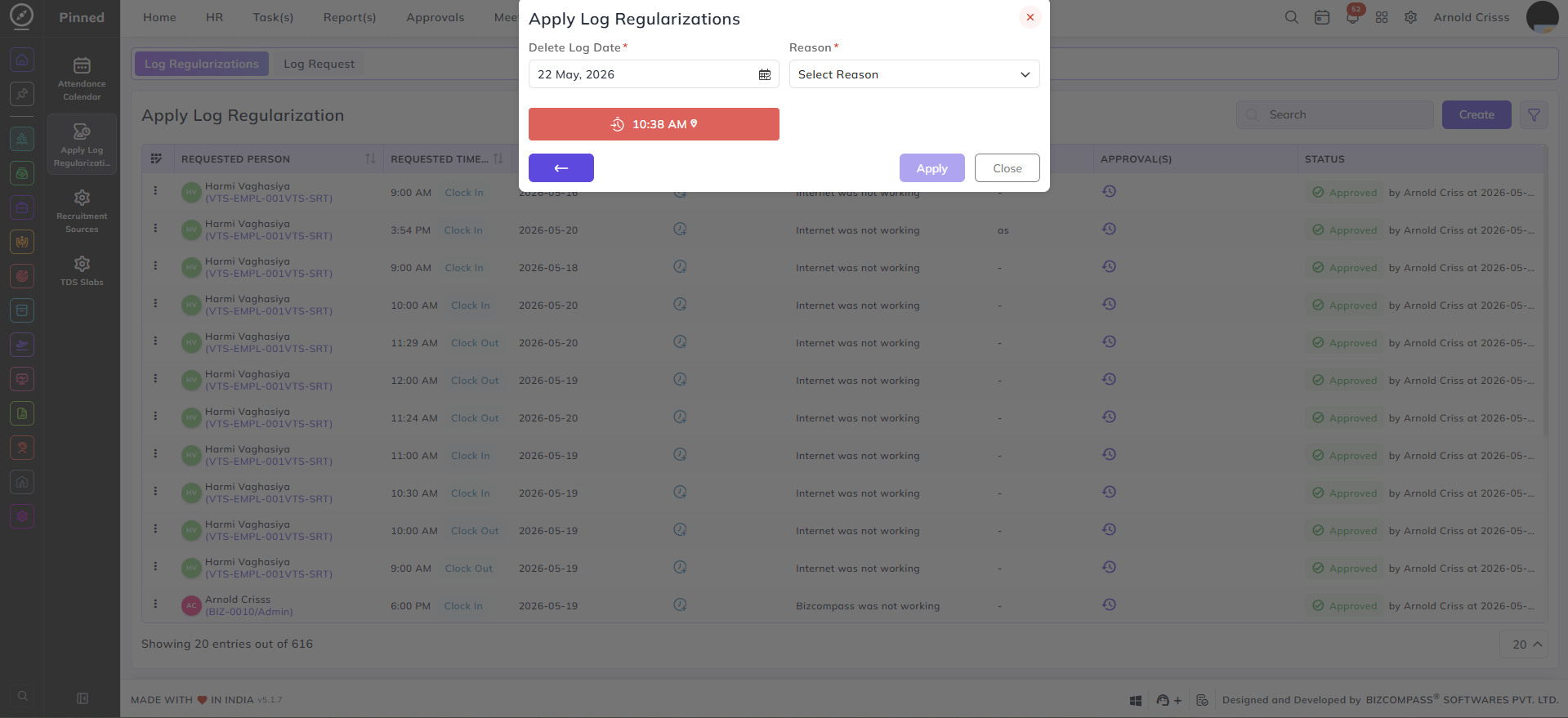
Select Delete Log to request removal of an incorrect attendance entry. Fill in the following fields:
- Delete Log Date: Select the date of the log entry to be removed.
- Reason: Select the appropriate reason from the dropdown.
- Log Time: The system displays the existing log time for that date (shown in red). Confirm this is the correct entry before proceeding.