Apply Remote Work
From this page, employees can submit and track their remote work applications. To navigate here, go to HRMS->Attendance->Apply Remote Work.
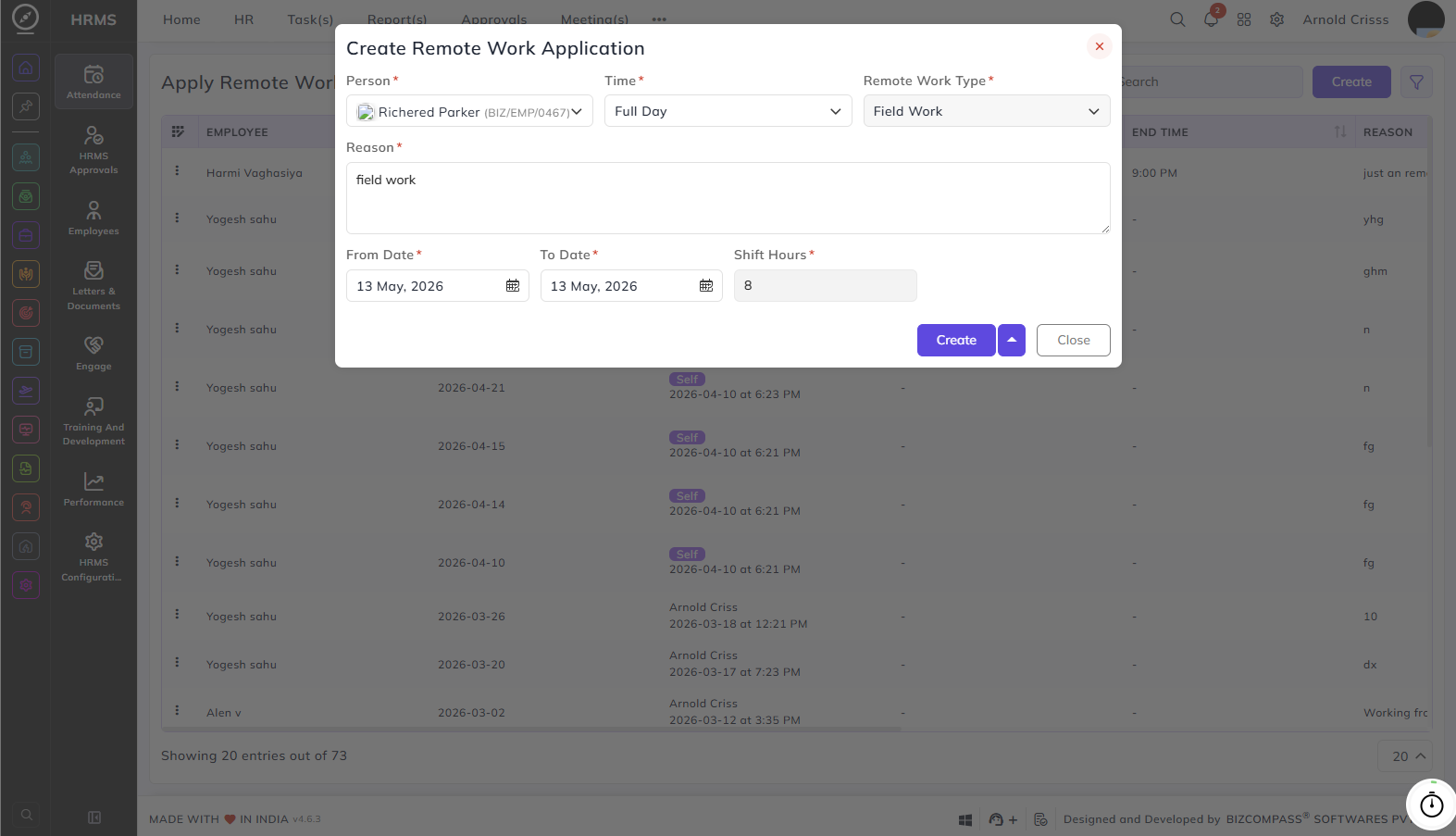
Person:
The employee's name will be fetched who is submitting the remote work request.
Time:
Select the duration type — Full Day, Half Day, or Hourly Based.
Remote Work Type:
Select the type of remote work — Field Work, On Duty, or Work From Home.
Reason:
Enter the reason for the remote work request.
From Date & To Date:
Set the start and end date of the remote work period.
Shift Hours:
Displays the number of working hours for the selected shift, auto-filled based on the employee's shift configuration.
Assigning Remote Work Policies to an Employee:
Remote work policies need to be assigned to an employee before they can apply for remote work. This is configured in the employee's profile. You can assign a remote work policy, set the applicable month it starts from, and optionally set a To Month if the policy applies only for a specific period. Multiple policies can be assigned for different months — for example, Field Work for May, On Duty for June, and so on.
When an employee applies for remote work, the Remote Work Type dropdown will only show the type configured for that month. For example, if Field Work is assigned for May, the employee will only see Field Work as an option when applying for remote work in May.
Suppose if a reporting person (or any higher authority person) has "All" rights for Apply Remote Work page configured in the User Rights, he/ she can apply remote work for all people below him/ her in the user role hierarchy.
You can also quickly apply for remote work from two additional places:
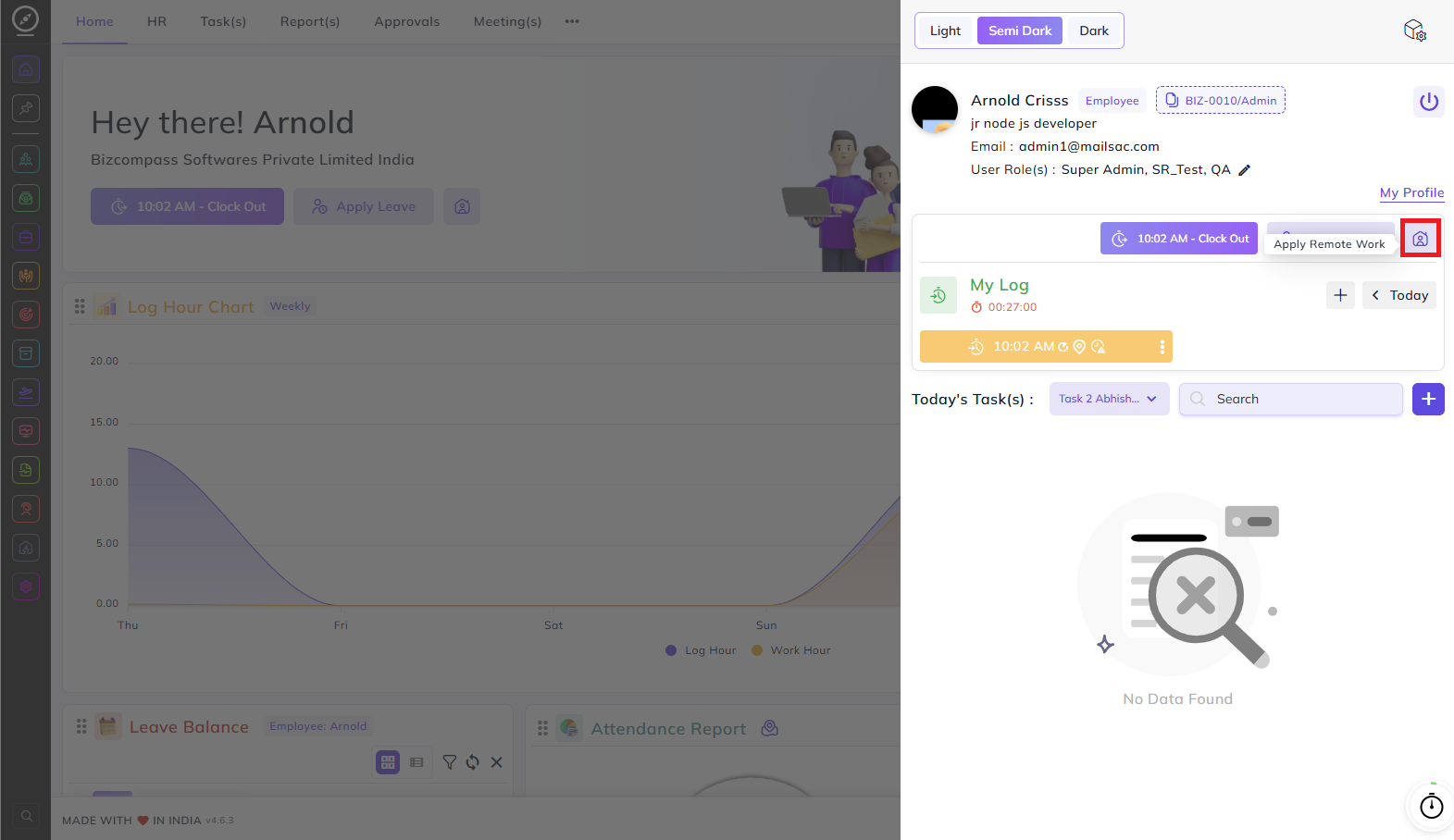
- Home Page — An Apply Remote Work button is available directly on the Home page, so you can submit a request without navigating away.

- Profile Quick Panel — Click your profile icon at the top right of any page to open the side panel. An Apply Remote Work button is available here for quick access from anywhere in the system.
Remote Work Balance Graph:
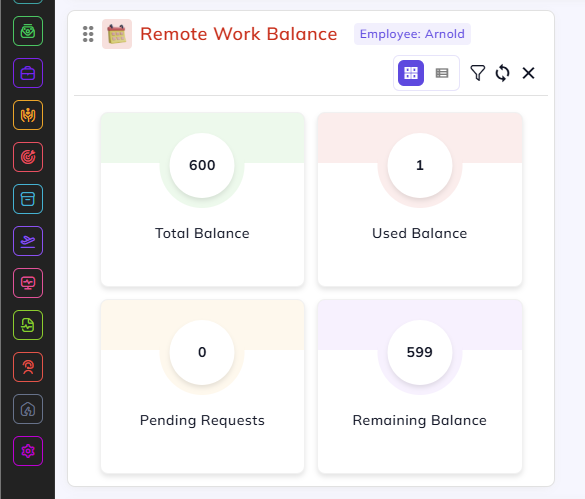
Your Remote Work Balance graph is displayed as a widget on the Home page, giving you a quick summary of your remote work quota. It shows your Total Balance, Used Balance, Pending Requests, and Remaining Balance so you always know how many remote work days you have left.
Attendance Calendar:
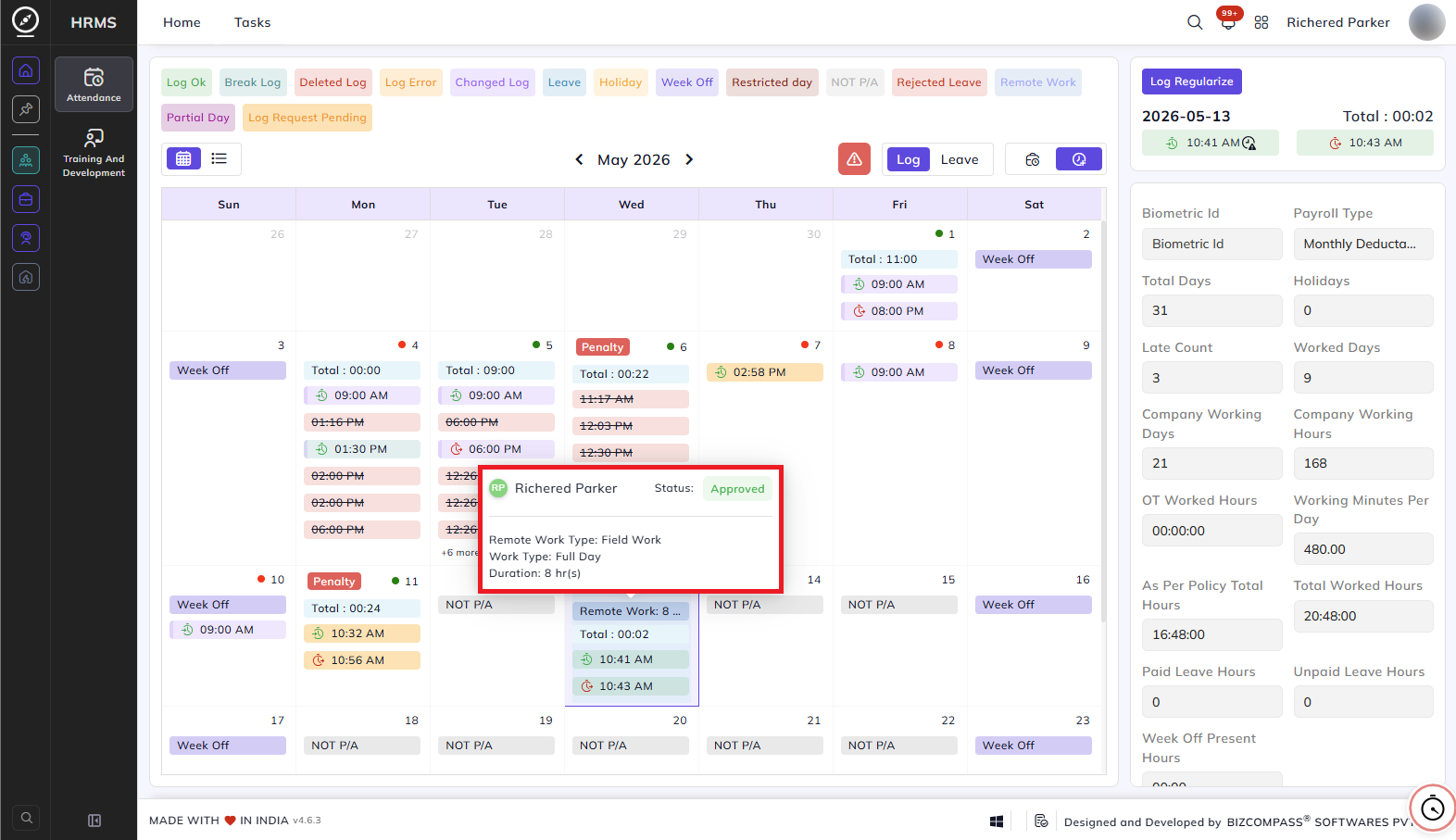
Approved remote work applications are also visible directly on your Attendance Calendar. Days where remote work was approved show a Remote Work label on the calendar. Hovering over the entry displays a summary including the employee name, approval status, Remote Work Type, Work Type, and Duration.
Timer Tracker:
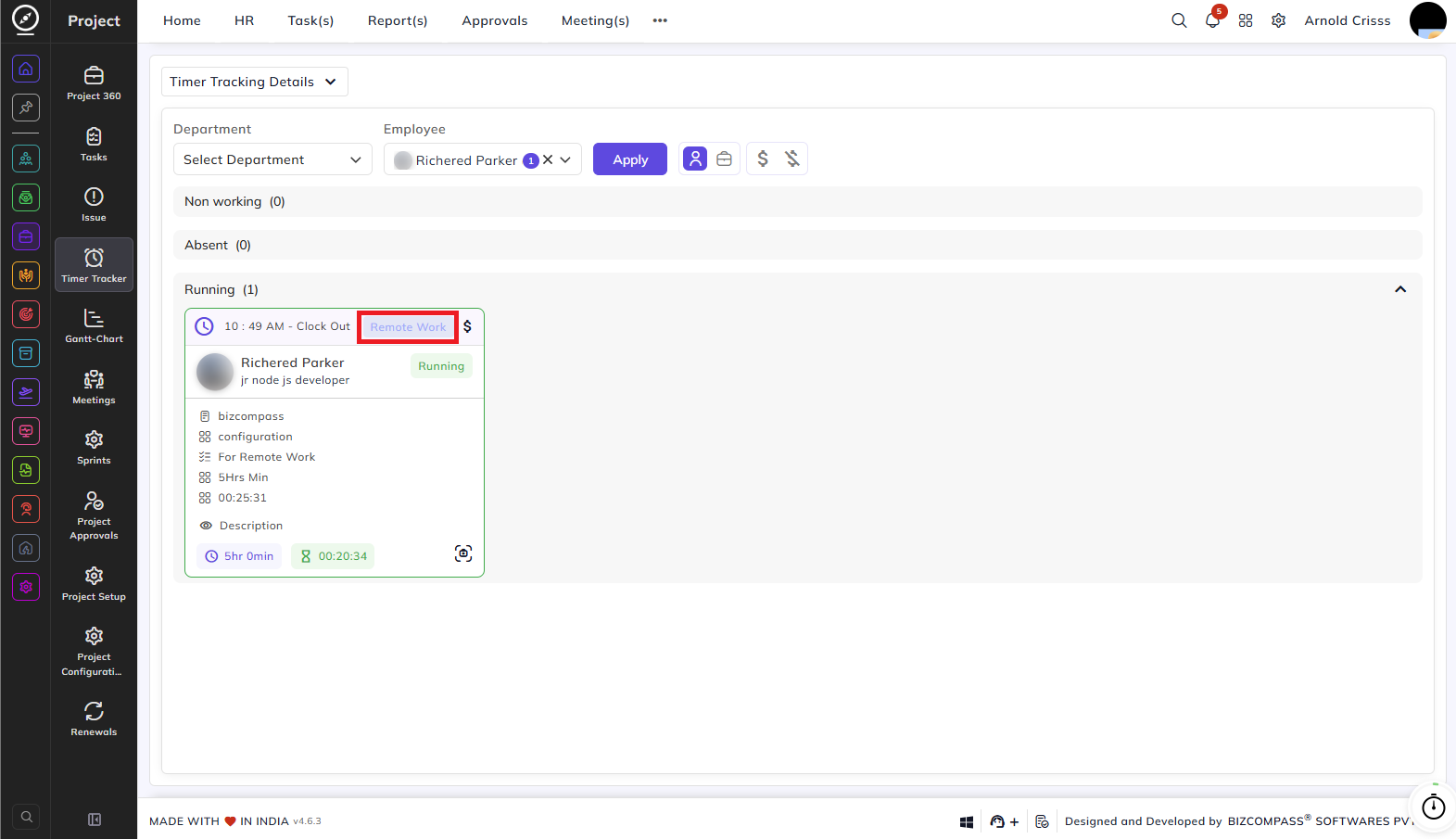
Employees who are on an approved remote work day are also visible in the Timer Tracker page. Their employee card displays a Remote Work badge, making it easy for managers to see at a glance which team members are working remotely on a given day.