Approvals Hierarchy (HRMS)
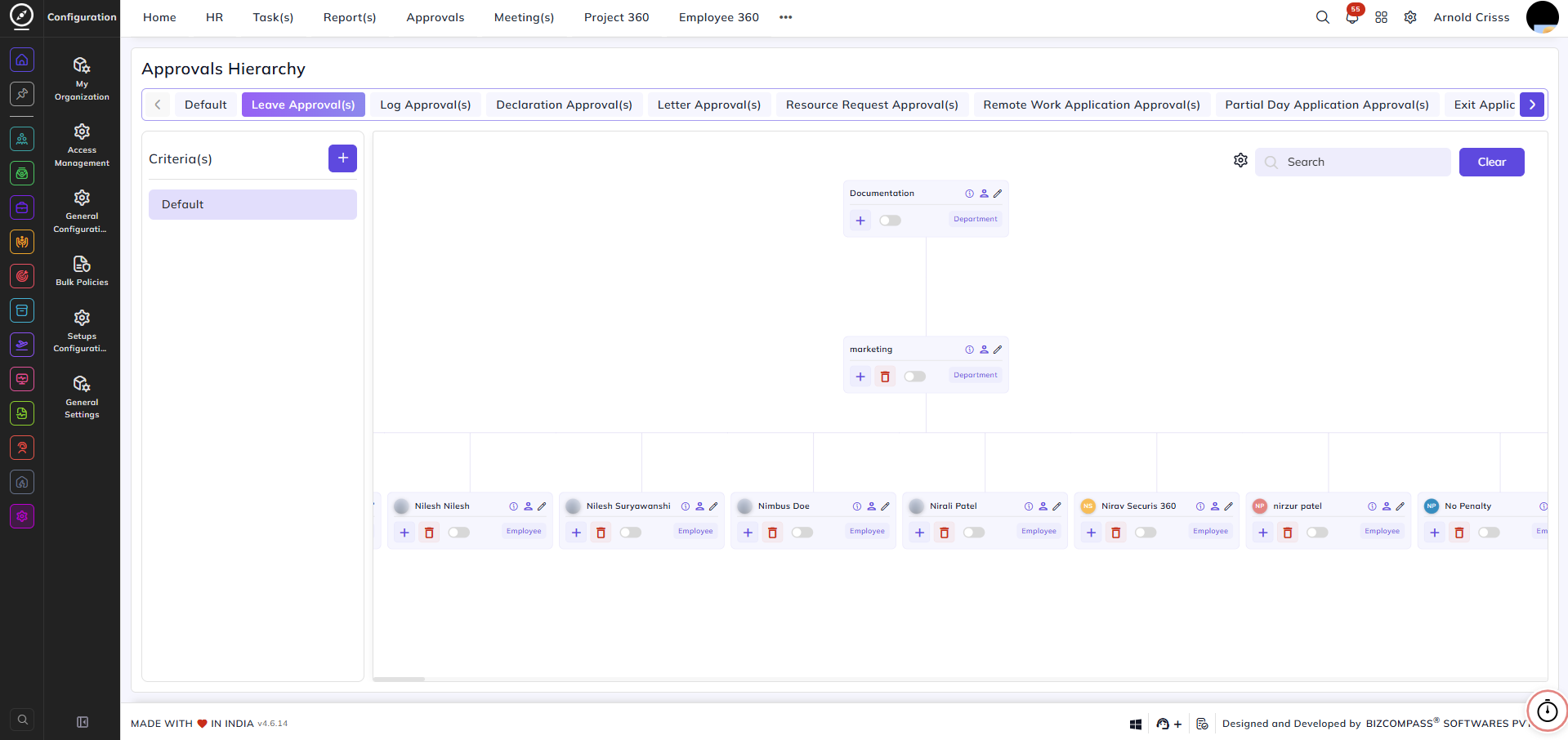
The Approvals Hierarchy page is used to manage and configure the approval processes for various types of employee applications in HRMS. This page allows you to define the hierarchical flow through which requests are approved, ensuring a structured and controlled approval process.
The following approval types can be configured from this page:
- Leave Approval(s)
- Log Approval(s)
- Declaration Approval(s)
- Remote Work Application Approval(s)
- Partial Day Application Approval(s)
- Exit Application Approval(s)
- Handover Approval(s)
- KRA/KPI Approval(s)
If you need to set a different approval hierarchy for a specific type of request — such as leave requests for different company branches or departments — you can do that too.
Create Leave Approval Hierarchy:
(The same steps apply for all other approval types listed above.)
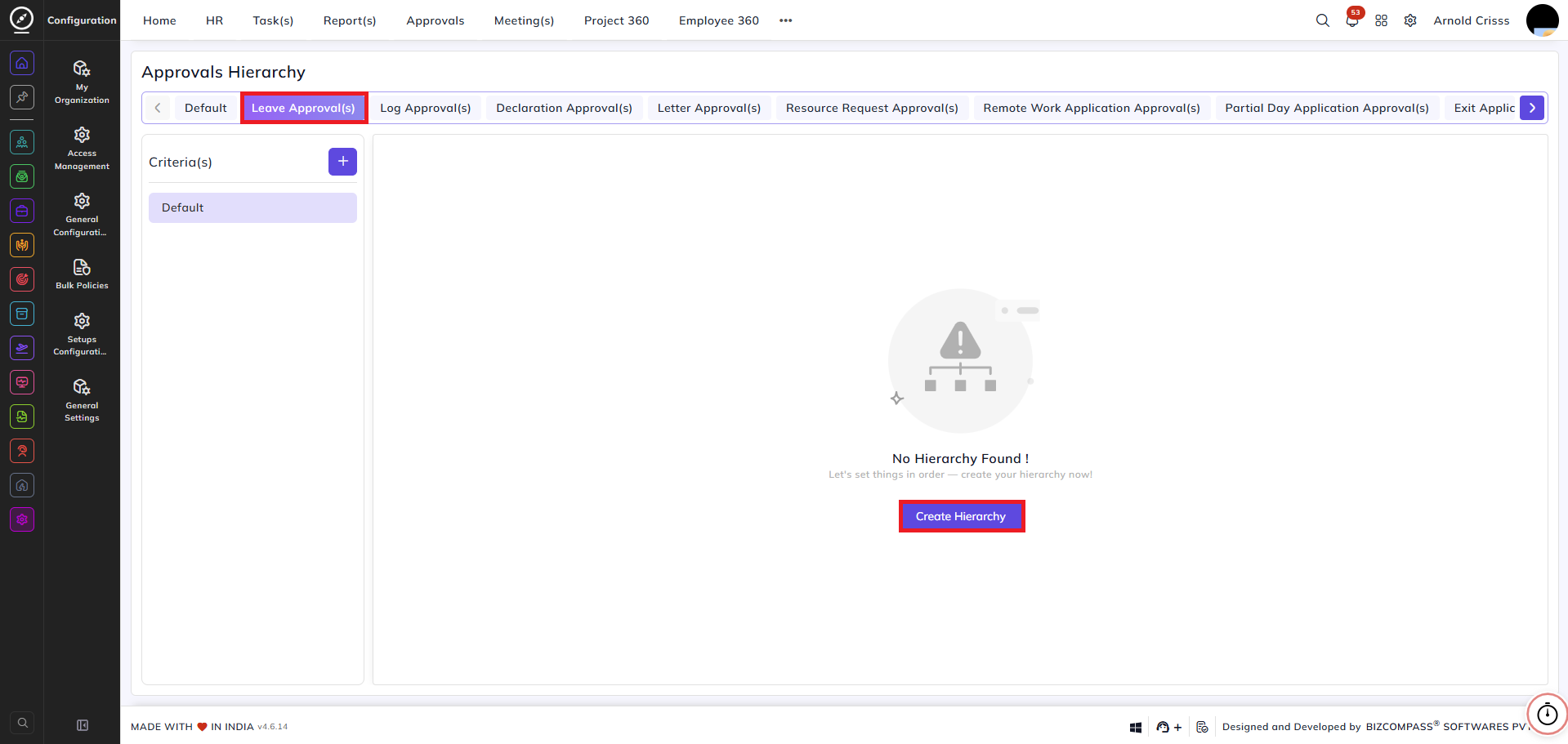
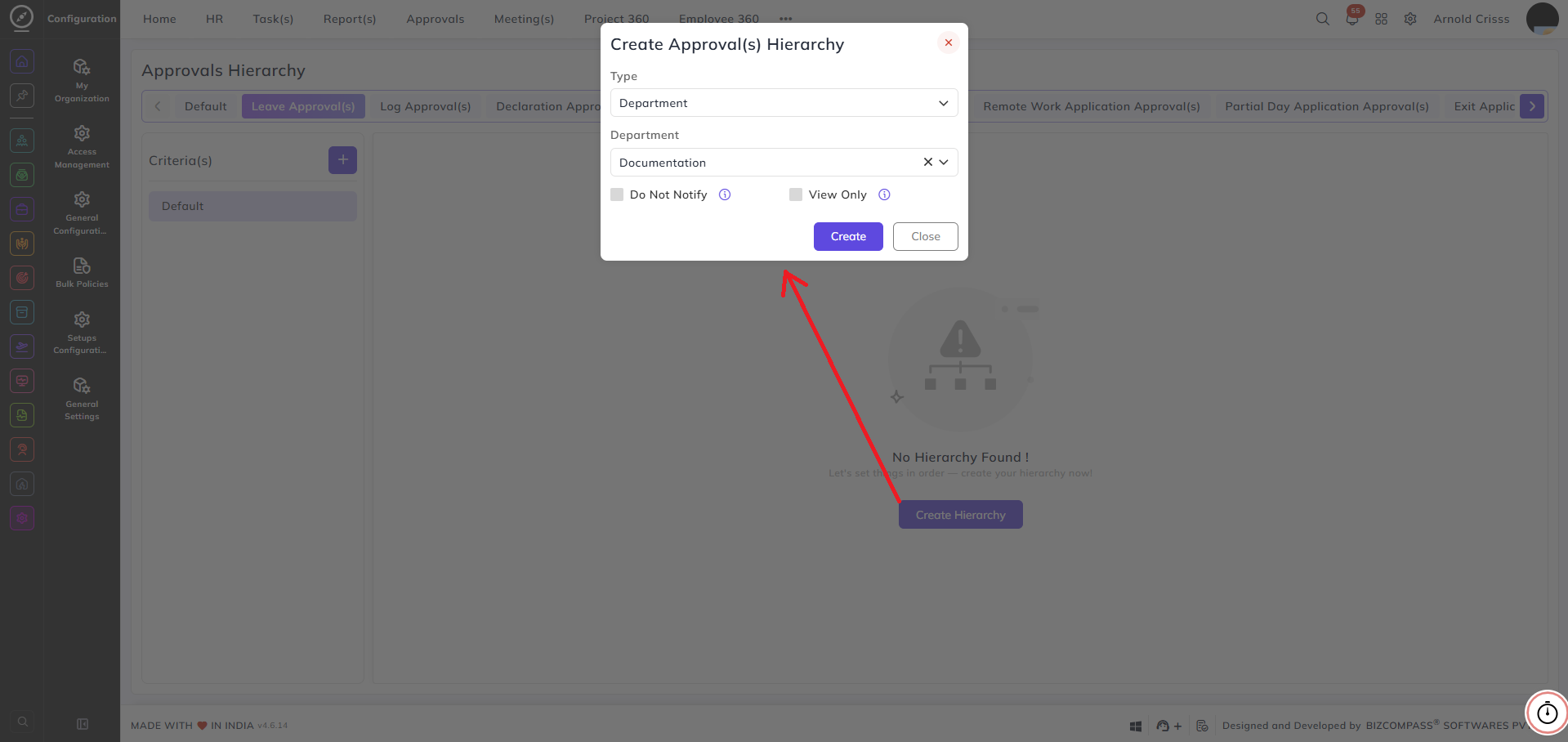
2. In the Create Approval(s) Hierarchy window, choose the Type of criteria for the approval. You can select from options such as:
- Department
- Employee
- User Role
- Sub Department
- Reporting Person
- Company Head
- Branch Head
- Department Head
Example: Select Department as the type, then choose the specific department for which this hierarchy applies.
3. After selecting the type, configure the following options:
- Do Not Notify — if enabled, this approver will not receive any approval emails or notifications regarding the request.
- View Only — if enabled, this approver will only be able to view the requests, but can't approve, reject or take action.
Click Create to save and generate the hierarchy.
4. Once the hierarchy is created, click the + symbol below any approver node to add the next level of approvers — creating a multi-level approval chain.
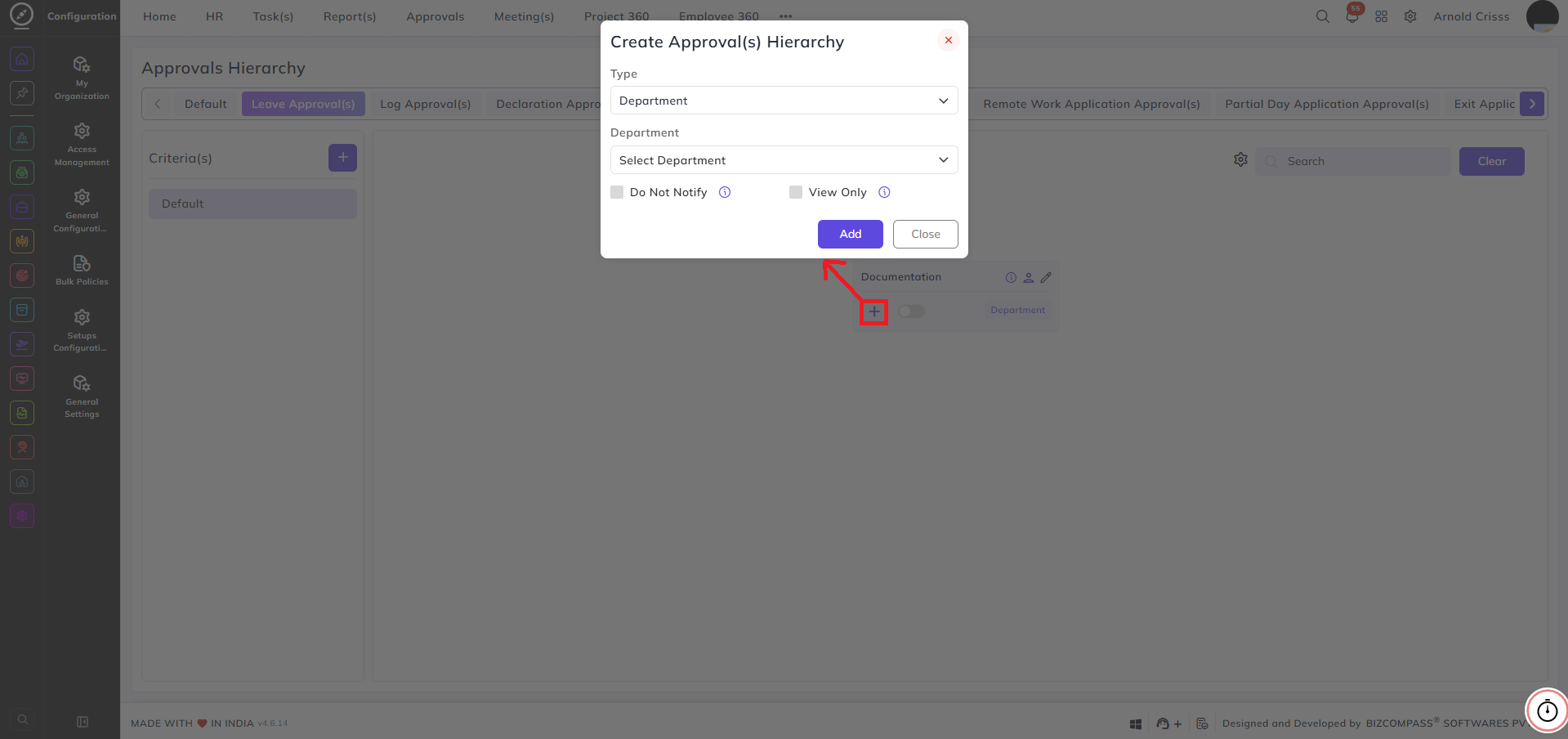
5. You can keep adding nodes to build as many approval levels as needed for your organization.
Adding Multiple Criteria:
The hierarchy is created under Default by default — meaning all leave requests across your organization will follow this hierarchy.
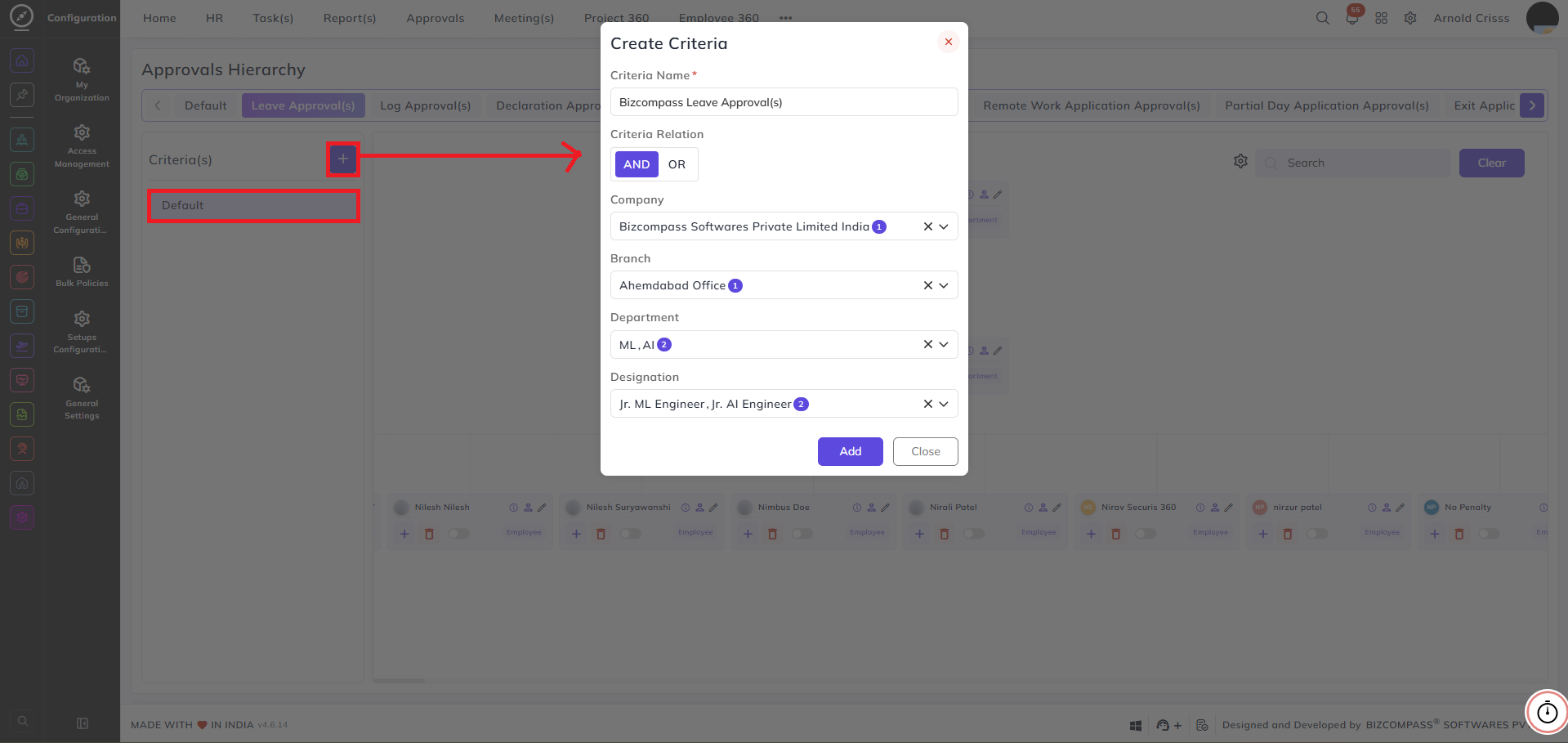
If you want to create different approval hierarchies for different companies, branches, departments, or designations, click the + button to Add Criteria.
Enter a Criteria Name and fill in the specific details — such as company, branch, department, or designation — for which this separate hierarchy applies.
Once the criteria is created, set up its hierarchy the same way as the Default hierarchy above.
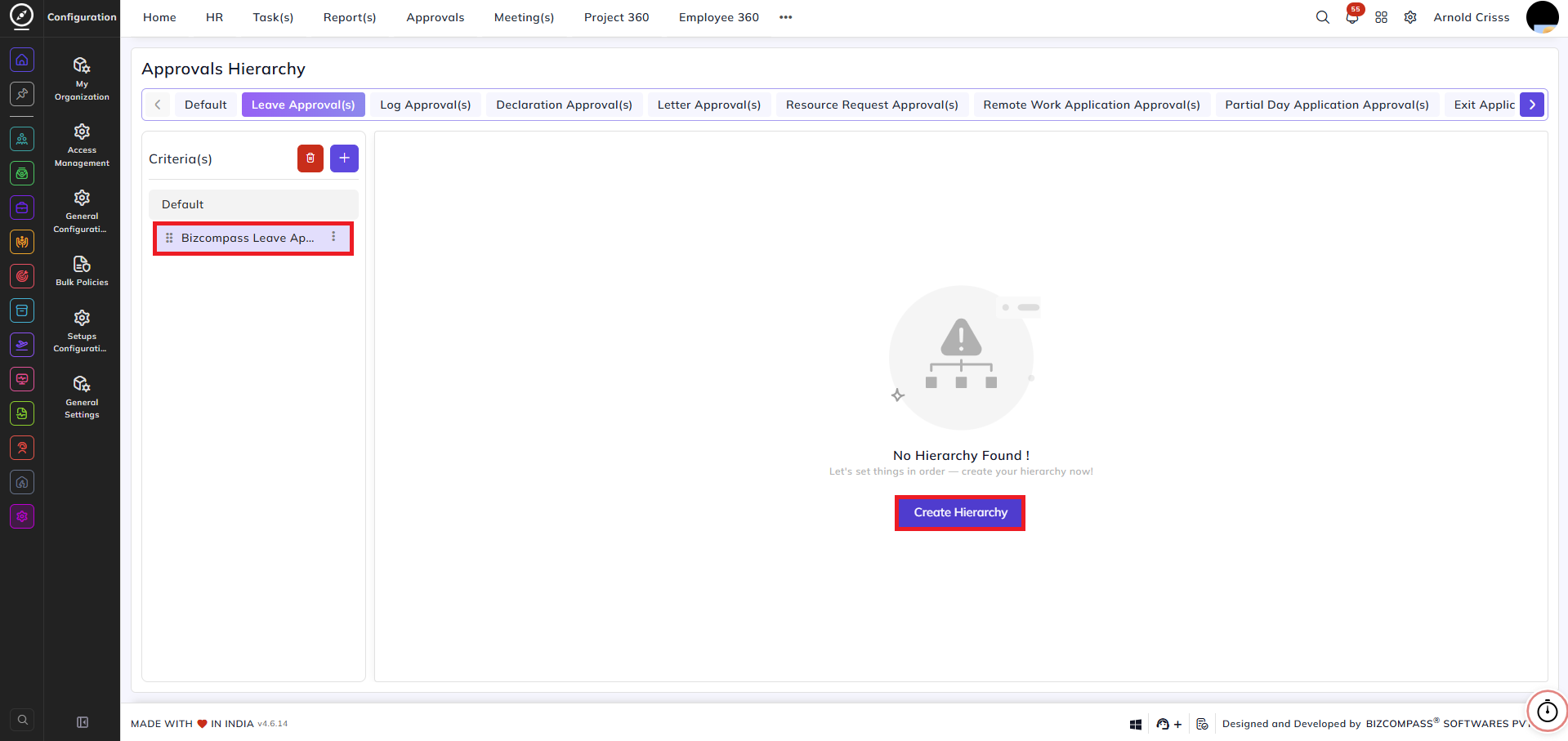
This way, you can maintain separate approval flows for different parts of your organization.
Hierarchy Settings:
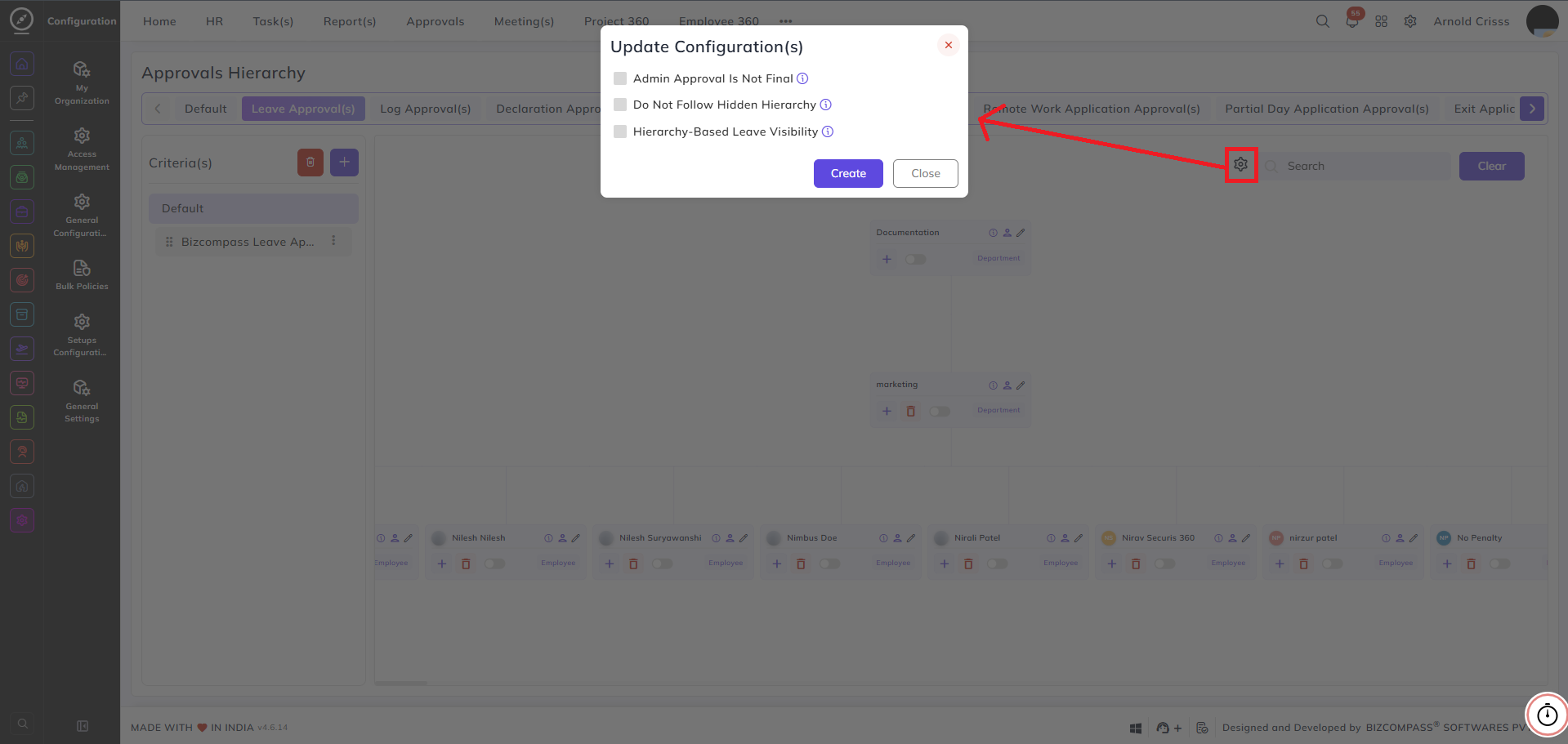
Click the Settings button on any hierarchy to open the approval configuration popup. The following options are available:
- Admin Approval Is Not Final — when enabled, admin approval requires further approval and will not be treated as the final approval.
- Do Not Follow Hidden Hierarchy — when enabled, any hidden hierarchies are excluded from the standard approval flow.
- Hierarchy-Based Leave Visibility — when enabled, parents can view leave only after child-level approvals. If any child does not approve, the leave remains hidden for corresponding parent.
After the Hierarchy is Created:
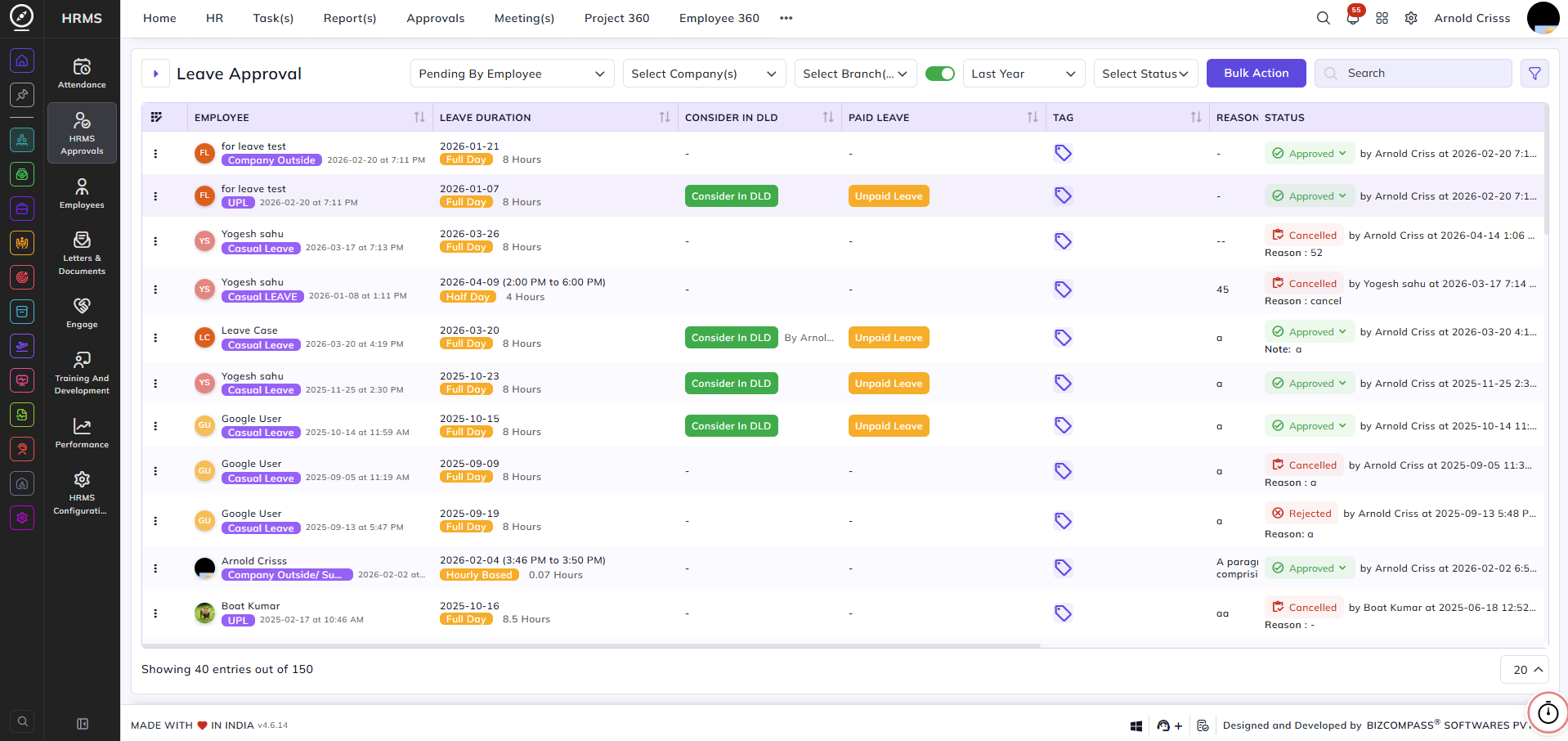
Once the Leave Approval hierarchy is configured, leave requests will appear in the HRMS->HRMS Approvals->Leave Approvals page where the respective approver can review and update the status.
You can also access pending approvals by navigating to the Approvals tab from the top navigation bar and selecting the relevant approval type.
Making an Unpaid Leave Paid:
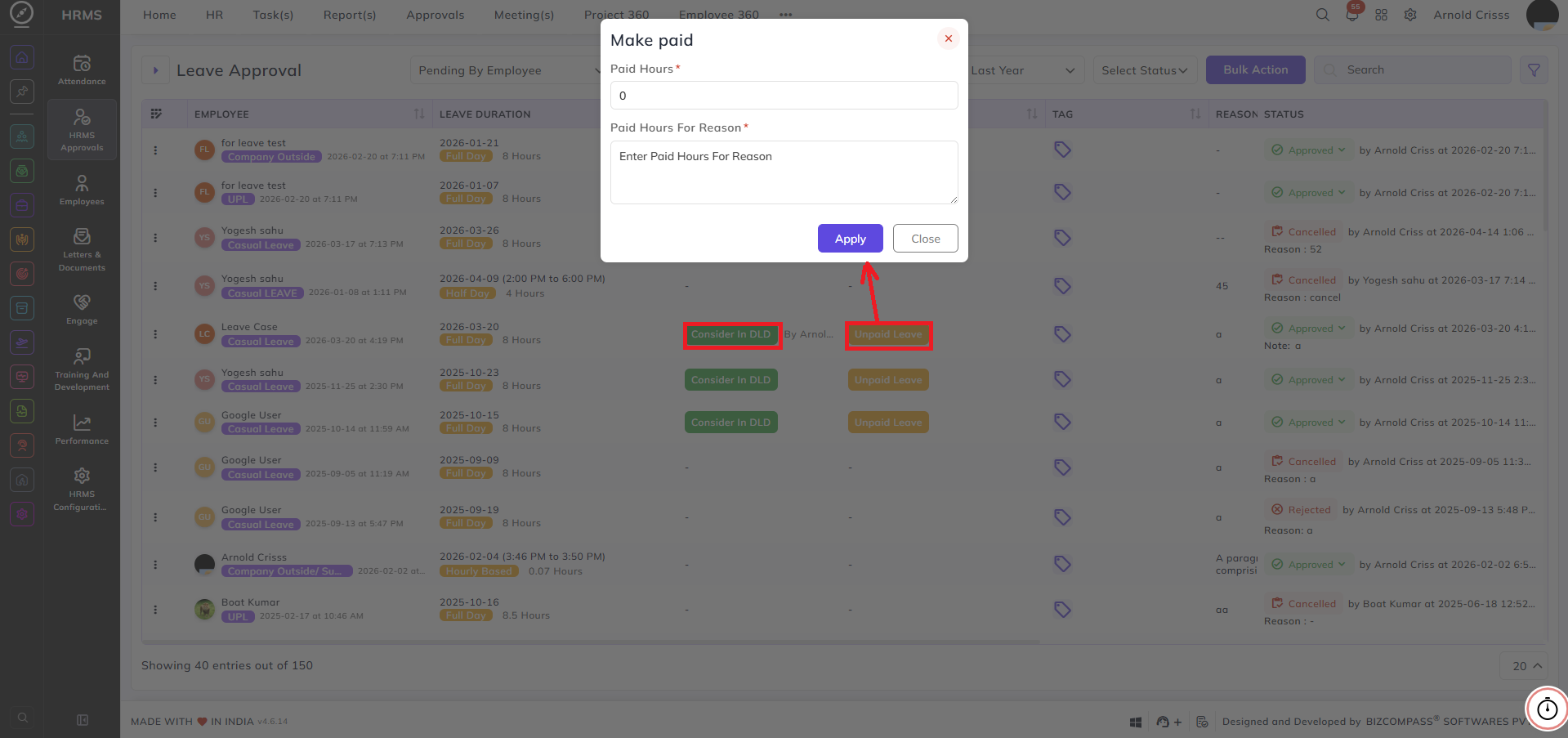
If a leave has been marked as Unpaid Leave, it can be converted to a paid leave by clicking the Unpaid Leave button next to the record. This opens the Make Paid popup where you need to fill in:
- Paid Hours — enter the number of hours to be marked as paid
- Paid Hours For Reason — enter the reason for converting this leave to paid
Click Apply to save the changes. The leave will no longer be treated as unpaid for payroll calculation.
Consider In DLD:
The Consider In DLD button indicates whether this leave should be considered in the Dynamic Loss of Pay (DLD) calculation.
- If the button shows Consider In DLD — the leave is currently being considered in DLD. Click it to exclude it from DLD calculation.
- If the button shows Not Consider In DLD — the leave is currently excluded from DLD. Click it to include it back in the DLD calculation.