Attendance Calendar
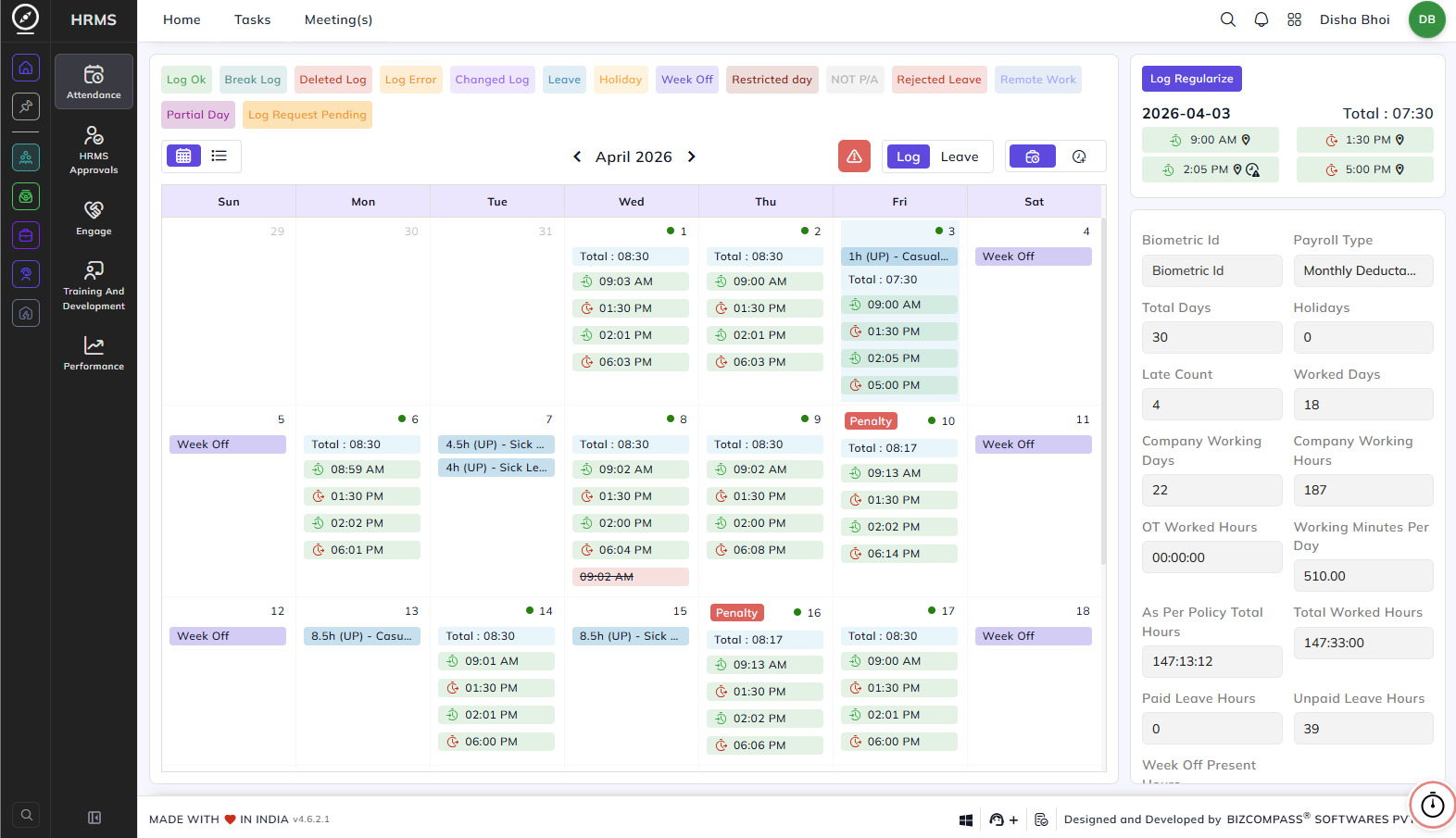
The Attendance page gives you a full monthly view of your attendance records. To navigate here, go to HRMS->Attendance->Attendance Calendar.
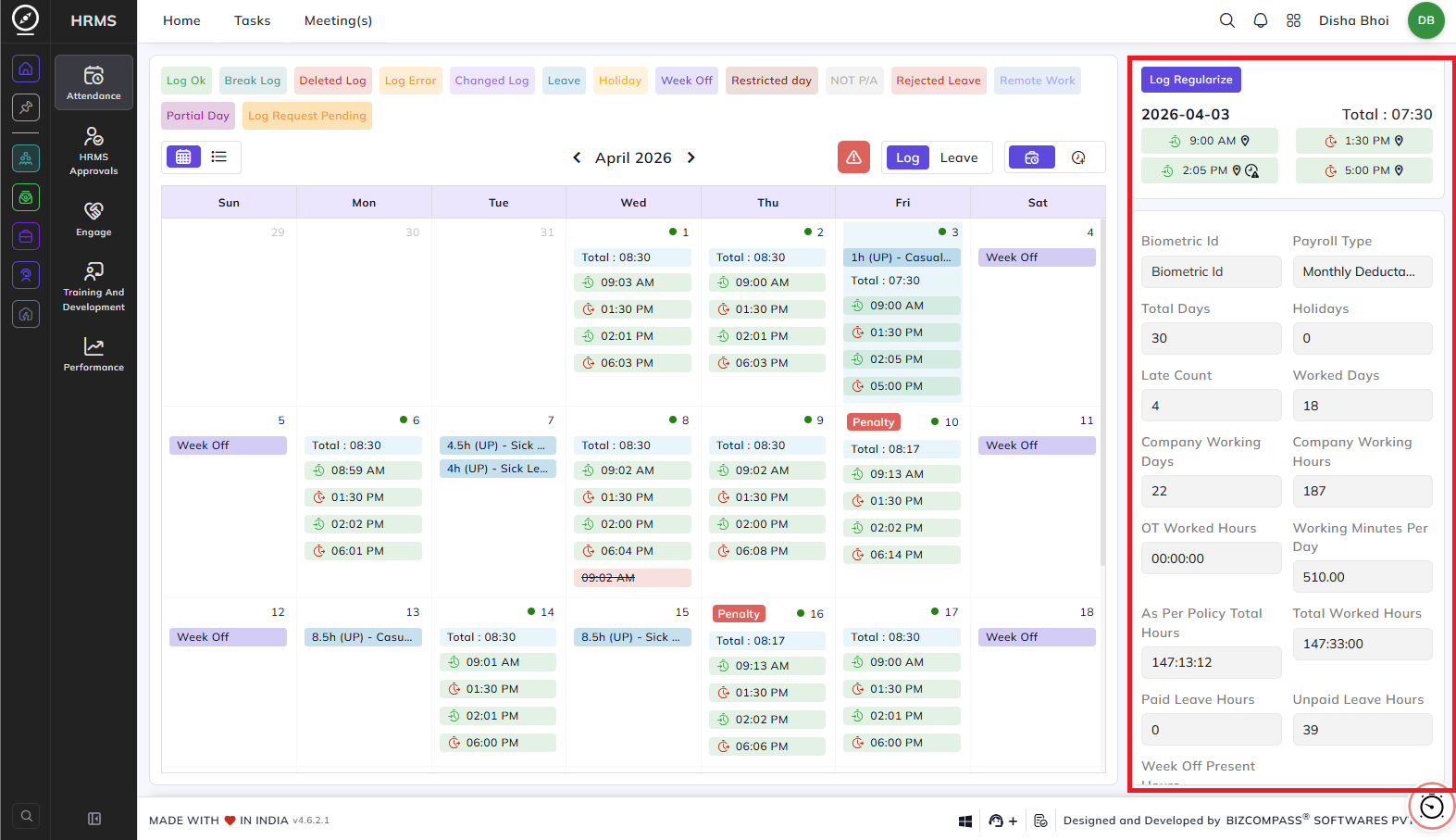
At the top of the calendar, a color-coded legend helps you understand what each type of entry means at a glance:
- Log Ok — Your attendance was recorded correctly for that day.
- Break Log — A break was recorded during your shift.
- Deleted Log — A log entry that has been deleted.
- Log Error — There is an issue with your log for that day.
- Changed Log — A log entry that has been modified.
- Leave — You were on approved leave.
- Holiday — A company holiday.
- Week Off — Your scheduled day off.
- Restricted Day — A restricted holiday.
- NOT P/A — No attendance was marked for that day.
- Rejected Leave — A leave request that was rejected.
- Remote Work — Attendance marked while working remotely. (It will reflect the same way as Leave)
- Partial Day — Only part of the day was logged. (It will reflect the same way as Leave)
- Log Request Pending — A regularization request is awaiting approval.
Calendar Views:
You can switch between two views (Calendar and Grid) using the icons at the top left of the calendar:
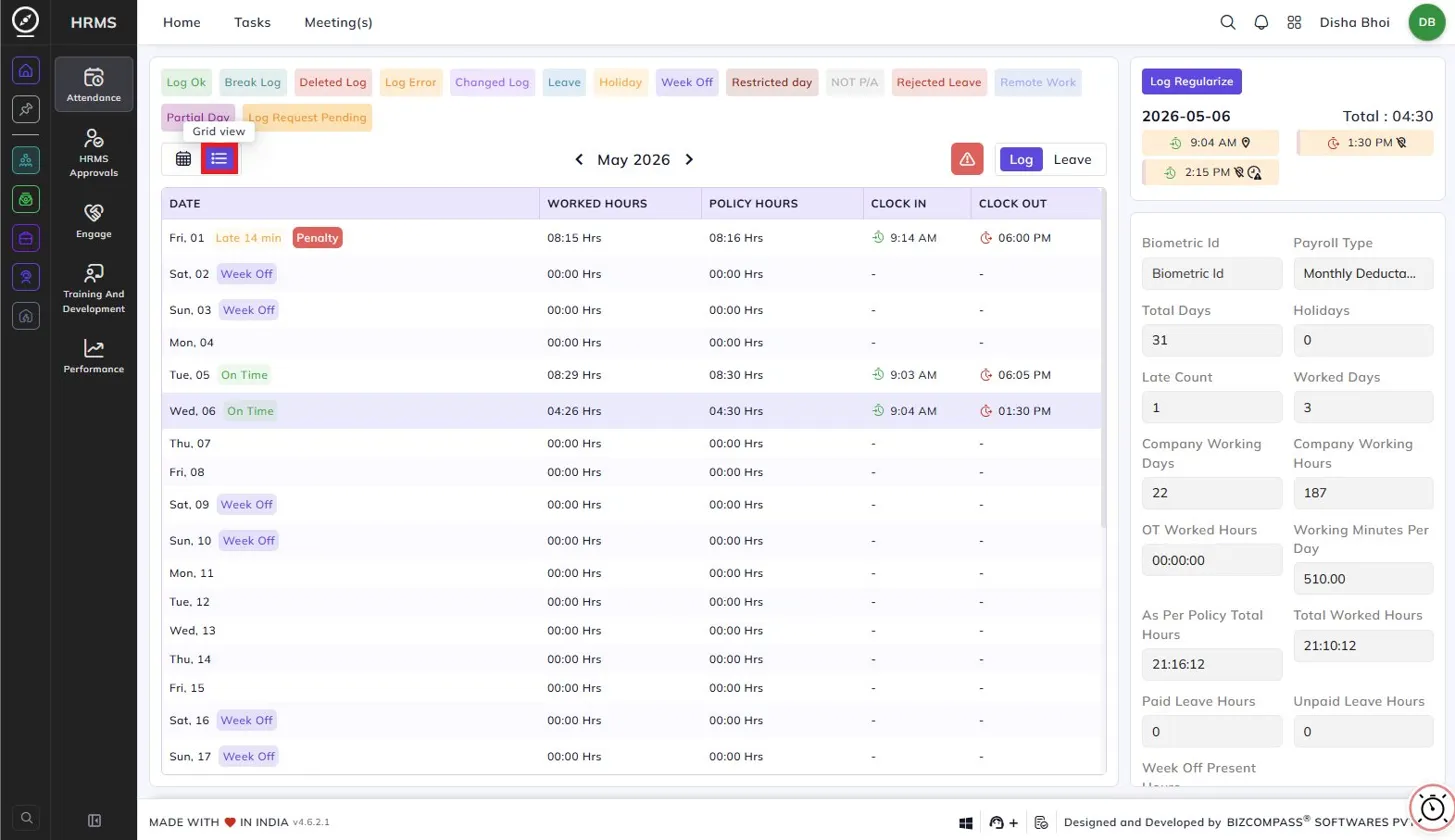
Grid View: Displays your attendance as a day-by-day list for the month, showing the date, worked hours, policy hours, clock-in time, and clock-out time. Days where you arrived late are flagged as Late X min and any penalties applied are shown as a Penalty badge.
Penalty:
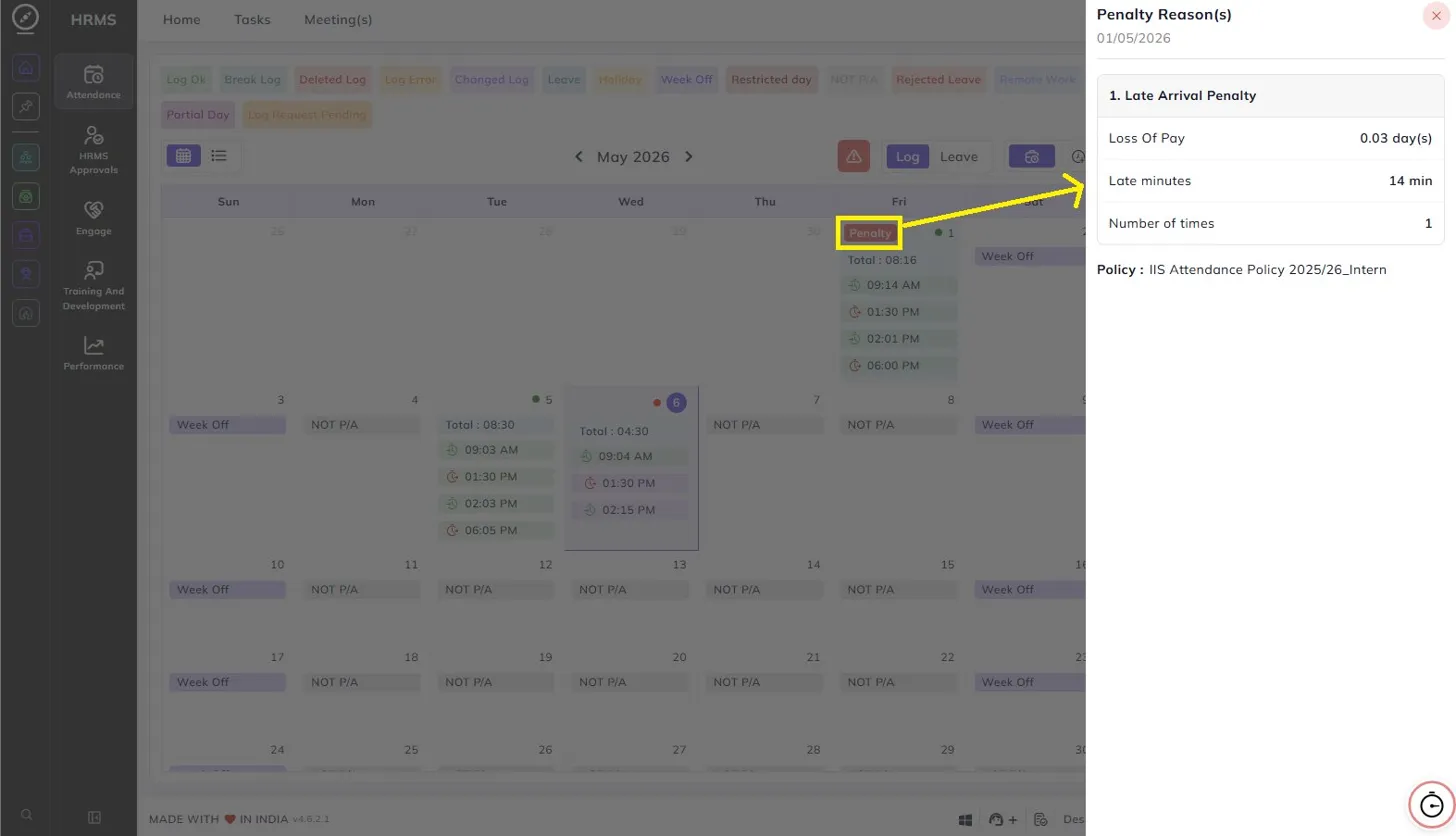
If a penalty has been applied to a day — for example due to a late arrival — you will see a Penalty badge on that date in the calendar. Clicking on it opens a Penalty Reasons panel on the right showing the penalty type, loss of pay, number of late minutes, how many times the penalty has been applied, and the attendance policy it is based on.
Right-Side Summary Panel:
On the right side of the Attendance page, you can see a summary of your attendance for the current month, including:
- Total Days and Holidays
- Late Count and Worked Days
- Company Working Days and Company Working Hours
- OT Worked Hours and Working Minutes Per Day
- As Per Policy Total Hours and Total Worked Hours
- Paid Leave Hours and Unpaid Leave Hours
- Week Off Present Hours
The right panel also shows your log entries for the selected date, displaying each clock-in and clock-out time along with location and IP indicators.
Log and Leave Tabs:
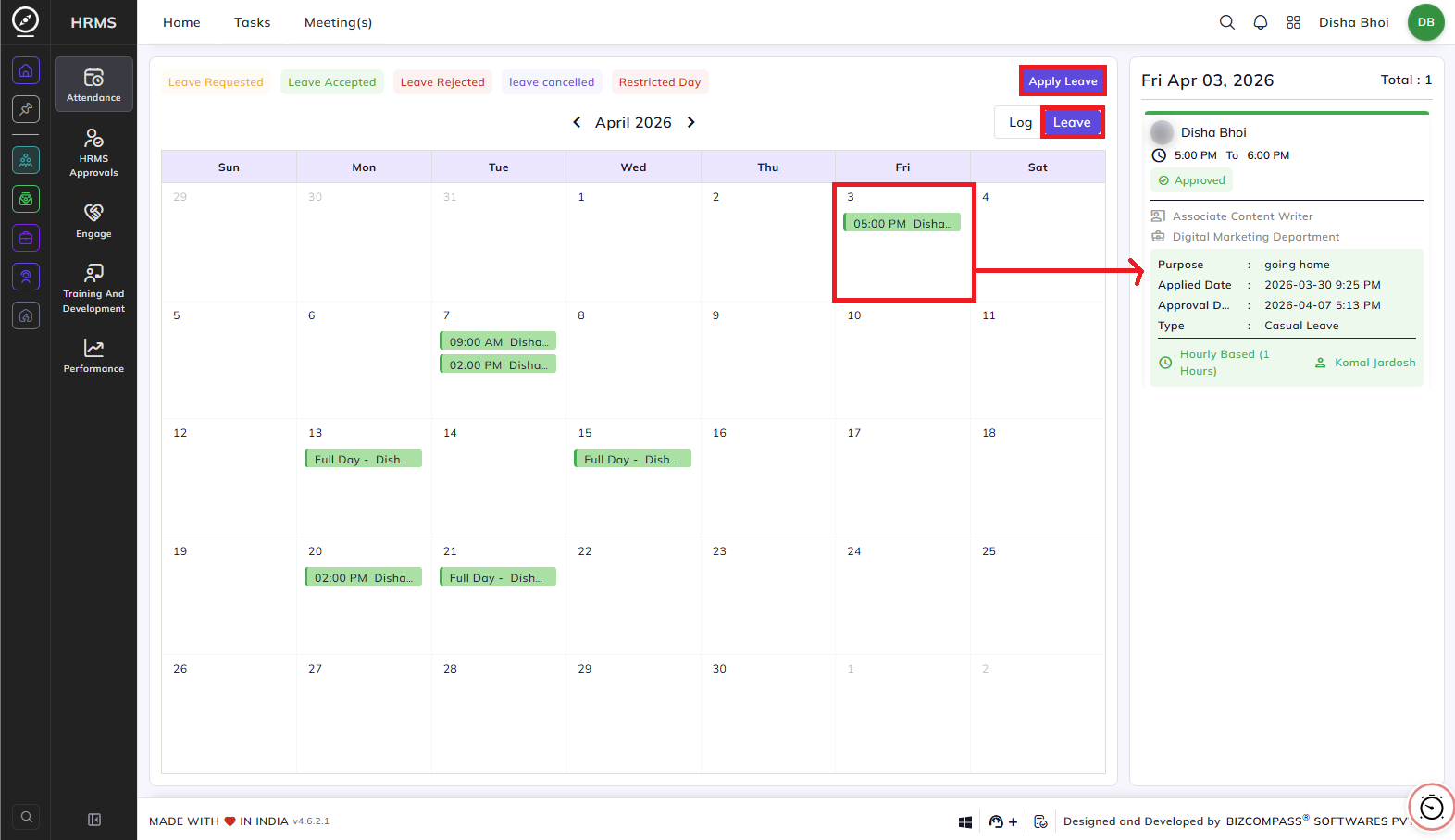
At the top of the calendar, you will find two tab options — Log and Leave. Clicking Leave switches the calendar to a leave view, showing your leave requests for the month color-coded by their status — Leave Requested, Leave Accepted, Leave Rejected, Leave Cancelled, and Restricted Day. You can also click Apply Leave directly from this view to submit a new leave request.
Log Regularize:
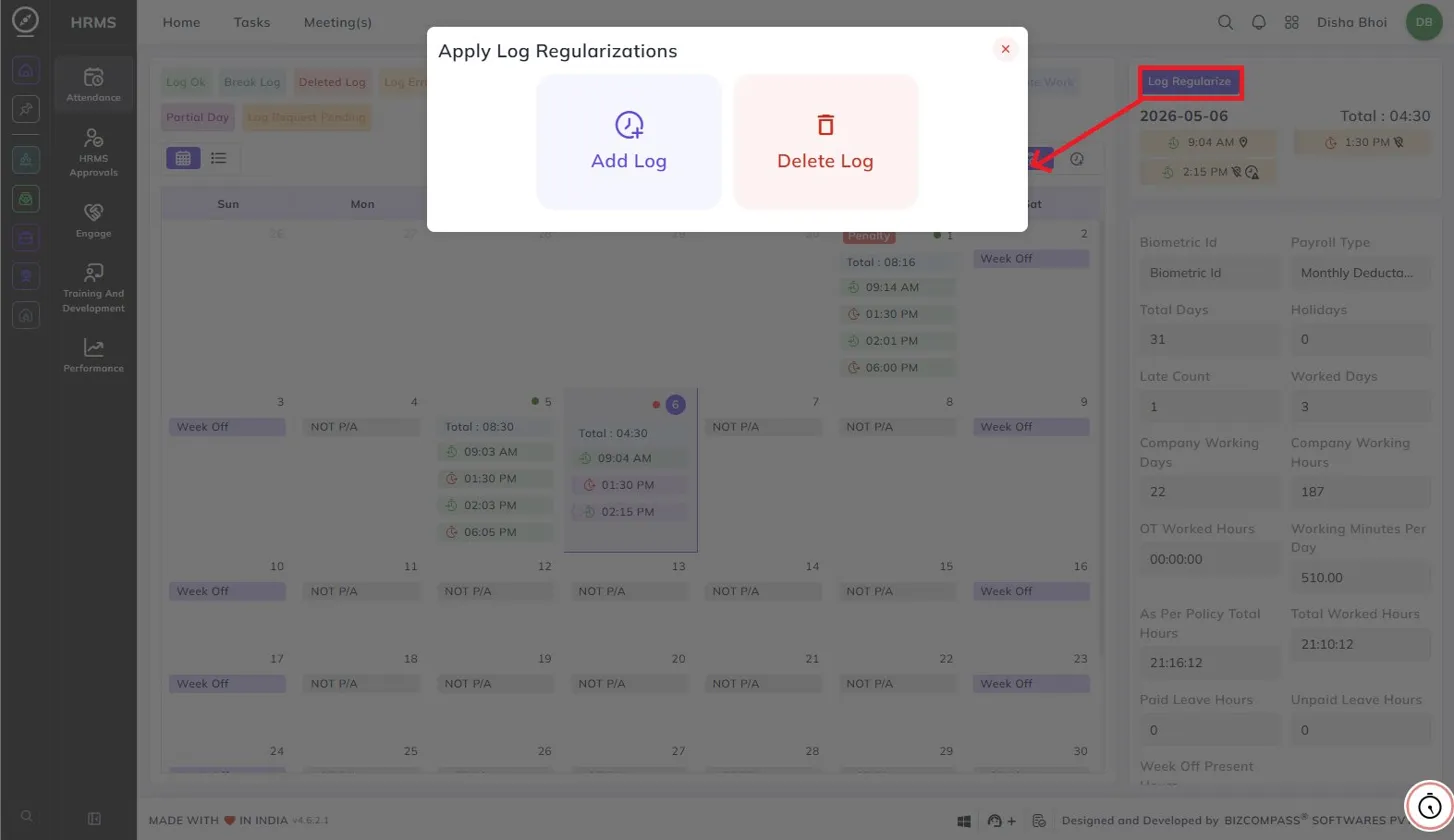
The Log Regularize button at the top right of the attendance panel opens the Apply Log Regularizations dialog, giving you two options:
- Add Log — Use this to add a missing clock-in or clock-out entry for a day where a log was not recorded.
- Delete Log — Use this to request the deletion of an incorrect log entry.