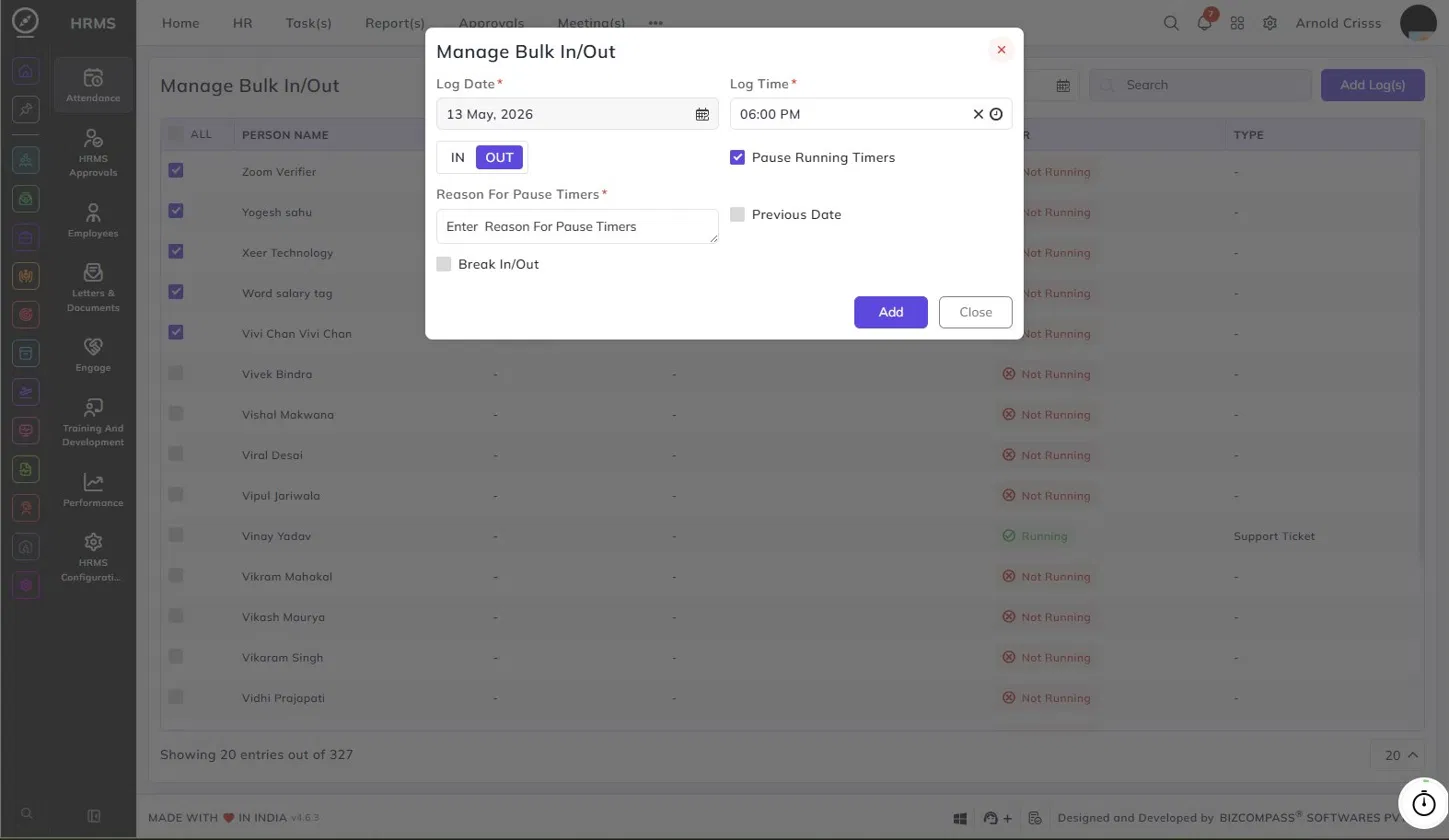
Manage Bulk In/Out
From this page, administrators can add clock-in or clock-out logs for multiple employees at once. To navigate here, go to:
HRMS->Attendance->Manage Bulk In/Out.
Use the filters at the top to select the employee group (e.g., All Employee or a specific employee) and the date before proceeding. The list updates based on your selection, showing each employee's last log type, last log time, timer status, and timer type. The selected employees and date will carry over automatically when you click Add Log(s).
Log Date:
Select the date for the log entry.
Log Time:
Enter the time for the log entry.
IN / OUT:
Select whether this is a clock-in or clock-out entry.
Pause Running Timers:
Enable this to pause any currently running timers for the selected employees when the log is added. This option is only available when adding a log for the current date and is not shown when a previous date is selected. When enabled, a Reason For Pause Timers field appears where you must enter a reason for pausing the timers. Timers can be running for Tasks, Support Tickets, Bizcompass Support Tickets, Training, and To-Dos.
Previous Date:
Enable this if the log entry belongs to the previous date.
Break In/Out:
Enable this if the entry is a break log.