
Organization Chart
Organization Chart
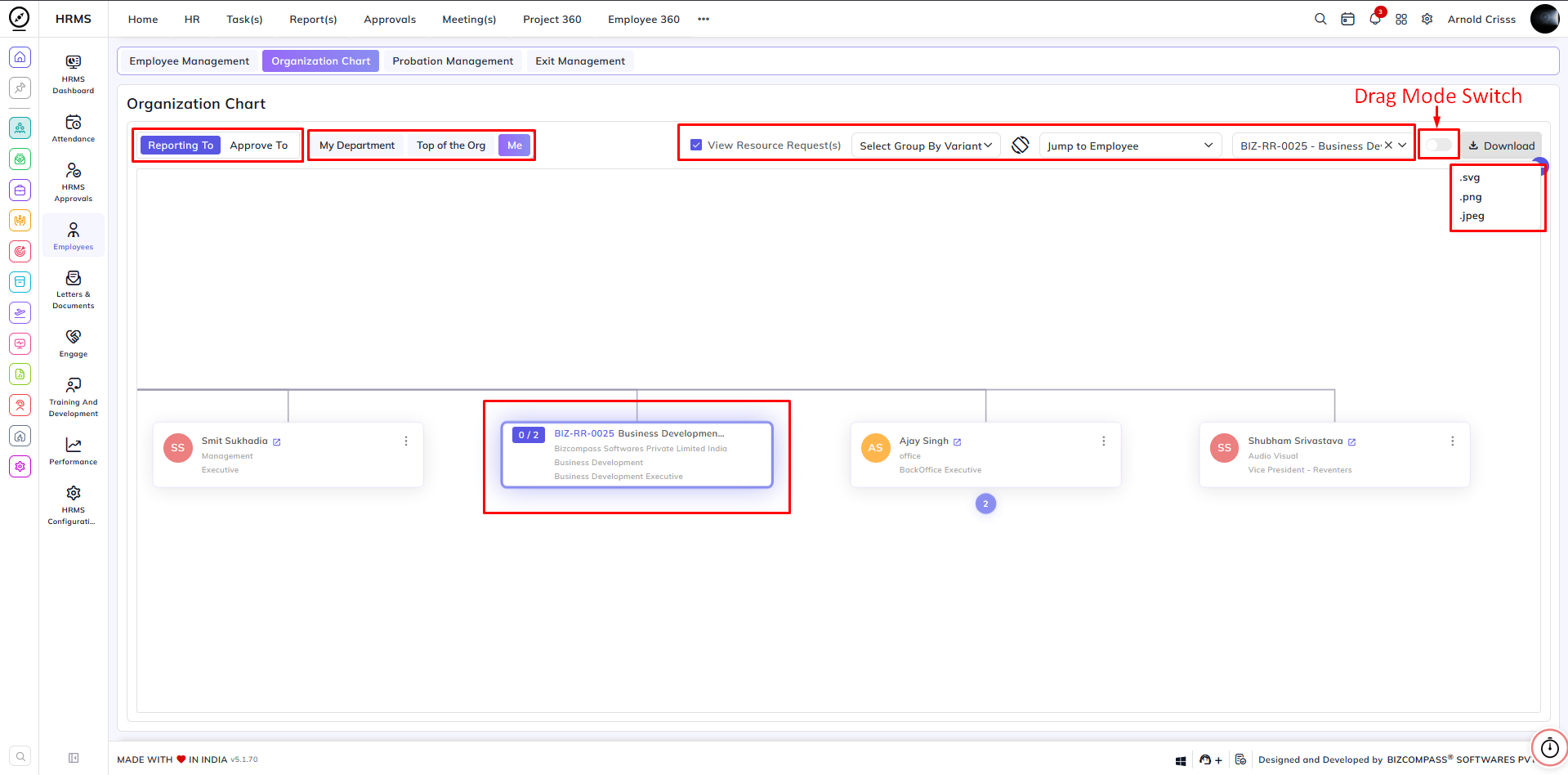
The Organization Chart provides a graphical representation of the organization's Reporting and Approval hierarchies. It helps visualize the reporting structure by showing who reports to whom and who is responsible for approving requests within the organization.
Viewing the Hierarchy
Use the following options to view different hierarchies:
-
Reporting To – Displays the reporting hierarchy.
-
Approve To – Displays the approval hierarchy.
Navigation Options
The following options help you quickly navigate through the organization chart:
-
My Department – Displays employees belonging only to your department.
-
Top of the Org – Displays the complete organizational hierarchy starting from the top-level employee.
-
Me – Automatically locates and highlights your position in the organization chart.
Organization Chart Filters
You can organize the hierarchy using the Group By option.
Available grouping options include:
-
Group by Designation
-
Group by Department
You can also switch between the available chart layouts:
-
Horizontal View (Default)
-
Vertical View
Managing the Hierarchy
The reporting and approval hierarchy can be modified in two ways:
-
Drag and Drop employee cards to change the hierarchy.
-
Click the More (⋮) menu on an employee card and update the reporting or approval hierarchy from the available options.
Note: A confirmation dialog is displayed before saving any hierarchy changes.
Drag Mode
To modify the hierarchy using drag and drop, enable the Drag Mode switch located next to the employee selection dropdown.
Note: If Drag Mode is disabled, the hierarchy cannot be changed using drag and drop.
Resource Requests
Enable the View Resource Request(s) option to display employees who have submitted resource requests.
After enabling this option, an additional dropdown becomes available, allowing you to directly jump to any employee's resource request within the organization chart.
Download Organization Chart
Click the Download button to export the current organization chart.
Note:
In the Organization Chart, the green-colored border highlights the currently logged-in employee, while the blue-colored border highlights the employee you searched for or navigated to using the Jump To option.
Important Notes:
The employee designated as the Top of the Organization cannot have their Reporting To or Approve To hierarchy changed.
Employees who are Inactive or marked as Invisible are not displayed in the Organization Chart.