Periodic Reviews
From this page, you can view and manage all periodic review forms assigned to employees based on the configurations set up in Periodic Reviews Configurations. Each review entry shows which form needs to be filled, who is reviewing, and the current status of the submission.
Filters:
The following filters are available at the top of the page to narrow down the list:
Review By —
Filter reviews by the person who is assigned to fill the review form.
Review For —
Filter reviews by the employee being reviewed.
Status —
Filter by the current status of the review — Pending or Submitted.
Survey Date —
Filter reviews by the date on which the survey was scheduled.
Click Apply after selecting the desired filter values.
Periodic Reviews List:
The list is grouped by employee, with each employee's name shown as a section header. Under each employee, all review forms assigned to them are listed with the following columns:
- Form Name —
The name of the review form to be filled (e.g., Review After 15 Days, Employee Growth and Development Review, Performance Review Transfer). - Review By —
The person assigned to fill the review form. This may be a specific employee or Self, meaning the employee fills the form for themselves. - Survey Date —
The date on which the review is scheduled. - Survey Assignee —
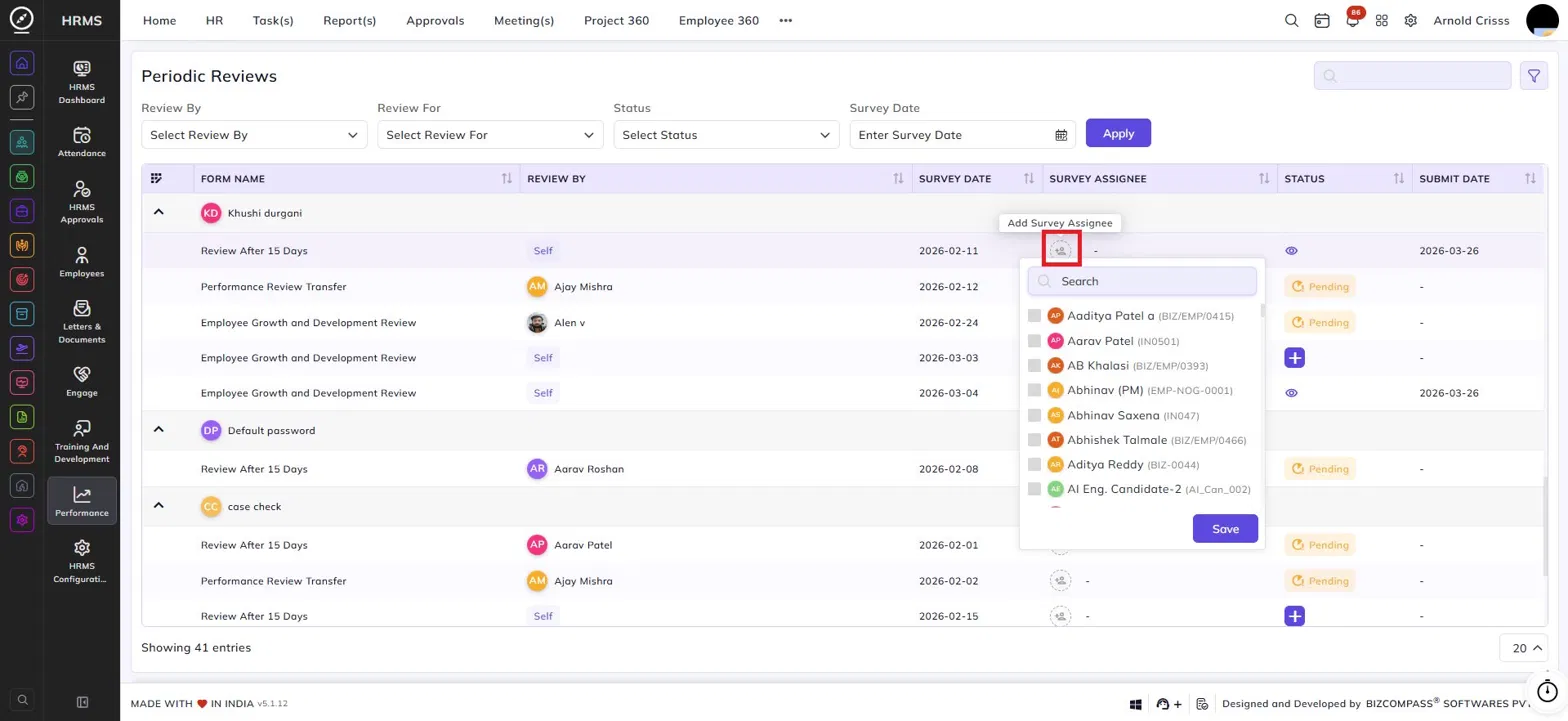
The person assigned to the survey. Click the assignee icon to open a dropdown where you can search and select an employee to assign as the survey assignee, then click Save.
- Status — Indicates the current state of the review form for that entry:
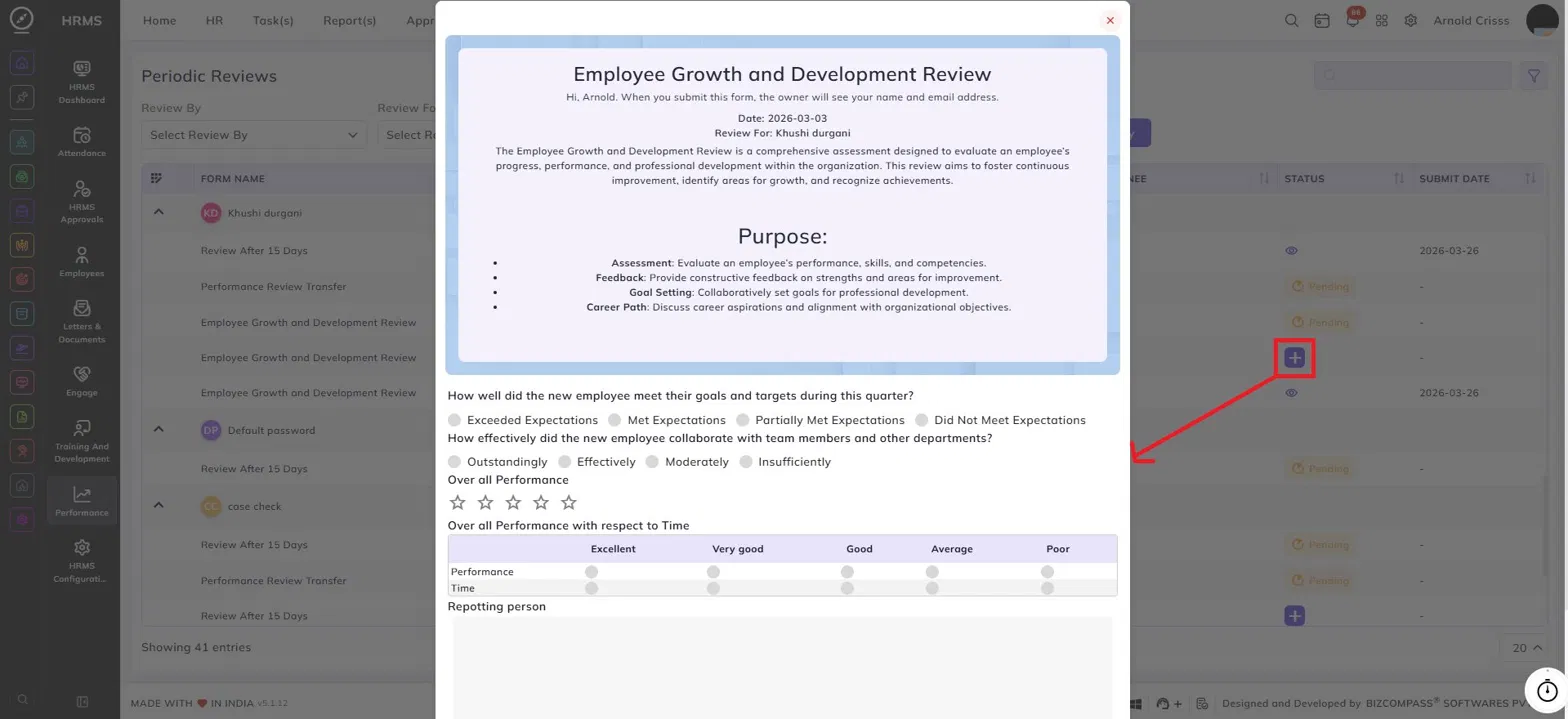
- + (Plus icon) — The form is assigned as a self-review, meaning the employee needs to fill it out for themselves. Clicking the plus icon opens the review form to fill and submit.
- Pending — The form needs to be filled by another employee (based on the review direction configured), and that person has not yet submitted it.
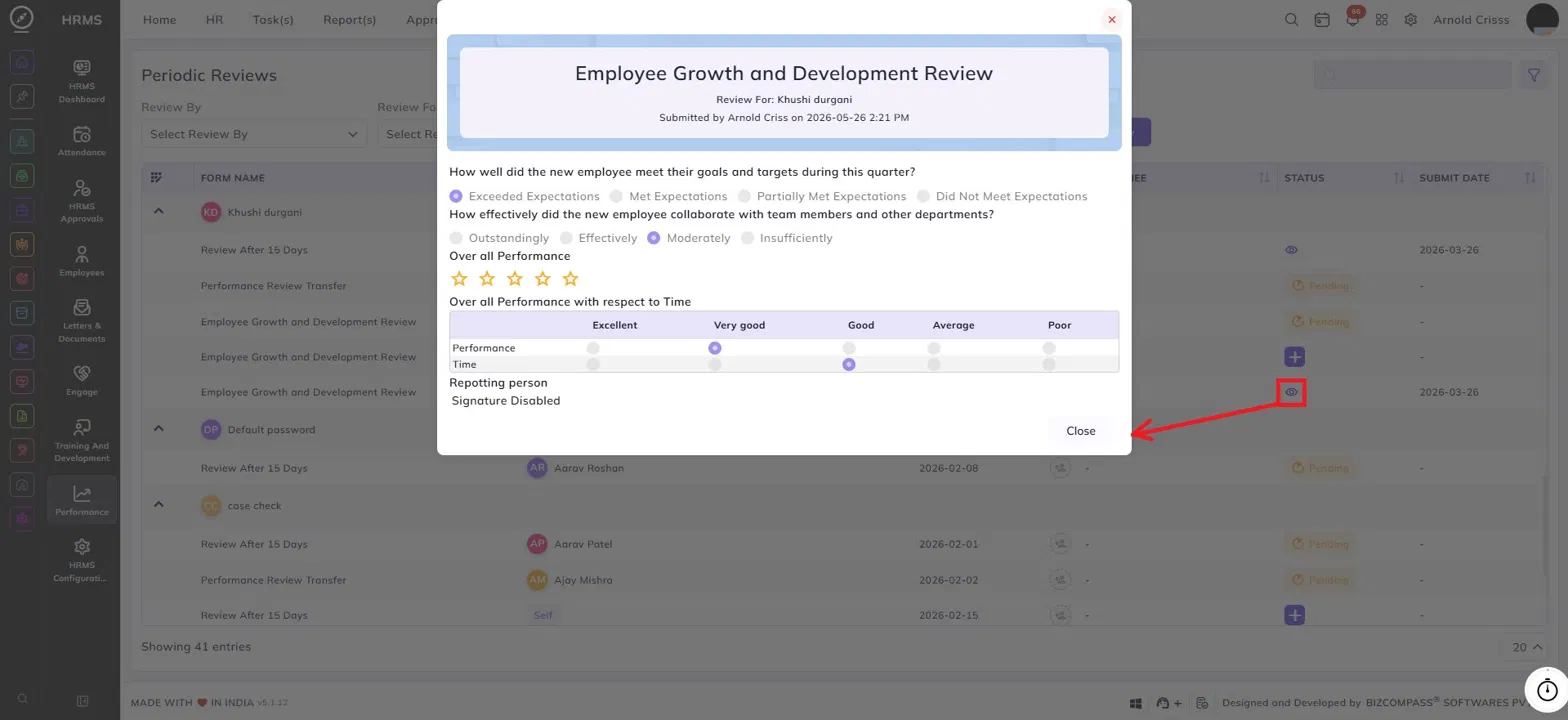
- Eye icon — The form has already been submitted. Clicking the eye icon opens a read-only view of the filled form with all responses and submission details.
- Submit Date —
The date on which the review form was submitted.
Filling a Review Form:
For reviews that are pending and ready to be filled, a + (plus) icon appears in the Status column. Clicking it opens the review form, which displays:
- The form title and description.
- The date and the name of the employee being reviewed.
- The review questions, which may include multiple choice options, rating scales, star ratings, and grid-based performance tables.
Once the form is filled out, it can be submitted directly from the form view.
Viewing a Submitted Review:
For reviews that have already been submitted, an eye icon appears in the Status column. Clicking it opens a read-only view of the submitted form, showing all the answers provided along with the submission details — including who submitted the form and when.