
Remote Work Policies
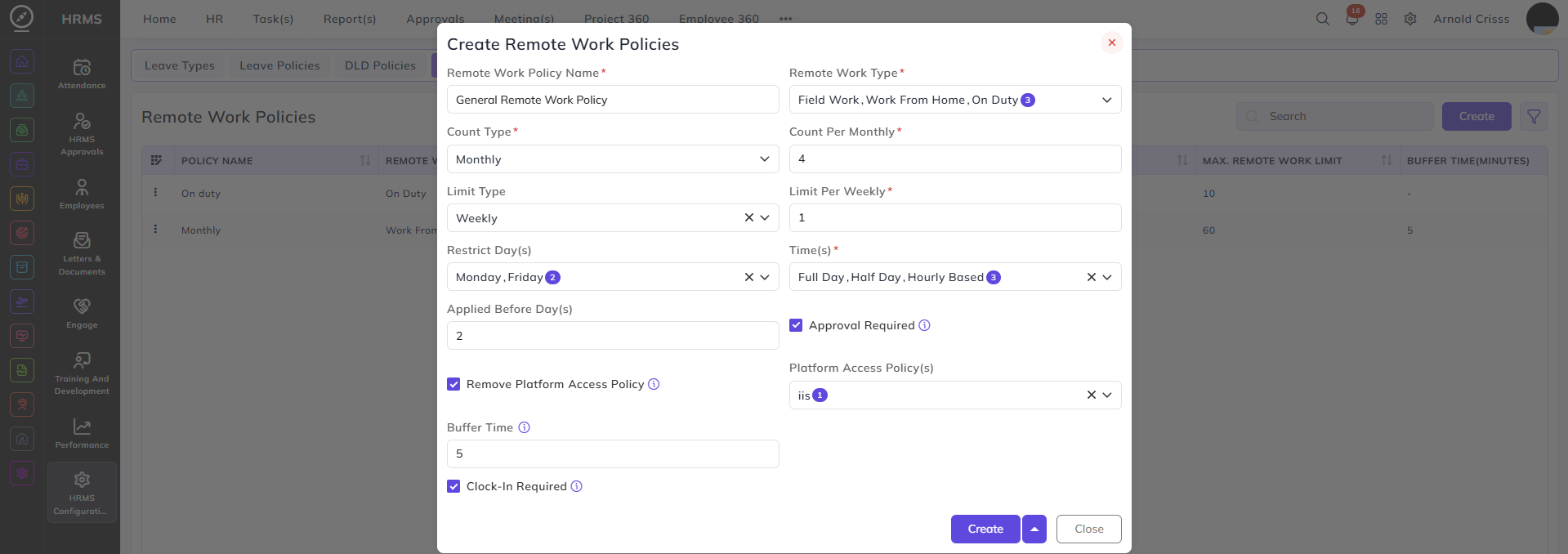
From this page, you can create Remote Work Policies for employees.
All fields are common for all types of remote work like Field Work, Work From Home, or On Duty.
Remote Work Policy Name:
Enter the name for this remote work policy.
Remote Work Type:
It defines for which remote work type is this policy applicable. You can select more than one remote work type in this field:
- Field Work
- Work From Home
- On Duty
Count Type:
It defines the how often the company provides this policy.
- Weekly
- Monthly
- Quarterly
- Half Yearly
- Yearly
Based on your selection, the Count Per field will appear.
For e.g., if you select Monthly in the Count Type, you'll get the field of Count Per Monthly. It means that your company provides this policy 4 times per month.
Limit Type:
It limits the maximum usage of this policy based on the one of the selected options:
- Weekly
- Monthly
- Quarterly
- Half Yearly
- Yearly
Based on your selection, the Count Per field will appear.
For e.g., if you select Weekly in the Limit Type, you'll get the field of Limit Per Week. It means that even if your policy is remaining, you can only use 1 per week.
Restrict Days:
Prevents compensatory generation on selected days (e.g., Sunday or Saturday).
Leave Duration Type:
Defines how the leave can be taken:
-
Full Day
-
Half Day
-
Hourly
Multiple options can be enabled.
Applicable Before Days:
Controls how early or late a leave can be applied.
This setting determines which dates are selectable while applying leave.
| Value | Allowed Leave Dates |
|---|---|
| 0 | Past, present, and future dates |
| 1 | From today onwards |
| 2 | From tomorrow onwards |
| 3 | From day after tomorrow onwards |
This prevents back-dated or same-day leave applications if advance notice is required.
Approval Required:
-
Enabled: Leave requires approval from the reporting manager
-
Disabled: Leave is auto-approved
Remove Platform Access Policy:
- Enable this to remove existing policy and optionally choose a new platform access policy.
Note: The drop down to choose Platform Access Policy(s) will only appear once the Remove Platform Access Policy button is enabled.
Clock-In Required:
- If unchecked, the employee will receive payment based on their remote work policy hour(s).
- If checked, the employee will receive payment based on their regular work policy hour(s).
Suppose if a reporting person (or any higher authority person) has "All" rights for Apply Leave page configured in the User Rights, he/ she can apply leave for all people below him/ her in the user role hierarchy.
These policies can be assigned to employees from HRMS->Employees->Employee Management. They can be added while creating an employee or editing an employee profile from the Attendance section.