Shift Templates
The Shift Templates page is used to create shift templates for easily assigning shifts to employees. Instead of setting up shift timings day by day for every employee, you define a template once and apply it across your workforce.
From this page, you can:
- Create new shift templates
- View all existing shift templates
- Edit or update existing templates
- Assign shift timings per day of the week
- Configure week-off rules for Saturdays and Sundays
Creating a Shift Template:
Click Create to open the shift template form. Fill in the following fields:
- Shift Template Name: Give the template a clear, identifiable name — for example, "Default Shift Template" or "Night Shift Template."
- Working Hours: Enter the total number of working hours per day for this shift — for example, 8.5.
Configuring Days:
For each day of the week, you can configure the following:
- Week Days: Lists all seven days — Monday through Sunday.
- Week Off: Check this box if the day is a weekly off day. Saturday and Sunday are typically marked as week off.
- Shift: Select the shift timing that applies to this day — for example, 9-6. Multiple shifts can be added per day if needed.
- Week Off Type (appears when Week Off is checked): Defines which occurrences of that day in a month are working days. Available options:
| Option | What It Means |
|---|---|
| All Full | Every occurrence is a full working day |
| All Half | Every occurrence is a half day |
| Even | 2nd and 4th occurrences are working days |
| Odd With 5th | 1st, 3rd, and 5th occurrences are working days |
| Odd W/O 5th | 1st and 3rd occurrences are working days |
| Even Half | 2nd and 4th occurrences are half days |
| Odd Half With 5th | 1st, 3rd, and 5th occurrences are half days |
| Odd Half W/O 5th | 1st and 3rd occurrences are half days |
| All Full With 5th Half | Every occurrence is a full day except the 5th which is a half day |
| All Full W/O 5th | Every occurrence is a full day except the 5th |
| All Without Last | Every occurrence is a working day except the last one of the month |
| Custom | Manually define which occurrences are working days |
Week Off Shift (appears only for half day Week Off Types): Defines the specific shift timing for the occurrences that are half days. This allows those days to have a different, shorter shift time compared to regular weekdays.
Applies to:
- All Half
- Even Half
- Odd Half With 5th
- Odd Half W/O 5th
- All Full With 5th Half
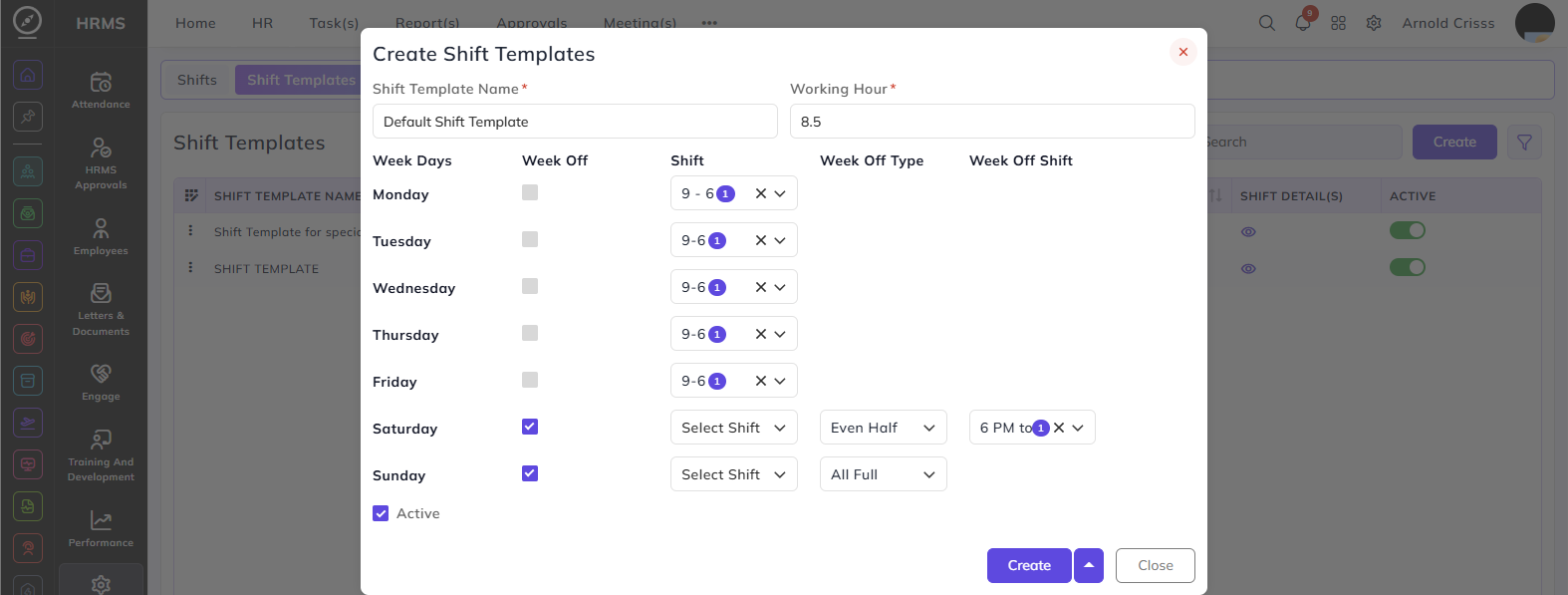
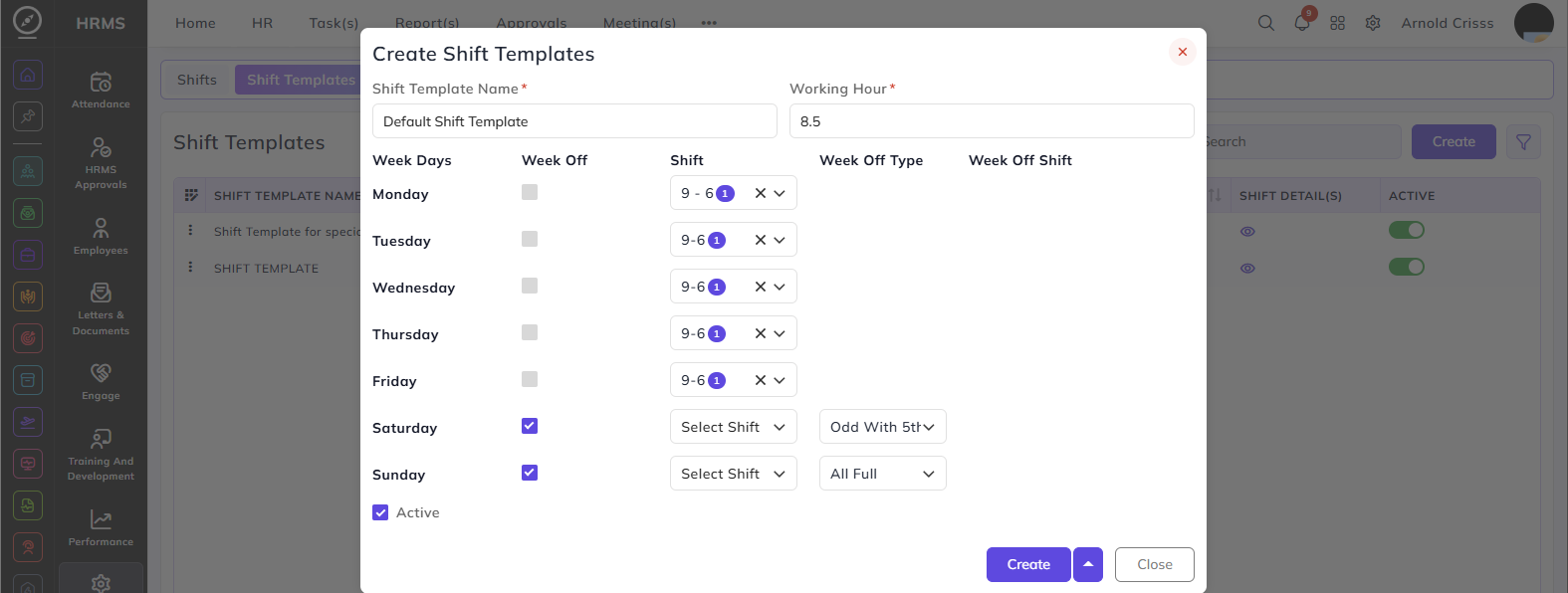
Does not appear for:
- All Full
- Even
- Odd With 5th
- Odd W/O 5th
- All Without Last
- Custom
Custom:
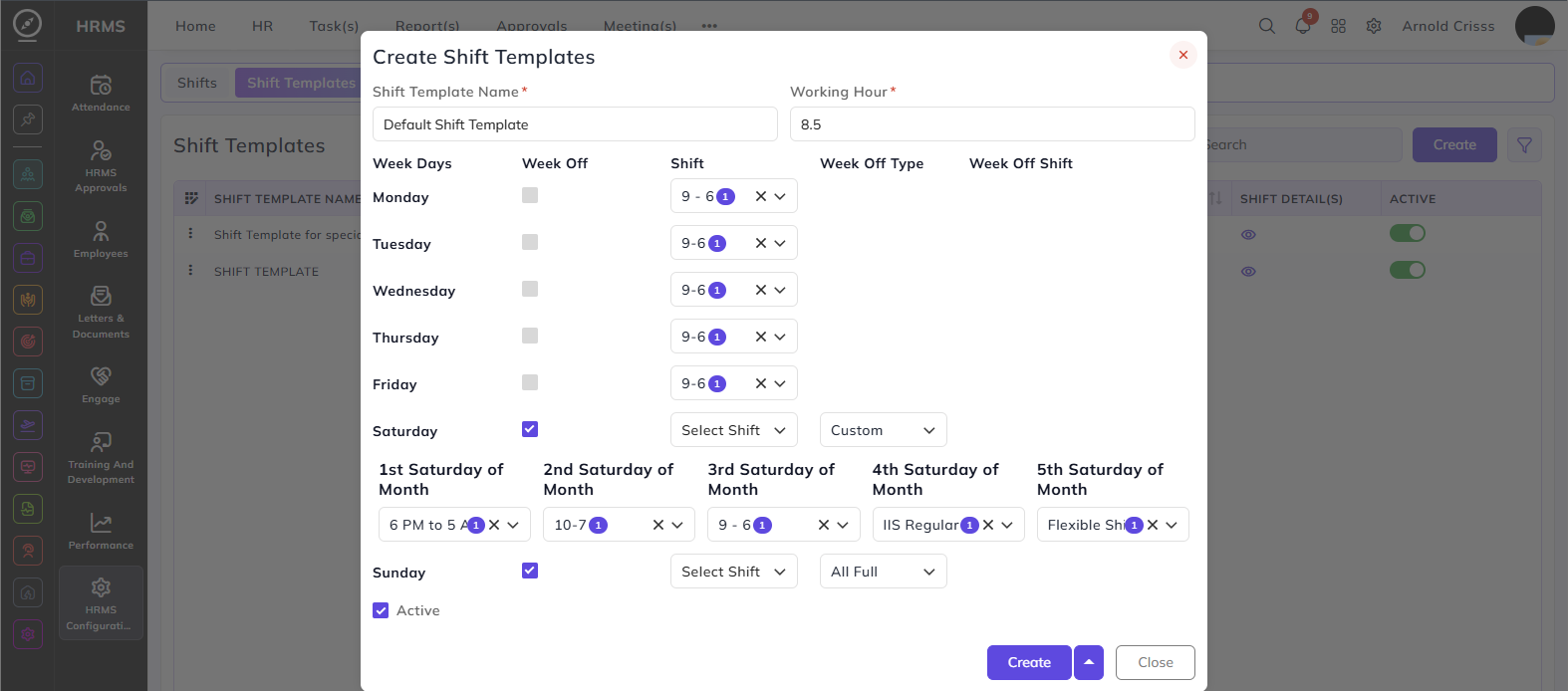
When Custom is selected, the system expands to show five individual dropdowns — one for each possible Saturday in a month:
- 1st Saturday of Month
- 2nd Saturday of Month
- 3rd Saturday of Month
- 4th Saturday of Month
- 5th Saturday of Month
For each, you can manually select whether that Saturday is a full day, half day, or week off. This gives complete flexibility for organizations whose Saturday schedule doesn't follow a fixed pattern.
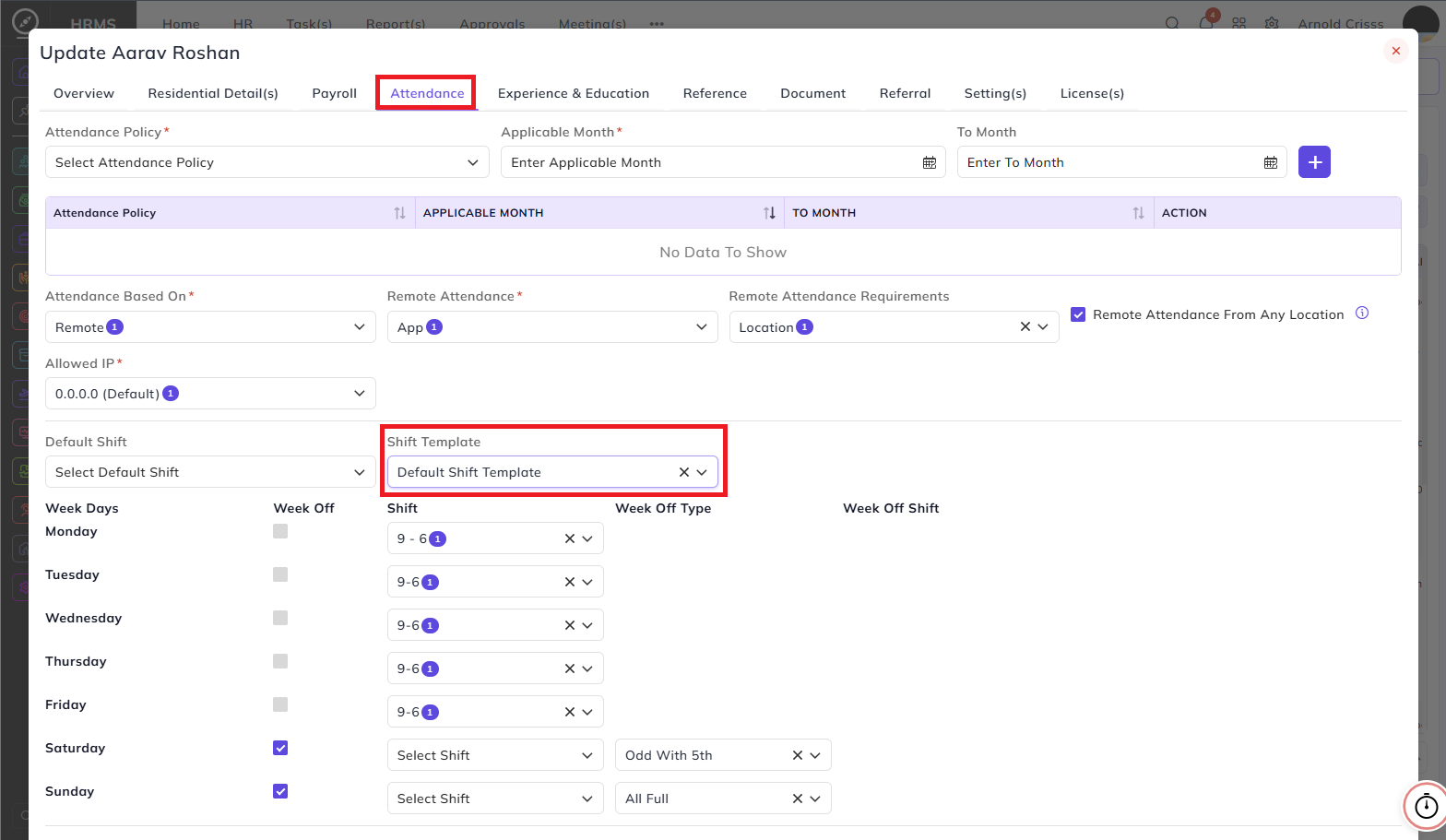
Once created, you can assign them to employees by navigating to the HRMS->Employees->Employee Management and clicking on the three dots->Edit of the employee you want to assign the shift.
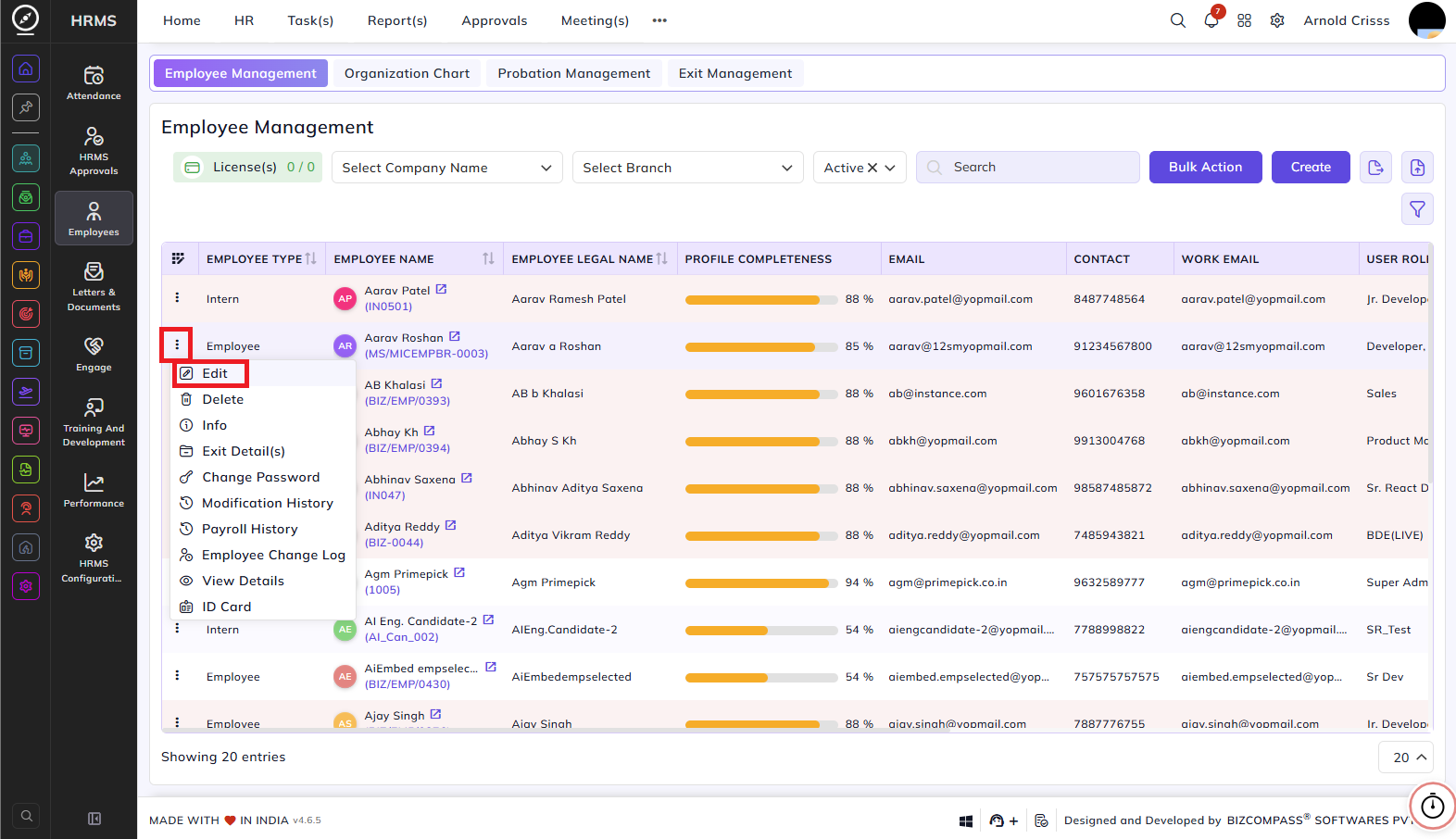
Then, go to the Attendance tab and select the Shift Template. Once you select it, the shifts for all days will be fetched like configured before.