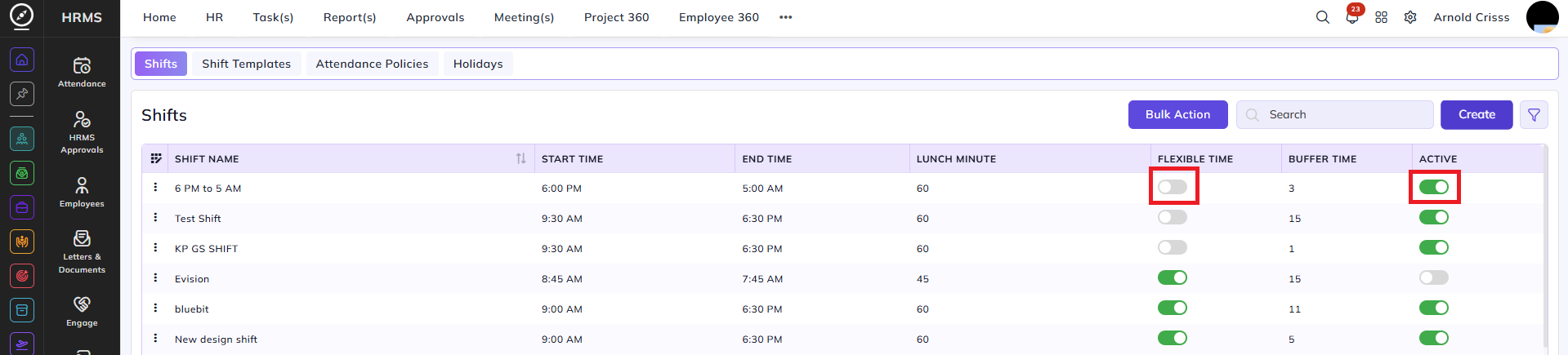
Shift Master
This is the Shifts page from where organizations can define various shifts for their company such as:
- Regular Shift
- Night Shift
- Flexible Shift
Moreover, we can even define which shifts will have Break In/Out.
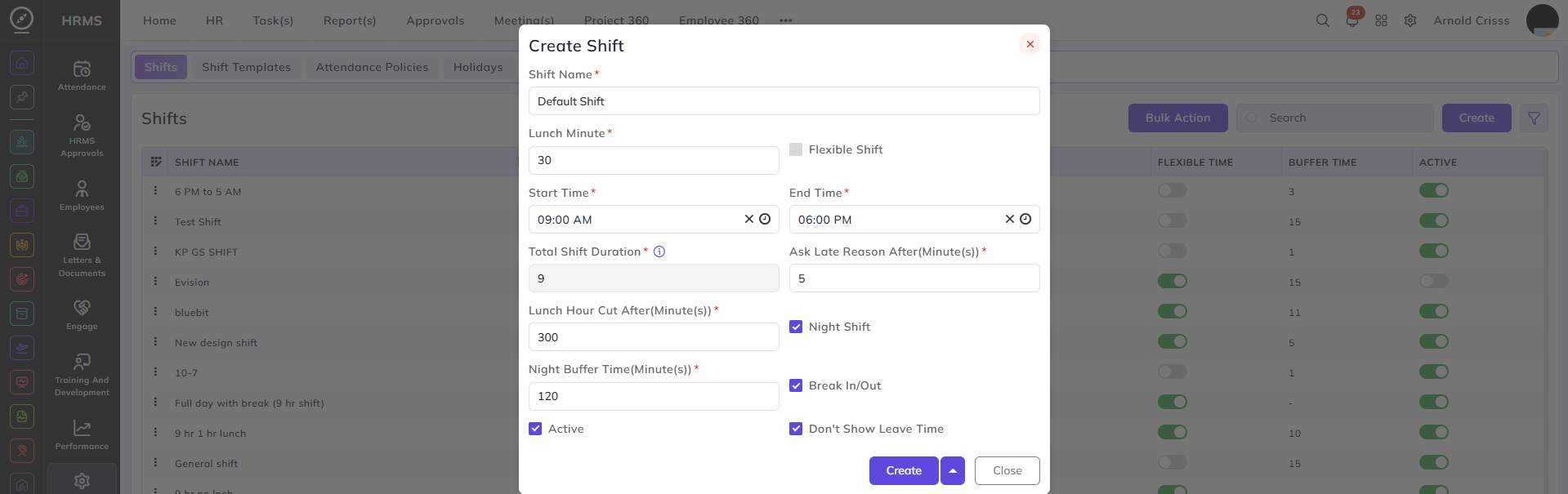
Create Shift:
- Enter the Name for your shift.
- Define the Lunch Minutes for your shift.
- Set the Start Time and End Time of your shift. Based on that time, the Total Shift Duration will be calculated.
- By checking the Flexible Shift option, you can edit the Total Shift Duration.
- Enter the time (in minute(s)) after which you wan to Ask Late Reason.
- Enter the Lunch Hour Cut Off (in minute(s)).
For e.g., if you set it 300 minutes, then your lunch break will only be considered valid if you complete 300 minutes of work.
Flag Options:
- Night Shift: Enable this if you want the shift to be a night shift. If enabled, a field of Night Buffer Time (in minute(s)) will appear in which you have to enter the night buffer time.
For e.g.,
If an employee clocks in at 9:00 p.m. at day 1 and clocks out at 6:00 pm. on day 2, then the employee will get paid for whole duration for day 1.
If the employee clocks in/out after the shift duration in the set night buffer time range (for e.g., 120 minutes), then its pay will also be considered for day 1.
- Break In/Out: Enable this field if you want the option to Break In/Out to appear for this shift for the employees.
- Active: Enable this field if you want the shift to be currently active for your company.
- Don't Show Leave Time: Enabling this won't show the employee the leave time while applying for a leave. For e.g., if the employee applies for a full day leave, he/ she will only see Full Day Leave option, not 8.5 hours option.
The Flexible Time and Active flag buttons are editable after creating the shift.