
Training Configuration (HRMS)
The Training Configuration page helps in structuring various training programs for employees to enhance skills, ensure smooth onboarding, and maintain overall growth.
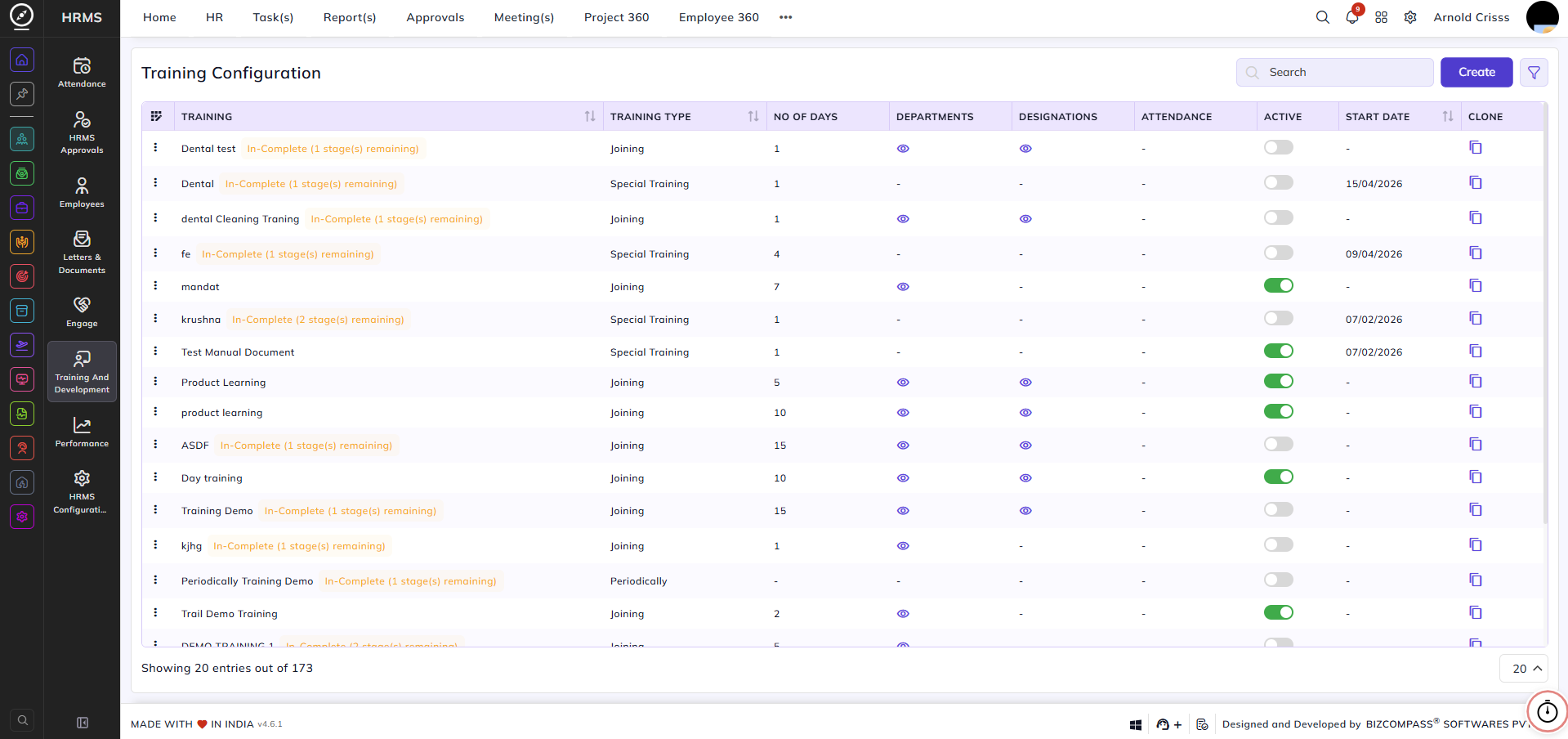
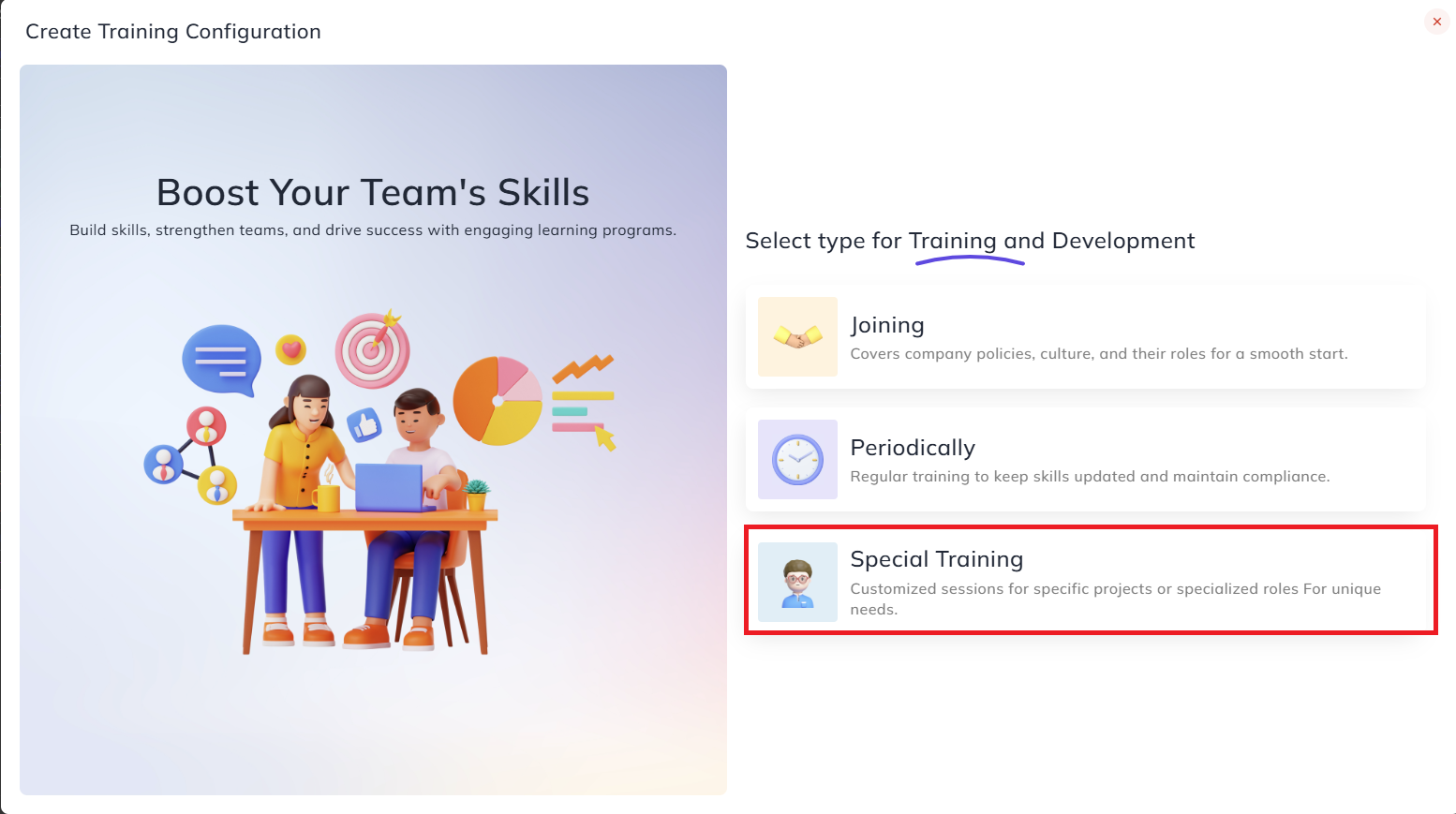
Create Training:Joining:
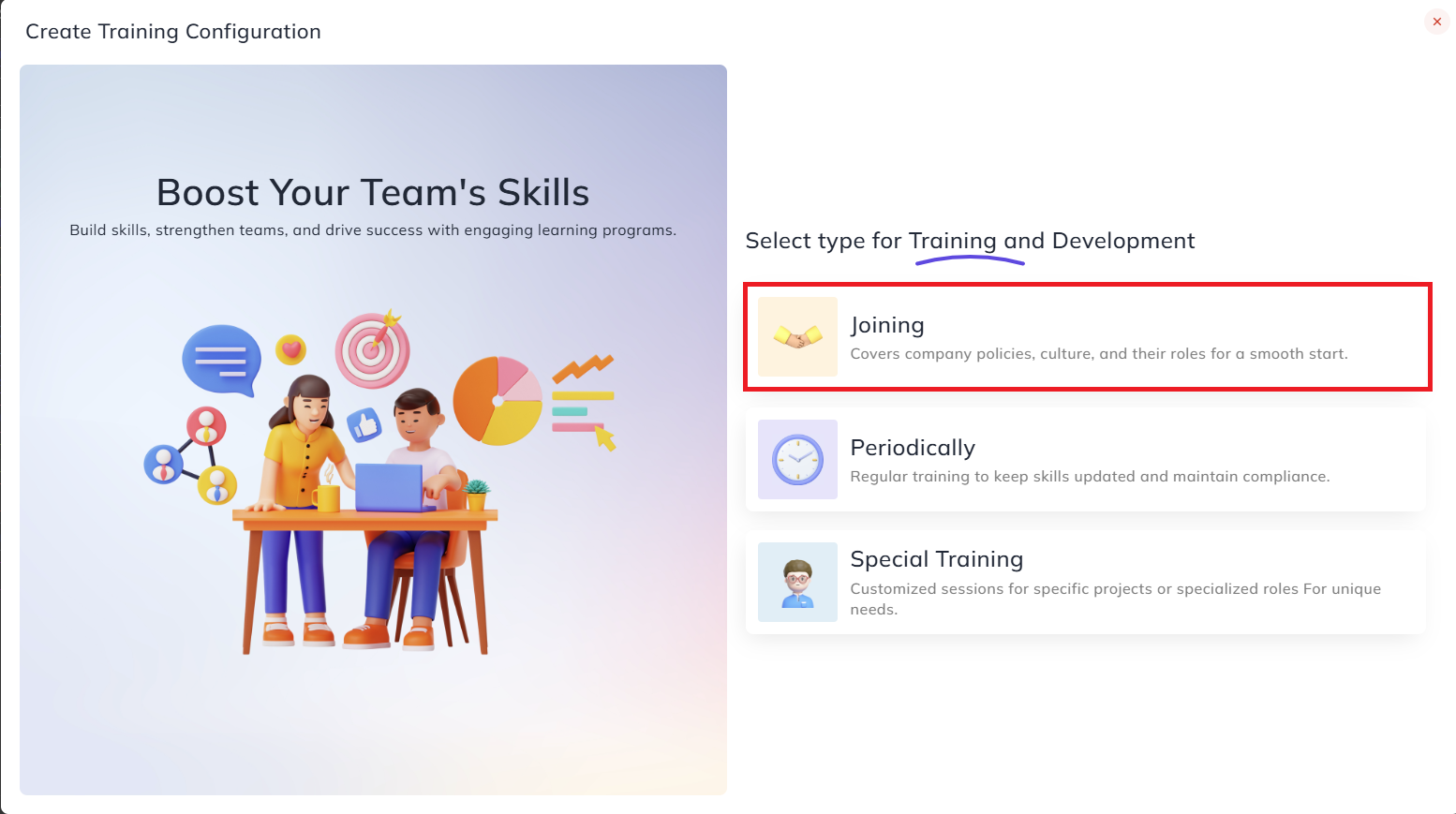
SelectJoiningin the type for Training and Development.
1. Joining:
-
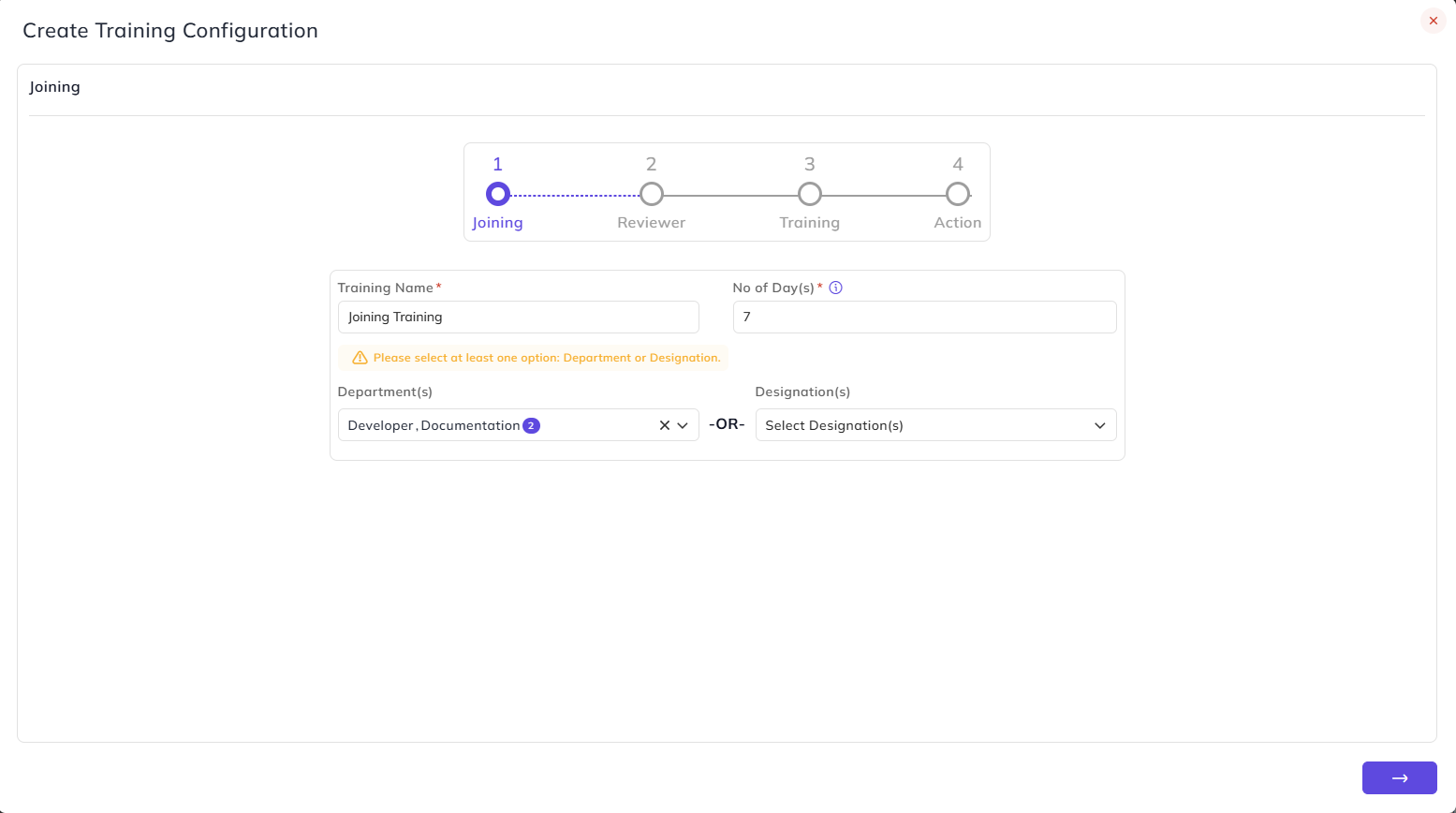
Enter the Training Name.
-
Specify the No. of Days of the training.
-
Optionally select Department(s) / Designation(s) that will undergo the training.
2. Reviewer:
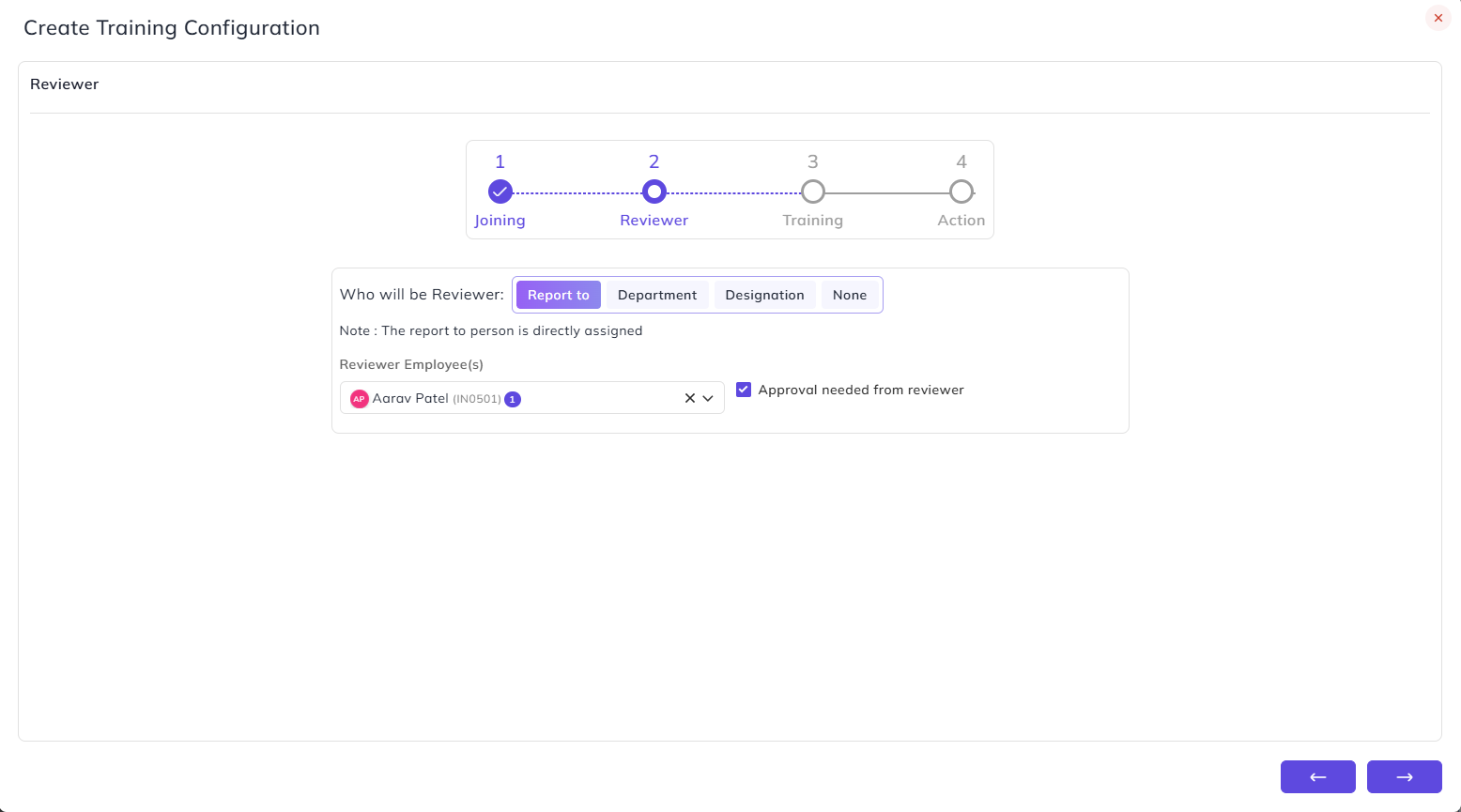
Select who will review the training for the employee:
- Report to — the reviewer is automatically assigned as the employee's reporting person. The report to person is directly assigned without any additional selection required.
- Reviewer Employee(s) — optionally select specific reviewer employees in addition to the reporting person.
- Approval needed from reviewer — enable this if the reviewer's approval is required before the training proceeds.
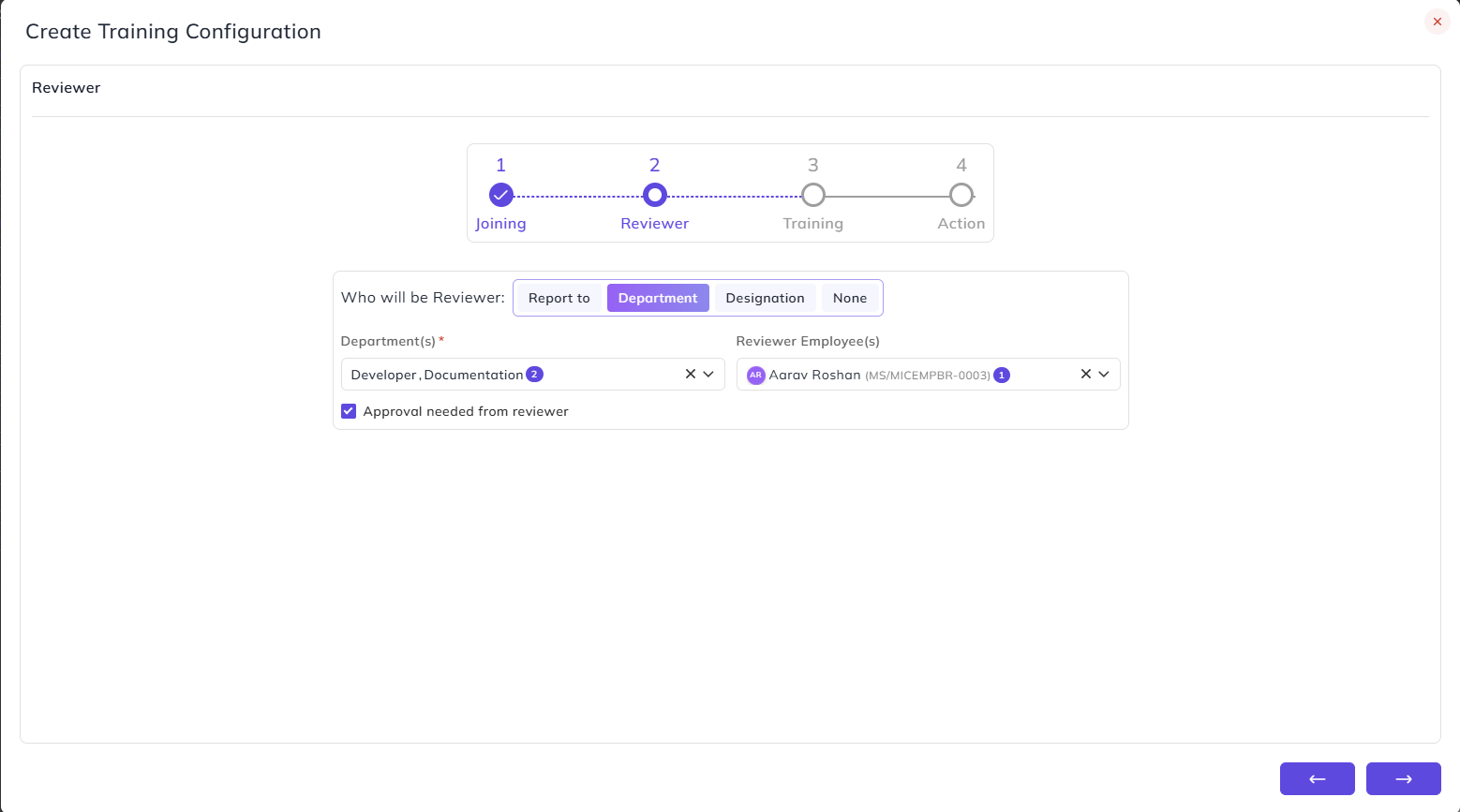
- Department — the reviewer is assigned based on department.
- Department(s) — select the department(s) whose members will act as reviewers.
- Reviewer Employee(s) — optionally select specific reviewer employees from the selected department.
- Approval needed from reviewer — enable this if the reviewer's approval is required before the training proceeds.
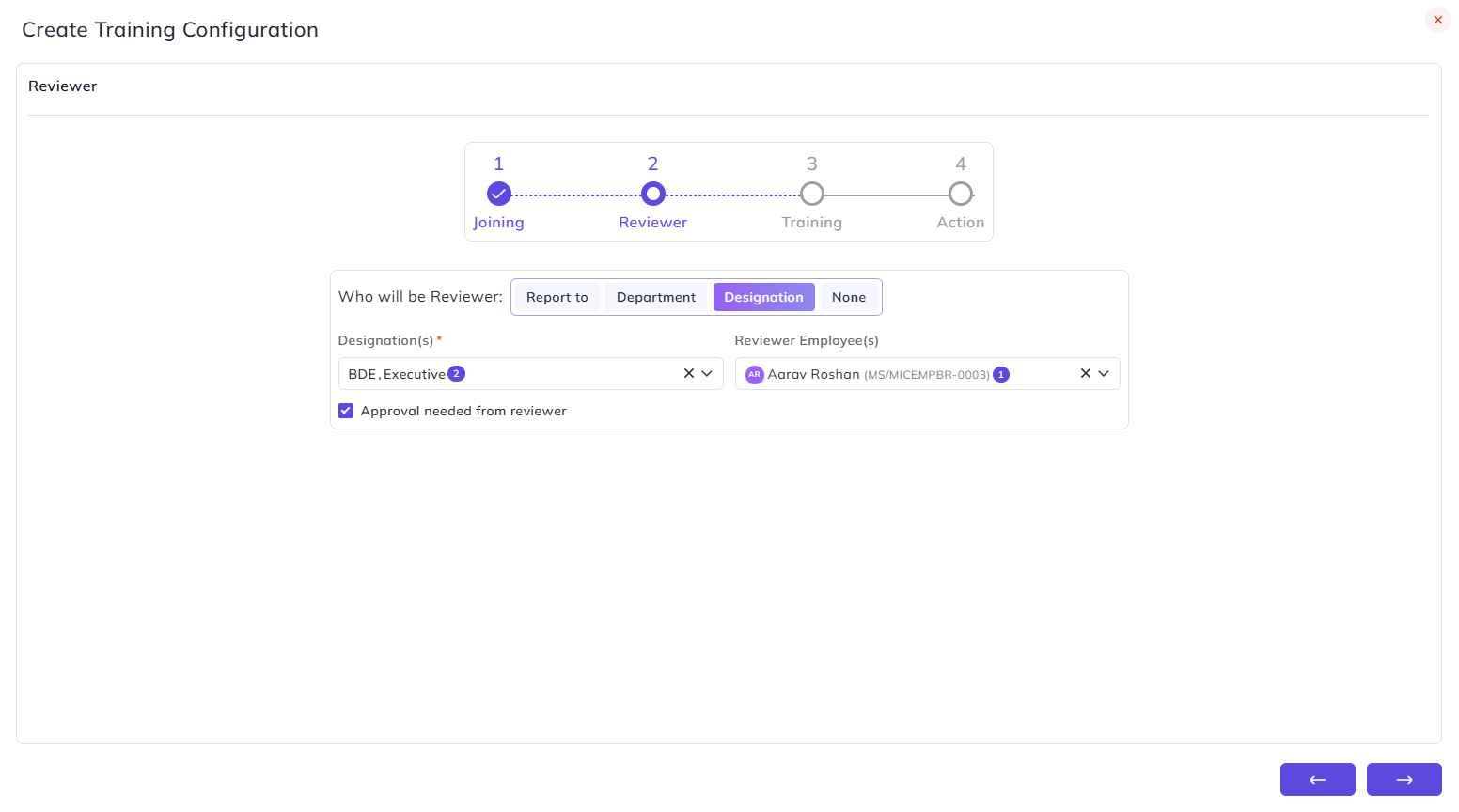
- Designation — the reviewer is assigned based on designation.
- Designation(s) — select the designation(s) whose members will act as reviewers.
- Reviewer Employee(s) — optionally select specific reviewer employees from the selected designation.
- Approval needed from reviewer — enable this if the reviewer's approval is required before the training proceeds.
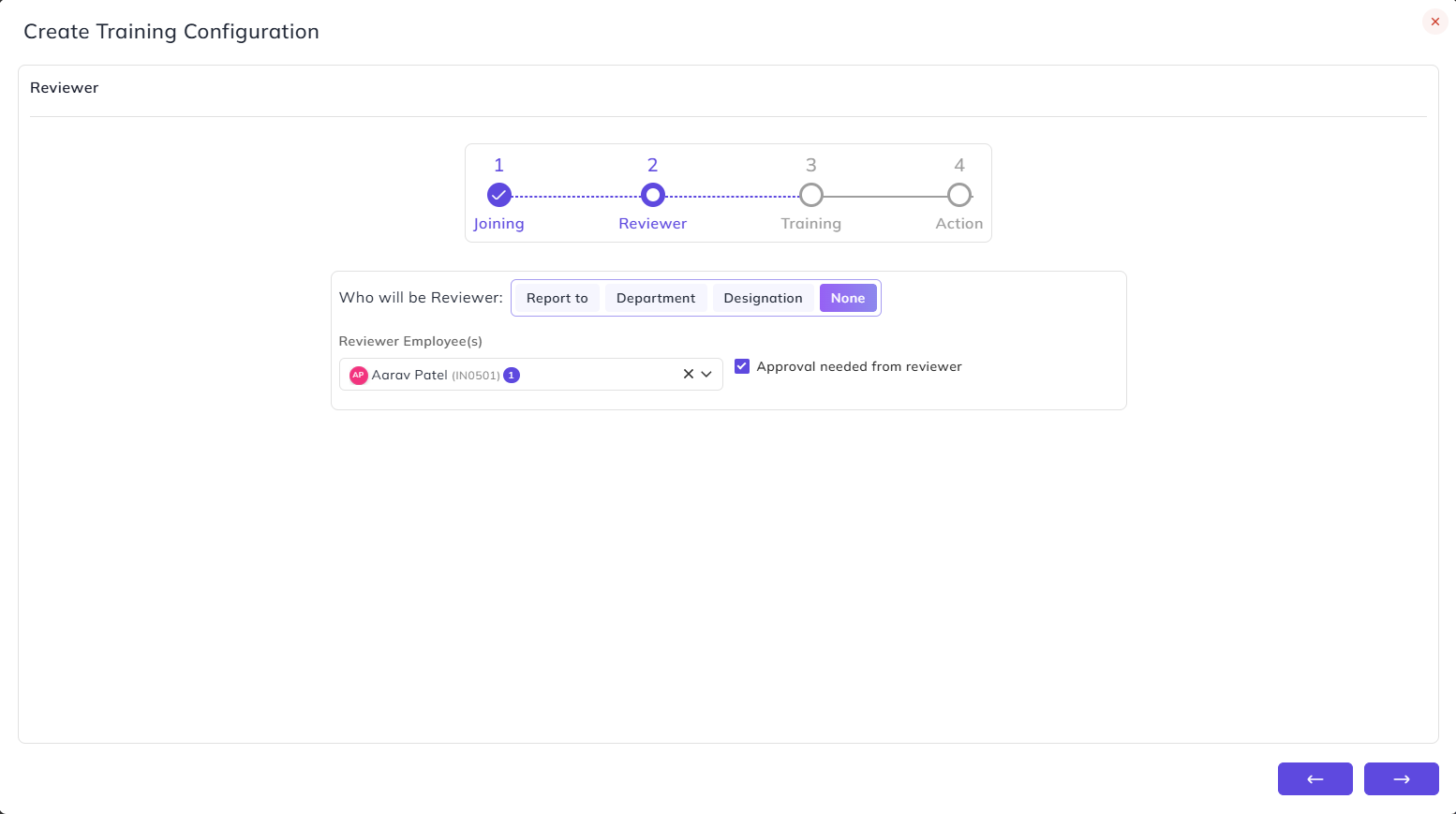
- None — no specific reviewer is assigned based on role or department.
- Reviewer Employee(s) — manually select the employee(s) who will act as reviewers.
- Approval needed from reviewer — enable this if the reviewer's approval is required before the training proceeds.
3. Training:
This step defines how the training will be delivered and who will conduct it.
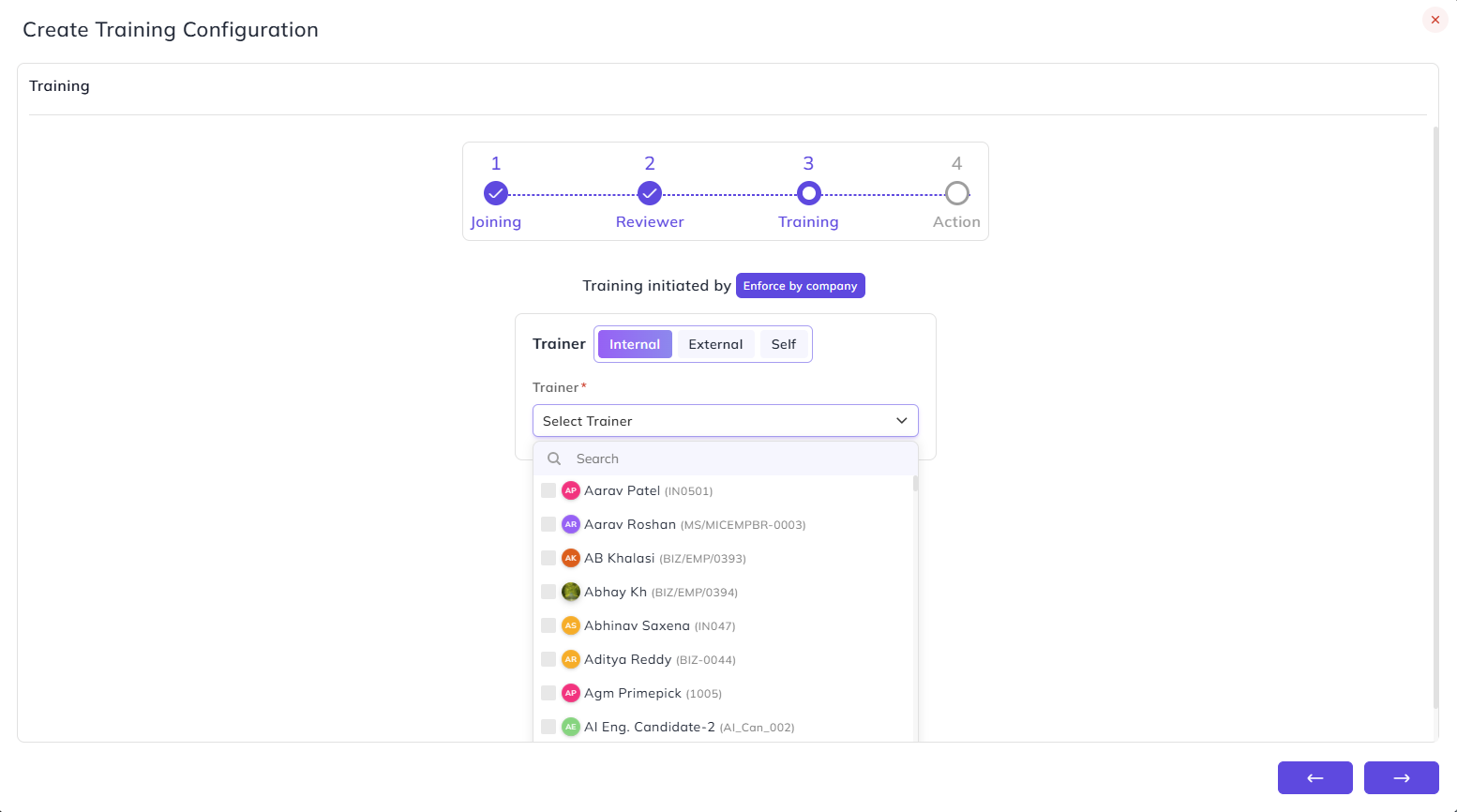
Select the type of Trainer:
Internal — the training is conducted by an employee within the organization.
- Trainer — select the internal employee who will conduct the training.
External — the training is conducted by a person outside the organization.
- External Person — enter the name of the external trainer who will conduct the training.
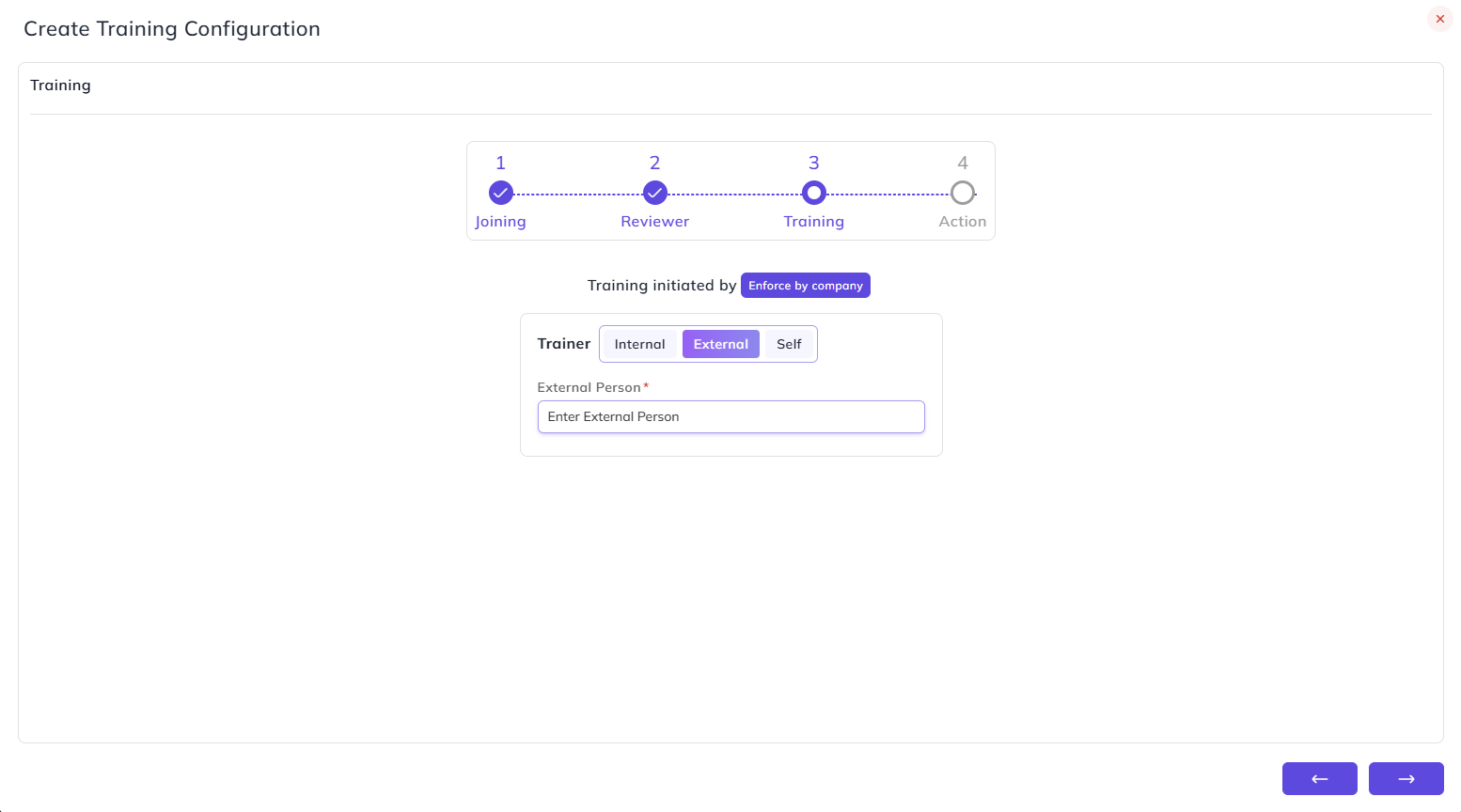
Self — the employee will complete the training on their own without an assigned trainer. No additional fields appear for this option.
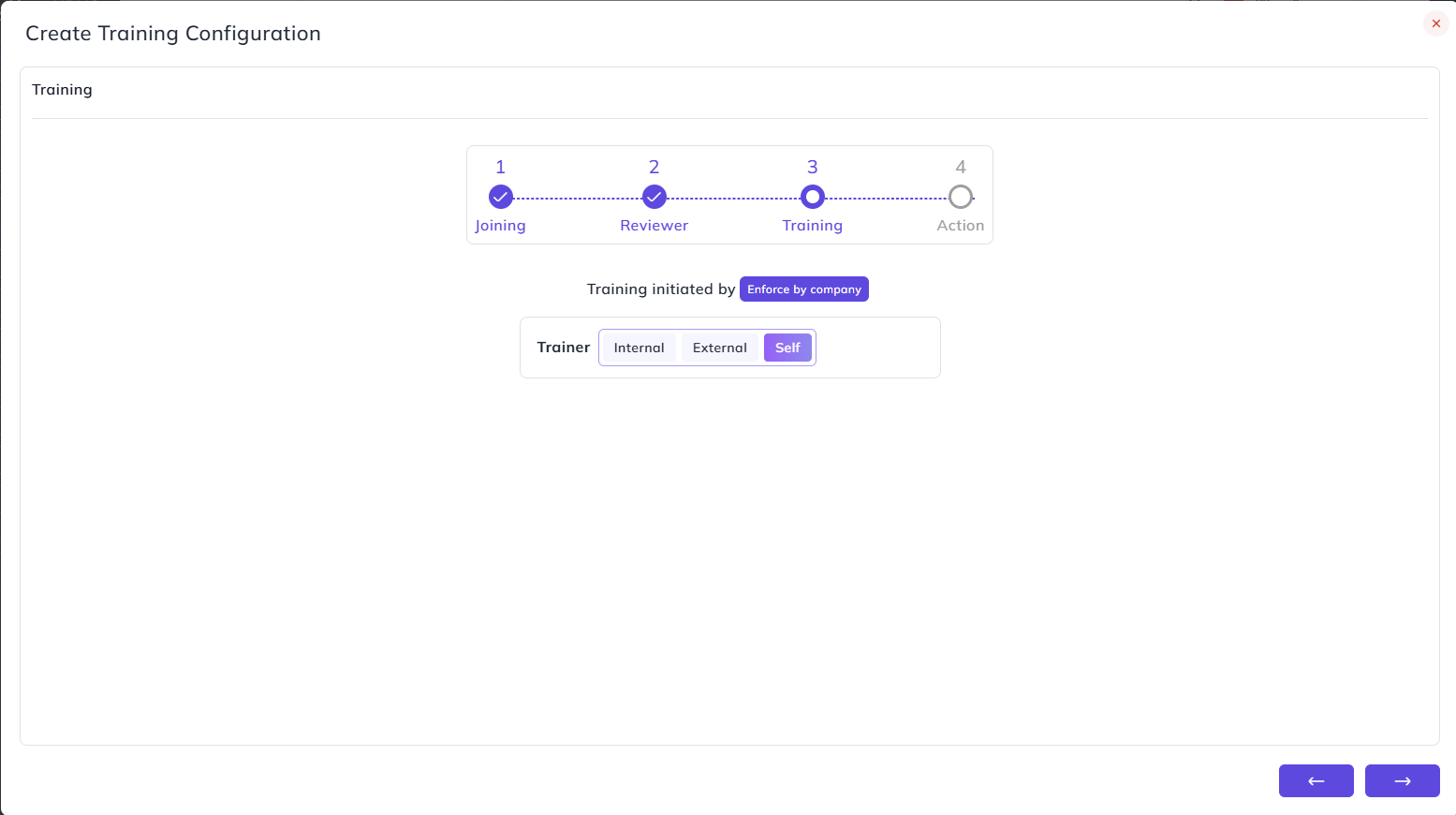
4. Action:
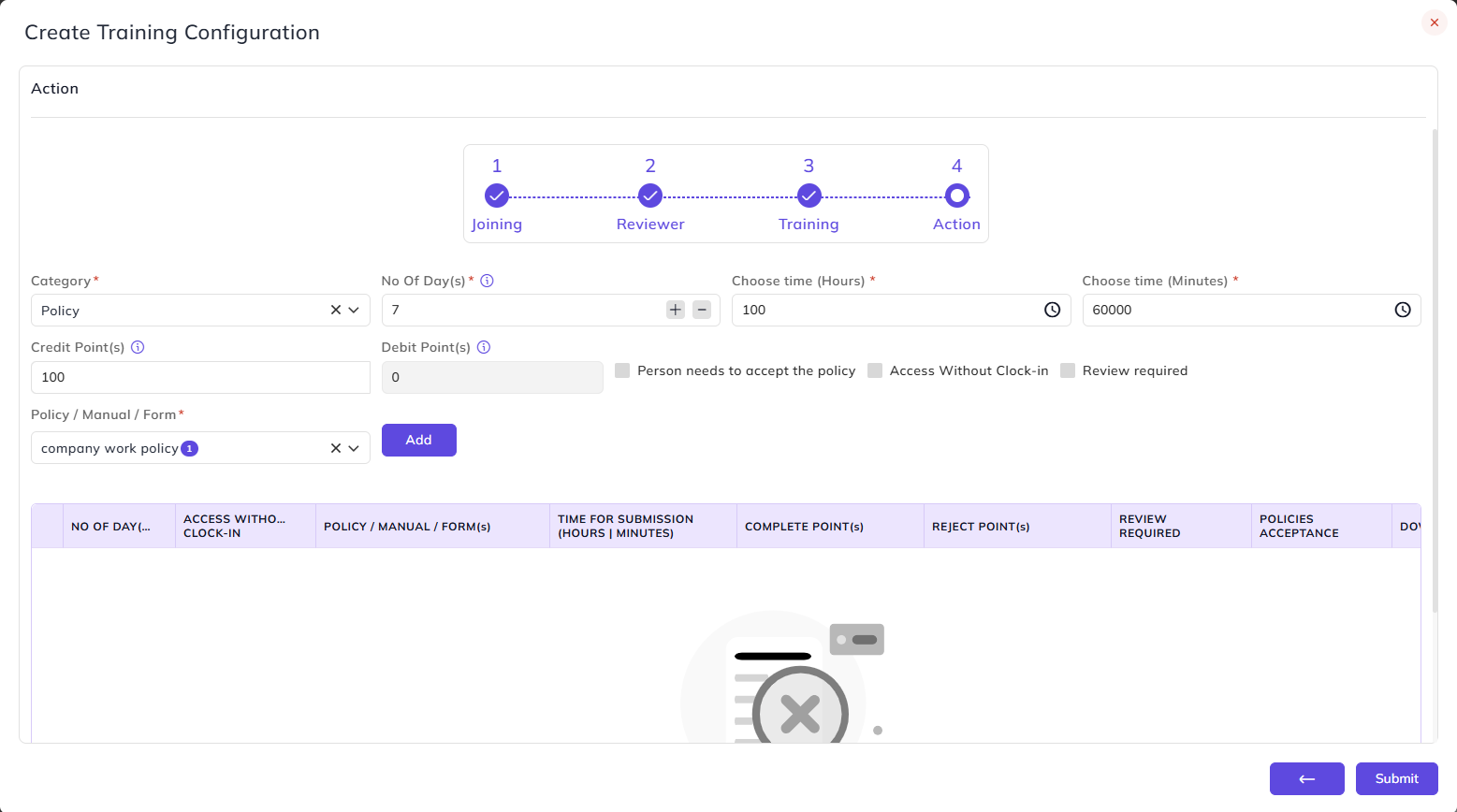
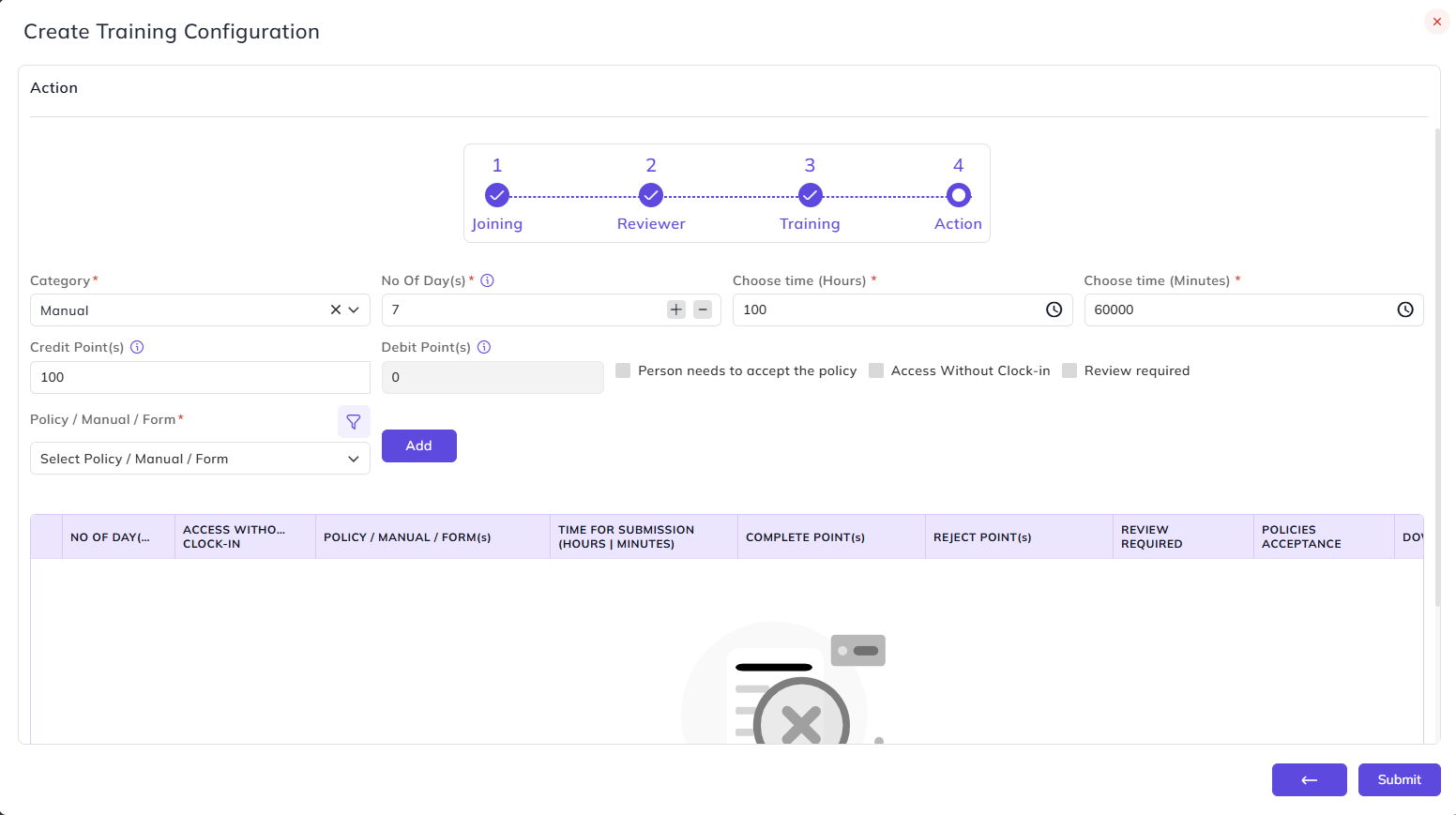
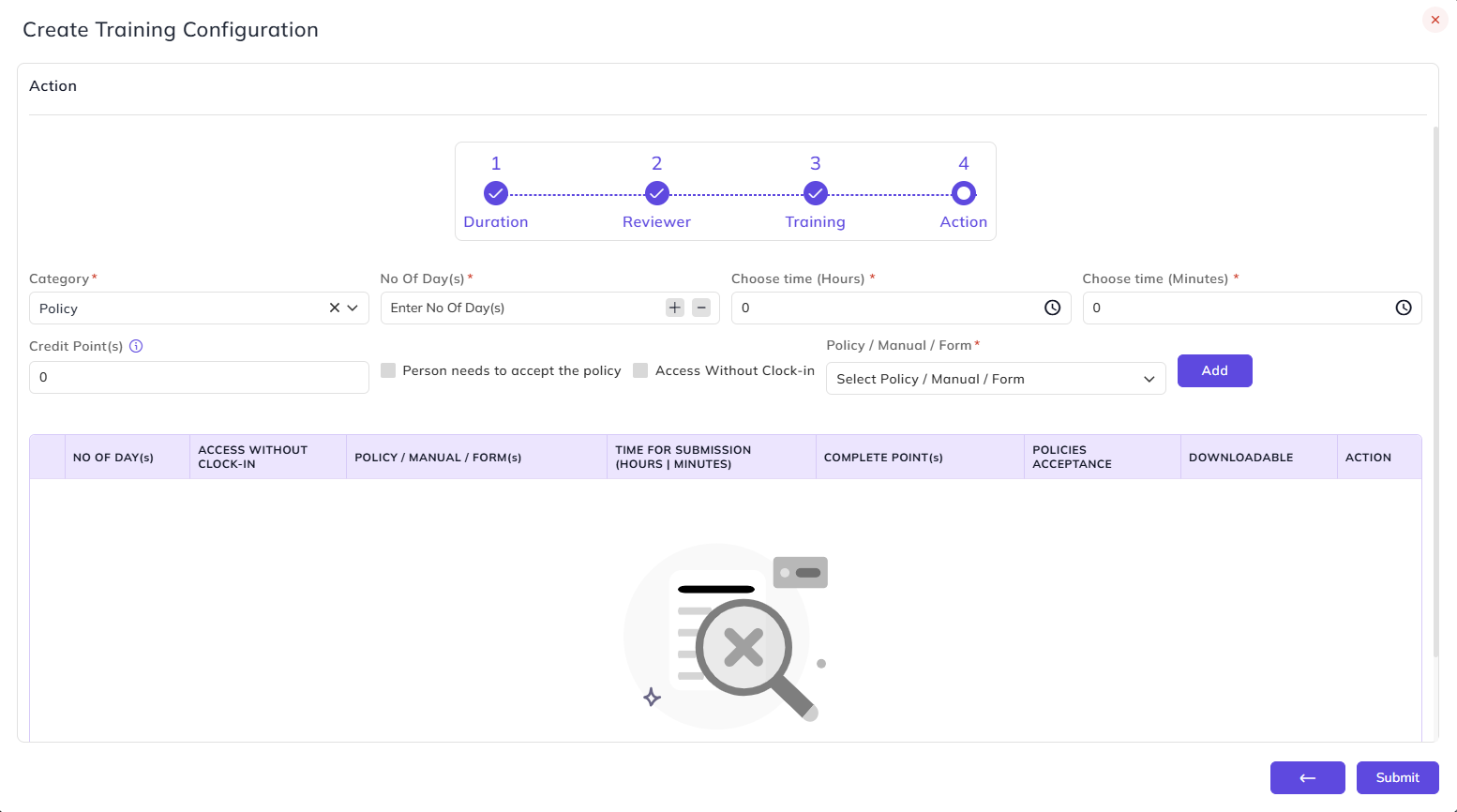
This step defines the tasks and materials the employee must complete as part of the training. Configure the following fields and click Add to add each entry to the table.
- Category: Select the type of action to assign. The fields that appear change based on the selected category:
- No Of Day(s) — enter the number of days within which the employee must complete this action. Cannot exceed the total number of days defined in the Joining step.
- Choose time (Hours) — enter the time allowed in hours.
- Choose time (Minutes) — enter the time allowed in minutes.
- Credit Point(s) — enter the points to be credited to the employee upon successful completion of this training action.
- Debit Point(s) — enter the points to be debited if the training is rejected. This field is only available when Review required flag is enabled.
- Person needs to accept the policy — enable this if the employee must explicitly accept the policy to complete the action.
- Access Without Clock-in — enable this to allow the employee to access the training without clocking in.
- Review required — enable this if the completed training action needs to be reviewed and approved before it is marked as complete.
When Category is Policy:
- Policy / Manual / Form — select the policy to assign. The dropdown displays only the policies that have been configured in the system.
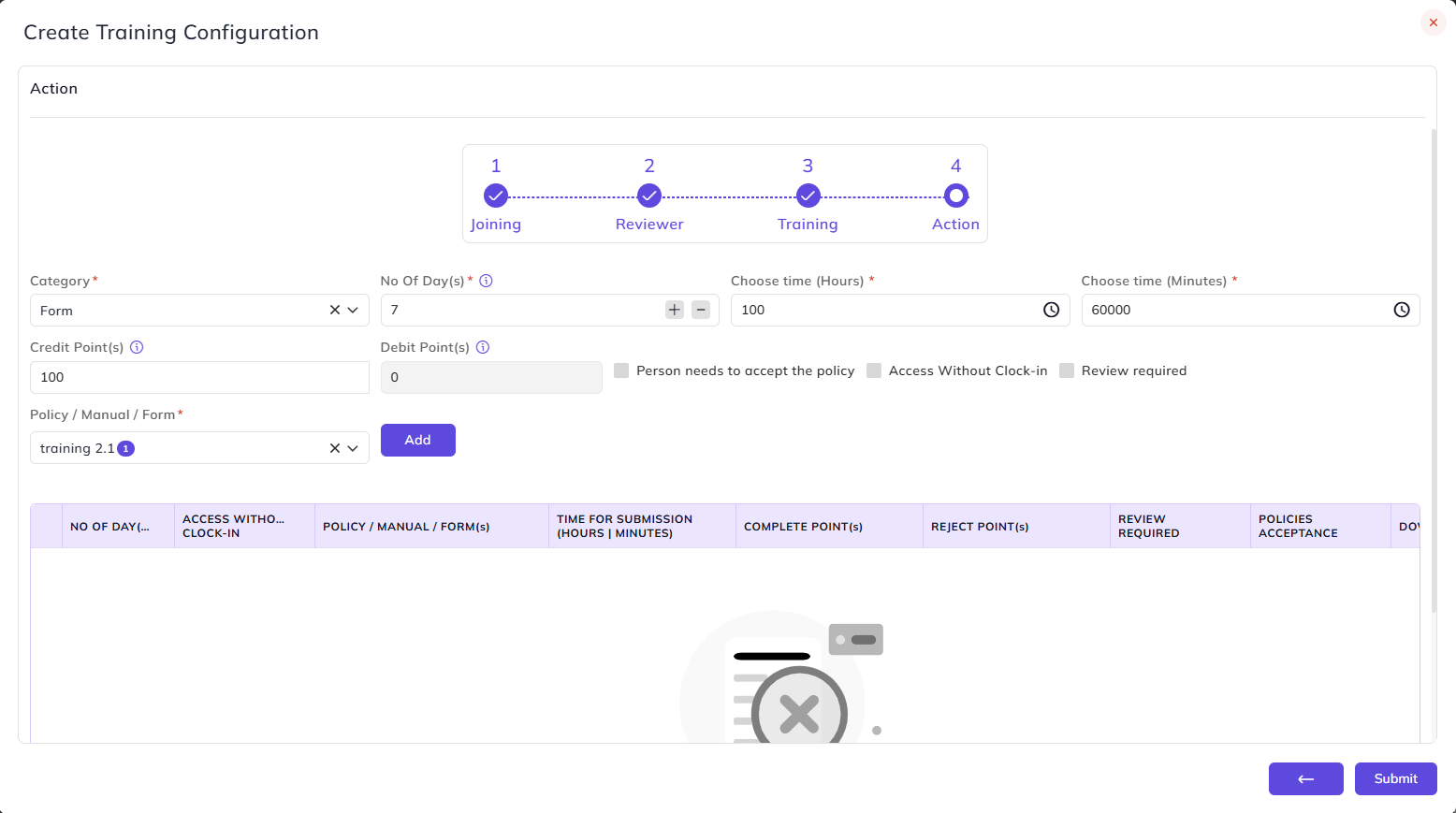
When Category is Form:
- Policy / Manual / Form — select the form to assign. The dropdown displays only the forms that have been configured in the system.
When Category is Manual:
- Policy / Manual / Form — select the manual to assign. The dropdown displays only the manuals that have been configured in the system.
When Category is Other:
- Name — enter a name for this custom action.
- Description — enter a description of what this action involves.
- Attachment — upload a supporting document or file for this action. Enable Downloadable to allow the employee to download the attachment.
- Downloadable —Enable this field if you want to make the attachment downloadable.
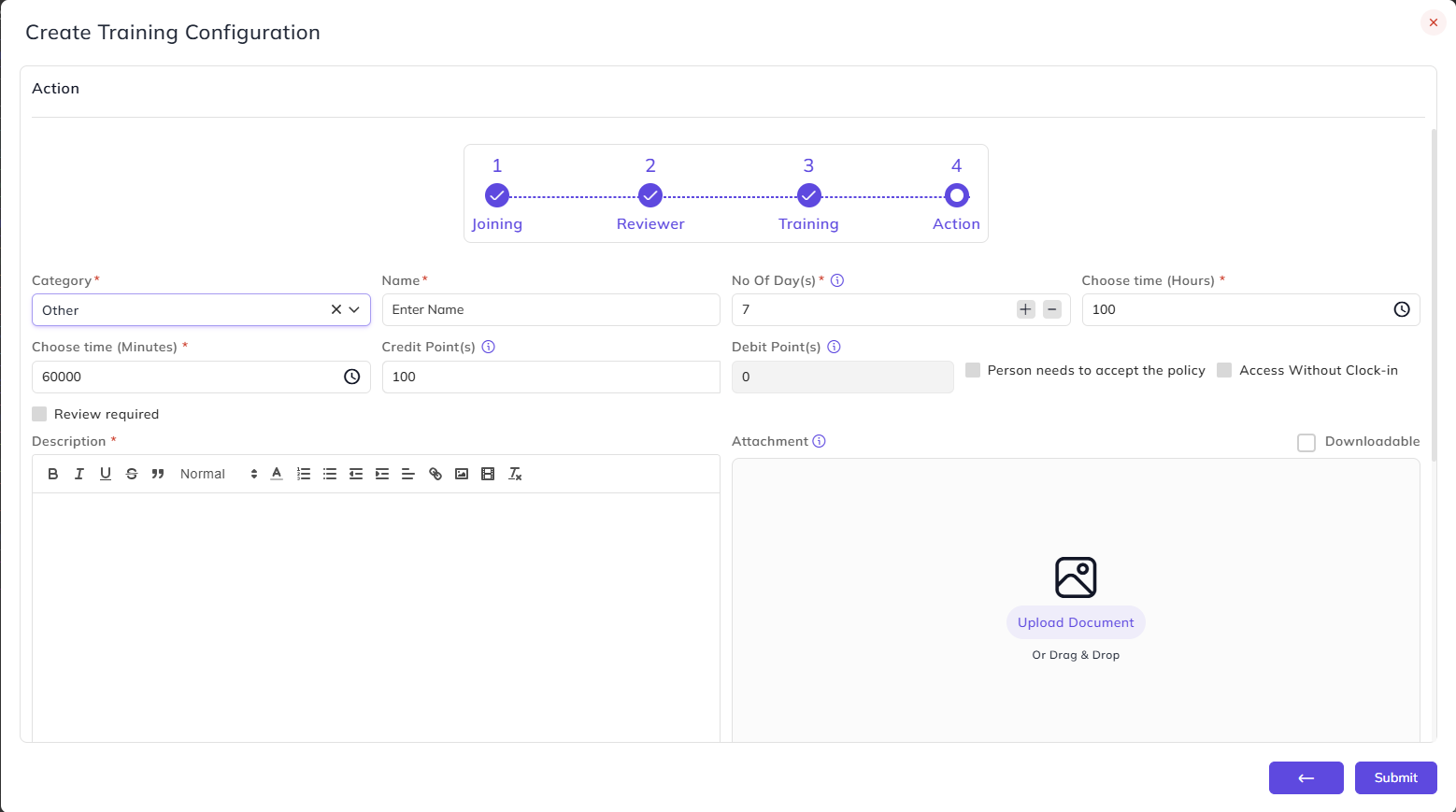
Once all actions are configured for your selected category, click Submit to save the training configuration.
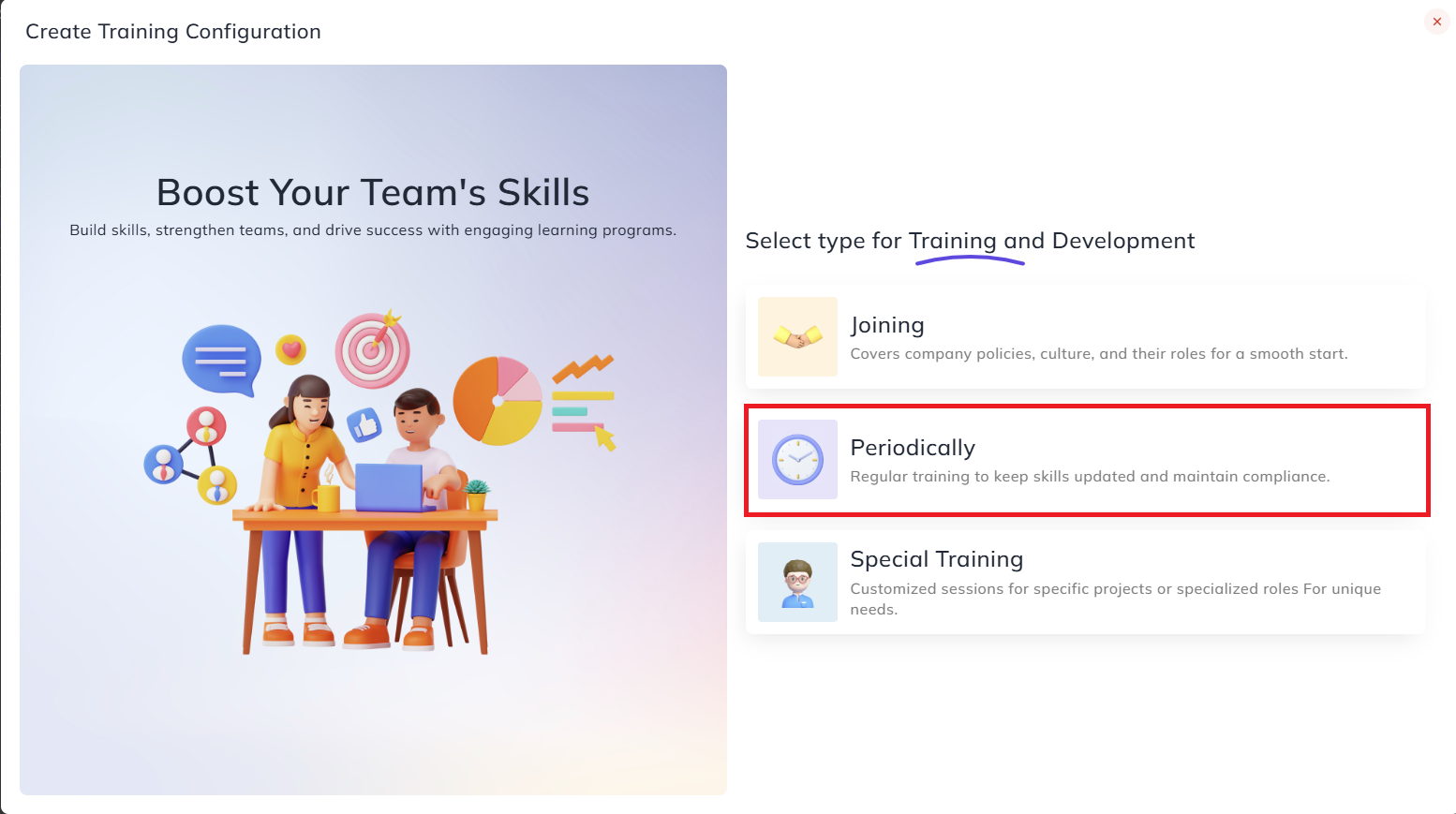
Periodically:
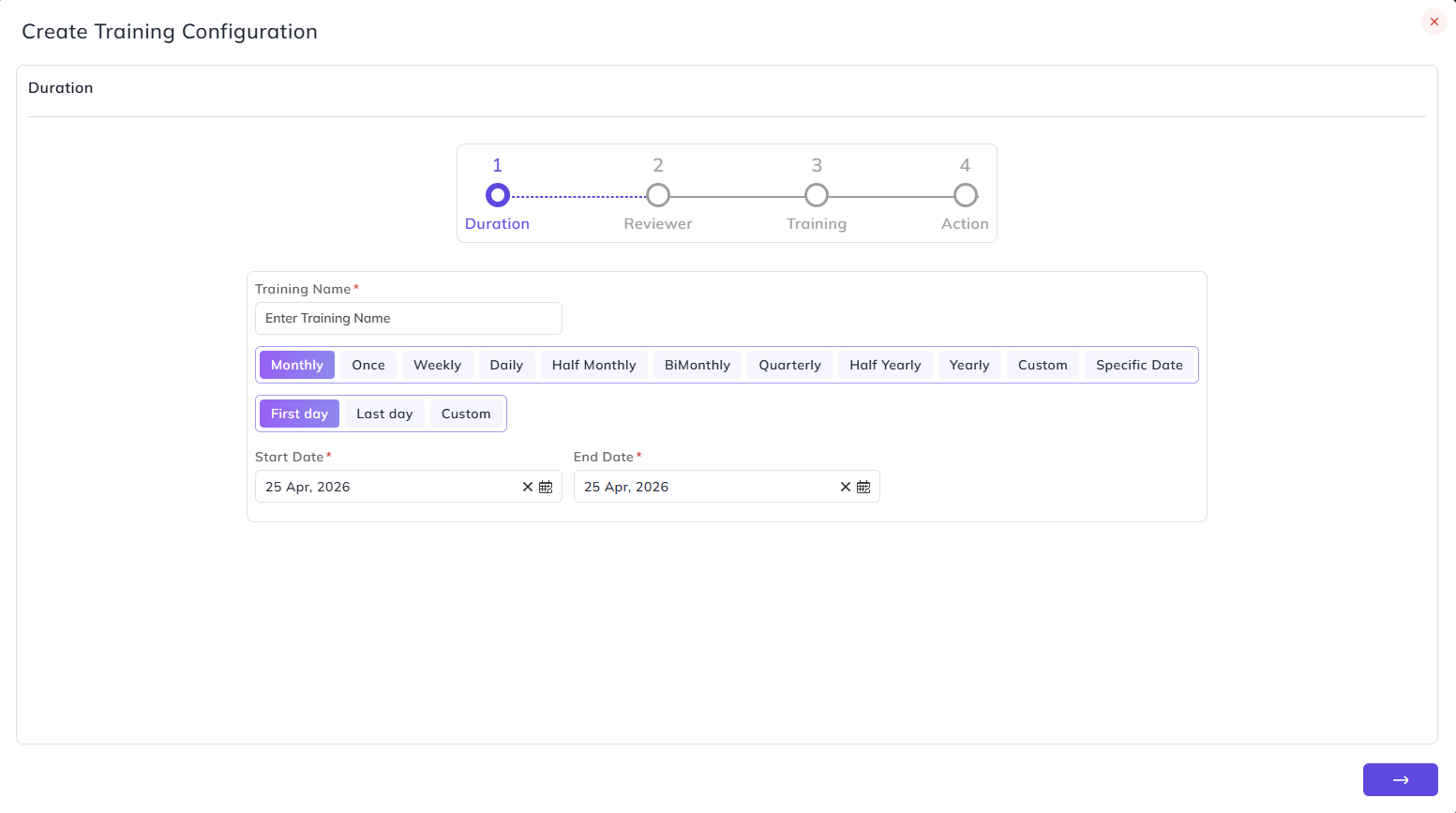
1. Duration:
- Training Name — enter the name for this training.
- Frequency — select how often the training recurs:
- Monthly — repeats every month. Select whether it falls on the First day, Last day, or a Custom date of the month.
- Once — runs only one time.
- Weekly — repeats every week. Select the Training Days — choose which days of the week the training occurs.
- Daily — repeats every day.
- Half Monthly — repeats twice a month.
- Bi Monthly — repeats every two months.
- Quarterly — repeats every quarter.
- Half Yearly — repeats every six months.
- Yearly — repeats once a year.
- Custom — define a custom recurrence pattern.
- Specific Date — runs on a specific date only.
- Start Date — select the date from which this training begins.
- End Date — select the date on which this training ends.
2. Reviewer:
Same as Joining training type.
3. Training:
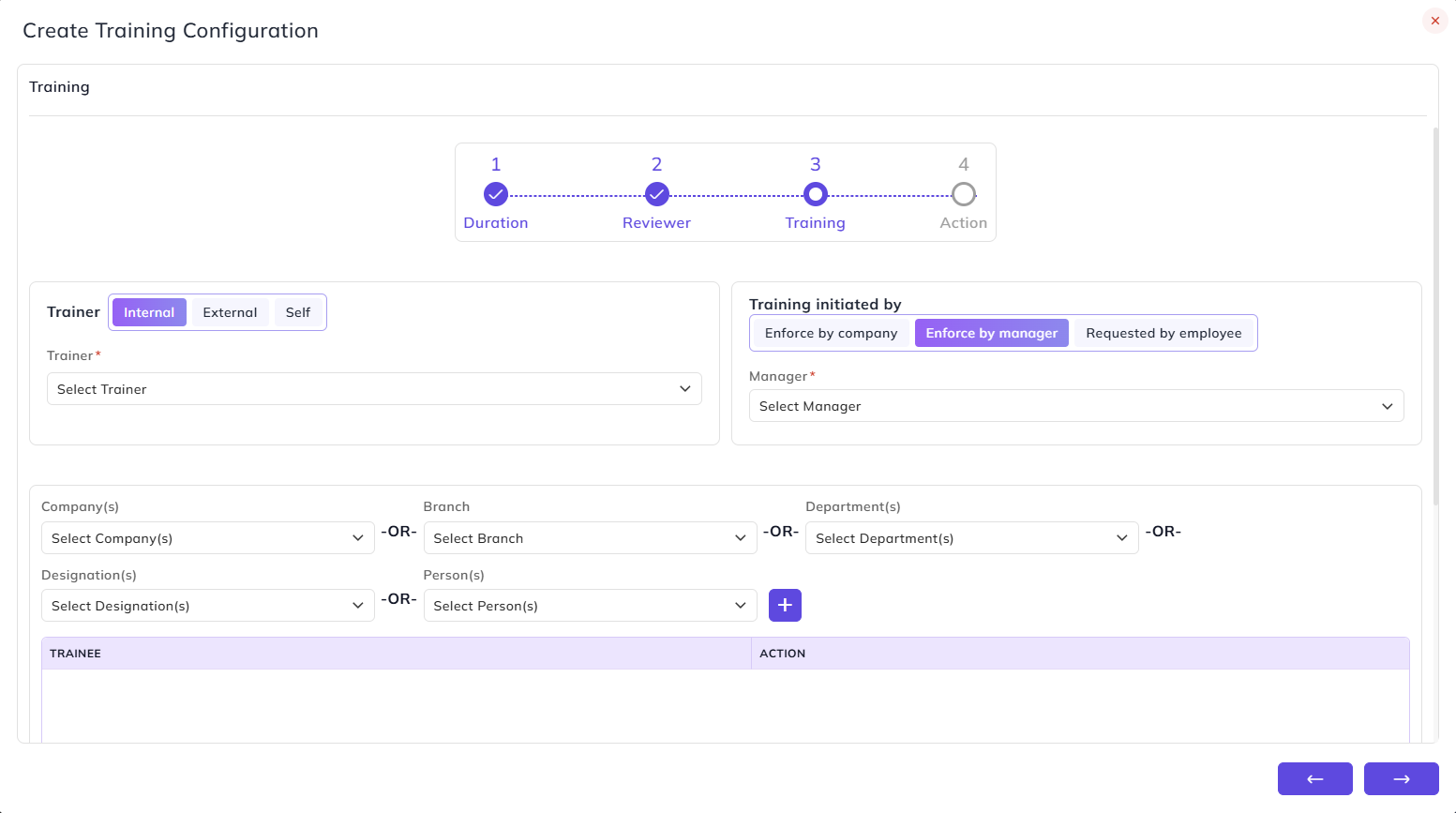
The Trainer options — Internal, External, and Self — are the same as in the Joining training type.
Training initiated by — select who initiates this training:
- Enforce by company — the training is assigned and enforced by the company. No additional fields appear.
- Enforce by manager — the training is assigned by a specific manager.
- Manager — select the manager who will enforce this training.
- Requested by employee — the training is initiated based on an employee's request.
- Employee — select the employee who requested this training.
Define who will undergo this training by selecting one or more of the following filters and clicking + to add them to the trainee table:
- Company(s) — select the company
- Branch — select the branch
- Department(s) — select the department
- Designation(s) — select the designation
- Person(s) — select specific employees
The trainee table displays all added entries with Trainee and Action columns.
4. Action:
The Category, fields, and table columns are the same as in the Joining training type, except:
- There is no Review required flag in the Periodically type — therefore the Debit Point(s) field does not appear.
Once all actions are configured, click Submit to save the training configuration.
Special Training:
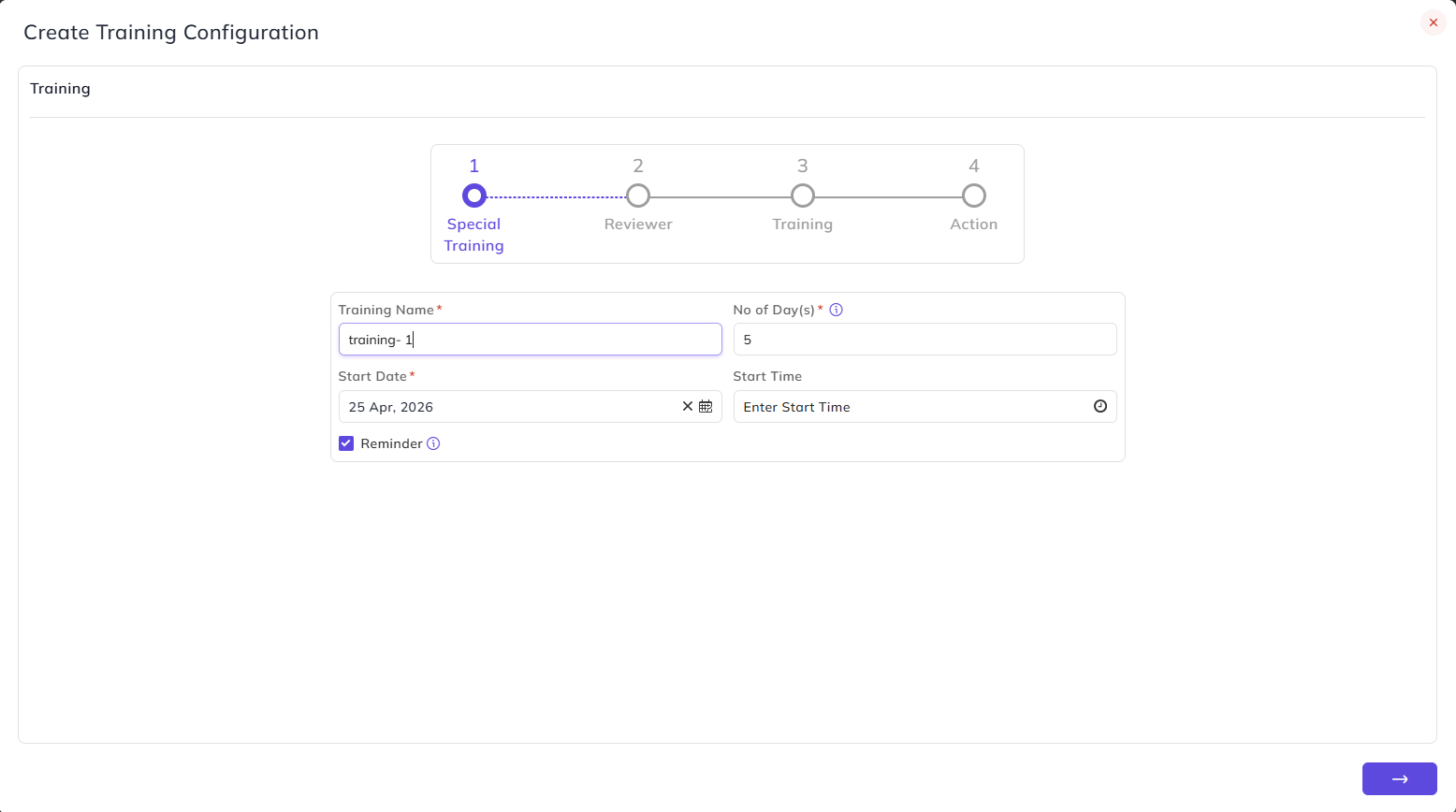
1. Special Training:
- Training Name — enter the name for this training.
- No of Day(s) — enter the number of days this training will run.
- Start Date — select the date on which this training begins.
- Start Time — enter the time at which the training starts.
- Reminder — when enabled, an email will be sent to the trainee 1 day before the training starts.
2. Reviewer:
Same as Joining and Periodically training type.
3. Training:
Same as Periodically training type.
4. Action:
- Need Trainee Attendance — enable this to mark that physical or logged attendance is required from the trainee to complete this action. This field is unique to Special Training and does not appear in other training types.
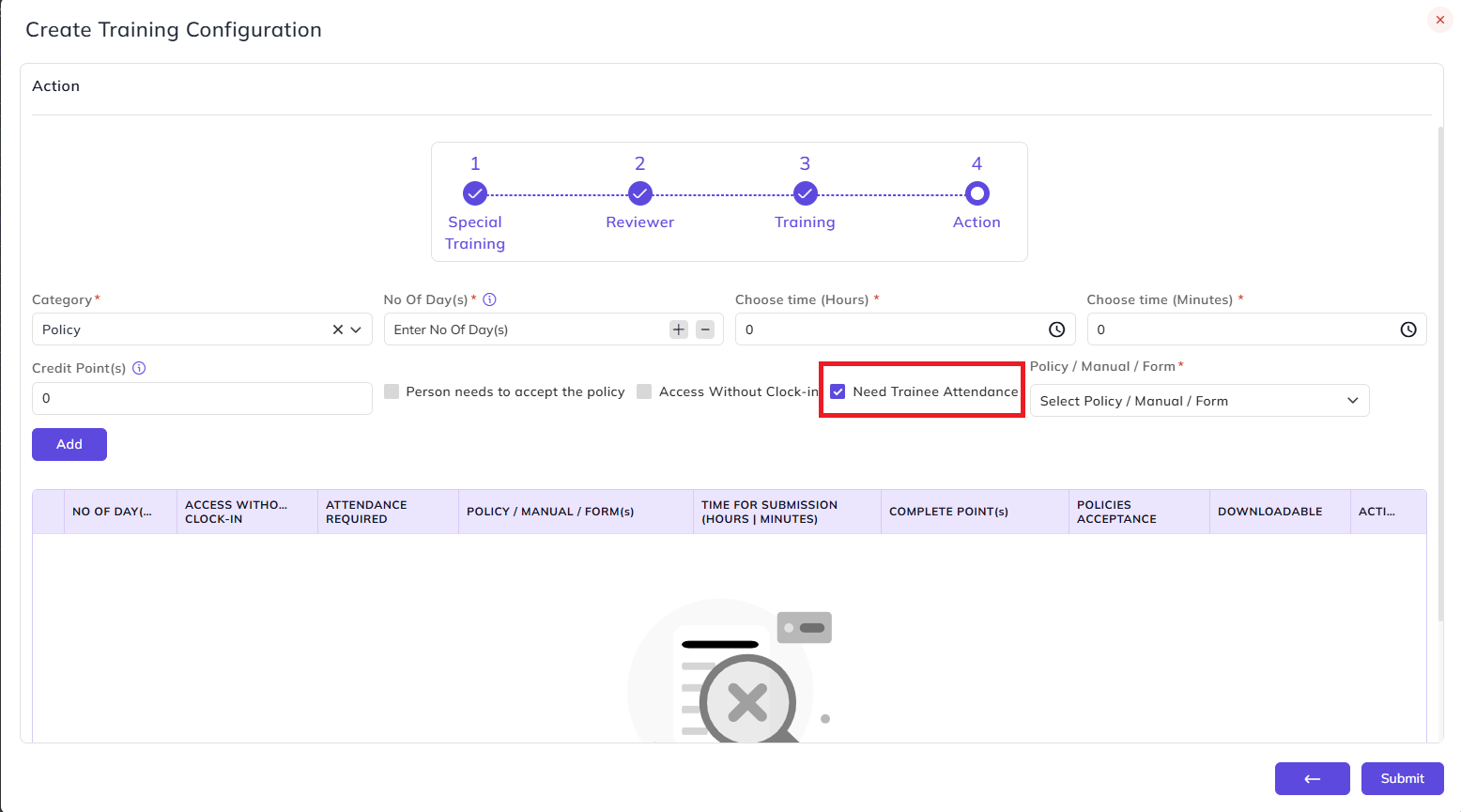
Once all actions are configured, click Submit to save the training configuration.
You can edit the Active flag after creating the training as well.