
ESIC
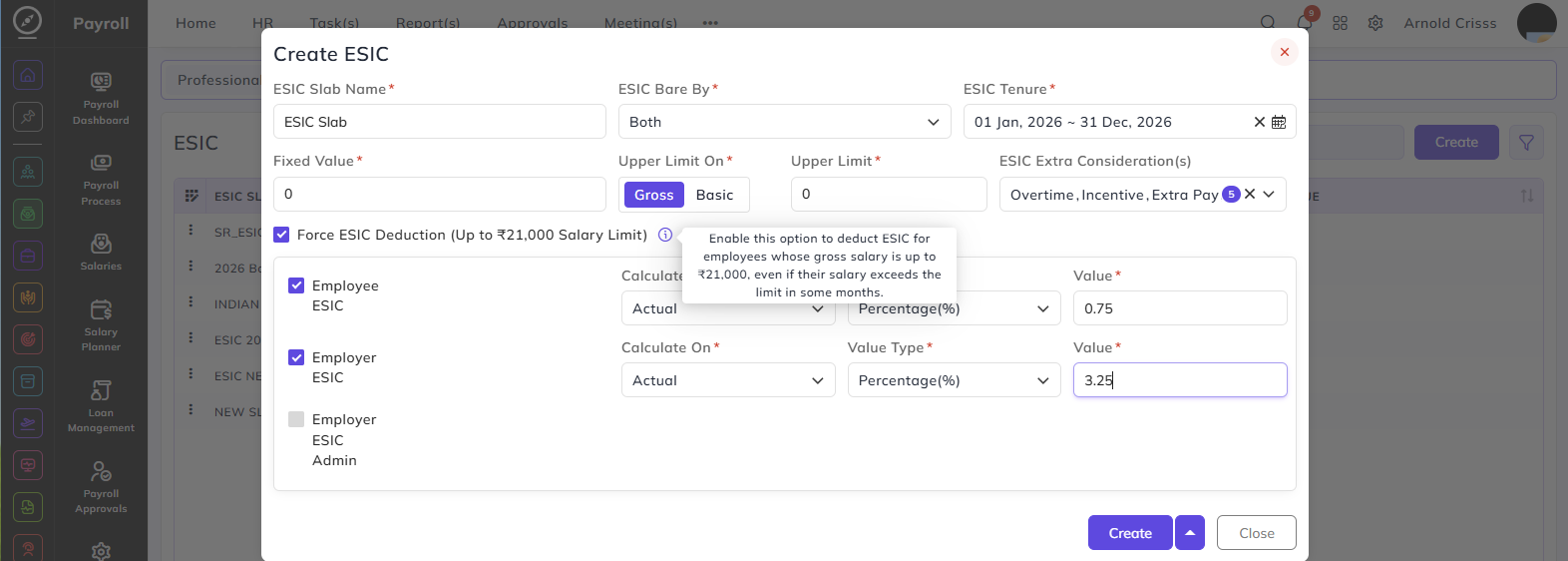
From this page, you can create the ESIC Slabs. ESIC (Employees' State Insurance Corporation) is a statutory deduction applicable to employees whose salary falls within the defined limit. All fields are used to define the ESIC slab structure applicable to employees, employers, or both.
ESIC Slab Name:
Enter a name to identify this ESIC slab.
ESIC Bare By: Defines who bears the ESIC contribution. Select one of the following:
- Employee
- Employer
- Both
ESIC Tenure:
Select the date range for which this ESIC slab is applicable — for example, 01 Jan, 2026 ~ 31 Dec, 2026.
Fixed Value: Enter the fixed value used as a base for ESIC calculation.deduction.
Upper Limit On: Select the salary component on which the upper limit is applied:
- Gross — the upper limit is applied on the gross salary
- Basic — the upper limit is applied on the basic salary
Upper Limit:
Enter the maximum salary amount up to which ESIC is applicable. Employees earning above this limit are not subject to ESIC deduction.
Force ESIC Deduction (Up to ₹21,000 Salary Limit):
Enable this option to deduct ESIC for employees whose gross salary is up to ₹21,000, even if their salary exceeds the limit in some months. This ensures consistent ESIC deduction throughout the year once an employee qualifies.
ESIC Extra Consideration(s):
Select additional salary components that should be included when calculating ESIC. Multiple options can be selected:
- Overtime
- Incentive
- Extra Pay
- Employee Referral Bonus
- Extra Deduction
The bonus and allowance can be selected for consideration or negation while defining the salary structure.
ESIC Contribution Configuration:
This section defines how the ESIC contribution is calculated for each party — Employee, Employer, and Employer ESIC Admin.
Employee ESIC:
Check this box to enable ESIC deduction on the employee side.
Employer ESIC:
Check this box to enable ESIC contribution on the employer side.
Employer ESIC Admin:
Check this box to enable ESIC admin contribution on the employer side.
For each enabled party, configure the following:
Calculate On: Select the salary component on which ESIC will be calculated:
- Actual
- Basic
- Fixed Value
- Upper Limit
Value Type: Define whether the ESIC contribution is calculated as a percentage or a fixed absolute value.
Value: Enter the contribution amount based on the selected Value Type. If % is selected, enter the percentage rate — for example, 0.75 for employee contribution or 3.25 for employer contribution. If Amount is selected, enter the fixed amount to be deducted.
- Percentage (%) — contribution is a percentage of the selected salary component
- Amount — contribution is a fixed amount
The Bulk Action button allows you to delete multiple ESIC slabs at once, streamlining the management process.