Loan Approvals
From this page, the authorized approver can review all submitted loan requests and take action by approving or rejecting them. Once approved, the approver submits a formal loan offer which the employee can then review and choose to accept or decline.
Loan Approvals List:
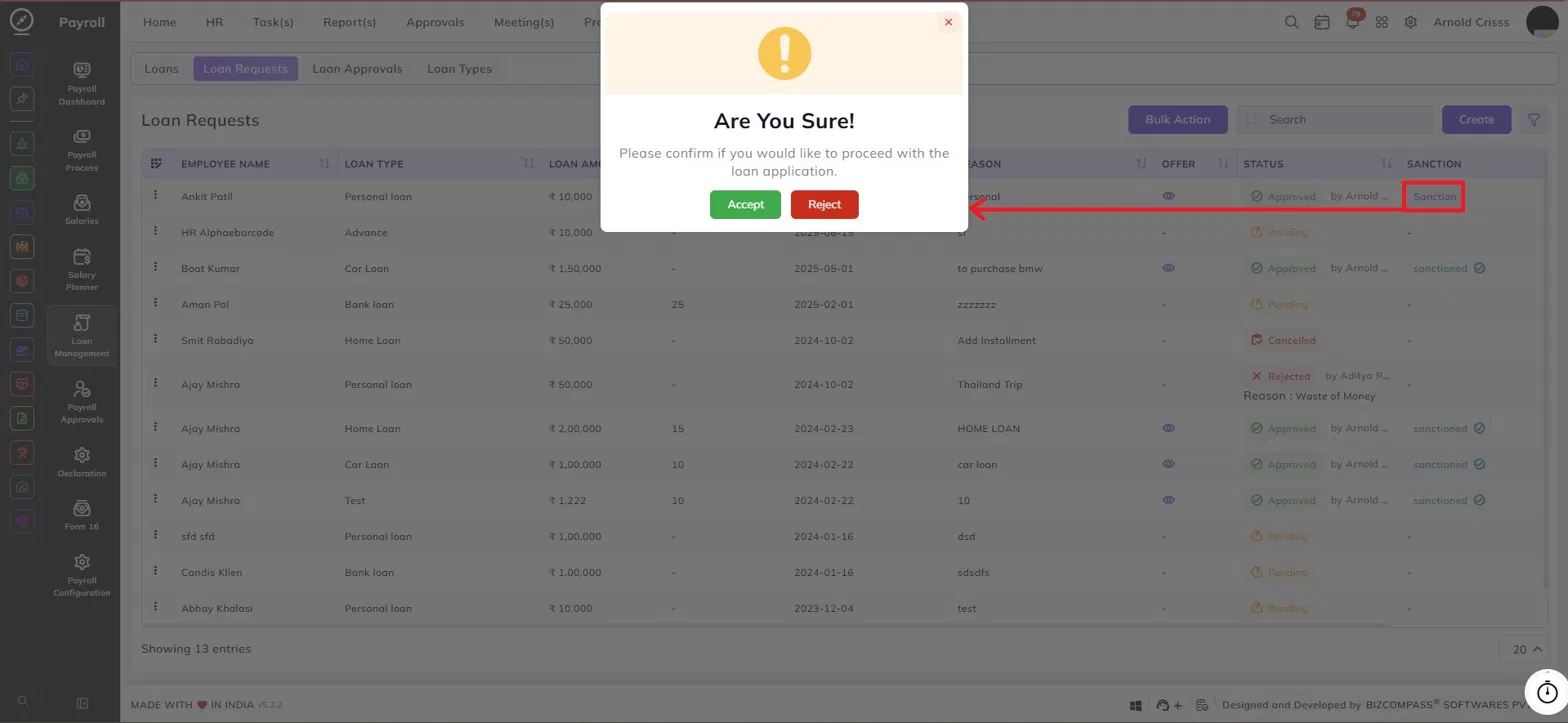
The Loan Approvals list displays all loan requests with the following columns:
- Employee Name — The name of the employee who submitted the loan request.
- Loan Type — The category of loan (e.g., Personal Loan, Home Loan, Car Loan).
- Loan Amount — The total loan amount requested.
- Annual Interest Rate — The annual interest rate applicable to the loan, if specified in the offer.
- Installment Start Date — The date from which repayment installments begin.
- Reason — The reason provided by the employee at the time of the loan request.
- Offer — Displays the eye icon once the approver has submitted an offer. The employee can click this icon to view the offer details.
- Status — The current status of the loan request: Pending, Approved, Validity Over, Cancelled, or Rejected. Rejected requests also show the reason provided by the reviewer.
- Sanction — Indicates whether the loan has been sanctioned by the employee after reviewing the offer.
Approving or Rejecting a Loan Request:
To take action on a loan request, click on the Status column of the relevant entry. A dropdown will appear with the following options:
- Approve — Opens the Loan Approval form to submit a formal offer to the employee.
- Reject — Rejects the loan request. The rejection reason will be visible in the list.
Loan Approval Form
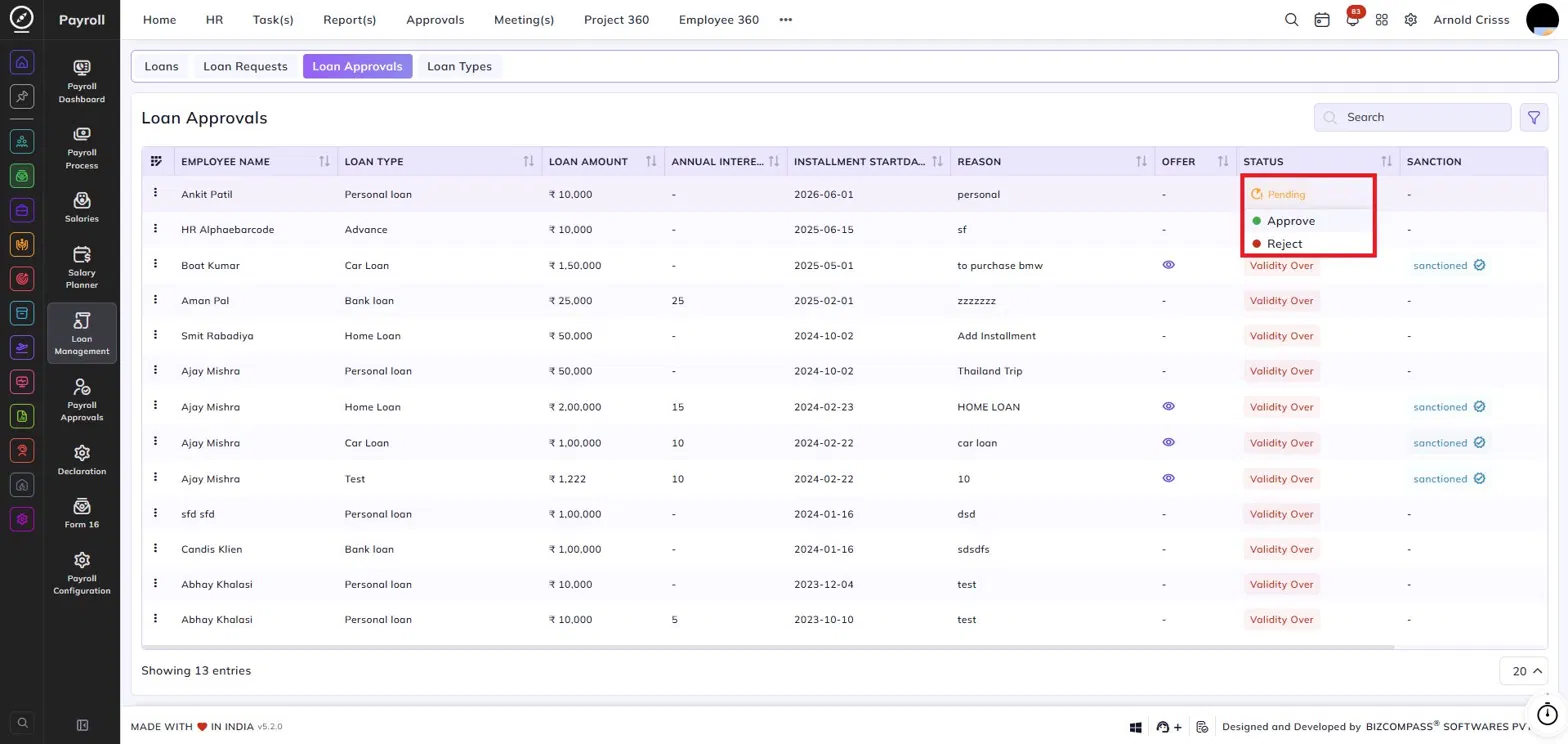
When an approver selects Approve, the Loan Approval form opens with the following fields:
Loan Type:
Displays the type of loan being approved.
Installment Start Date:
The date from which repayment installments will begin.
Loan Amount:
Enter the approved loan amount, which may differ from the originally requested amount.
Installment Type:
Select the method used to calculate interest on the loan. This is a mandatory field. The available options are:
- Reducible Interest — Interest is calculated on the outstanding (reducing) loan balance each month. As the principal reduces with each installment, the interest component also decreases over time.
- Flat Interest — Interest is calculated on the original full loan amount throughout the entire repayment tenure. The interest amount remains the same in every installment regardless of the outstanding balance.
Paid Through Account:
Select whether the loan disbursement will be paid through the employee's account.
Annual Interest Rate:
Enter the annual interest rate applicable to this loan.
Installment Count:
Enter the total number of installments for repayment.
Agreement Type:
Select the type of agreement associated with this loan — for example, Loan.
Lender Name:
Enter the name of the person or entity lending the amount. Reason:
Displays the reason entered by the employee in the original loan request.
Installment Schedule Table:
Once all fields are filled in, a repayment schedule is automatically generated showing each installment's date, EMI amount, interest, principal amount, and remaining loan balance.
Viewing the Loan Offer (Employee Side):
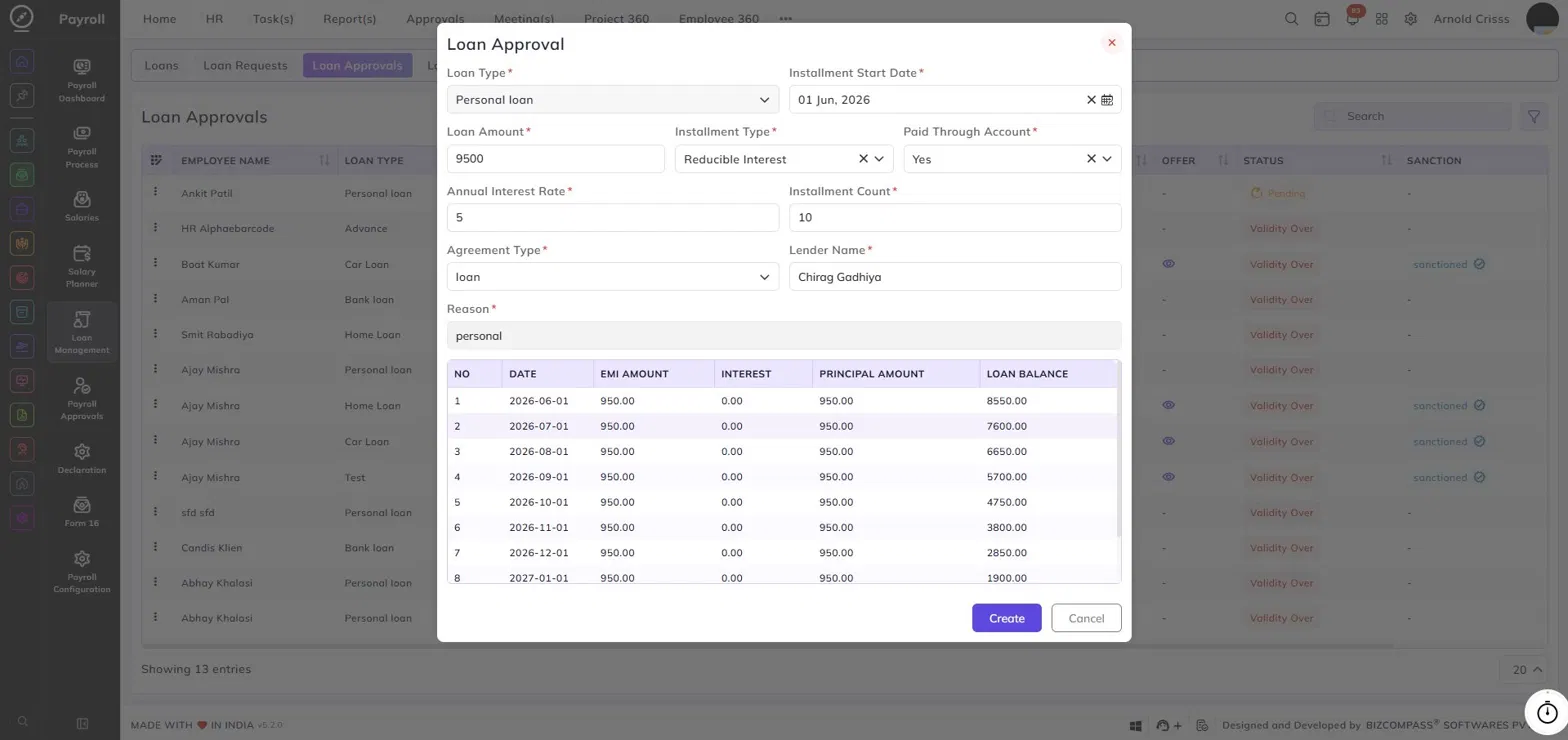
Once the approver submits an offer, the employee can click the eye icon in the Offer column on the Loan Requests page to open the Loan Offer popup. This displays a side-by-side comparison of the original request details and the offer details submitted by the approver, including loan type, installment start date, loan amount, annual interest rate, installment count, installment type, paid through account, and reason.
Sanctioning the Loan:
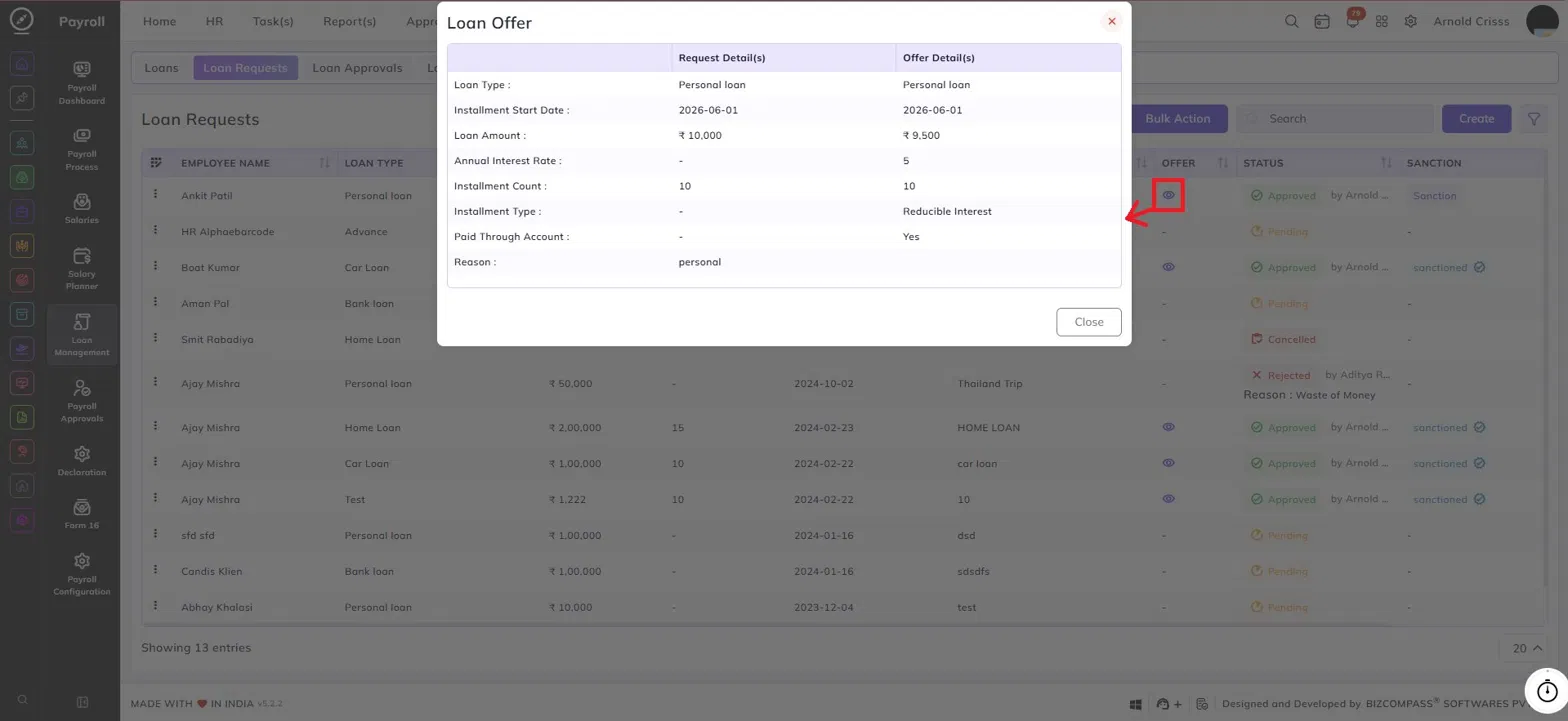
After reviewing the offer, the employee can proceed to sanction it by clicking the Sanction button in the list.
- Click Accept to confirm and sanction the loan. The status will update to Sanctioned.
- Click Reject to decline the offer.