
Loan Requests
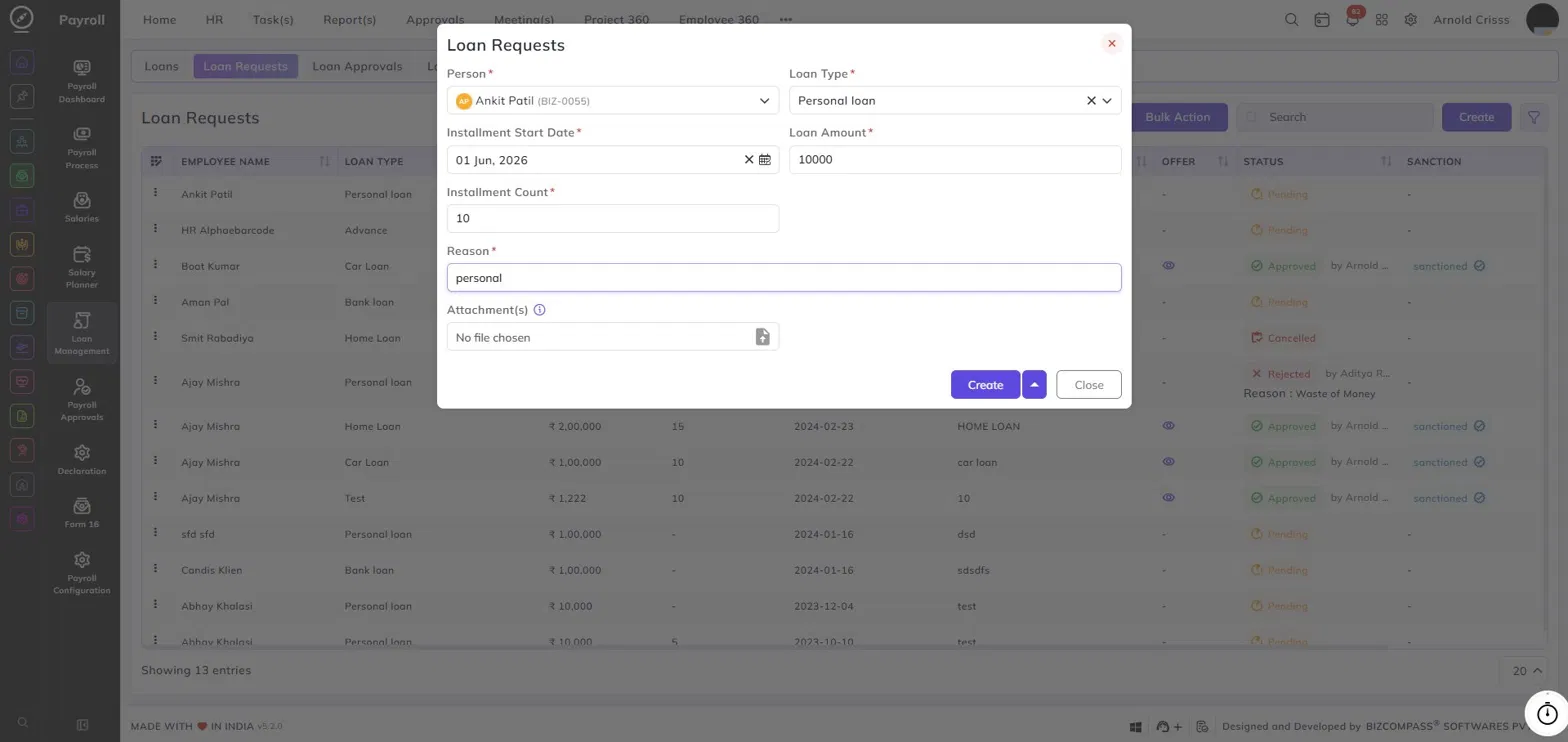
From this page, employees can create loan requests. Employees typically have Self access rights for this page, which means they can only create and view loan requests for themselves. HR personnel or administrators with broader access rights can create loan requests on behalf of any employee and view all requests in the list. All fields are used to define the loan request details that will go through the approval workflow.
Creating a Loan Request:
Person:
Select the employee for whom the loan request is being created. The employee's name and BIZ ID will appear in the dropdown.
Loan Type:
Select the type of loan being requested — for example, Personal Loan, Car Loan, Home Loan, Bank Loan, or Advance.
Installment Start Date:
Enter or pick the date from which the loan repayment installments should begin.
Loan Amount:
Enter the total loan amount being requested by the employee.
Installment Count:
Enter the number of installments over which the loan amount will be repaid. For example, entering 10 means the loan will be recovered in 10 equal installments.
Reason:
Enter the reason or purpose for the loan request — for example, "personal", "medical", or "home renovation".
Attachment(s):
Optionally, attach any supporting documents relevant to the loan request, such as a formal application letter or supporting proof. Click the file icon to browse and upload a file.
Loan Request List:
The Loan Requests list displays all submitted requests with the following columns:
- Employee Name — The name of the employee for whom the loan was requested.
- Loan Type — The category of loan (e.g., Personal Loan, Home Loan, Car Loan).
- Loan Amount — The total sanctioned or requested loan amount.
- Installment Count — The number of repayment installments defined.
- Installment Start Date — The date from which repayments begin.
- Offer — Displays the offer submitted by the approving person upon approval. This field will be visible once the authorized approver reviews the request and submits an offer.
- Status — The current approval status of the loan request: Pending, Approved, Cancelled, or Rejected. Rejected requests also display the reason for rejection.
- Sanction — Indicates whether the loan has been sanctioned, along with the name of the approving authority.
The Bulk Action button allows you to perform actions — such as deletion — on multiple loan requests at once, streamlining the management process.
Loan Request Statuses:
| Status | Description |
|---|---|
| Pending | The request has been submitted and is awaiting review. |
| Approved | The request has been approved by the authorized personnel. |
| Sanctioned | The loan has been formally sanctioned after approval. |
| Cancelled | The request was cancelled before processing. |
| Rejected | The request was denied, with a reason provided by the reviewer. |
Loan Request Settings:
The behavior of the Loan Request page is controlled by settings configured under Payroll Setting(s) in the General Settings. The following options are available under the Loan Request section:
Loan Request Validity In Day(s):
Enter the number of days for which a loan request remains valid after submission. For example, entering 105 means the request will expire after 105 days if not acted upon.
Maximum Loan Amount / Number Of Salary:
Define the upper limit for the loan amount an employee can request. This can be set in one of two ways:
- Fixed — Enter a fixed maximum loan amount directly (e.g., 300,000). The loan request cannot exceed this value.

- Based On Salary — Instead of a fixed amount, select a salary multiplier (1x to 10x) to dynamically cap the loan amount based on the employee's salary. For example, selecting 3x means an employee can request a loan of up to 3 times their salary.

Loan Approval Person(s):
Select the person(s) responsible for approving loan requests. The selected approvers will be notified when a new loan request is submitted.
Can Apply Multiple Loan:
Enable this checkbox to allow employees to have more than one active loan at a time. If this is unchecked, an employee must fully repay an existing loan before applying for a new one.