Provident Fund (PF)
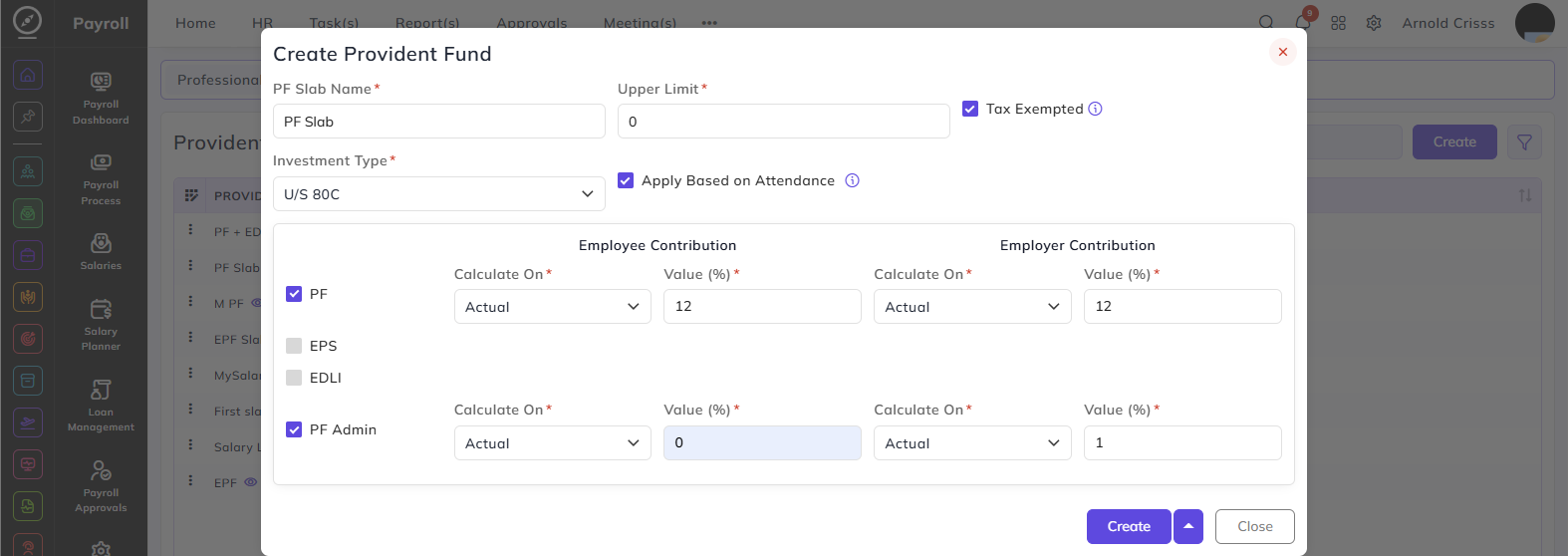
From this page, you can create the Provident Fund (PF) Slabs. Provident Fund (PF) is a statutory deduction applicable to eligible employees. All fields are used to define the PF slab structure and contribution percentages for both employees and employers.
PF Slab Name:
Enter a name to identify this provident fund slab.
Upper Limit:
Enter the maximum salary amount up to which this PF slab is applicable.
Tax Exempted:
Enable this option to mark this PF slab as tax exempted. Selecting this enables investment type selection for tax exemption purpose.
Investment Type:
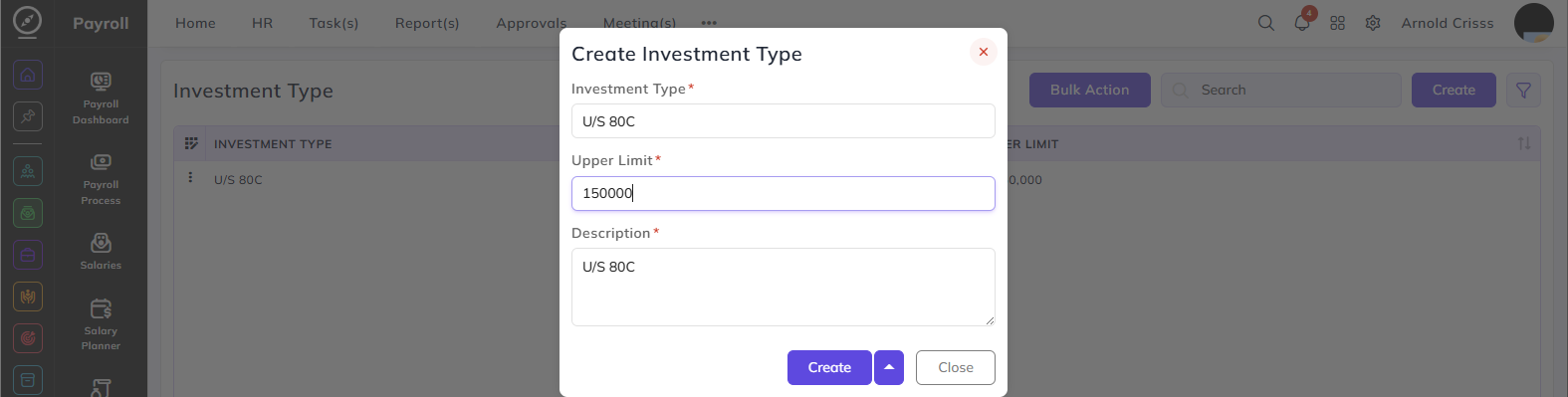
Select the investment type applicable for tax exemption — for example, U/S 80C. This field appears only when Tax Exempted is enabled. Investment Type can be created from Payroll->Payroll Configuration->Investment Type.
Apply Based on Attendance:
When enabled, contribution values will adjust based on attendance only if Calculate On is set to Fixed.
PF Contribution Configuration:
This section defines the contribution percentages for each PF component — for both the employee and employer side.
The following components can be enabled:
PF:
This is the main provident fund contribution. Check this box to enable PF deduction for both employee and employer.
EPS:
Its full form is Employee Pension Scheme contribution. Check this box to enable EPS deduction.
EDLI:
Its full form is Employees' Deposit Linked Insurance contribution. Check this box to enable EDLI deduction.
PF Admin:
It means the administrative charges applicable on the employer side. Check this box to enable PF Admin charges.
For each enabled component, configure the following for both Employee Contribution and Employer Contribution:
Calculate On: Select the salary component on which the contribution will be calculated:
- Actual — contribution is calculated on the actual salary
- Fixed — contribution is calculated on a fixed amount
Value (%): Enter the contribution percentage for the selected component. For example:
- PF Employee contribution — 12%
- PF Employer contribution — 12%
- PF Admin Employee contribution — 0%
- PF Admin Employer contribution — 1%