
Salary Structures
From this page, you can create Salary Structures that define the income and deduction components for employee salaries.
Salary Header:
Enter a name to identify this salary structure — for example, IIS Structure or Default.
Active:
Enable this to mark the salary structure as active and available for assignment to employees.
Income Heads:
This section defines all the earning components included in the salary structure like:
- Bonus
- Allowance
- Incentive
- Basic Fixed Salary
Select a header and click + to add it to the table.
Headers:
Select the income payroll header to add — for example, Incentive, Allowance, or Basic Fixed Salary. The fields that appear after selecting a header depend on the header type:
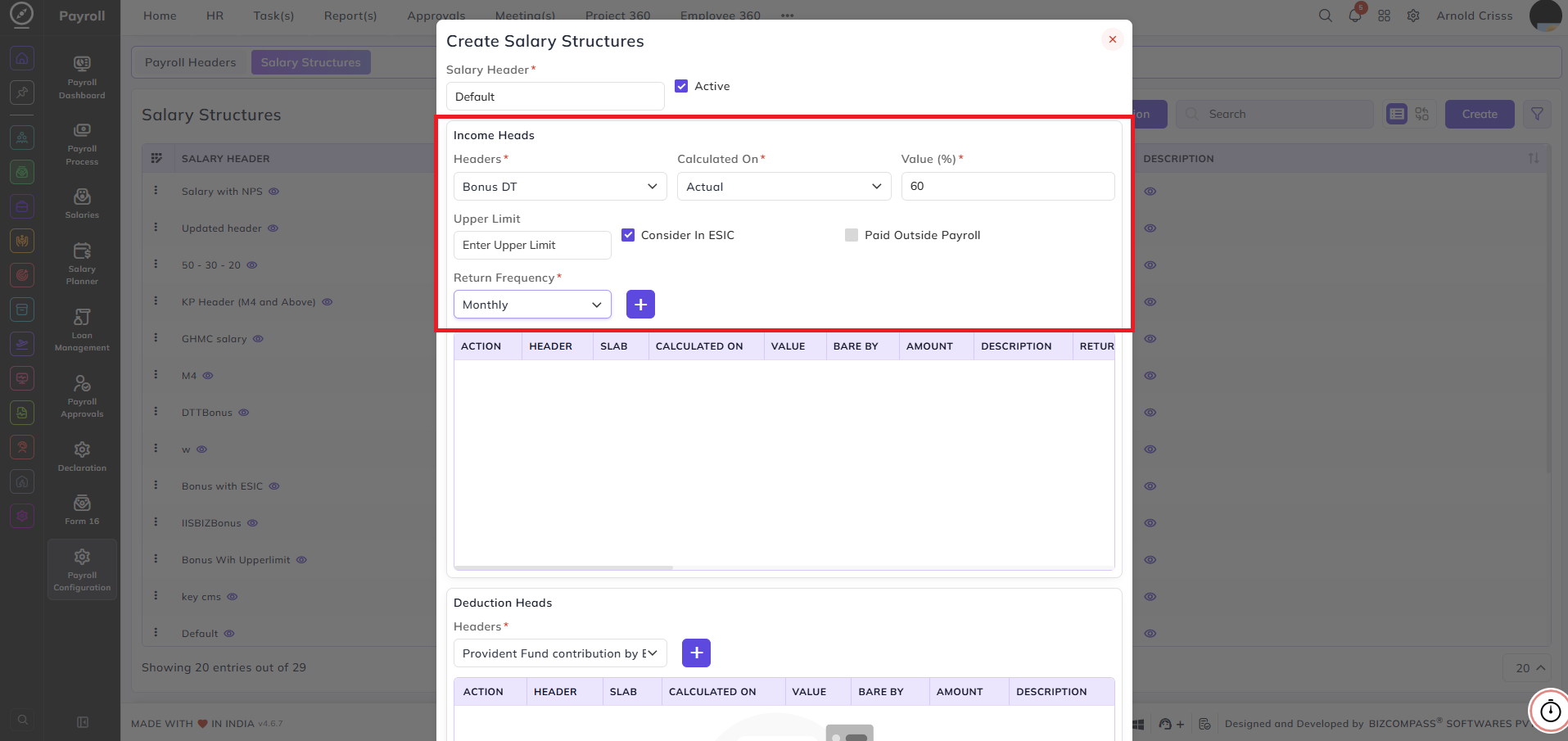
When a Bonus header is selected:
- Calculated On — select how the bonus is calculated:
- Actual — calculated on the actual salary
- Fixed Value — calculated on a fixed amount
- Value (%) — enter the bonus percentage or amount
- Upper Limit — enter the maximum bonus amount that can be paid. Leave blank if there is no upper limit
- Consider In ESIC — enable this to include the bonus amount in the ESIC calculation
- Paid Outside Payroll — enable this if the bonus is paid separately outside the regular payroll run. If this option is enabled, the Return Frequency field won't appear.
- Return Frequency — select how often the bonus is returned or paid out — for example, Monthly, Quarterly, or Yearly
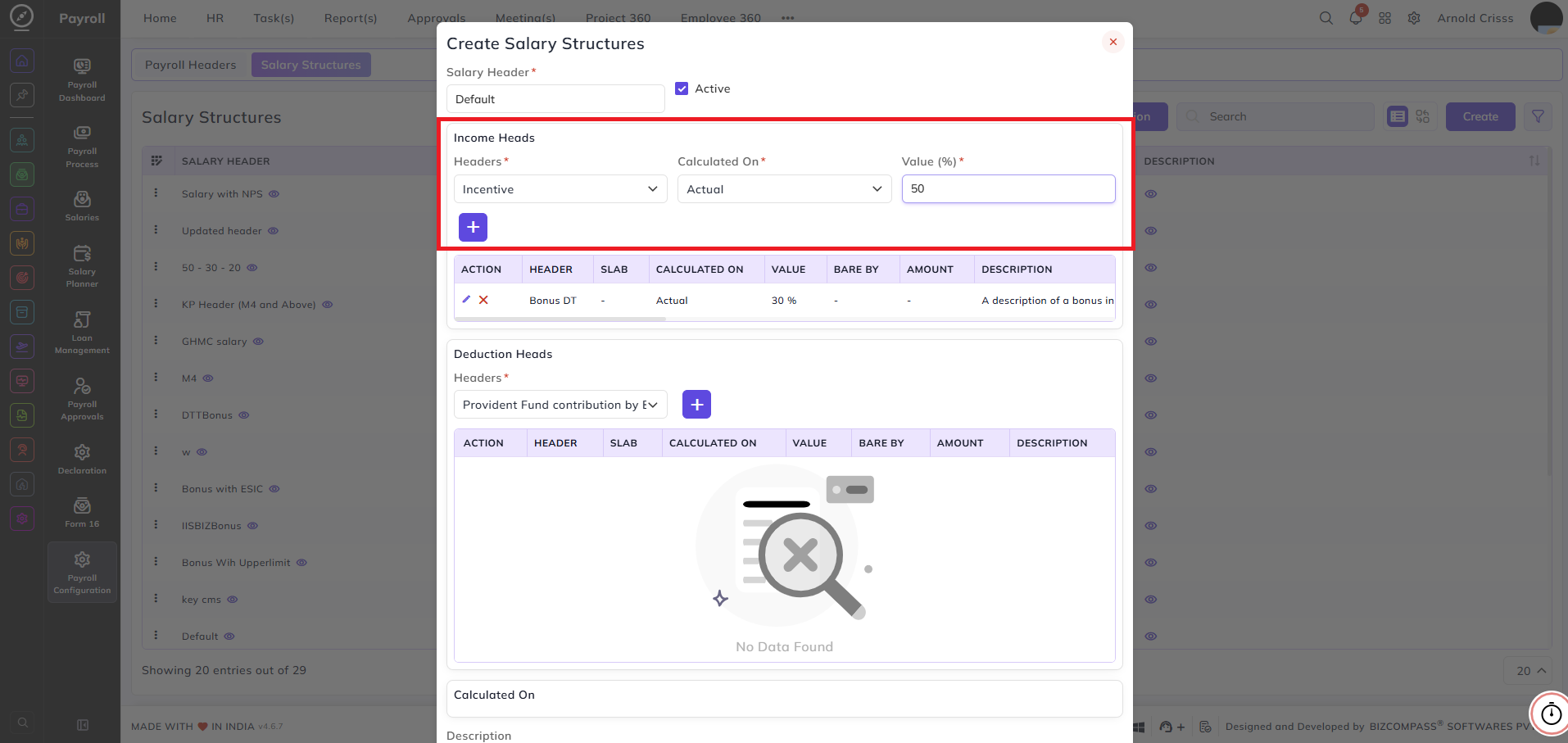
When an Incentive header is selected:
- Calculated On — select how the incentive is calculated:
- Actual — calculated on the actual salary
- Fixed Value — calculated on a fixed amount
- Value — enter the incentive value (percentage for Actual and amount for Fixed Value)
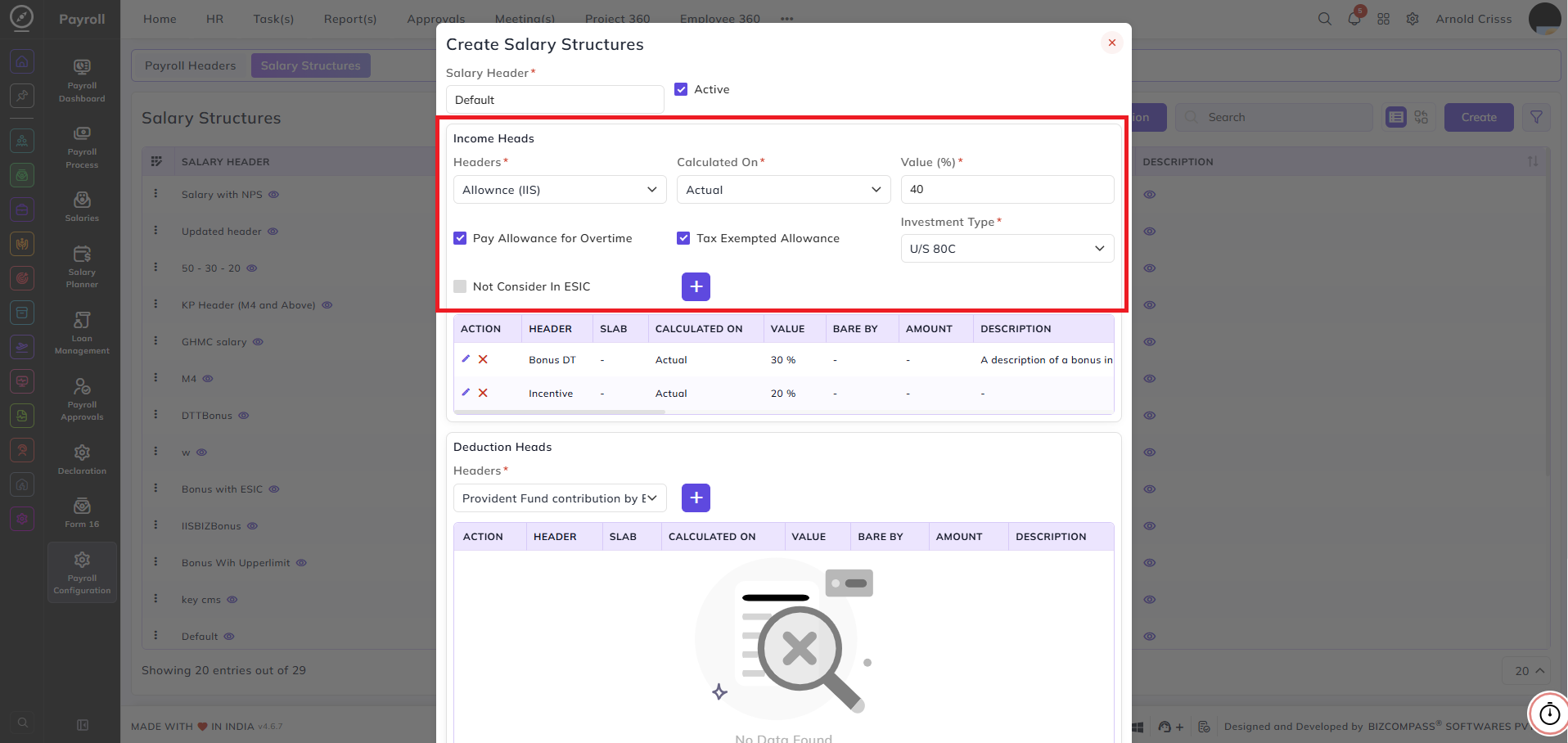
When an Allowance header is selected:
- Calculated On — select how the allowance is calculated:
- Actual — calculated on the actual salary
- Fixed Value — a fixed amount
- Variable — calculated as a variable amount
- Basic — calculated as a percentage of basic salary
- Value (%) — enter the allowance percentage or amount
- Pay Allowance for Overtime — enable this to pay the allowance for overtime hours as well
- Tax Exempted Allowance — enable this to mark the allowance as tax exempt. When enabled, the following field appears:
- Investment Type — select the investment type under which this allowance is tax exempted — for example, U/S 80C
- Not Consider In ESIC — enable this to exclude this allowance from the ESIC calculation
When a Basic Fixed Salary header is selected:
- Calculated On — select how the basic salary is calculated:
- Actual — calculated on the actual salary
- Fixed Value — a fixed amount
- Value — enter the basic salary value

Deduction Heads:
This section defines all the deduction components included in the salary structure. Select a header and click + to add it to the table.
Headers:
Select the deduction payroll header to add like:
- PF
- PT
- ESIC
- TDS
The fields that appear after selecting a header depend on the type of deduction:
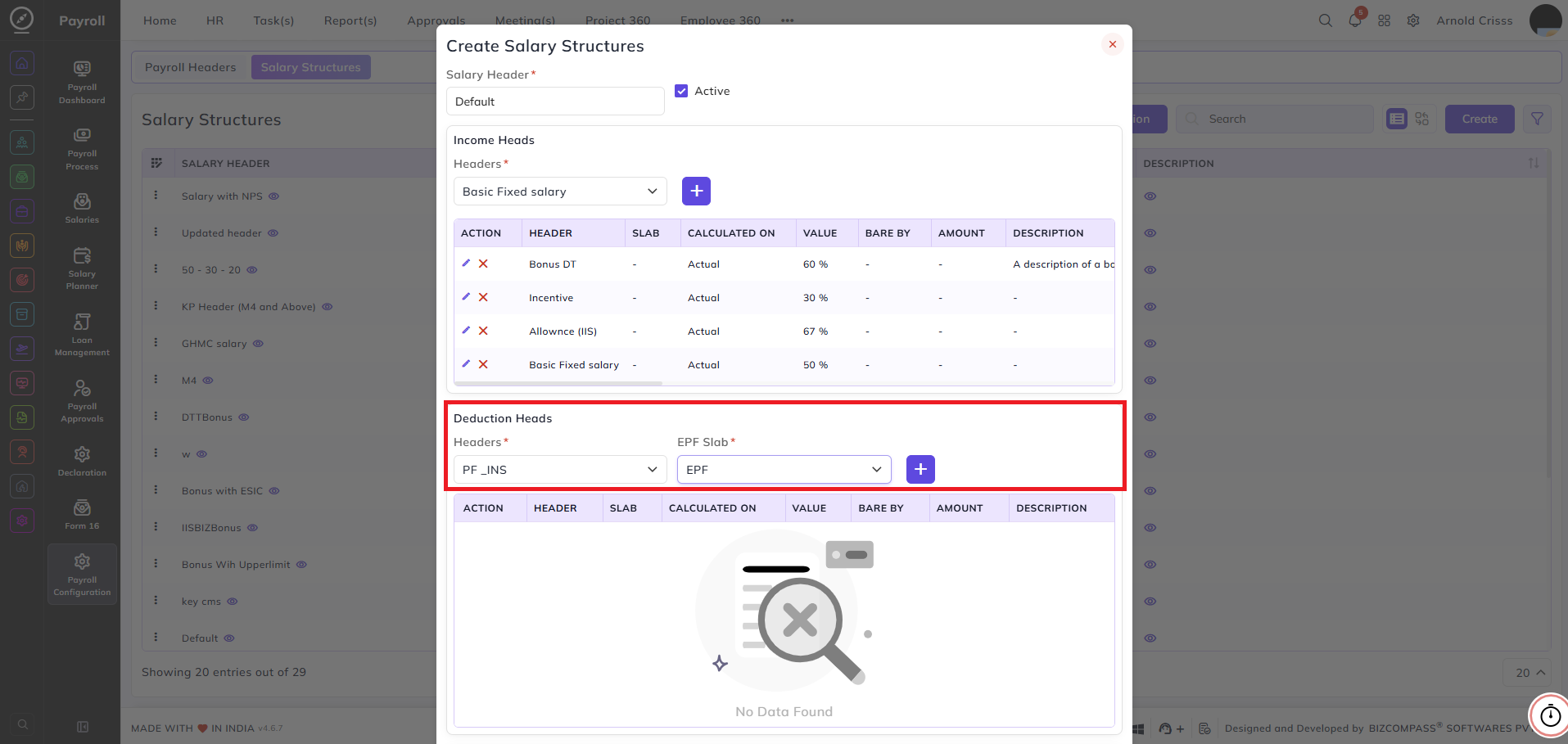
When a Provident Fund header is selected:
- EPF Slab — select the PF slab to apply from the configured provident fund slabs
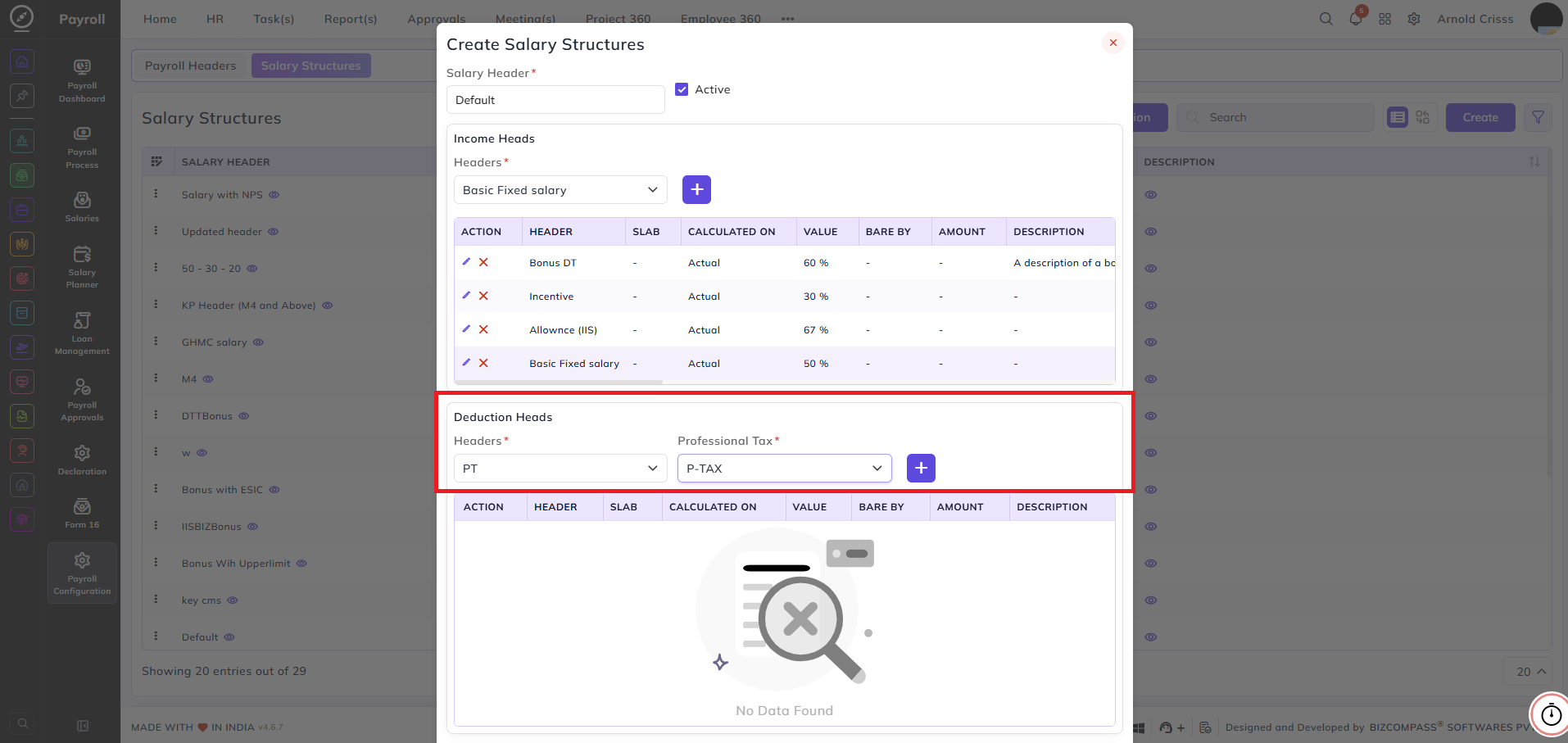
When a Professional Tax header is selected:
- Professional Tax — select the PT slab to apply from the configured professional tax slabs
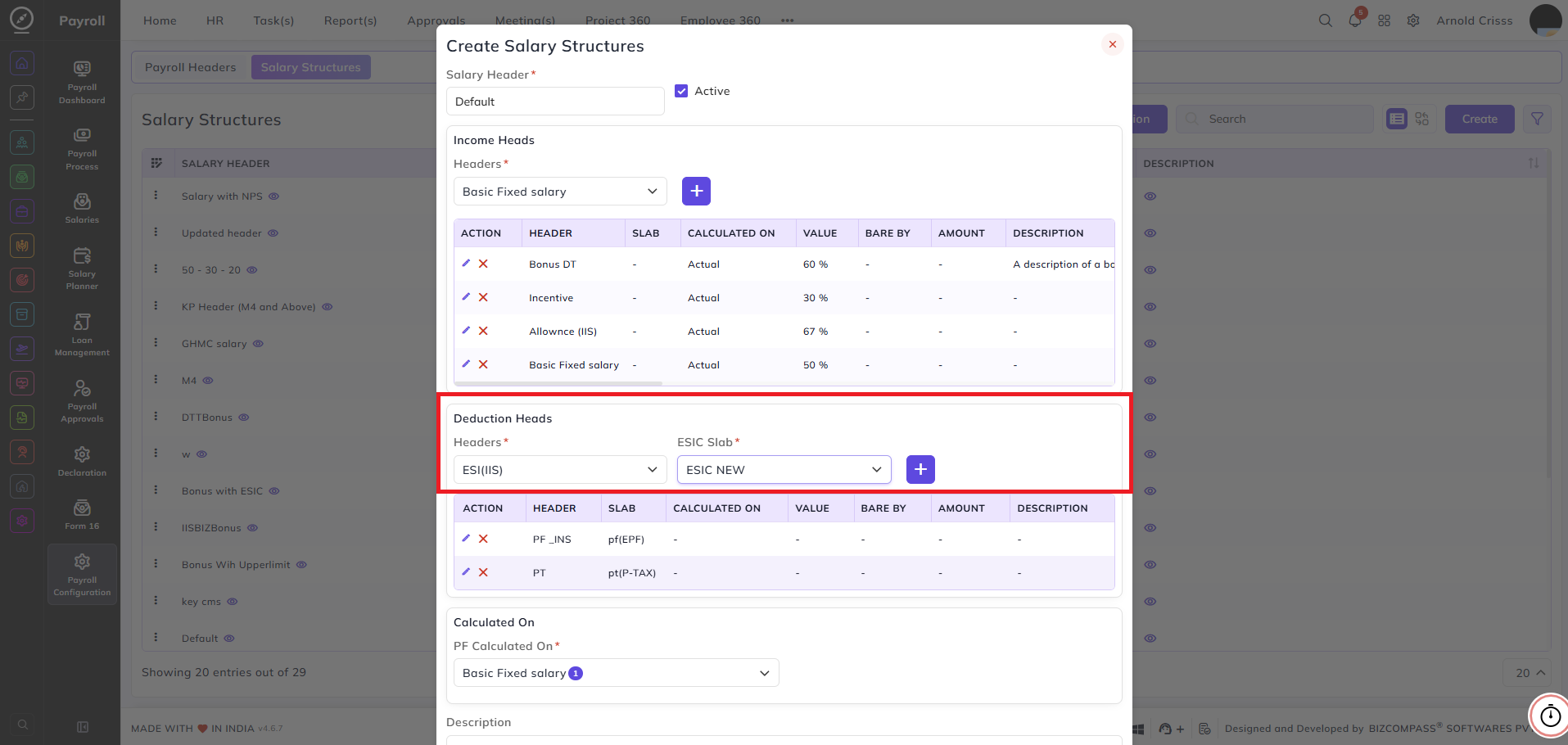
When an ESIC header is selected:
- ESIC Slab — select the ESIC slab to apply from the configured ESIC slabs
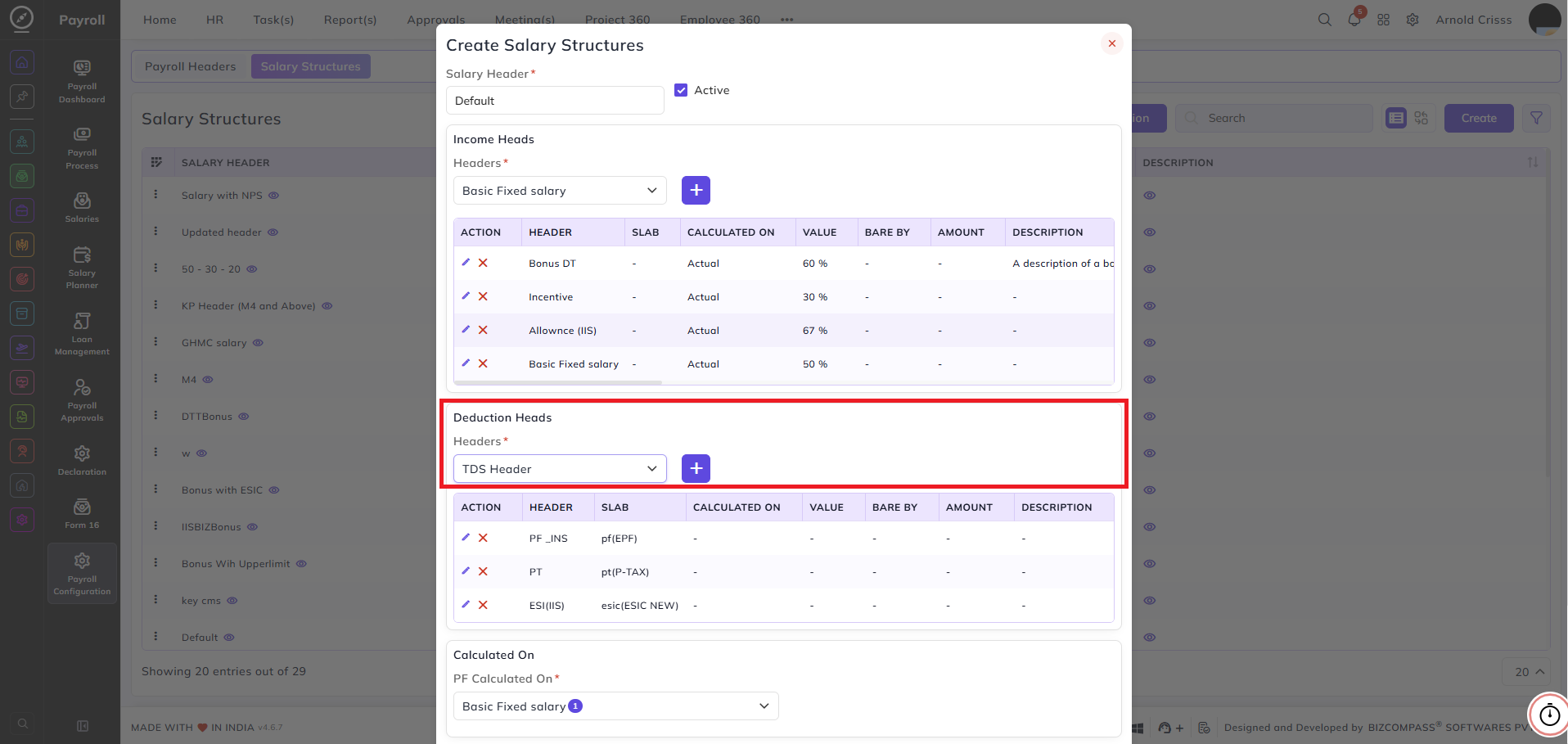
When a TDS header is selected:
- No slab selection is required for TDS header. It can be defined from HRMS->Employees->Employee Management page's Payroll section for any employee.
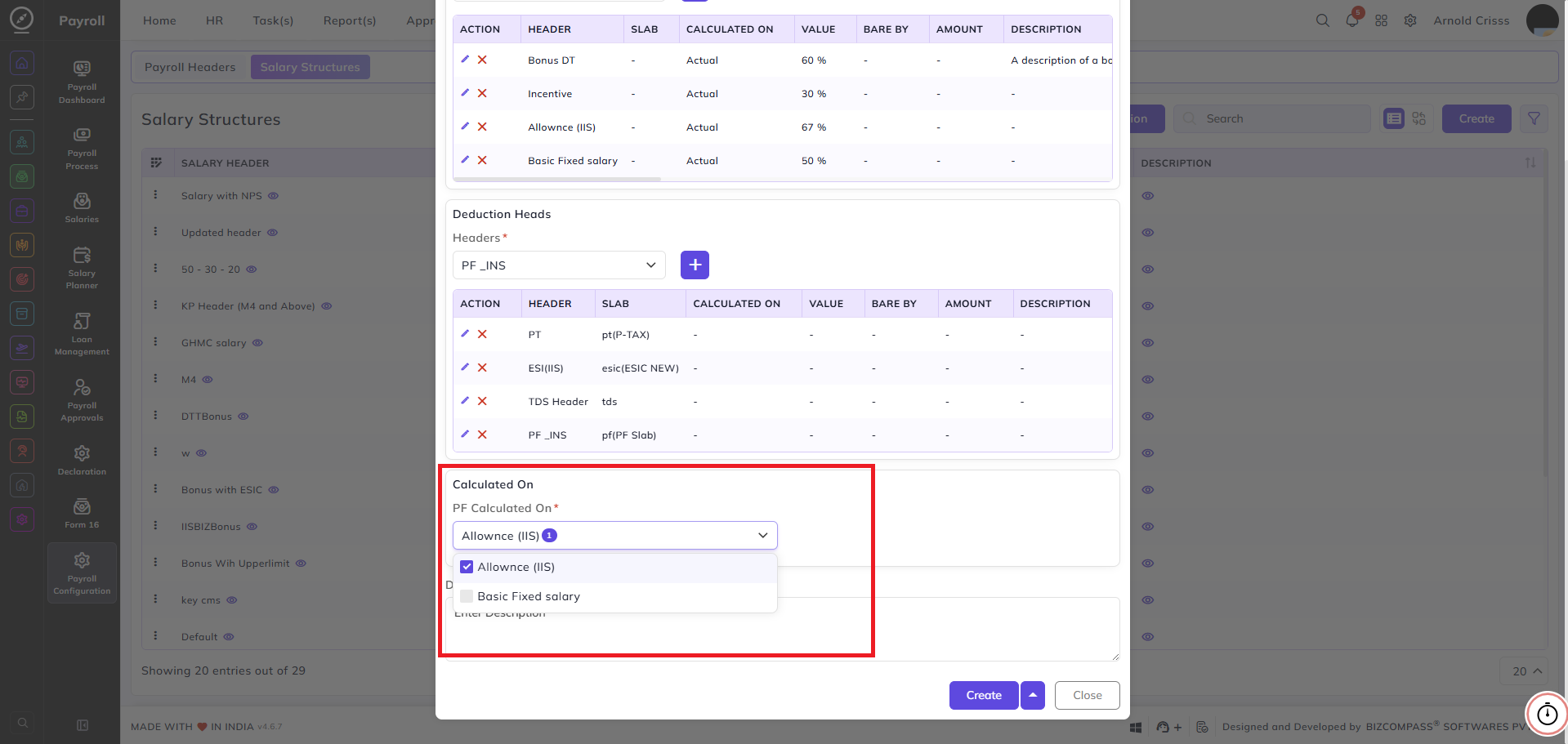
For all deduction headers, the following additional fields appear:
Calculated On: Select the salary component (Basic Fixed Salary or Allowance) on which this deduction is calculated.
Description: Enter any additional notes about this deduction entry.
The Bulk Action button allows you to delete multiple salary structures at once, streamlining the management process.