
Salary Structures
From this page, you can create Salary Structures that define the income and deduction components for employee salaries.
Salary Header:
Enter a name to identify this salary structure — for example, IIS Structure or Default.
Active:
Enable this to mark the salary structure as active and available for assignment to employees.
Income Heads:
This section defines all the earning components included in the salary structure.structure like:
- Bonus
- Allowance
- Incentive
- Basic Fixed Salary
Select a header and click + to add it to the table.
Headers:
Select the income payroll header to add — for example, Incentive, Allowance, or Basic Fixed Salary. The fields that appear after selecting a header depend on the header type:
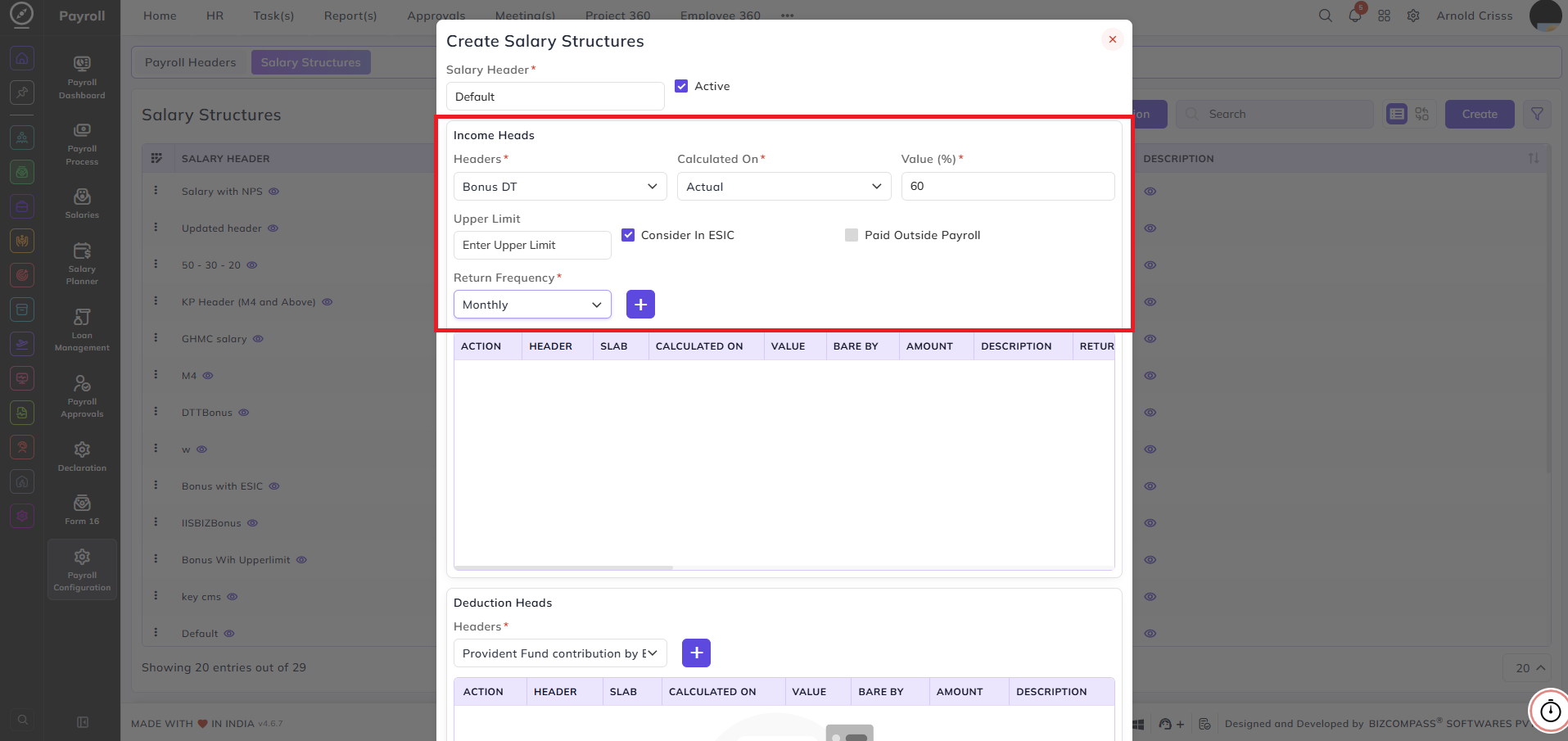
When a Bonus header is selected:
- Calculated On — select how the bonus is calculated:
- Actual — calculated on the actual salary
- Fixed Value — calculated on a fixed amount
- Value (%) — enter the bonus percentage or amount
- Upper Limit — enter the maximum bonus amount that can be paid. Leave blank if there is no upper limit
- Consider In ESIC — enable this to include the bonus amount in the ESIC calculation
- Paid Outside Payroll — enable this if the bonus is paid separately outside the regular payroll run. If this option is enabled, the Return Frequency field won't appear.
- Return Frequency — select how often the bonus is returned or paid out — for example, Monthly, Quarterly, or Yearly
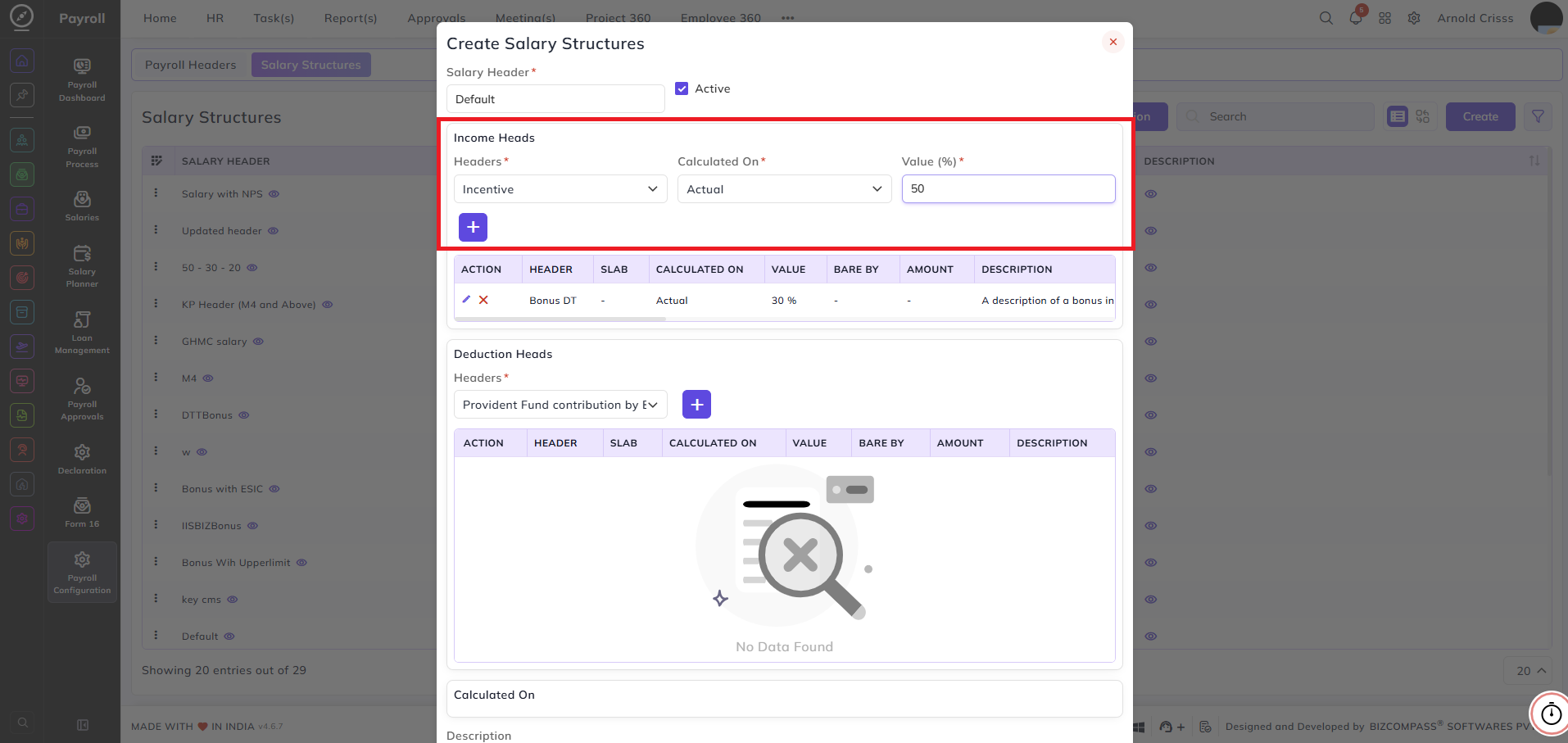
When an Incentive header is selected:
- Calculated On — select how the incentive is calculated:
- Actual — calculated on the actual salary
- Fixed Value — calculated on a fixed amount
- Value — enter the incentive value (percentage for Actual and amount for Fixed Value)
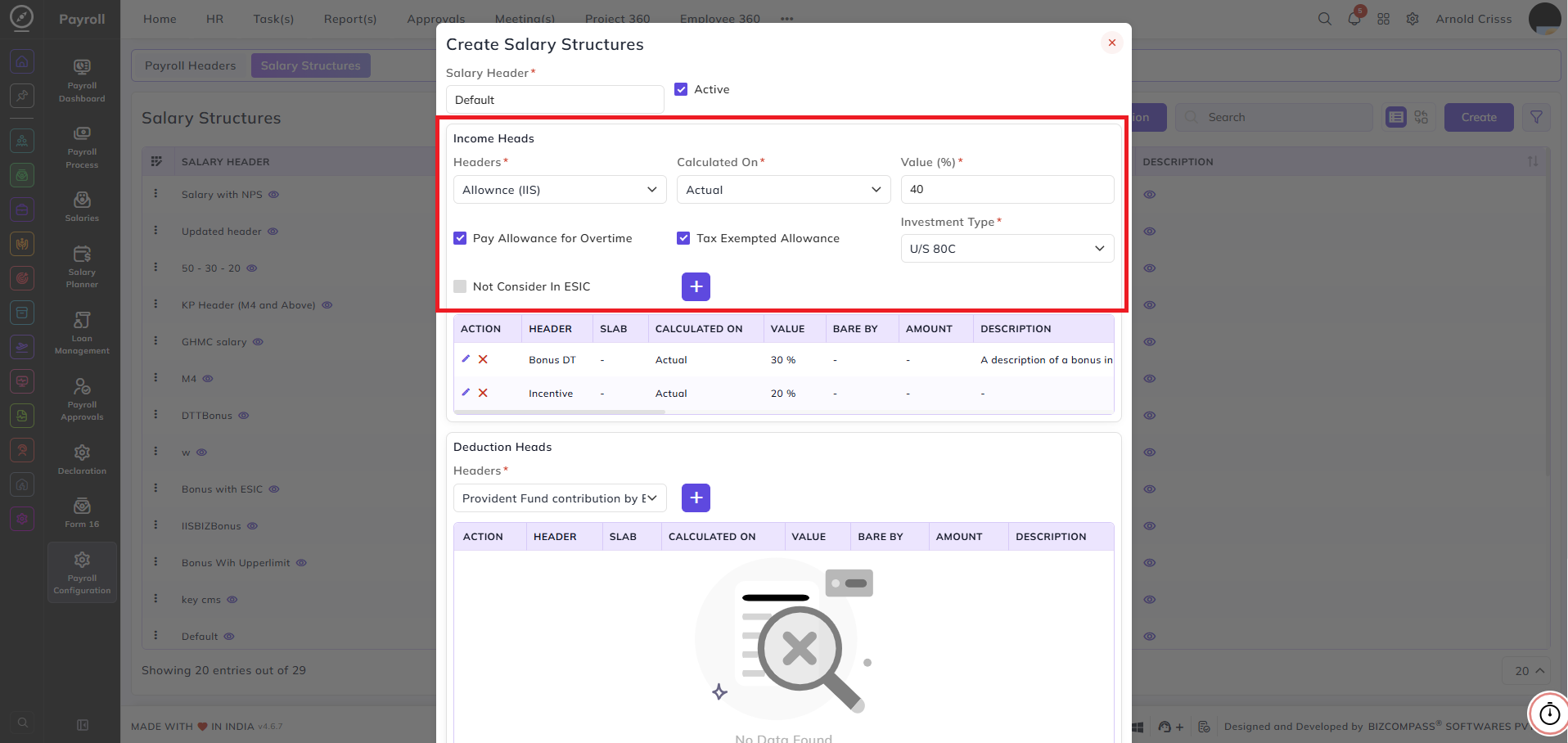
When an Allowance header is selected:
- Calculated On — select how the allowance is calculated:
- Actual — calculated on the actual salary
- Fixed Value — a fixed amount
- Variable — calculated as a variable amount
- Basic — calculated as a percentage of basic salary
- Value (%) — enter the allowance
valuepercentage NotorConsider In ESIC— enable this to exclude this allowance from ESIC calculationamount- Pay Allowance for Overtime — enable this to pay the allowance for overtime hours as well
- Tax Exempted Allowance — enable this to mark the allowance as tax exempt. When enabled, the following field appears:
- Investment Type — select the investment type under which this allowance is tax exempted — for example, U/S 80C
- Not Consider In ESIC — enable this to exclude this allowance from the ESIC calculation
When a Basic Fixed Salary header is selected:
- Calculated On — select how the basic salary is calculated:
- Actual — calculated on the actual salary
- Fixed Value — a fixed amount
- Value — enter the basic salary value
The income table displays all added entries with the following columns:
Header— the income component nameSlab— the slab associated with the header if applicableCalculated On— the salary component used for calculationValue— the amount or percentageBare By— who bears this componentAmount— the calculated amountDescription— additional notesReturn— whether the component is returnable
Deduction HeadsHeads:
This section defines all the deduction components included in the salary structure. Select a header and click + to add it to the table.
Headers:
Select the deduction payroll header to add.add like:
- PF
- PT
- ESIC
- TDS
The fields that appear after selecting a header depend on the type of deduction:
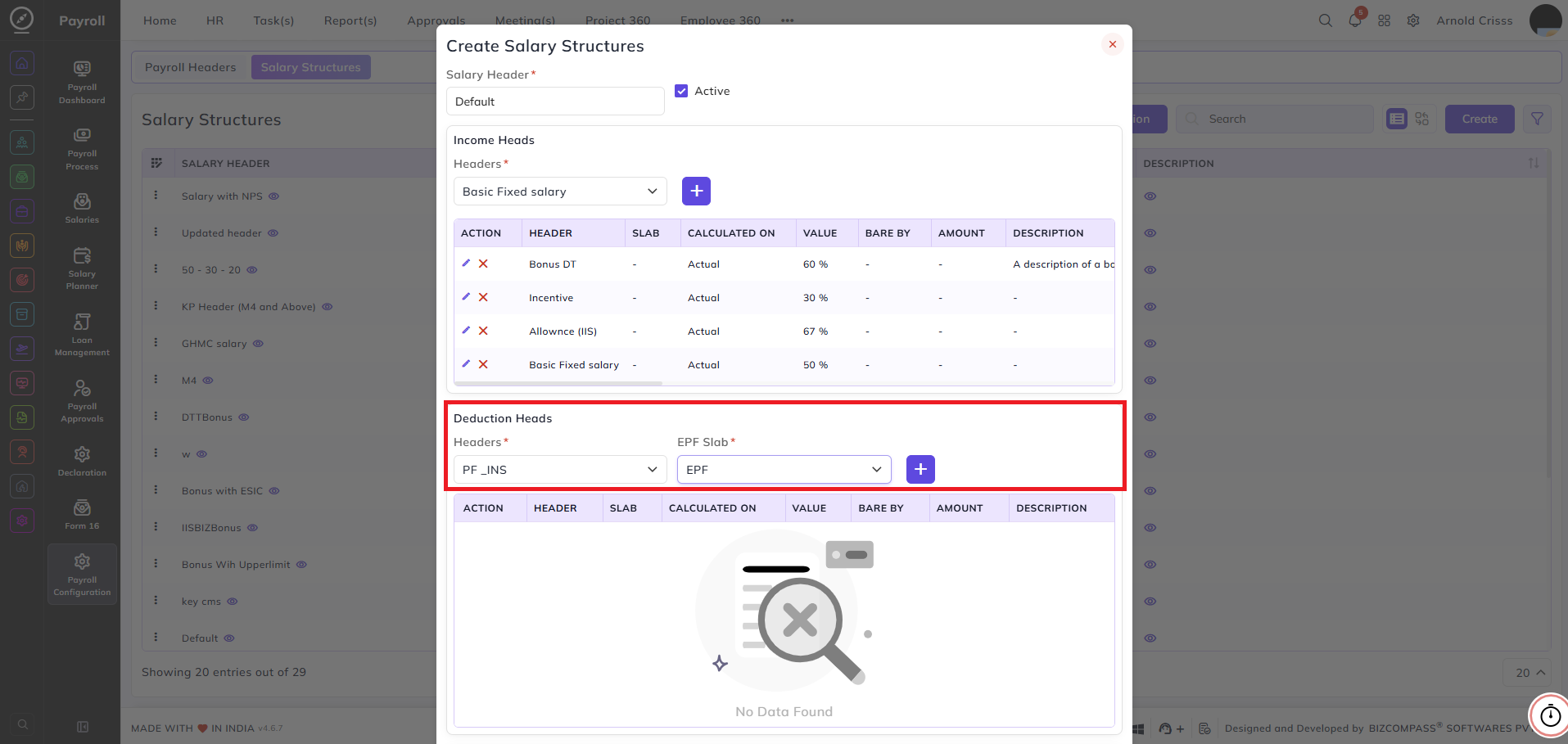
When a Provident Fund header is selected:
- EPF Slab — select the PF slab to apply from the configured provident fund slabs
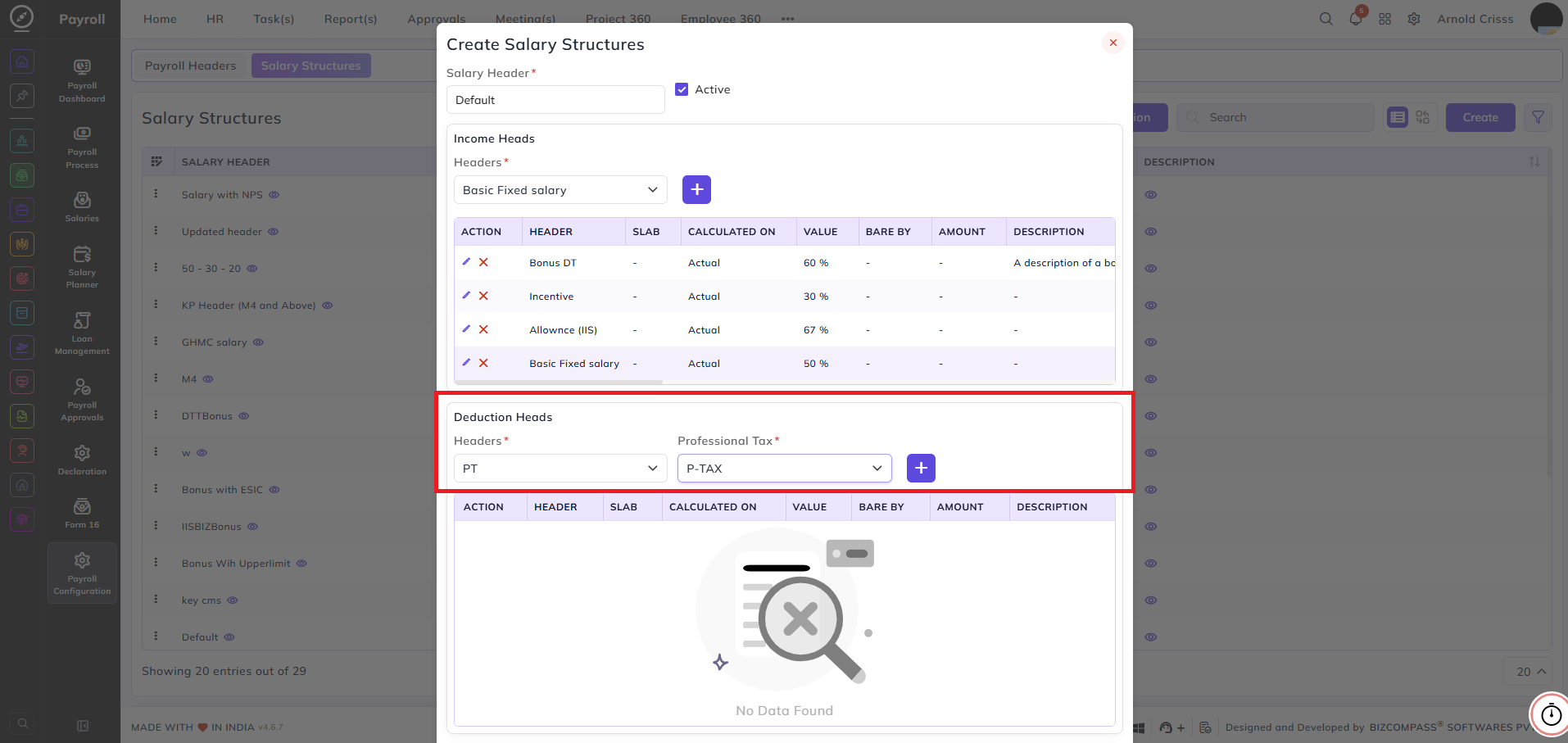
When a Professional Tax header is selected:
- Professional Tax — select the PT slab to apply from the configured professional tax slabs
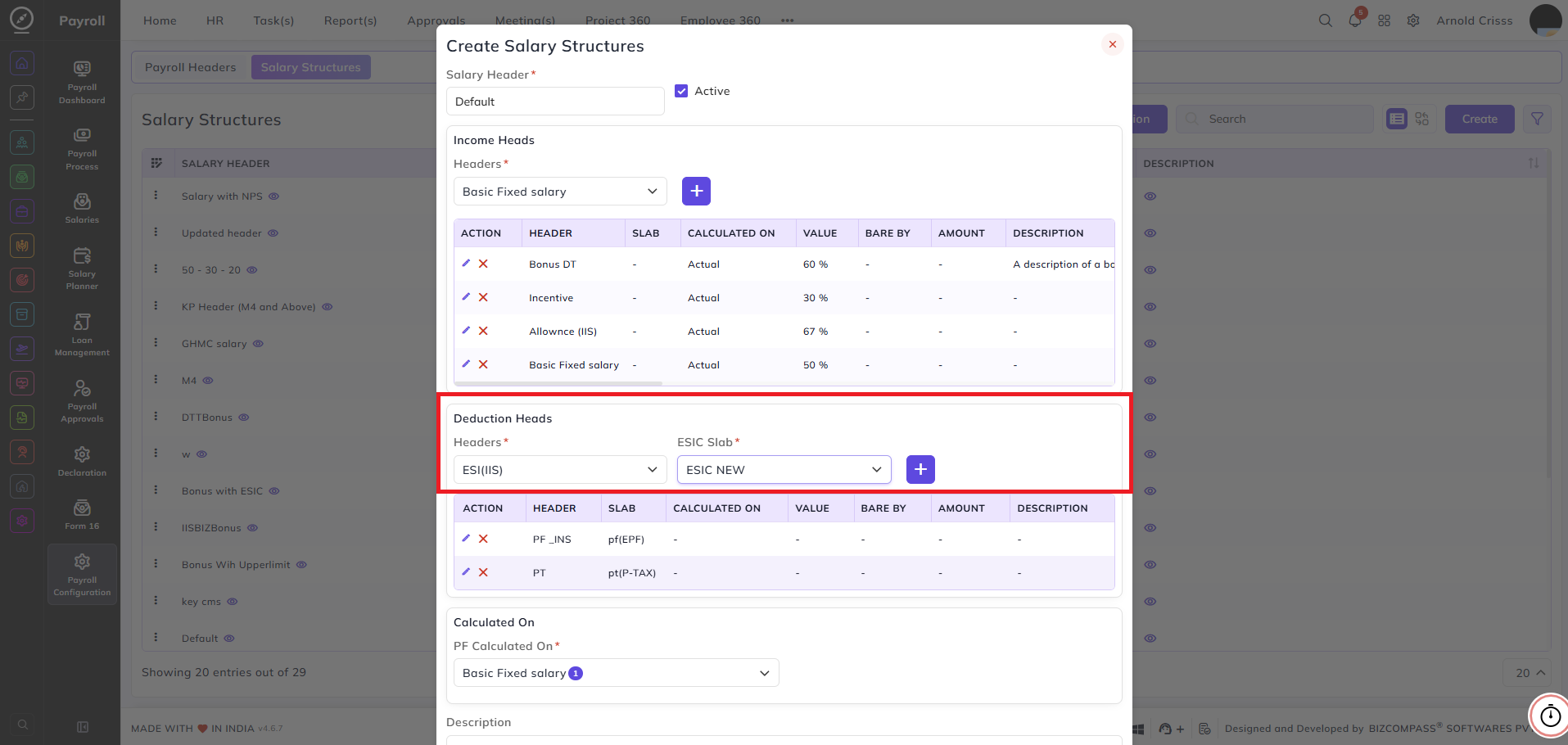
When an ESIC header is selected:
- ESIC Slab — select the ESIC slab to apply from the configured ESIC slabs
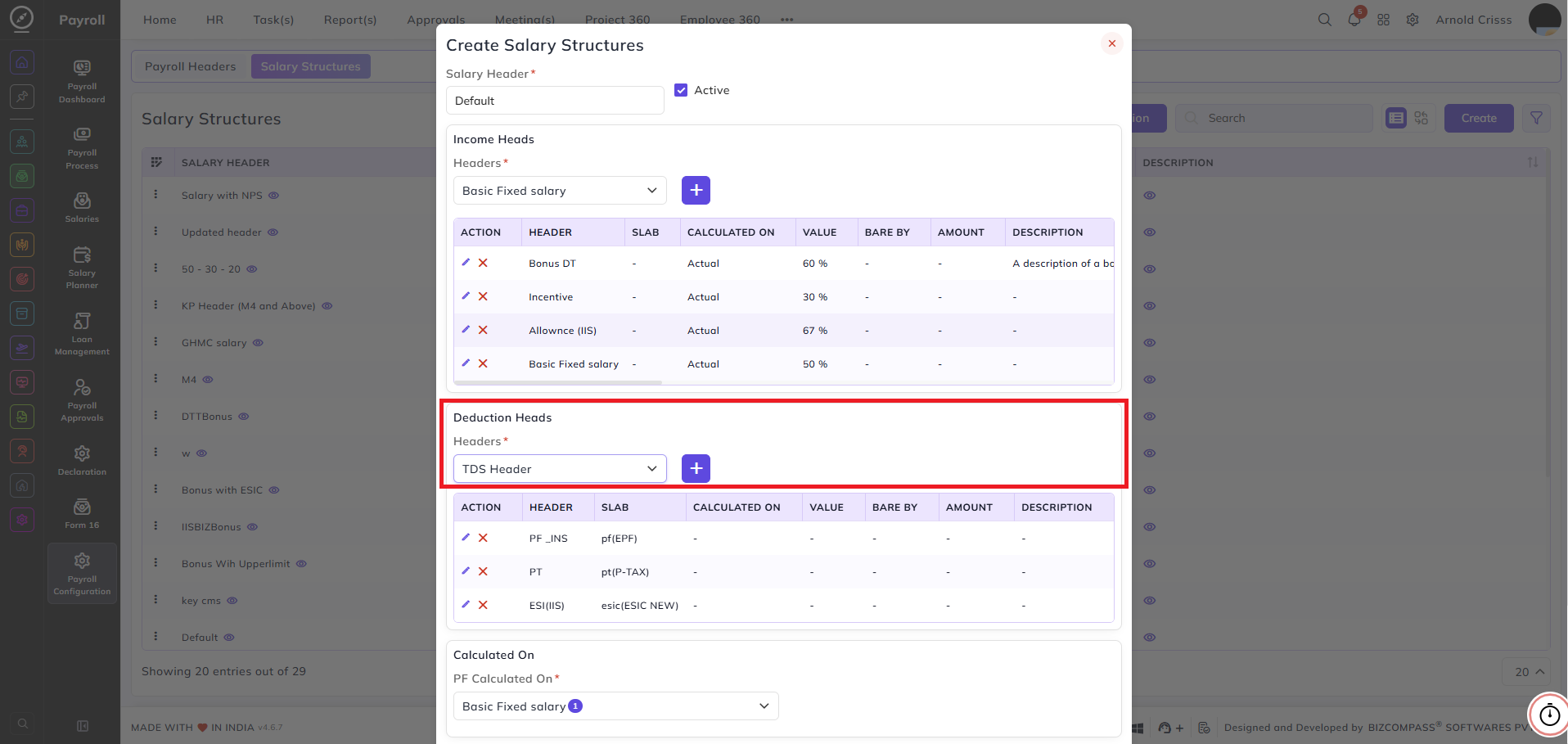
When a TDS header is selected:
- No
additionalslab selection is required—for TDSisheader.appliedItautomaticallycanbasedbeondefinedthefromconfiguredHRMS->Employees->EmployeeTDSManagementslabs.page's Payroll section for any employee.
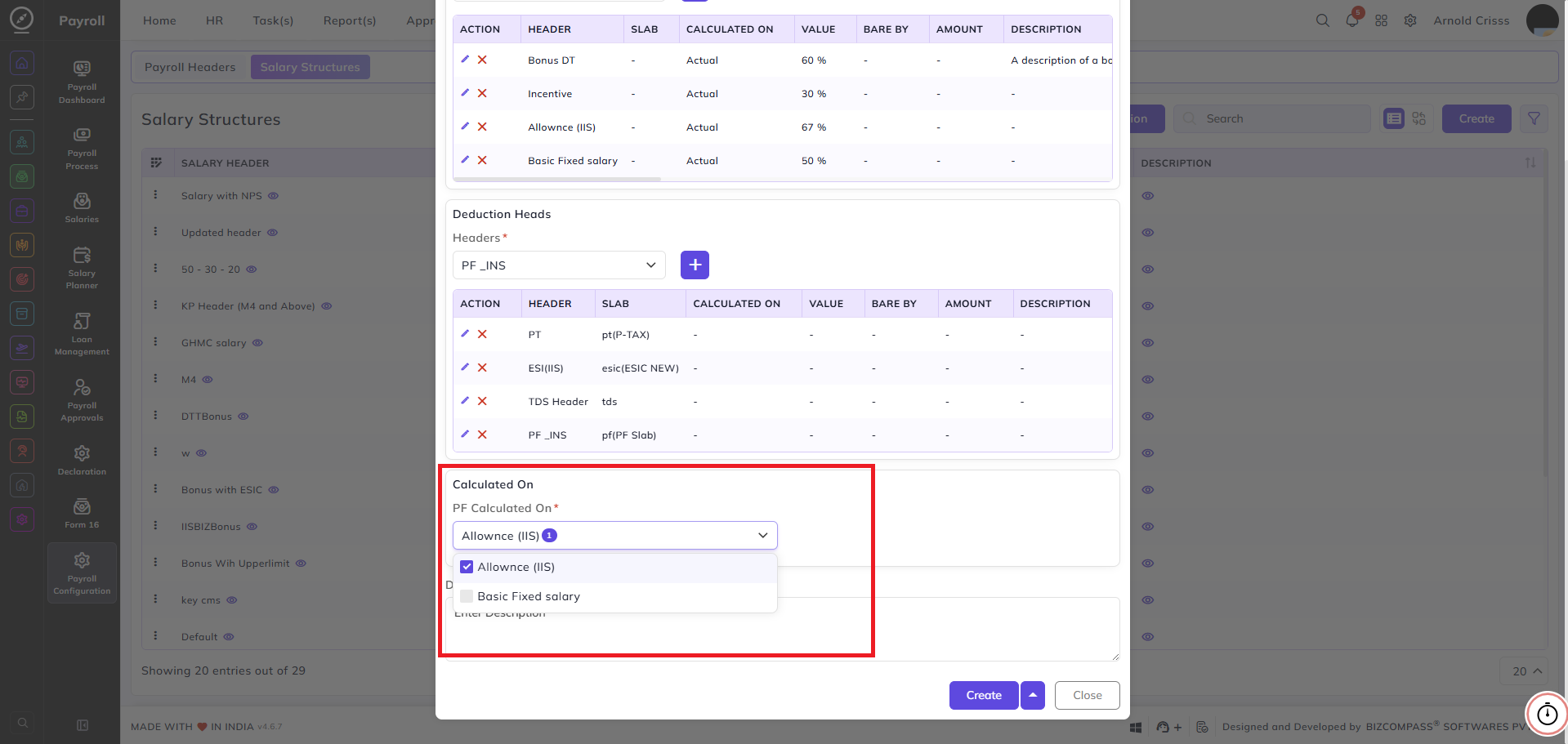
For all deduction headers, the following additional fields appear:
Calculated On: Select the salary component (Basic Fixed Salary or Allowance) on which this deduction is calculated.
Description: Enter any additional notes about this deduction entry.
The deductionBulk tableAction displaysbutton allallows addedyou entriesto withdelete multiple salary structures at once, streamlining the followingmanagement columns:process.
Header— the deduction component nameSlab— the slab associated with the deductionCalculated On— the salary component used for calculationValue— the deduction amount or percentageBare By— who bears this deductionAmount— the calculated deduction amountDescription— additional notes