
TDS Slabs
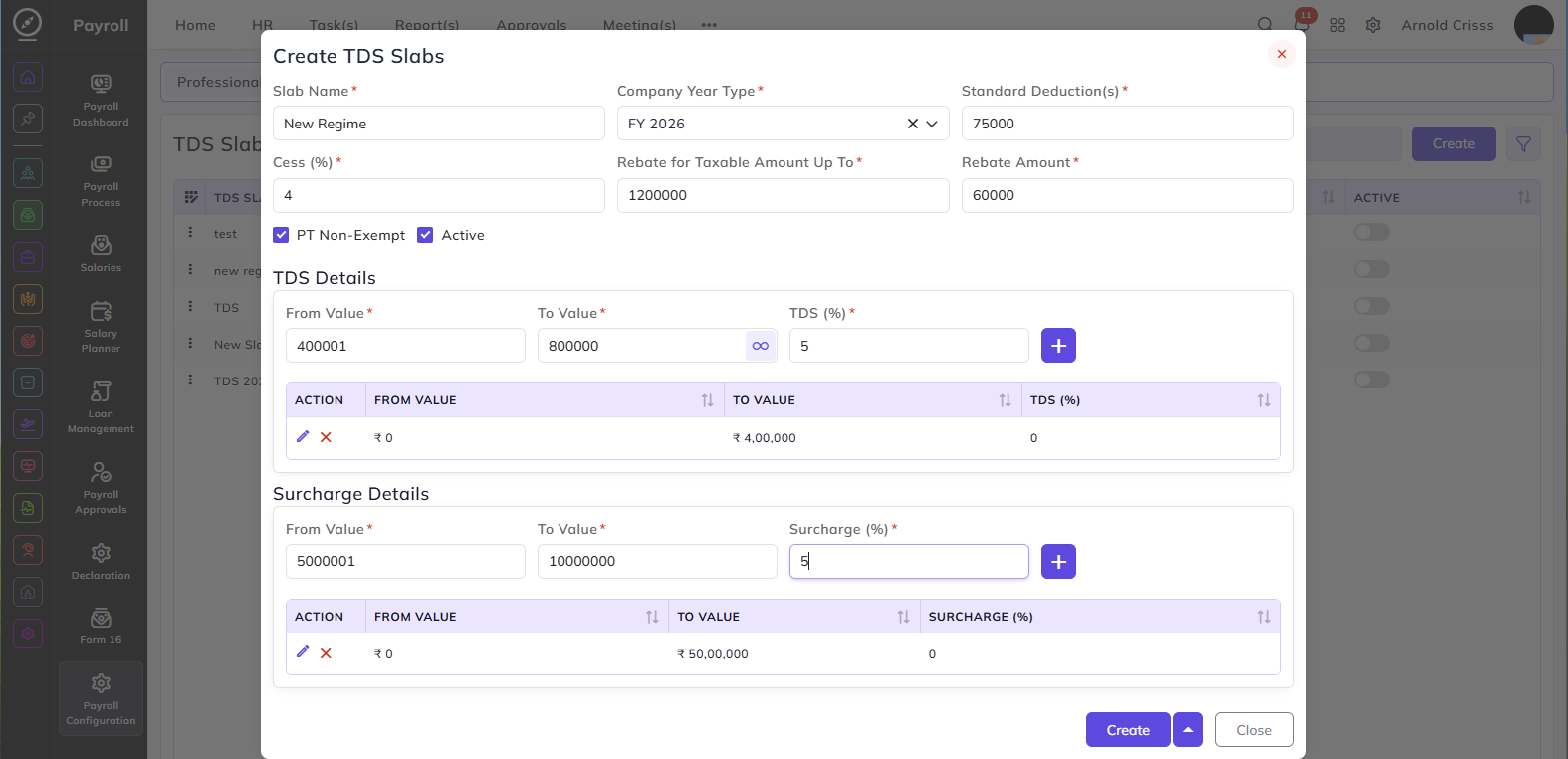
From this page, you can create the TDS Slabs. TDS (Tax Deducted at Source) slabs define the income tax structure applicable to employees based on their salary range and the applicable financial year.
Slab Name:
Enter a name to identify this TDS slab — for example, New Regime or Old Regime.
Company Year Type:
Select the financial year for which this TDS slab is applicable — for example, FY 2026.
Standard Deduction(s):
Enter the standard deduction amount applicable for this slab — for example, ₹75,000.
Cess (%):
Enter the cess percentage applicable on the calculated tax amount — for example, 4%.
Rebate for Taxable Amount Up To:
Enter the maximum taxable income amount up to which a tax rebate is applicable — for example, ₹12,00,000.
Rebate Amount:
Enter the rebate amount that will be applied if the taxable income falls within the rebate limit — for example, ₹60,000.
PT Non-Exempt:
Enable this option if Professional Tax is not exempt and should be considered in the TDS calculation.
Active:
Enable this to mark the TDS slab as active and available for payroll processing.
TDS Details:
This section defines the income tax percentage applicable for different salary ranges. Configure the following fields and click + to add an entry to the table:
From Value:
Enter the minimum income amount for this tax slab range.
To Value:
Enter the maximum income amount for this tax slab range. Click the ∞ icon to set no upper limit.
TDS (%):
Enter the tax percentage applicable for this income range.
The table below displays all added TDS slab entries with the following columns:
- From Value — minimum income for the slab
- To Value — maximum income for the slab
- TDS (%) — tax percentage applicable
You can add multiple entries to cover the full income range with different tax percentages.
Surcharge Details:
This section defines the surcharge percentage applicable on the tax amount for higher income ranges. Configure the following fields and click + to add an entry to the table:
From Value:
Enter the minimum income amount from which the surcharge applies.
To Value:
Enter the maximum income amount up to which the surcharge applies.
Surcharge (%):
Enter the surcharge percentage applicable for this income range.
The table below displays all added surcharge entries with the following columns:
- From Value — minimum income for the surcharge slab
- To Value — maximum income for the surcharge slab
- Surcharge (%) — surcharge percentage applicable
You can add multiple entries to cover different income ranges with different surcharge percentages.
The Active flag can be edited after creating the bonus as well.
The Bulk Action button allows you to delete multiple TDS slabs at once, streamlining the management process.