Create Task & Task Kanban
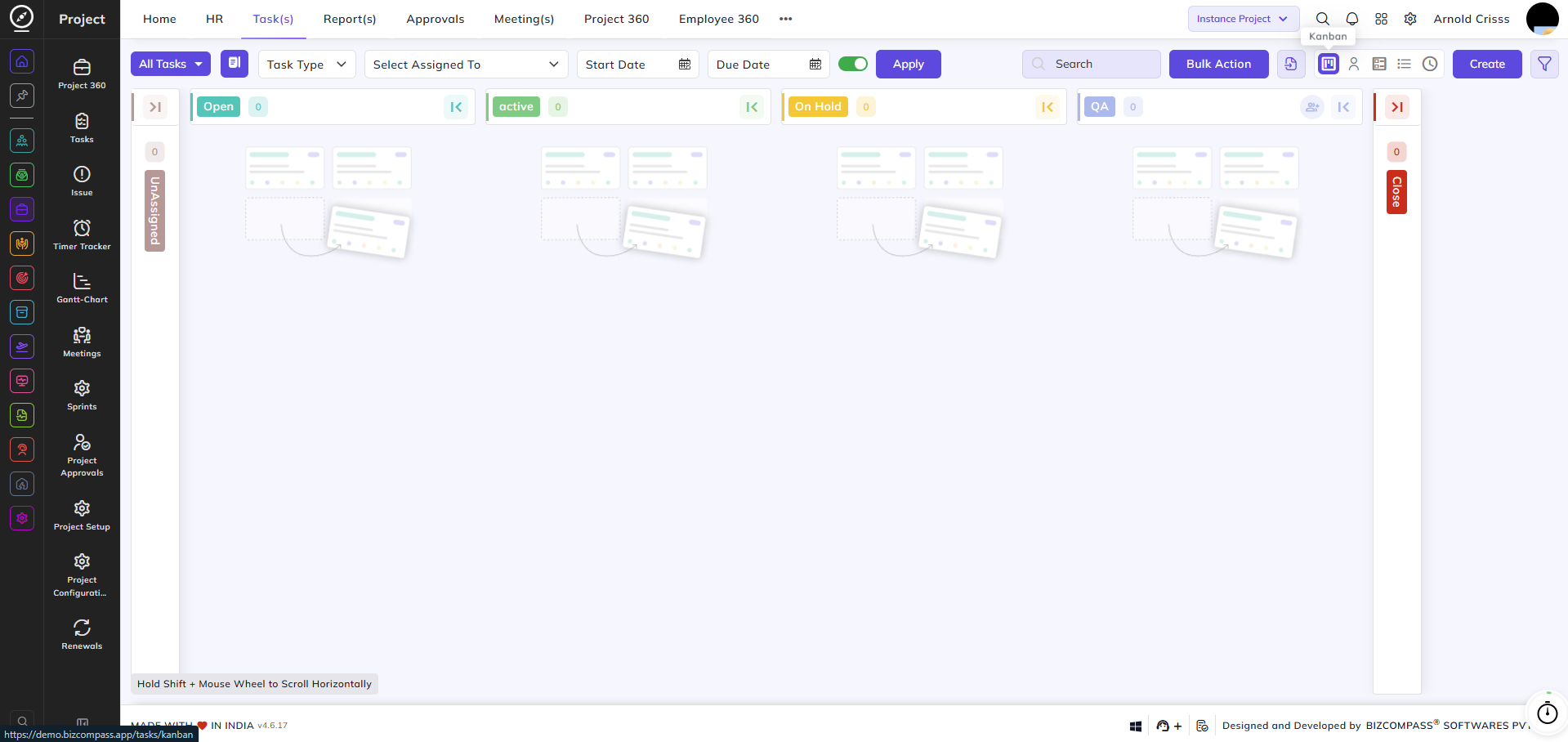
From this page, you can create and manage all tasks within a project. The Tasks page is the primary workspace for tracking work across different stages of the project lifecycle. It supports multiple views and provides powerful filtering, bulk action, and task management capabilities.
Creating a Task:
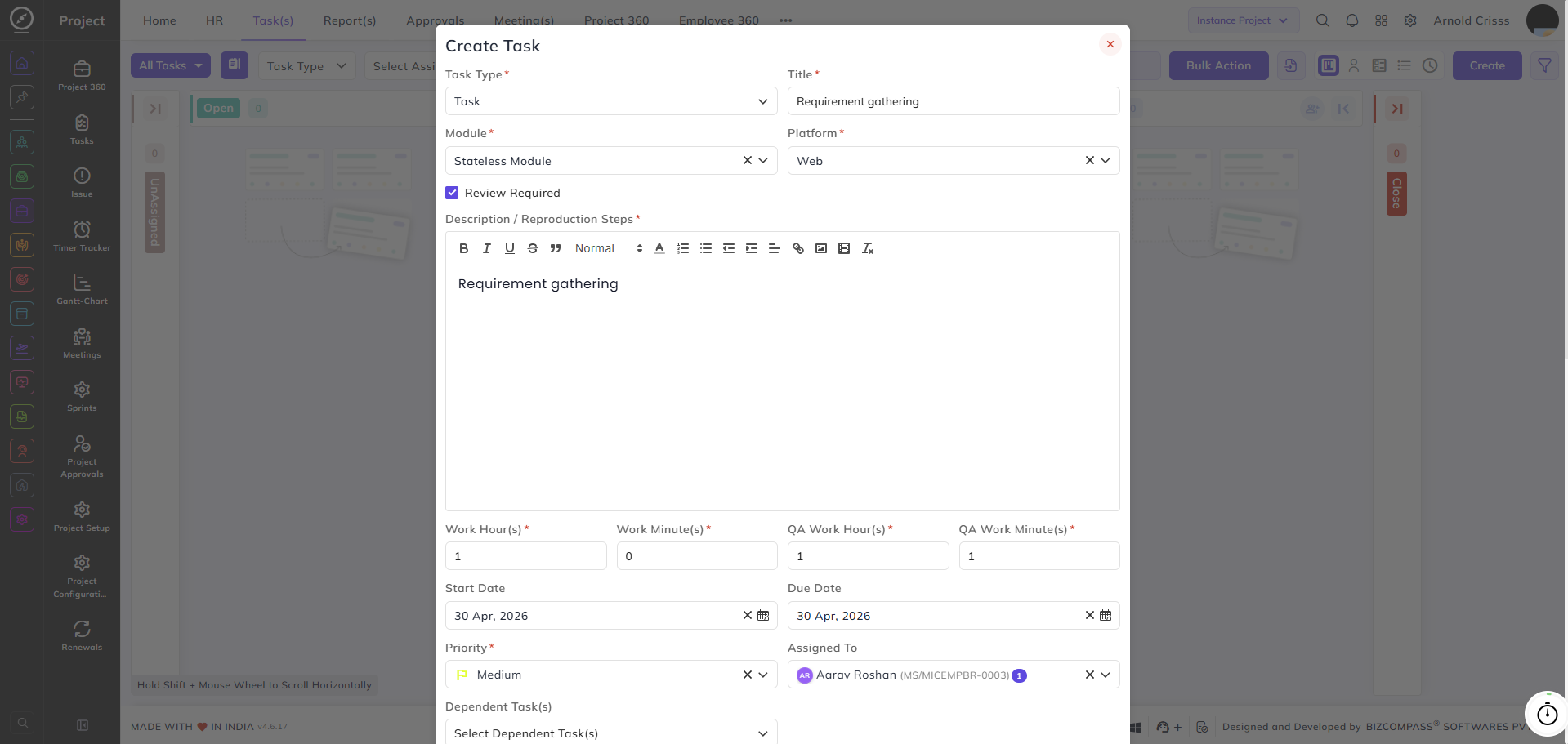
Click the Create button to open the Create Task form.
Task Type:
Select the type — Task, Issue, or Suggestion.
Title:
Enter the title of the task. This is the only mandatory field — a task created with only a title will be placed in the UnAssigned stage until more details are added.
Module:
Select the module this task belongs to. A task must have a module assigned to move to the Open stage.
Platform:
Select the platform for this task. Along with Module, this field is required for a task to move out of the UnAssigned stage.
Review Required:
Enable this checkbox if this task requires a review before it can be progressed further.
Description / Reproduction Steps:
Add a detailed description or reproduction steps using the rich text editor.
Work Hour(s) / Work Minute(s):
Enter the estimated development time for this task.
QA Work Hour(s) / QA Work Minute(s):
Enter the estimated QA time for this task.
Start Date / Due Date:
Set the start and due dates for the task.
Priority:
Select the priority level for this task — for example, Medium or High.
Assigned To:
Select the team member(s) this task is assigned to.
Dependent Task(s):
Select any tasks that this task depends on. The task cannot be progressed until the dependent tasks are completed (unless Ignore Task Dependency is enabled for the relevant stage in the task flow).
Sprint:
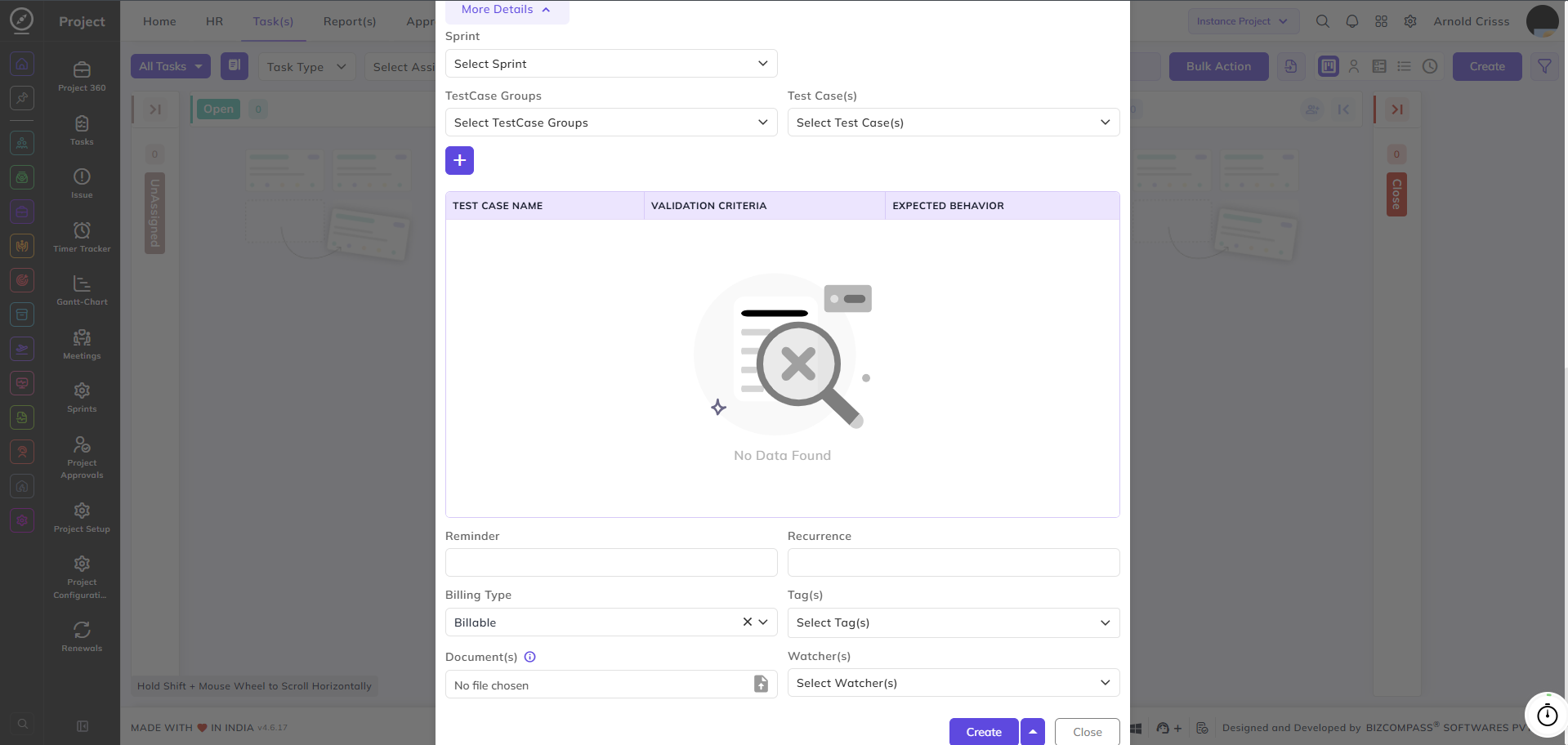
Select the sprint this task belongs to, if applicable.
Test Case Groups / Test Case(s):
Select the test case groups and individual test cases to be linked to this task. The linked test cases will be displayed with their Test Case Name, Validation Criteria, and Expected Behavior. Click the + button to add multiple test case group and test case combinations.
Reminder:
Click to set a reminder for this todo. Two reminder types are available:
- Specific Date — set a reminder on a fixed date and time:
- Reminder Date — select the date for the reminder
- Time — enter the time for the reminder
- Notify Users — select the users who will receive the reminder notification
- Start Before Time — enter how early the reminder should trigger before the set time, and select Hours or Minutes
- Duration — enter how long the reminder notification should last, and select Hours or Minutes
- Send Reminder after reminder Time — enable this to send the reminder again after the set reminder time has passed
- Custom — set a recurring reminder:
- Reminder Type — select the recurrence pattern: Daily or Weekly
Click Set Reminder to save the reminder configuration.
Recurrence:
Click to set this todo as a recurring task:
- Recurring Frequency — select how often this todo recurs
- End Date — select the date on which the recurrence ends
- Create next recurrence after closing the current task — when enabled, the next occurrence of this todo is only created once the current one is closed
- Click Done to save the recurrence configuration.
Billing Type:
Select whether this task is Billable or Non-Billable.
Tag(s):
Document(s):
Upload any relevant documents or attachments for this task.
Watcher(s):
Select team members who should be notified of updates to this task without being directly assigned.
Note: All people in the project can see the Unassigned tasks of other people in the same project.
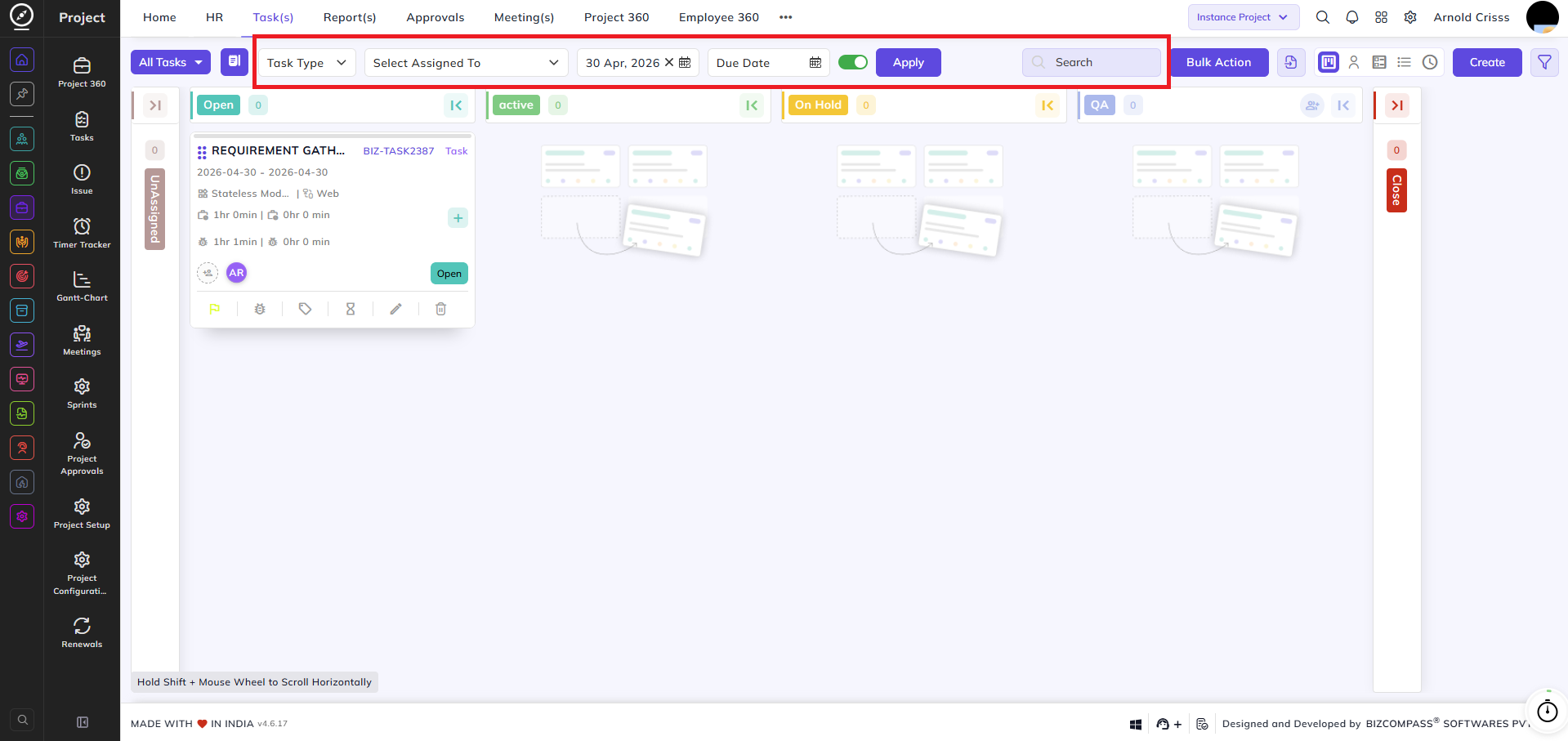
Filters:
All Tasks / Task Type:
Filter tasks by type — for example, Task, Subtask, Issue, or Suggestion.
Select Assigned To:
Filter tasks by the assigned team member.
Start Date / Due Date:
Filter tasks within a specific date range.
Project Filter:
Filter tasks by one or more projects.
Toggle (Active Filter):
Toggle to show tasks without start date.
Search:
Search for a specific task by name or ID.
Views:
The Tasks page supports multiple views, accessible from the view icons in the top right:
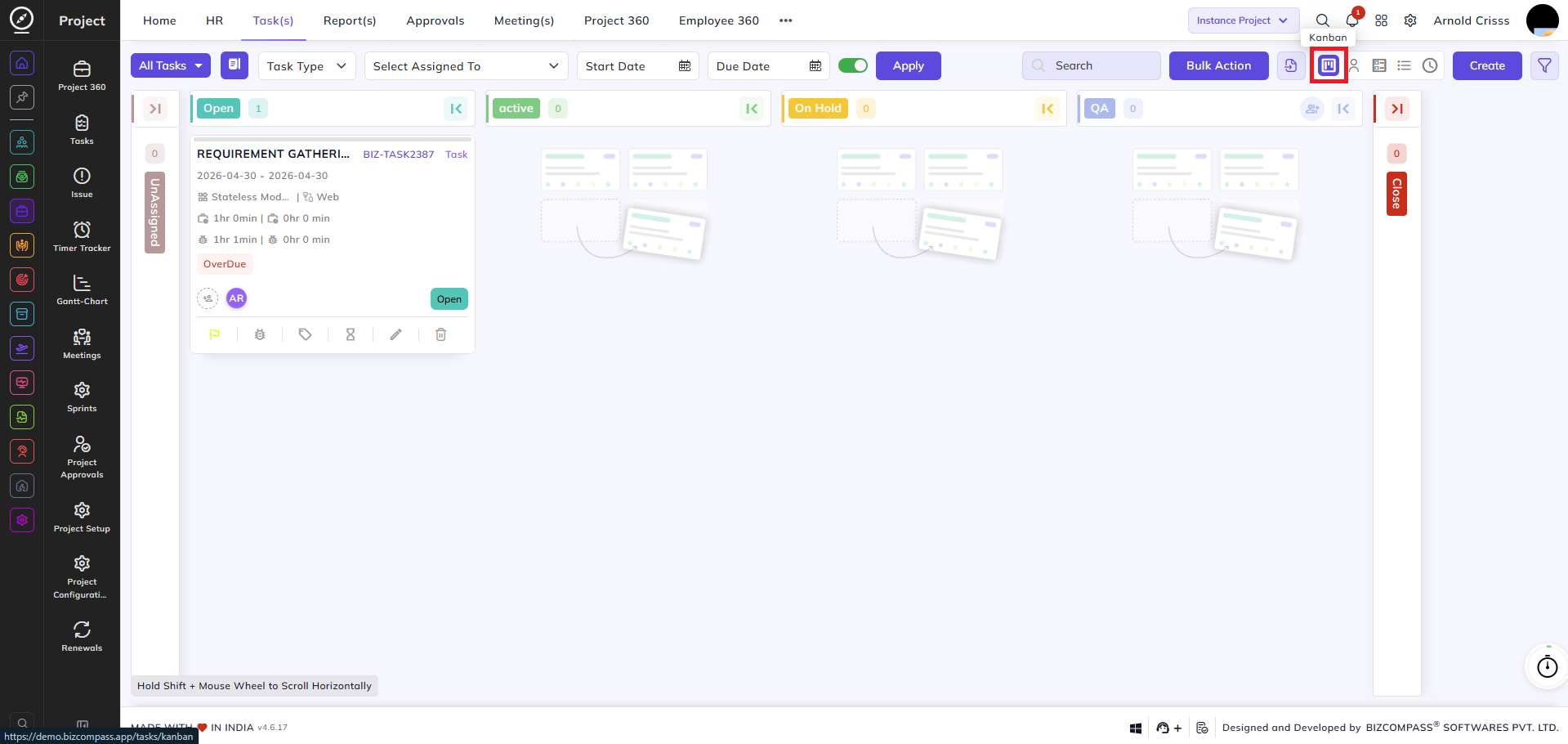
Kanban View (Stage Wise):
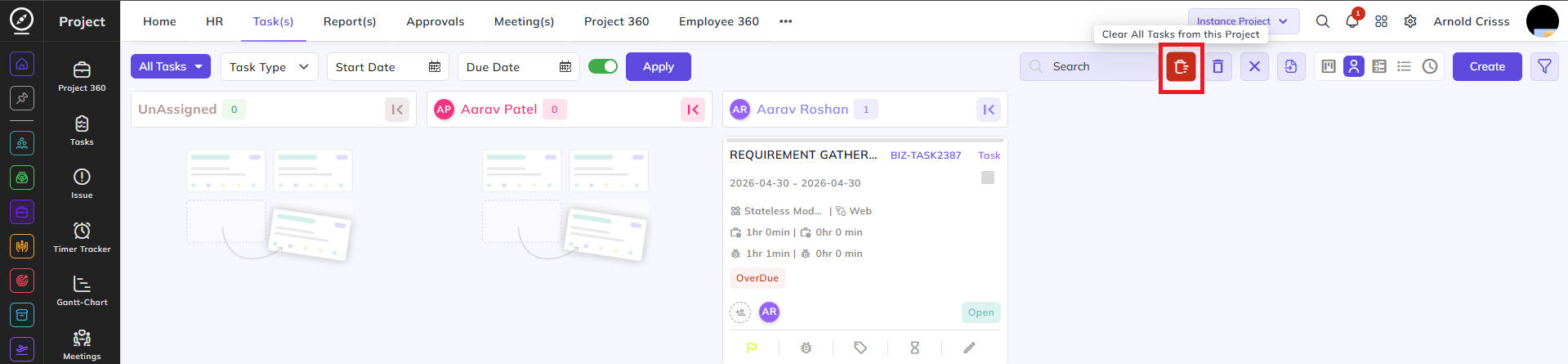
The default view. Tasks are displayed as cards organized in columns by their current stage — for example, Open, Active, On Hold, QA, and Closed. Each stage column shows the count of tasks in that stage. The Unassigned column on the left shows tasks that have only a title and no module or platform assigned yet — these tasks automatically move to the Open stage once a module and platform are added.
Tasks can be dragged and dropped between stages to update their status. Each task card displays the task title, task ID, task type, date range, module, platform, estimated time, logged time, assignee avatar, and current status badge. Quick action icons are available at the bottom of each card for Priority, Settings, Tags, Assignee, Edit, and Delete.
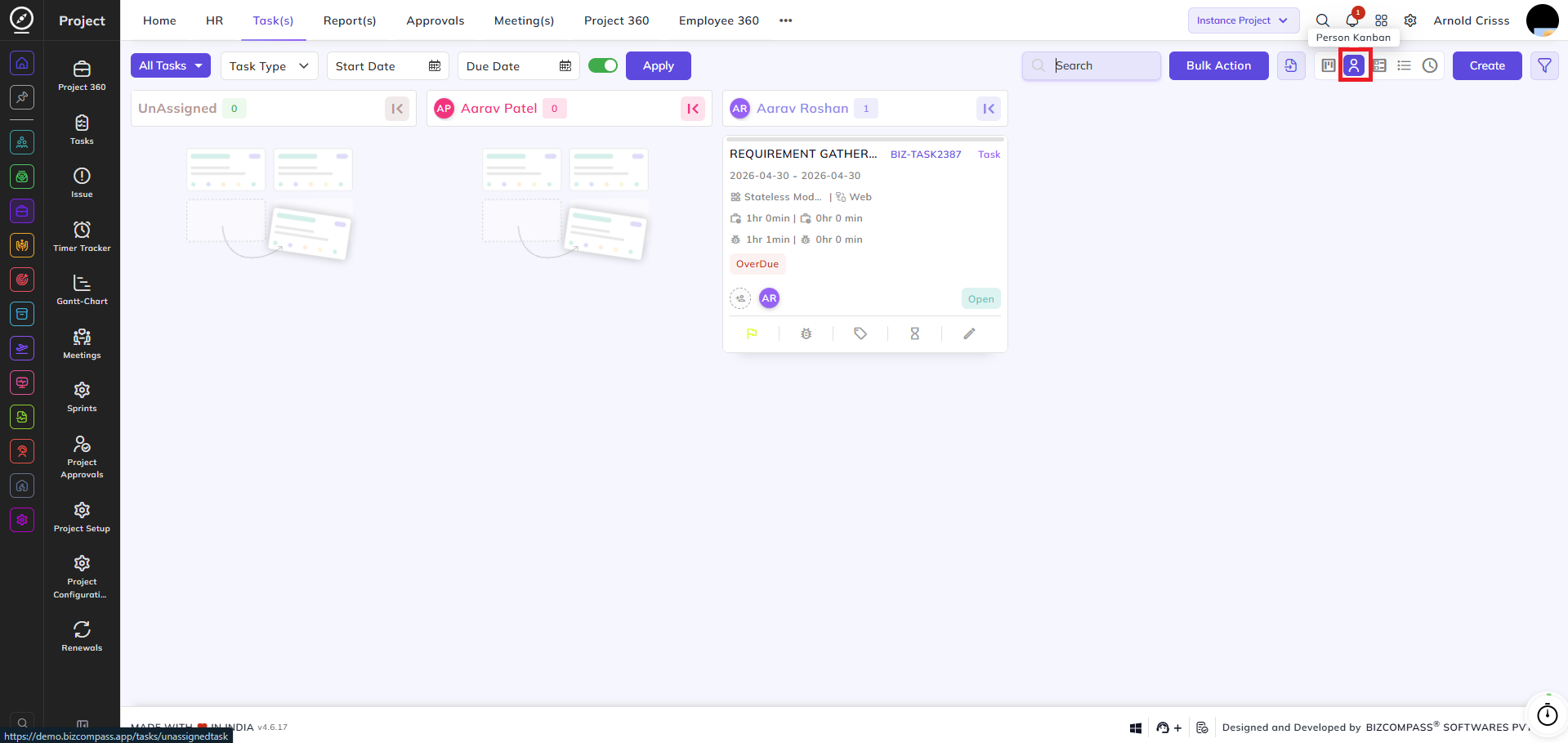
Person Kanban View:
This view organizes tasks by assigned person rather than by stage. Each column represents a team member, showing all tasks assigned to them. This view is only visible to users who have the Can Assign permission enabled in the project's user configuration.
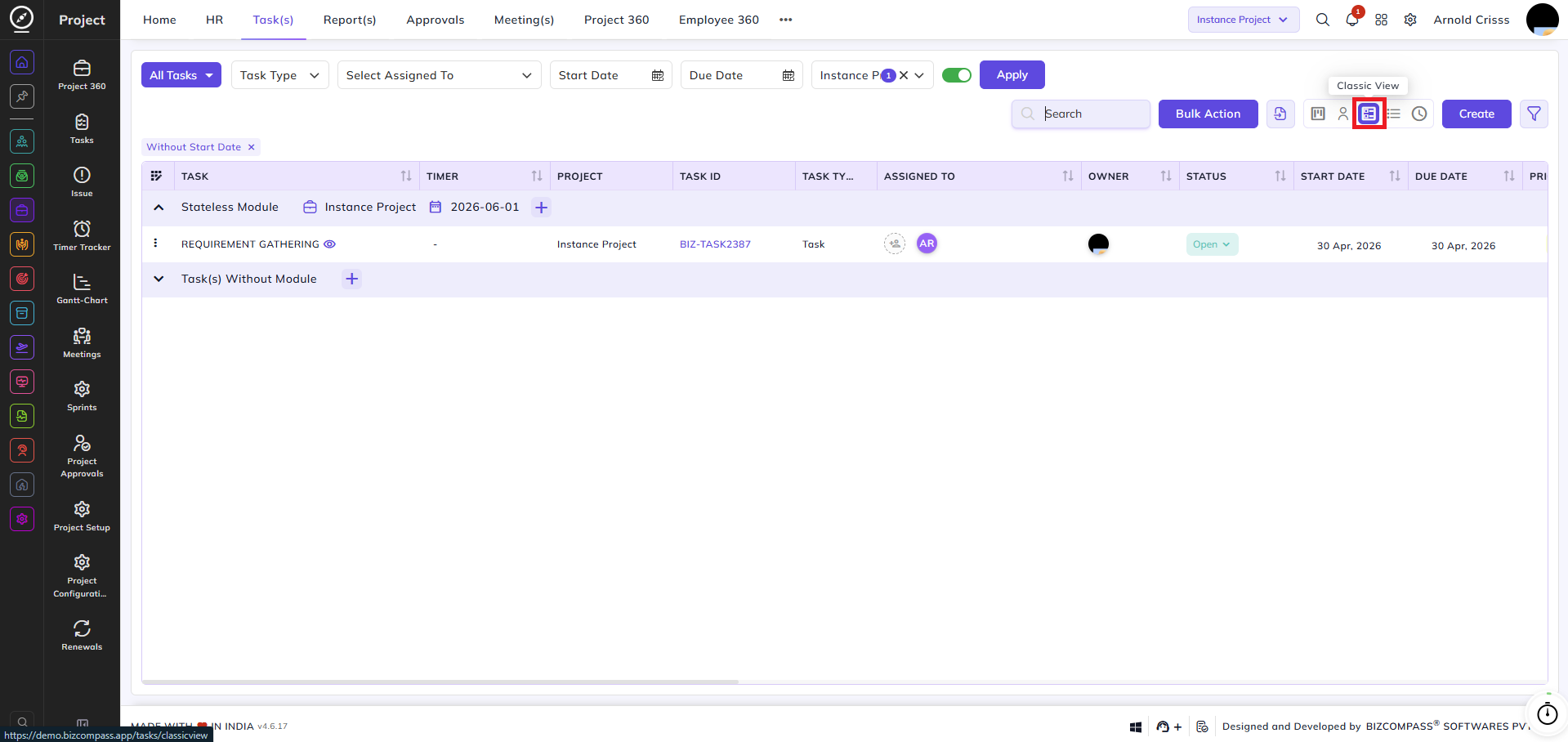
Classic View:
The Classic View displays tasks grouped by their module in a structured, collapsible list. Each module appears as a header row showing the module name, associated project, and end date. Tasks under each module can be expanded or collapsed using the arrow on the left. A + button next to each module header allows you to quickly add a new task directly under that module. Tasks without a module are grouped under a separate Task(s) Without Module section.
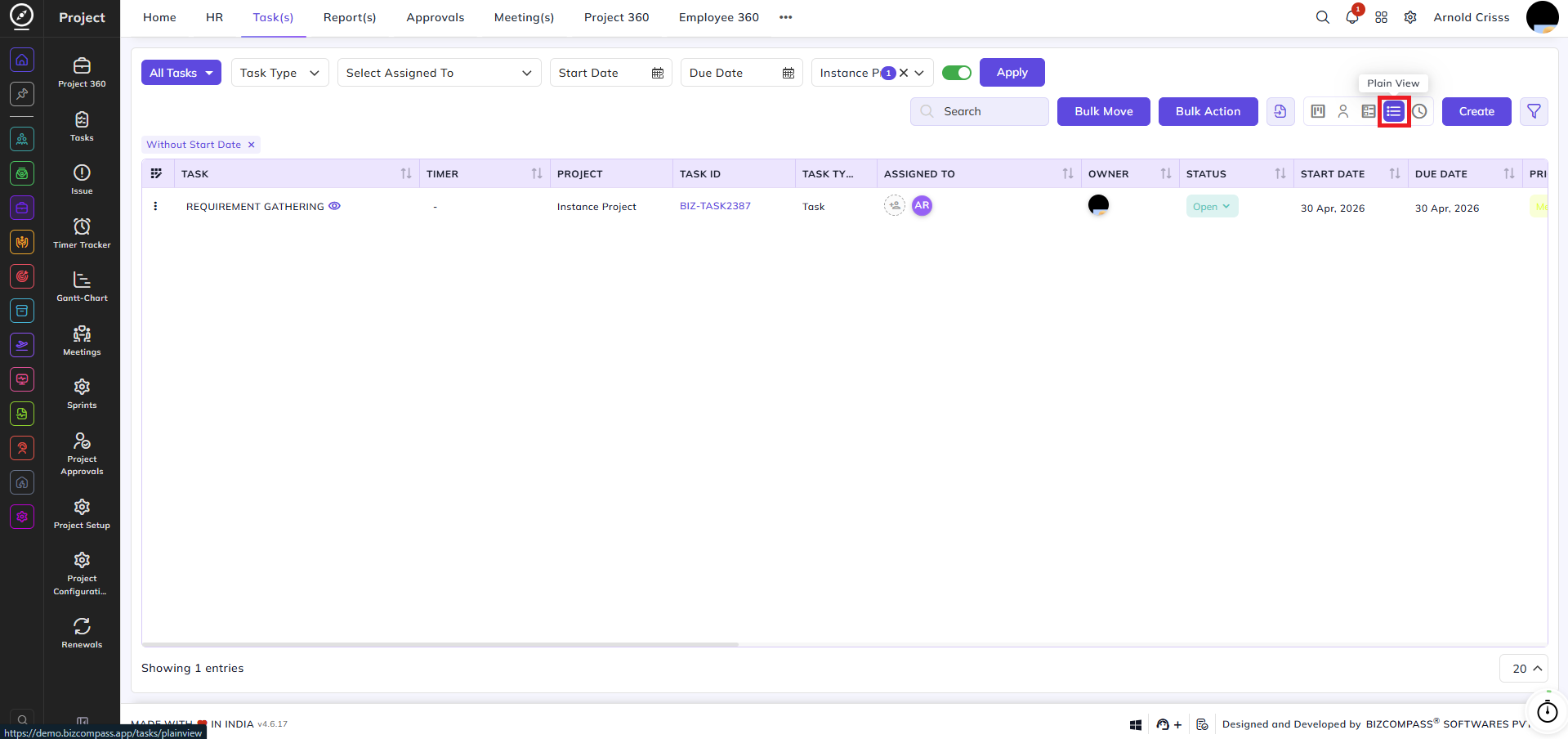
Plain View:
The Plain View displays all tasks in a flat, ungrouped list without any module grouping. All tasks across all modules appear in a single continuous list, making it easier to get a consolidated view of all tasks at once. The Bulk Move button becomes available in this view, allowing you to select one or more tasks and move them to a different project and module in a single action.
Toolbar Actions:
Import Tasks:
Tasks can be imported in bulk using a spreadsheet file. Click the Import icon from the toolbar to open the Import Task dialog.
Browse or drag and drop your file into the upload area. Only .xlsx and .xls file formats are supported. A Download Sample Template link is available to help you structure your file correctly before importing.
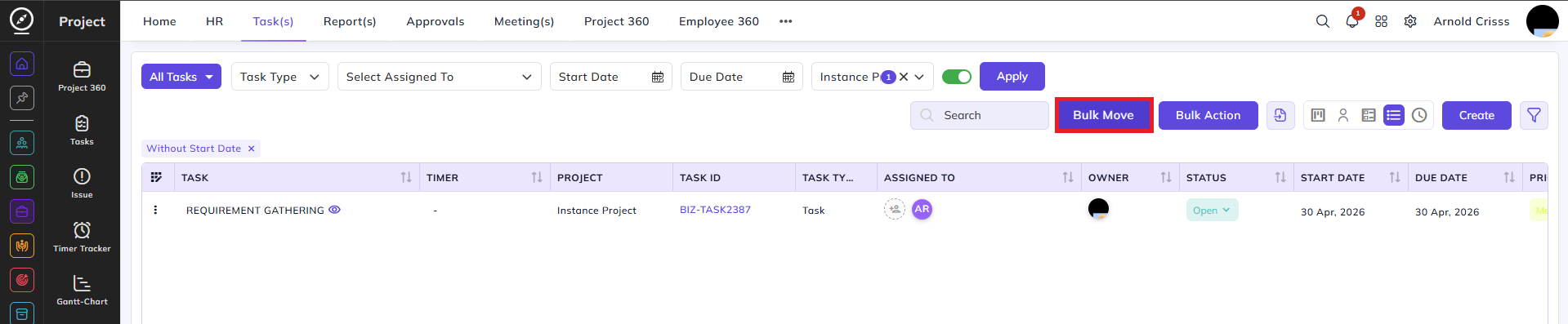
Bulk Move:
Select multiple tasks and move them to a different project and module in one action. The Move Task dialog allows you to select the target Project and Module, with an option to Update billing type according to target project. This feature is only available in the Plain View.

Bulk Action:
Deletes tasks in bulk, streamlining the management process. In Kanban and Person Kanban, this Bulk Action has an additional feature of Clear All Tasks from this Project. It removes all tasks from the currently selected project.