
Default Modules
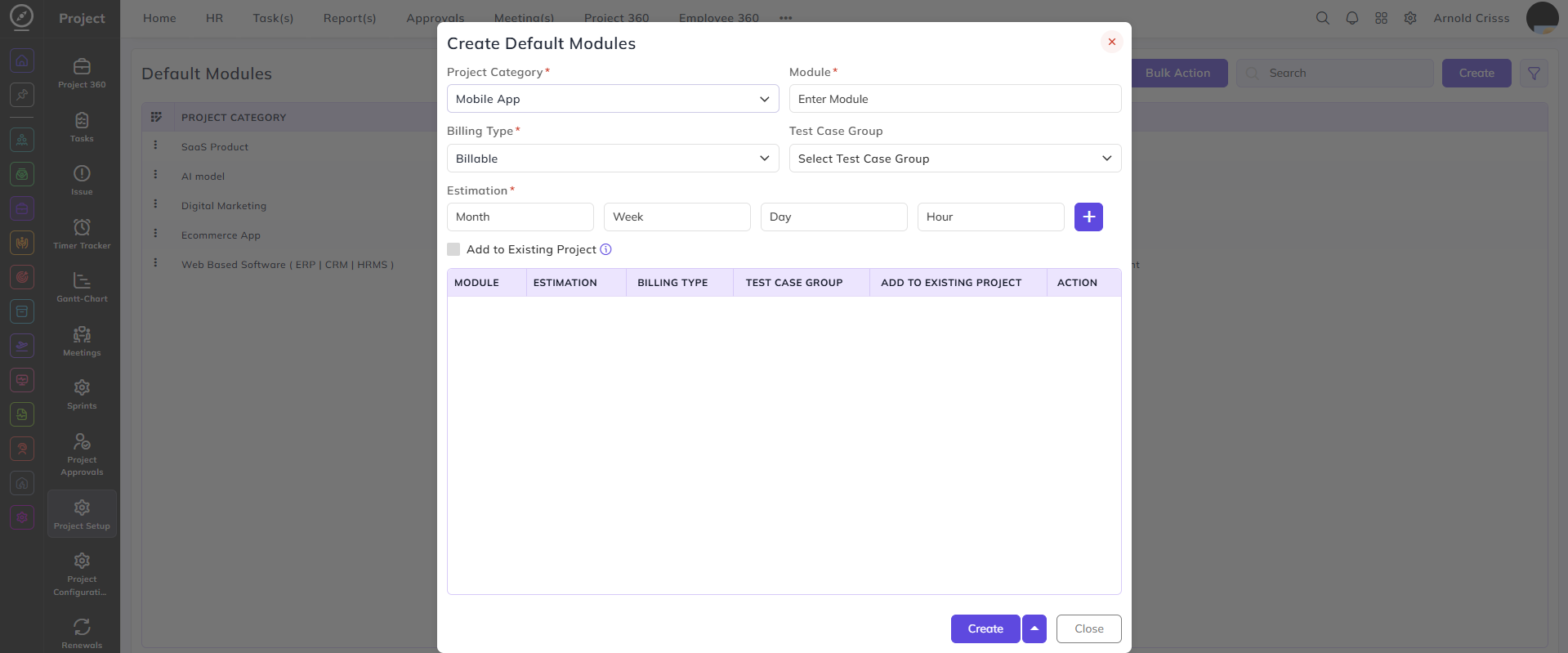
From this page, you can configure default modules that are automatically added to every new project created under a specific project category. This saves time by pre-populating standard modules whenever a new project is set up.
Project Category:
Select the project category for which the default module is being configured — for example, Mobile App.
Module:
Enter the name of the default module.
Billing Type:
Select whether this module is Billable or Non-Billable.
Test Case Group:
Select the test case group to be associated with this module.
Estimation:
Enter the estimated time broken down into Month, Week, Day, and Hour. Click the + button to add multiple estimation entries if needed.
Add to Existing Project:
Enable this checkbox to automatically add this default module to all existing projects under the selected category, in addition to future ones.
Note: For new modules, enabling this option adds the module to every existing project in the selected category.
With the Bulk Action feature, you can delete multiple default modules at once, streamlining the management process.