
Issue
From this page, you can create and manage issues raised against tasks within a project. Issues are used to report bugs, defects, or problems identified during the review or QA stage of a task.
Note: Issues can only be created for a project if the Review Required flag is enabled for at least one stage in the project's Task Flow configuration. Additionally, only the person assigned as the reviewer for that stage is permitted to create issues against tasks in that stage.
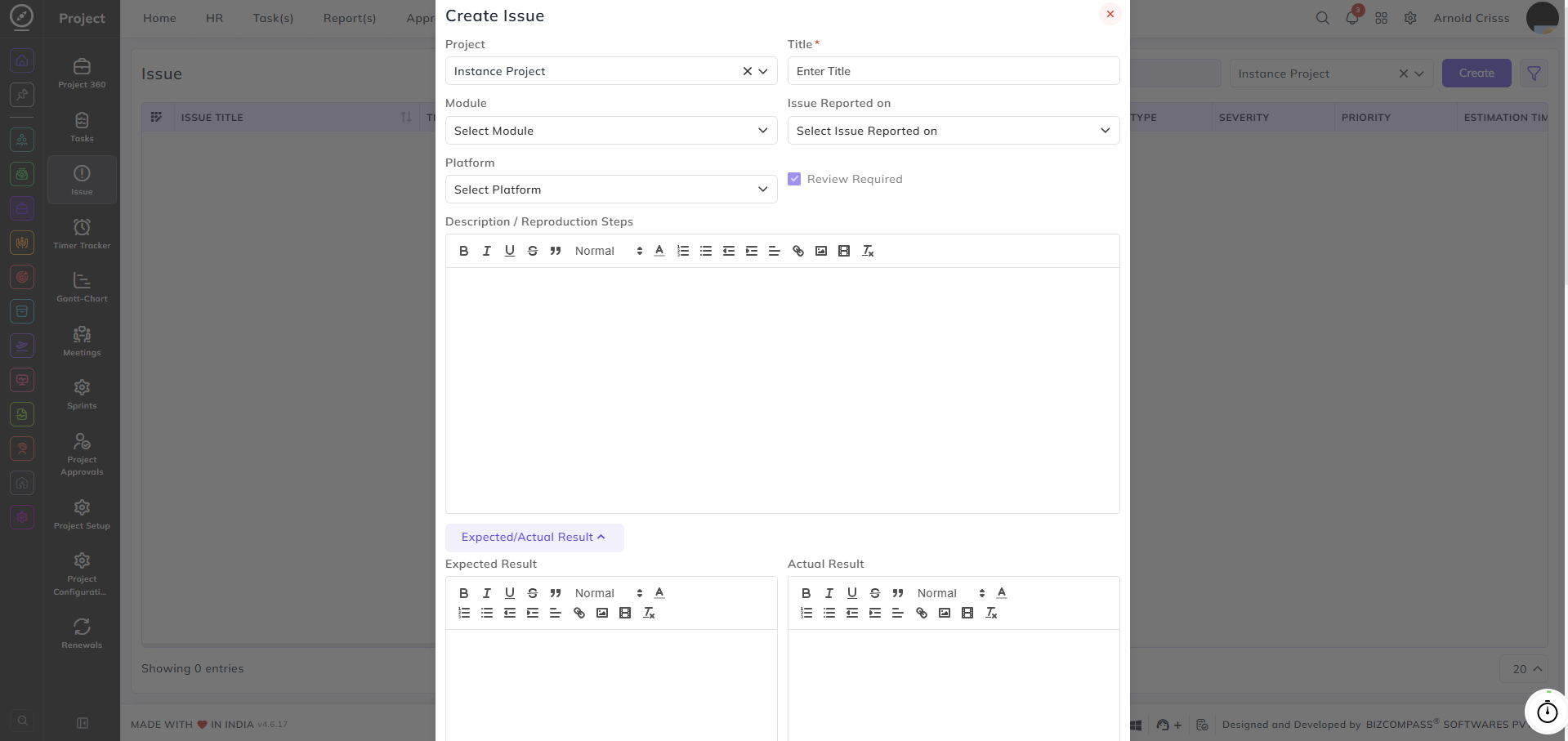
Project:
Select the project this issue belongs to.
Title:
Enter a title describing the issue.
Module:
Select the module this issue is related to.
Issue Reported On:
Select the task or item on which the issue is being reported.
Platform:
Select the platform this issue is associated with.
Description / Reproduction Steps:
Add a detailed description or steps to reproduce the issue using the rich text editor.
Expected Result / Actual Result:
Expand the Expected/Actual Result section to document what the expected behavior was and what actually occurred. This helps the assigned developer understand the gap clearly.
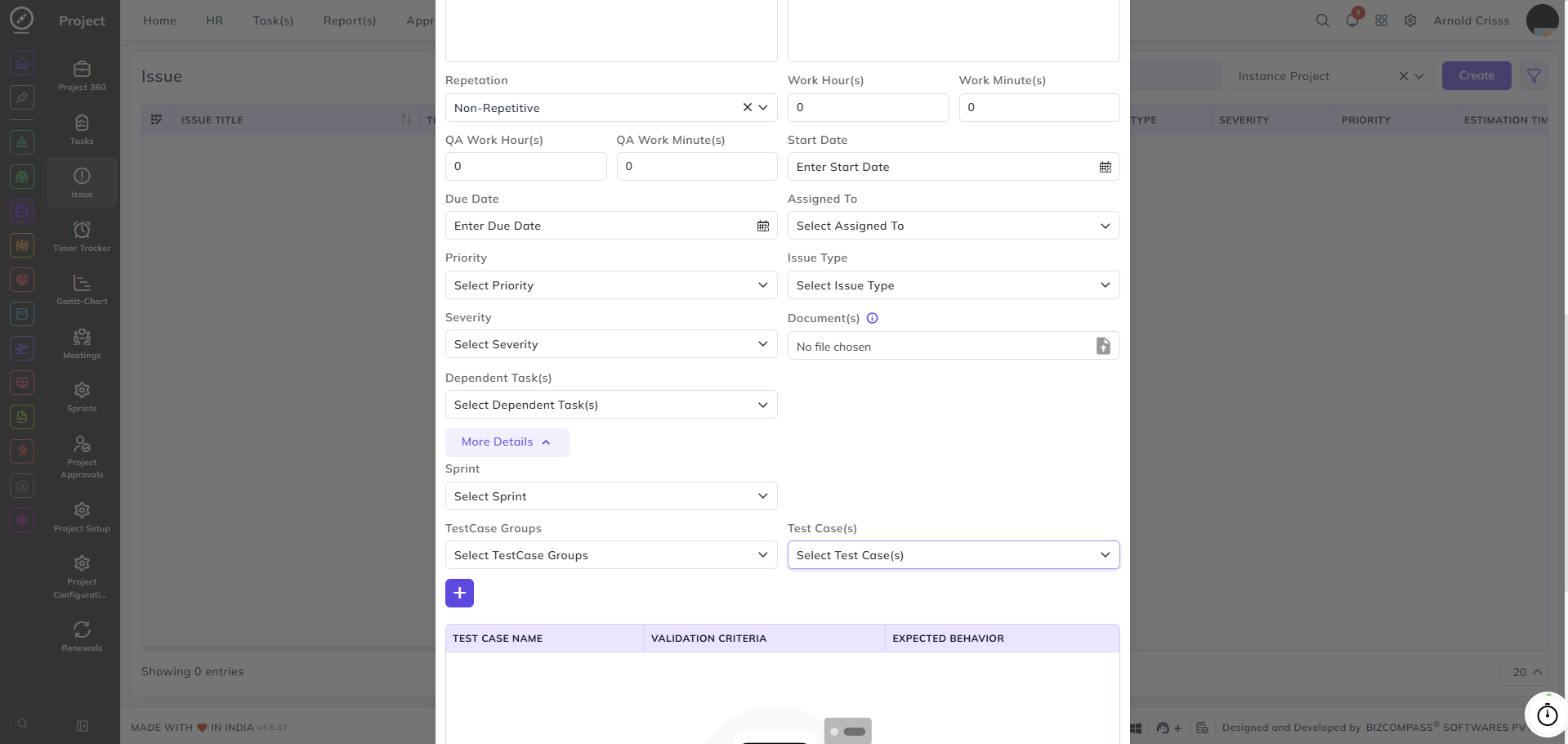
Repetition:
Select whether the issue is Repetitive or Non-Repetitive.
Work Hour(s) / Work Minute(s):
Enter the estimated development time to resolve this issue.
QA Work Hour(s) / QA Work Minute(s):
Enter the estimated QA time for verifying the fix.
Start Date / Due Date:
Set the start and due dates for resolving the issue.
Assigned To:
Select the team member responsible for resolving this issue.
Priority:
Select the priority level for this issue.
Issue Type:
Select the type of issue being reported- Conceptual, Functional, or Designing.
Severity:
Select the severity level of this issue.
Document(s):
Upload any relevant screenshots, logs, or supporting files.
Dependent Task(s):
Select any tasks this issue depends on.
Click More Details to expand additional fields:
Sprint:
Select the sprint this issue should be associated with.
TestCase Groups / Test Case(s):
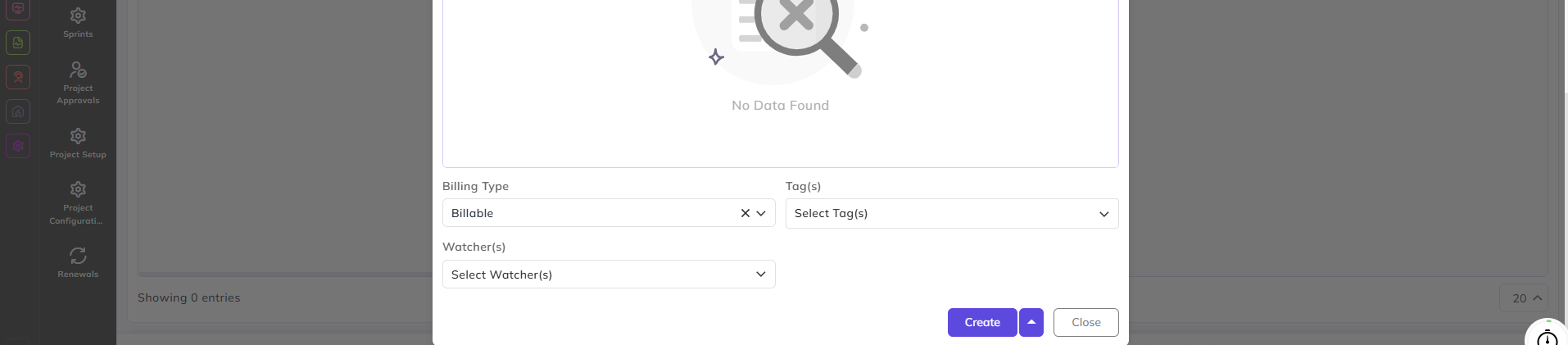
Select the relevant test case groups and individual test cases linked to this issue. Click the + button to add multiple combinations. The linked test cases will be displayed with their Test Case Name, Validation Criteria, and Expected Behavior.
Billing Type:
Select whether this issue is Billable or Non-Billable.
Tag(s):
Watcher(s):
Select team members who should be notified of updates to this issue without being directly assigned.
With the Bulk Action feature, you can delete multiple issues at once, streamlining the management process.