Meetings
From this page, you can create and manage meetings associated with your projects. Meetings can be tracked with their agenda, attendees, timing, location, and meeting links, giving teams full visibility into scheduled and past meetings.
Note: Meetings require the Project Module to be configured before they can be used. If not configured, a warning banner will appear with a link to complete the setup.
Filters:
Select Project:
Filter meetings by a specific project.
Select Owner:
Filter meetings by the person who created them.
Select Attendee:
Filter meetings by a specific attendee.
Meeting Status Tabs:
Meetings are categorized into the following status tabs:
- All — displays all meetings regardless of status.
- Running — displays meetings currently in progress.
- Up Coming — displays scheduled future meetings.
- Overdue — displays meetings that have passed without being completed.
- Completed — displays meetings that have been marked as completed.
Views:
The Meetings page supports three views:
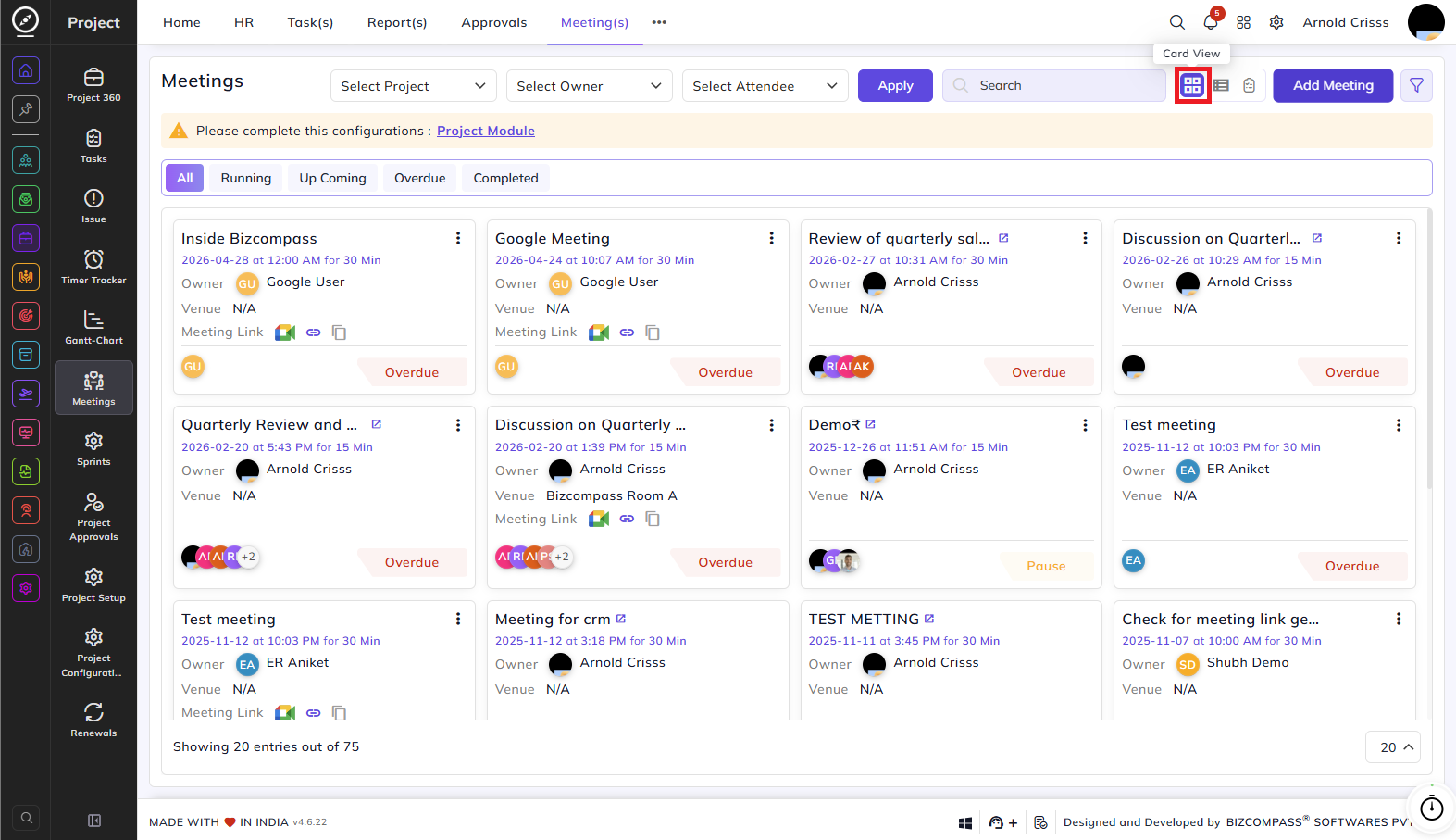
Card View:
Displays each meeting as a card showing the Meeting Agenda, Date & Time, Duration, Owner, Venue, Meeting Link, Attendee Avatars, and Status. Quick action icons allow copying the meeting link or duplicating the meeting.
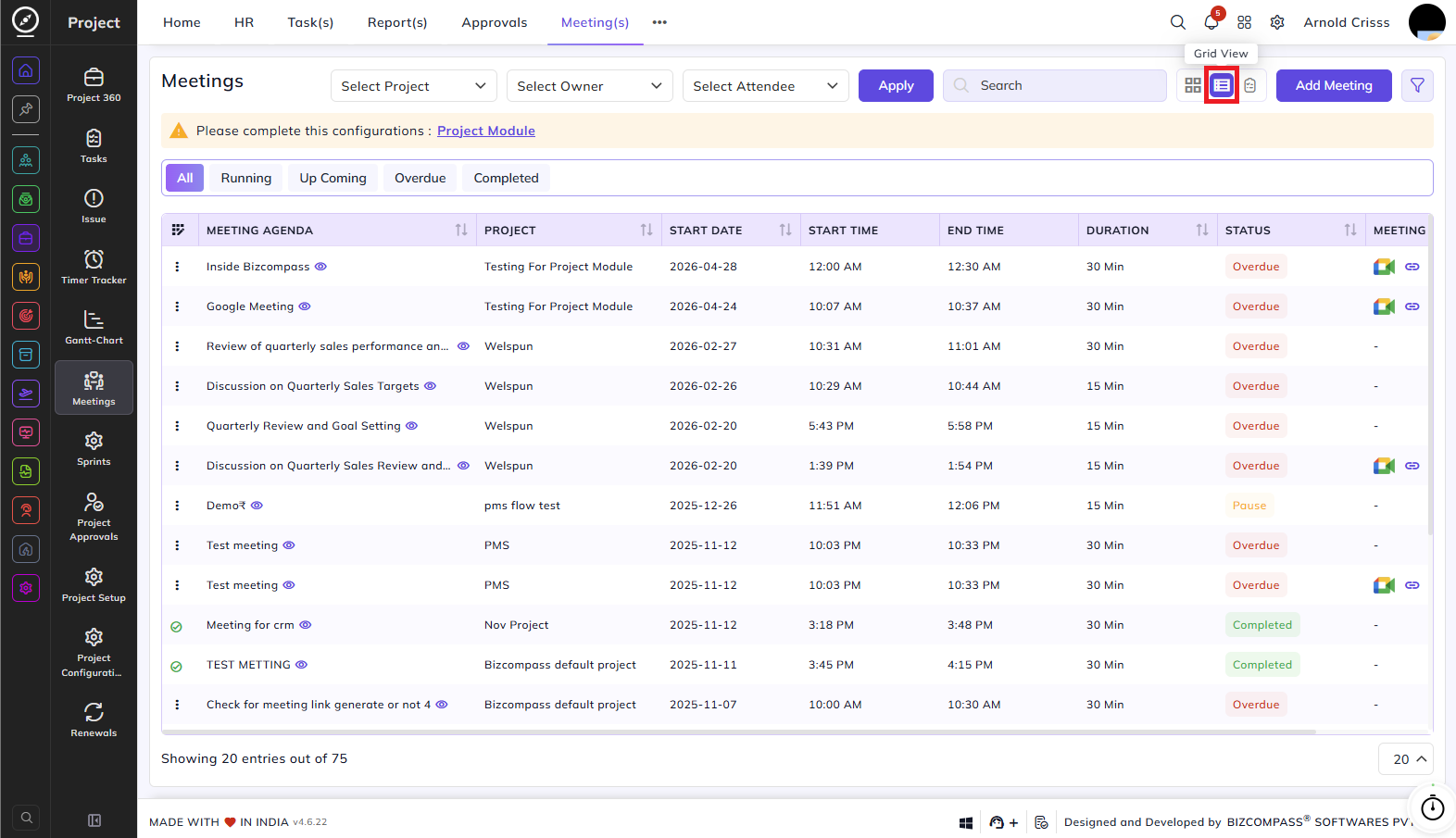
Grid View:
Displays meetings in a tabular list showing Meeting Agenda, Project, Start Date, Start Time, End Time, Duration, Status, and Meeting Link.
Mom Grid View (Minutes of Meeting):
Displays all minutes of meeting entries in a tabular list showing Meeting, Minutes of Meeting, Responsibility For, Responsible Person(s), Priority, Severity, and a Task eye icon to view the linked task. A Select Meeting filter appears in this view to filter minutes by a specific meeting.
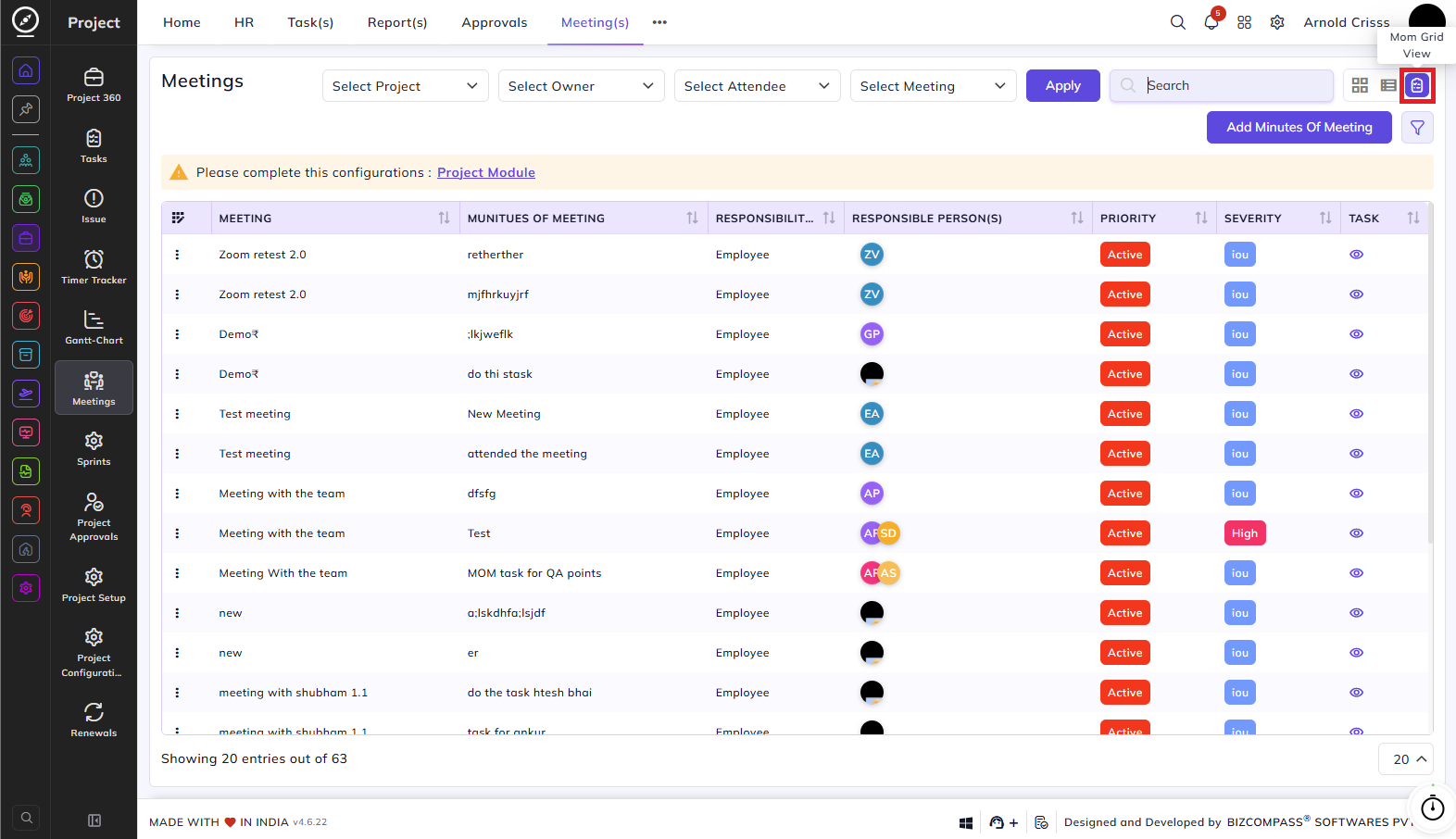
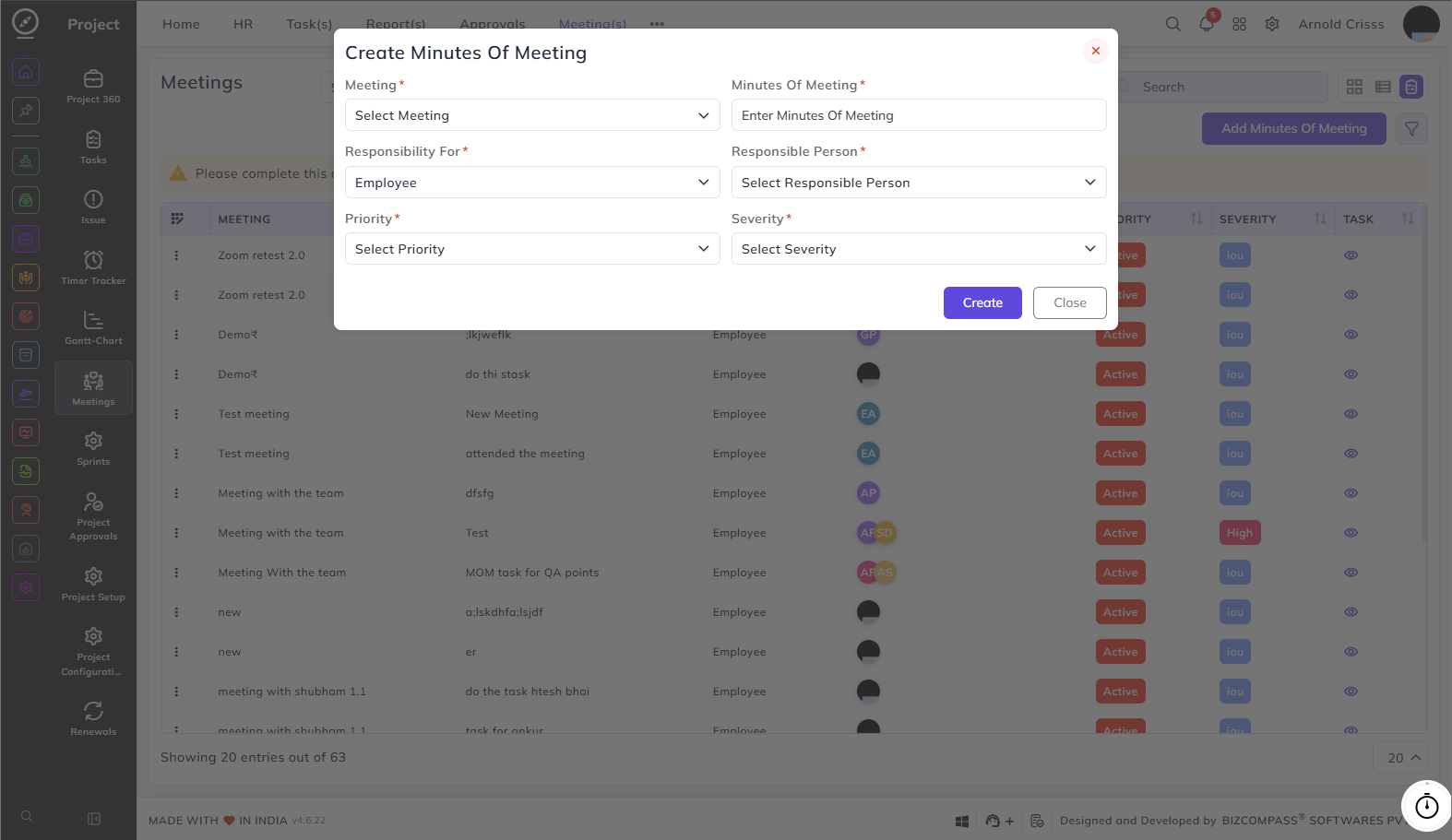
Click Add Minutes of Meeting to create a new minutes entry.
Meeting:
Select the meeting for which the minutes are being recorded.
Minutes of Meeting:
Enter the minutes or summary of what was discussed.
Responsibility For:
Select who is responsible — Employee or Customer.
Responsible Person:
Select the specific person responsible for the action items from this meeting.
Priority:
Select the priority level for the action items.
Severity:
Select the severity level.
Creating a Meeting:
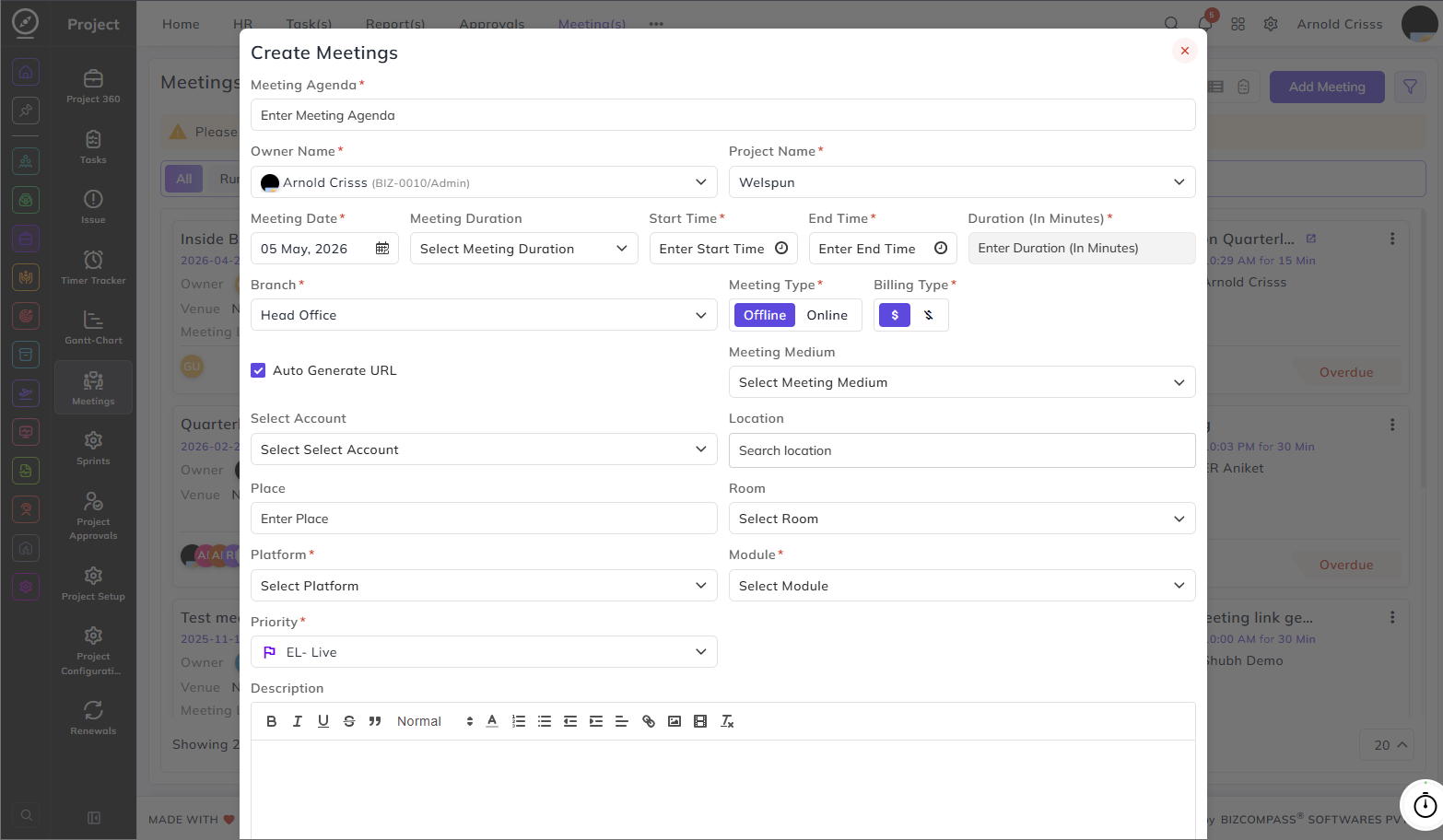
Click Add Meeting in Card View or Grid View to open the Create Meetings form.
Meeting Agenda:
Enter the agenda or topic of the meeting.
Owner Name:
Select the employee who owns or is organizing the meeting.
Project Name:
Select the project this meeting is associated with.
Meeting Date:
Select the date of the meeting.
Meeting Duration:
Select the duration from the predefined options.
Start Time / End Time:
Enter the start and end times of the meeting.
Duration (In Minutes):
The total duration (in minutes) will be fetched according to the start and end time.
Branch:
Select the branch where the meeting is taking place.
Meeting Type:
Select whether the meeting is Offline or Online.
Billing Type:
Select whether the meeting is billable or non-billable.
Auto Generate URL:
Enable this checkbox to automatically generate a meeting URL.
Meeting Medium:
Select the medium for the meeting.
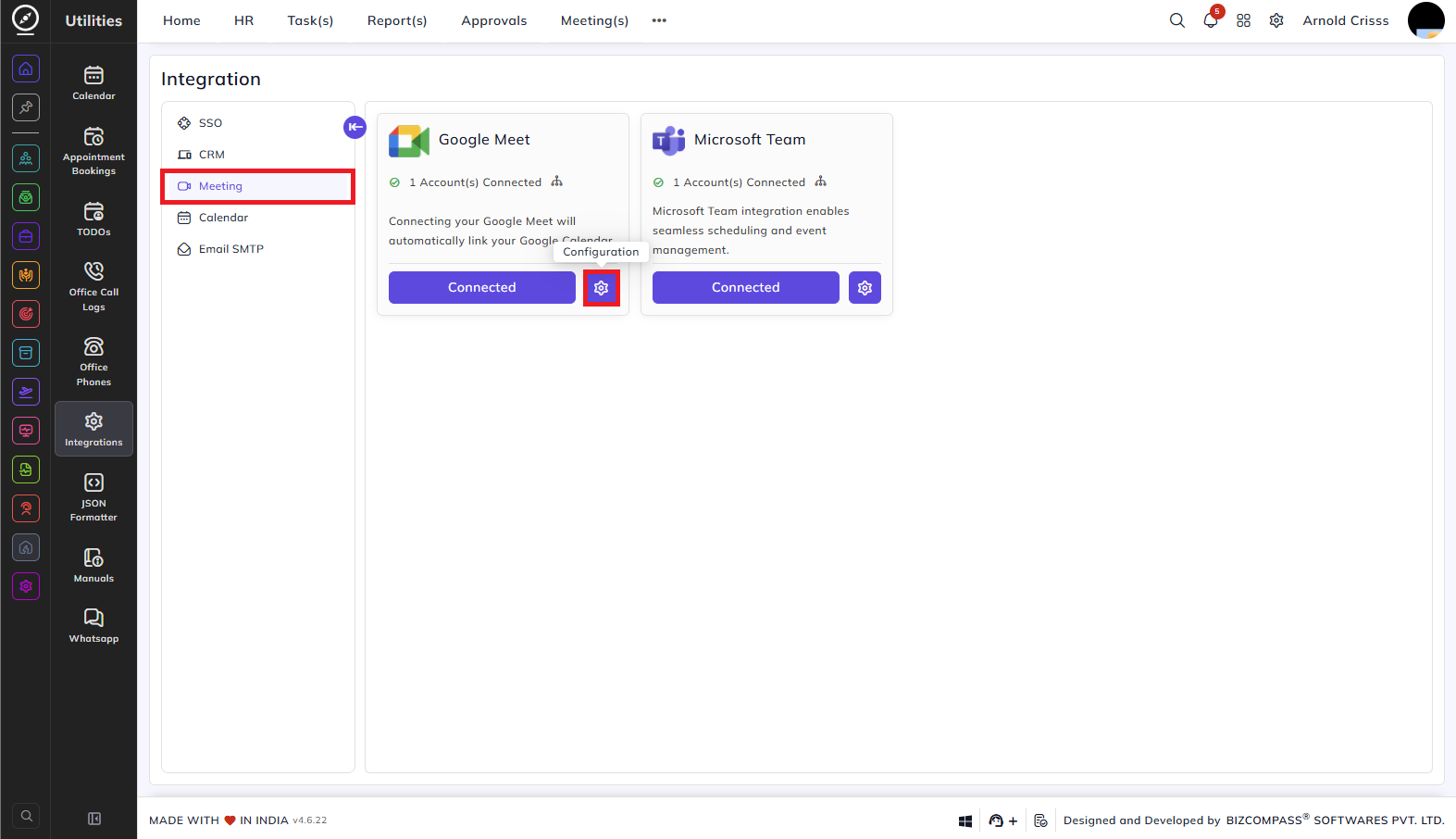
For setting up the meeting medium, go to Utilities->Integrations->Meeting. Click on the Configuration button.
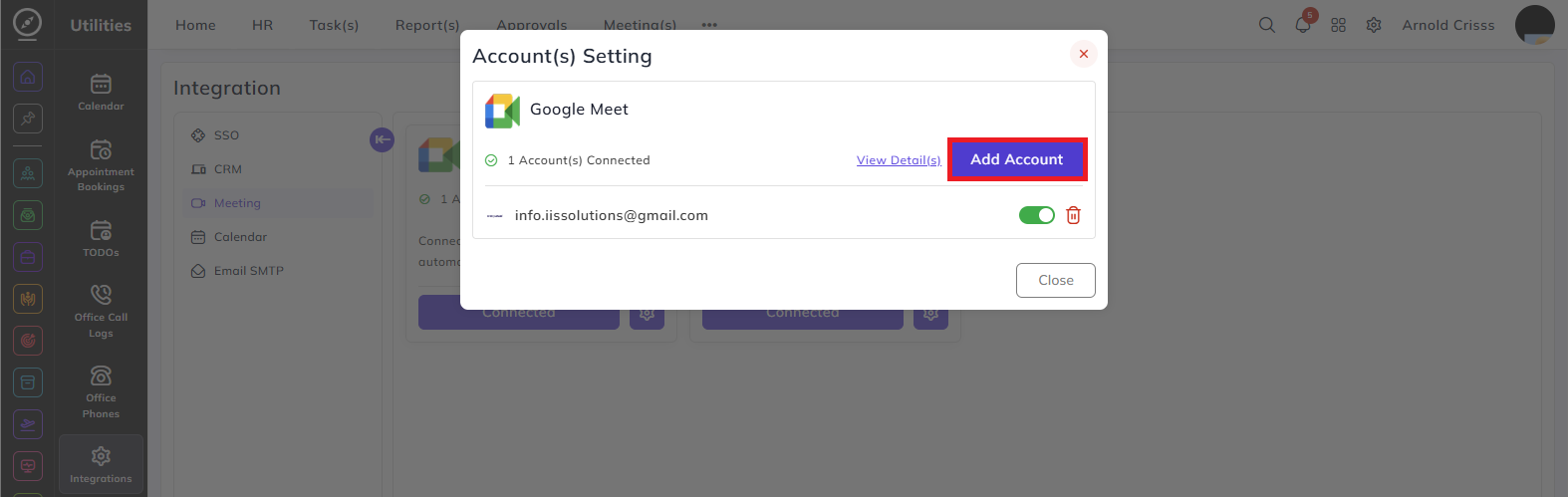
Then click on Add Account button to add your Google or Microsoft account.
Location:
Search for and select the meeting location.
Select Account:
Select the account associated with this meeting according to the meeting medium.
Place:
Enter the specific place or room name.
Room:
Select the room for the meeting.
Platform:
Select the platform this meeting is associated with.
Module:
Select the module this meeting relates to.
Priority:
Select the priority level for this meeting.
Description:
Add any additional notes or context about the meeting using the rich text editor.
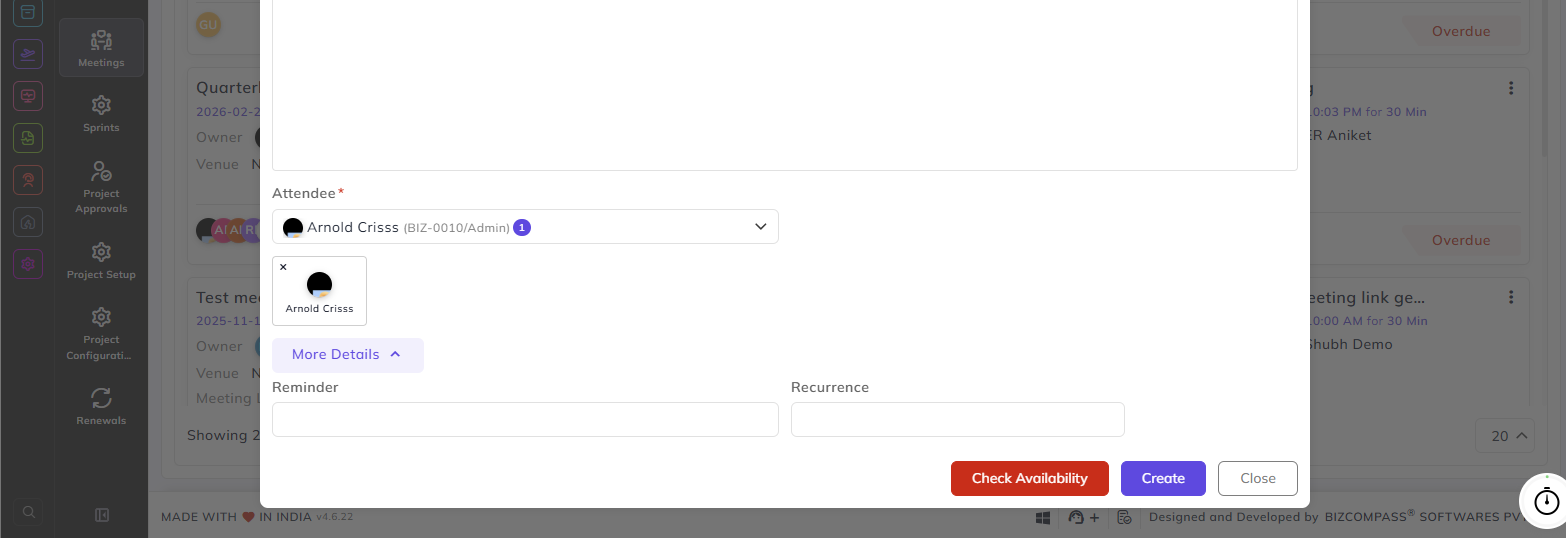
Attendee:
Select the employees who will attend this meeting. Selected attendees are displayed as profile cards below the dropdown.
More Details:
Reminder:
Configure a reminder for this meeting. The reminder supports two modes:
- Specific Date — set a reminder on a specific date and time, with options for Start Before Time, Duration, Notify Users, and a Send Reminder after reminder Time checkbox.
- Custom — set a custom reminder with a reminder type and time.
Recurrence:
Configure the meeting to recur at a set frequency. Select the Recurring Frequency, set an End Date, and optionally enable Create next recurrence after closing the current task. Click Done to save.
Check Availability: