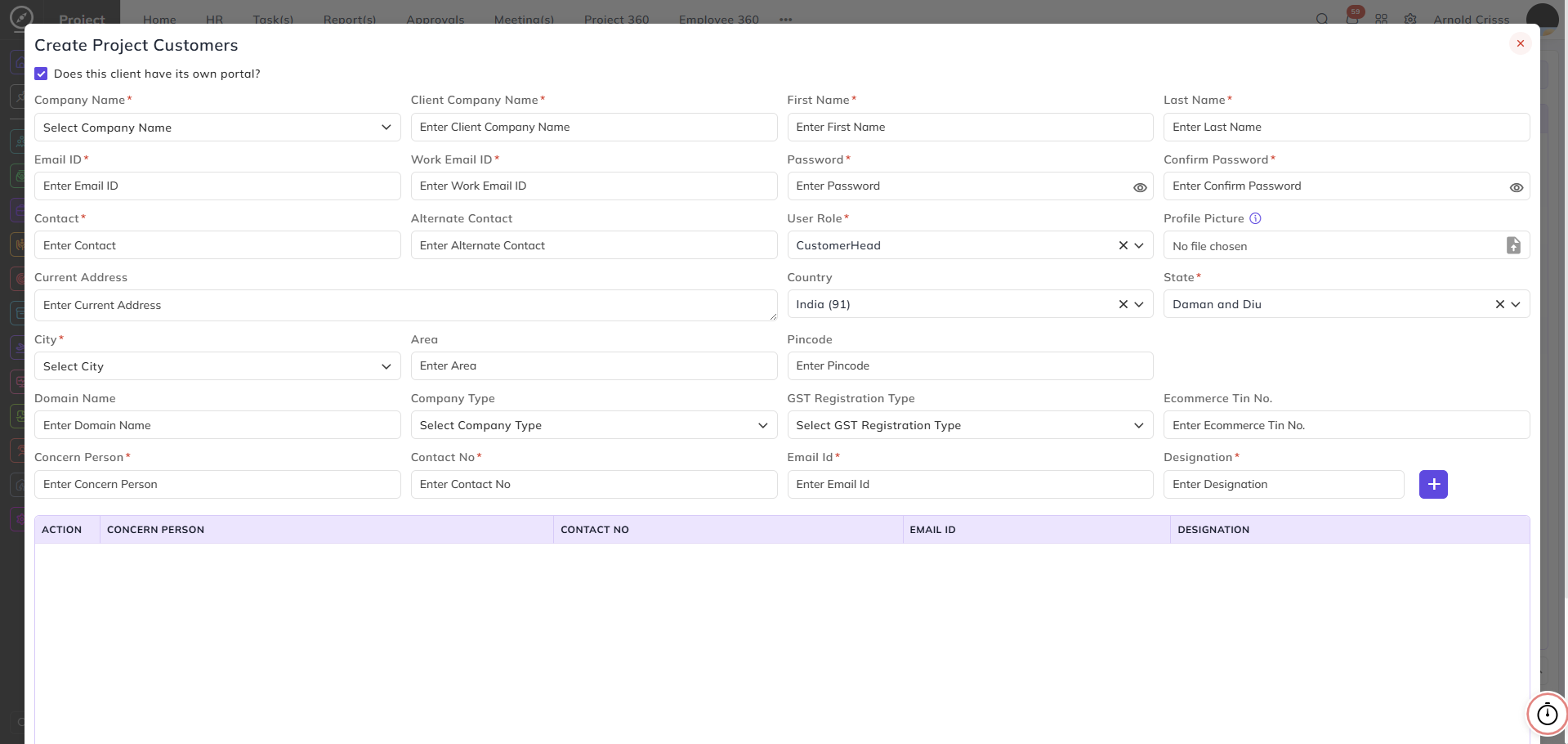
Project Customers
From this page, you can create and manage customers associated with your projects. Project customers represent the clients or companies for whom project work is being delivered.
The customers added here can be linked to projects to identify who the projectparoject is being delivered for.
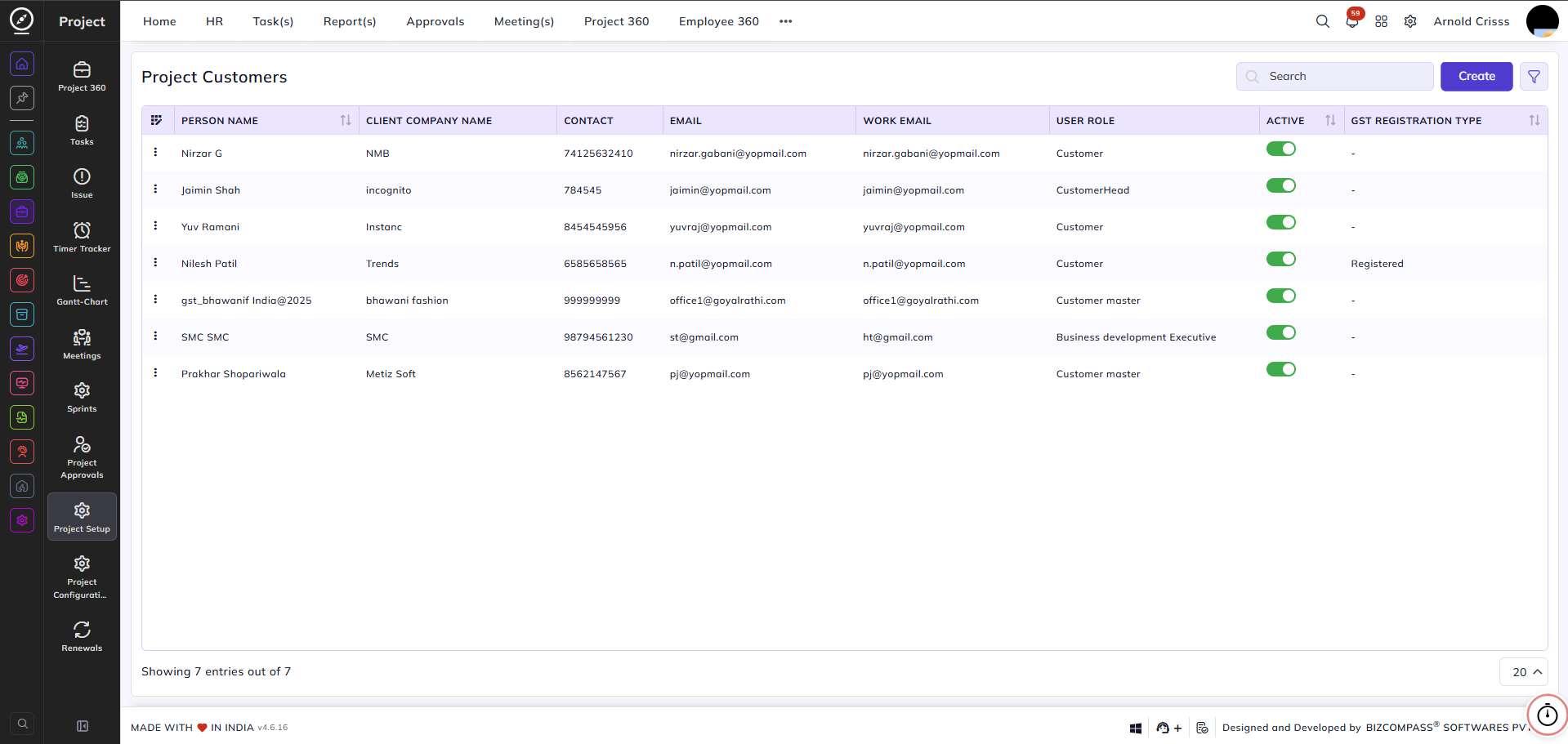
Company Name:
Select the internal company this customer is associated with.
Client Company Name:
Enter the name of the client's company.
First Name / Last Name:
Enter the customer contact's first and last name.
Email ID:
Enter the customer's primary email address.
Work Email ID:
Enter the customer's work email address. This becomes mandatory when the portal option is enabled.
Password / Confirm Password:
Set the portal login password for the customer. These fields appear only when the portal option is enabled.
Contact Details:
Enter the customer's primary contact number and alternate contact number if available.
User Role:
Select the role to assign to this customer — for example, Customer, CustomerHead, or Customer Master.
Profile Picture:
Upload a profile picture for the customer contact.
Address & Location Details:
Enter the customer's current address and location details like country, state, city, area, and pin code.
Domain Name:
Enter the client's domain name if applicable.
Company Type:
Select the type of company.
GST Registration Type:
Select the applicable GST registration type — for example, Registered.
Ecommerce Tin No.:
Enter the Ecommerce TIN number if applicable.
Does this client have its own portal?
Enable this checkbox if the client requires access to their own dedicated portal. When enabled, additional fields become mandatory — including Password, Confirm Password, and Concern Person details — to set up portal access credentials and the primary point of contact for the client and from where the client can review the tasks and progress of a project.
Concern Persons:
This section is available when the Does this client have its own portal? checkbox is enabled. You can add one or more concern persons — the primary points of contact at the client's organization.
For each concern person, enter their Concern Person name, Contact No., Email ID, and Designation, then click the + button to add them to the list. Multiple concern persons can be added and will appear in the table below.