Project Mode Templates
From this page, you can create and manage project mode templates that define role-based permissions and restrictions for tasks within a project. These templates control what different roles can create, edit, delete, assign, and modify — giving you fine-grained control over how team members interact with tasks.
The templates configured here can be applied to projects running in Restricted Mode to enforce role-based permissions.
Template Name:
Enter a name to identify this template.
The form is organized into four configuration tabs:
Create/Update/Delete
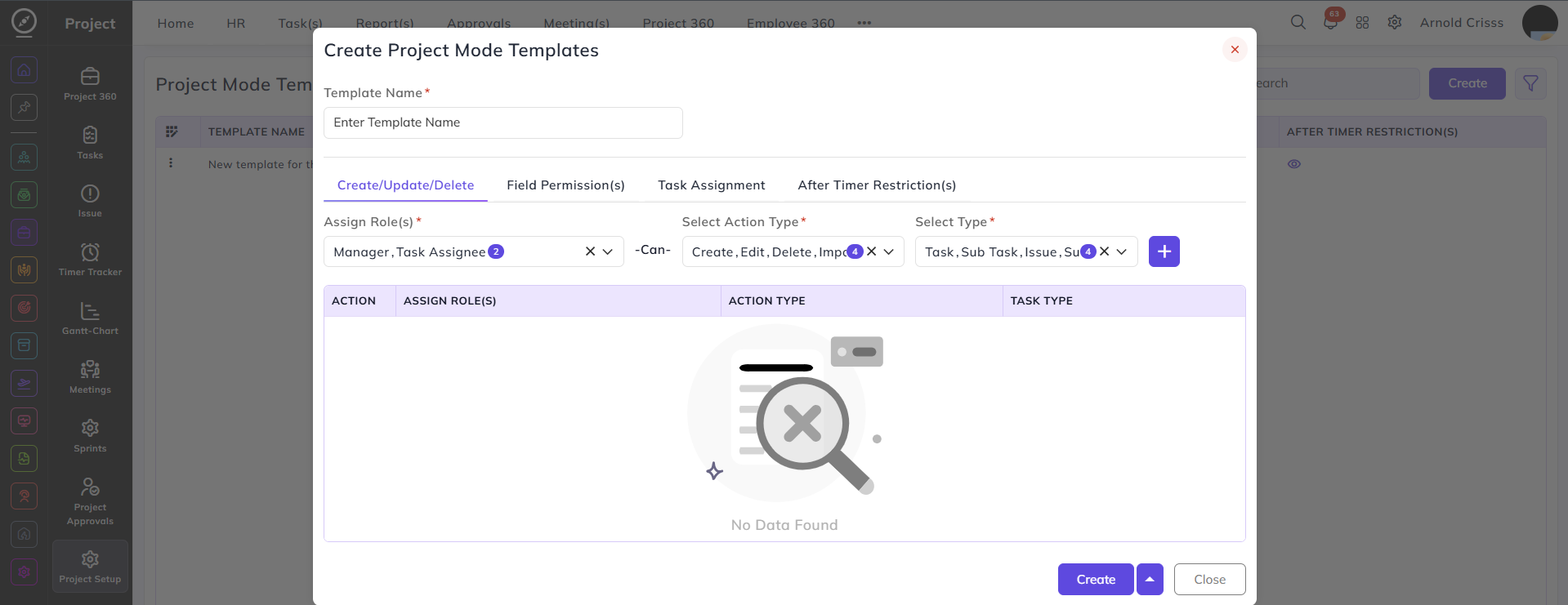
This tab defines which roles are permitted to perform create, edit, delete, and import actions on tasks.
Assign Role(s):
Select the role(s) this permission applies to — for example, Manager, Task Assignee, Watcher, Owner, Project Assignee, Reviewer, or Anyone.
Select Action Type:
Select the action(s) the assigned role can perform — Create, Edit, Delete, or Import.
Select Type:
Select the task type this permission applies to — Task, Sub Task, Issue, or Suggestion(s).
Field Permission(s)
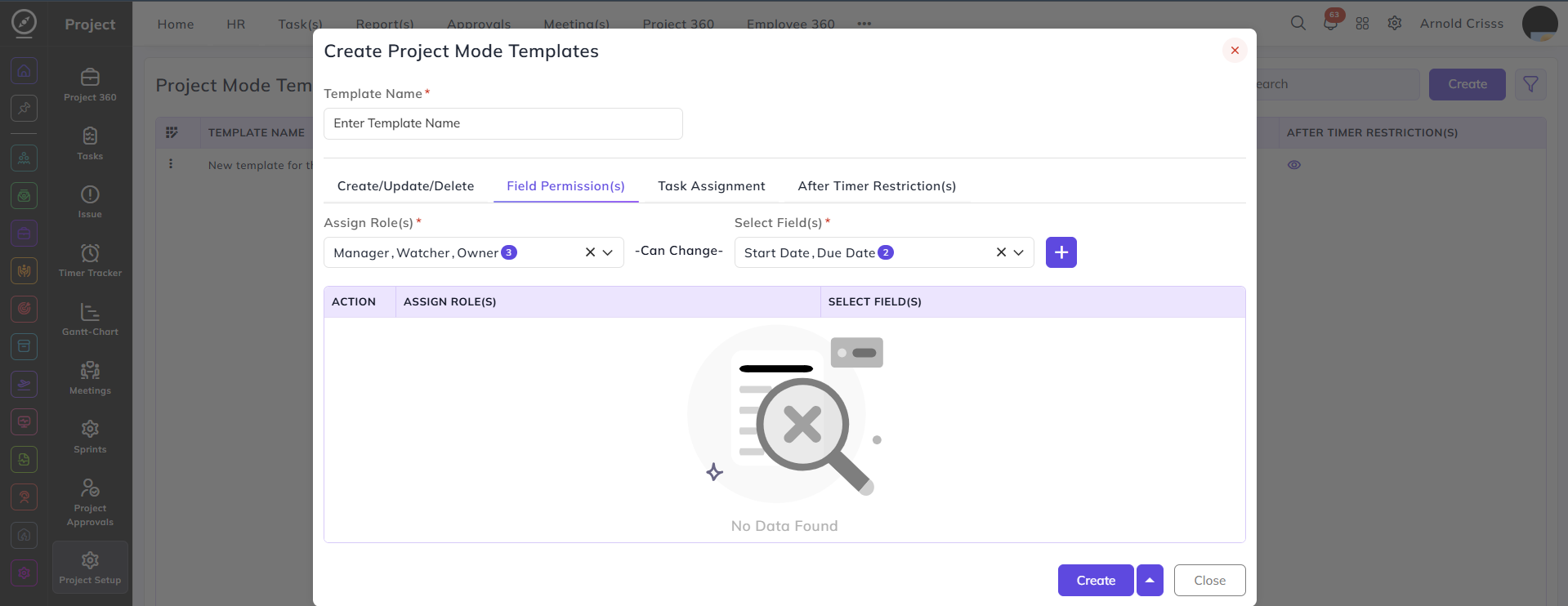
This tab controls which roles are allowed to change specific task fields.
Assign Role(s):
Select the role(s) this field permission applies to.
Select Field(s):
Select the task fields the assigned role is permitted to modify — for example, Estimation, Start Date, Due Date, or QA Estimation.
Task Assignment
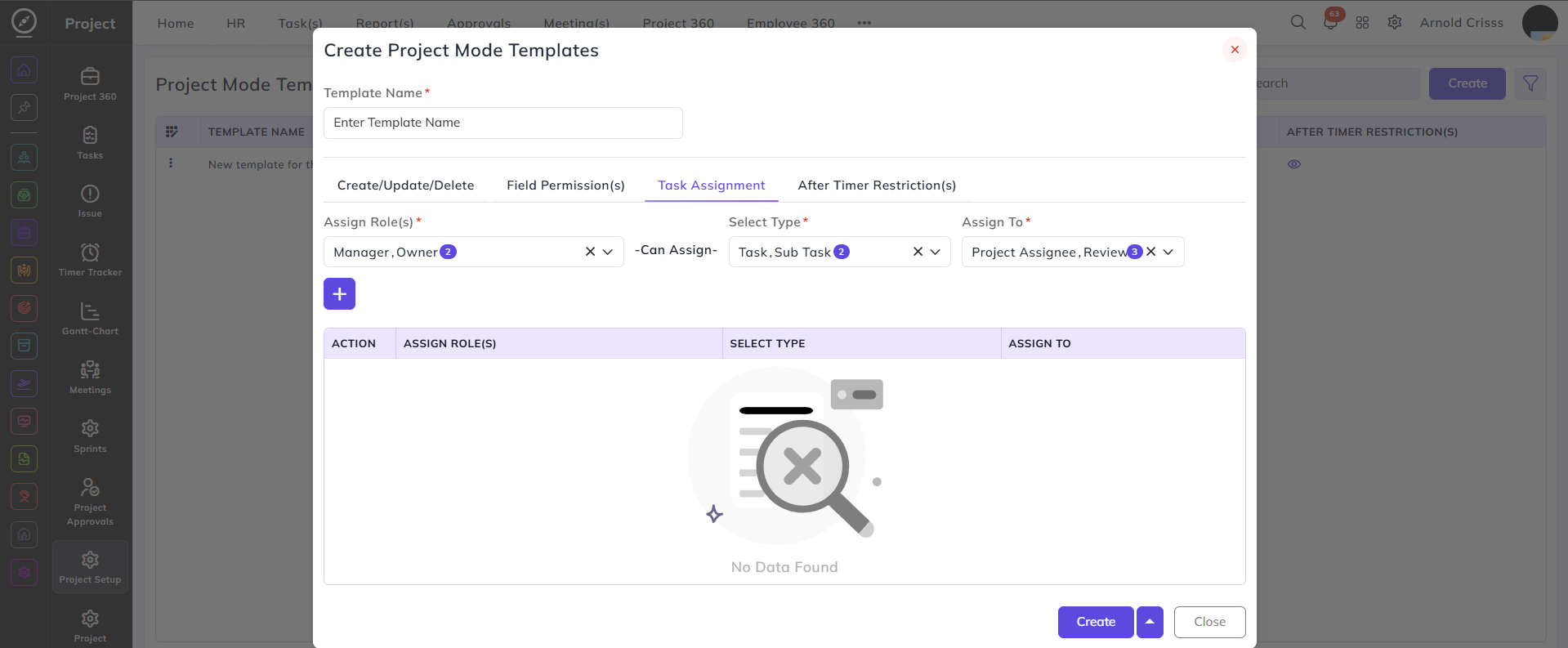
This tab defines which roles are permitted to assign tasks to other roles.
Assign Role(s):
Select the role(s) that will have assignment permissions.
Select Type:
Select the task type this assignment permission applies to.
Assign To:
Select the role(s) that the selected role is allowed to assign tasks to — for example, Manager, Project Assignee, Reviewer, or Anyone.
After Timer Restriction(s)
This tab defines which roles are permitted to edit specific task fields after the task timer has been started.
Assign Role(s):
Select the role(s) this restriction applies to.
Select Field(s):
Select the fields that the assigned role is allowed to edit after the timer has run.
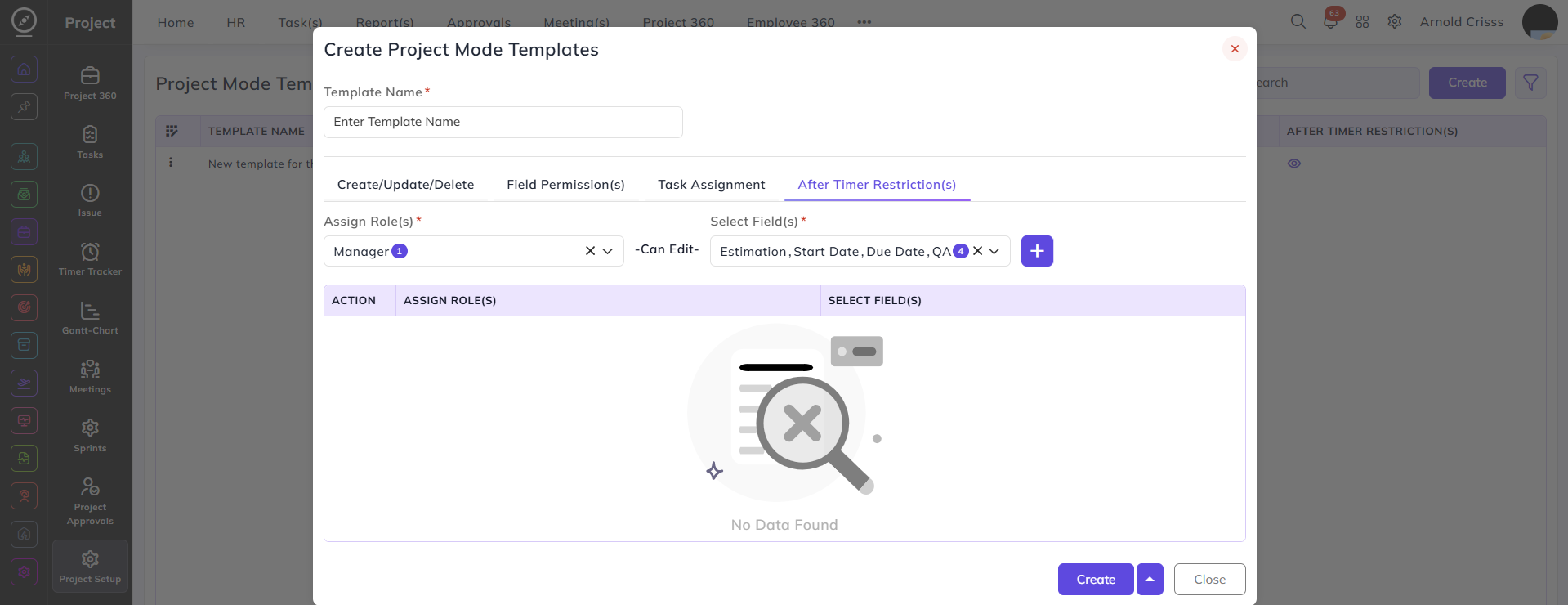
Once all tabs are configured as needed, click Create to save the template.
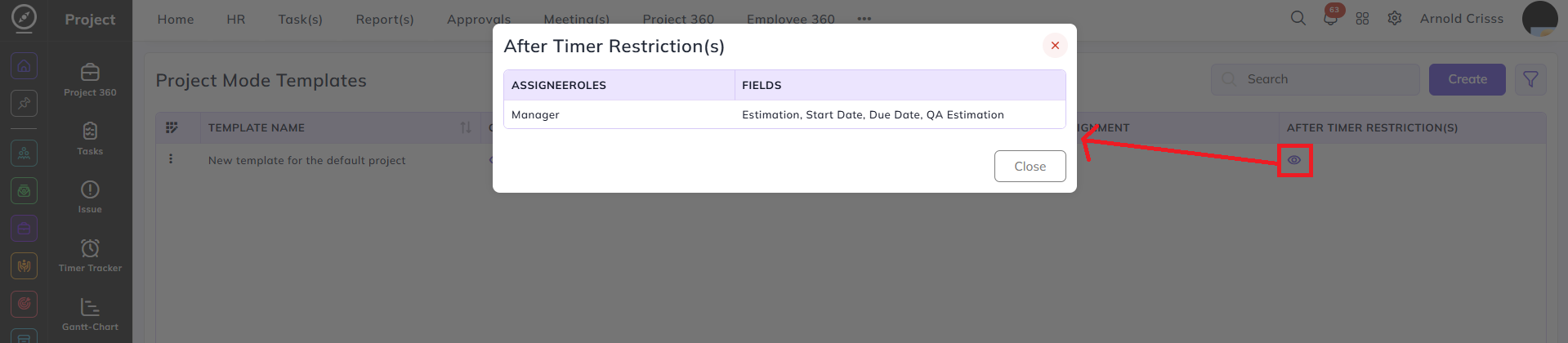
The Project Mode Templates list displays each template's Name along with quick-view eye icons for Create | Update | Delete, Fields Permission(s), Task Assignment, and After Timer Restriction(s). Clicking the eye icon next to any column allows you to view the configured permissions for that section without opening the edit form.