Project Module & Default Module
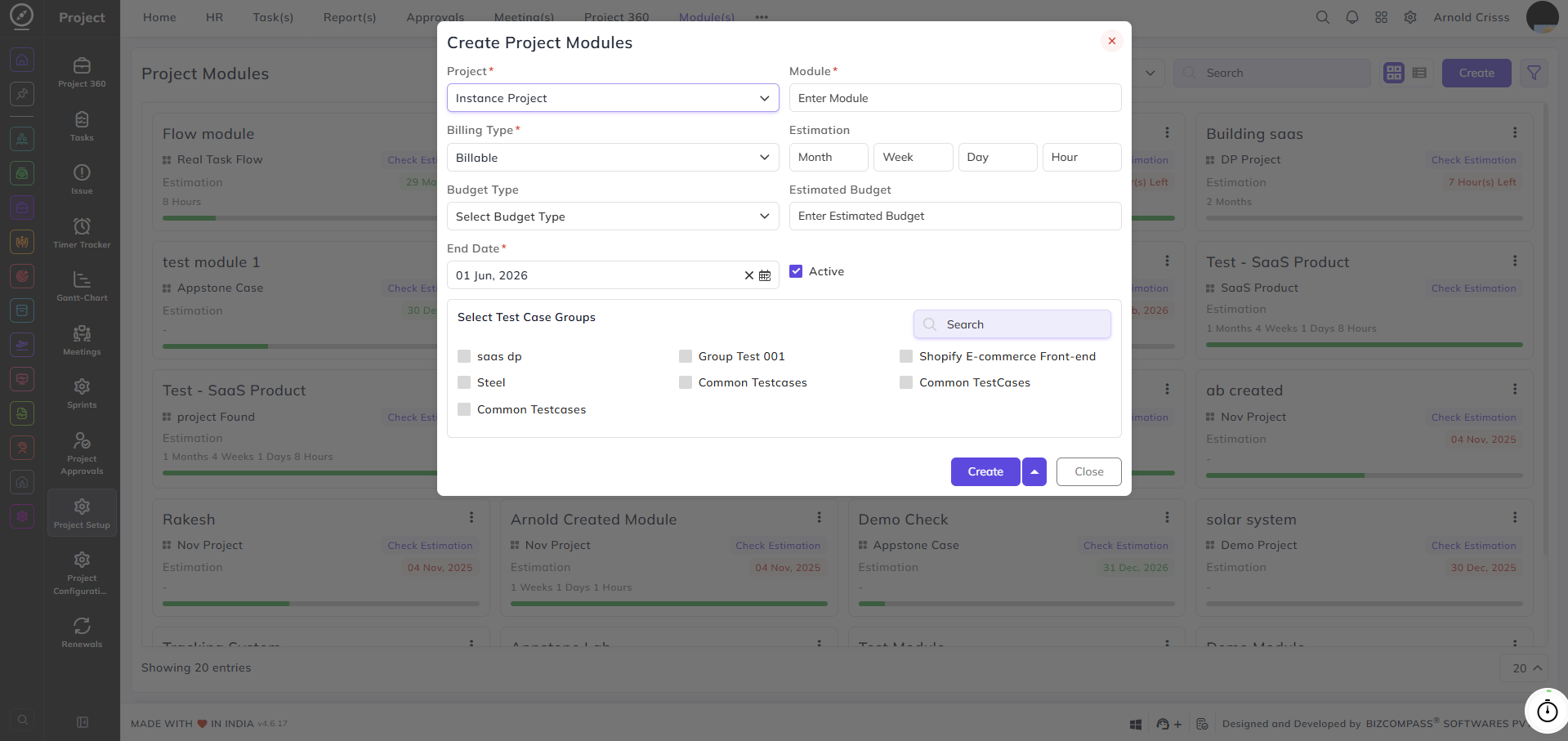
Project Modules:
From this page, you can create and manage modules within your projects. Modules help break down a project into smaller, trackable components — each with its own estimation, billing type, budget, and test case groups.
Project:
Select the project this module belongs to.
Module:
Enter the name of the module.
Billing Type:
Select whether this module is Billable or Non-Billable.
Estimation:
Enter the estimated time for this module broken down into Month, Week, Day, and Hour.
Budget Type:
Select the budget type (Amount or Percentage(Percentage (%)) for this module.
Estimated Budget:
Enter the estimated budget amount for this module.
End Date:
Select the end date for this module.
Active:
Enable this checkbox to mark the module as active.
Select Test Case Groups:
Select the test case groups to be associated with this module. Multiple groups can be selected.
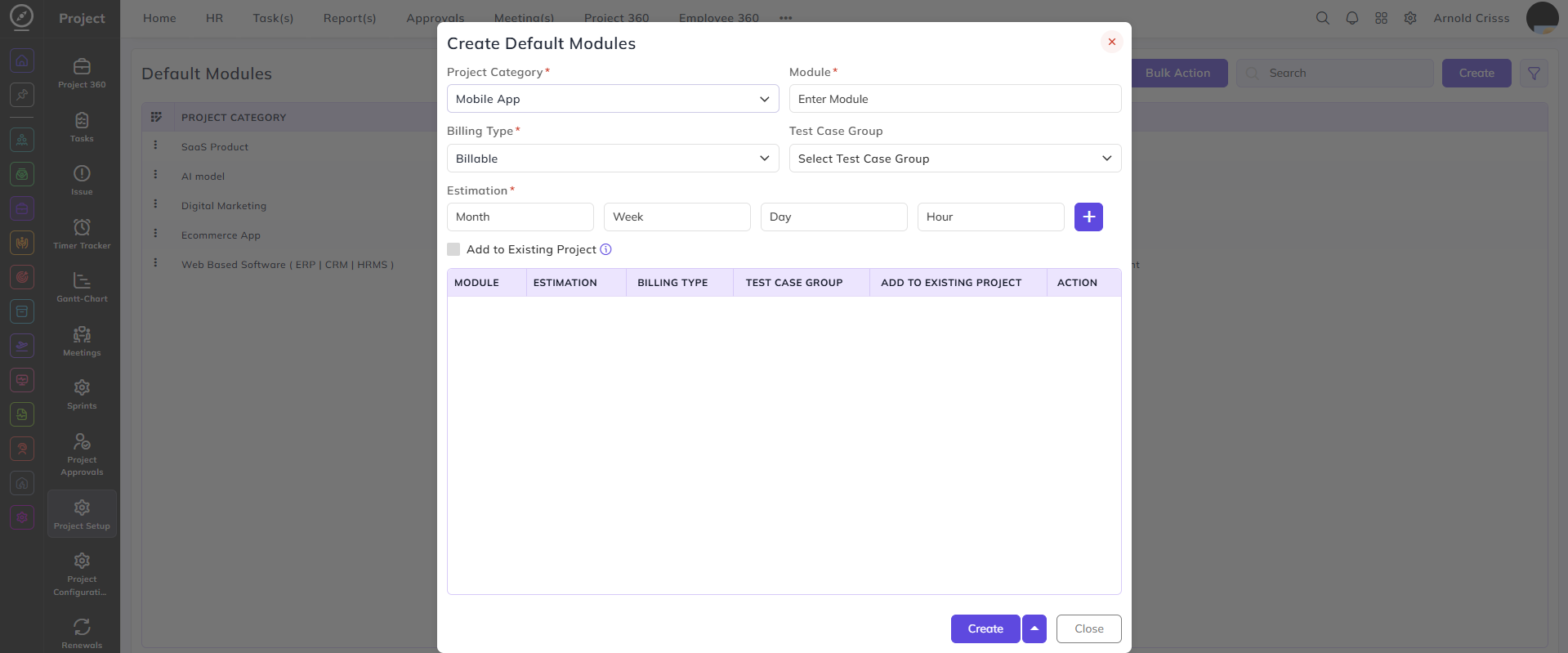
Default Modules:
From this page, you can configure default modules that are automatically added to every new project created under a specific project category. This saves time by pre-populating standard modules whenever a new project is set up.
Project Category:
Select the project category for which the default module is being configured — for example, Mobile App.
Module:
Enter the name of the default module.
Billing Type:
Select whether this module is Billable or Non-Billable.
Test Case Group:
Select the test case group to be associated with this module.
Estimation:
Enter the estimated time broken down into Month, Week, Day, and Hour. Click the + button to add multiple estimation entries if needed.
Add to Existing Project:
Enable this checkbox to automatically add this default module to all existing projects under the selected category, in addition to future ones.
Note: For new modules, enabling this option adds the module to every existing project in the selected category.