Sprints
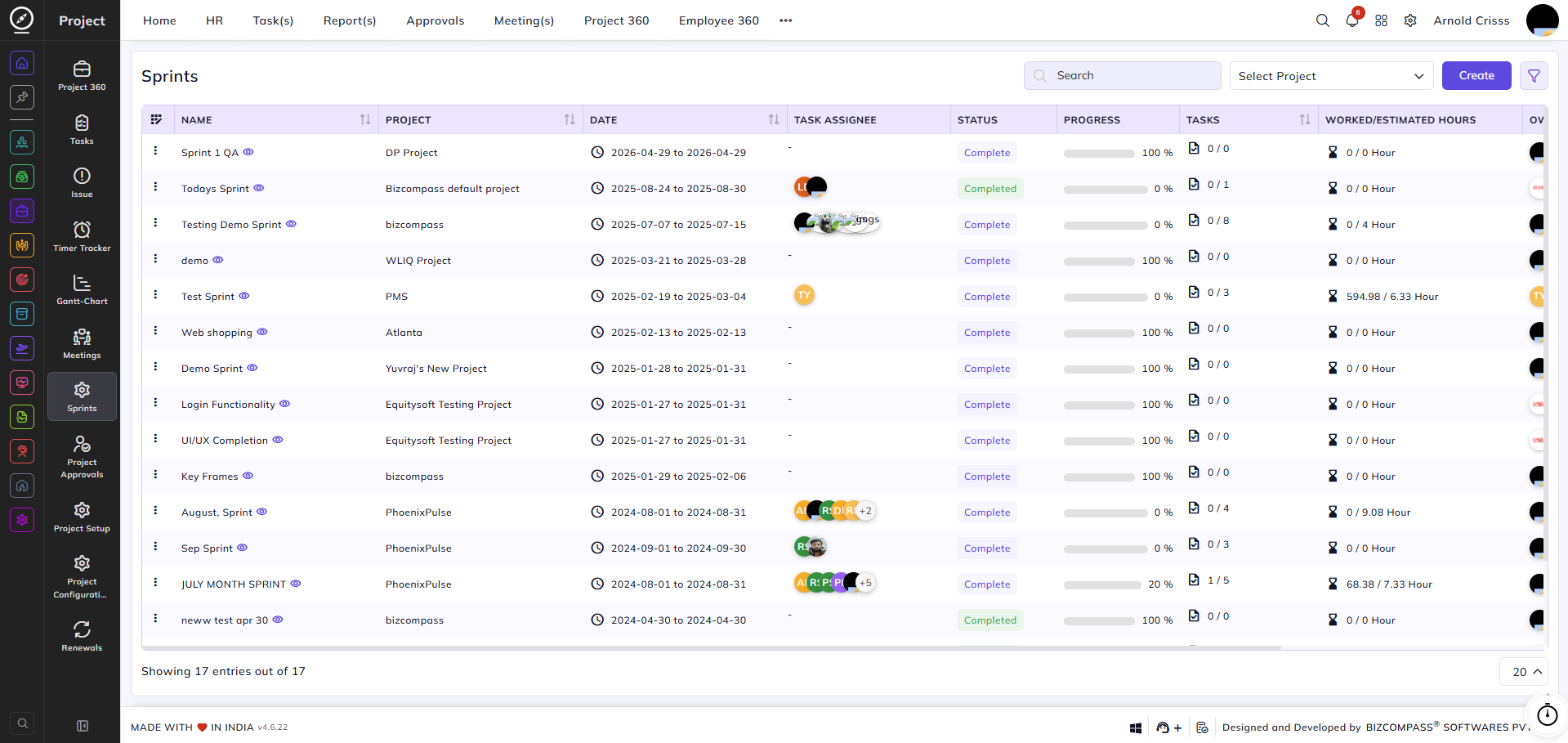
From this page, you can create and manage sprints for your projects. Sprints are used to plan and track a defined set of tasks within a specific time period, helping teams organize work in structured cycles.
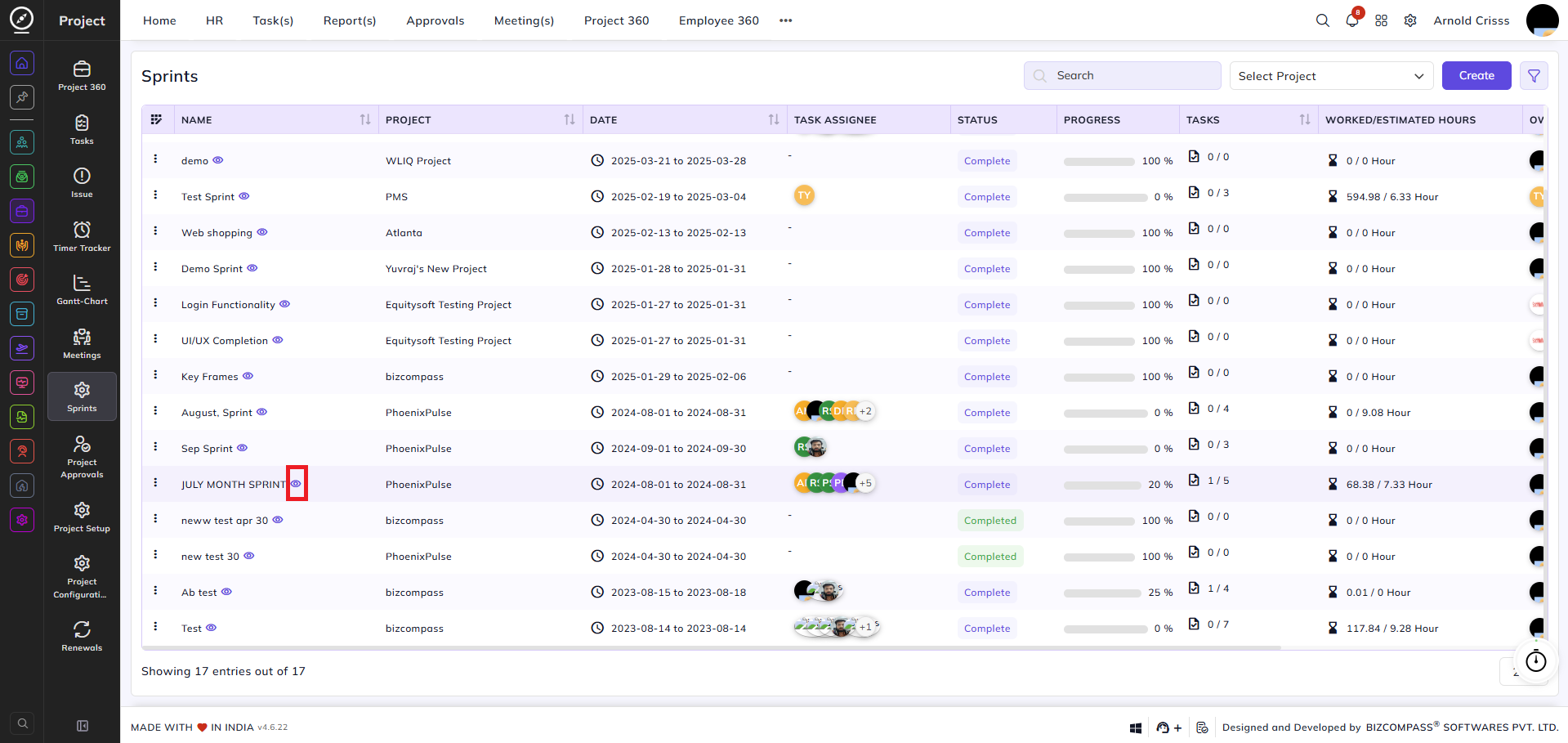
The sprint list displays all sprints across projects, showing each sprint's name, associated project, date range, assigned team member avatars, current status (Complete / Completed), completion progress, task count, and worked versus estimated hours.
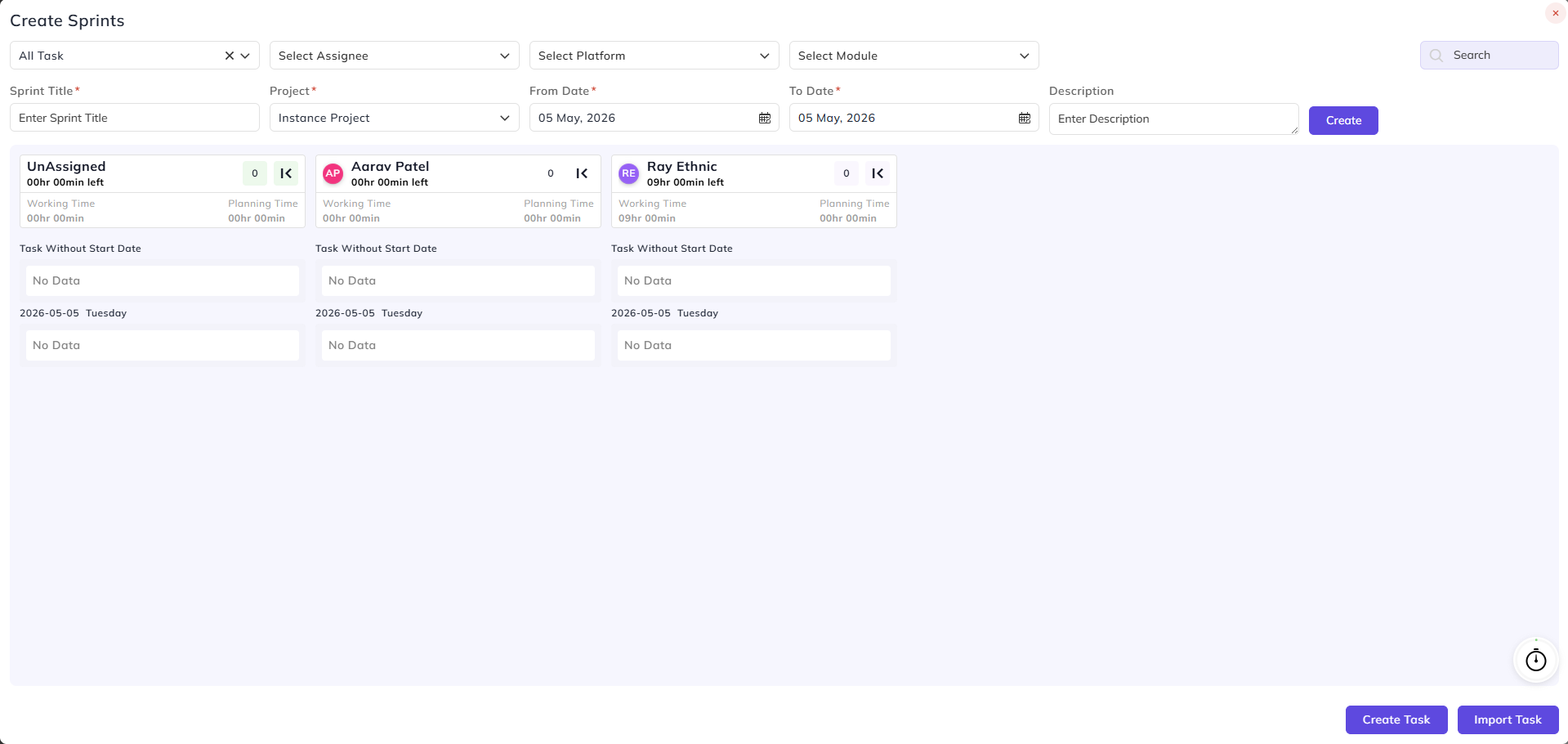
Creating a Sprint:
Sprint Title:
Enter a title for the sprint.
Project:
Select the project this sprint belongs to.
From Date & To Date:
Set the start date and end date of the sprint.
Description:
Enter an optional description for the sprint.
Once the above fields are filled, the sprint board area below displays team members grouped by their assigned work for the selected date range. Each member card shows:
- Working Time: Total hours the member has worked during the sprint period.
- Planning Time: Total hours planned for the member during the sprint period.
- Task Without Start Date: Any tasks assigned to this member that do not yet have a start date.
- Date-wise task breakdown: Tasks assigned to each member are listed under their respective scheduled dates.
Import Task:
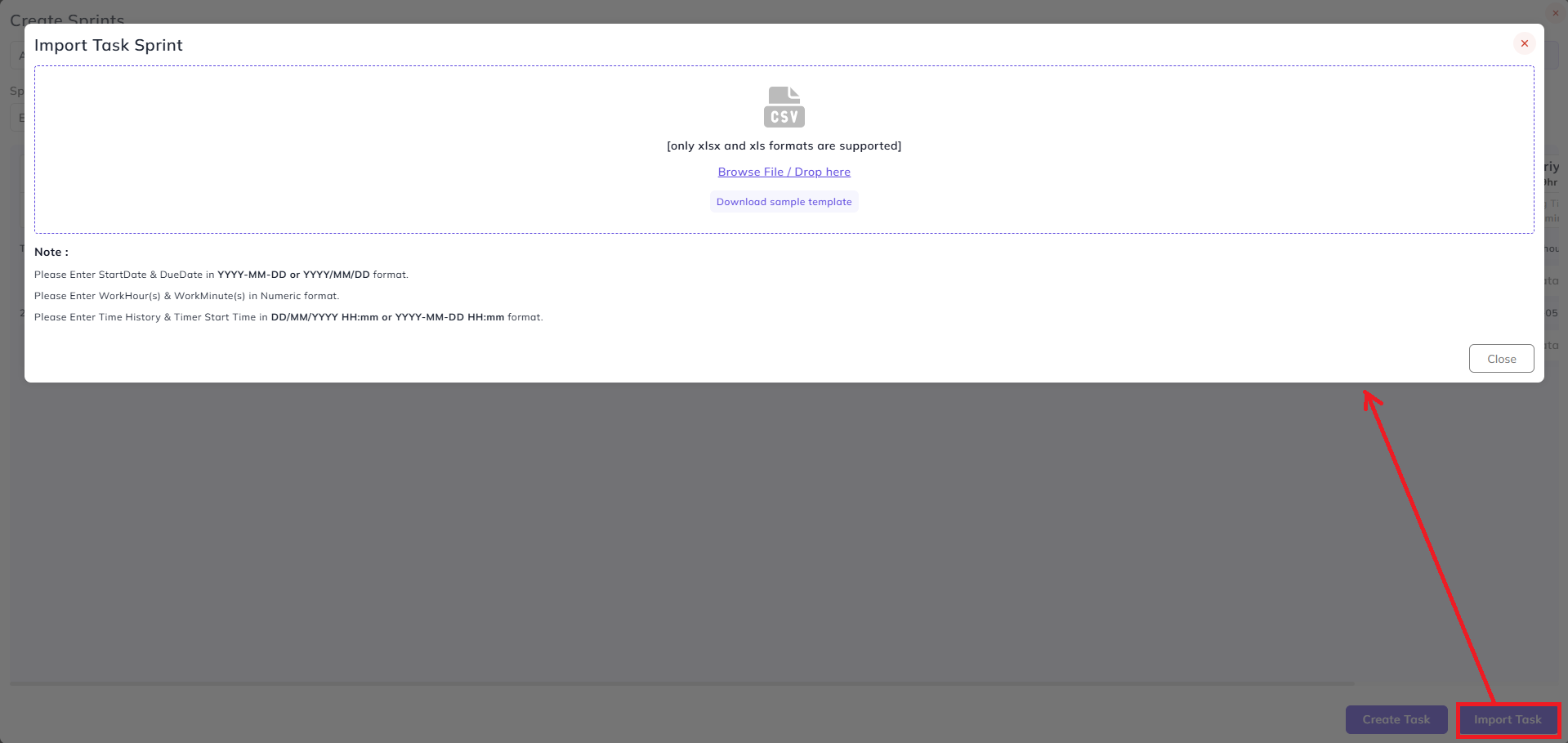
Clicking Import Task opens the Import Task Sprint dialog, which allows you to bulk-import tasks into the sprint using a spreadsheet file.
Only xlsx and xls formats are supported. You can drag and drop a file into the upload area or click Browse File / Drop here to select one from your system.
Click Download sample template to get a pre-formatted Excel file showing the required columns and data format.
Viewing a Sprint:
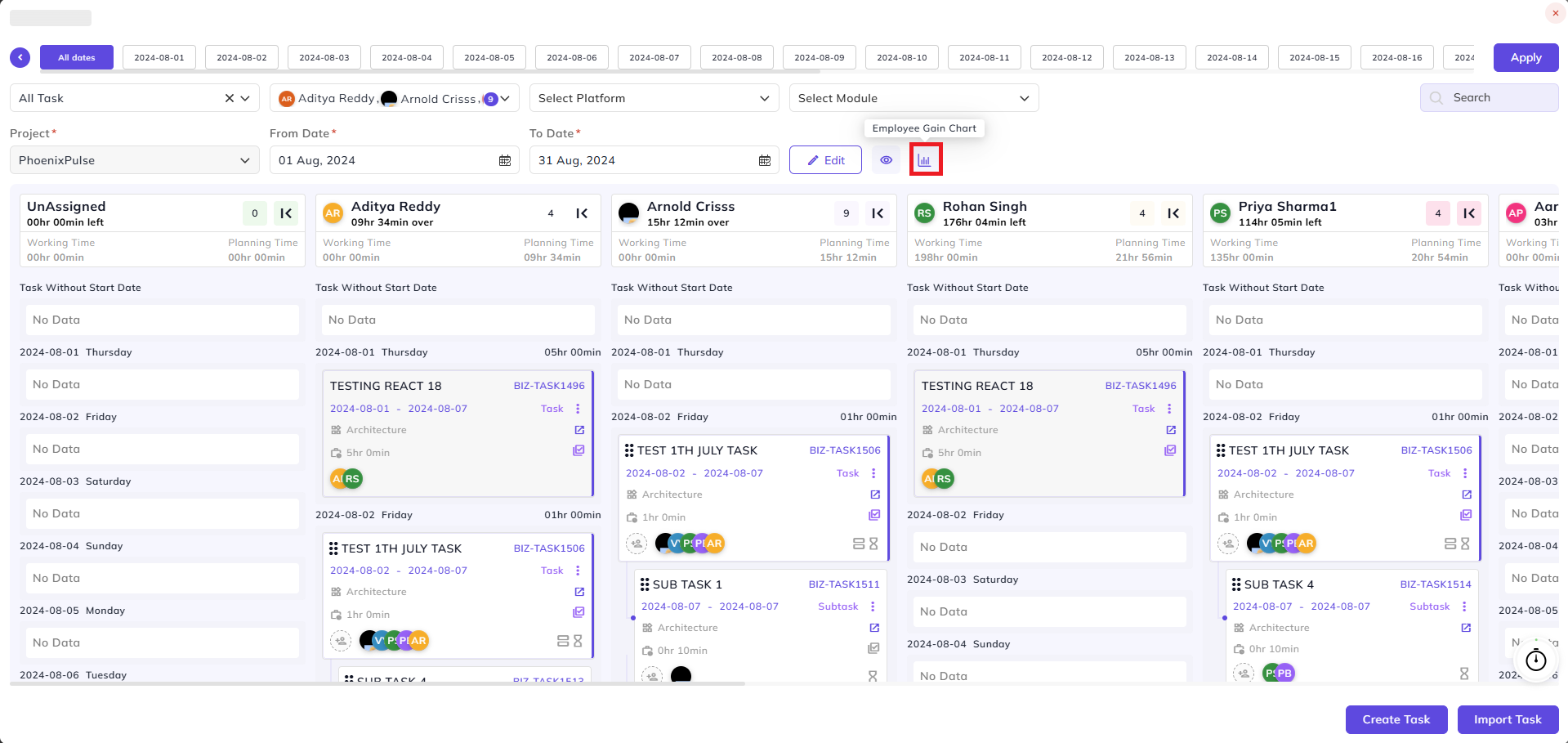
Clicking the eye icon next to a sprint name opens the full sprint board for that sprint. This view displays tasks distributed across team members in a day-by-day layout for the sprint's date range.
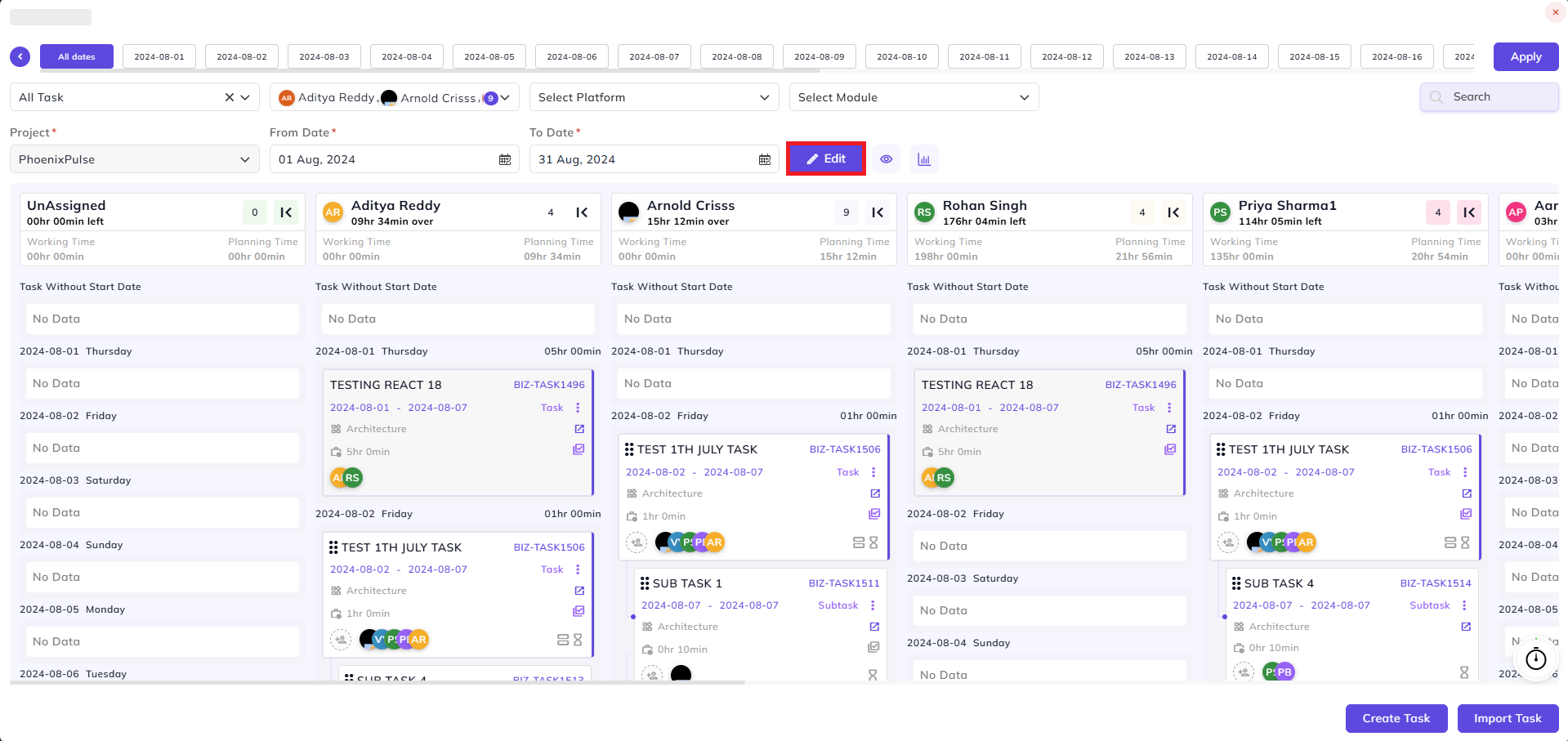
At the top, a date bar shows each individual date within the sprint range. You can click on a specific date to filter and view tasks only for that day, or click All Dates to return to the full sprint view. You can also filter the view by assignee, platform, and module. The Project, From Date, and To Date fields reflect the sprint's configured values. Click Apply to apply the selected date filter.
Each assignee column shows:
- Working Time: Total hours the member has logged during the sprint.
- Planning Time: Total hours planned for the member.
- An indicator showing whether the member is over or under their planned hours.
Tasks are listed under each assignee by date. Each task card displays the task name, task ID, date range, module, estimated hours, and type (Task or Subtask).
Click the Edit button to update the sprint's title and description.
Sprint Detail View:
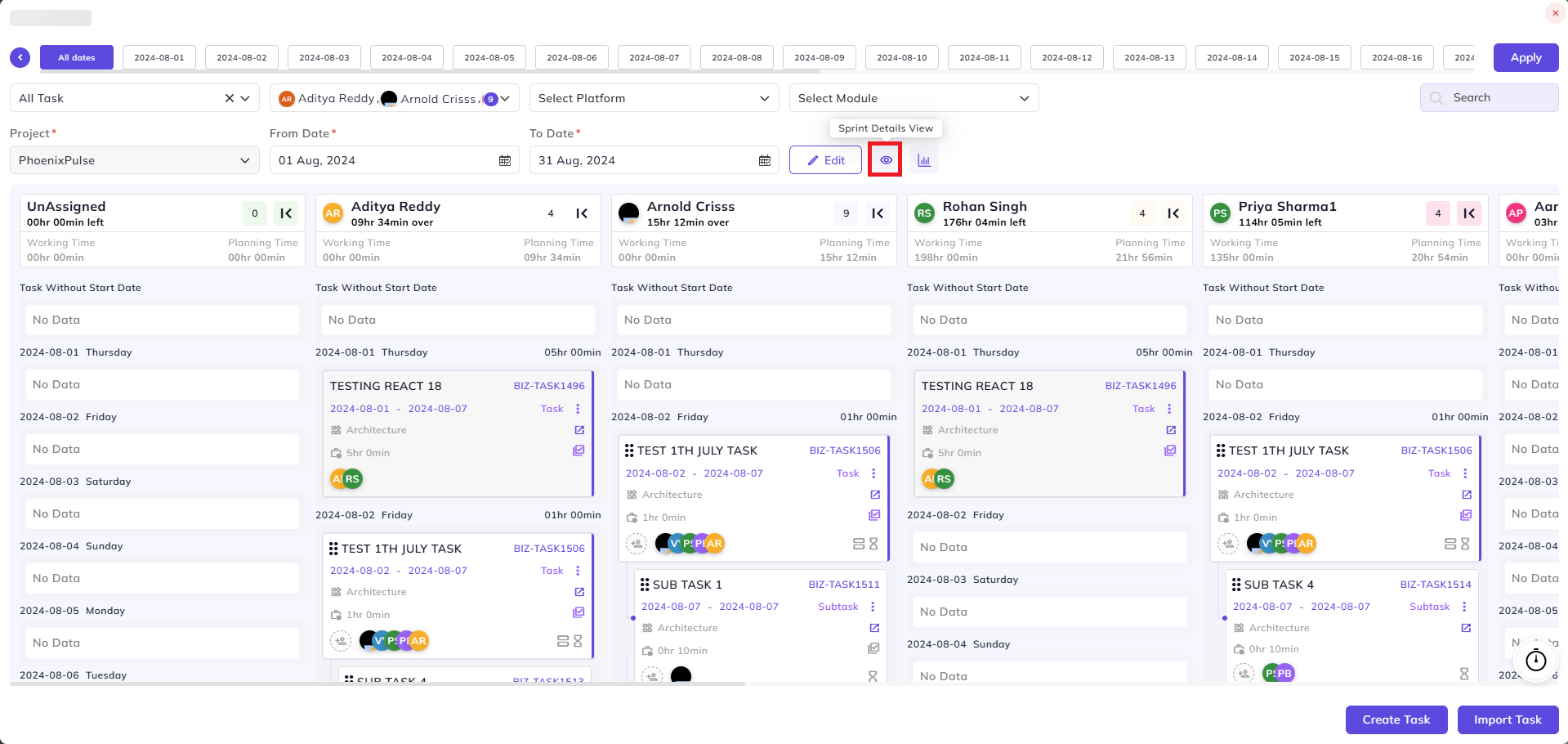
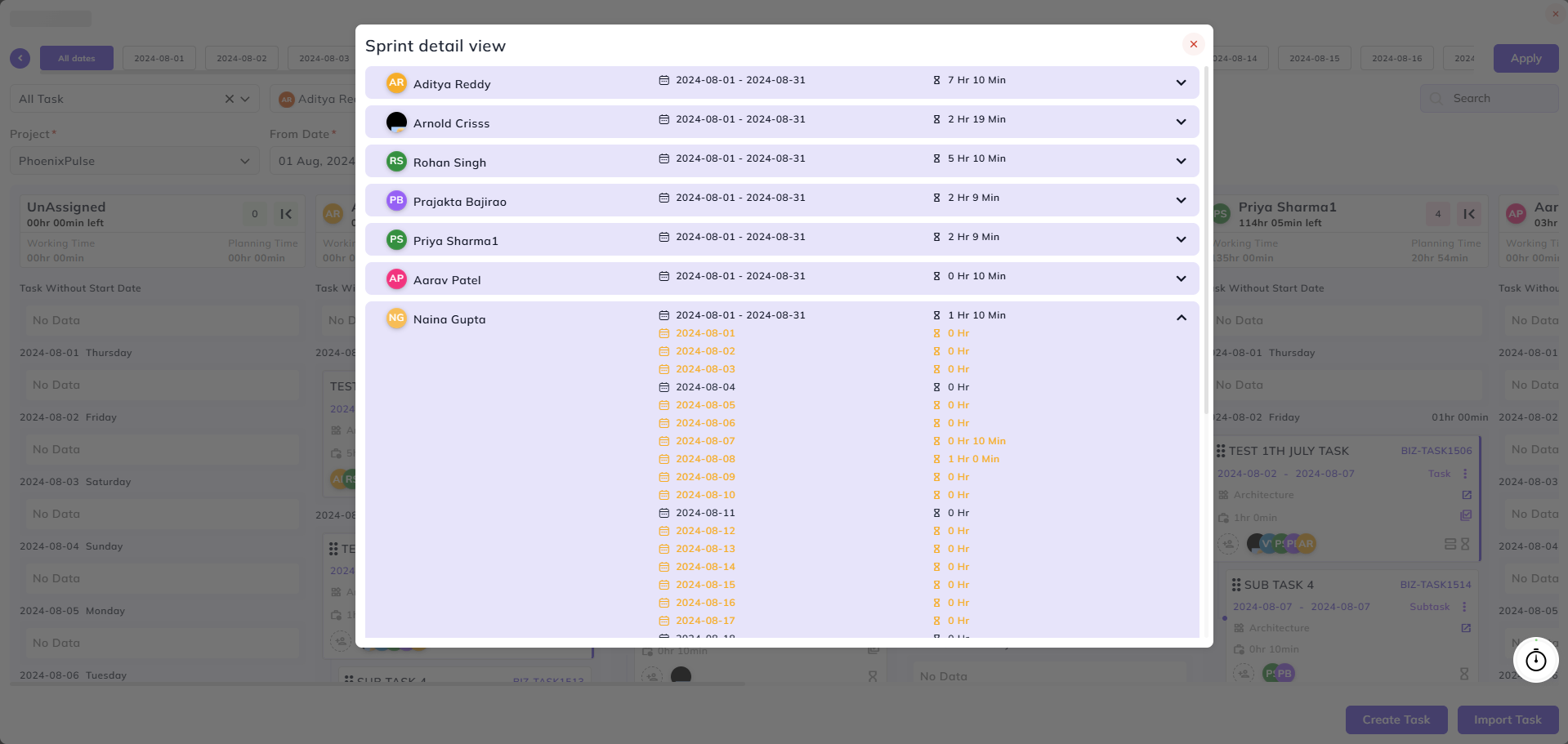
Click the chart/detail icon to open the Sprint Detail View, which shows a per-member summary of total hours logged across each day of the sprint. Each member's row can be expanded to view a day-by-day breakdown of hours worked.
Employee Gain Chart:
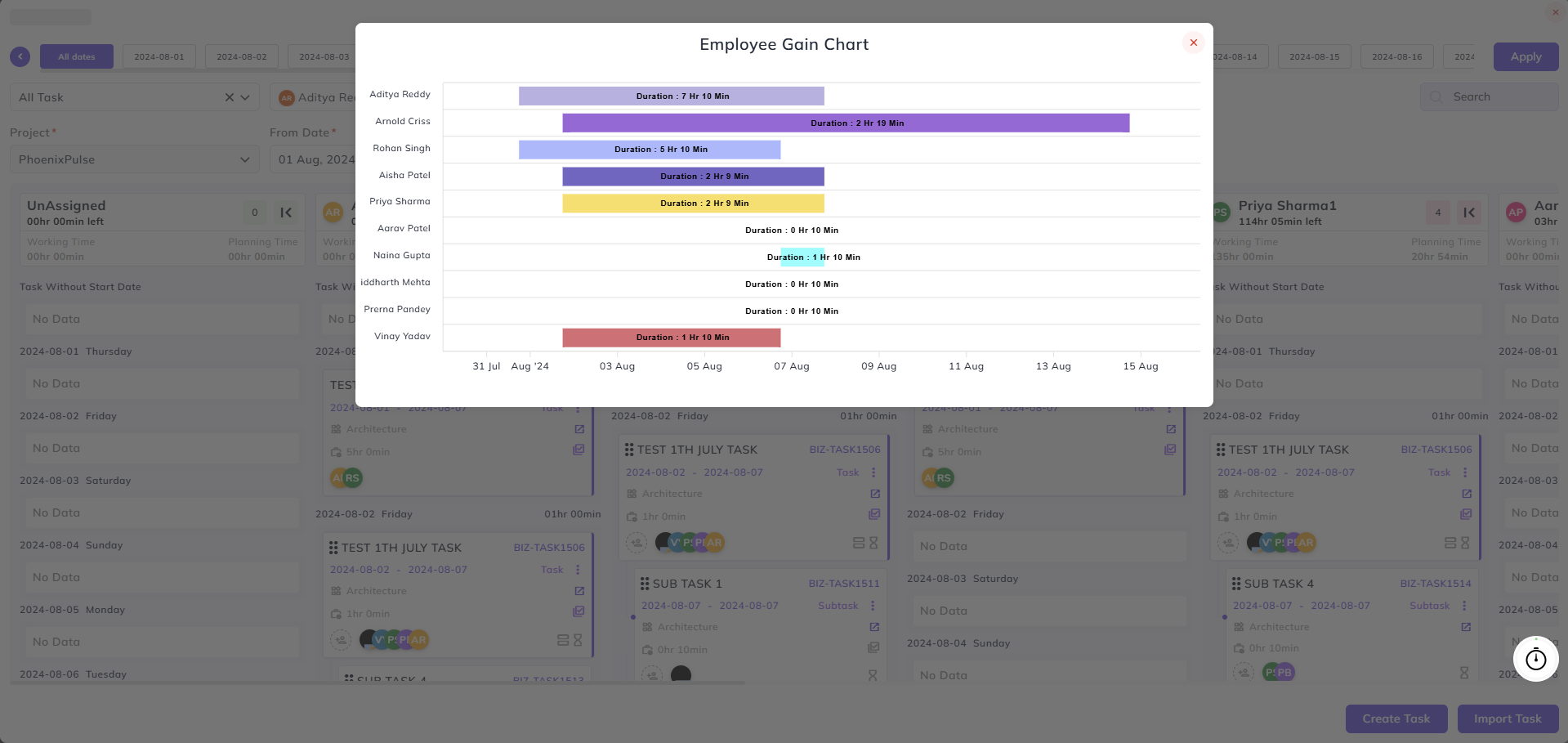
Click the bar chart icon to open the Employee Gain Chart, which displays a horizontal bar chart showing the total duration logged by each team member for the sprint period. This provides a quick visual comparison of individual contributions across the team.