
Task Flow
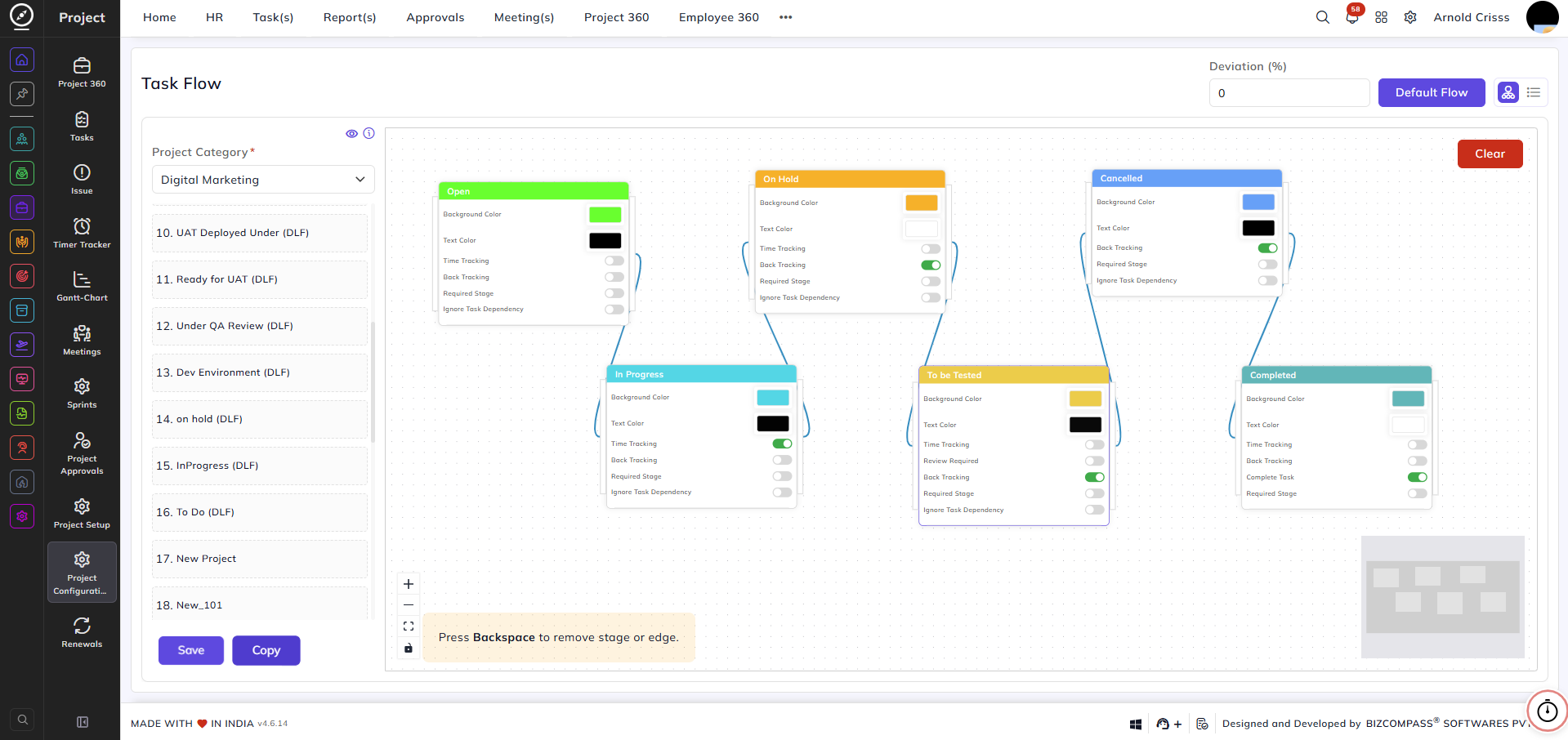
From this page, you can configure and visualize the workflow of task statuses for each project category. The task flow defines how tasks move from one stage to another throughout the project lifecycle, and allows you to customize the behavior of each stage.
Project Category:
Select the project category for which you want to configure the task flow — for example, Digital Marketing. The statuses listed on the left panel correspond to the task statuses available under the selected category.
Designing the Flow:
Drag the desired stages from the left panel onto the canvas. Once the stages are placed, connect them by drawing edges between them to define the allowed transitions. The direction of the edges determines how tasks can progress from one stage to the next.
You can press Backspace to remove a selected stage or edge from the canvas.
Unassigned Stage:
The Unassigned stage is created automatically by the system and does not need to be added manually. When a task is created with only a title and no additional details — such as Module, Platform, Priority or not assigned to employee — it will be placed in the Unassigned stage by default. The task will only move to the Open stage once the required details like Module, Platform , Estimation Assignee , etc have been filled in.
Flow Canvas — Stage Properties:
Each stage card on the canvas contains the following configurable properties:
Background Color:
The color used to represent this stage visually across the system.
Text Color:
The color of the text displayed on the stage label.
Time Tracking:
When enabled, user can start timer for this task.
Back Tracking:
When enabled, tasks can be moved back to a previous stage from this stage.
Review Required:
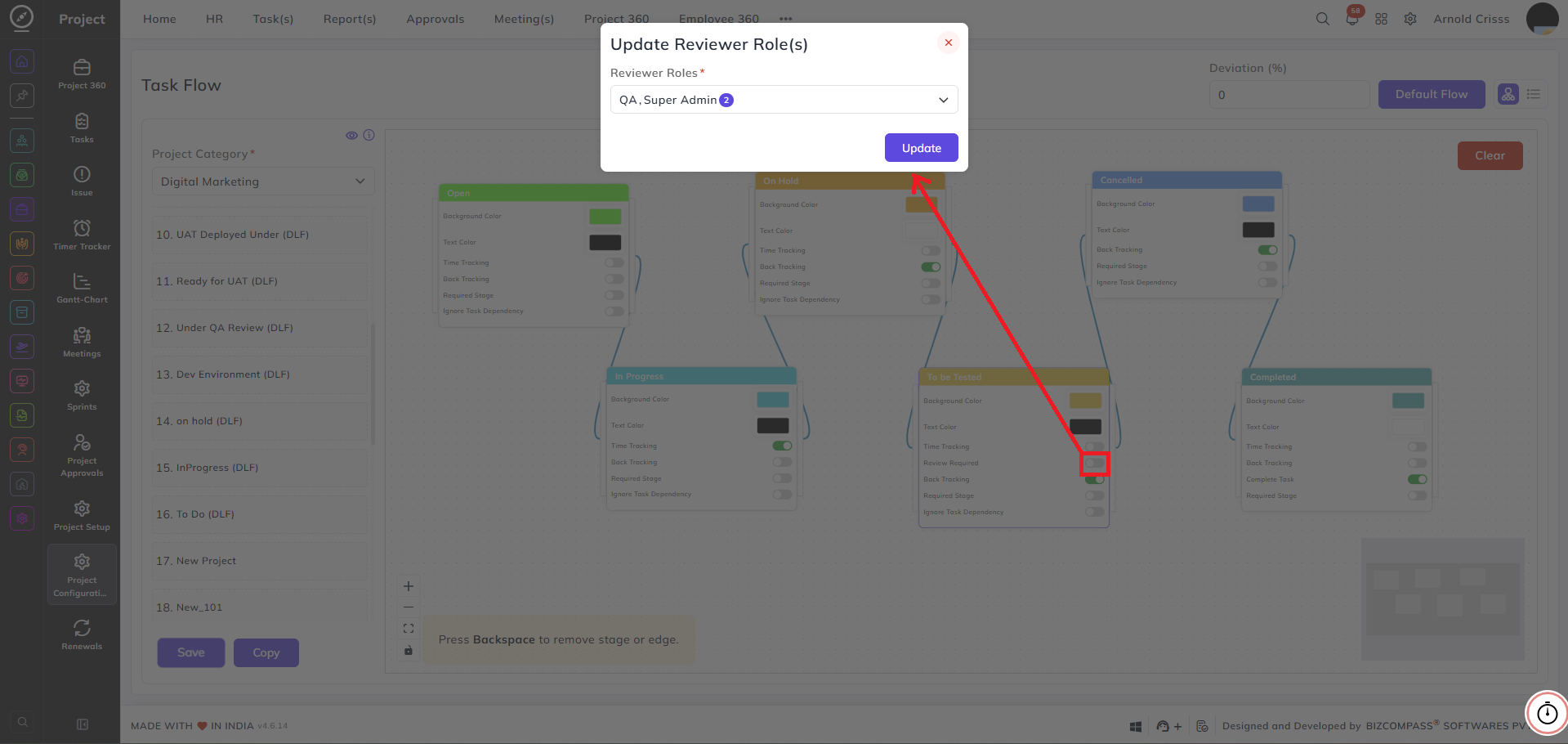
When enabled, tasks in this stage must be reviewed before they can progress. If this flag was enabled for a stage during Task Status creation, a reviewer role indicator will appear on that stage card in the flow canvas. Clicking it opens the Update Reviewer Role(s) dialog, where you can assign the roles responsible for reviewing tasks at this stage — for example, QA. Click Update to save the reviewer role assignment.
Required Stage:
When enabled, tasks must pass through this stage at least once before they can move forward. A task cannot skip a required stage — it must be set to that stage before progressing further in the flow.
Ignore Task Dependency:
When enabled, task dependencies will be ignored for tasks in this stage, allowing them to move forward even if dependent tasks are not yet completed.
Complete Task:
Available on the final stage (e.g., Completed), this toggle marks tasks as fully completed when they reach this stage.
Deviation (%):
Enter a deviation percentage value if applicable, to allow a tolerance threshold in the task flow. If the user completes the task before or after this deviation time, he/ she will get a pop up asking why they're completing the task before or after the estimation time.
Copy Flow:
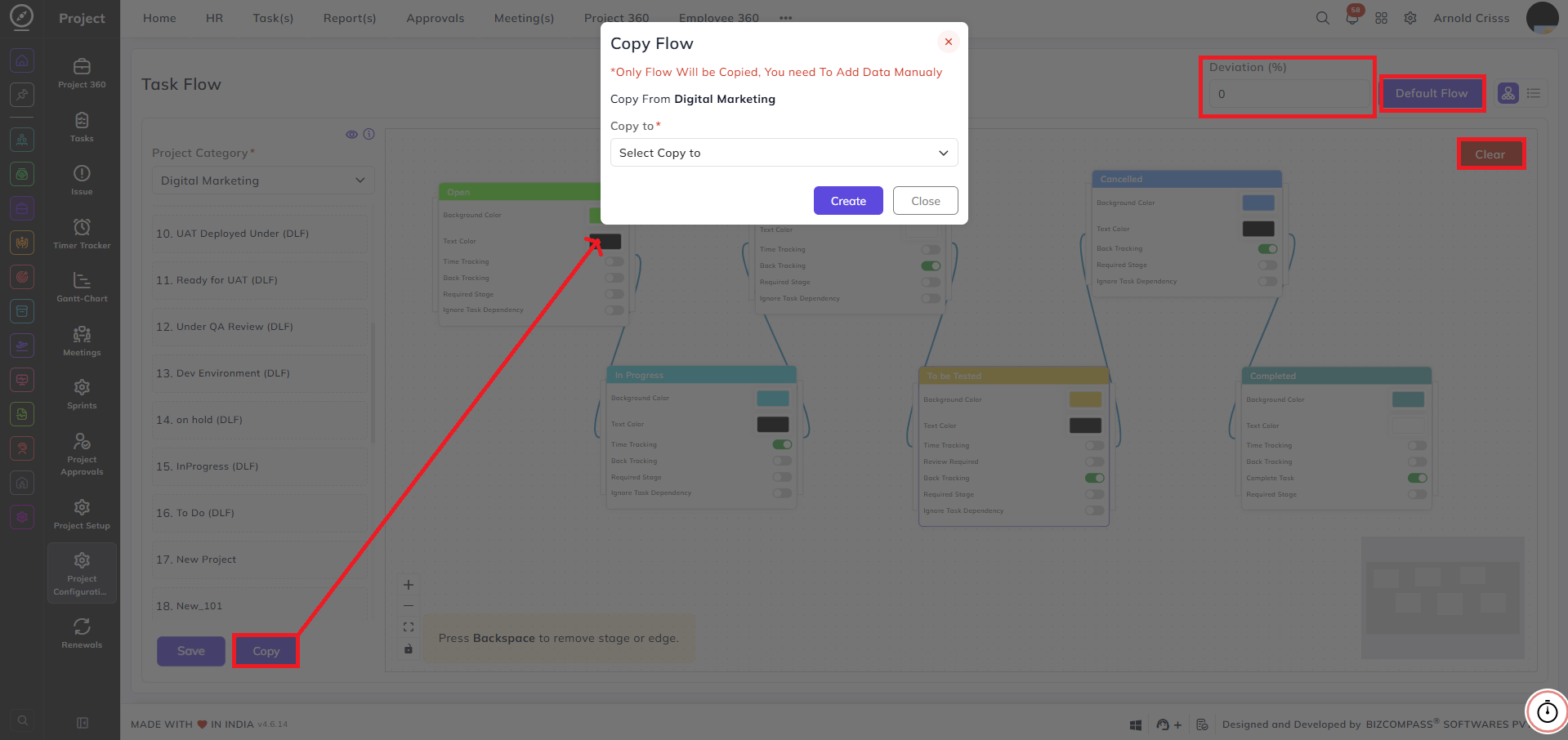
Clicking the Copy button opens the Copy Flow dialog, which allows you to duplicate the current category's flow configuration to another project category. This is useful when multiple categories share a similar task progression structure.
Copy From: Displays the source category whose flow is being copied — for example, Digital Marketing.
Copy To: Select the target project category to which the flow should be copied.
Note: Only the flow structure (stages and edges) will be copied. Stage data such as colors and toggle settings will need to be configured manually in the target category after copying.
Default Flow:
Clear:
Clears the current flow configuration from the canvas.
Note:
- The first node (stage) in the flow cannot have Review Required or Complete Task enabled.
- At least one node in the flow must have the Complete Task toggle switched on.
- Review Required and Complete Task cannot be enabled on the same node simultaneously.
- The flow cannot have a Circular Flow — stages must progress in a defined direction without looping back to a previous stage.
Once the flow is configured, click Save to apply the changes.