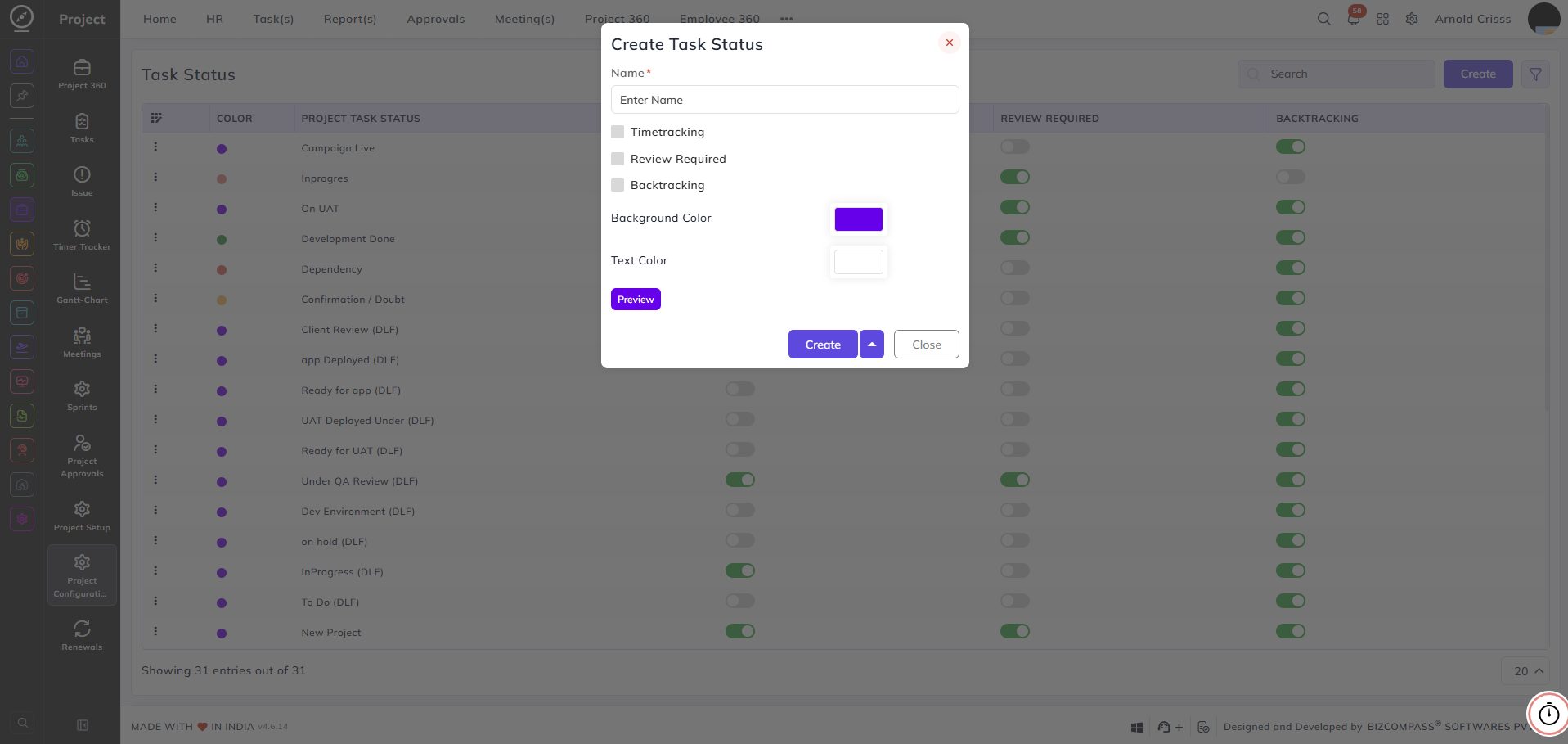
Task Status
From this page, you can create and manage the task statuses used across your projects. These statuses help teams track the progress of tasks through various stages of the workflow — for example, In progress, On UAT, Development Done, or Client Review.
The Status Can be of 3 Types:
- TIMETRACKING: if the stage or status created with this option and has enabled in flow ,then during the run time employee/user can run the timer and it can be tracked when tasks are with this status or in this stage.
- REVIEW REQUIRED: if the stage or status created with this option and has enabled in flow ,then during the run time employee/user/reviewer person can review the task which has done by the assignee.
Once assignee completes task from the stage it will go to the Review Required stage if there is no required stage given in between the timer tracking stage and Review Required stage.
- BACKTRACKING: if the stage or status created with this option and has enabled in flow ,then during the run time employee/user can backtrack or change the task status to this stage/status.
Name:
Enter a name to identify the task status — for example, Campaign Live or Ready for App.
Timetracking:
Enable this checkbox if time tracking should be active when a task is in this status.
Note: If the Timetracking flag is not enabled for any of the stages, it will show an error in the Task Flow. It should be enabled for at least one stage.
Review Required:
Enable this checkbox if tasks in this status require a Review before progressing further. The Reviewer Role can be configured while creating the Task Flow.
Backtracking:
When enabled, all stages that come after this stage in the todo flow can be moved back to this stage. This allows tasks at any later stage to be returned to this point in the flow if needed.
Background Color:
Select a background color to visually distinguish this status in the task board and lists.
Text Color:
Select a text color to ensure readability against the chosen background color.
Preview:
Click the Preview button to see how the status label will appear with the selected colors before saving.