Approval Hierarchy for Resource Request
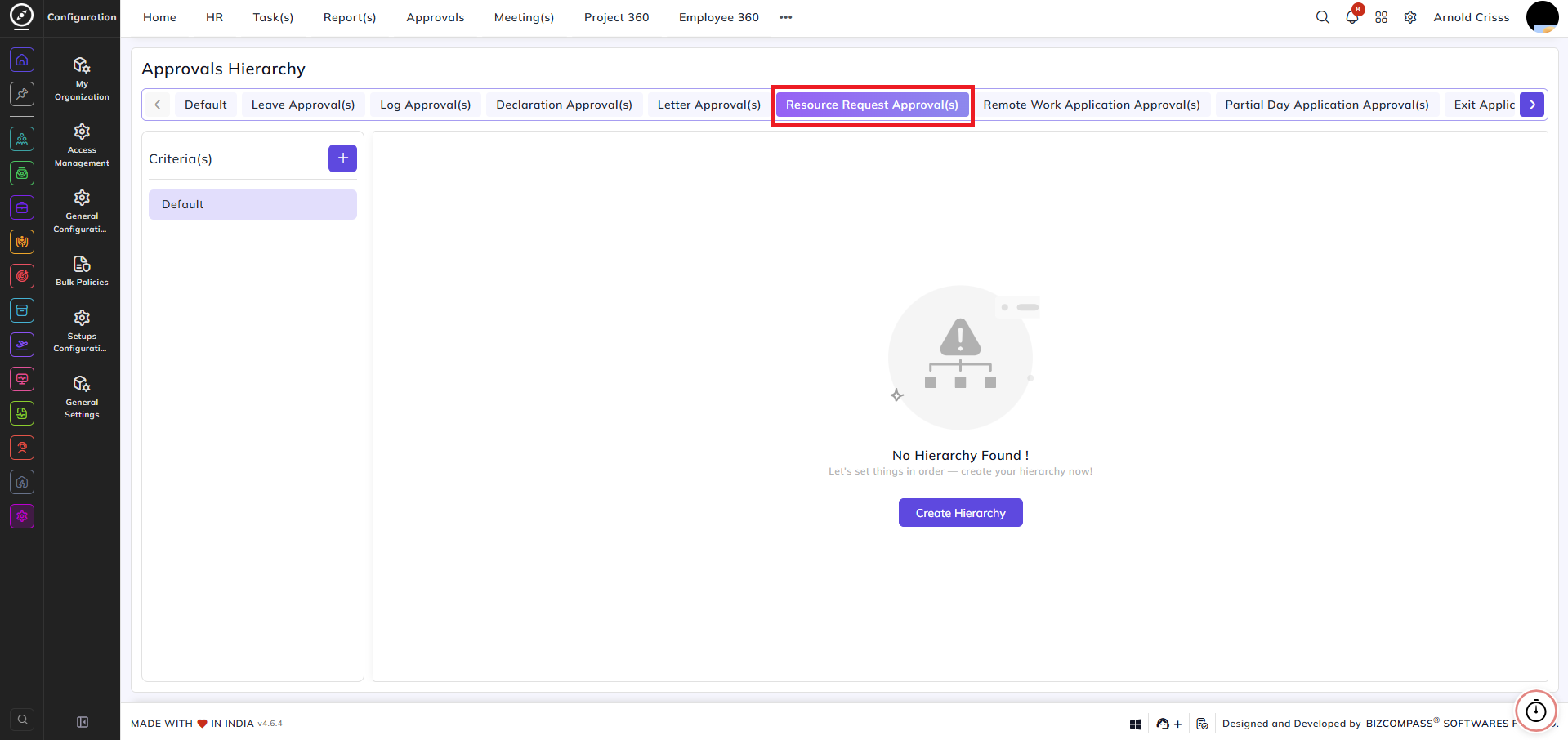
The Approvals Hierarchy page is used to manage and configure the approval processes for Resource Request Approval. This page allows you to define the hierarchical flow through which resource requests are approved, ensuring a structured and controlled approval process for different types of applications.
If you need to set a different approval hierarchy for a specific type of request, such as resource requests for your different company branches, you can do that too.
Create Resource Request Approval Hierarchy:
-
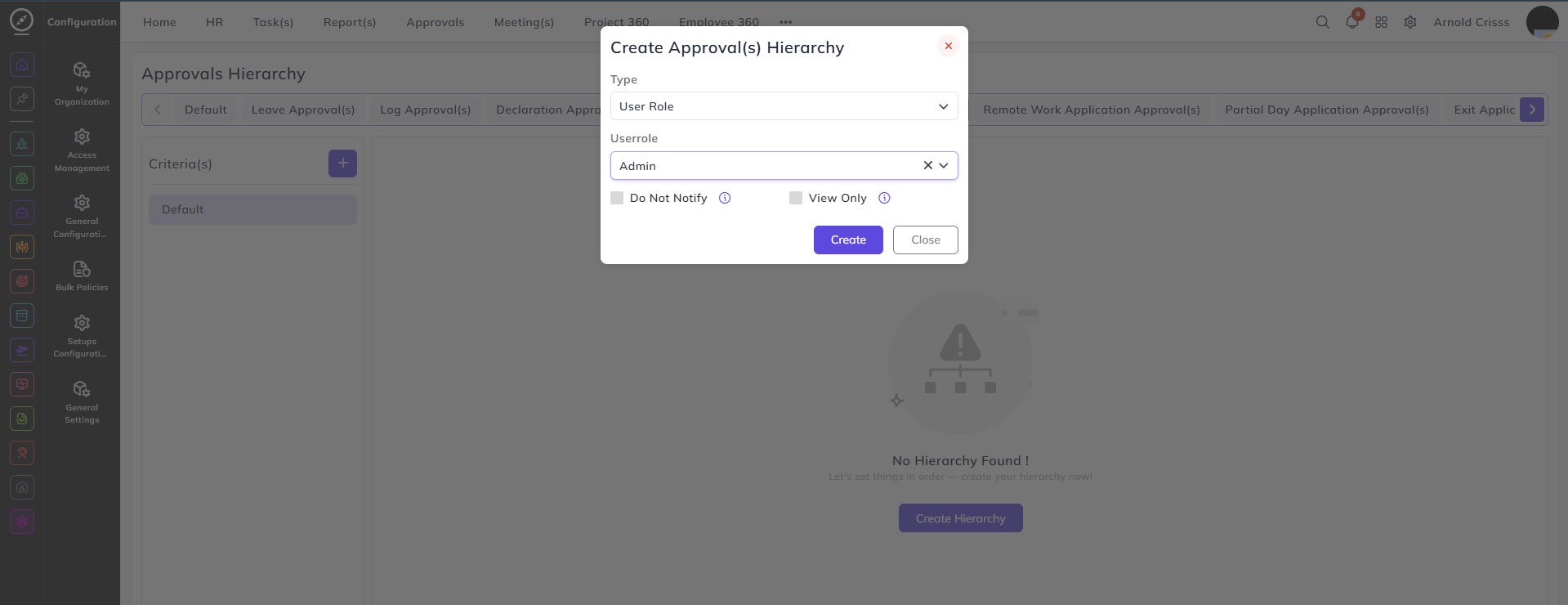
To set up a new approval hierarchy, click on Create Hierarchy. This opens the Create Approval Hierarchy window.
-
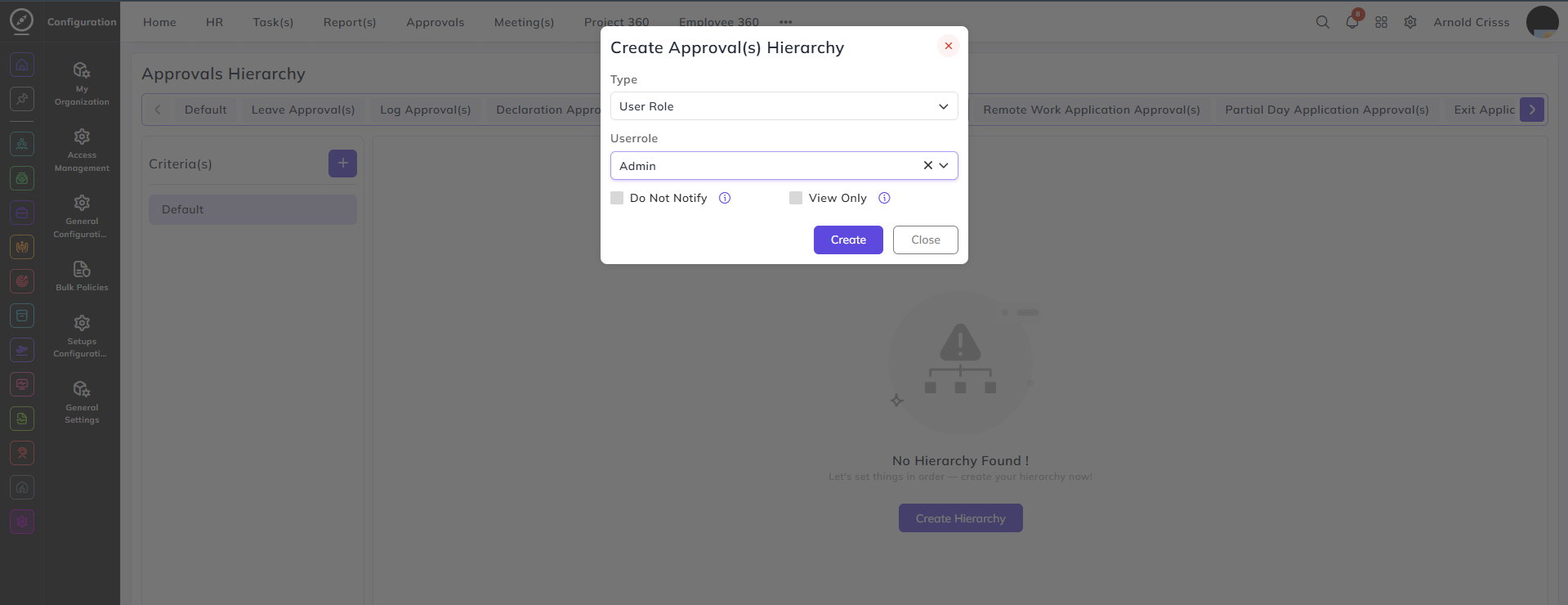
In the Create Approval Hierarchy window, choose the type of criteria for the approval. You can select from options such as:
-
Department
-
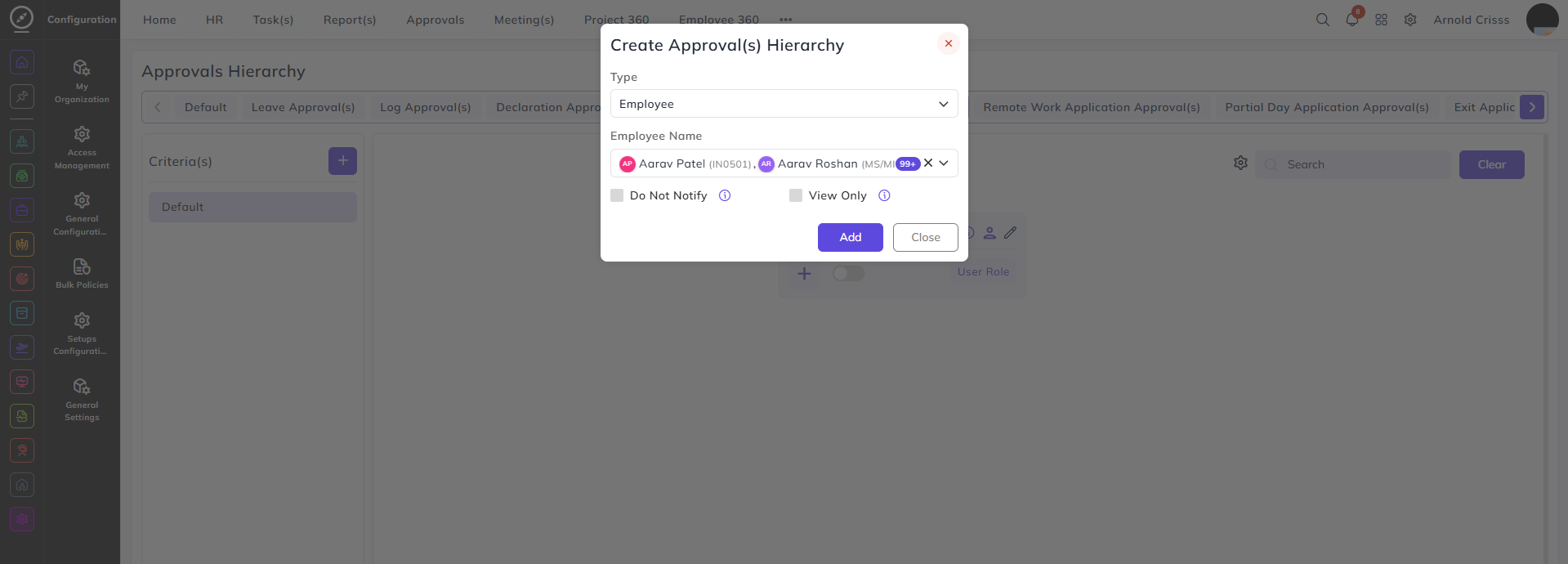
Employee
-
User Role
-
Sub Department
-
Reporting Person
-
Company Head
-
Branch Head
-
Department Head
Example: In the below above, the user selects User Role as the type for approval hierarchy. Then, for the specific User Role, you can choose a role like Admin.
-
-
Assign User(s): After selecting the role or employee, assign the relevant users to the approval hierarchy. You can also choose options like:
-
Do Not Notify: If enabled, this approver will not receive any approval emails or notifications regarding the request.
-
View Only: If enabled, this approver will only be able to view the requests, but can't approve, reject or take action.
-
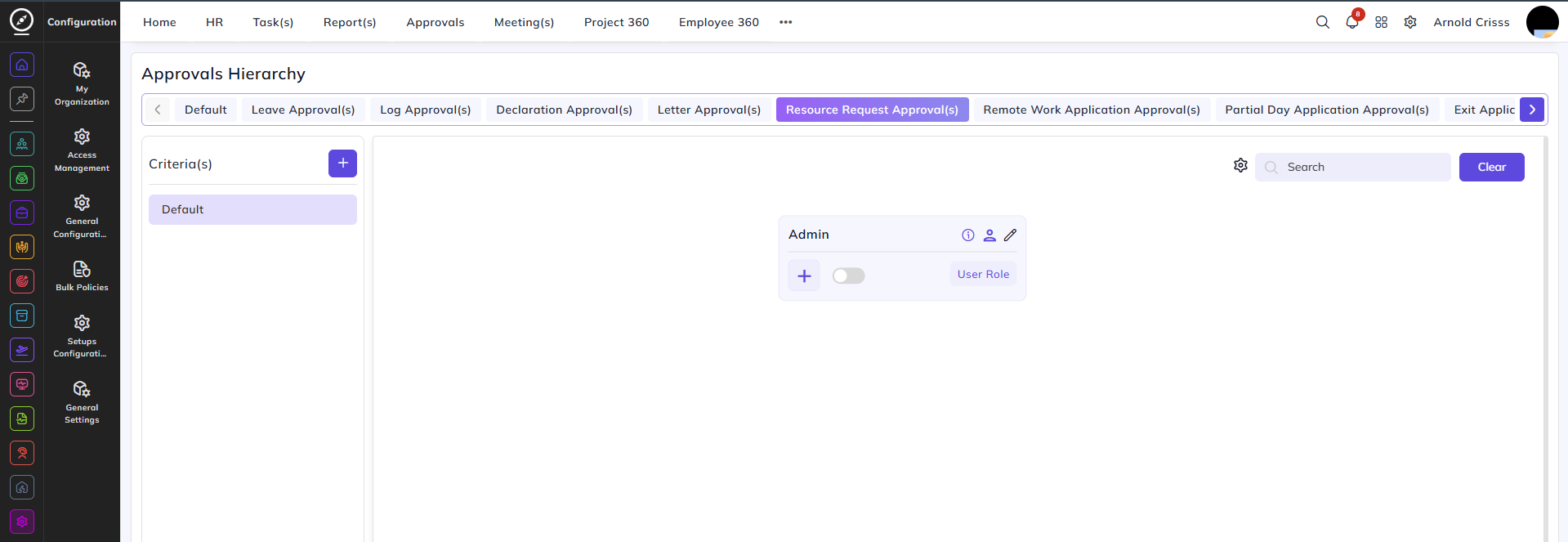
4. Now by clicking on the "+" symbol below Admin, you can add Nodes (people under that person).
5. Now you'll be able to see the approval hierarchy created.
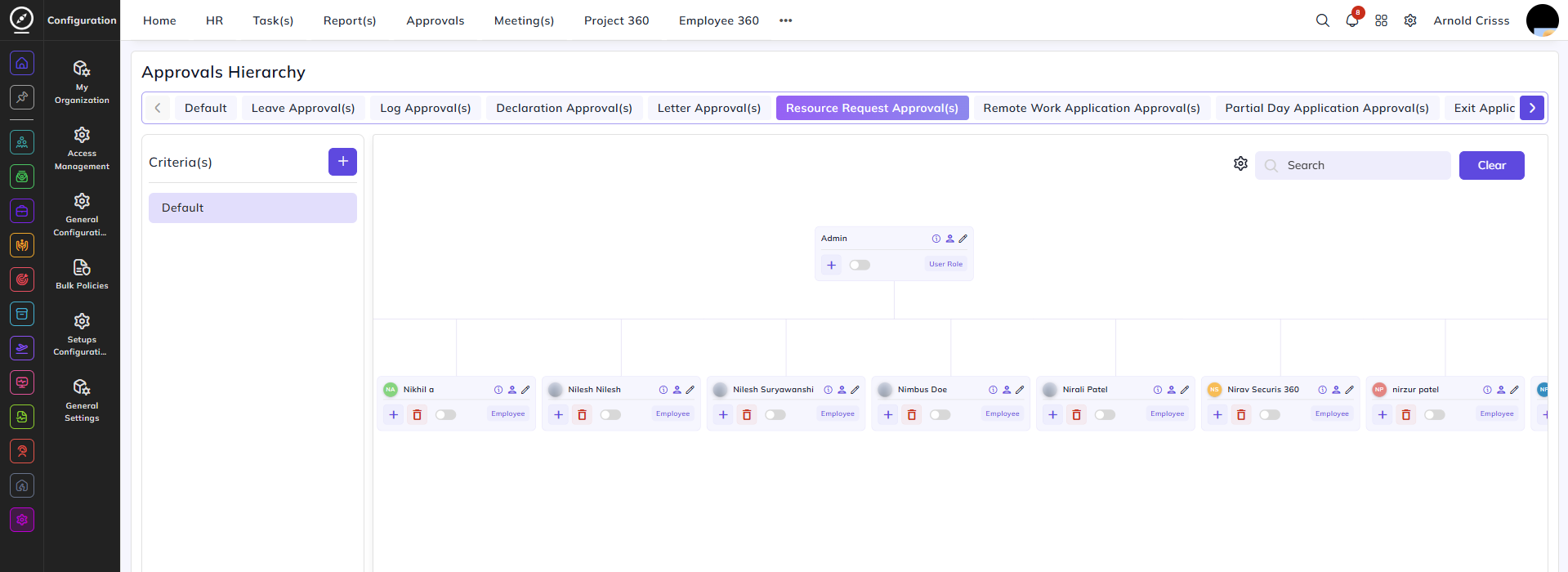
Adding Multiple Nodes: If needed, you can add multiple users or roles to the hierarchy. By clicking on Add Node ("+" symbol), you can create branches of approval for multiple levels.
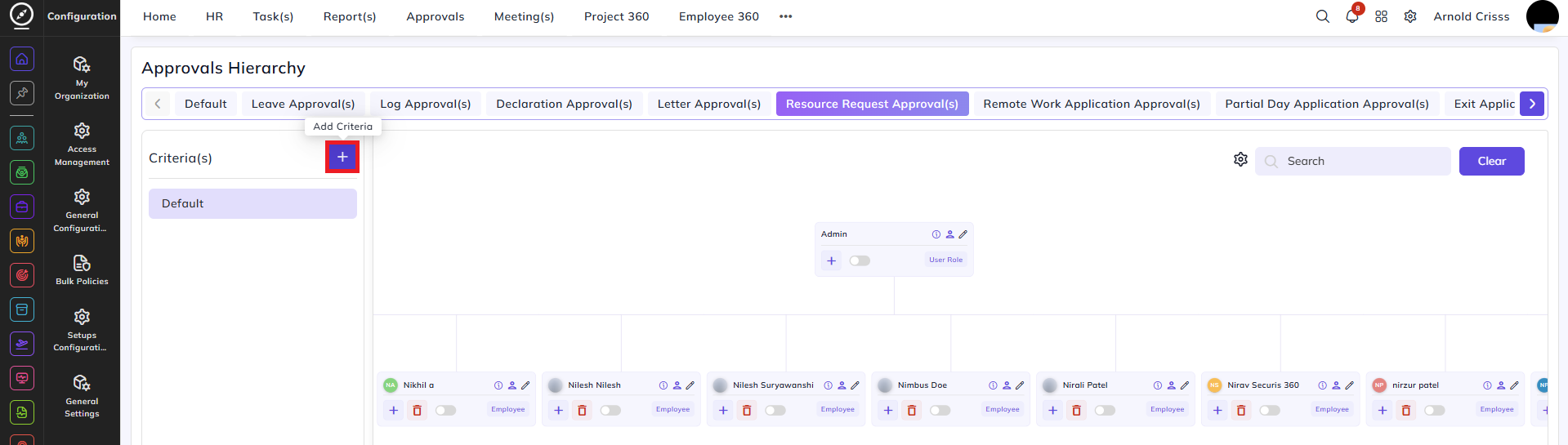
This hierarchy is created under Default which means that all resource requests for your different companies, branches, departments and designations will follow this hierarchy. If you want to create different approval hierarchy for different companies, branches, departments and designations, click on the "+" button to Add Criteria as shown below.
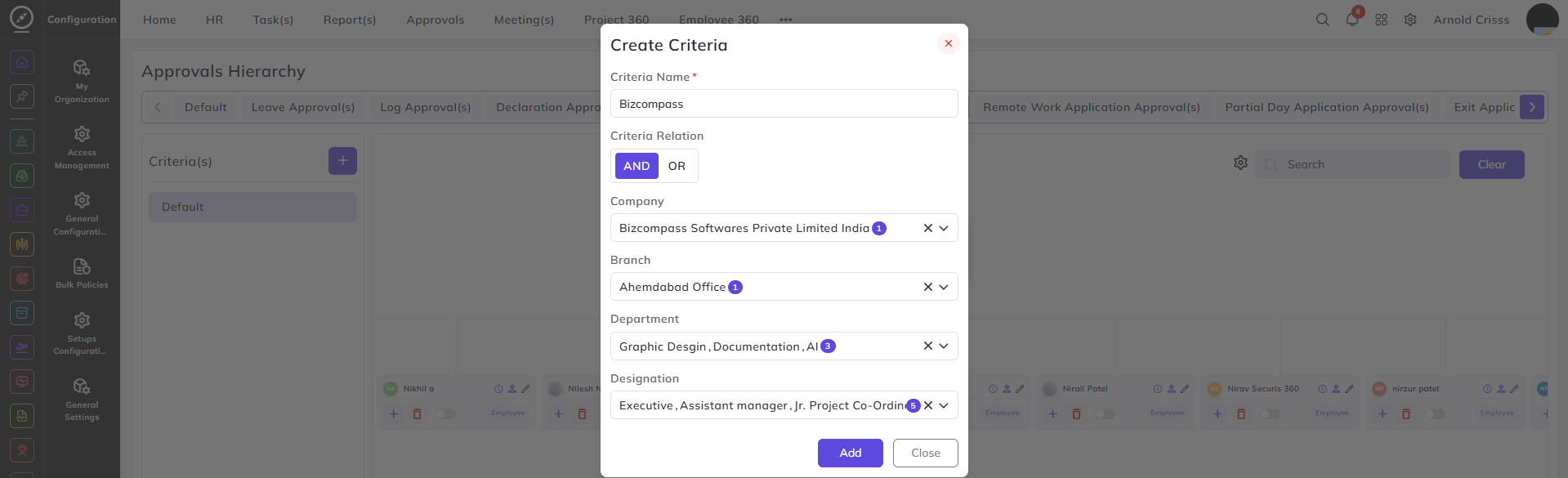
Then add the Criteria Name, fill all the details for which you want to create the hierarchy.
Once the criteria is created, you can set the hierarchy same way as we did above for the Default.
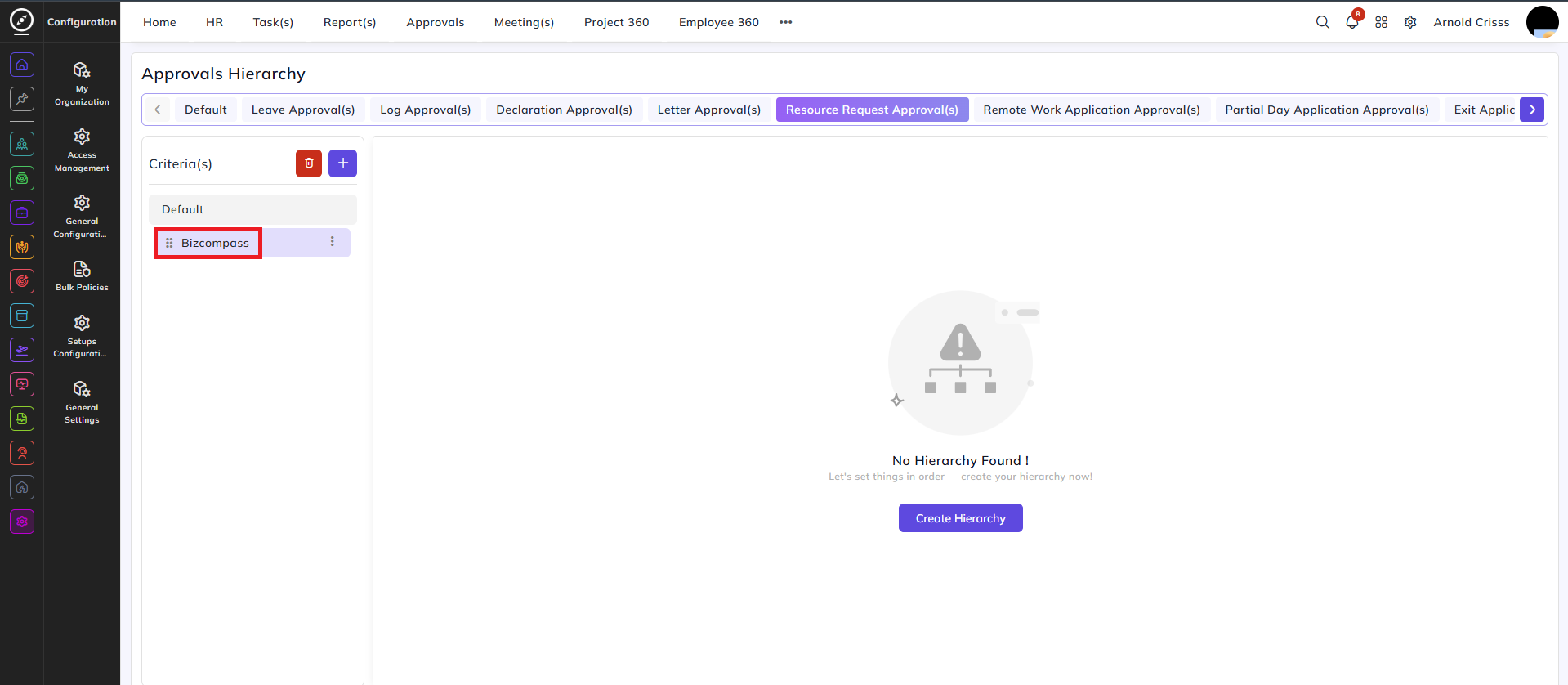
This way, you can create different criteria for your different types of requirements.
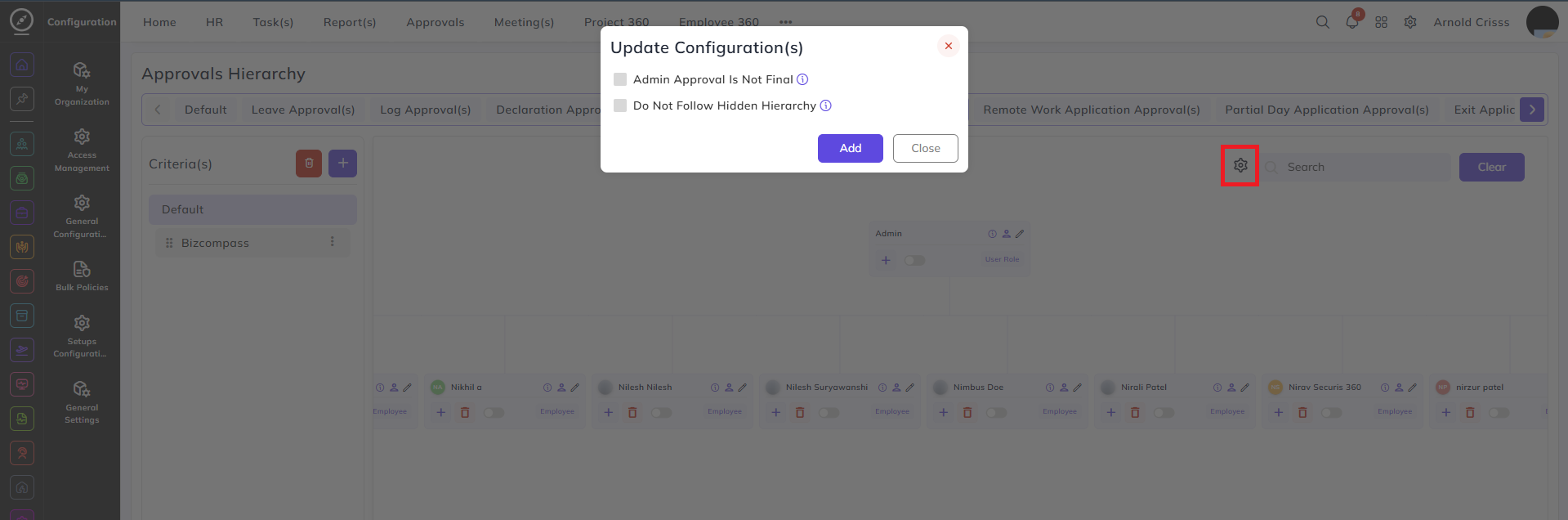
By clicking on the Settings button, a pop-up will appear through which you can update the specific approval configuration.
-
Admin Approval Is Not Final: When enabled, admin approval requires further verification and is not treated as the final step in the process.
-
Do Not Follow Hidden Hierarchy: Enabling this option excludes any hidden hierarchies from the standard approval flow.
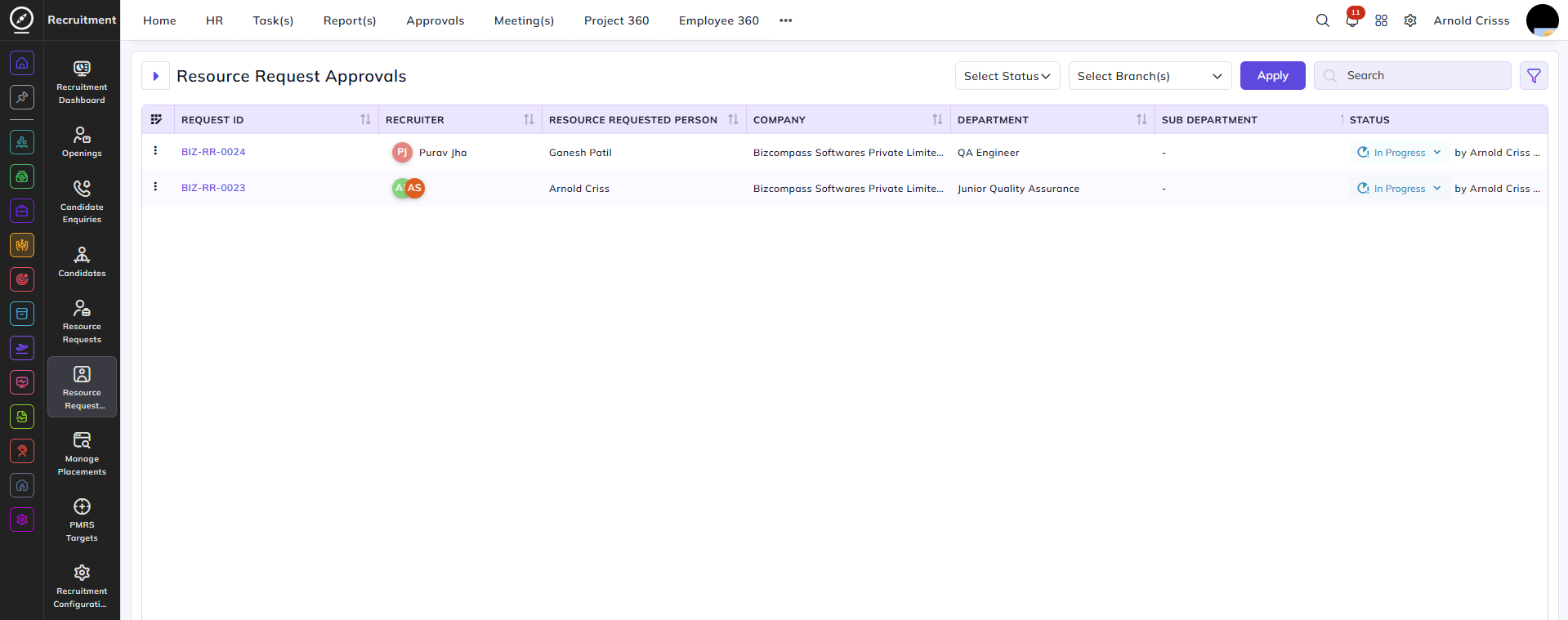
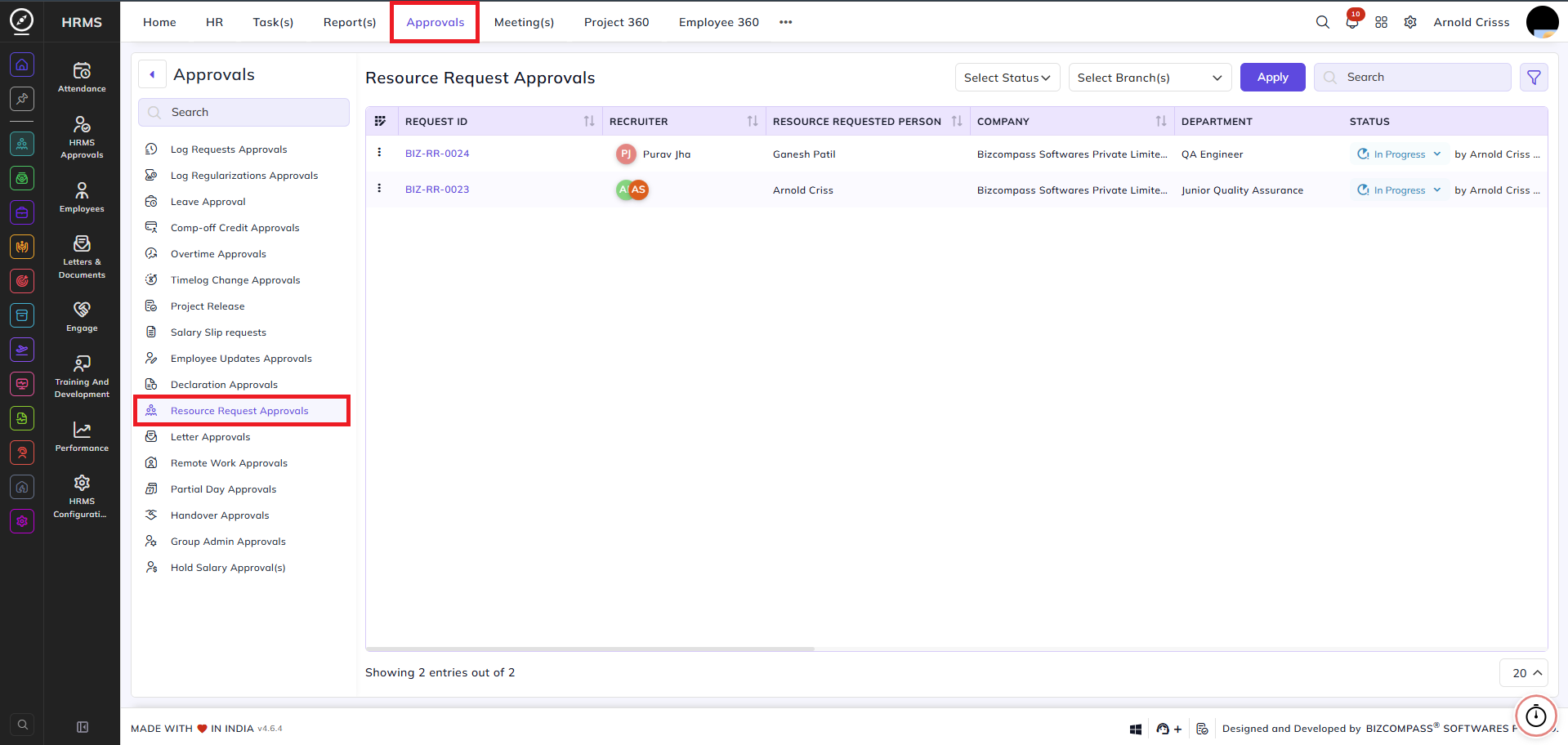
After the Resource Request hierarchy is created, the requests will be shown in the Recruitment->Resource Request Approvals page and the respective person can update its status.