
Approvals Hierarchy
The Approvals Hierarchy page is used to manage and configure the approval processes for various types of requests, such as Leave Approval and Resource Request Approval. This page allows you to define the hierarchical flow through which resource requests are approved, ensuring a structured and controlled approval process for different types of applications.
If you need to set a different approval hierarchy for a specific type of request, such as resource requests for your different company branches, you can do that too.
ExampleCreate -Resource DefaultRequest Hierarchy:
In the Default hierarchy, all requests that don't have a specific approval hierarchy configured will follow the set process. For example, a resource request could be reviewed by the immediate supervisor first, followed by a department head, and then finally by the HR department for final approval.
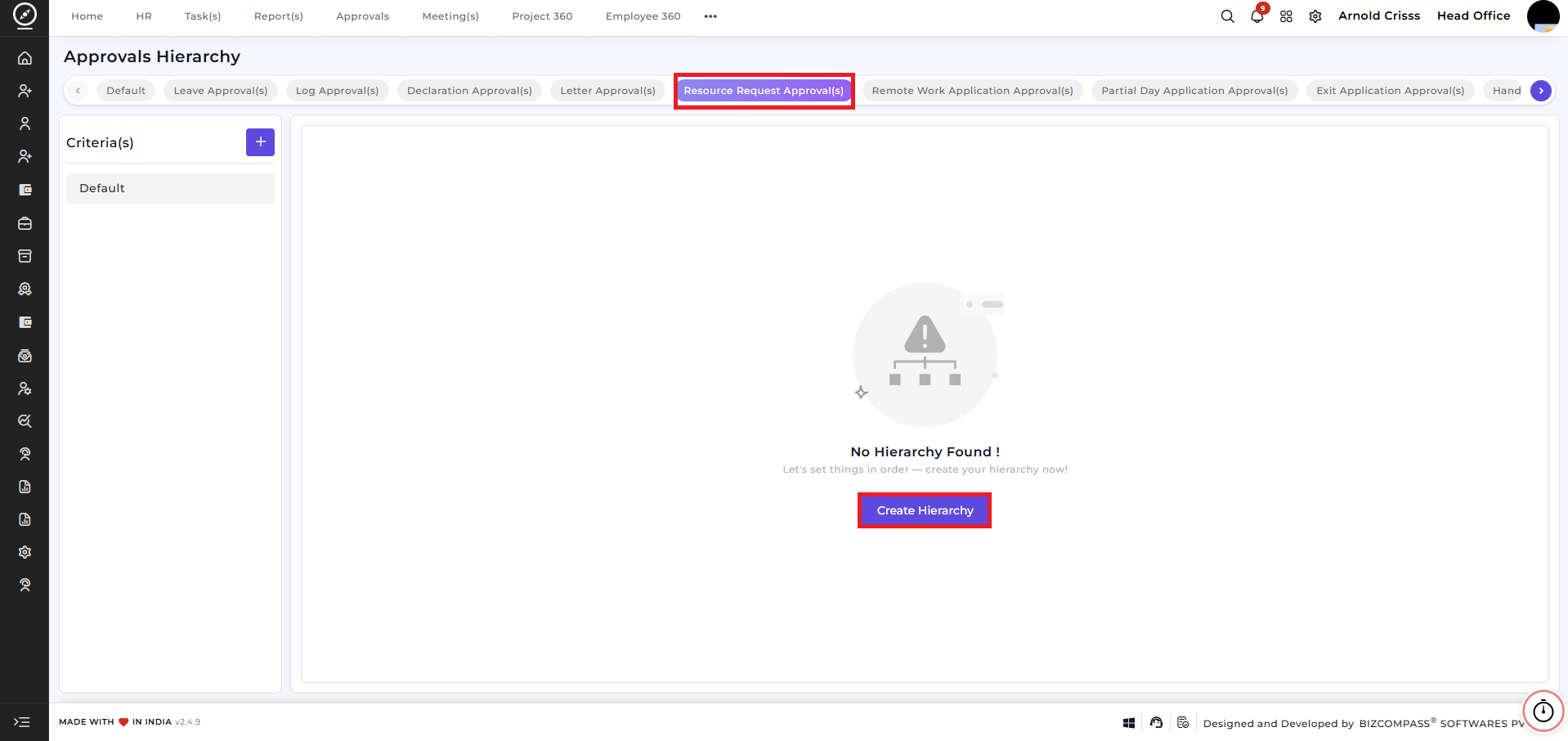
How to Set Up Approvals Hierarchy:
-
Select Approval Type: Choose the type of approval to configure (e.g., Default, Leave Approval, Resource Request Approval, etc.). If no specific approval hierarchy is set for a particular type of request, the default hierarchy will be used. Create Hierarchy:To set up a new approval hierarchy, click on Create Hierarchy. This opens the Create Approval Hierarchy window.-
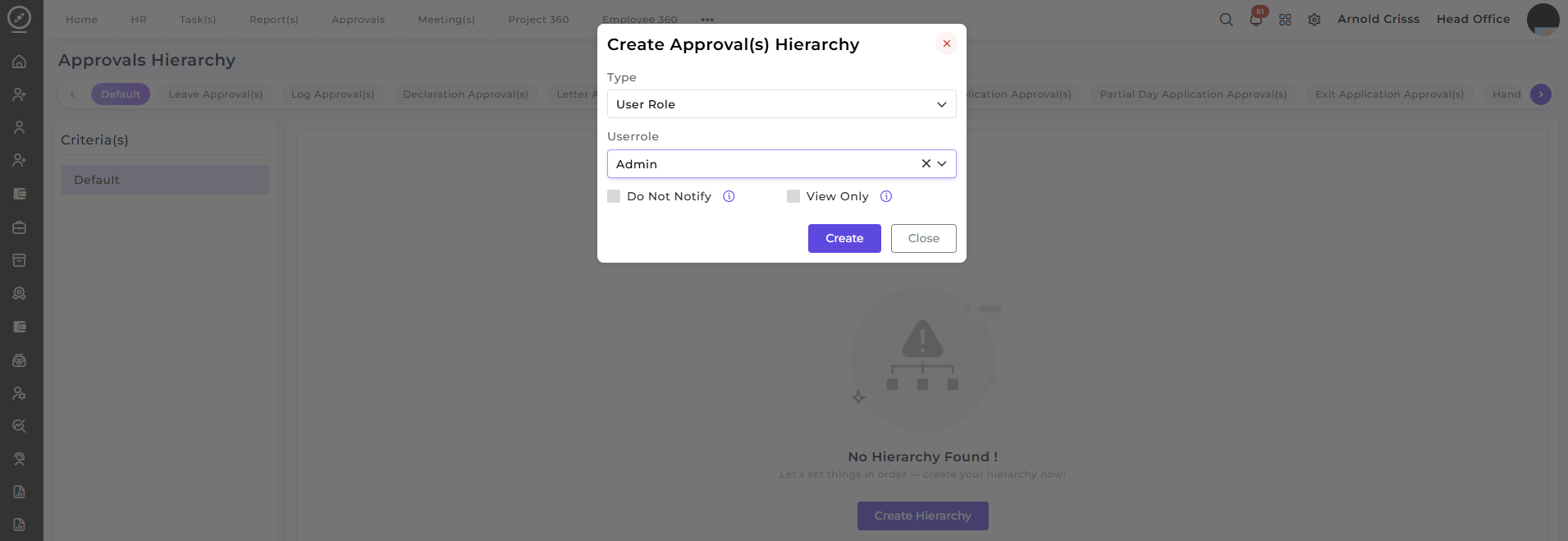
Select Criteria Type:In the Create Approval Hierarchy window, choose the type of criteria for the approval. You can select from options such as:-
Department
-
Employee
-
User Role
-
Sub Department
-
Reporting Person
-
Company Head
-
Branch Head
-
Department Head
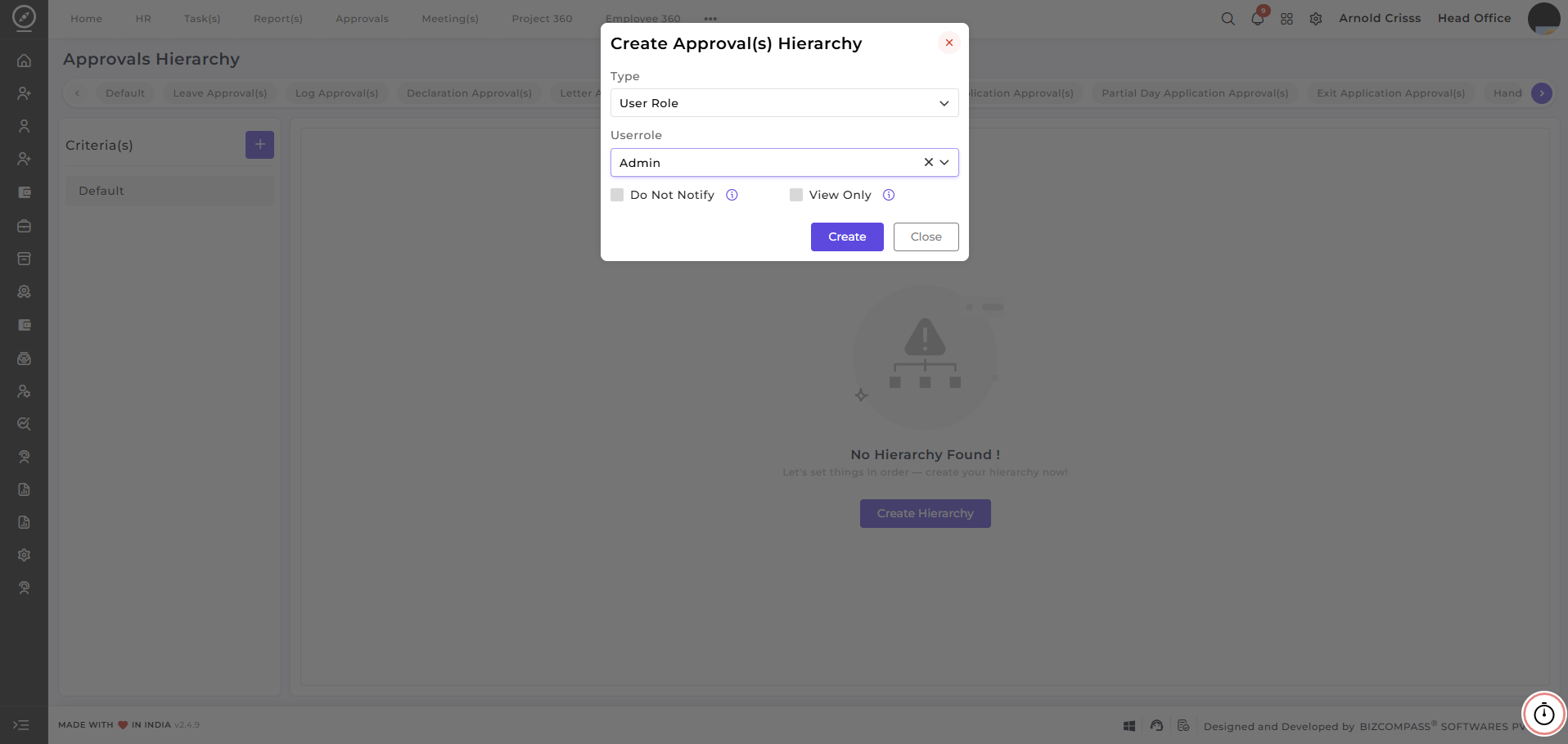
Example: In the below above, the user selects User Role as the type for approval hierarchy. Then, for the specific User Role, you can choose a role like Admin.
-
-
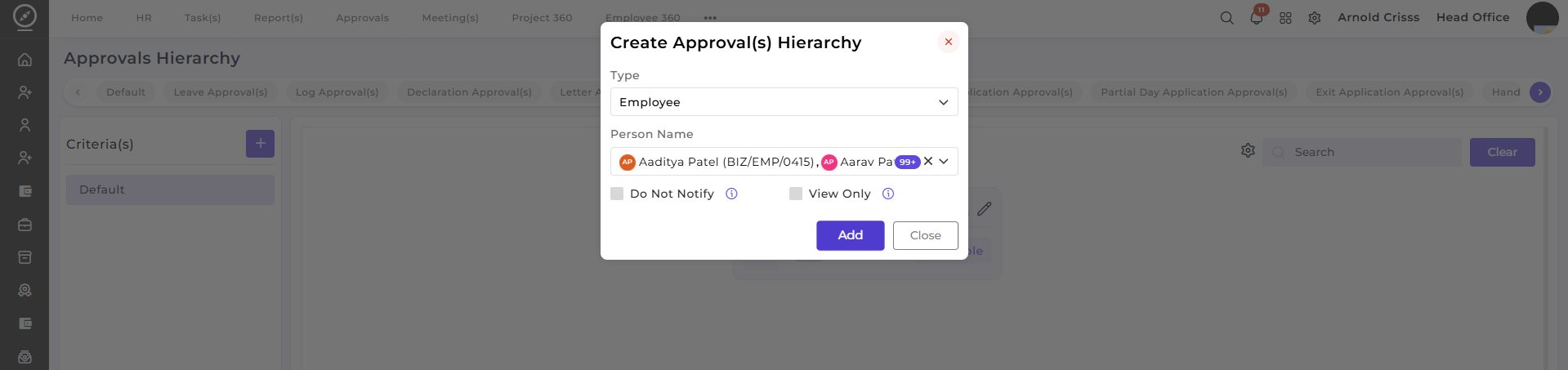
Assign User(s): After selecting the role or employee, assign the relevant users to the approval hierarchy. You can also choose options like:
-
Do Not Notify: If selected, this user will not receive notifications regarding the request.
-
View Only: If selected, this user will only have view access to the approval, not edit access.
-
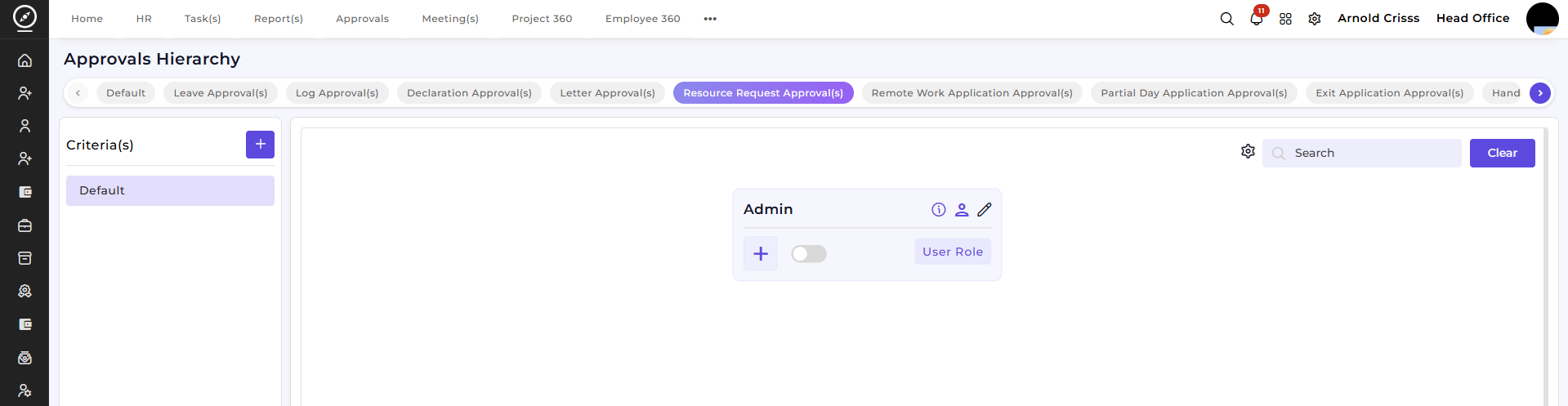
5. Now by clicking on the "+" symbol below Admin, you can add Nodes (people under that person).
6. Now you'll be able to see the approval hierarchy created.
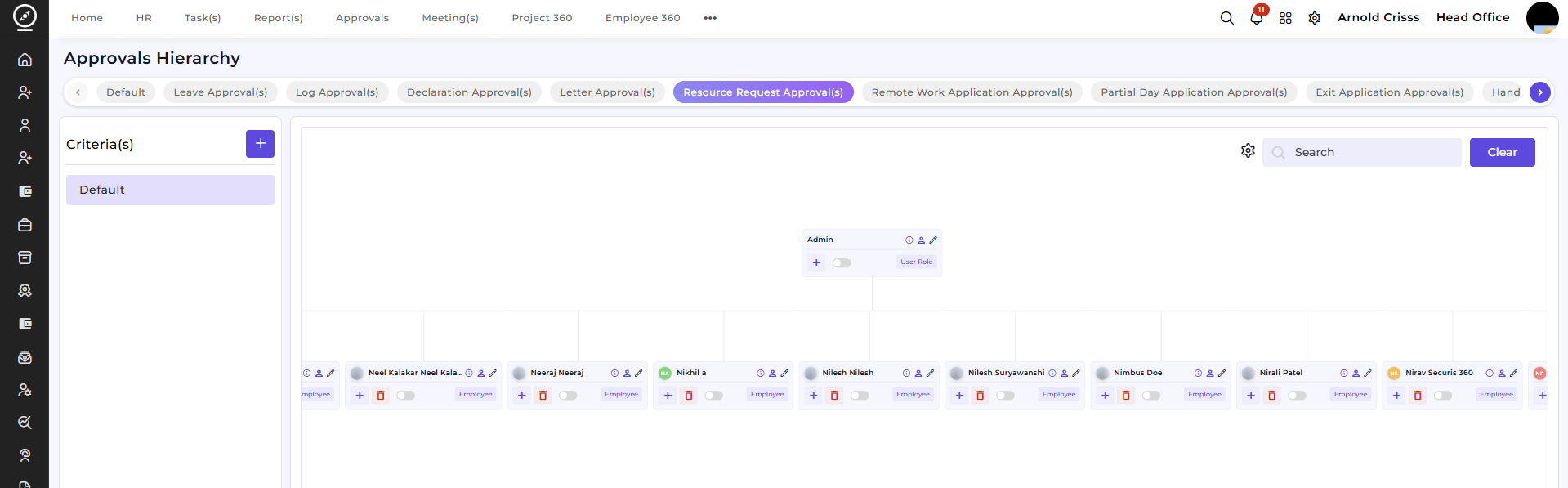
Adding Multiple Nodes: If needed, you can add multiple users or roles to the hierarchy. By clicking on Add Node ("+" symbol), you can create branches of approval for multiple levels.Same way, you can create hierarchy for various type of features such as leave approval, resource request approval, letter approval, etc.
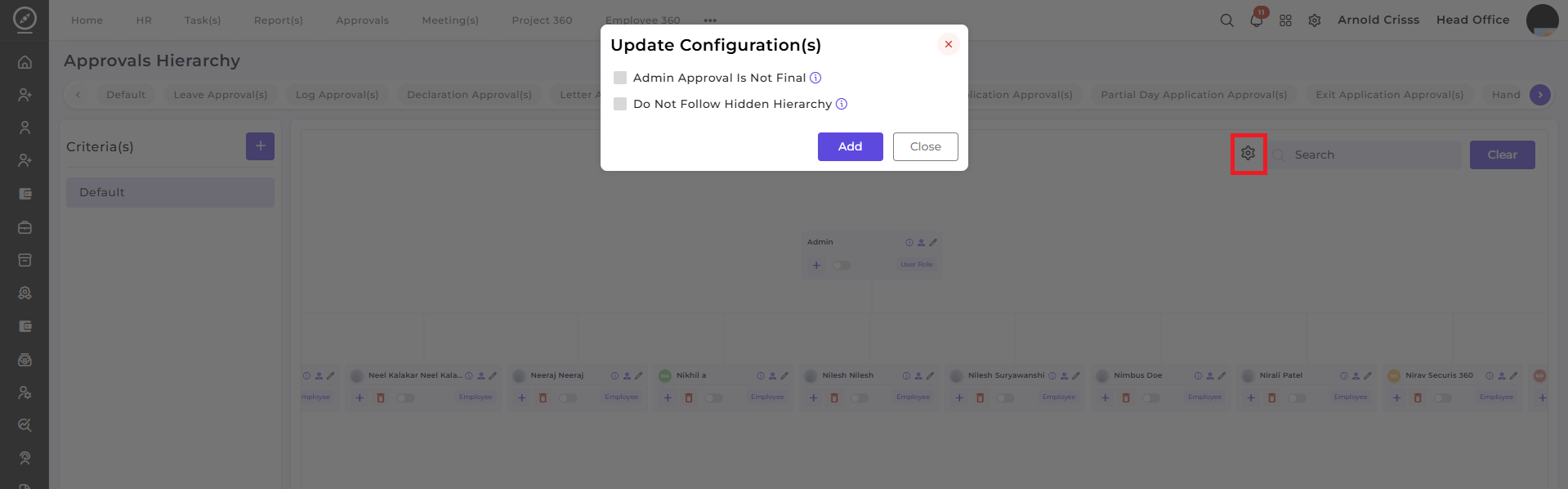
In every type of approval other than default, byBy clicking on the Settings button, a pop-up will appear through which you can update the specific approval configuration.
-
Admin Approval Is Not Final: When enabled, admin approval requires further verification and is not treated as the final step in the process.
-
Do Not Follow Hidden Hierarchy: Enabling this option excludes any hidden hierarchies from the standard approval flow.
Hierarchy-Based Leave Visibility:When active, a parent can only view leave after child-level approvals are granted; otherwise, the leave remains hidden from them.
The Approvals Hierarchy page enables you to maintain a clear and organized approval process for all types of requests. By configuring the approval hierarchies for each request type, you ensure that the right people are approving requests based on their roles and organizational structure.