
Candidate Inquiry
The Candidate Inquiry page is used to capturemanage andinquiries managethat come either from public pages (via Embed or Referral link) to handle candidate details at the initial stage of the recruitment process.
Recruiters pagecan allowsalso recruiterscreate an inquiry directly from this page. When creating an inquiry, it is not mandatory to quicklyadd recordan candidate information received from various sources such as referrals, job portals, walk-ins, or embedded formsapplication. ItAt actsthis asstage, athe referenceoption forto conversionadd an application will not be visible.
Once the inquiry has been created, an application can be added in one of candidatethe inquiriesfollowing into a full candidate profiles.ways:
- By clicking the ➕ button
- While updating the inquiry select add application
You can filter the data by selecting the Inquiry Status (Open/Closed), Application Status (Created/Not Created) or Entry Source (Manual/Referral/Embedded Form).
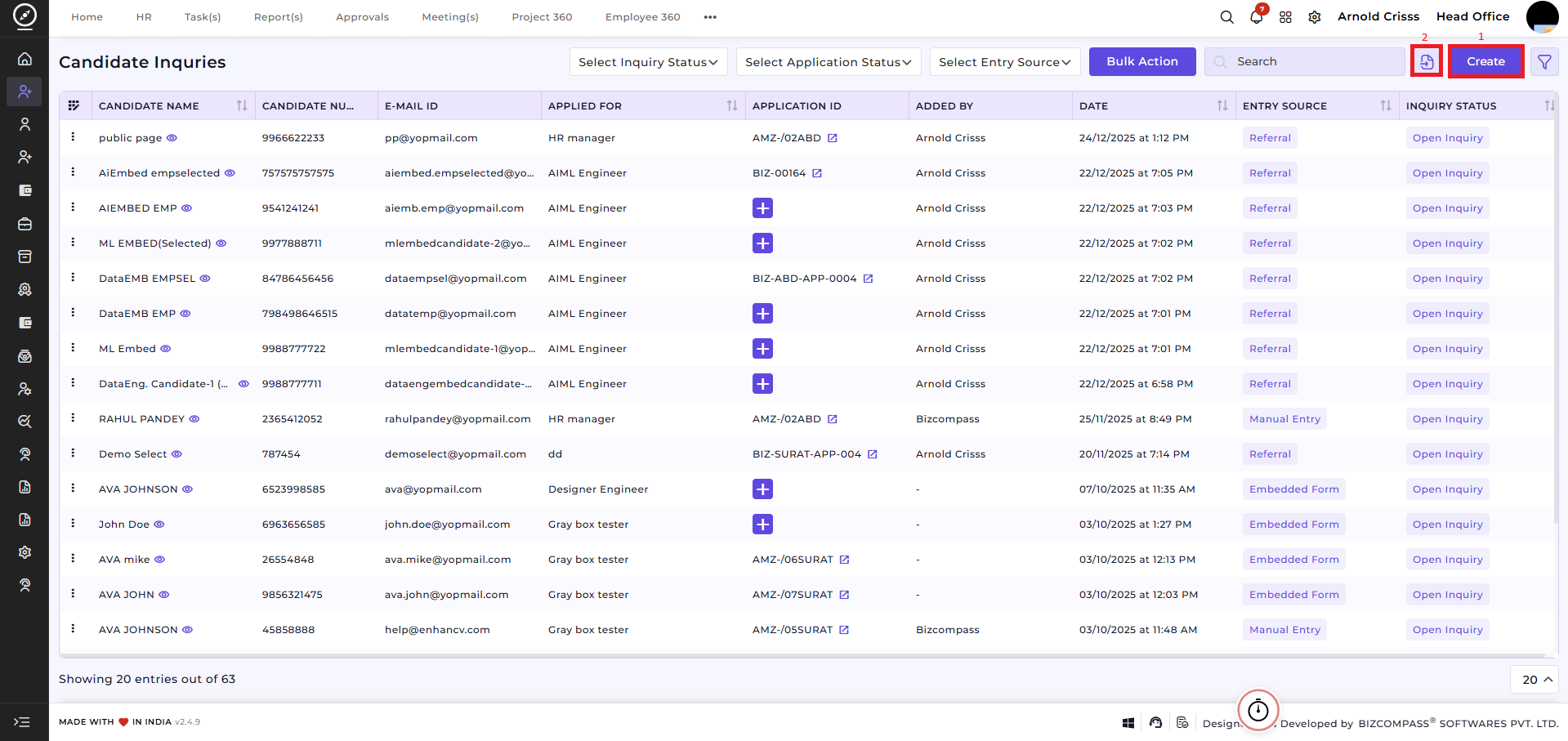
1) Create Candidate Inquiry:
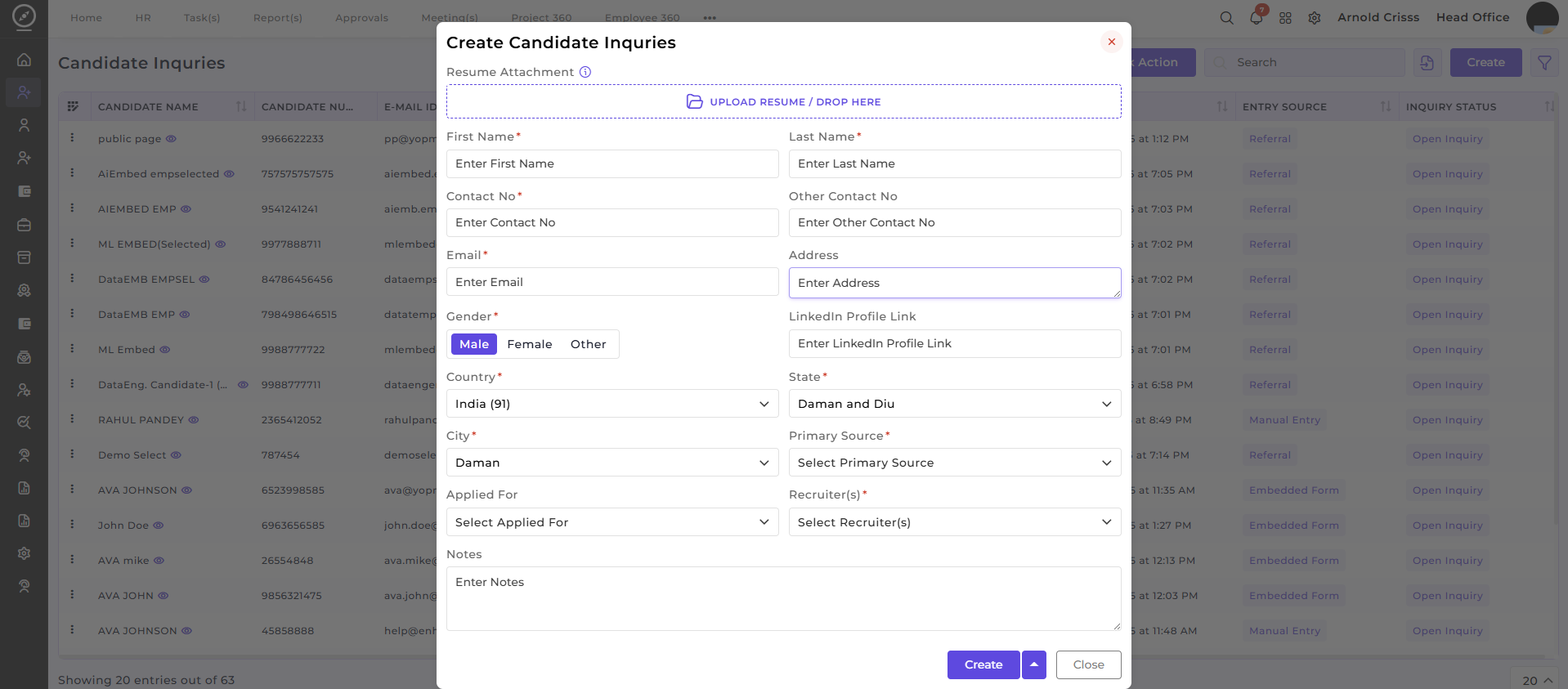
This section is used to capture the candidate’s basic personal and inquiry-related information at the initial stage of recruitment. There are two ways to add a candidate: manual entry or resume attachment entry.
Resume Attachment Entry:
Upload the Resume (optional or mandatory based on settings). If you upload the resume, all the details of the candidate mentioned in the resume will be fetched automatically.
Manual Entry:
1. Enter the candidate’s First Name and Last Name.
2. Provide the Contact Number, Alternate Contact Number (if any), Email ID, and Address.
3. Select the candidate’s Gender, Country, State, and City.
4. Add the LinkedIn Profile Link (optional).
5. Select the Primary Source (Job Portal, Referral, Walk-in, Manual Entry, Embedded Form, etc.).
6. Assign the responsible Recruiter(s) for follow-up.
7. Select the Applied For position if available.
8. Add any relevant Candidate Notes for reference.
2) Import Candidate(s):
By clicking on the Import Candidate(s) button, you can import the data in the form of .xlsx or .xls. You can also download a Sample Template for Candidate Inquiries.

The Bulk Action button allows you to delete multiple candidate inquiries at once, streamlining the management process.