
Candidate Entry Pages
Candidate Entries can be done via three pages:
1) Candidate Page
2) Opening Page
3) Resource Request List View section in the Opening Page.
1) Candidate Page:
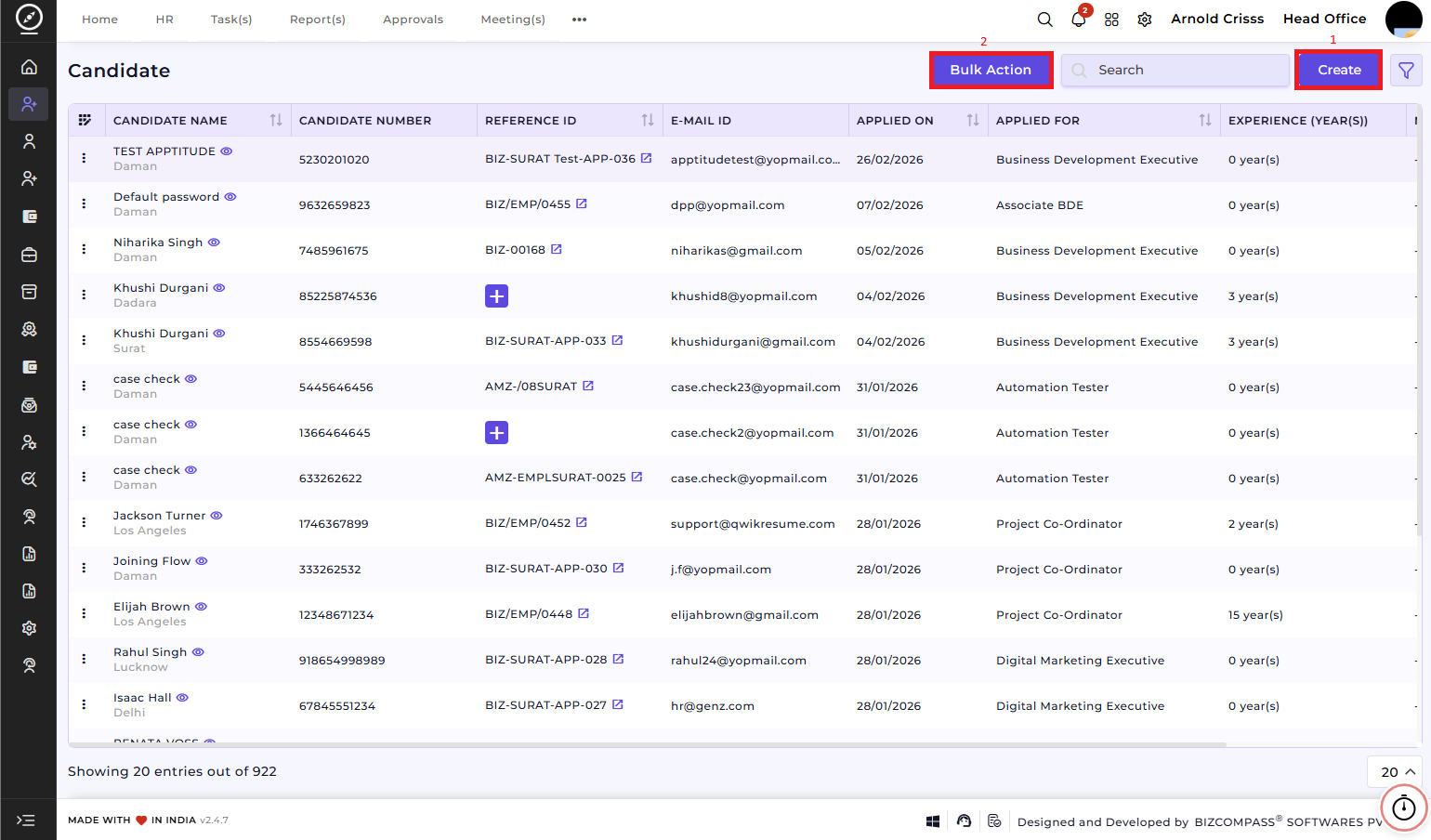
Create Candidate:
On this page, you can create a New candidate by entering basic details and progressively adding additional information across different sections. There are two ways to add a candidate: manual entry or resume attachment entry.
Resume Attachment Entry:
Upload the Resume (optional or mandatory based on settings). If you upload the resume, all the details of the candidate mentioned in the resume like basic details, education details, experiences and certification details will be fetched automatically.
Manual Entry:
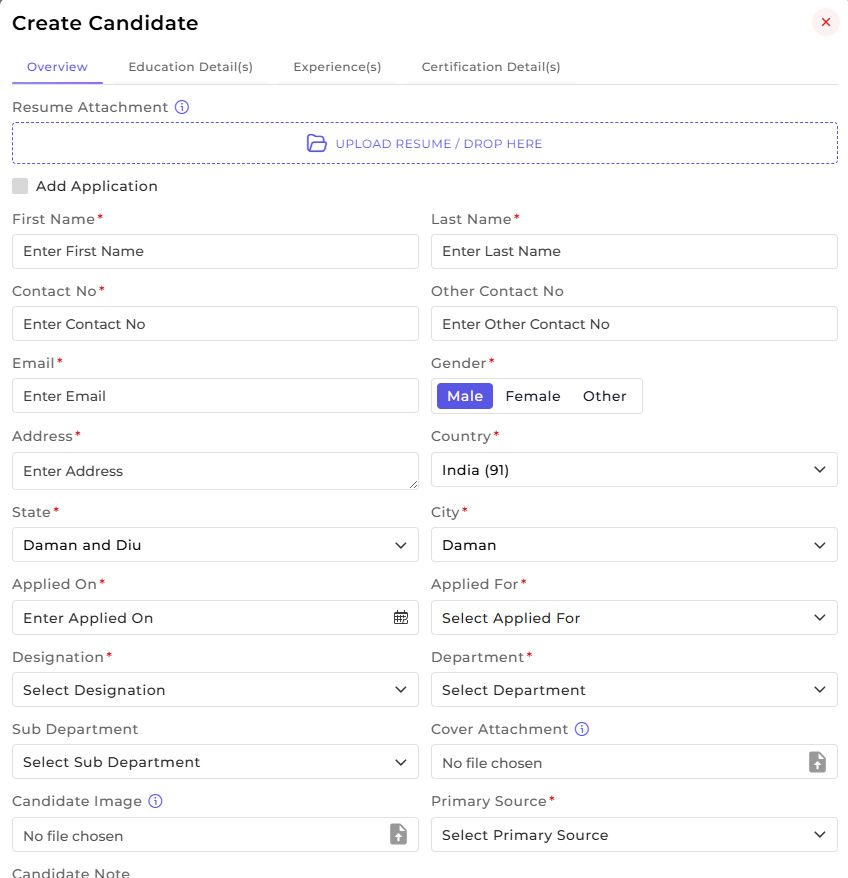
Overview
This section is used to capture the candidate’s basic and application-related information.
- Enter the candidate’s First Name and Last Name.
- Provide the Contact Number, Email ID, and Address.
- Select the Gender, Country, State, and City.
- Enter the Applied-On date.
- Select the Applied For position, Department, Sub Department, and Designation.
- Upload a Candidate Image and Cover Attachment if required.
- Select the Primary Source (Job Portal, Referral, Walk-in, etc.).
- Add any relevant Candidate Notes.
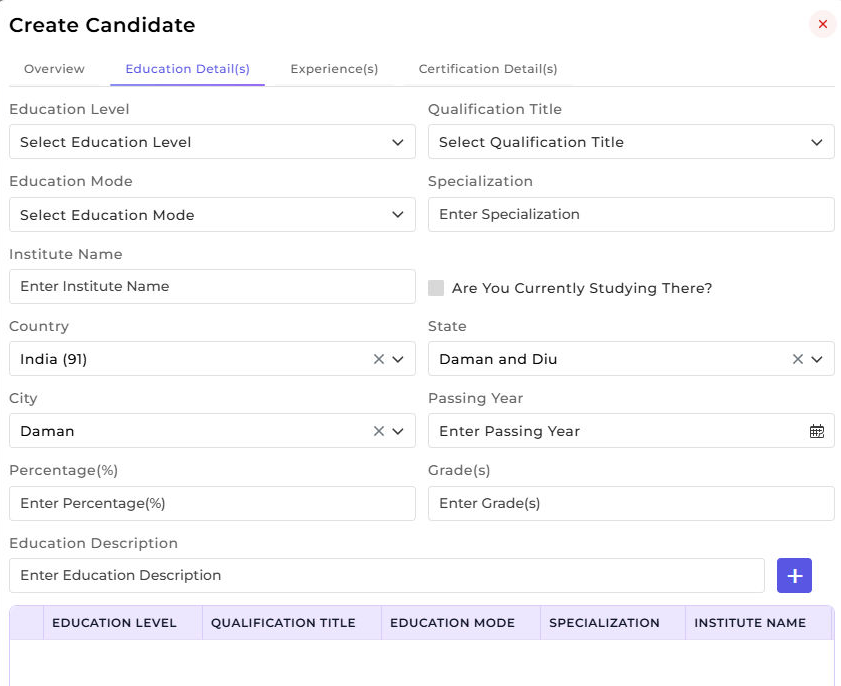
Education Detail(s)
This section is used to record the candidate’s academic background.
- Select the Education Level (e.g., Graduate, Post Graduate).
- Choose the Qualification Title.
- Select the Education Mode (Full-time, Part-time, Distance).
- Enter the Specialization.
- Provide the Institute Name, Country, State, and City.
- Enter the Passing Year, Percentage (%), and Grade(s).
- Add an Education Description if required.
- Click the Add (+) button to save the education record.
Multiple education records can be added to maintain a complete academic history.
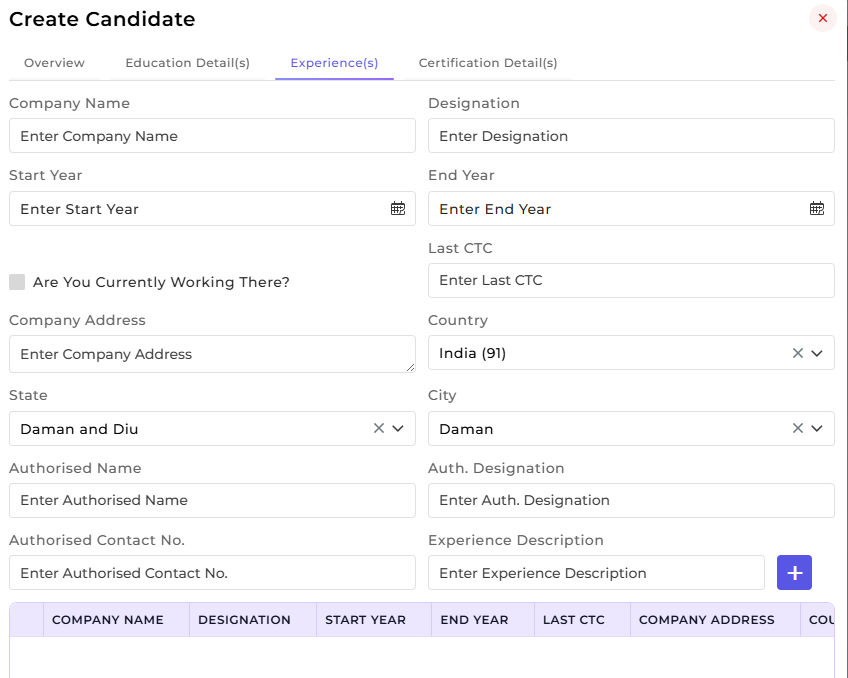
Experience(s)
This section is used to capture the candidate’s work experience details.
- Enter the Company Name and Designation.
- Select the Start Year and End Year.
- Enable Currently Working There if applicable.
- Enter the Last CTC.
- Provide the Company Address, Country, State, and City.
- Add Authorized Person Name, Designation, and Contact Number if verification is required.
- Enter the Experience Description explaining roles and responsibilities.
- Click the Add (+) button to save the experience record.
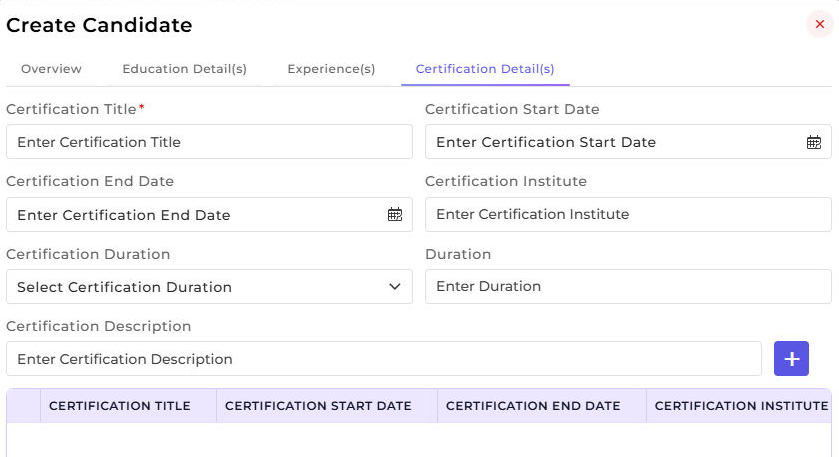
Certification Detail(s)
This section is used to add professional certifications completed by the candidate.
- Enter the Certification Title.
- Select the Certification Start Date and End Date.
- Enter the Certification Institute.
- Select the Certification Duration and enter the Duration Value.
- Add a Certification Description if needed.
- Click the Add (+) button to save the certification record.
Multiple certifications can be added to highlight the candidate’s skills and qualifications.
2) Opening Page:
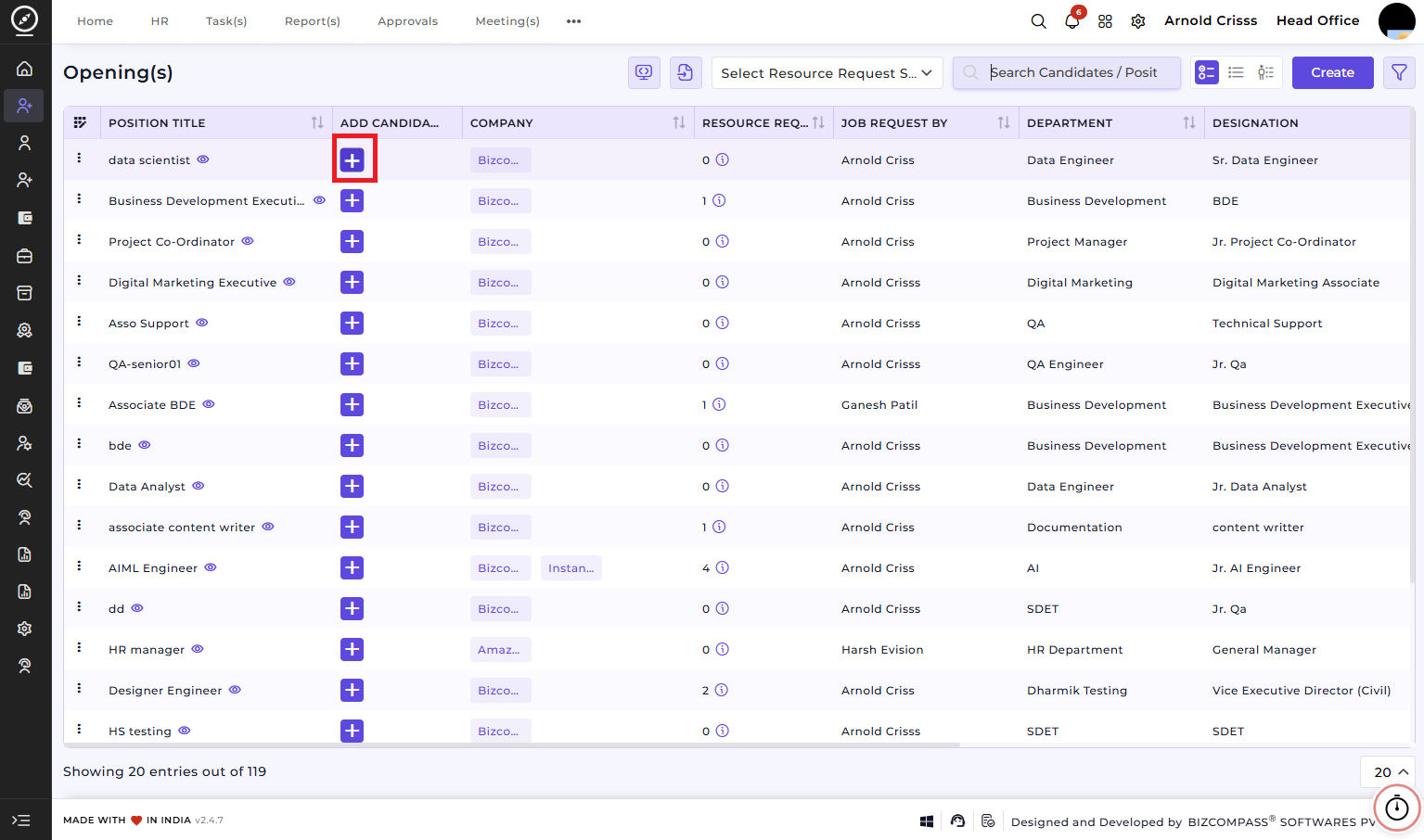
After clicking on this '+' button, the rest of the candidate creating process is same as above.
3) Resource Request List View section in the Opening Page:
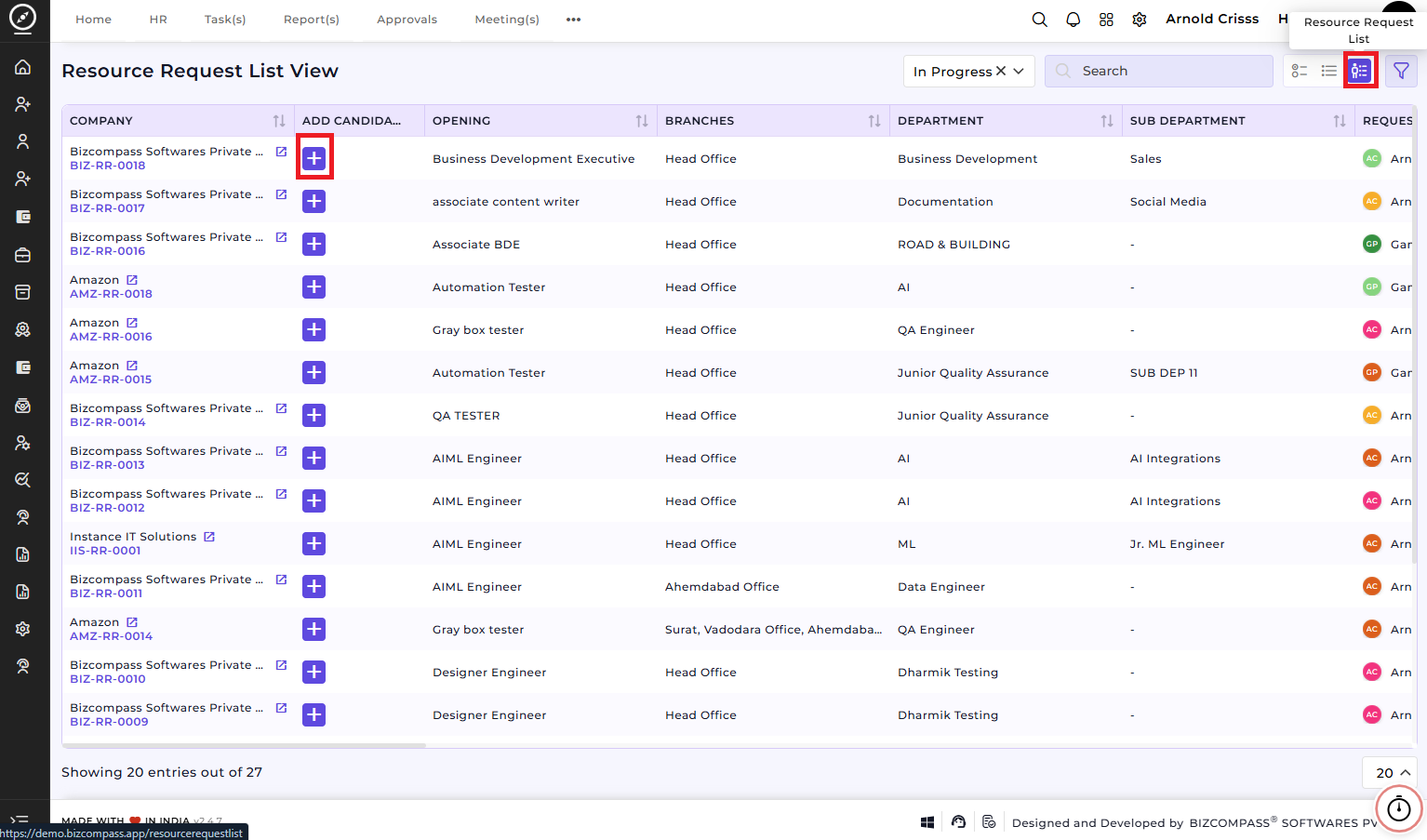
After clicking on this '+' button, the rest of the candidate creating process is same as above.