Candidate Entry Pages
After completing all configurations such as creating a position, setting up the Interview Procedure Flow, and Joining Procedure Flow, candidates or applications can be added. Candidate Entries can be done viathrough threemany pages: ways. 1) Candidate Page 2) Opening Page 3) Resource Request List View section in the Opening Page. 4) Candidate Enquiries/Inquiry Page.
1) Candidate Page:
On this page, you can create a New candidate by entering basic details and progressively adding additional information across different sections. There are two ways to add a candidate: manual entry or resume attachment entry.
Resume Attachment Entry:
Upload the Resume (optional or mandatory based on settings). If you upload the resume, all the details of the candidate mentioned in the resume like basic details, education details, experiences and certification details will be fetched automatically.
Manual Entry:
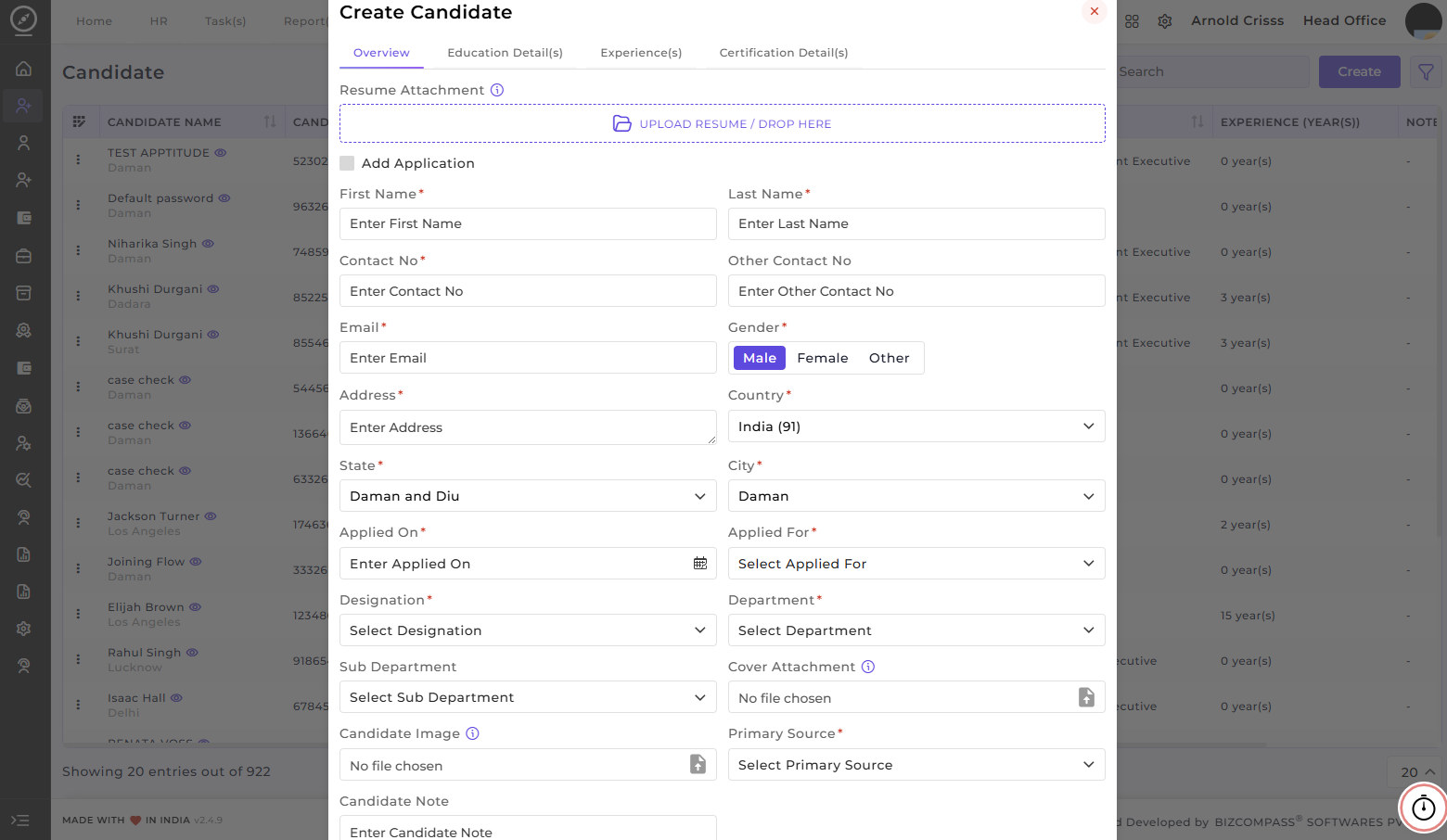
Overview
This section is used to capture the candidate’s basic and application-related information.
Enter the candidate’sFirst NameandLast Name.Provide theContact Number,Email ID, andAddress.Select theGender,Country,State, andCity.Enter theApplied-Ondate.Select theApplied Forposition,Department,Sub Department, andDesignation.Upload aCandidate ImageandCover Attachmentifrequired.Select thePrimary Source(Job Portal, Referral, Walk-in, etc.).Add any relevantCandidate Notes.
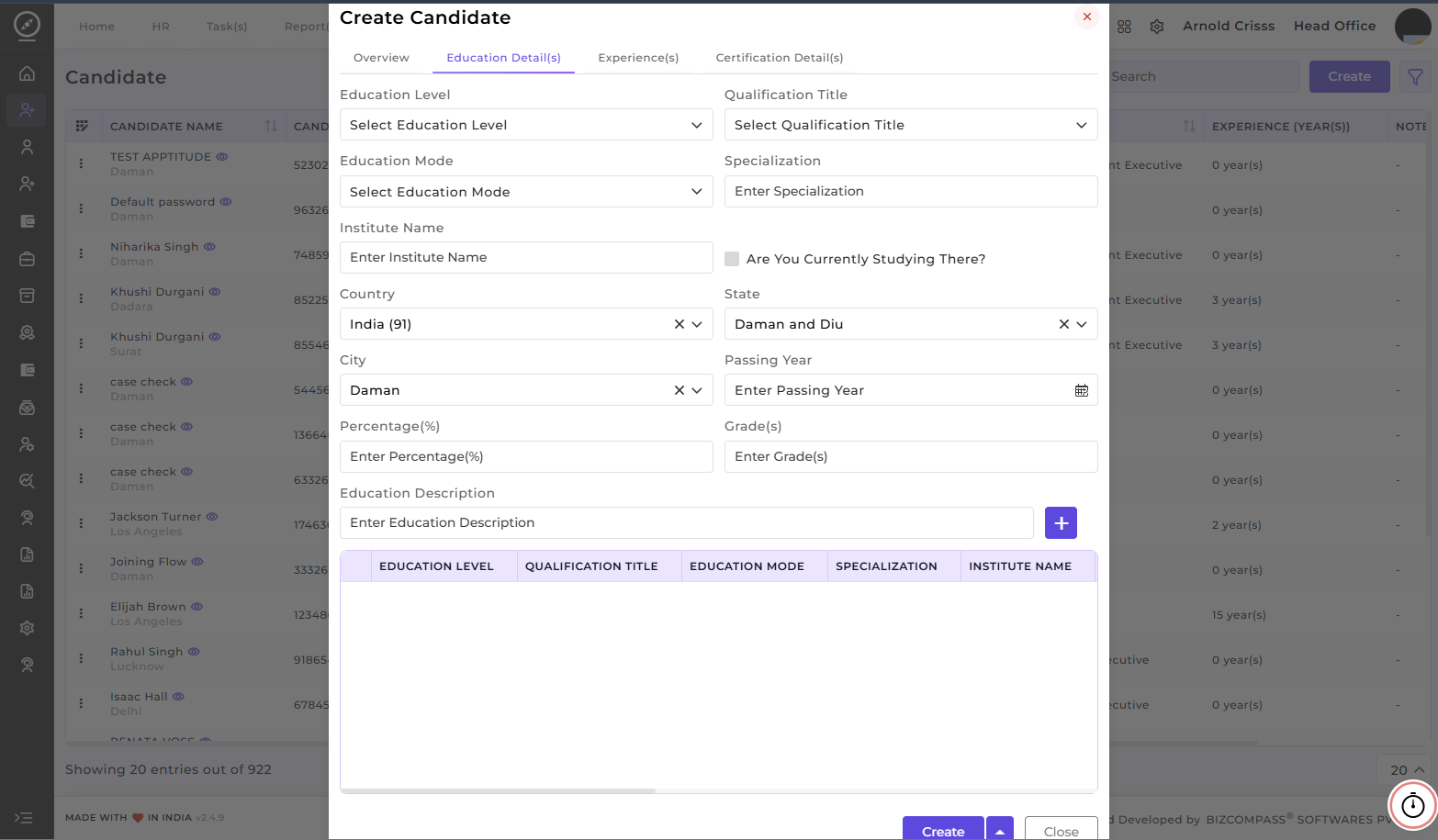
Education Detail(s)
This section is used to record the candidate’s academic background.
Select theEducation Level(e.g., Graduate,Post Graduate).Choose theQualification Title.Select theEducation Mode(Full-time, Part-time, Distance).Enter theSpecialization.Provide theInstitute Name,Country,State, andCity.Enter thePassing Year,Percentage (%), andGrade(s).Add anEducation Descriptionifrequired.Click theAdd (+)buttonto save the education record.
Multiple education records can be added to maintain a complete academic history.
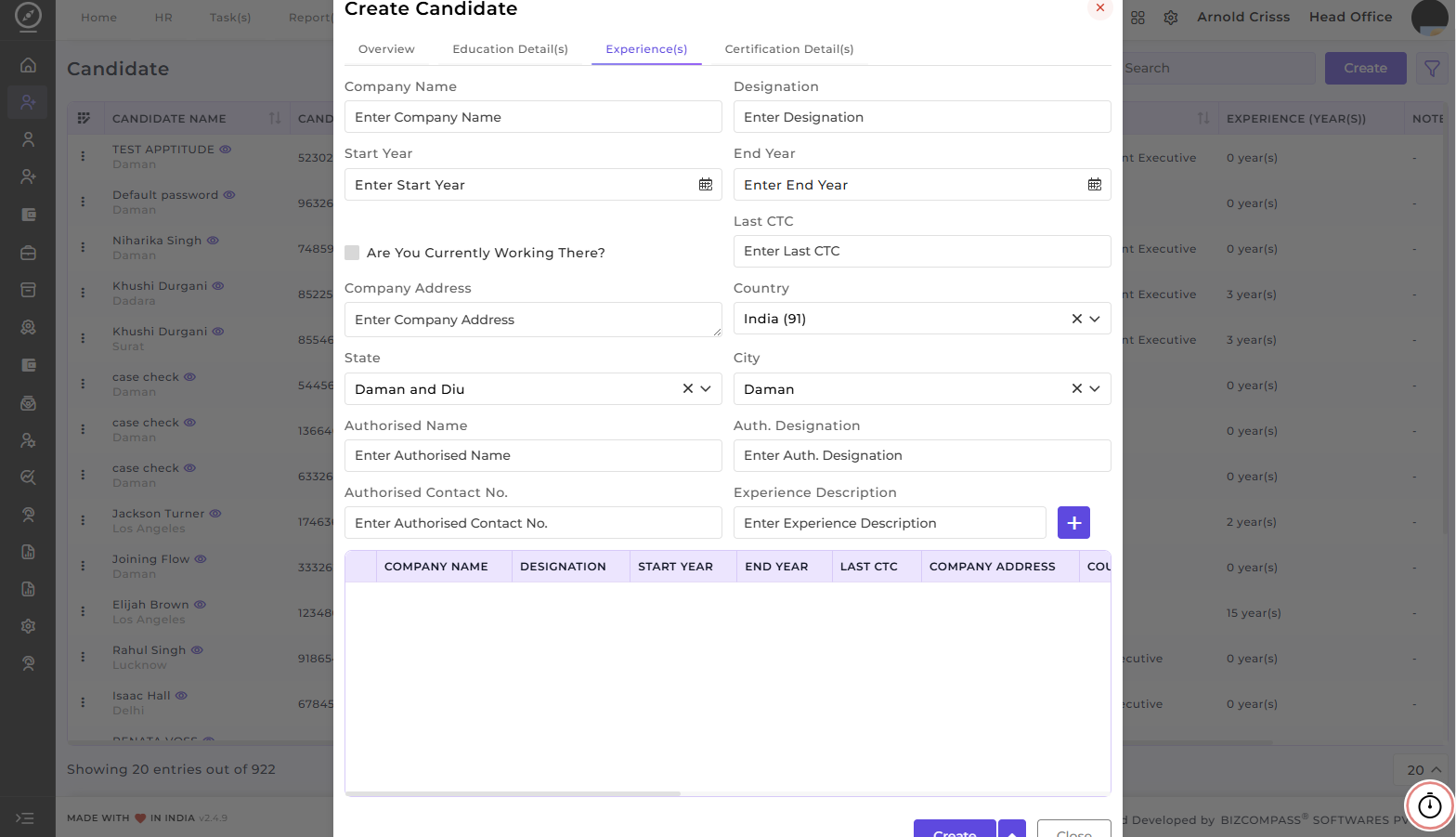
Experience(s)
This section is used to capture the candidate’s work experience details.
Enter theCompany NameandDesignation.Select theStart YearandEnd Year.EnableCurrently Working Thereif applicable.Enter theLast CTC.Provide theCompany Address,Country,State,andCity.AddAuthorizedPerson Name,Designation,andContact Numberif verification isrequired.Enter theExperience Descriptionexplaining roles and responsibilities.Click theAdd (+)buttonto save the experience record.
Certification Detail(s)
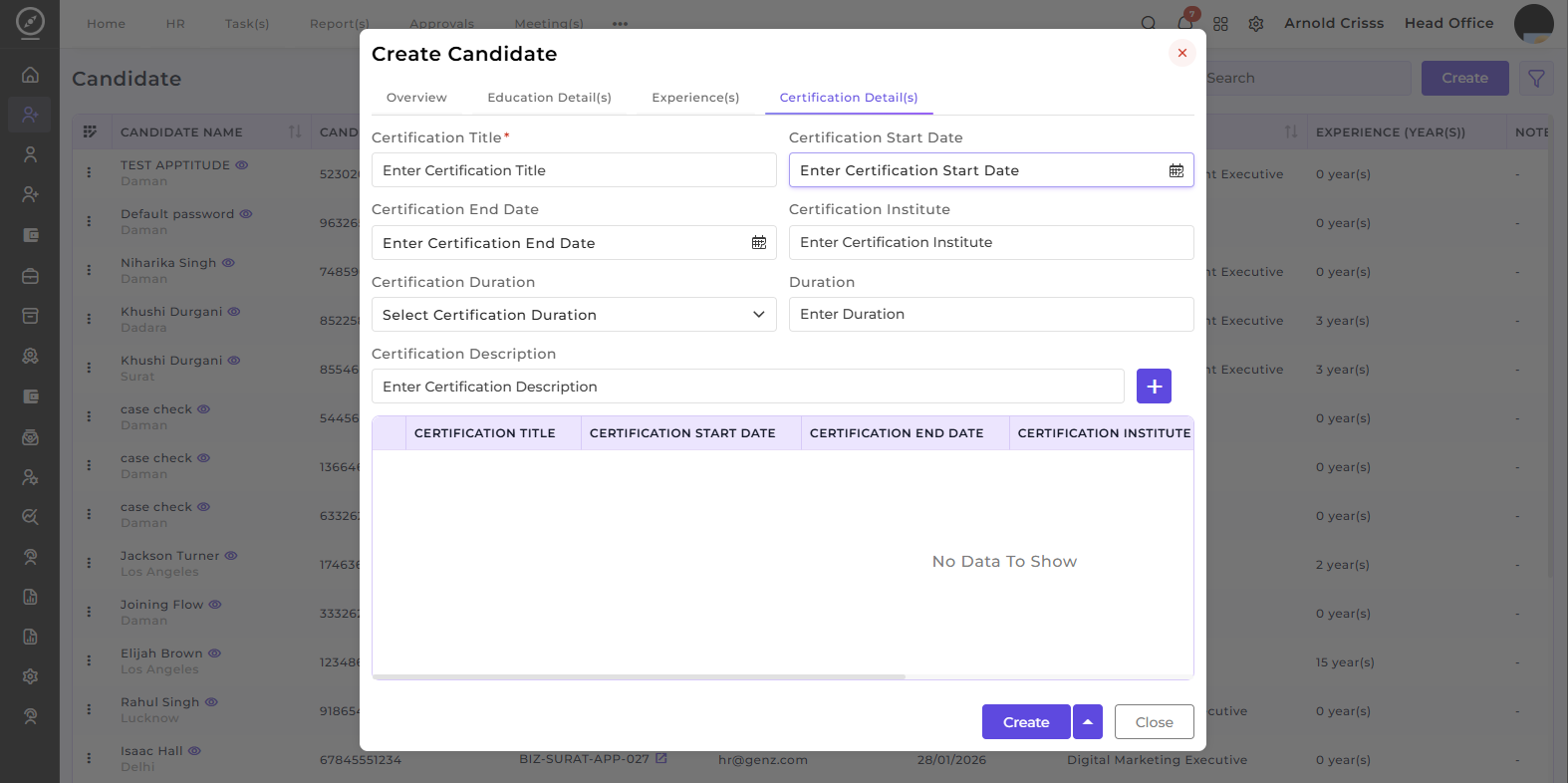
This section is used to add professional certifications completed by the candidate.
Enter theCertification Title.Select theCertificationStart DateandEnd Date.Enter theCertification Institute.Select theCertification Durationand enter theDuration Value.Add aCertification Descriptionif needed.Click theAdd (+)buttonto save the certification record.
Multiple certifications can be added to highlight the candidate’s skills and qualifications.
2) Opening Page:
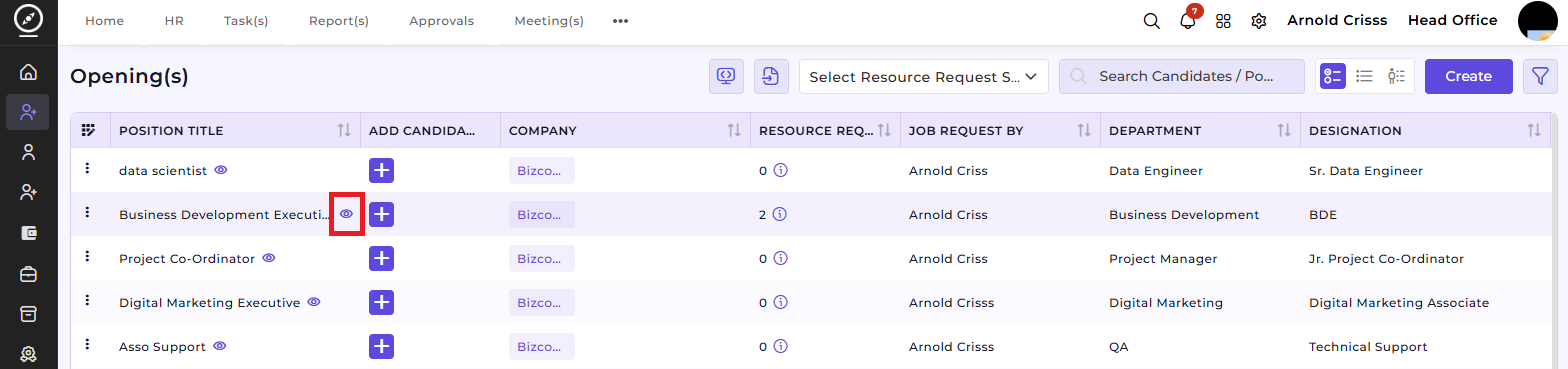
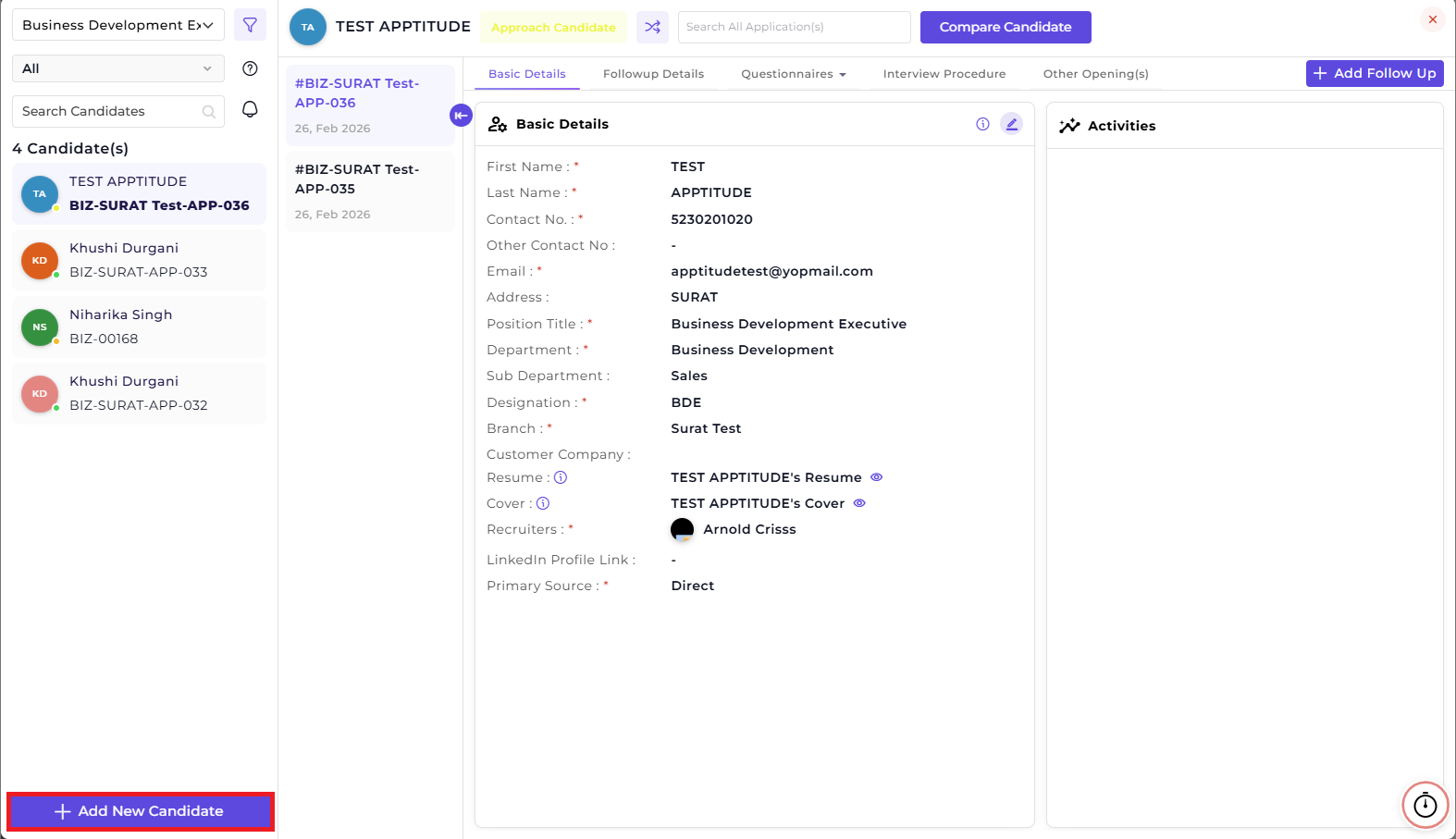
After clicking on thisthe '+➕' button in the Add Candidate column, you can add a candidate. We can also open the restdetail/view modal of the opening or position.
If using the If using the ➕ button next to the position name, select the resource request and then add the candidate creatingbutton processnext to the position name, select the resource request and then add the candidate
This is samethe asmain above.
page used to add applications.
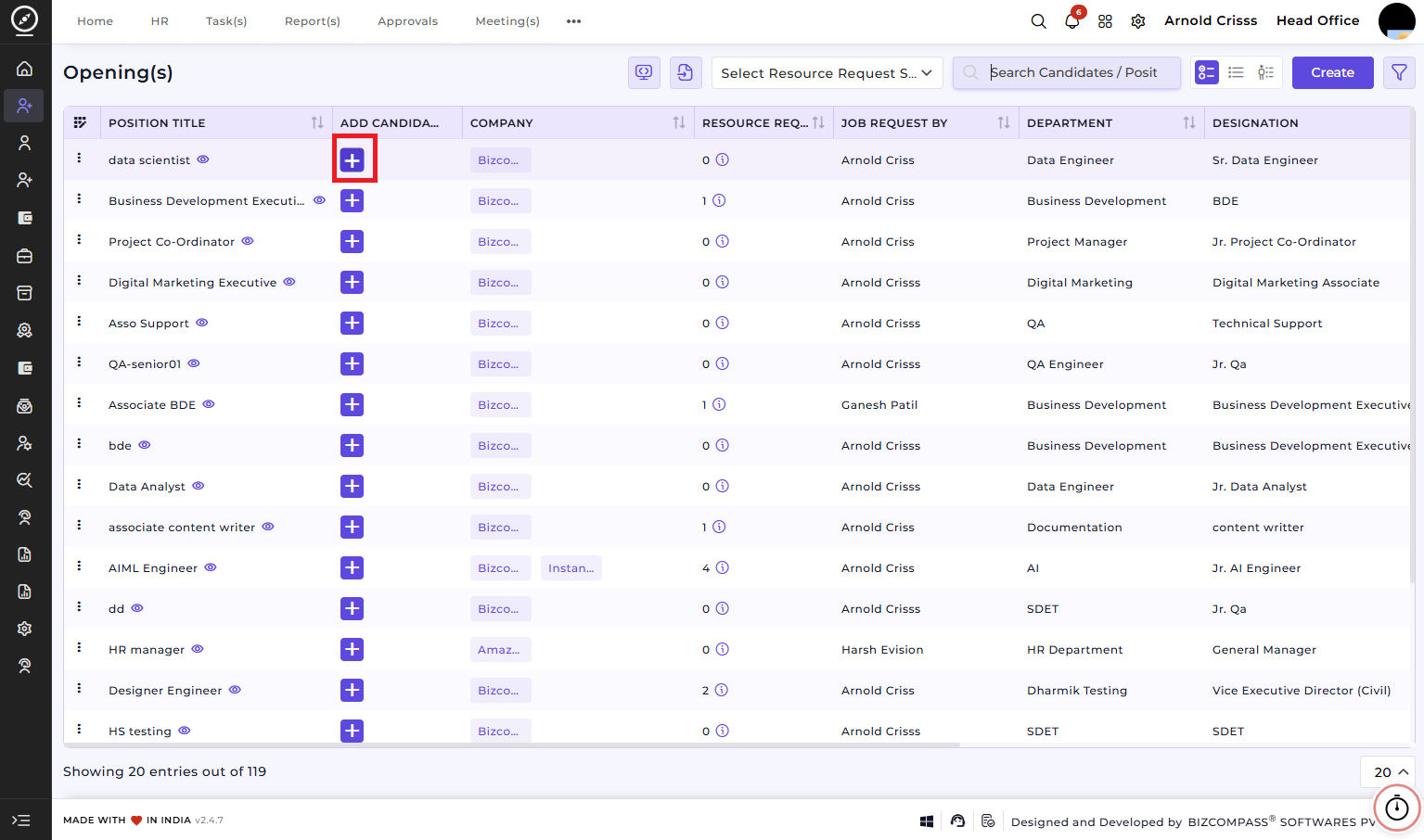
If a resource request is created, candidates can be added for that request.
You can also add a new candidate by clicking on the eye icon in the Resource Request column as shown below.
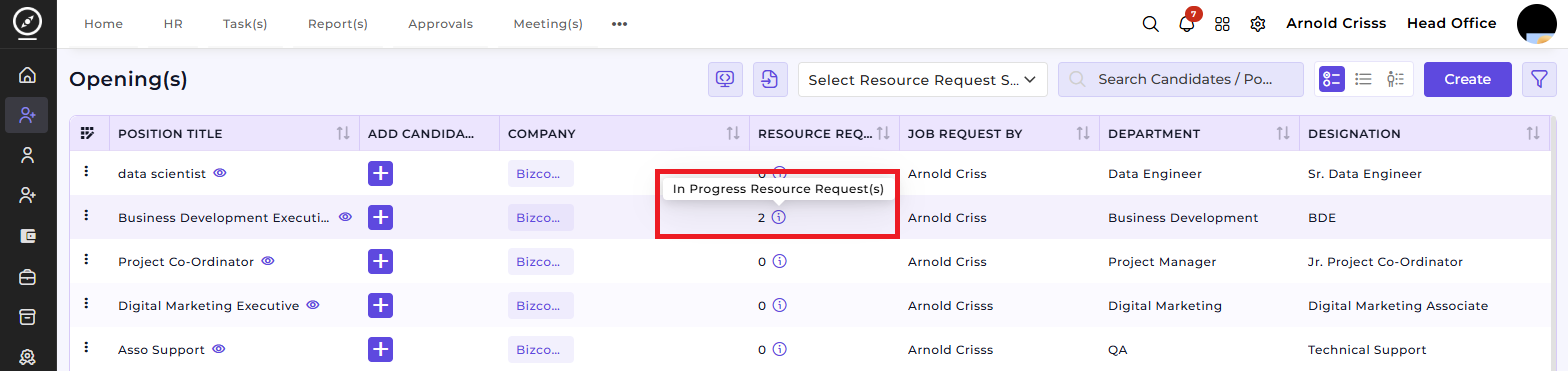

Moreover, you can add a new candidate by viewing an Opening by clicking on the info button in the Position Title column as shown below.
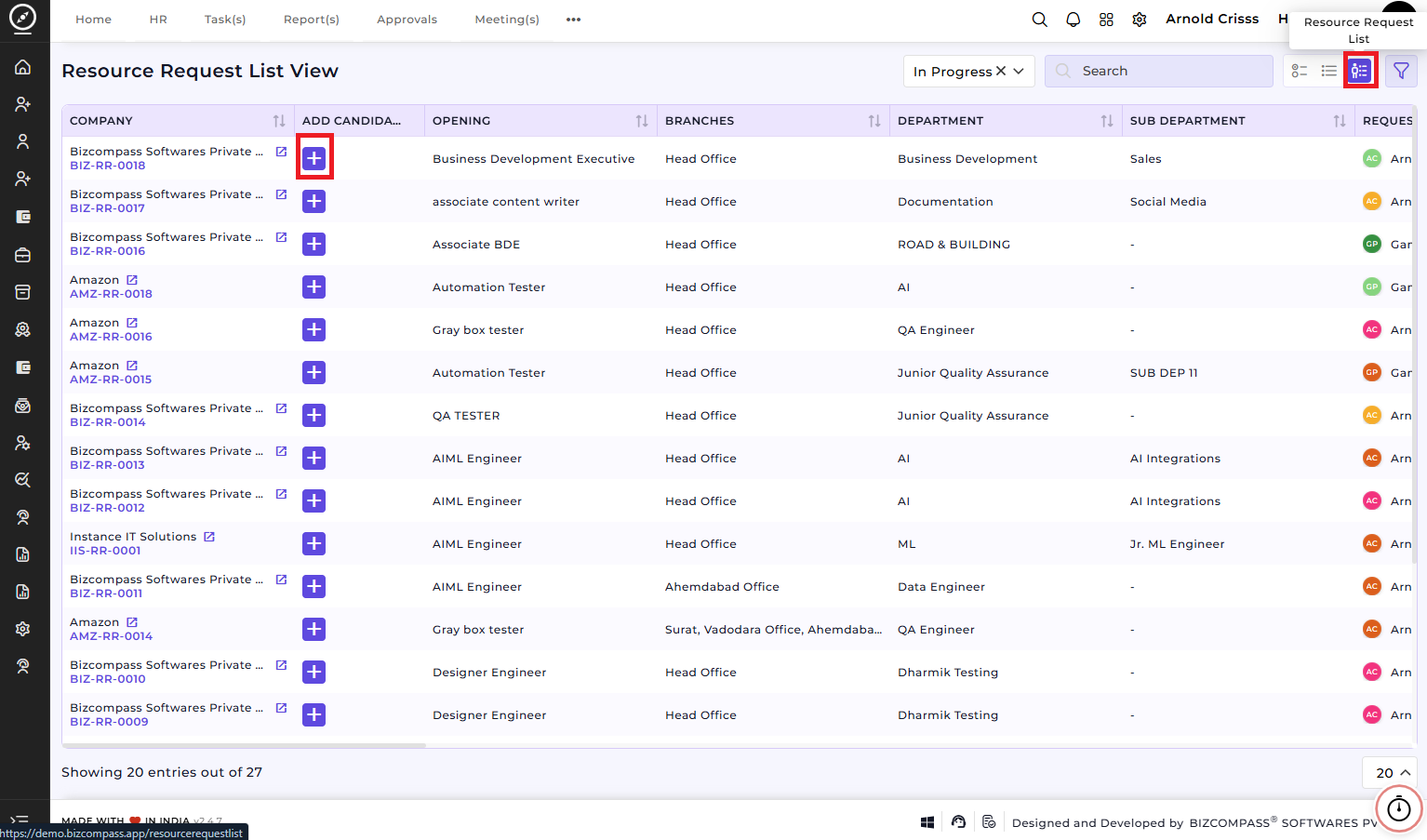
3) Resource Request List View section in the Opening Page:
After clicking on this '+' button, the rest of the candidate creating process is same as above.
2) Candidate Page:
=================================================
Adding Candidates / Applications
After completing all configurations such as creating a position, setting up the Interview Procedure Flow, and Joining Procedure Flow, candidates or applications can be added.
1) Opening
From the main Opening page, we can add a candidate directly using the ➕ button.
We can also open the detail/view modal of the opening or position. On the left side below the detail modal, there is a + Add New Candidate option.
This is the main page used to add applications.
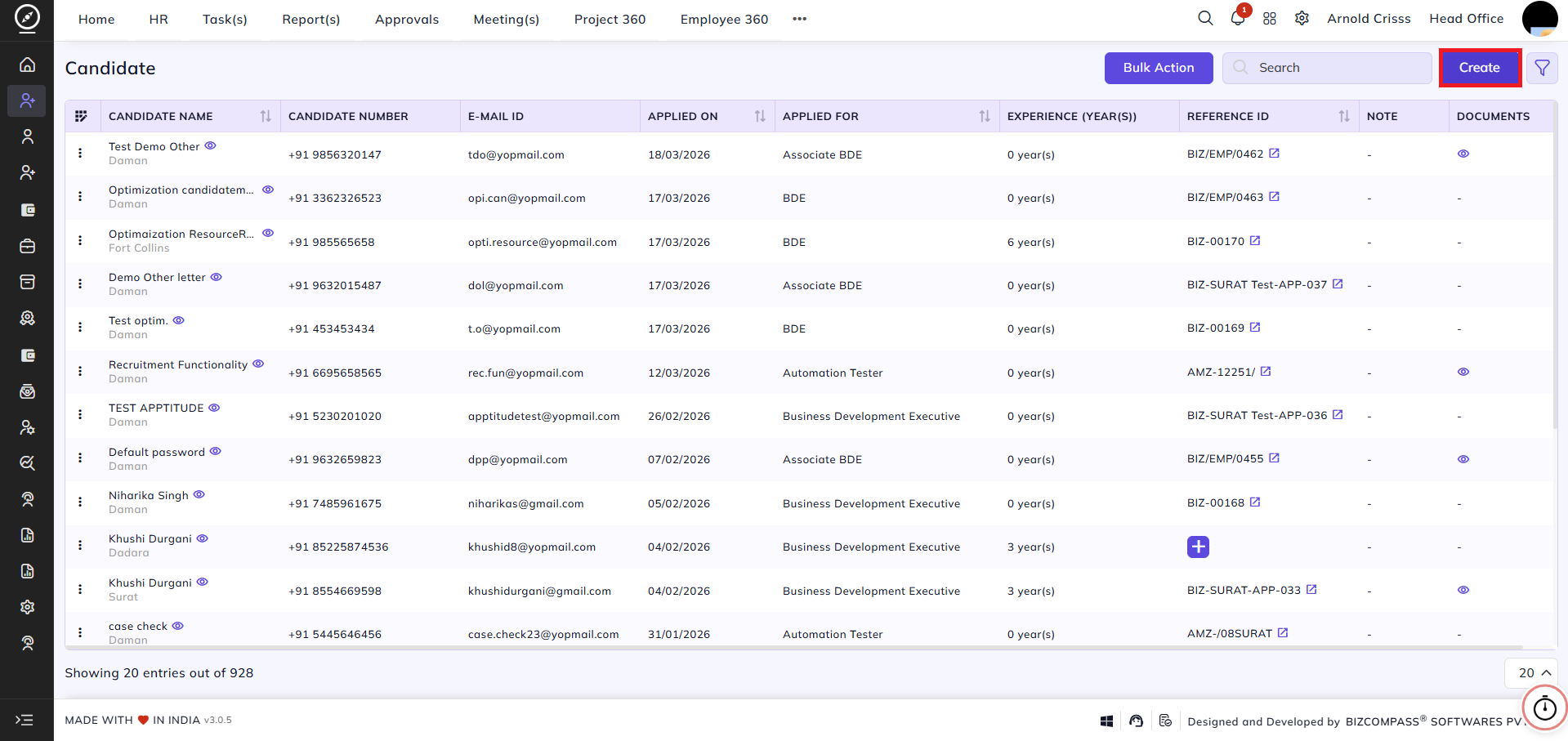
2) Candidates
This page shows all candidates/applications.
It displays the candidate name with Application ID, and if the candidate is selected and an account is created, the Employee Code will also be shown.
There are two options available:
-
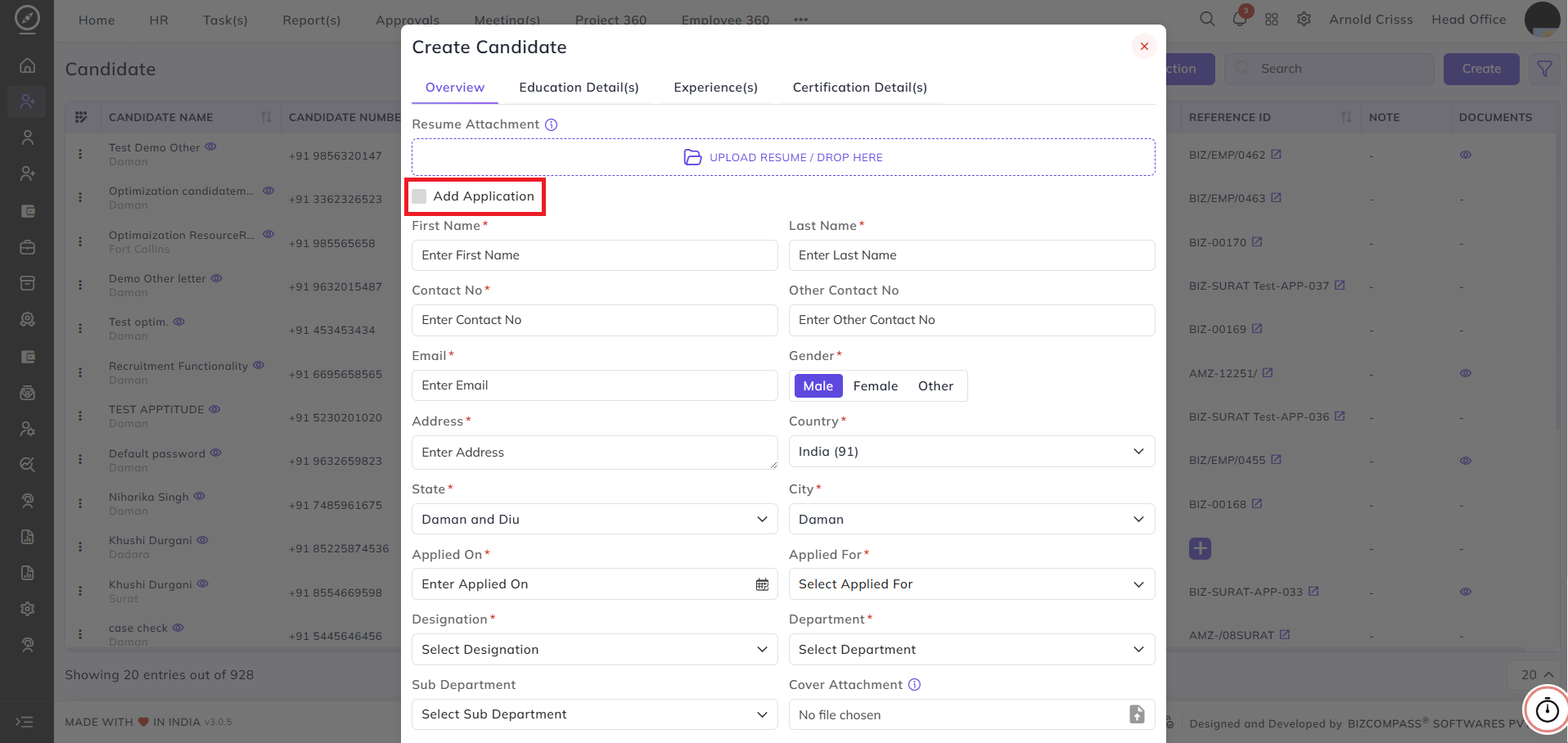
Add candidate with application (same as adding from the Opening page)
-
Add only candidate and create application later
For creating only the candidate, do not select the “Add Application” checkbox while creating the candidate.
3) Resource Request List View section in the Opening Page:
After clicking on this '+' button also, you can add a canddiate.
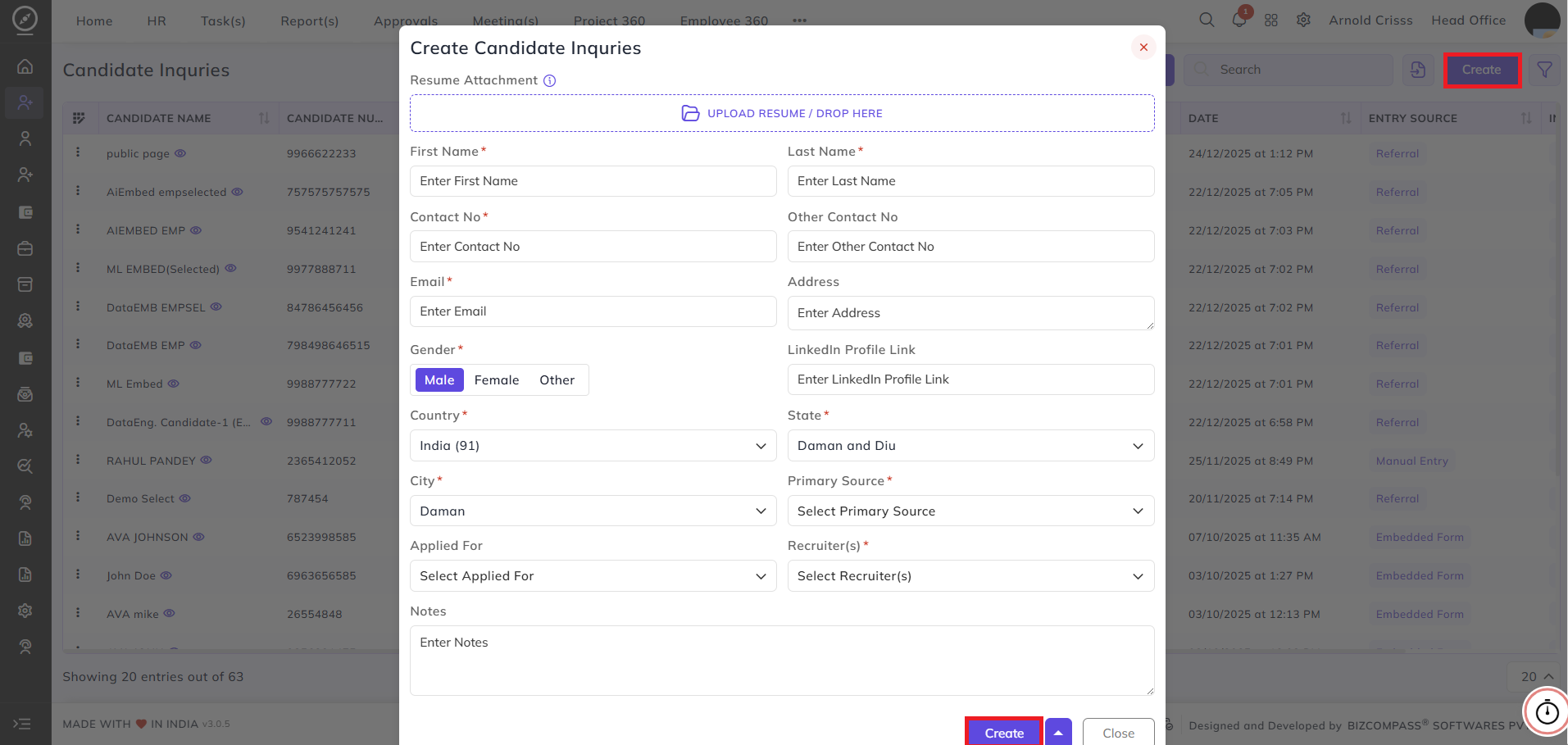
4) Candidate Inquiry:
This page is used to create an inquiry first.
If the inquiry is successful, we can add an application from there by either:
-
Updating the inquiry, or
-
Using the ➕ button
4) Opening (Resource Request)
If a resource request is created, candidates can be added for that request.
Steps:
Click on the🛈 buttonnext to theresource request countto view allactive requests under that openingUse the➕ buttontoadd a candidate for a specific resource requestIf using the➕ button next to the position name, select theresource requestand then add the candidate
5) Opening (Career / Career/Embed Page)
:
The Career/Embed Page link for an opening or resource request can be copied and shared.
This is a public page where candidates can apply directly.
Applications from this page will first be added to Candidate Inquiry, and from there the recruiter or organization can create the application.
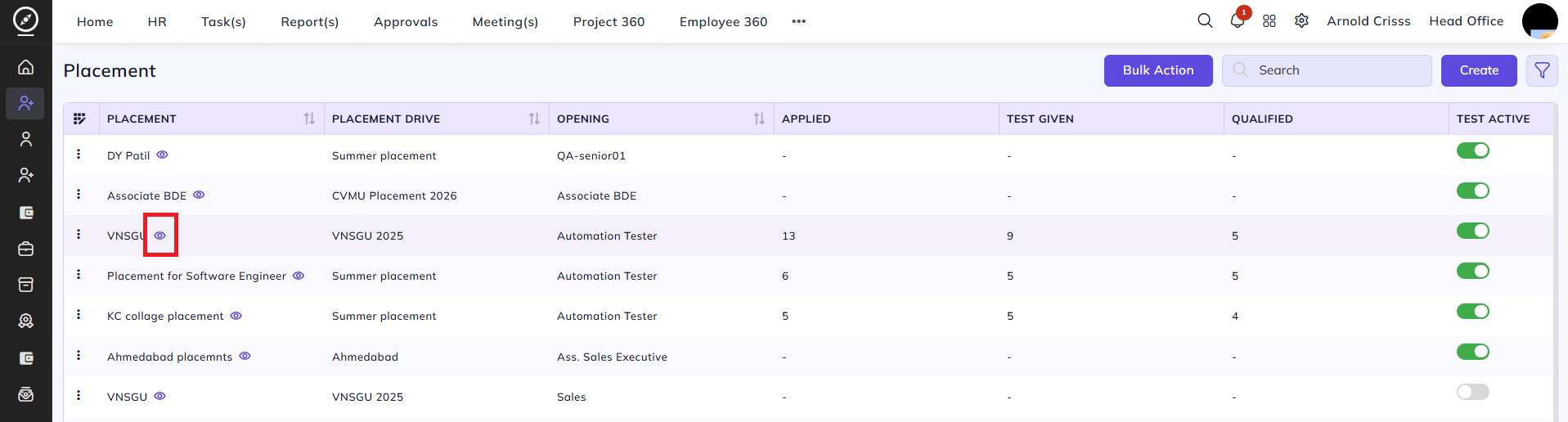
5) 6) Placement
Placement:
If the candidate meets the cutoff, the application will be created automatically.
If a candidate has taken a test but did not pass or did not meet the cutoff, the application must be added manually.
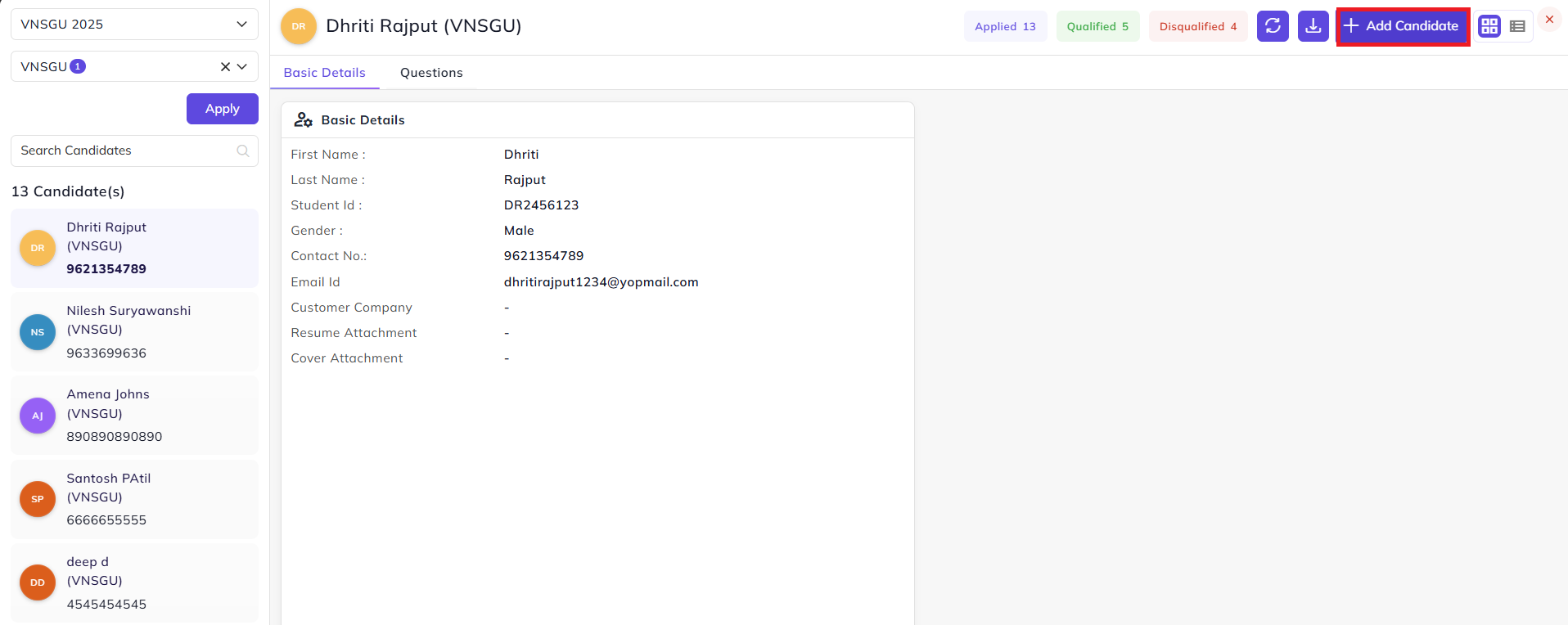
IfFor theit, candidateclick meets the cutoff,on the applicationeye button next to a placement. Then, the details of all the candidates will be visible whose application was created automatically.in the placement. From there, you can add a new candidate.