Candidate Entry Pages
After completing all configurations such as creating a position, setting up the Interview Procedure Flow, and Joining Procedure Flow, candidates or applications can be added. Candidate Entries can be done through many ways.ways:
1) Opening Page
2) Candidate Page
3) Resource Request List View
4) Candidate Inquiry
5) Opening (Career/Embed Page)
6) Placement
1) Opening Page:
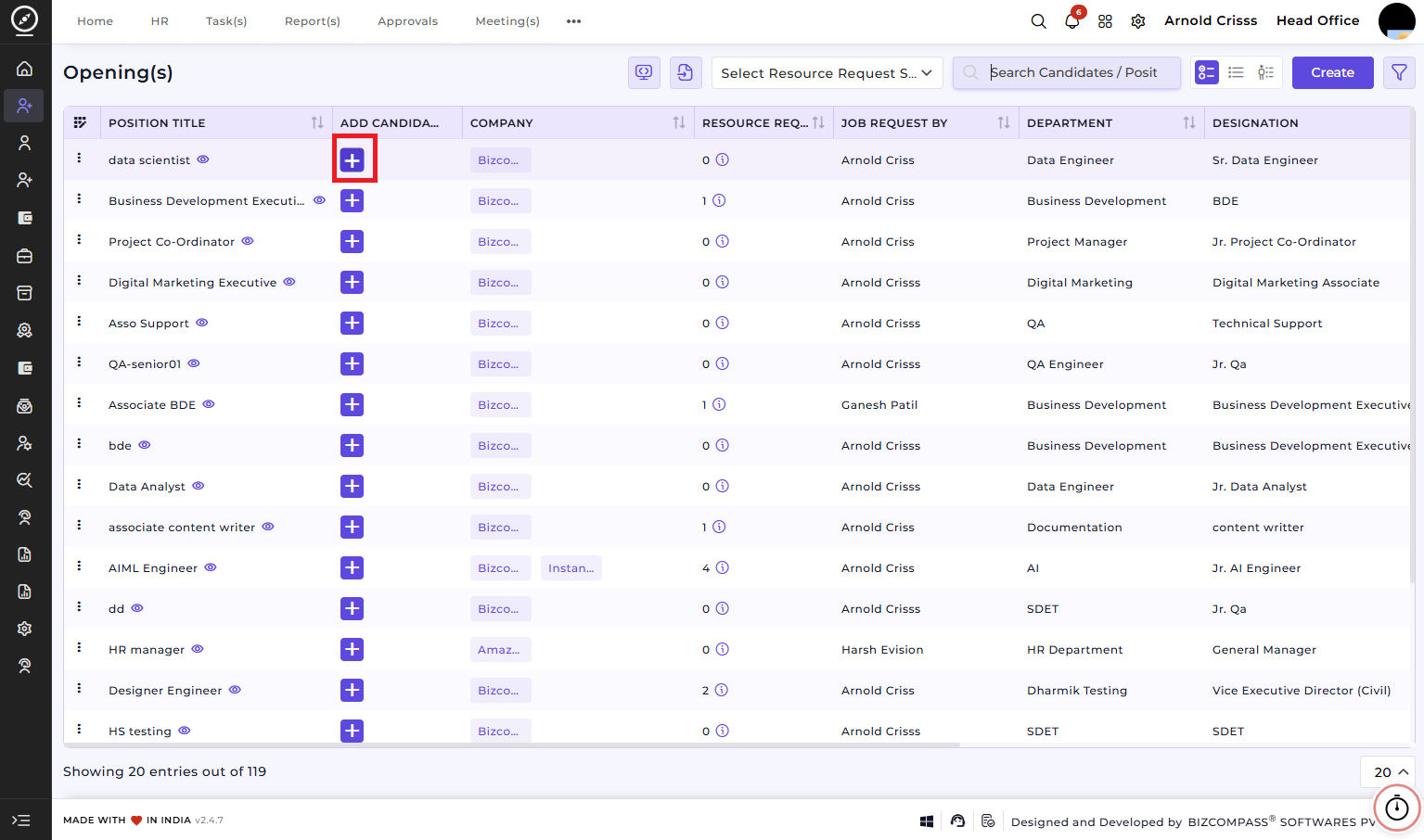
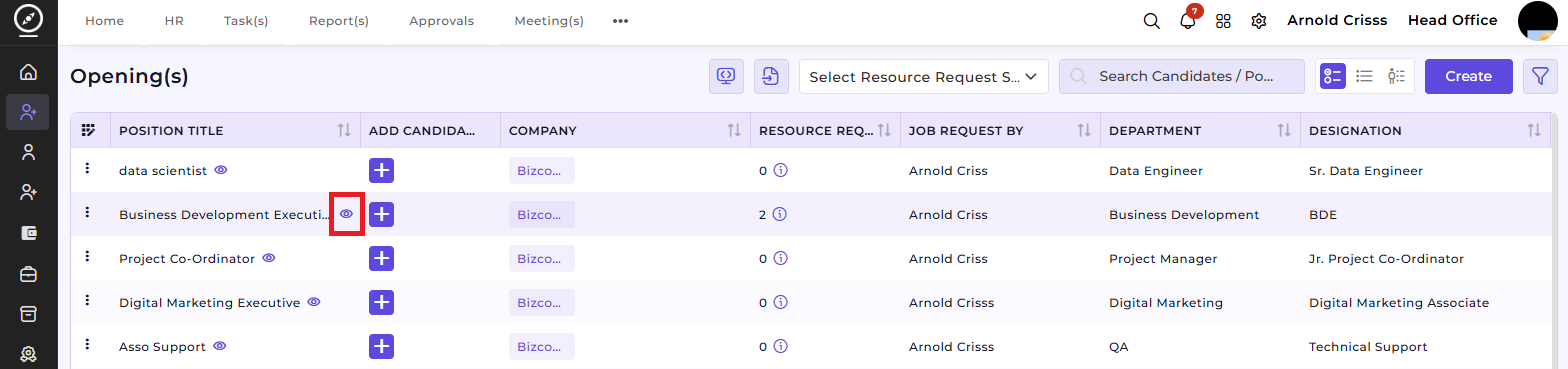
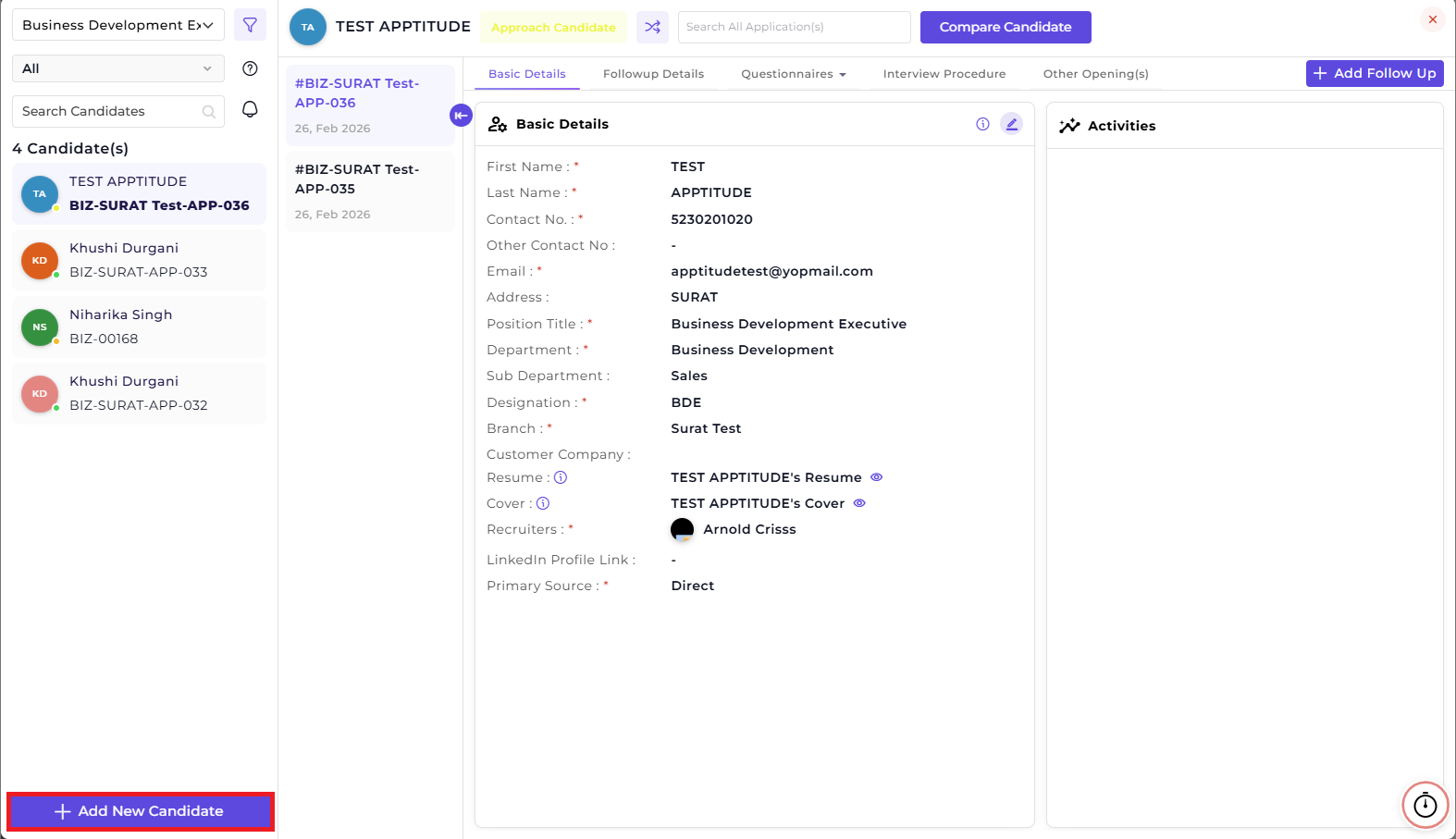
After clicking on the ➕ button in the Add Candidate column, you can add a candidate. We can also open the detail/view modal of the opening or position.
If using the If using the ➕ button next to the position name, select the resource request and then add the candidate button next to the position name, select the resource request and then add the candidate
This is the main page used to add applications.
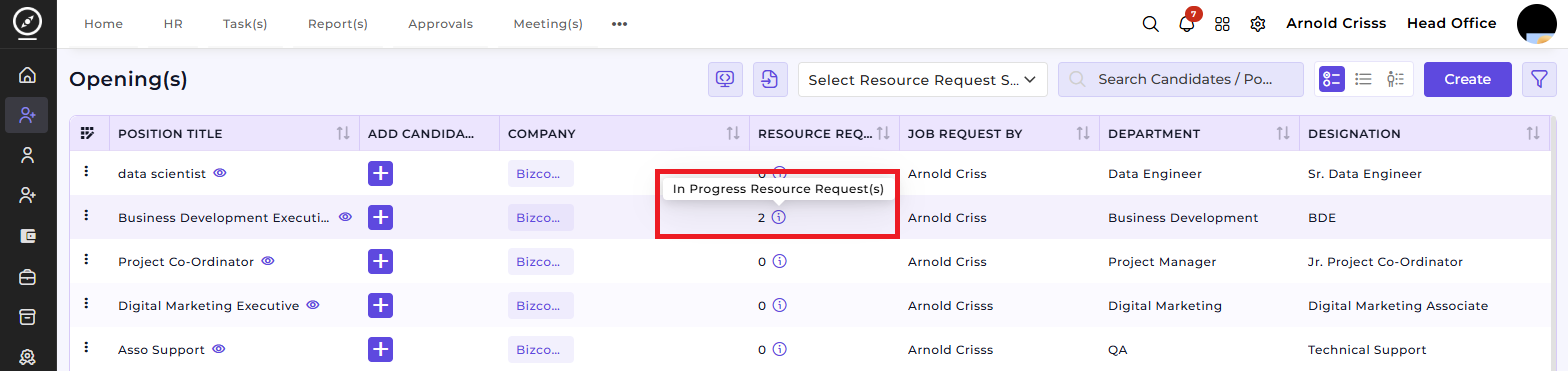
If a resource request is created, candidates can be added for that request. You can add a new candidate by clicking on the eye icon in the Resource Request column as shown below.

Moreover, you can add a new candidate by viewing an Opening by clicking on the info button in the Position Title column as shown below.
2) Candidate Page:
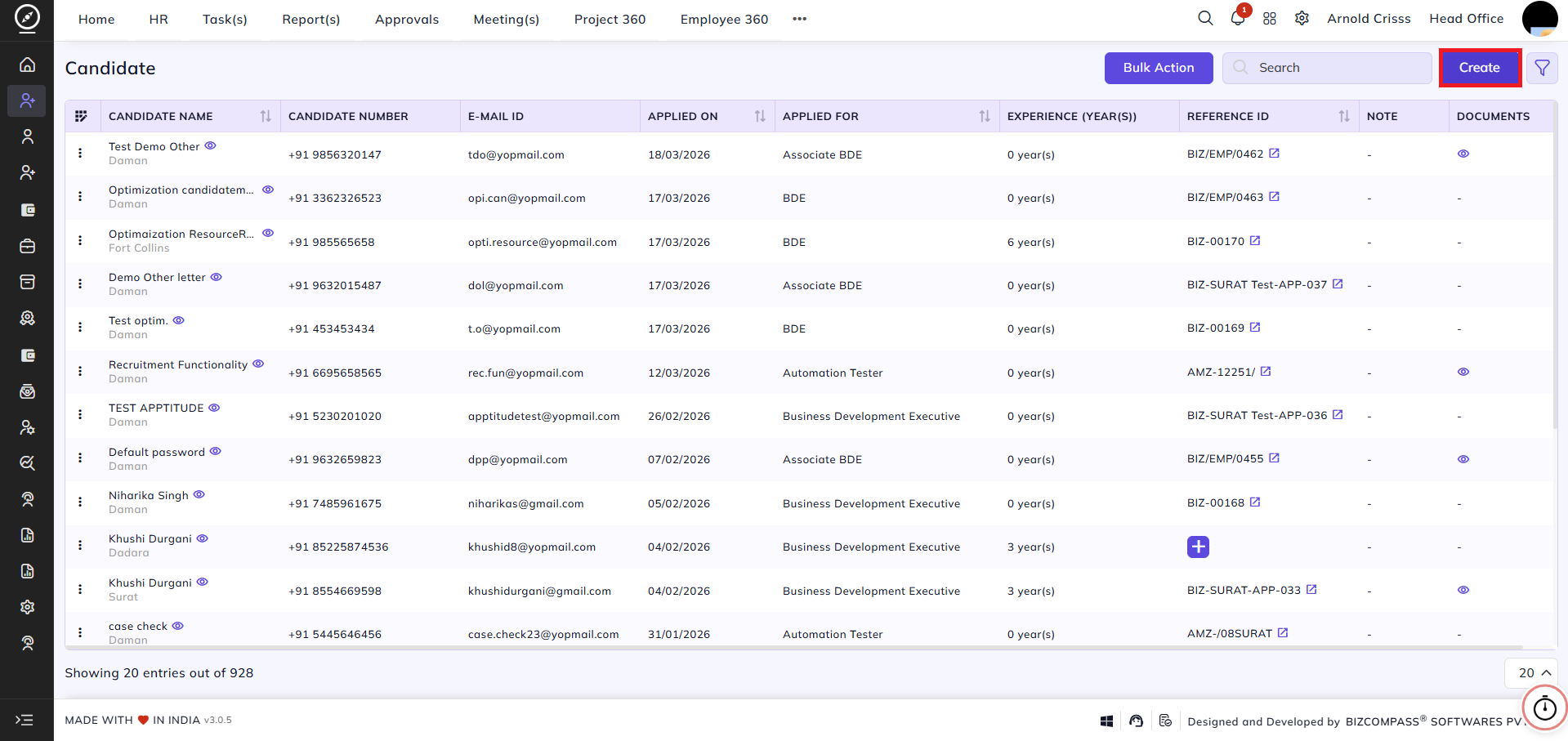
This page shows all candidates/applications.
It displays the candidate name with Application ID, and if the candidate is selected and an account is created, the Employee Code will also be shown.
There are two options available:
-
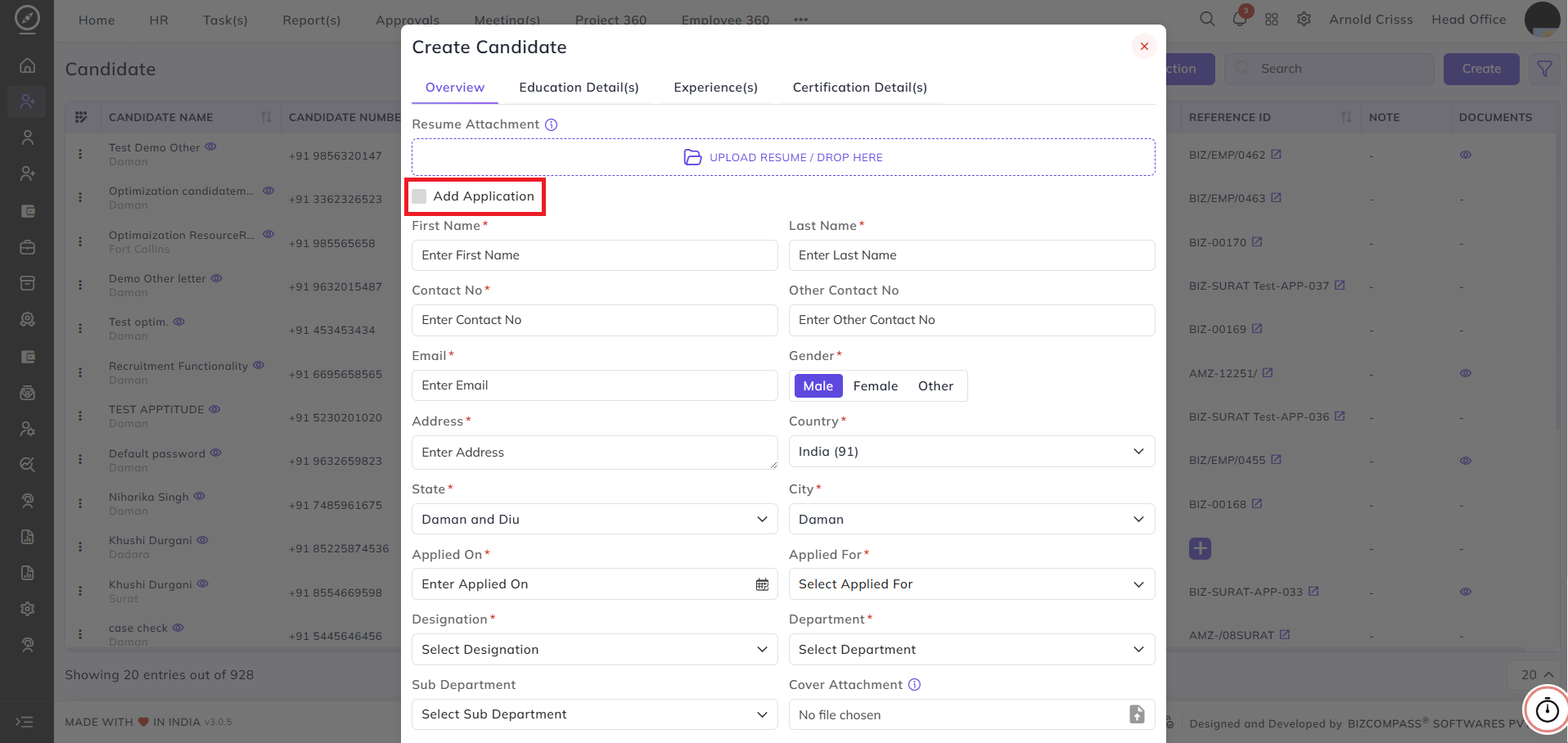
Add candidate with application (same as adding from the Opening page)
-
Add only candidate and create application later
For creating only the candidate, do not select the “Add Application” checkbox while creating the candidate.
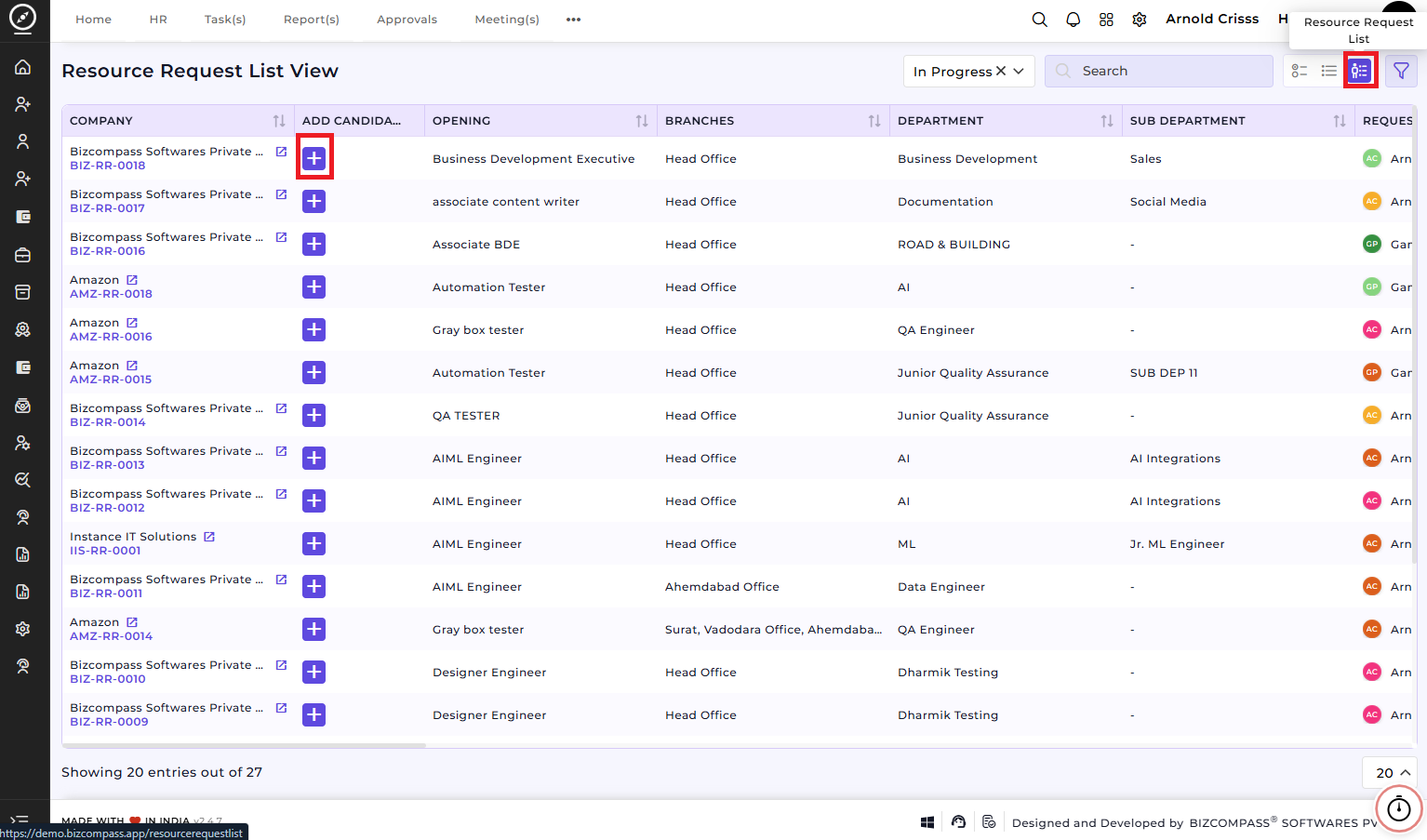
3) Resource Request List View section in the Opening Page:
After clicking on this '+' button also, you can add a canddiate.
4) Candidate Inquiry:
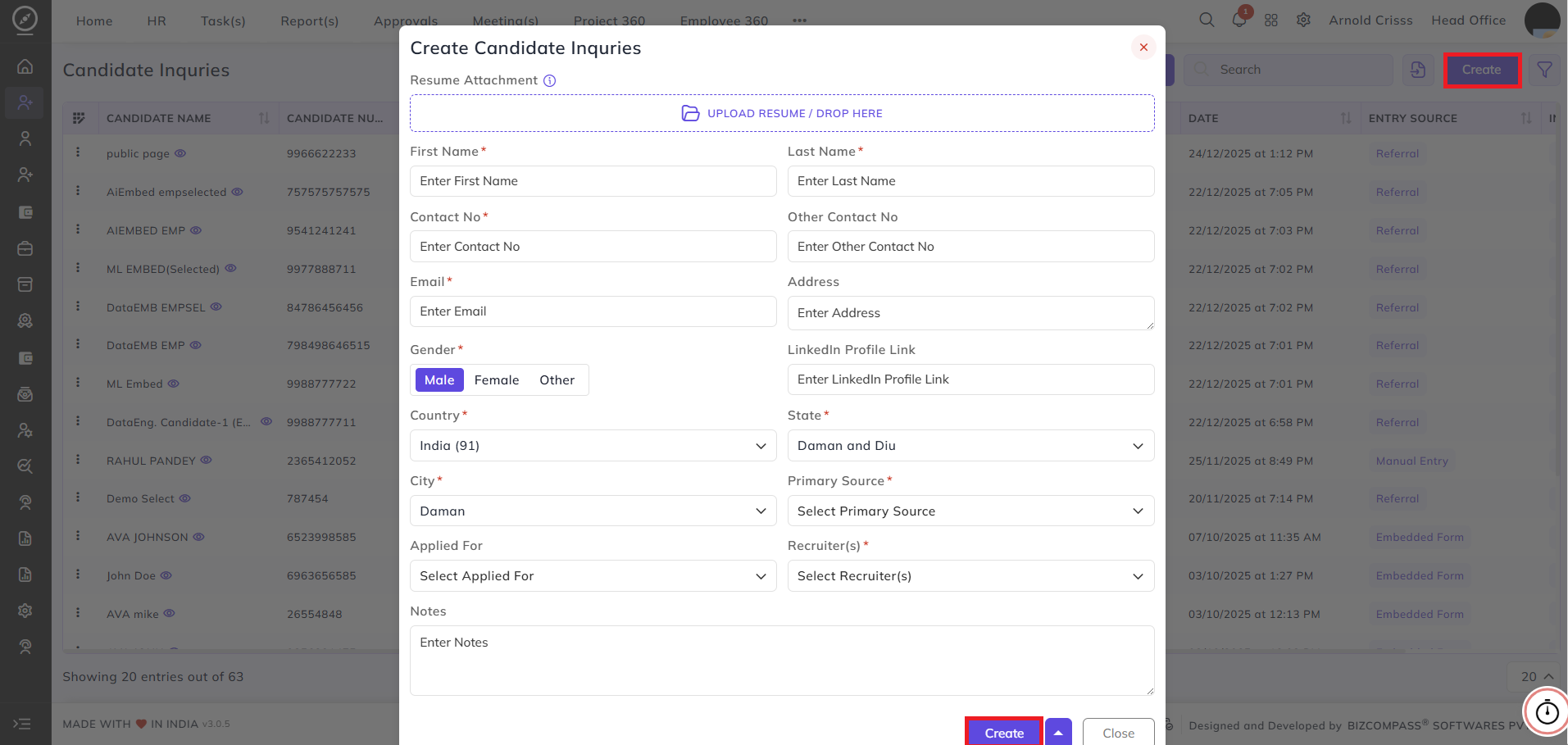
This page is used to create an inquiry first.
If the inquiry is successful, we can add an application from there by either:
-
Updating the inquiry, or
-
Using the ➕ button
4)5) Opening (Career/Embed Page):
The Career/Embed Page link for an opening or resource request can be copied and shared.
This is a public page where candidates can apply directly.
Applications from this page will first be added to Candidate Inquiry, and from there the recruiter or organization can create the application.
5)6) Placement:
If the candidate meets the cutoff, the application will be created automatically.
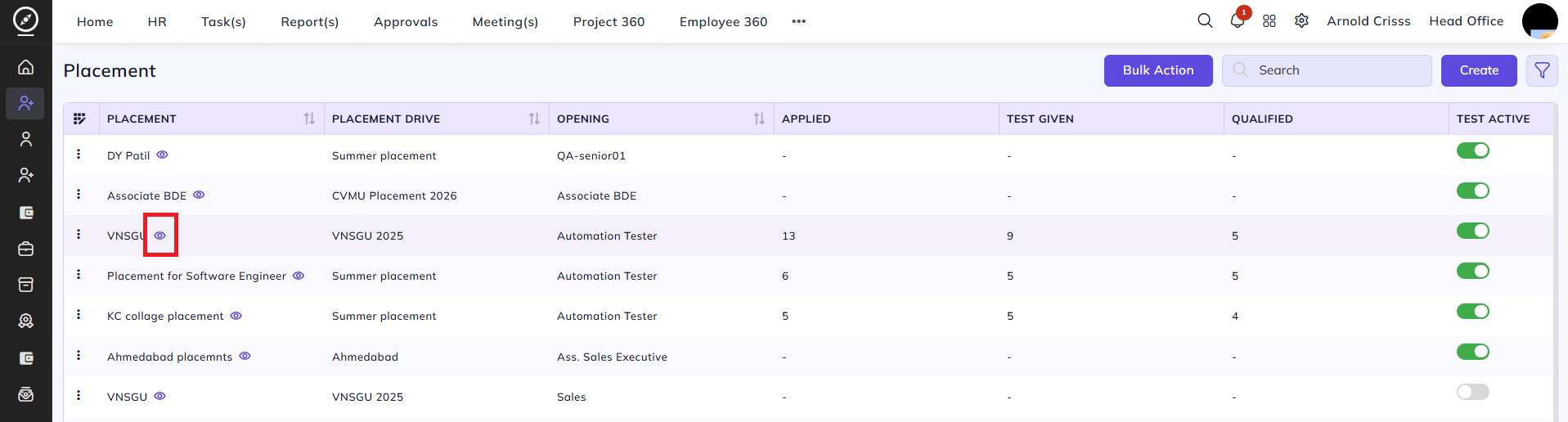
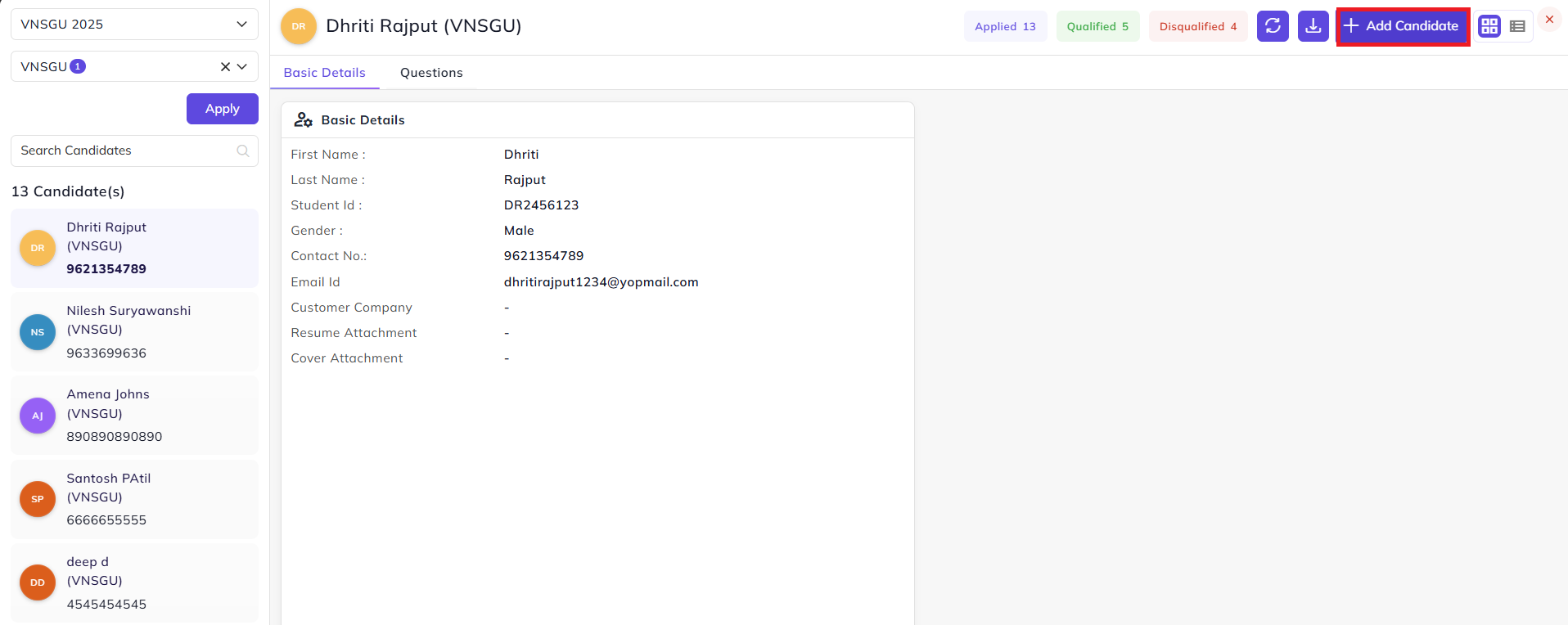
If a candidate has taken a test but did not pass or did not meet the cutoff, the application must be added manually. For it, click on the eye button next to a placement. Then, the details of all the candidates will be visible whose application was created in the placement. From there, you can add a new candidate.