
Candidate Status
The Candidate Status page is used as follow-up or candidate's current status or taken follow-up. All the configurations like Interview Conducted, Next Follow-Up, etc. are set up by BIZCOMPASS®. They are one-time configurations and can't be used for another status.
For e.g., Trial configuration is set on for Trial Period status. This configuration can't be set on for another status.
Approach Candidate:
After we have approached a candidate, you can select this status which has the flag Approach on.
Schedule/Reschedule Interview:
After a candidate is approached, you can schedule/reschedule an interview by selecting this status which has the flag Interview Schedule/Reschedule on.
Next Follow Up:
After the interview is completed, you can select this status for the next follow up which has the flag Next Follow Up on.
Interview Conducted:
After the interview is conducted, you can select this status which has the flag Interview Conducted on.
Trial Period:
If the candidate is on trial period after the interviews are conducted, you can select this status which has the flag Trial on.
Make Offer:
If you want to make offer to the candidate, you can select this status which has the flag Make Offer on.
Selected:
If you want to select the candidate after completing all the interviews, select this status which has the flag Start Joining on.
End Follow Up:
If the candidate is not selected after the interviews are conducted, you can select this status which has the flag Rejected on.
On Hold:
If you don't want to move forward with the candidate at the moment, you can select this status which has the flag On Hold on.
Weightage(%):
This column specifies the weightage for each status which can be used while creating PMRS Target. The recruiter will get incentives based on this.
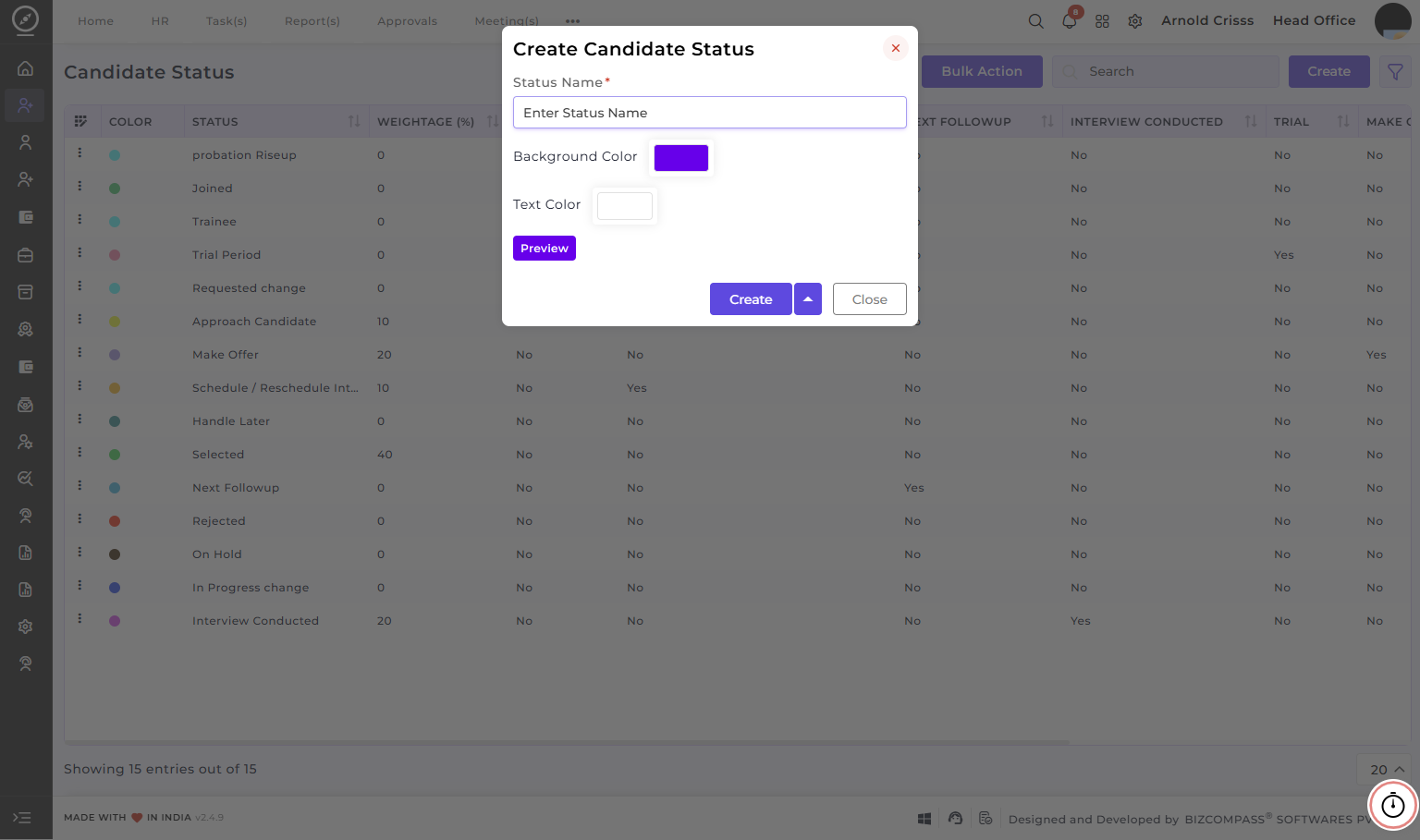
Create Candidate Status:
-
Enter the Status/Follow-up Name that represents a specific status type in the recruitment process, such as Selected, Rejected, Interview Conducted, Made Offer, etc.
-
Optionally choose a Background Color and Text Color that represents the status visually (this can be used while reviewing applications at application list view).
- Preview the status look before creating it.
You can also edit the status name and background color after creating it.
The Bulk Action button allows you to delete multiple candidate statuses at once, streamlining the management process.