
Candidate
This feature is mostly used as a candidate data bank, used to create and manage candidates' data in the recruitment module.
Using the Candidate feature, you can add complete candidate information including personal details, education, work experience, and certifications, all in one structured flow. This feature is used to link candidates directly to the job openings.
Each candidate is added to a Candidate Data Bank, which acts as a reference throughout the recruitment process.
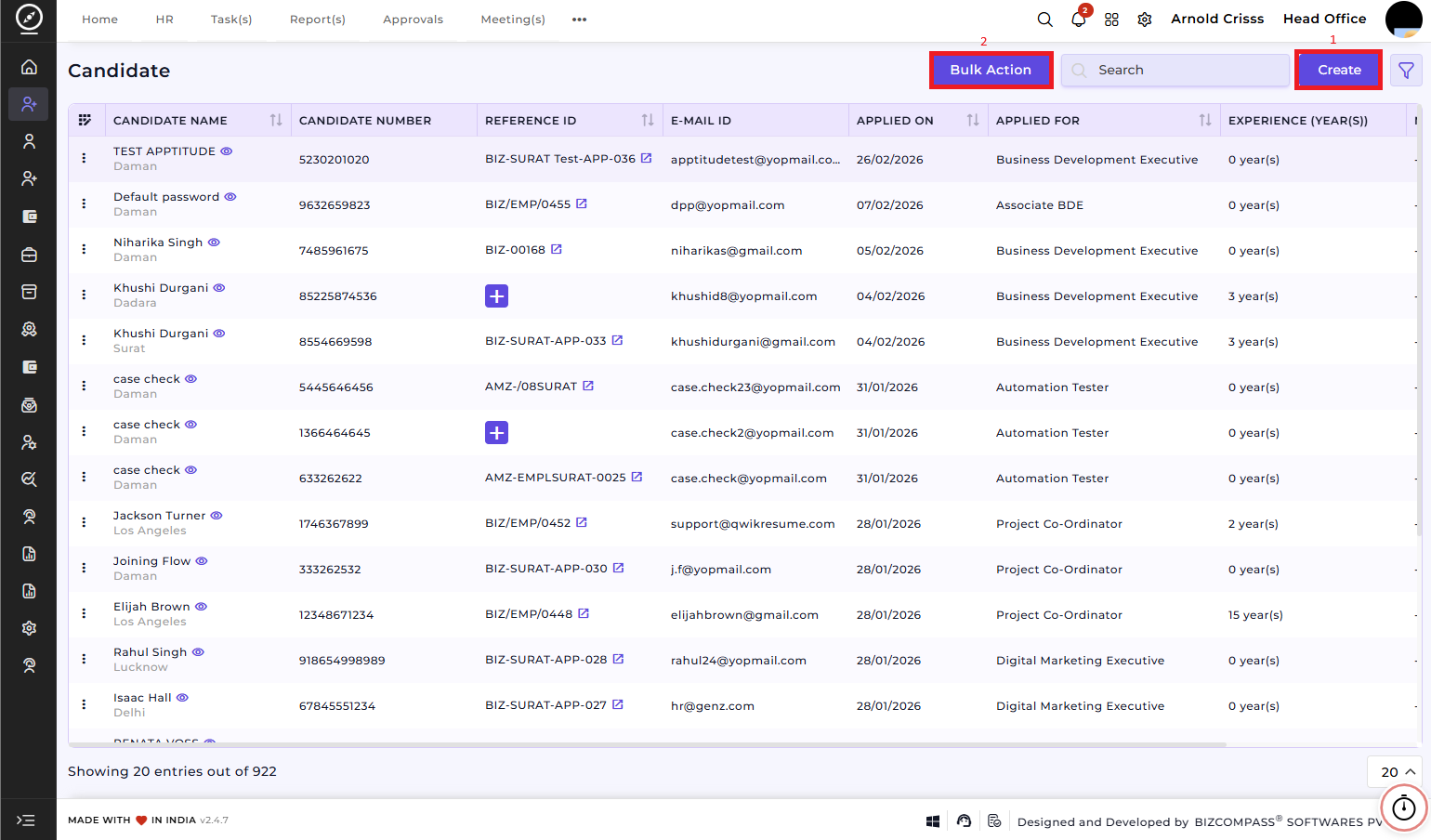
Bulk Action:
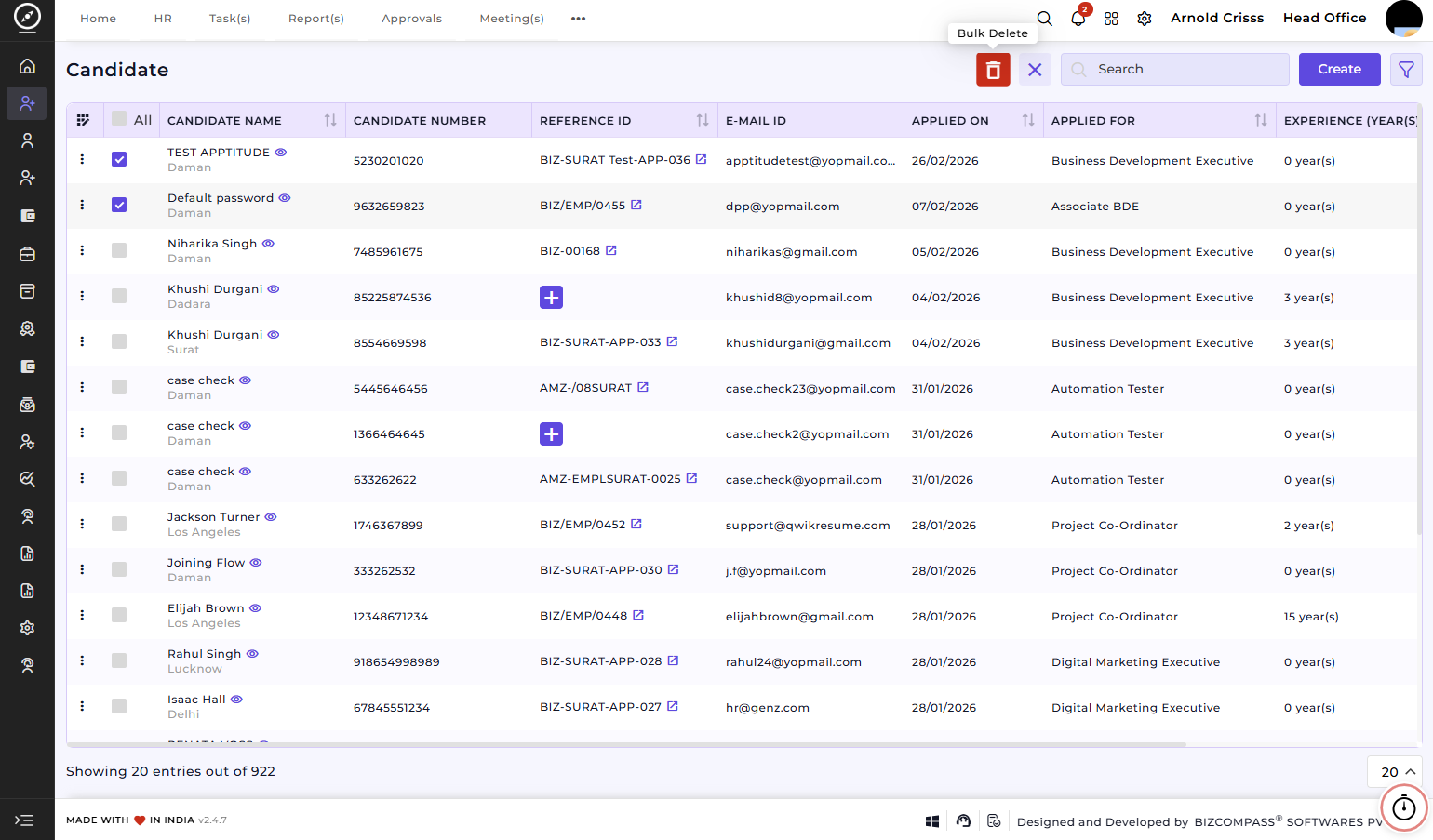
The Bulk Action button allows you to delete multiple candidate entries at once, streamlining the management process.
1) Create CandidateCandidate:
On this page, you can create a 'New candidate'candidate by entering basic details and progressively adding additional information across different sections. There are two ways to add a candidate: manual entry or resume attachment entry.
Resume Attachment Entry:
Upload the Resume (optional or mandatory based on settings). If you upload the resume, all the details of the candidate mentioned in the resume like basic details, education details, experiences and certification details will be fetched automatically.
Manual Entry:
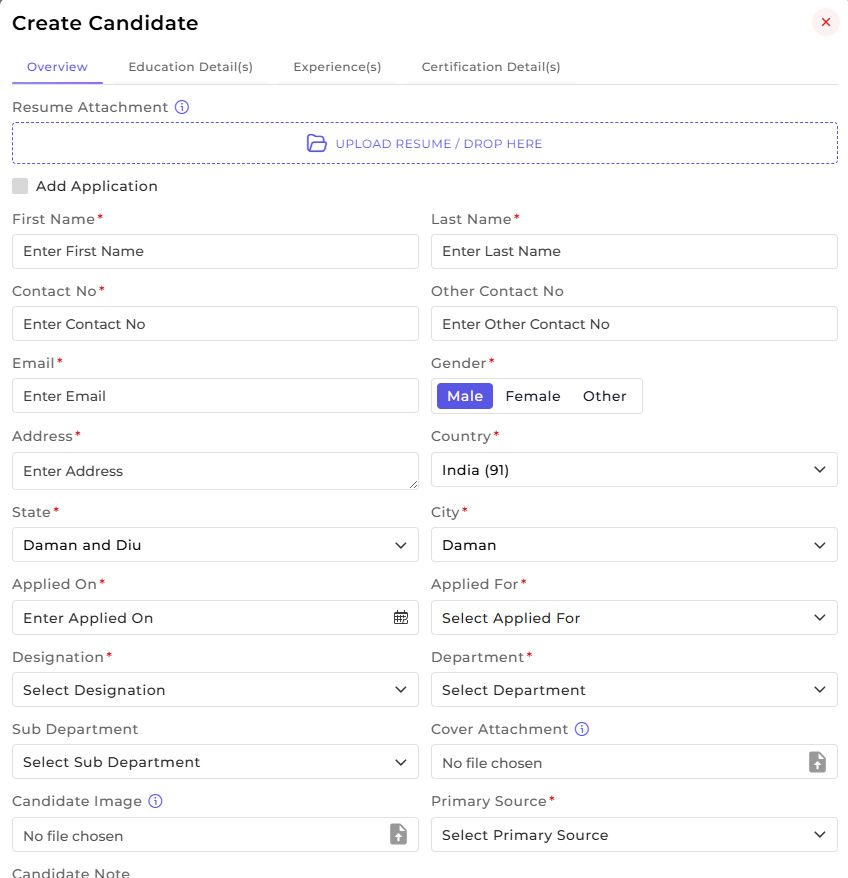
Overview
This section is used to capture the candidate’s basic and application-related information.
Upload the'Resume Attachment'(optional or mandatory based on settings).- Enter the candidate’s
'First Name and LastName'Name. - Provide the
'Contact Number, Email ID, andAddress'Address. - Select the
'Gender, Country, State, andCity'City. - Enter the
'Applied-Ondate'.date. - Select the
'Applied For position, Department, Sub Department, andDesignation'Designation. - Upload a
'CandidateImage'Image and Cover Attachment if required. - Select the
'PrimarySource'Source (Job Portal, Referral, Walk-in, etc.). - Add any relevant
'CandidateNotes'Notes.
This section gives recruiters a complete overview of the candidate and links them directly to a specific job opening.
Education Detail(s)
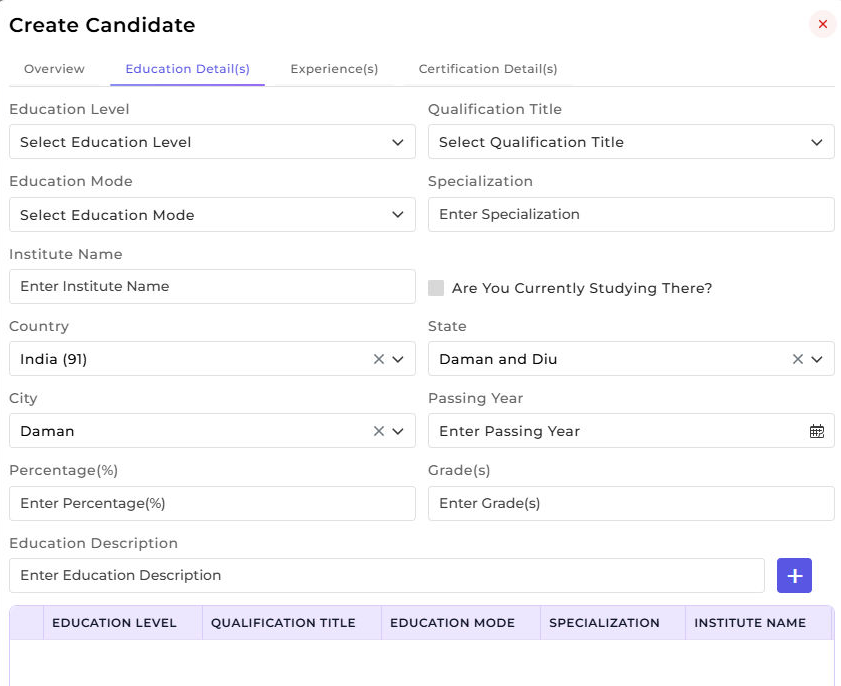
This section is used to record the candidate’s academic background.
- Select the
'EducationLevel'Level (e.g., Graduate, Post Graduate). - Choose the
'QualificationTitle'Title. - Select the
'EducationMode'Mode - Enter the
'Specialization'Specialization. - Provide the
'Institute Name, Country, State, andCity'City. - Enter the
'Passing Year, Percentage (%), and Grade(s)'. - Add an
'EducationDescription'Description if required. - Click the
'Add (+)button'button to save the education record.
Multiple education records can be added to maintain a complete academic history.
Experience(s)
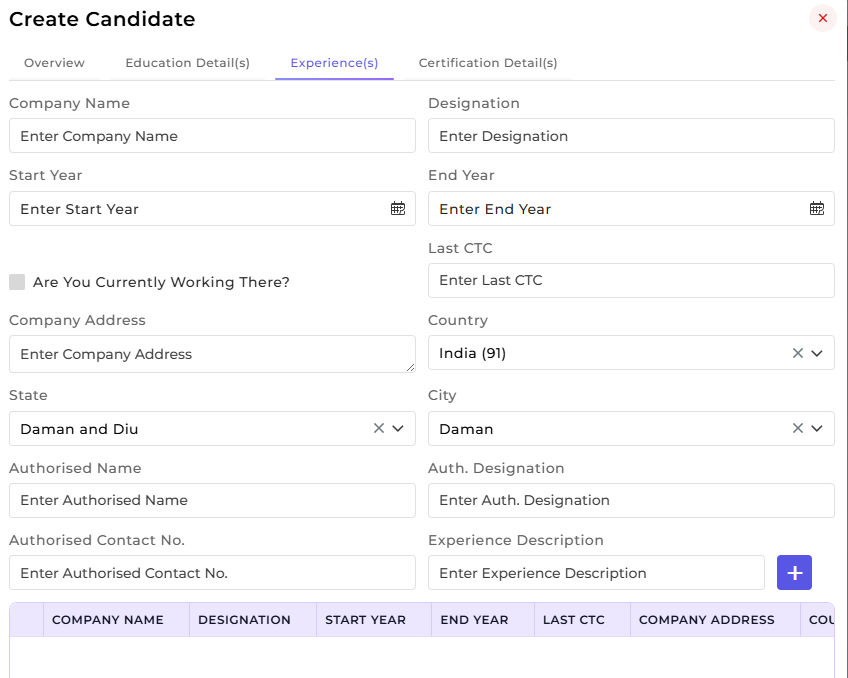
This section is used to capture the candidate’s work experience details.
- Enter the
'Company Name andDesignation'Designation. - Select the
'Start Year and EndYear'Year. - Enable
'CurrentlyWorking'Working ThereThereif applicable. - Enter the
'LastCTC'CTC. - Provide the
'Company Address, Country, State, andCity'City. - Add Authorized
'Person Name, Designation, and ContactNumber'Number if verification is required. - Enter the
'ExperienceDescription'Description explaining roles and responsibilities. - Click the
'Add (+)button'button to save the experience record.
This helps recruiters evaluate the candidate’s professional background and total experience.
Certification Detail(s)
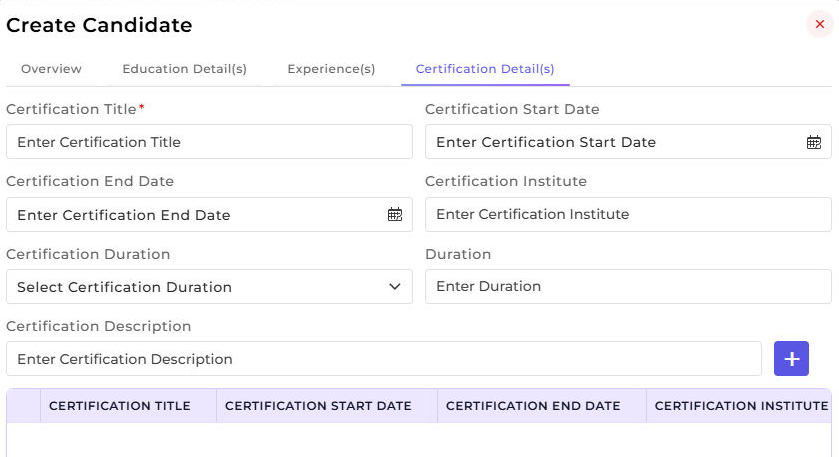
This section is used to add professional certifications completed by the candidate.
- Enter the
'CertificationTitle'Title. - Select the Certification
'Start Date and EndDate'Date. - Enter the
'CertificationInstitute'Institute. - Select the
'CertificationDuration'Duration'durationDurationvalue'Value. - Add a
'CertificationDescription'Description if needed. - Click the
'Add (+)button'button to save the certification record.
Multiple certifications can be added to highlight the candidate’s skills and qualifications.
2) Bulk Action:
The Bulk Action button allows you to delete multiple candidate entries at once, streamlining the management process.
How this feature helps
The Candidate feature ensures that all candidate information is stored in a structured and consistent manner.
It helps RecruitersRecruiters:
- Maintain complete candidate profiles
- Track education, experience, and certifications separately
- Link candidates directly to job openings
- Improve screening and shortlisting accuracy
- Reduce manual follow-ups and data gaps
Once a Candidate is created, the Profile can be used for:
- Screening and evaluation
- Interview scheduling
- Hiring and onboarding
- Recruitment progress tracking
This ensures the entire recruitment process remains organized, transparent, and aligned with hiring requirements.