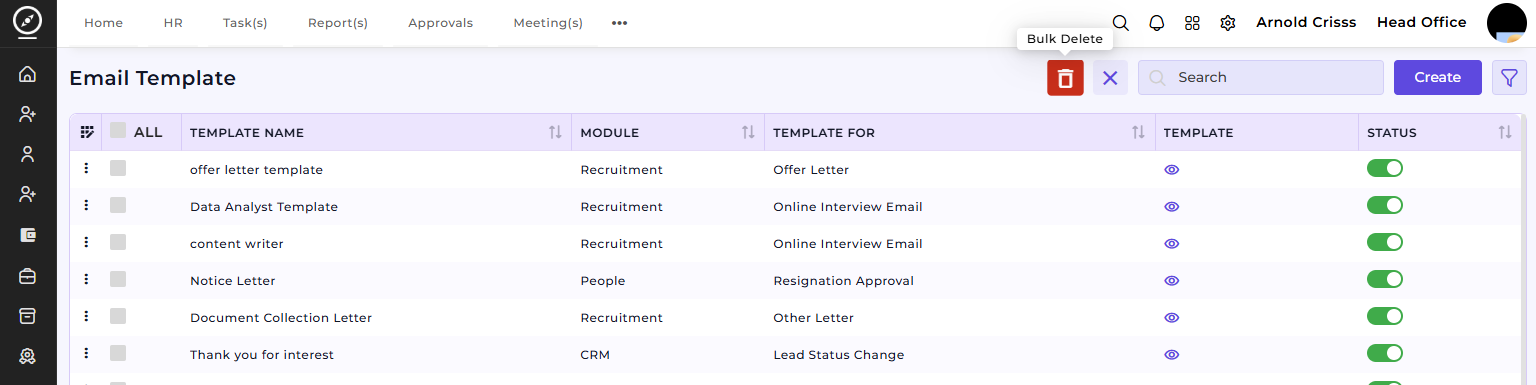
Email Template
The Email Template page allows you to manage various email templates required during the recruitment process. You can create email templates for different stages of recruitment, like sending appointment letters, policy emails, or even online interview reminders.
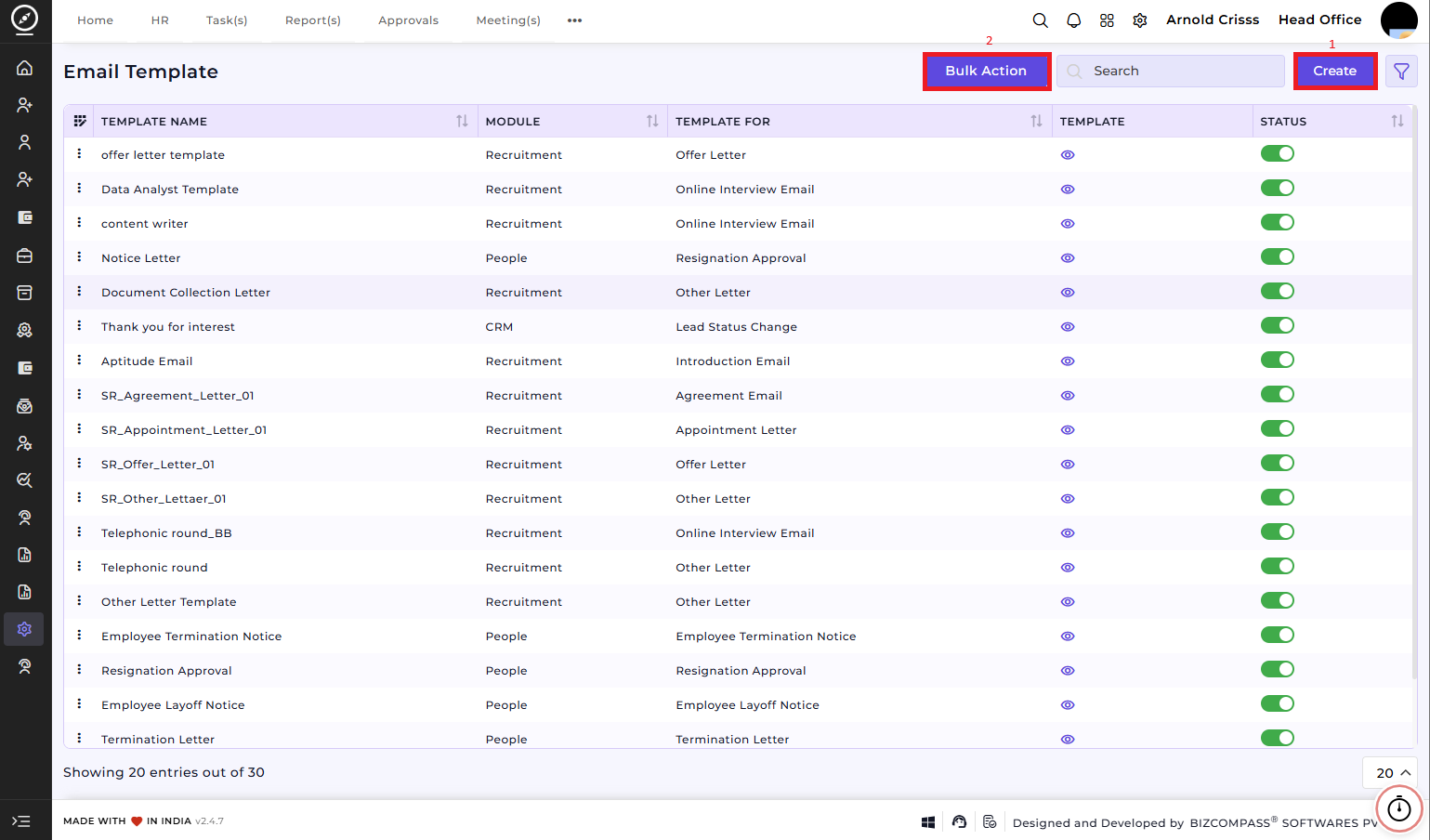
1) Create an Email Template:
-
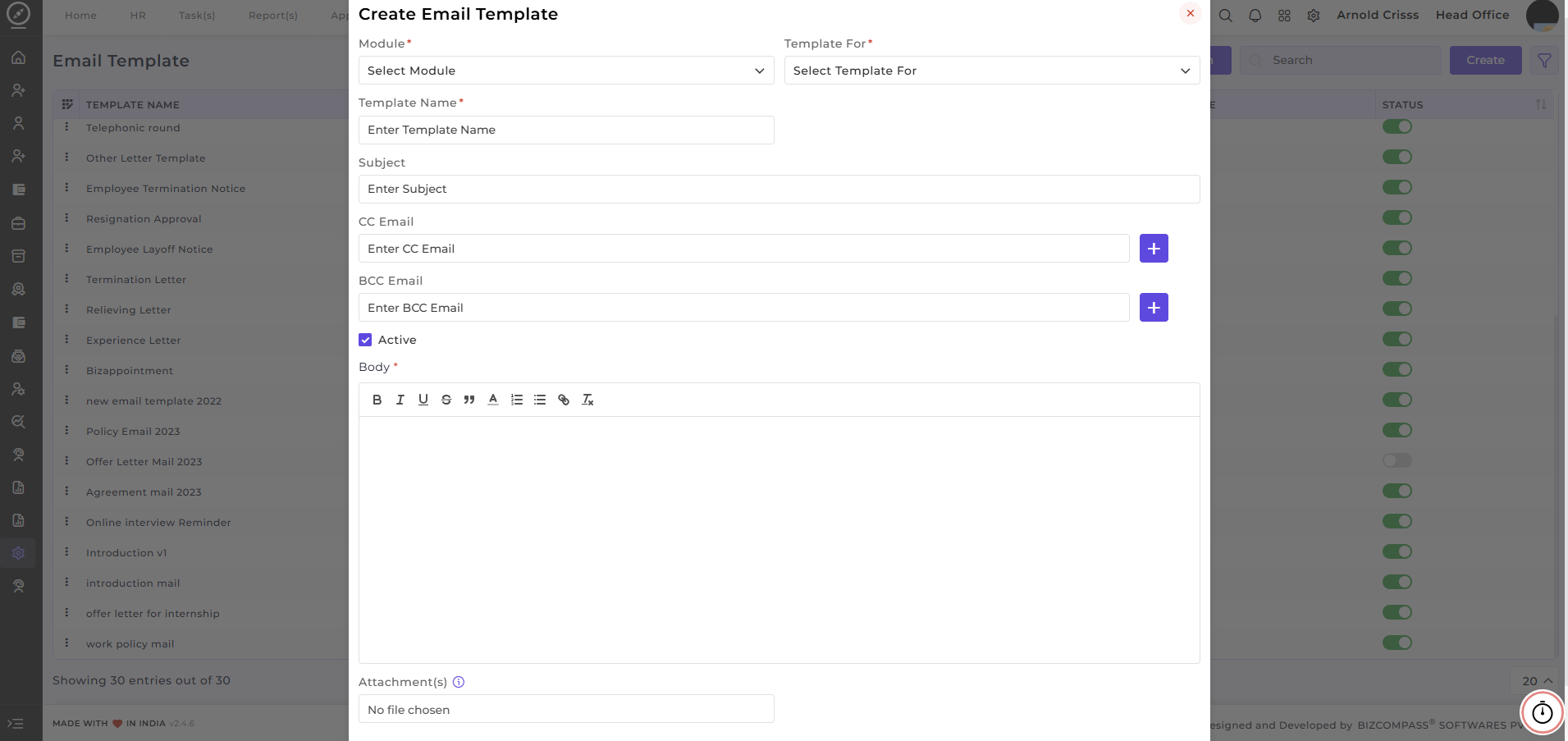
Module: Select the module related to the email (e.g., Recruitment).
-
Template Name: Enter a name for the template, such as "Offer Letter Mail" or "Online Interview Reminder."
-
Subject: Enter the subject for the email.
-
CC Email: Add the CC email addresses, if necessary.
-
BCC Email: Add any BCC email addresses.
-
Body: Write the body of the email using the built-in text editor. You can format the text, add links, and insert images.
-
Attachments: Attach any files to the email template, if needed.
-
Active: Ensure that the "Active" checkbox is checked if you want the template to be available for use.
Once you've filled in the details, click Create to save the template.
You can view and manage all your email templates, toggle their status (active or inactive), and use them in relevant recruitment workflows.
2) Bulk Action:
The Bulk Action button allows you to delete multiple email templates at once, streamlining the management process.