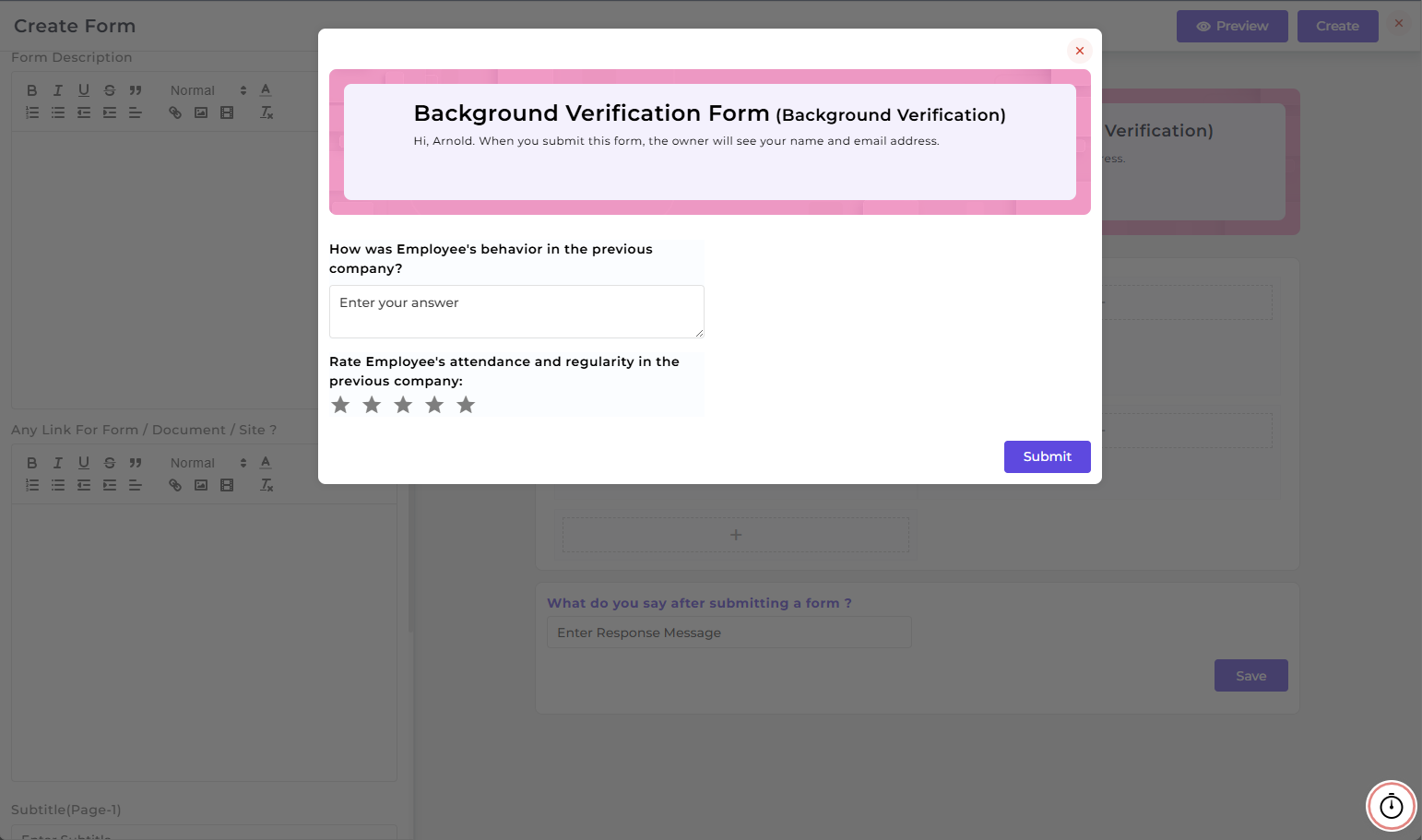
Form Builder
The Form Builder page allows you to create customized forms used in Background Verification during the onboarding process.
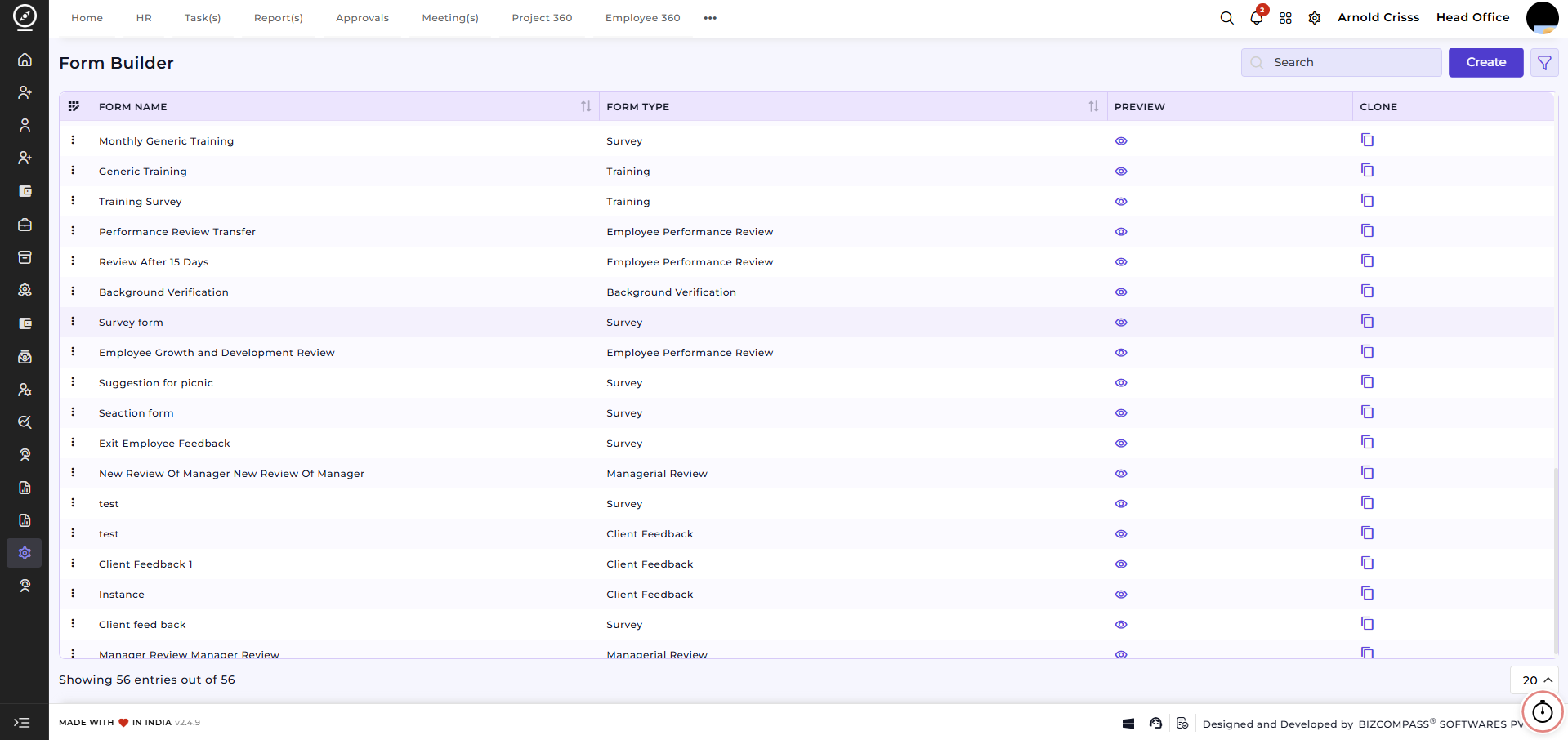
Create Form:
- Enter your Form Name (e.g., Background Verification Form)
- Optionally add the Background Theme and Theme Color for the form.
- Select Background Verification in the Form Type.
- When you click on the "+" icon in the form, a new section will open which will show the Available Field Types.
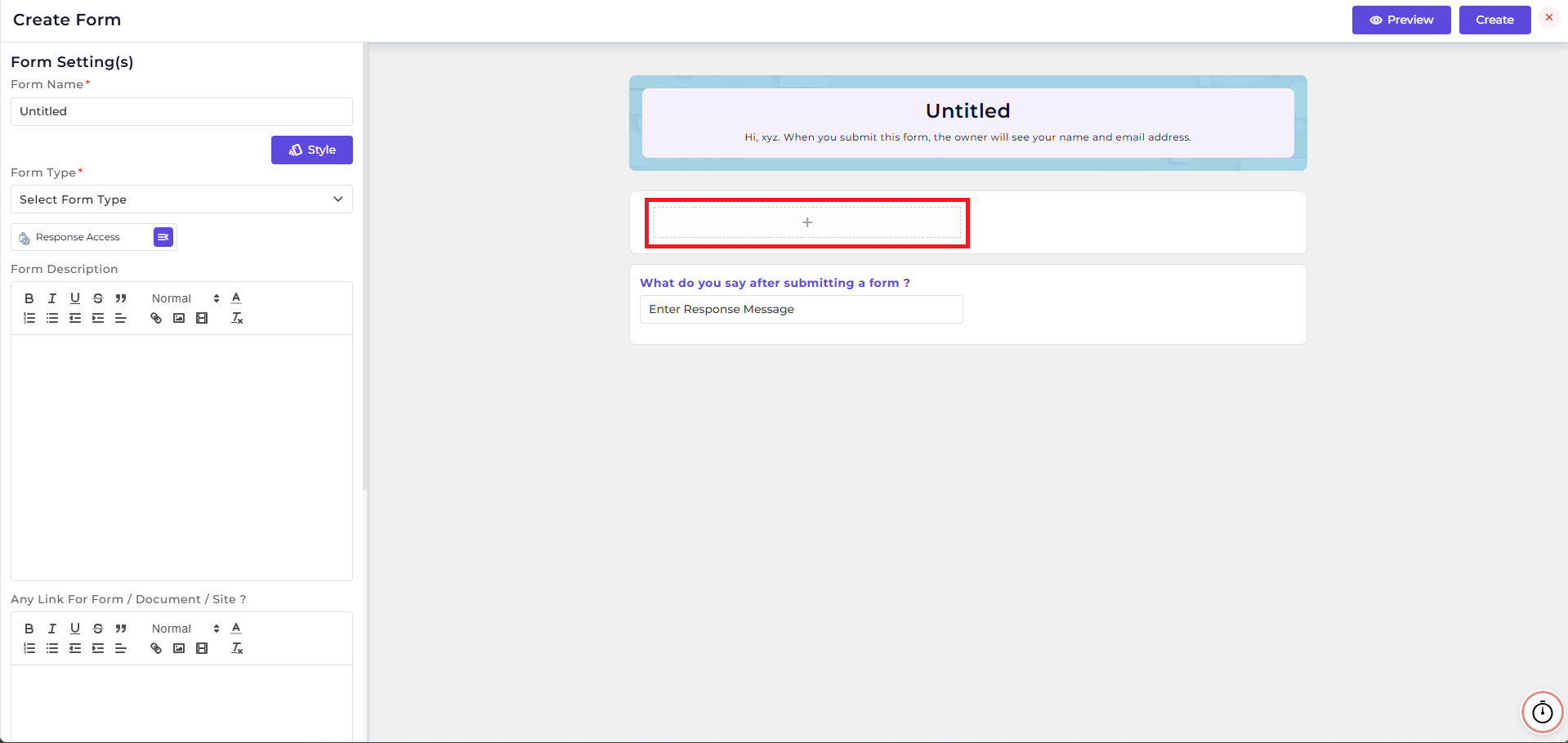
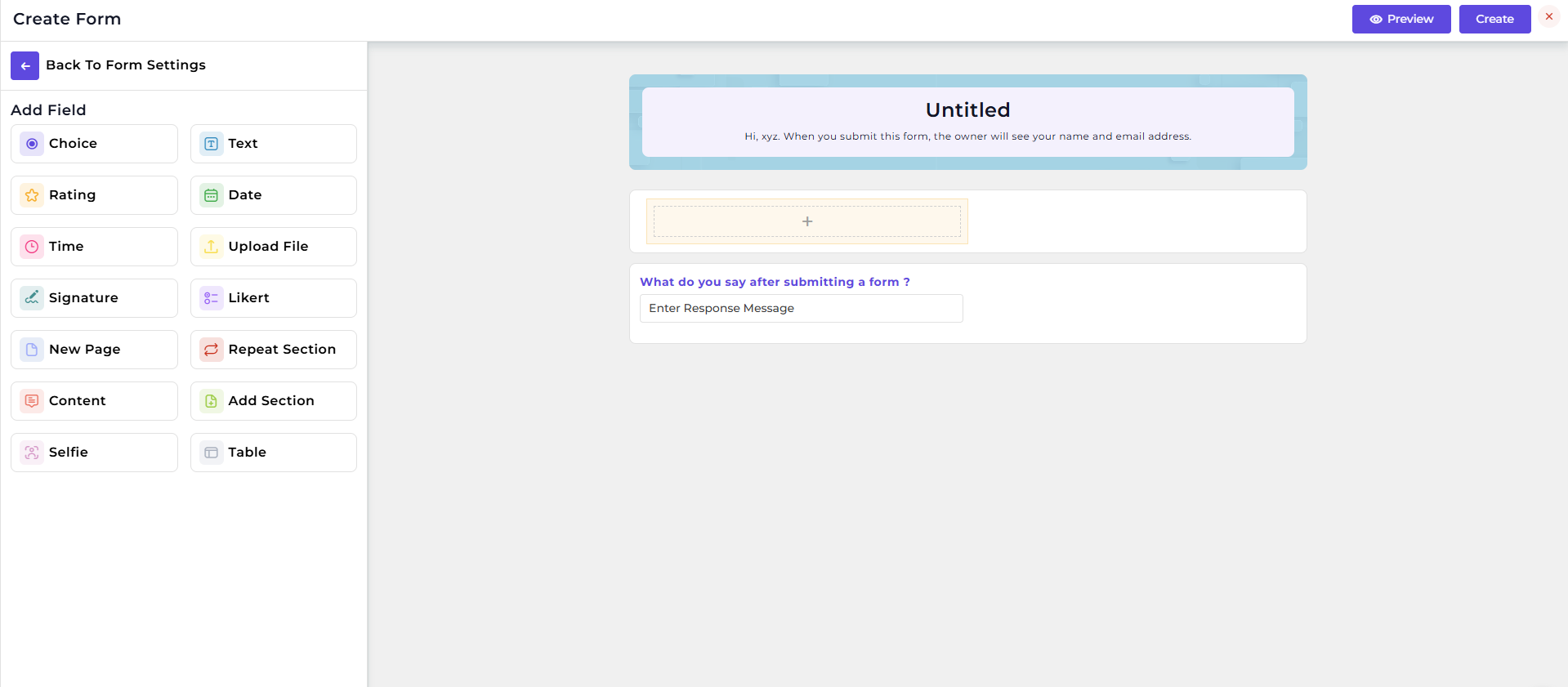
Then you can add the questions you like by selecting your preferred Field Types. This way, you can create multiple fields in your form.
5. Define who can Access Form Responses:
-
Designation – Restrict access to specific roles.
-
Department – Restrict access to specific departments.
-
Person – Restrict access to specific individuals.
6. Optionally provide a Form Description, attach any Link for Form/ Document/ Site and add a Subtitle to appear at the top of the pages.
7. Enable Set Expiry for Link to set a deadline after which the form will no longer be accessible.
8. Enable Save As Draft Button Setting if you want to save incomplete forms and continue later.
9. Add multiple Pages if your form requires sections or stepwise inputs.
10. Click the Preview button to review the form’s appearance and functionality before publishing.