
Form Builder
The Form Builder page allows you to create customized forms used in various HR processes such as Background Verification during onboarding, Employee Performance Review, Surveys, Client Feedback, and other organizational workflows. This feature centralizes all form creation needs, ensuring consistent data collection and streamlined access for authorized personnel.
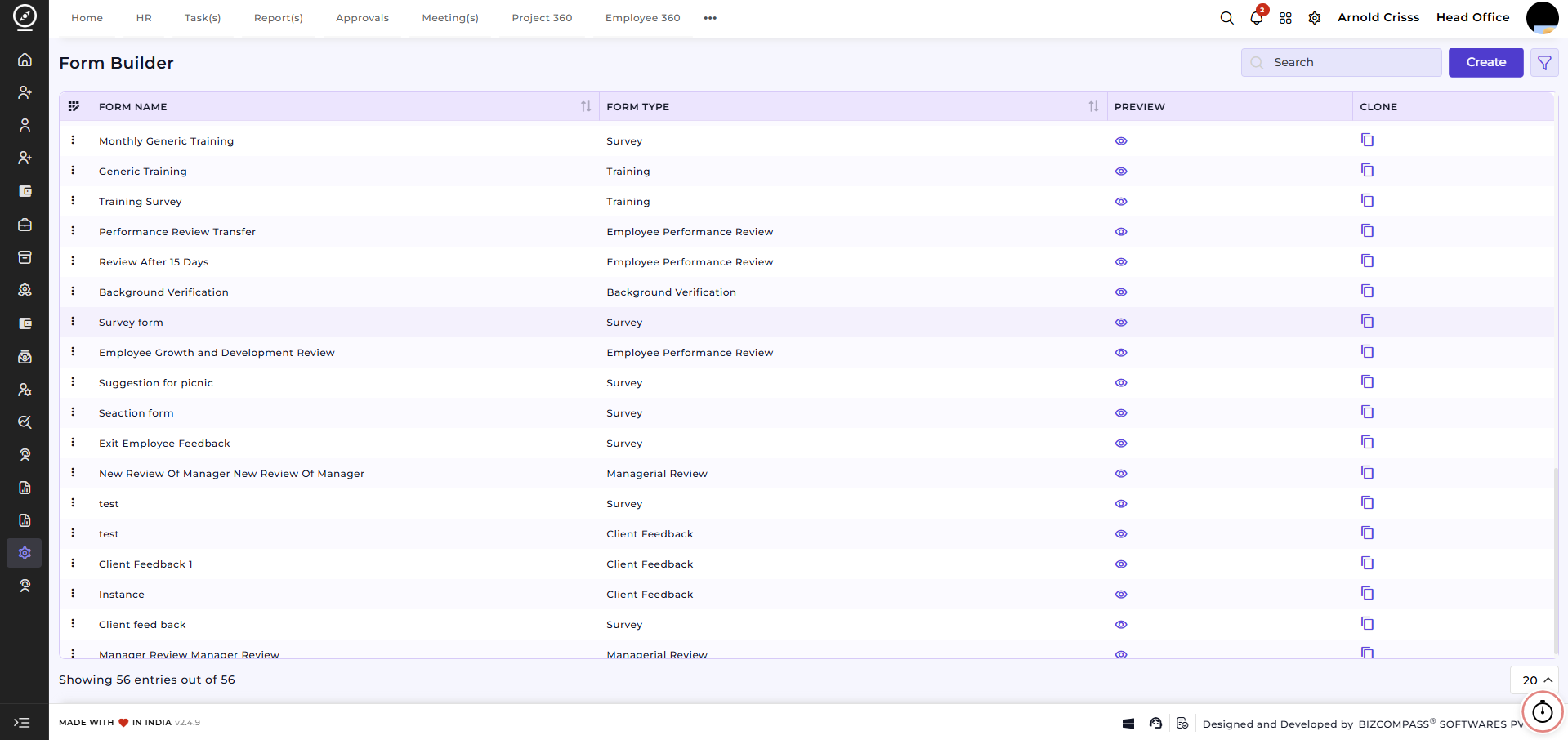
Create Form:
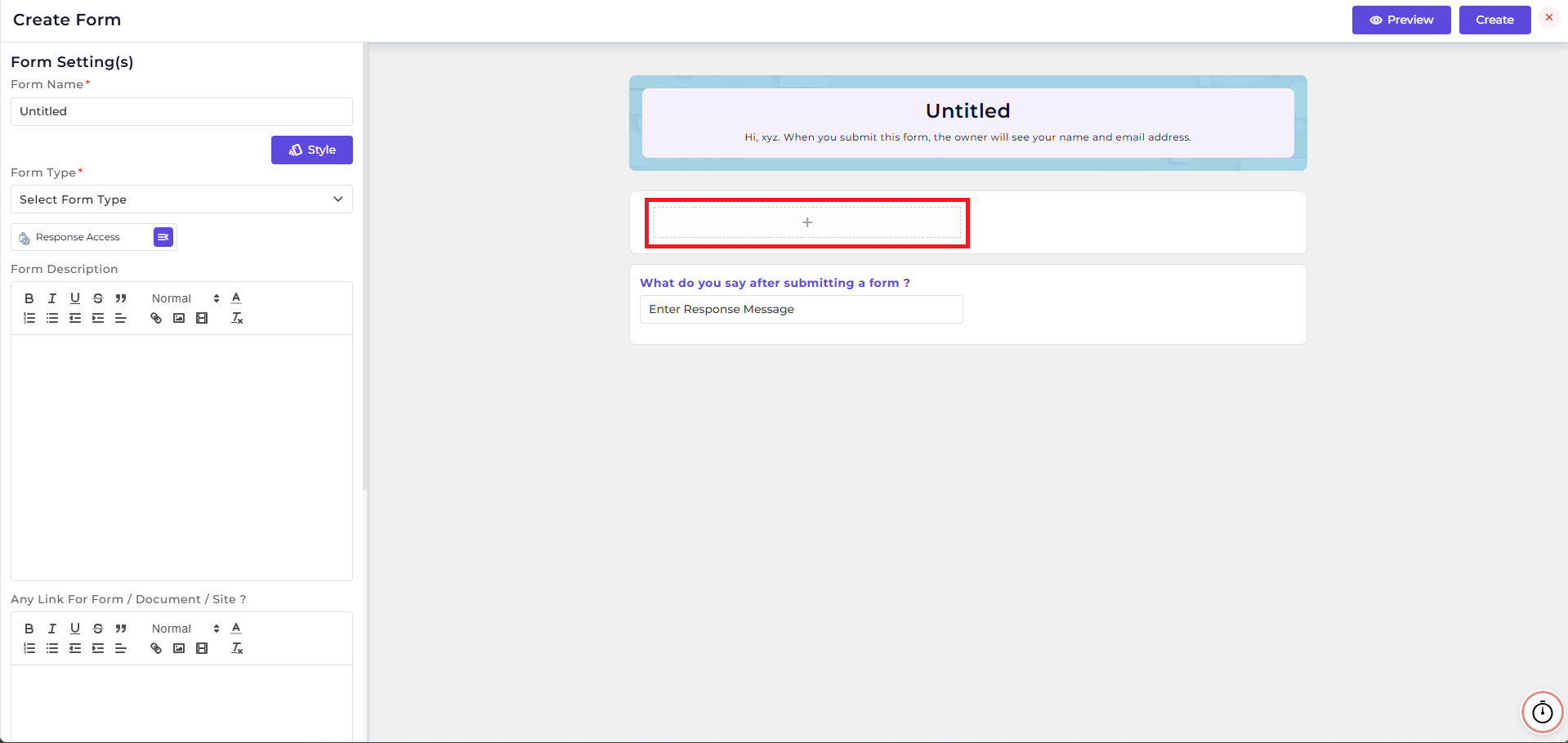
1) Form Name:
Enter a descriptive title for your form. Example: Employee Performance Review
2) Style / Theme:
-
Background Theme: Upload or choose a background image for the form.
-
Theme Color: Select a primary color for the form’s interface.
Example: Use a light blue theme for onboarding forms to keep it professional and friendly.
3) Form Type:
Select the type of form you want to create. Options include:
-
Consultation – For advisory sessions or expert reviews.
-
Background Verification – For collecting and validating employee background information during the onboarding process.
-
Employee Performance Review – For assessing employee performance over a period.
-
Client Feedback – To gather input or feedback from clients.
-
Training – For training evaluations or skill assessment.
-
Survey – For general data collection or employee opinion surveys.
-
Managerial Review – For manager-specific evaluations.
4) Add Fields:
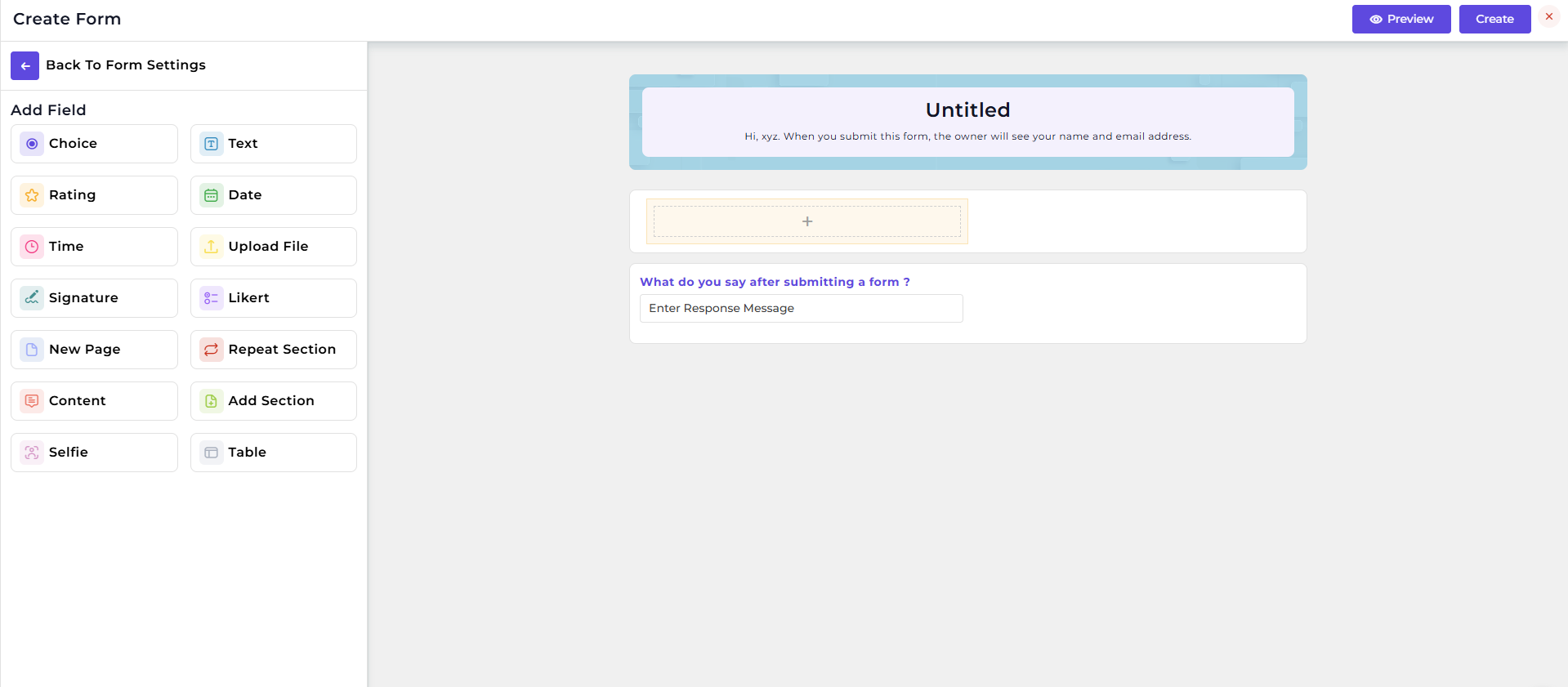
When you click on the "+" icon in the form, a new section will open which will show the Available Field Types.
Available Field Types:
Choice, Text, Rating, Date, Time, Upload File, Signature, Likert, New Page, Repeat Section, Content, Add Section, Selfie, Table
Choice Field Description:
The Choice field allows you to create multiple-choice questions with options that can be set as Radio, Checkbox, or Dropdown types. You can configure a subtitle, provide help text, mark it as required, set layout options, and define the individual choices. This field is useful for questions like “How are you finding the company environment?” with options such as Good / Bad.
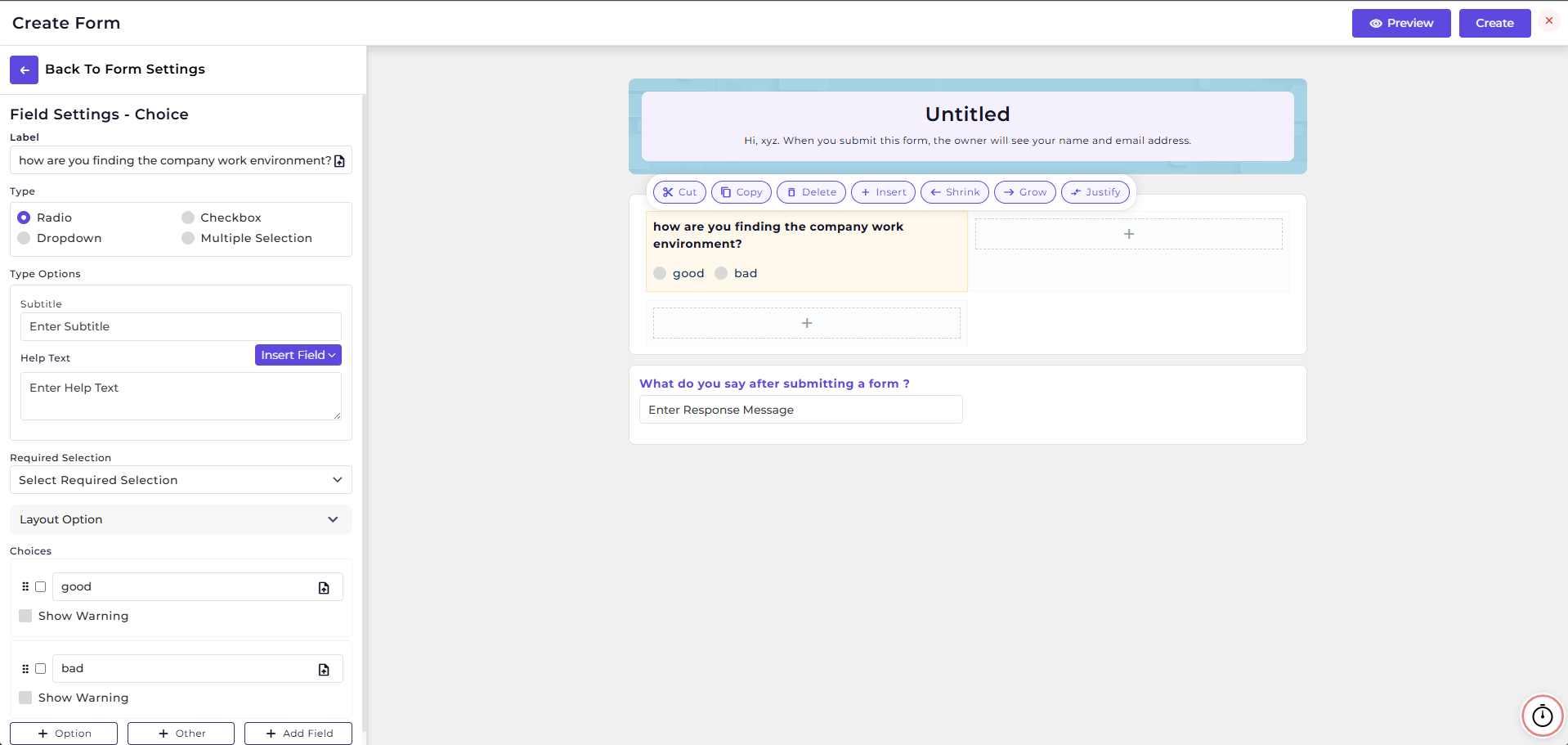
This way, you can create multiple fields in your form.
5) Response Access:
Define who can access form responses:
-
Designation – Restrict access to specific roles. Example: HR Manager.
-
Department – Restrict access to specific departments. Example: HR Department.
-
Person – Restrict access to specific individuals. Example: John Doe.
6) Form Description:
Optionally provide a short explanation of the form’s purpose. Example: This form collects employee performance metrics.
7) Any Link for Form / Document / Site:
Optionally attach any reference links, supporting documents, or external sites relevant to the form.
8) Subtitle:
Add a subtitle or brief note to appear at the top of the pages. Example: Please fill all fields accurately.
9) Set Expiry for Link:
Choose Yes to set a deadline after which the form will no longer be accessible.
10) Save As Draft Button Setting:
Enable Yes if you want users to save incomplete forms and continue later.
11) Page(s):
Add multiple pages if your form requires sections or stepwise inputs.
12) Preview:
Click the Preview button to review the form’s appearance and functionality before publishing.
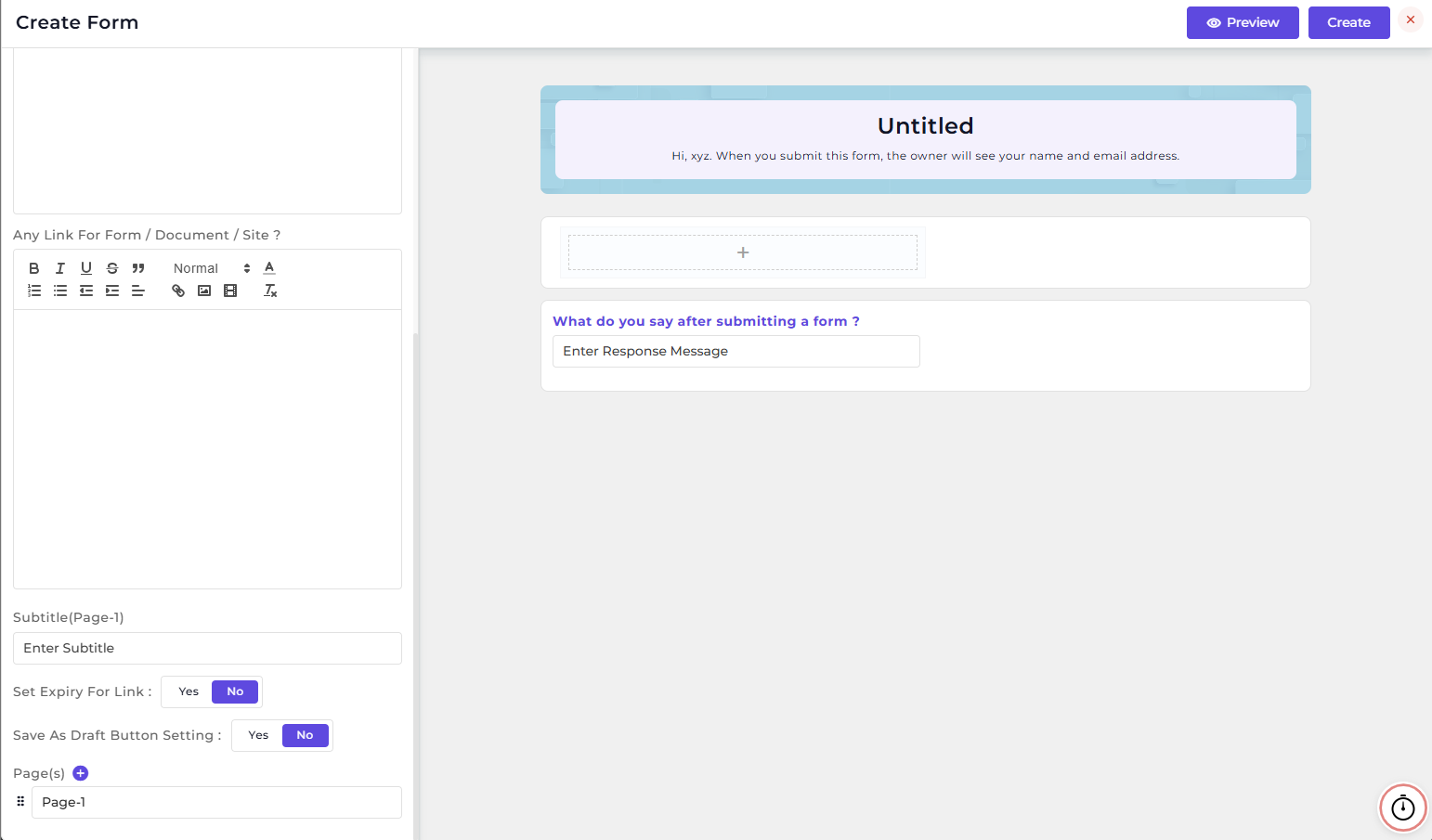
The form builder streamlines data collection for onboarding, training, surveys, performance reviews, and client feedback. This feature is optional, if your company collects feedback, surveys, or performance reviews, you can configure it.