
Interview Procedure Flow
The Interview Flow or Interview Procedure Flow page feature is used to design, manage, and controlcreate the completeSOP/workflow of the interview process. forIt candidates.defines how the interview will be evaluated.
For example, if the organization wants to take a telephonic round first, then an aptitude test, followed by a practical test, they can arrange these stages one after another and create the workflow.
On the left side panel, the organization can:
-
Select the opening
-
Select the interview stages
The created flow can be saved and also copied for another opening. This screen provides a dynamic visual workflow builder where interview stages are arranged in sequence.
DesigningTypes of Interview ProcedureFlow:
There are two ways to create an interview flow:
-
SelectCreate aPosition(e.g.,Common Floworforrole-specificallflow).openings -
ViewCreatealla Separate Flow for each Opening, where that opening will follow its own flow instead of the common flow
If an opening is selected from the left side and no flow is visible, it means the opening is following the common flow.
If a flow is already created for an opening and the organization wants that opening to follow the common flow again, click the Clear button available interviewin the workspace/canvas.
Steps to Create a Flow:
All stages created in the Interview Stage Setup will be visible on this page.
To create a flow, drag and drop the stages into the workspace.
Connecting Stages:
To connect two stages (nodes), connectors are visible on the left panel.and right side of each stage.
Steps:
-
Hover on the connector
-
Left-click and hold
-
Drag
andthearrangeconnectorstages onto thecanvasleft side of the next stage
The interview flow works from left to defineright.
Flow interviewrules:
-
The first node will not have a left connection
-
ConnectThestageslasttonodecreatewill not have alogicalrightinterview progression.connection -
UseAll nodes should beSaveproperly connected and configured
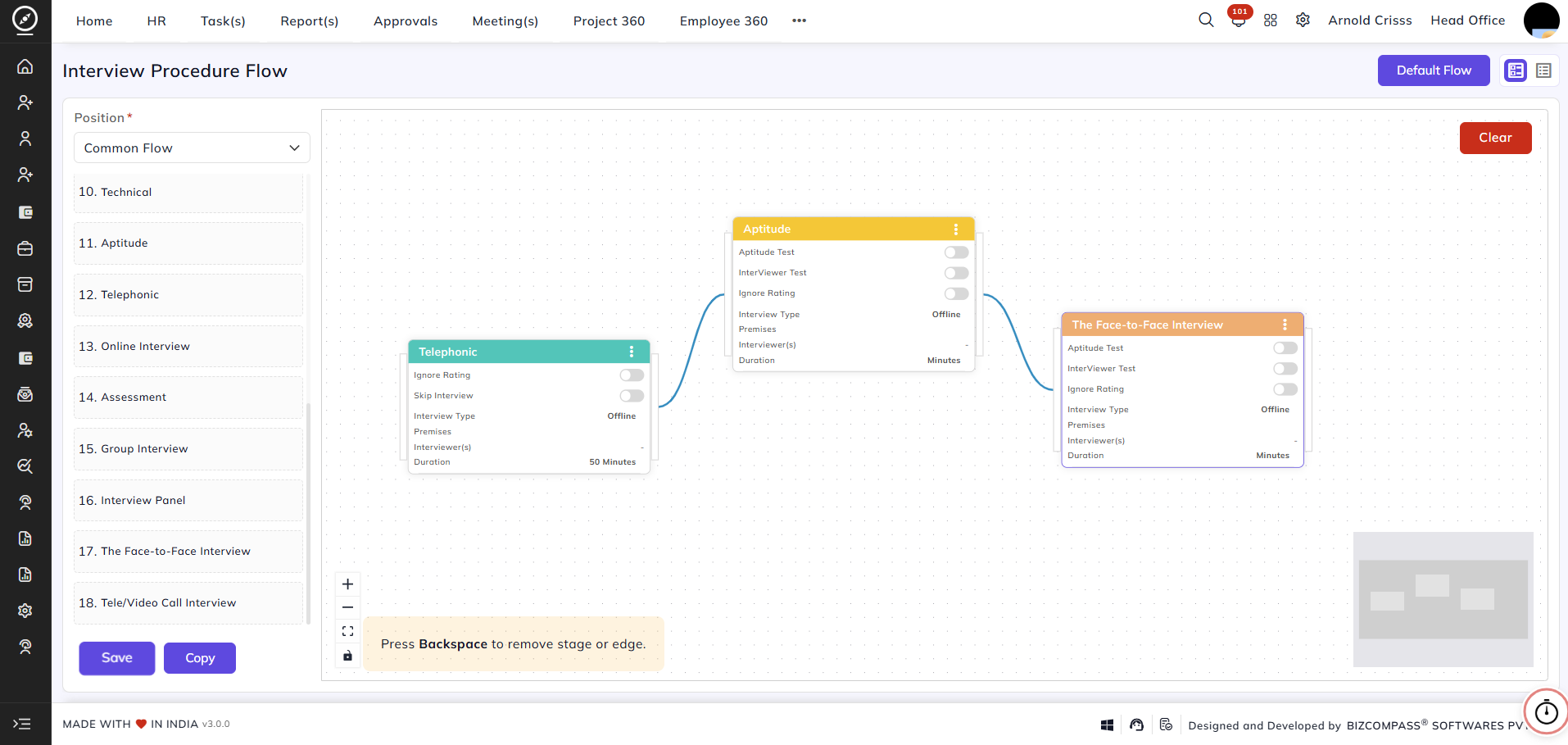
Stage Options in Workspace / Canvas:
After adding a stage to storethe workspace, certain options become visible based on how the flowstage orwas configured.
Note: Only Copythree options are visible based on stage configuration. Other options are common for all stages.
Options based on stage configuration include:
- Skip Interview
- Interview Timer (Timer)
- Aptitude Test
- Ignore rating
Stage Configuration in Workspace / Canvas:
Some options are visible directly on the stage card, while other configurations are available in the three-dot menu.
These configurations apply only to duplicatethe selected stage in the current flow.
To configure an existinginterview flow.stage:
-
Select the Interviewer(s)
-
UseClearto resetSelect thecurrentInterviewflow.Type
Interview Stages:
Interview stages represent individual steps in the hiring process. Examplestypes include:
-
TelephonicOffline – Select the premise -
OnlineTechnical– Online InterviewPracticalHR RoundSalary NegotiationMake Offer
CustomizingSelect the Interviewmeeting Flow:medium
Using the flow builder, recruiters can:
Add or remove interview stagesRearrange stages based on hiring requirementsConnect stages to define candidate movementCreate different flows for different positions if needed(optional)
ThisOnline ensuresmeetings flexibilitycan whilealso maintainingautomatically generate meeting links through Google or Microsoft integration.
Duration:
Define the Duration, which represents the total time allocated to complete that interview stage.
Additional configurations can be applied depending on the organization’s requirements.
When clicked on the three dots of any stage in the Interview Procedure Flow (for example, Telephonic), a standardizedStage Configuration screen opens. This screen is used to define detailed settings for that specific interview structure.stage.
Skip Interview Option:
If the stage can be skipped during the interview process, enable the Skip Interview option.
StageNote: This option allows skipping the stage only during interview scheduling or at the time of the interview.
Ignore Rating:
If the Ignore Rating option is enabled, the interviewer will not be required to provide a rating for that stage's comment. The stage can be completed without assigning any rating.
By connecting and configuring stages sequentially, the complete interview procedure flow can be created. By clicking on the three dots of any stage, it can be configured.
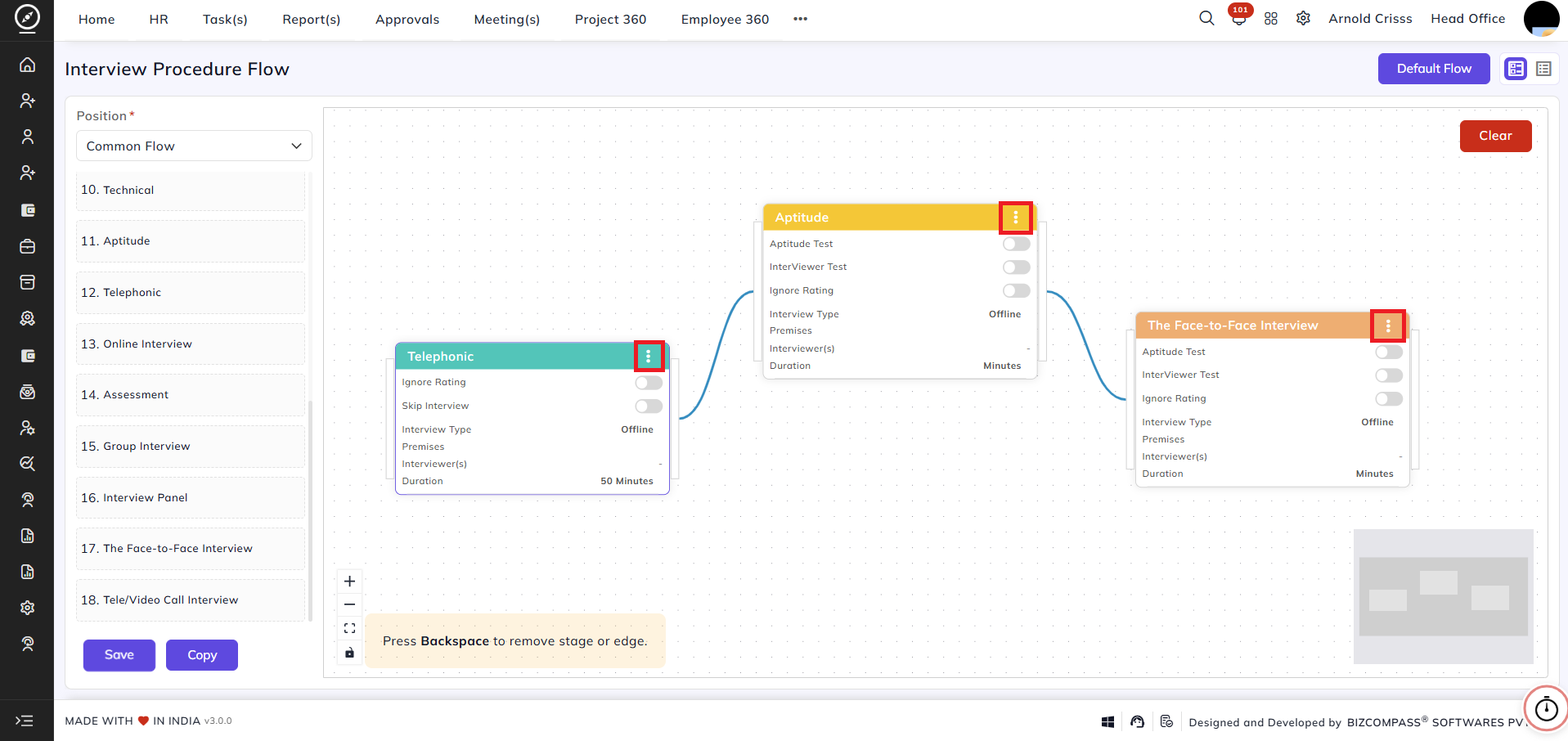
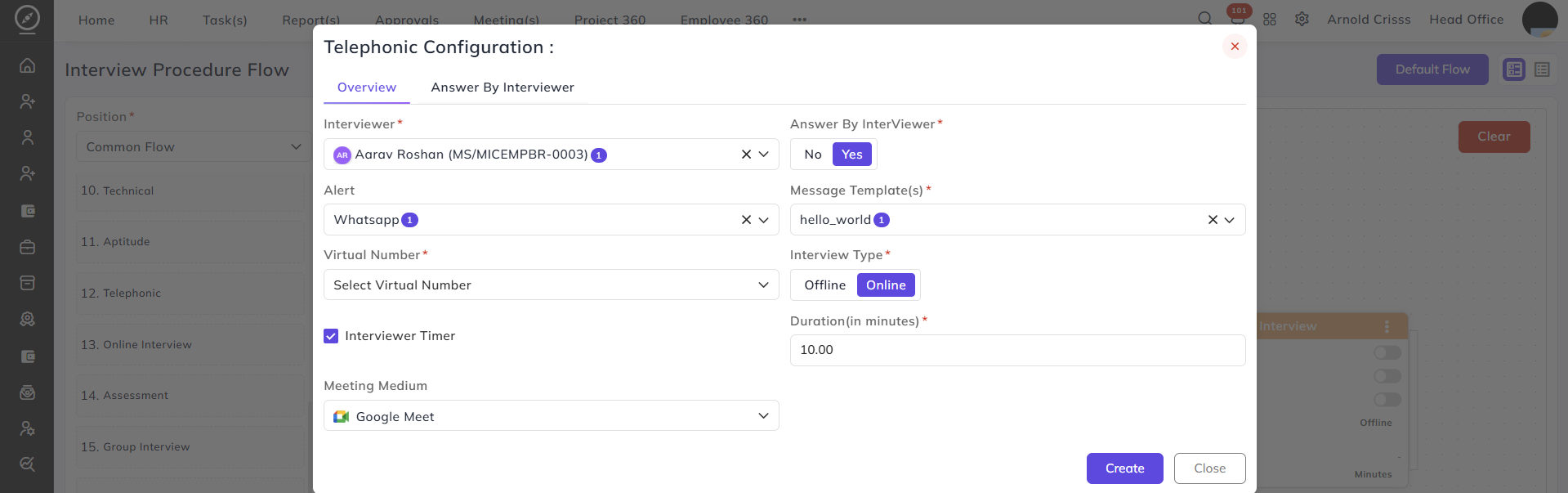
Aptitude Test Configuration:
If you want to configure any stage online, (i.e. Aptitude Test),Test, you first need to integrate your account into a meeting medium like Google Meet or Microsoft Teams for sending meeting link by navigating to the Integration page.
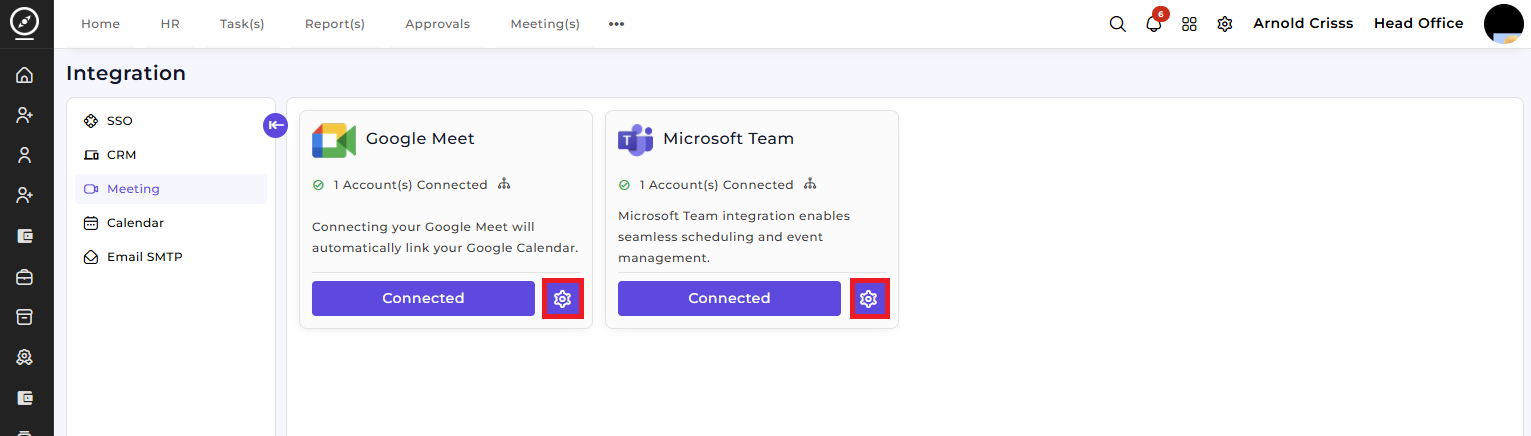
By clicking on the Settings button shown above, you can add another account into a meeting medium.
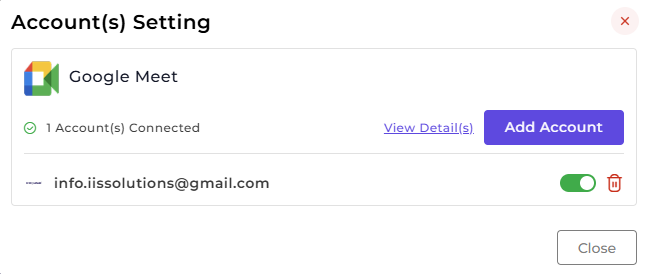
Then you can configure any stage that has to be completed online.
When clicked on the three dots of any stage in the Interview Procedure Flow (for example, Telephonic), a Stage Configuration screen opens. This screen is used to define detailed settings for that specific interview stage.
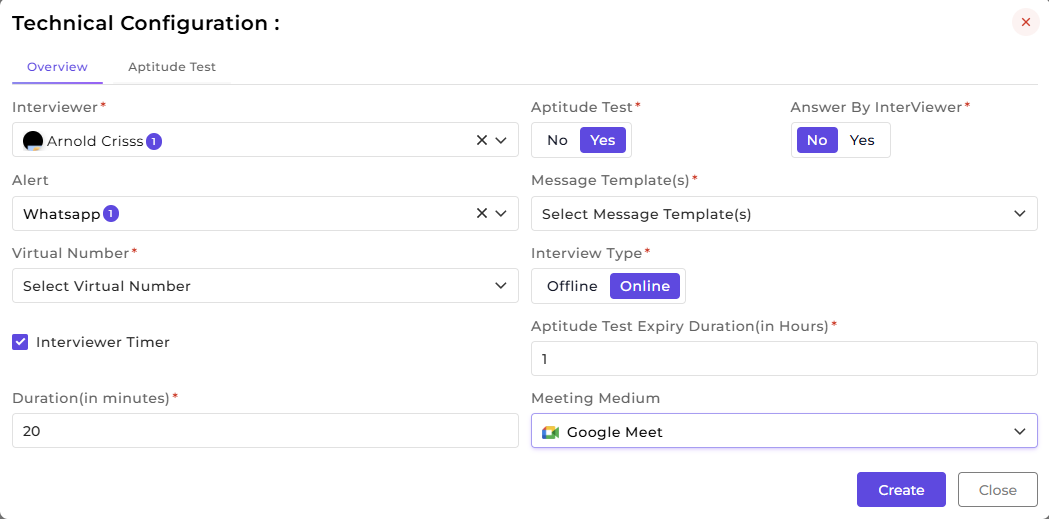
-
Enable the Aptitude Test option
-
Open the three-dot menu
-
Go to the Aptitude tab (next to Overview)
-
Configure the questions
Interview Questionnaire:
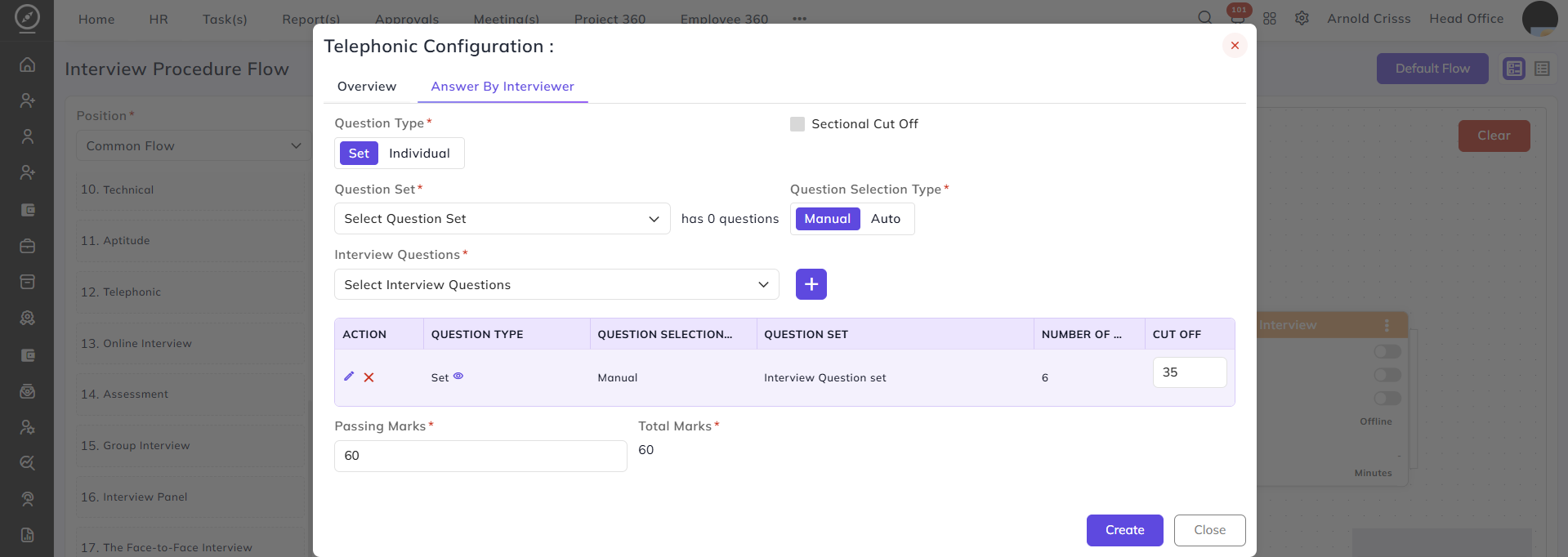
If the organization wants the interviewer to answer mandatory questions during the interview, those questionnaires can be configured here.
ThisTo sectionenable allows configuring all essential details for a selected interview stage.this:
-
Assign one or moreInterviewersfor the stage. Multiple interviewers can be added to ensure availability and provide backup. Enable or disableSelect Answer by InterviewerbasedfromonthehowOverview tab or directly from the stage card
After enabling it, the interviewer will be required to answer the configured questions while conducting the interview should be handled. .
The organization can select entire question sets or individual questions depending on the recruitment requirement.
Selecting Question Sets:
Select the
InterviewQuestionTypeSetasfrom the list created in theOnlineQuestion SetorOffline.page.
ForAfteroffline interviews, chooseselecting theappropriateset, the organization can define aPremisesSectional/CutLocationOfftoifensure clear logistics for both candidates and interviewers.required.
ForQuestiononlineSelectioninterviews,Methods:selectTwo methods are available for selecting questions from a set:
1. Manual Selection:
In Manual Selection, theappropriateorganization canmeetingmanuallymediumchoose specific questions.from the selected set.
Configure2. Auto Selection:
InAlertsAuto Selection,tothenotifyorganizationinterviewers about scheduled interviews.can:
Enable theInterviewer Timerto track and control interview duration.
Define the
InterviewnumberDurationof(in minutes)questions tomaintainbeconsistentselectedtimingautomaticallyacrosscandidates.The system selects questions from the total questions available in the set
Managing Questions in a Set:
Each
question
Ifsetyoucontainsenablean info button (🛈) next to theAnswer By Intervieweroption, you'll be able to configurewordInterview Questions. Referthispreviously made section for configuring the questions.
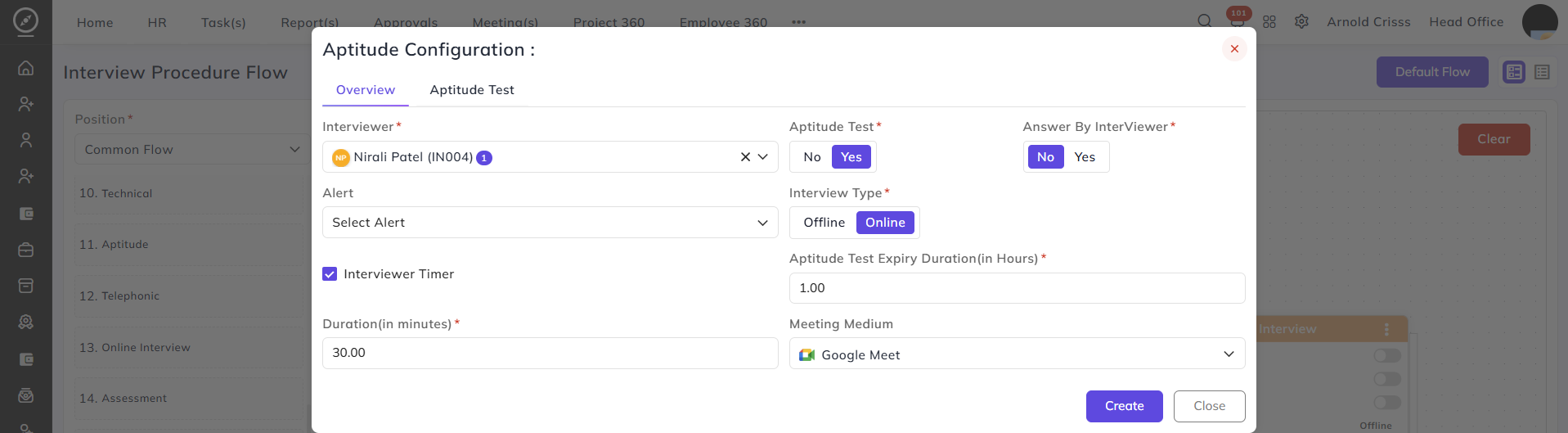
Same way, configure theOverviewsection of theAptitudestage. In this, select theYesSet inAptitudetheTesttable.option.UsingTothis option, the organization can configure the questionsforinside the set.Selecting Question Sets:
For Opening Question Sets, the Info option allows the organization to:
Select or deselect questions
Mark whether a question is required
Interview Question Sets:
For Interview Question Sets, the info option allows the organization to:
Select or deselect questions
Update the time required to answer each question
Modify the passing points if available
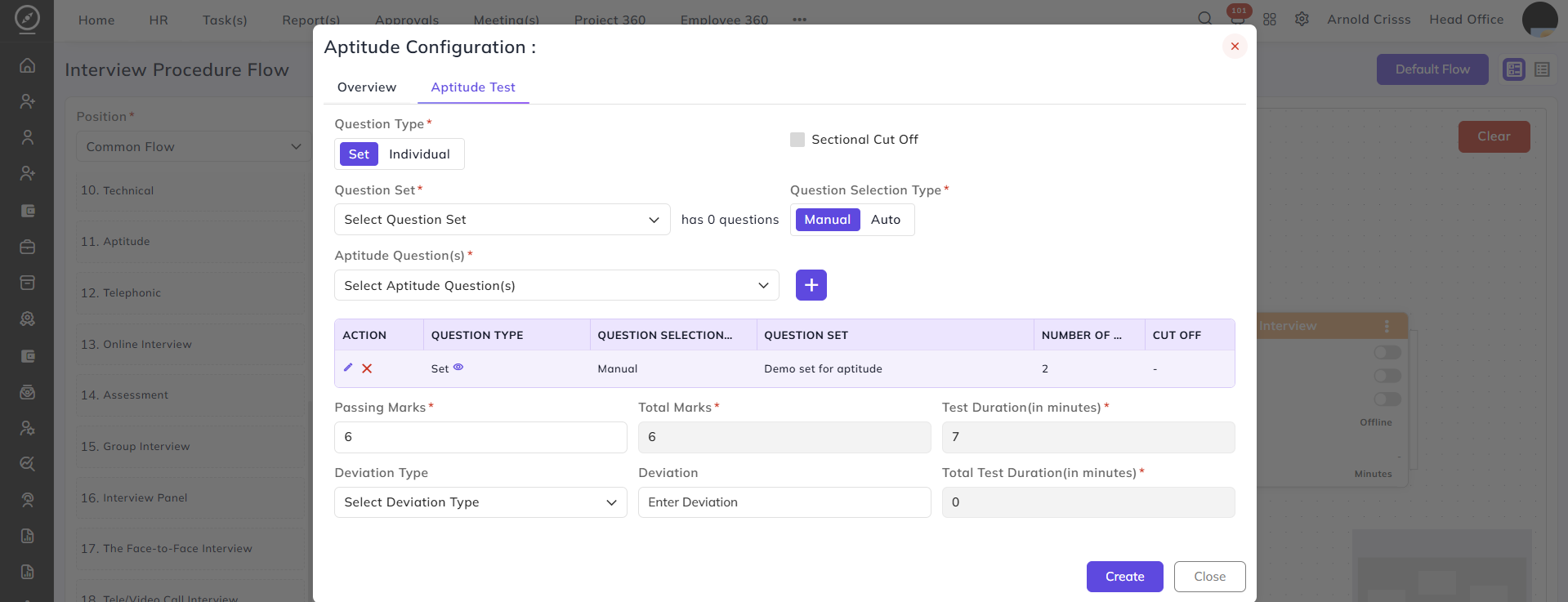
Aptitude
Test,TestreferQuestion Sets:
this.For Aptitude Test Question Sets, the Info option allows the organization to:
Select or deselect questions
Update passing points if applicable
Duplicate Questions:
If two different question sets are selected, and a question appears in both sets, the system shows a warning icon (⚠) next to that question. This helps identify duplicate questions across sets.
Passing Marks and Deviation:
Below the question table, there are fields to configure- Deviation and Total Passing Marks.
Deviation Type:
Deviation defines extra time allowed during the test.Two types are available:
1. Fixed Deviation: A fixed number of extra minutes is added to the total test time.
2. Percentage-Based Deviation: Extra time is calculated as a percentage of the total time of all selected questions and question sets.Passing Marks:
If the Question Selection Type is Manual, the organization can define the total passing marks required to clear the test. This determines whether the candidate has successfully passed the opening screening stage.
Note:
Changes made to the interview flow do not affect already created applications.
If the organization wants to run an application based on the newly updated flow, they must either:
Re-approach the candidate, or
End the current follow-up and create a new application.
Similarly, configure all the Face-to-Face Interview stage.stages. Make sure to click on the Save button after designing and configuring the Interview Procedure Flow.
The Interview Procedure Flow ensures a structured and efficient interview process. This ensures that the entire interview process remains organized, scalable, and aligned with recruitment goals.
==========================
Interview Flow / Interview Procedure Flow
The Interview Flow or Interview Procedure Flow page is used to create the SOP/workflow of the interview process. It defines how the interview will be evaluated.
For example, if the organization wants to take a telephonic round first, then an aptitude test, followed by a practical test, they can arrange these stages one after another and create the workflow.
On the left side panel, the organization can:
Select theopeningSelect theinterview stages
The created flow can be saved and also copied for another opening.
Types of Interview Flow
There are two ways to create an interview flow:
Create aCommon Flowfor all openingsCreate aSeparate Flow for each Opening, where that opening will follow its own flow instead of the common flow
If an opening is selected from the left side and no flow is visible, it means the opening is following the common flow.
If a flow is already created for an opening and the organization wants that opening to follow the common flow again, click the Clear button available in the workspace/canvas.
Steps to Create a Flow
All stages created in the Interview Stage Setup will be visible on this page.
To create a flow, drag and drop the stages into the workspace.
Connecting Stages
To connect two stages (nodes), connectors are visible on the left and right side of each stage.
Steps:
Hover on the connectorLeft-click and holdDrag the connector to theleft side of the next stage
The interview flow works from left to right.
Flow rules:
Thefirst nodewill not have aleft connectionThelast nodewill not have aright connectionAll nodes should beproperly connected and configured
Stage Options in Workspace / Canvas
After adding a stage to the workspace, certain options become visible based on how the stage was configured.
Note: Only three options are visible based on stage configuration. Other options are common for all stages.
Options based on stage configuration include:
Skip InterviewInterview Timer (Timer)Aptitude TestIgnore rating
Stage Configuration in Workspace / Canvas
Some options are visible directly on the stage card, while other configurations are available in the three-dot menu.
These configurations apply only to the selected stage in the current flow.
To configure an interview stage:
Select theInterviewer(s)Select theInterview Type
Interview types include:
Offline– Select thepremiseOnline– Select themeeting medium(optional)
Online meetings can also automatically generate meeting links through Google or Microsoft integration.
Duration
Define the Duration, which represents the total time allocated to complete that interview stage.
Additional configurations can be applied depending on the organization’s requirements.
Aptitude Test Configuration
If the stage should include an aptitude test:
Enable theAptitude Test optionOpen thethree-dot menuGo to theAptitude tab(next to Overview)Configure thequestions
Interview Questionnaire
If the organization wants the interviewer to answer mandatory questions during the interview, those questionnaires can be configured here.
To enable this:
SelectAnswer by Interviewerfrom theOverview tabor directly from thestage card
After enabling it, the interviewer will be required to answer the configured questions while conducting the interview.
###ADD QUESTION CONFIGURATION FROM OPENING###
Skip Interview Option
If the stage can be skipped during the interview process, enable the Skip Interview option.
Note: This option allows skipping the stage only during interview scheduling or at the time of the interview.
Ignore Rating
If the Ignore Rating option is enabled, the interviewer will not be required to provide a rating for that stage's comment. The stage can be completed without assigning any rating.
By connecting and configuring stages sequentially, the complete interview procedure flow can be created.
Note:Changes made to the interview flow do not affect already created applications.If the organization wants to run an application based on the newly updated flow, they must either: Re-approach the candidate, or End the current follow-up and create a new application.